How to Recover Deleted Files from an SD Card on Mac

Avatar photo
Written by
1791

sd card recovery macAccidentally deleted something from your SD card? You’ll be glad to know that in most cases, the files aren’t gone for good. The sooner you act, the better your chances of getting everything back. Today, we’ll show you how to recover deleted data from an SD card on a Mac, step by step, and what actually works in real-world situations.

Quick Overview

  • In most real-world Mac SD card recovery cases, SD data recovery software does the heavy lifting. You connect the SD card to your Mac, launch the tool, run a scan, preview what it finds, and recover the files to a different location on your Mac. That’s it.
  • If the files were simply deleted (even permanently), recovery is often straightforward.
  • If the card was quick formatted using the default option, there’s still a strong chance to recover deleted files, since quick format usually removes file references, not the actual data.
  • If the card was fully formatted, recovery becomes unlikely. Once sectors are rewritten, the old data is gone.
  • A corrupted SD card, surprisingly, is often recoverable too. When the file system is damaged but the raw data is still intact, software can scan past the broken structure and rebuild files directly from the card.
  • And don’t forget the simple stuff. If you deleted files while the card was connected to your Mac, check Trash first. We’ve seen it save entire shoots.

That’s the gist. Now let’s break down how to restore deleted data from the SD card step by step.

How to Recover Deleted Files from an SD Card on Mac

We’ll begin with SD recovery software since, in most cases, that’s what actually gets the files back.

We’ll show you a couple of tools that can help, each has its merits, so let’s start with the simplest one.

Method 1: Recover Deleted Files from SD Card on Mac with Disk Drill

Disk Drill is one of the easiest SD recovery Mac tools to use, and it handles SD cards properly. It supports the file systems you’ll usually see on memory cards (exFAT, FAT32, even older variants), so whether the card came from a DSLR, Android devices, or GoPro, it reads it without issues.

It also packs features that improve recovery chances without making things complicated. It supports close to 400 file types, has an Advanced Camera Recovery module for fragmented video files, offers byte-to-byte disk imaging for unstable cards, and includes a strong preview feature so you can check files before restoring them.

To recover your data from an SD card using Disk Drill, follow the steps below:

  1. First, download Disk Drill for Mac from the official website.
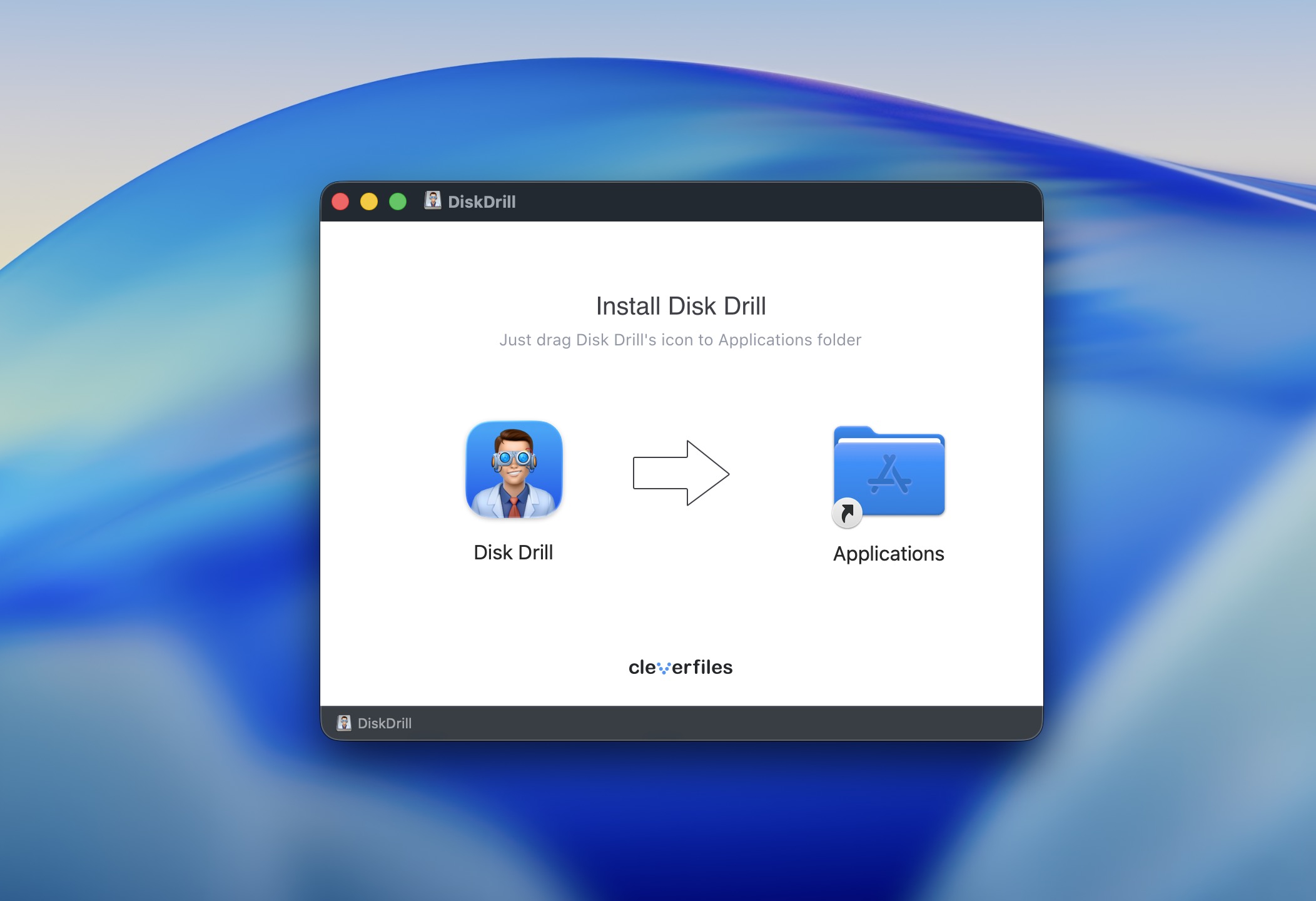
  2. Next, open diskdrill.dmg from your Downloads folder.
  3. Then, drag the Disk Drill icon to the Applications folder.Install Disk Drill
  4. Open Disk Drill from the Applications folder. If this is your first time opening the app, there will be a prompt asking you if you are sure you want to open Disk Drill. Click Open.
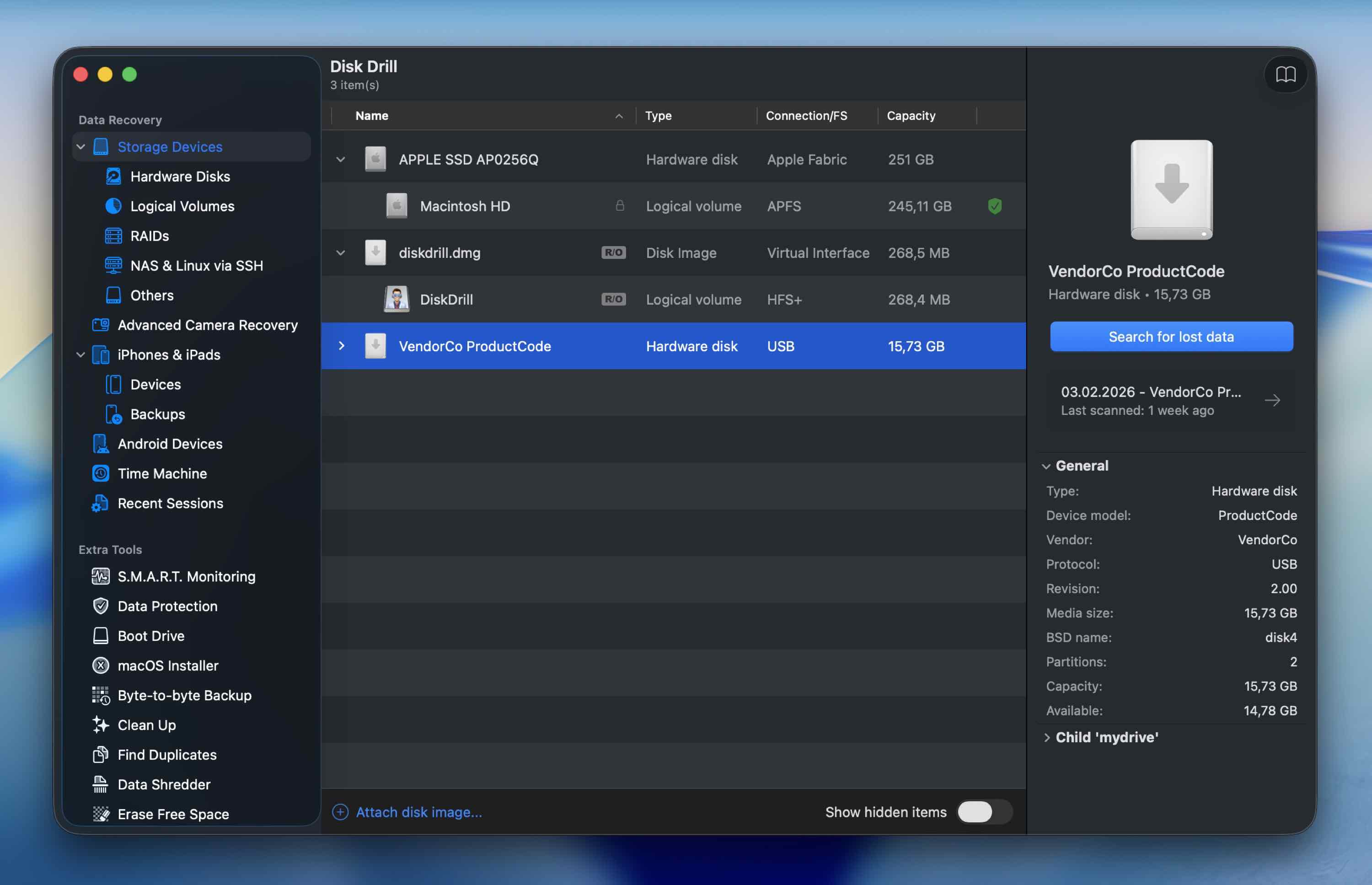
  5. Disk Drill will now be launched.Click Search for lost data All the available drives for scanning will be displayed on the Disk Drill homepage, so make sure that your SD card is plugged into your Mac for it to be detected.
  6. Click on the SD card that you want to scan for lost data, and click Search for lost data.
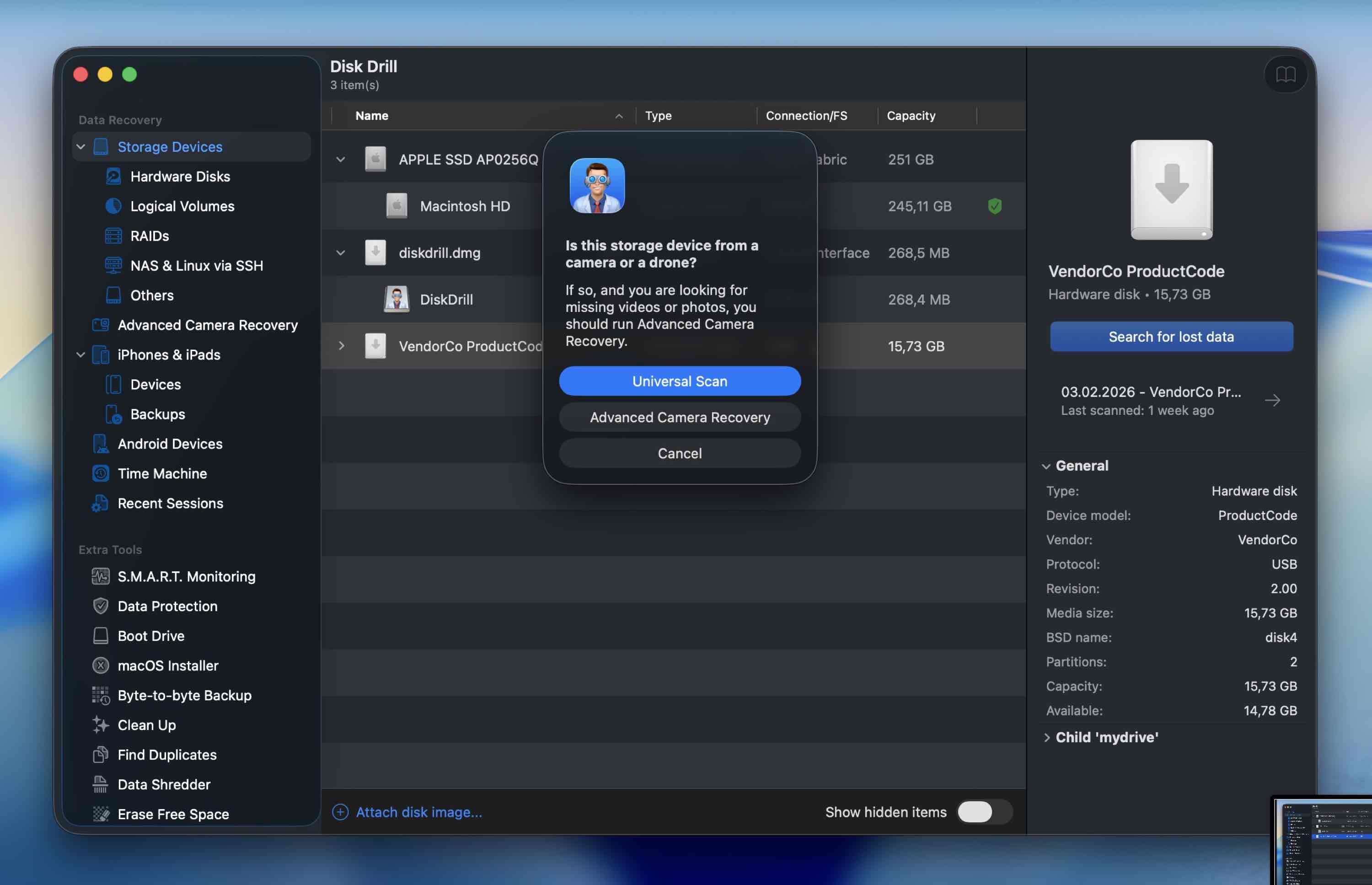
  7. After that, choose a scan mode. Universal ScanIn most cases, Universal Scan works perfectly. If you’re dealing with video footage from a camera or drone, we recommend starting with Advanced Camera Recovery. (You can always run another scan later using a different mode if needed.)
  8. Wait for the scan to finish.(You can start browsing results immediately as files begin appearing, but we usually recommend letting the scan complete for the most accurate picture.) This will probably take a while depending on the size of the drive being scanned.
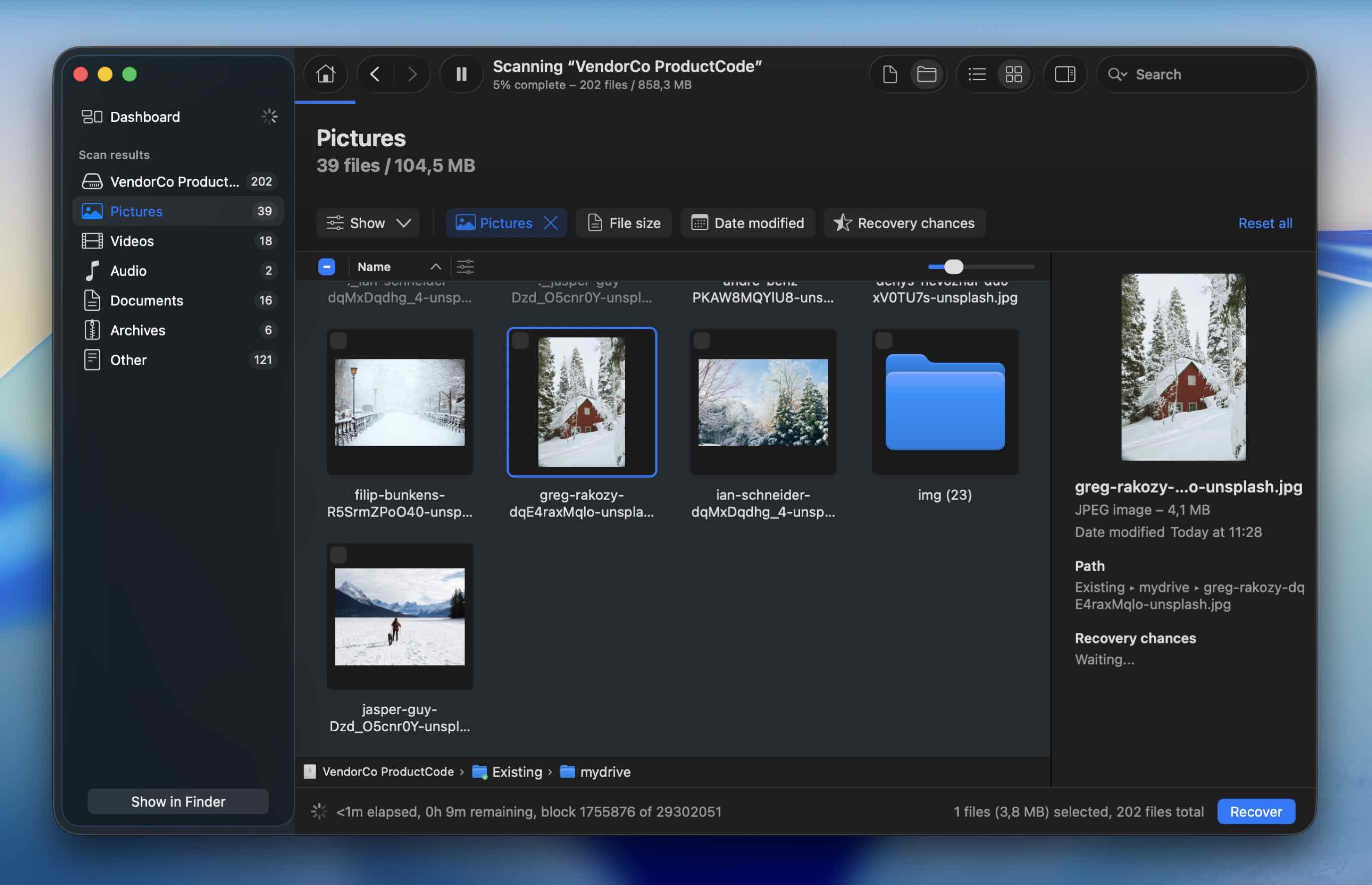
  9. When the scan is over, Disk Drill will show the items that you can retrieve. They will be separated according to file type.
  10. Suppose you are looking to recover photos from your SD card.Pictures category Click the Pictures category. There will be subfolders. Filter them by file size, date modified, or directly search for the file name.
  11. Once you’ve found the file, click on it to see a preview of the image.  If the preview loads correctly, that’s one of the clearest indicators the file is intact and should recover without issues. (You’ll also see a recovery chance indicator next to each file.)
  12. Finally, click the Recover button located on the lower-right part of the screen. If you’re using the free version, you’ll need a license to save the recovered files. Scanning/previewing, however, are unlimited, so you can confirm whether your files are still there before deciding to upgrade.Choose a destination
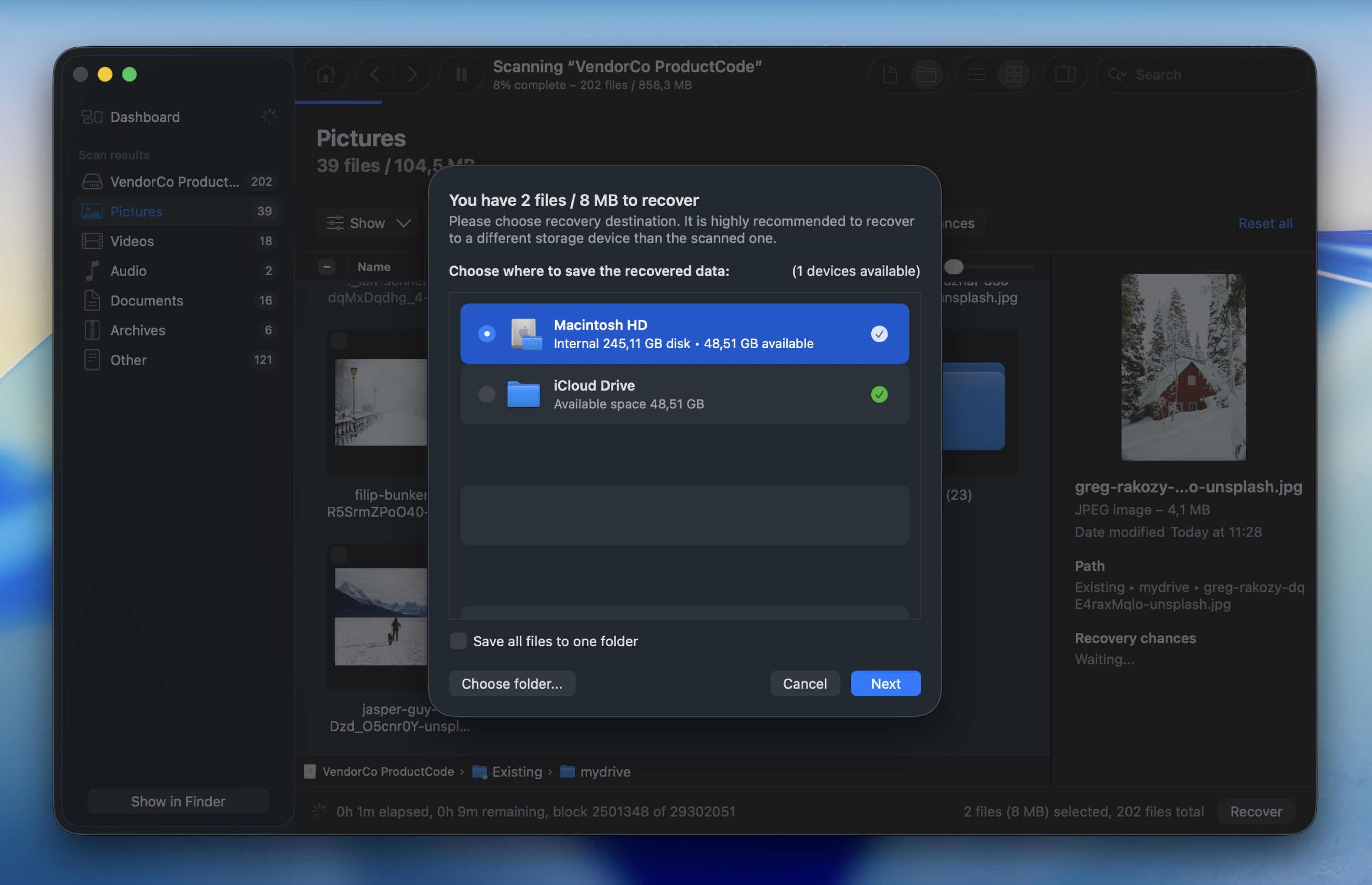
  13. Choose a new destination for the file that you want to recover. Select any location – just not the same SD card. (Recovering back to the SD card is never advisable because it can overwrite other data that may still be recoverable.)
  14. A message will show up on your screen to confirm that the file has been recovered.

Method 2: Recover Data From Your SD Card with PhotoRec

Another tool that can help you recover deleted files from an SD card is PhotoRec. It’s an entirely free, open-source data recovery software that does an excellent job of restoring deleted images, videos, and other files.

That said, it’s not the most beginner-friendly tool. The interface is text-based, and you navigate it using your keyboard. It also relies on signature-based scanning (file carving). Because of that, it usually can’t restore original file names or folder hierarchy. Recovered files often come back with generic names, and you’ll need to sort them manually afterward.

Follow these steps to recover the deleted files from your SD card using PhotoRec:

  1. Download PhotoRec on your Mac (you’ll have to download both TestDisk&PhotoRec since these utilities come together).
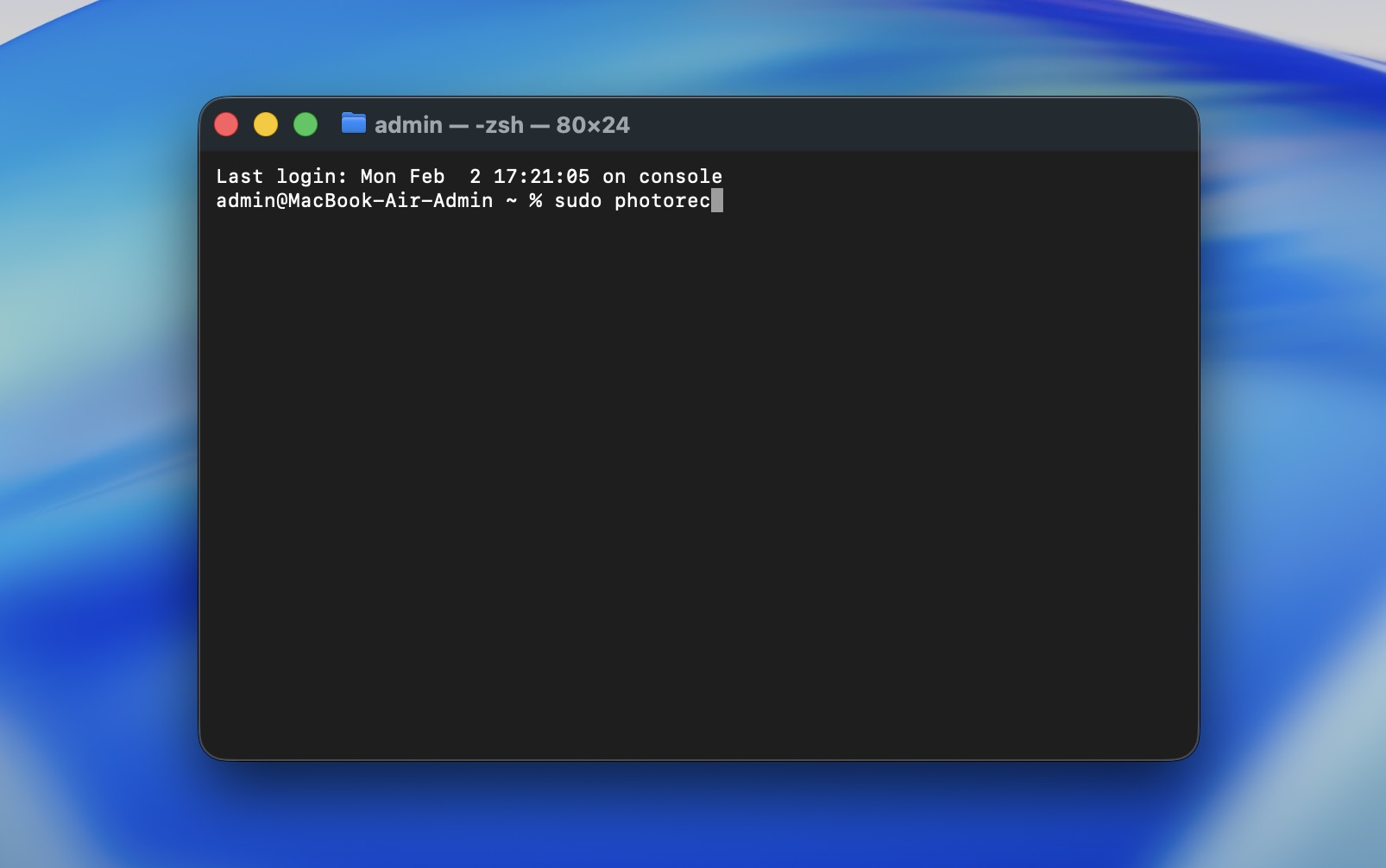
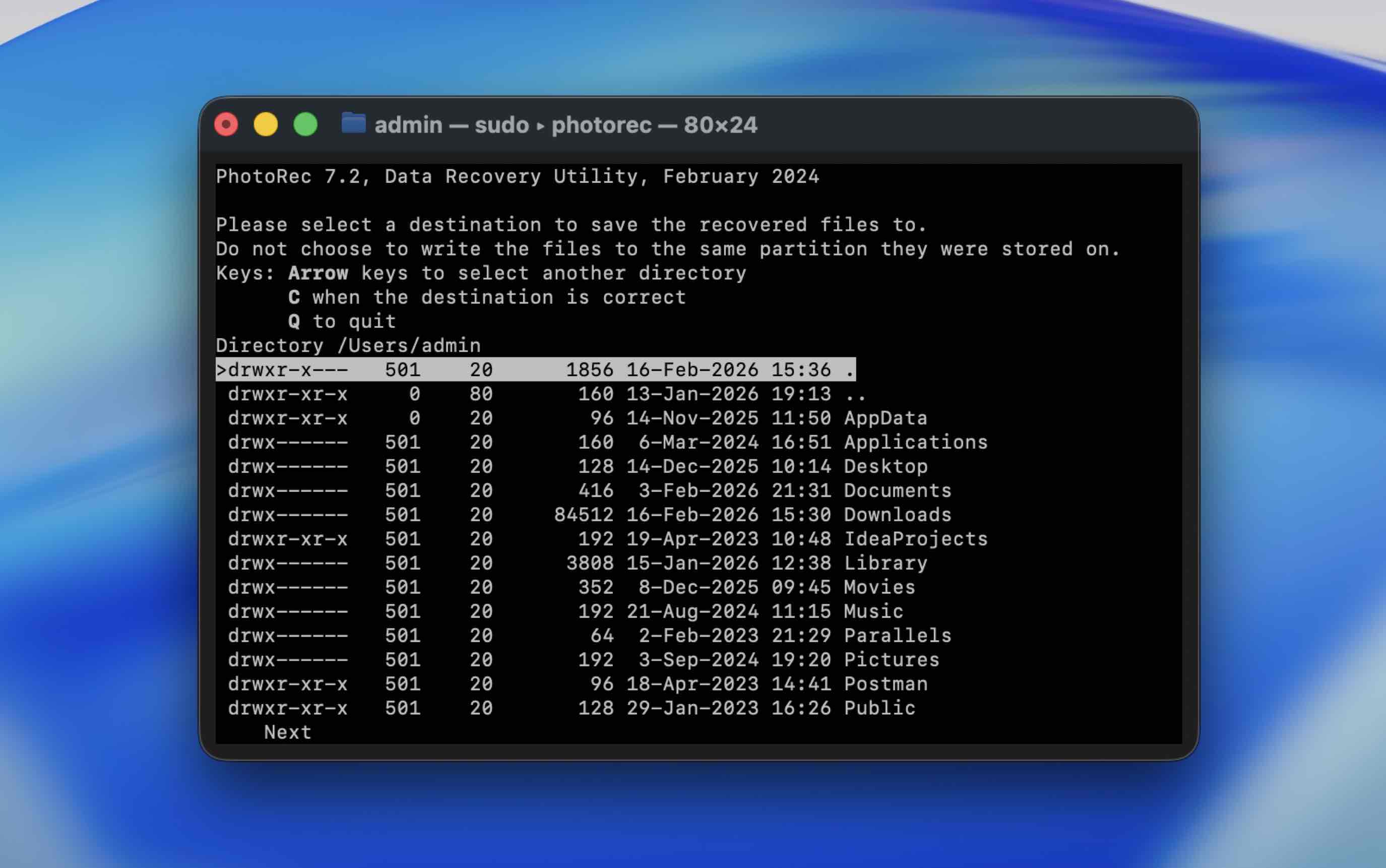
  2. To install the utility, launch Terminal (go to Launchpad > Terminal) and copy-paste the following command: sudo photorec.Run PhotoRec
  3. Hit Return and enter your admin password if needed.
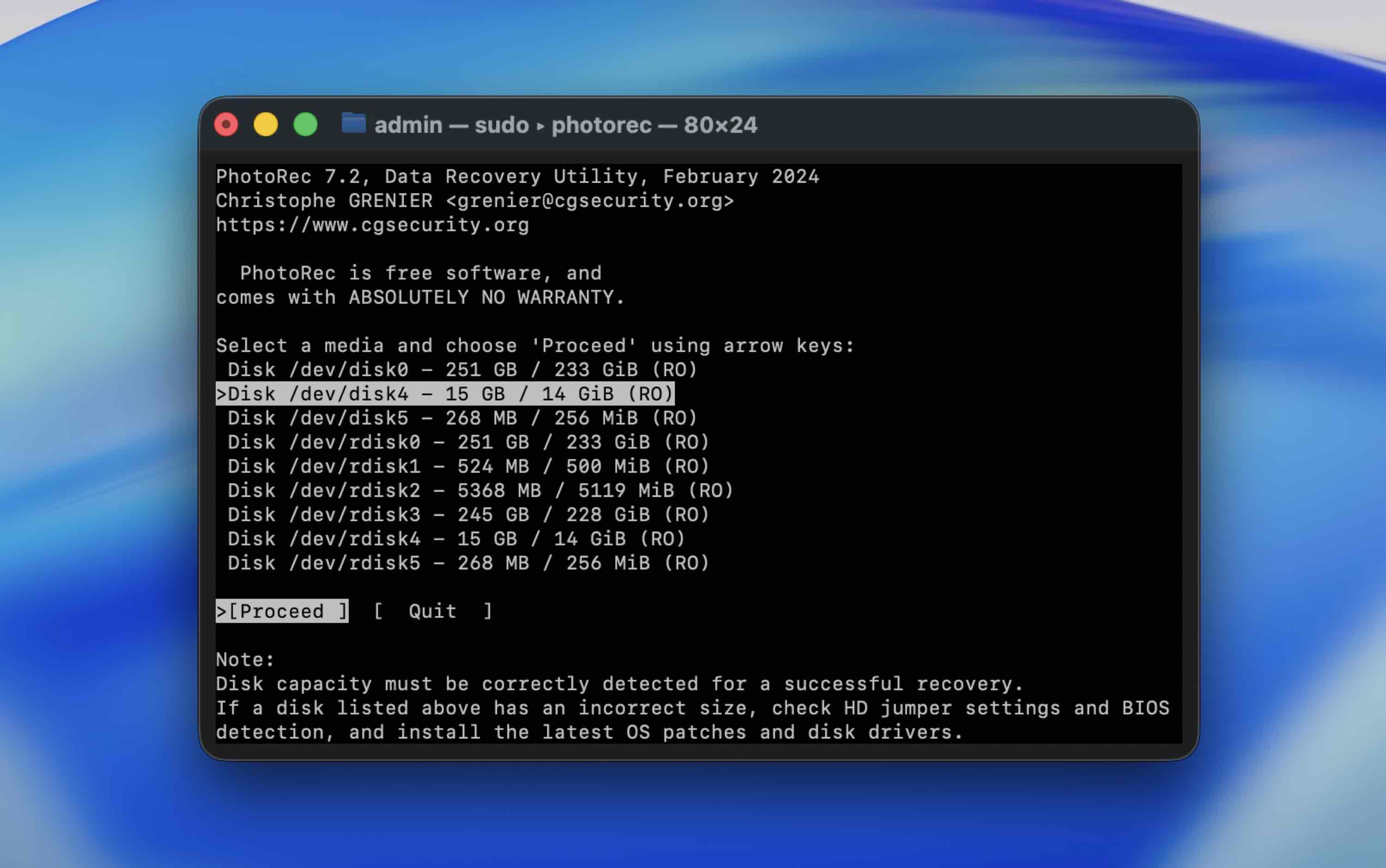
  4. Choose your SD card from the list of devices by using the arrow keys and hit Return to confirm your choice.
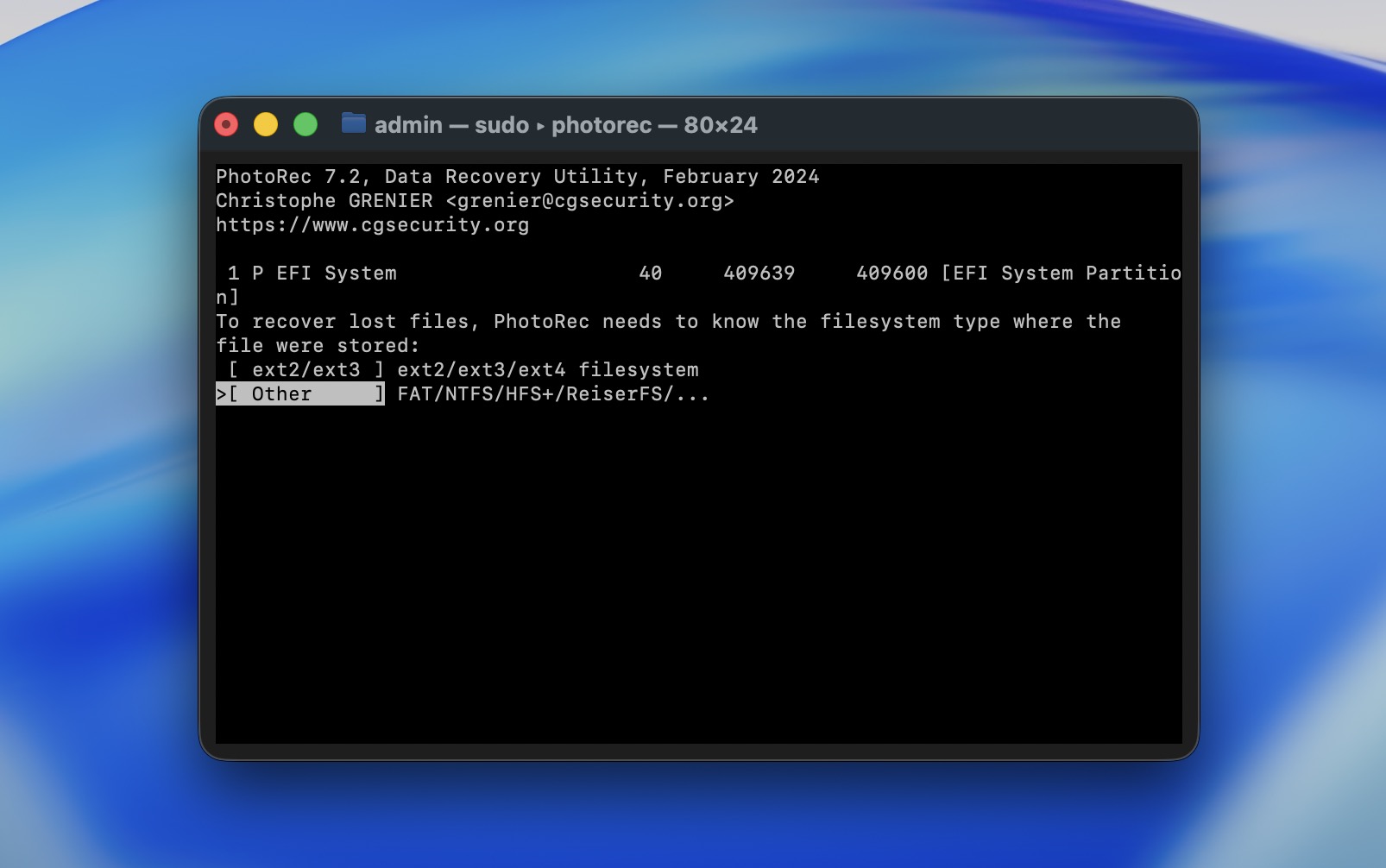
  5. Select the SD card partition with your data and hit Return to start the search. Make sure that you’ve selected Other and hit the Return key.
  6. Select the destination for the recovered data (make sure it’s not the same SD card) and hit C on your keyboard to confirm.

Once the utility finishes the recovery process, quit Terminal and go to the previously chosen destination to find the folder with recovered data.

Can I Restore Deleted Data from an SD Card Using My Mac’s Trash?

Yes, this is another way to recover files, but it only works in specific situations.

It’s useful if you deleted the files while the SD card was connected to your Mac and you haven’t emptied the Trash yet. In that case, macOS moves them to the Trash folder associated with that external volume.

Follow these steps to recover the deleted files from your SD card in Trash on your Mac:

  1. Connect the SD card to your Mac.
  2. Launch Trash (click the last icon on your Dock).Launch Trash
  3. Scroll through the files located there to find the one you need.
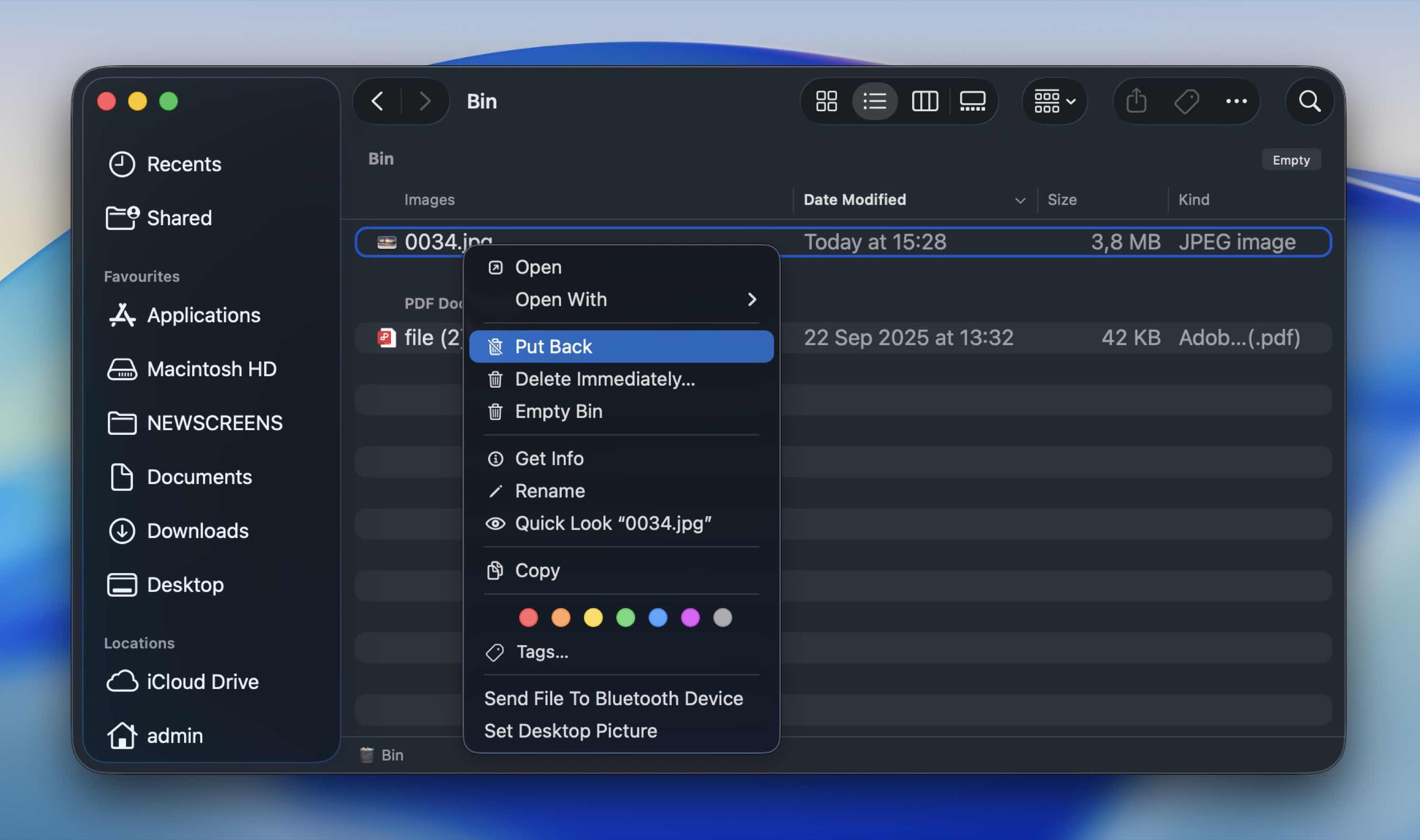
  4. Drag and drop the file to a different folder, or right-click it and choose Put Back from the drop-down menu to return it back to its original location.Select Put Back

FAQ

In real-world cases, we tend to see the same handful of causes over and over:
  • The first and most common problem is accidental deletion. This one leads the list every time.
  • Next on the list we have formatting (intentional or accidental). A quick format typically removes file references, not the actual data, which is why recovery is often possible.
  • Another common issue is improper ejection. As you’ve probably guessed, pulling the SD card out during a file transfer or without safely ejecting it can corrupt the file system.
  • Then there’s file system corruption. Power loss, device crashes, or firmware glitches can damage the card’s structure.
  • Physical damage or wear over time is another factor. SD cards have a limited number of write cycles. Over time, memory cells degrade. Exposure to heat, moisture, or rough handling can accelerate this process.
  • Virus or malware infection. If the card connects to an infected computer, malware can hide, encrypt, or damage files. Sometimes the files aren’t deleted at all - they’re simply hidden.
  • Finally, using the same card across multiple devices can contribute to issues. Switching between cameras, drones, phones, and computers can increase the risk of structural inconsistencies, especially if devices handle formatting differently. It doesn’t always cause problems, but we see it often in real recovery cases.
In many cases, it is. If you’re trying to recover deleted files from an SD card on a Mac for free, you have a couple of options.
  • First, check your Mac’s Trash if the files were deleted while the card was connected. That costs nothing and takes a minute.
  • For deeper recovery, free tools like PhotoRec can scan the card and restore files without charging you.
  • Some paid tools (Disk Drill or UFS Explorer) also allow unlimited scanning and previewing, so you can confirm your files are still there before deciding whether to purchase a license.
Keep in mind, though, that free solutions often come with trade-offs.
To delete files from an SD card on Mac, simply right click the file that you want to delete and click “Move To Trash”. You can also drag files directly to the Trash, or even select the item and press Command + Delete.
The most effective way to recover deleted photos from an SD card on a Mac is with the help of specialized data recovery software. Here’s what you should do:
  1. Connect the SD card to your Mac.
  2. Install and launch a data recovery app that supports sd card recovery for Mac.
  3. Select the SD card from the list of available drives.
  4. Run a full scan.
  5. Once the scan completes, preview the photos to confirm they open correctly (if possible).
  6. Finally, recover the selected files to your Mac’s internal drive or another external disk. Never restore them back to the same SD card.
Yes, it’s possible to recover deleted data from a formatted SD card on a Mac only in case of quick formatting. For best results, use data recovery software like Disk Drill or PhotoRec to restore the deleted files.
Only if the files were synced or backed up before they were deleted. If you imported photos or videos from your SD card to your Mac and had iCloud, Google Drive, Dropbox, or another cloud service enabled, there’s a chance the files were uploaded automatically. In that case, check the cloud service’s Trash or Recently Deleted section. Most platforms keep deleted files for 15-30 days. If the files never left the SD card and were never synced anywhere (or the deletion was already mirrored to the cloud), the cloud won’t help. At that point, you’ll need proper SD card recovery Mac software to scan the card itself.
You can’t make an SD card invincible, but you can lower the risk quite a bit with a few simple habits:
  • Always eject the card properly (as basic as it sounds, this prevents a lot of corruption cases).
  • Don’t interrupt read/write activity. If your camera is still writing photos or your Mac is copying files, wait.
  • Back up your files regularly. As you’ve probably realized by now, recovery is never guaranteed. Copy important files to your Mac, an external drive, or cloud storage as soon as possible.
  • Avoid using the same card everywhere (switching constantly between different cameras, drones, and computers increases the chance of structural inconsistencies). If possible, dedicate cards to specific devices.
  • Format the card inside the device you use it with. If it’s a camera card, format it in the camera. This keeps the file system “aligned” with how the device expects it to behave.
  • Protect it from physical damage: keep SD cards away from heat, moisture, and bending. Store them in a protective case.
Avatar photo
Romana Levko is a professional content writer with a strong interest in tech-related topics. Her main focus is on data recovery, Apple products, and cybersecurity. She spends her free time tinkering with her Mac and burning through her favorite music albums.
Approved by
12 years experience in software development, database administration and hardware repair.
0 COMMENTS
This field is required
We respect your privacy; your email address will not be published.

We respect your privacy; your email address will not be published.

You have entered an incorrect email address!
This field is required