In just one moment, access to your files is revoked, and Windows refuses to open the drive. Any attempt to open the drive or shortcuts to your files will not work, leaving you unsure if your data is still there at all.
In the vast majority of cases, your data is actually fine, albeit inaccessible due to a damaged file system or some sort of logical error. With the right software, you can recover the lost files and then restore your hard drive to working condition.
Going about hard drive recovery and repair the wrong way will cause more issues and maybe even lead to some data becoming unrecoverable. We’ve created this full guide on recovering data from a corrupted hard drive, along with some ways to get the drive working again.
What to Do If a Hard Drive Becomes Corrupted
There are two or three critical actions you must take when you find your hard disk corrupted:
- Stop using it (and preferably unplug it safely).
- Create a byte-to-byte backup image if it’s unstable.
- Recover data from the drive or backup image.
The reason why you should stop using the drive is that your data isn’t actually gone, it’s just in a vulnerable state. For example, if you need to recover data from an internal hard drive, refrain from using it until you’re ready to perform recovery to reduce the chances of your data being overwritten and becoming unrecoverable.
How to Get Data From a Corrupted Hard Drive
Before you attempt to repair a corrupted hard drive, you should look at recovering the data from it first to avoid losing it in the process.
The method you use to get data from your corrupted hard drive will depend on your situation.
Scenario 1: The Drive Is Visible and Reading the Correct Size
As long as your hard drive is visible in Disk Management and showing the correct size, there’s a good chance you’ll be able to recover your data with few issues. To do this safely, we’ll be using Disk Drill Data Recovery to create a disk image of the corrupted hard drive, eliminating the risks involved with performing data recovery on the live drive.
- Download and install Disk Drill.
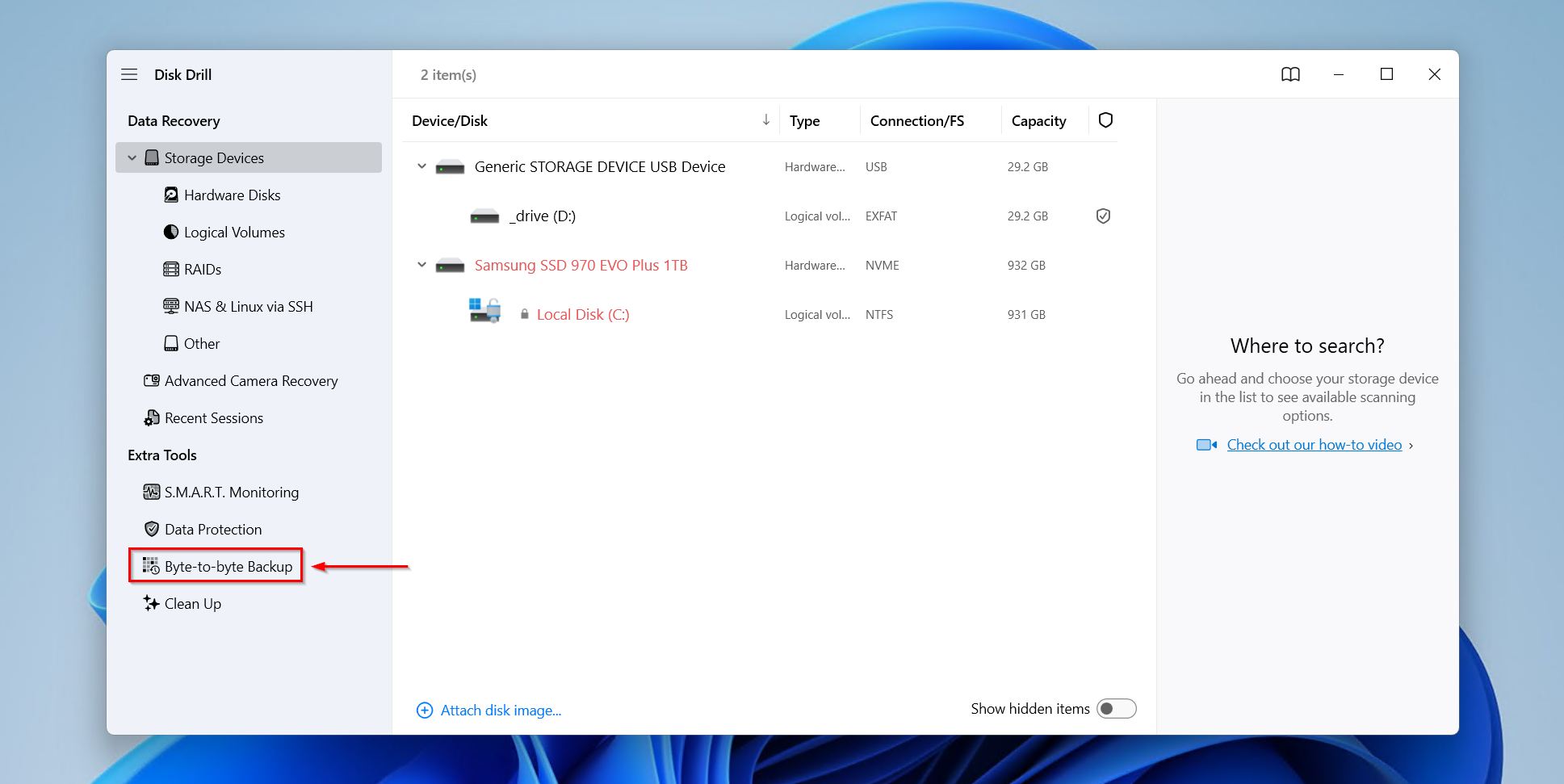
- Click Byte-to-byte Backup.
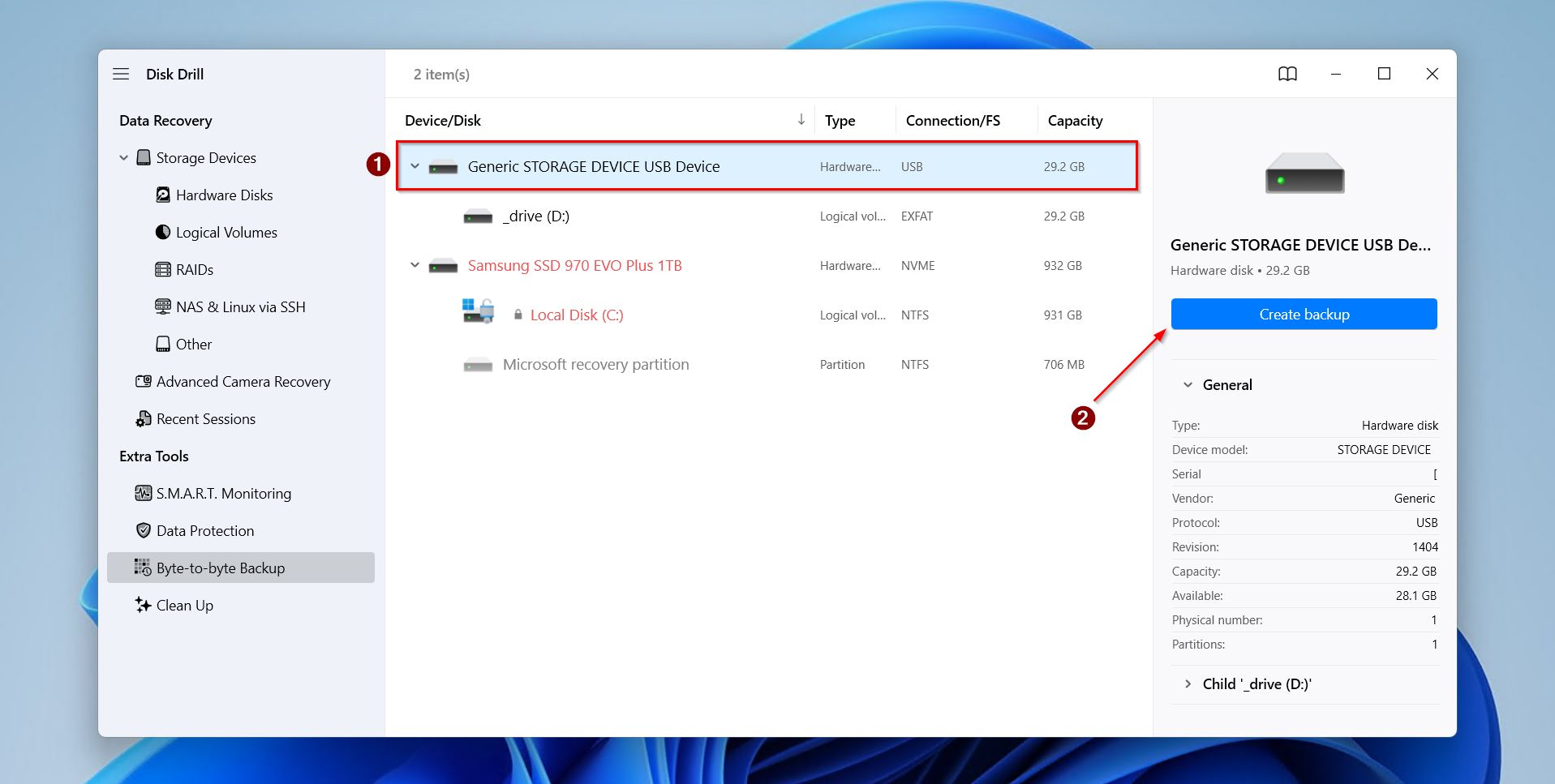
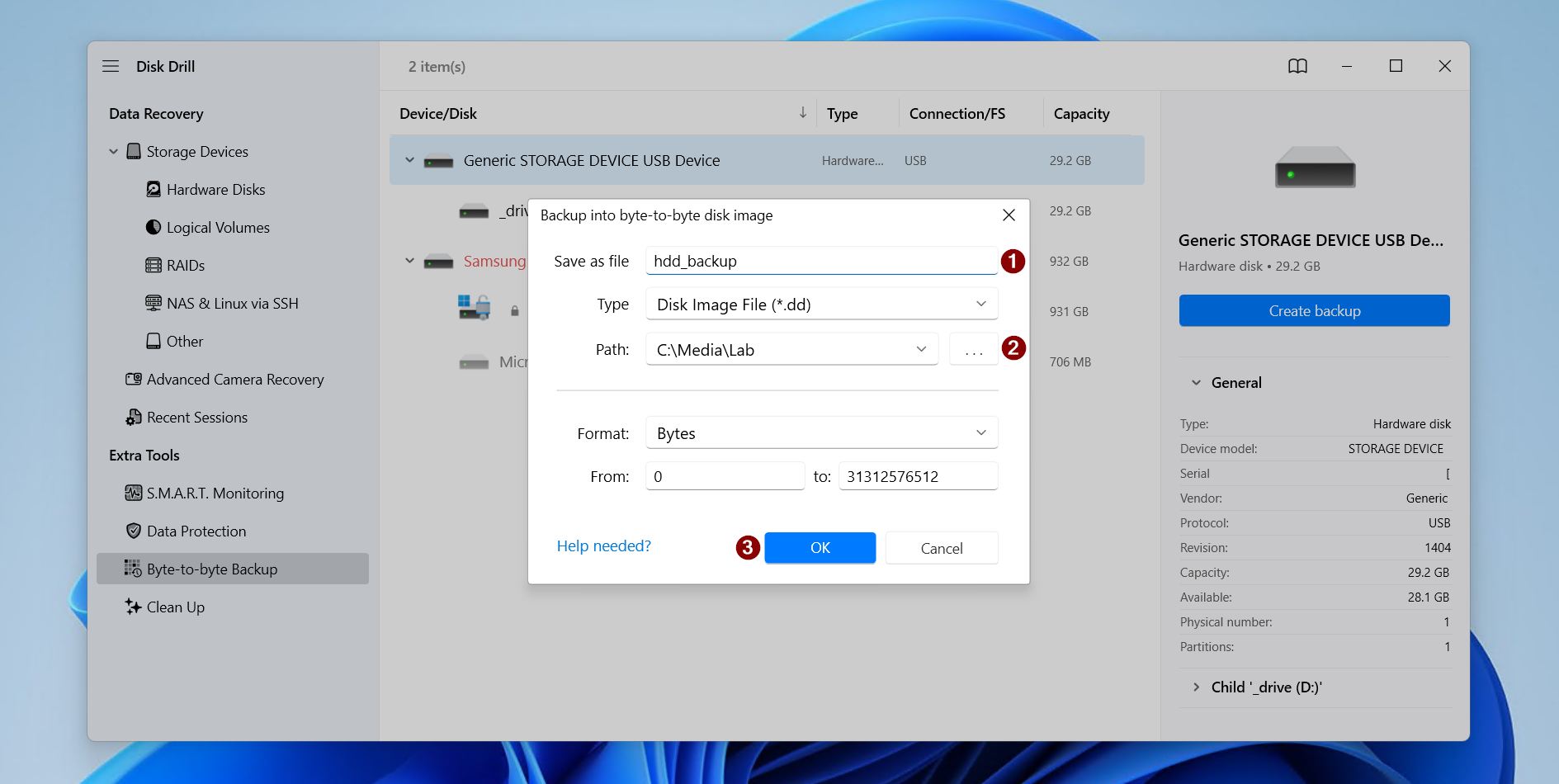
- Select the drive, then click Create backup.
- Choose a name and path for the backup, then click OK.
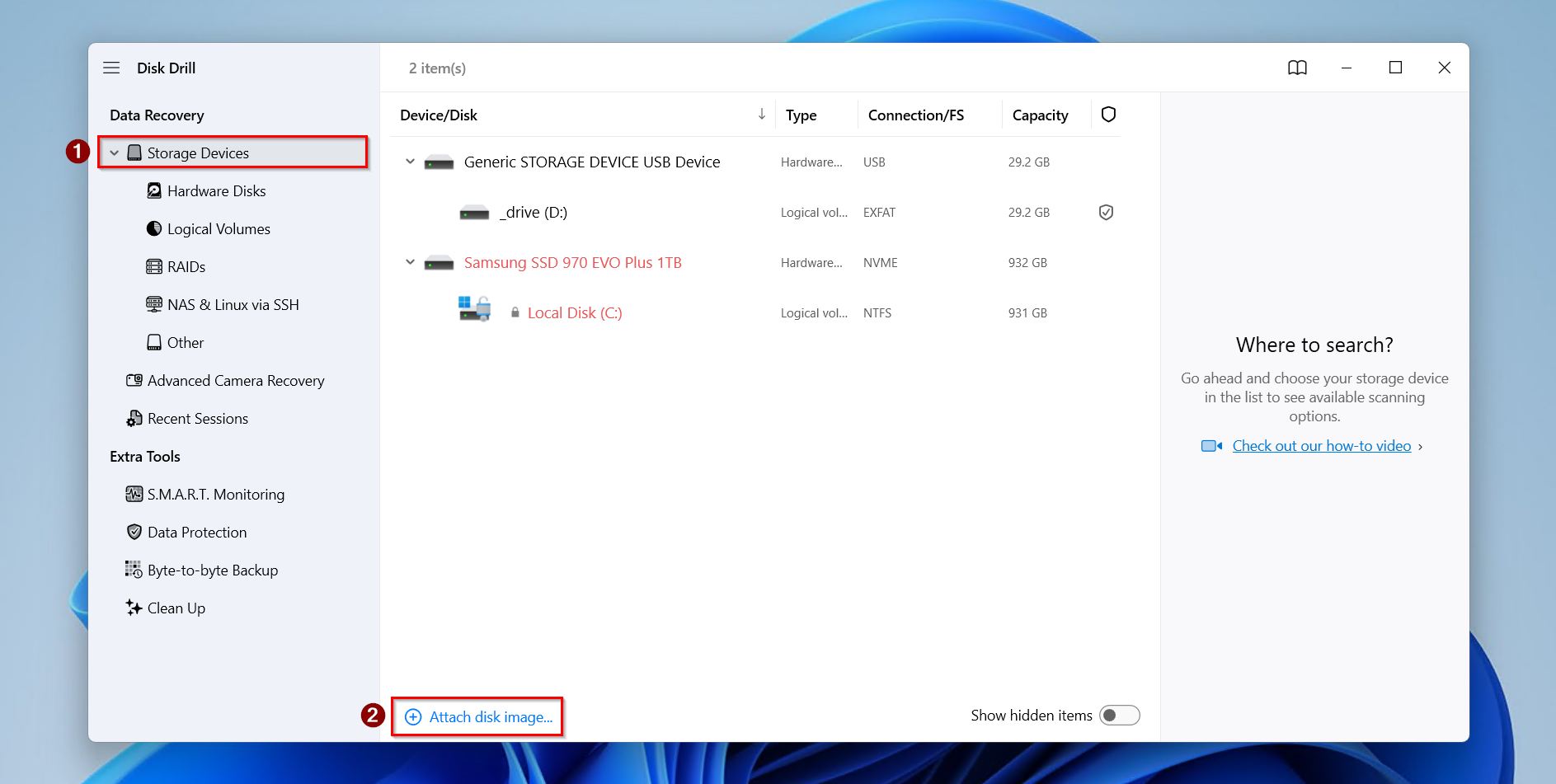
- Return to Storage devices and attach the disk image.
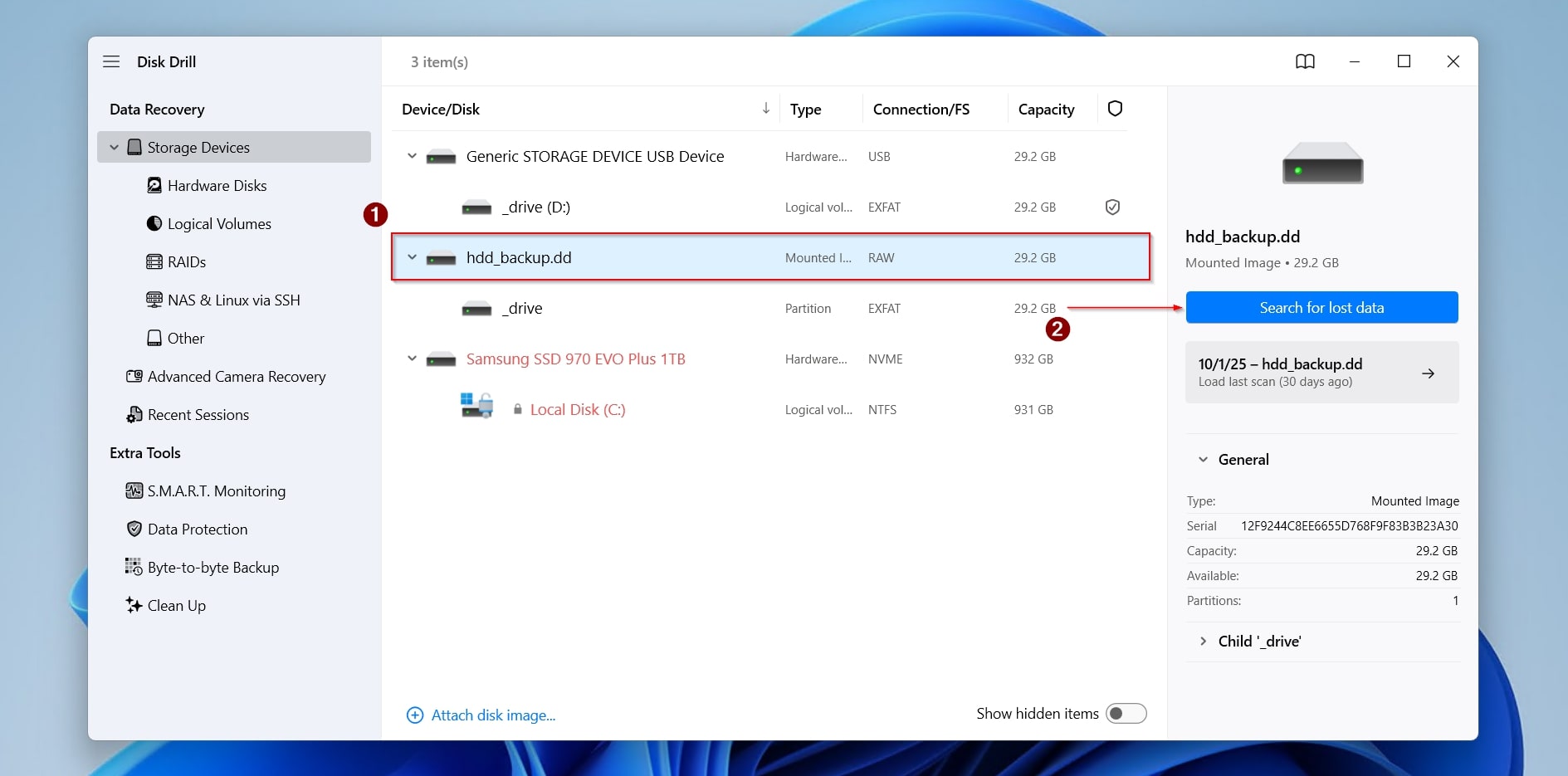
- Select the disk image, then click Search for lost data.
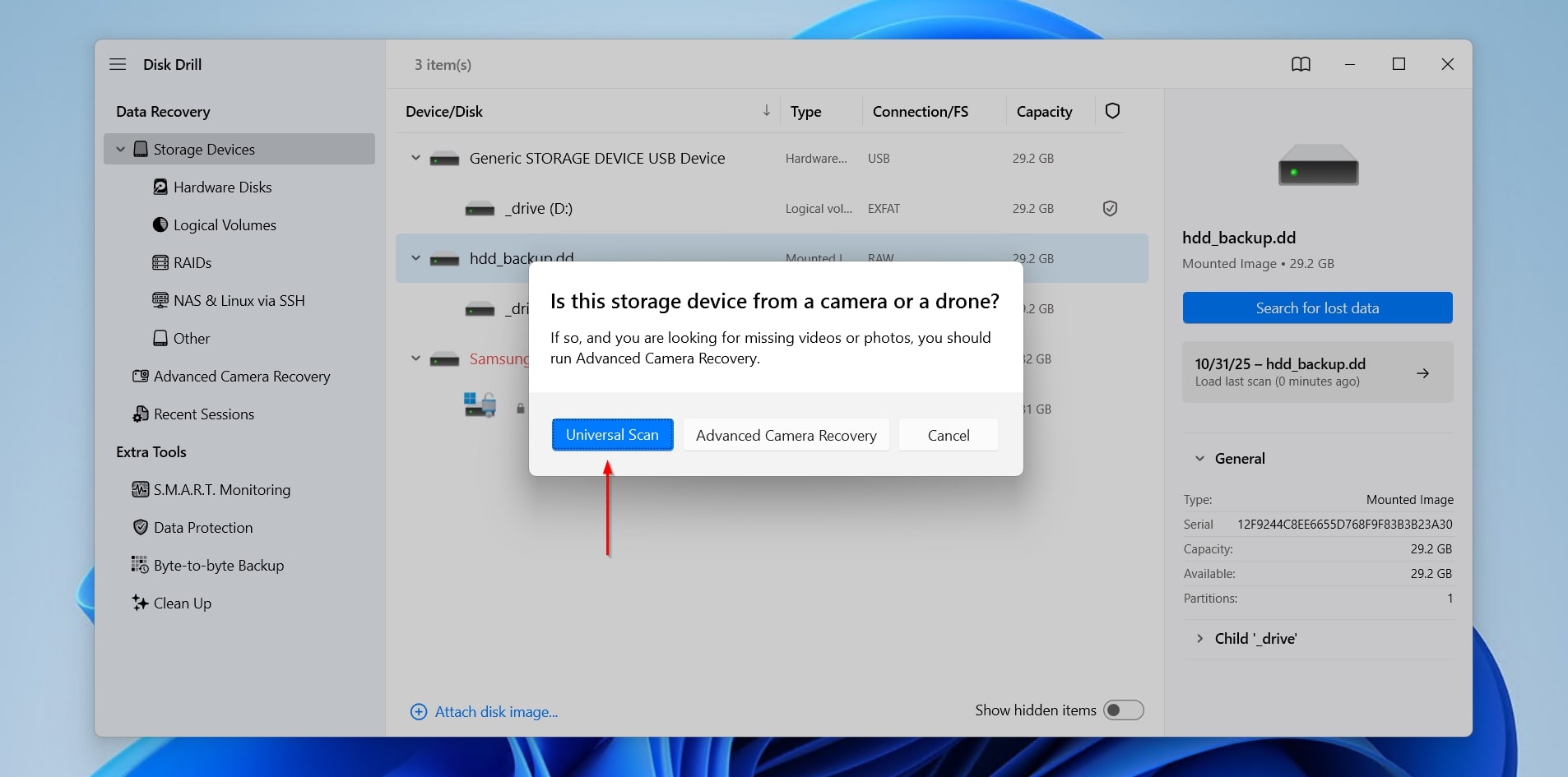
- Click Universal Scan to recover all file types. Advanced Camera Recovery is for the recovery of fragmented videos from cameras and drones.
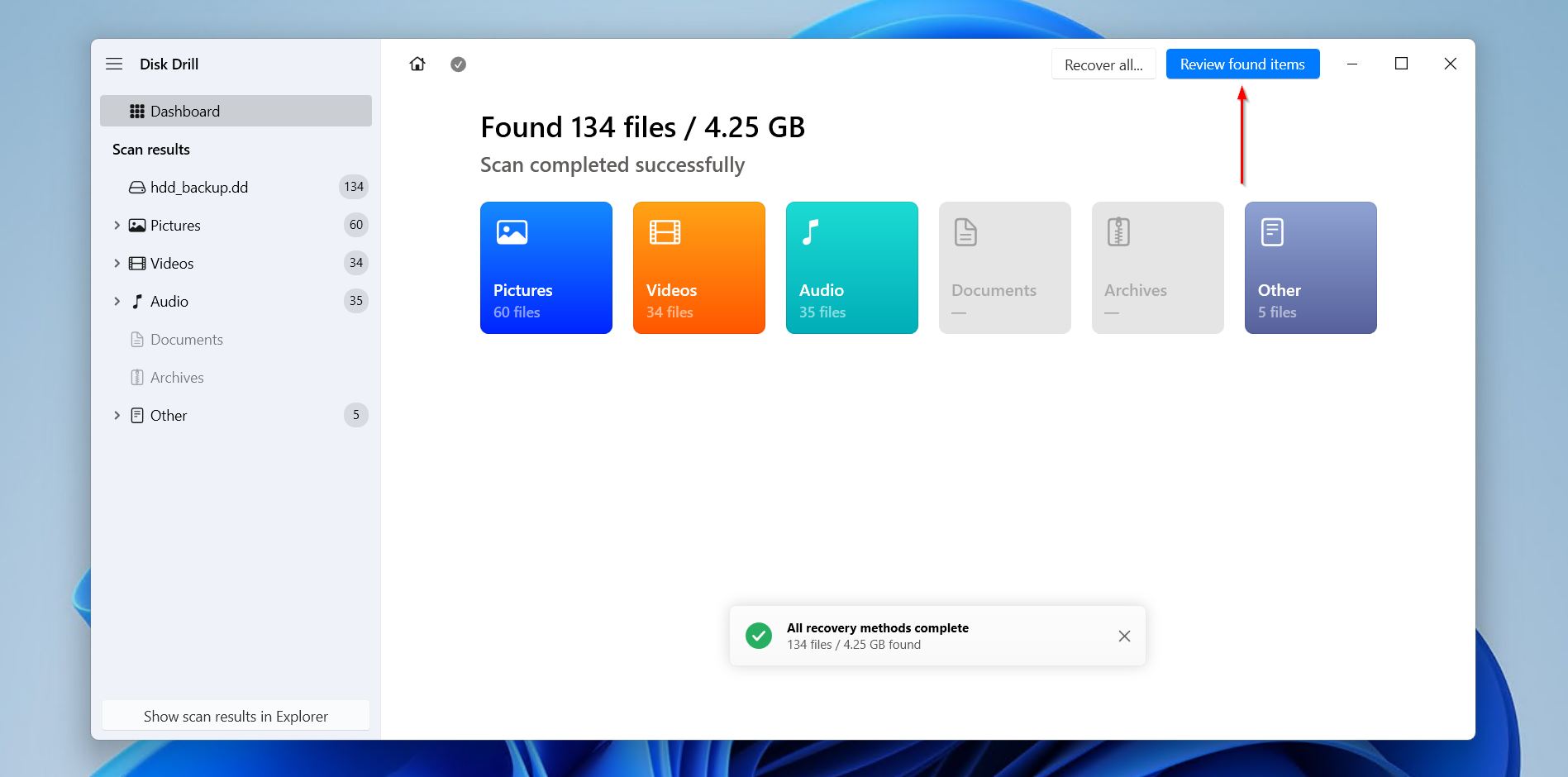
- Click Review found items when the scan is finished. If you want to recover everything immediately, click Recover all instead.
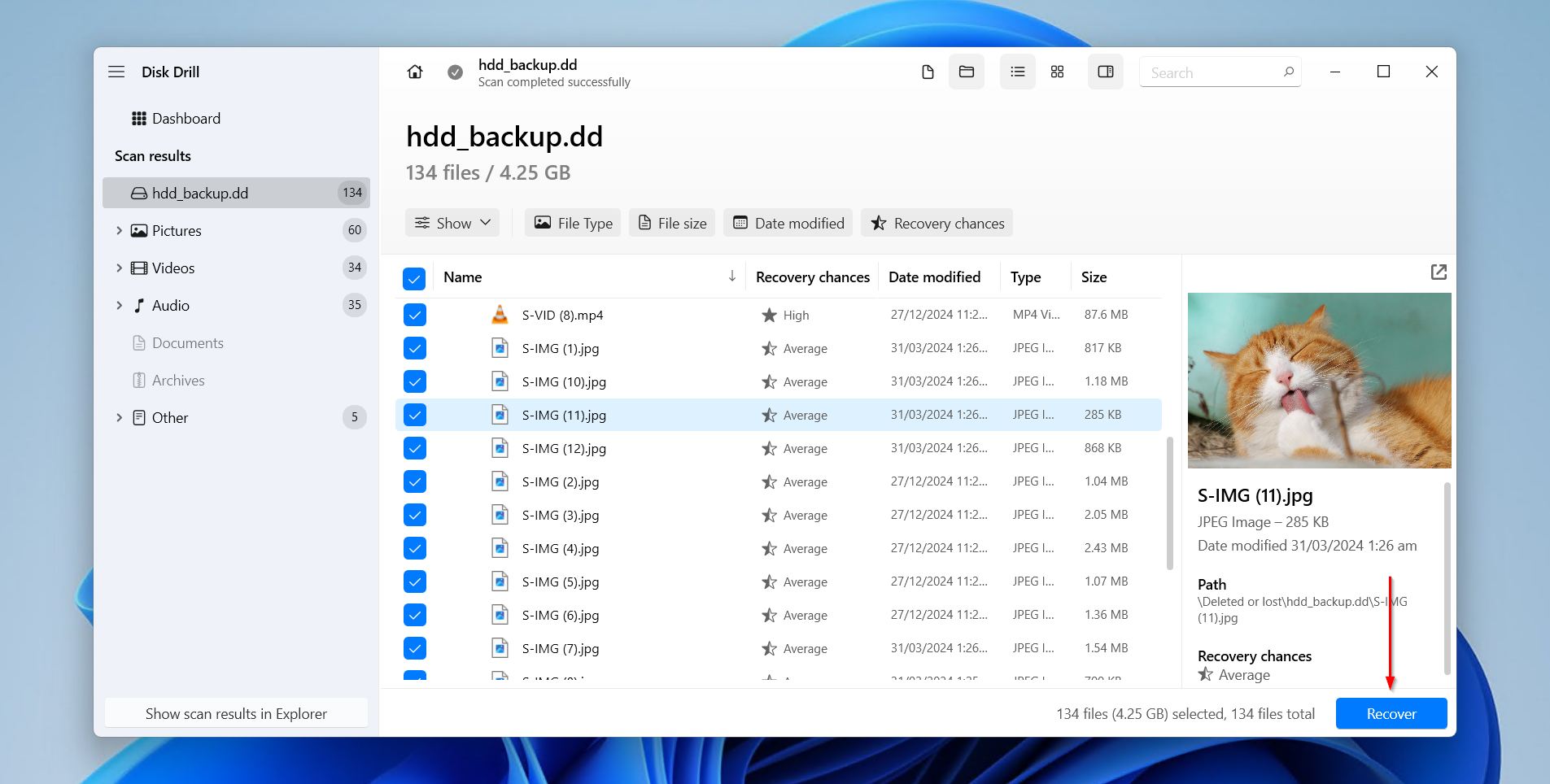
- Select the files you want to recover from the corrupted disk image. Use the filter buttons to organize the results and find what you’re looking for faster. When you’re ready, click Recover.
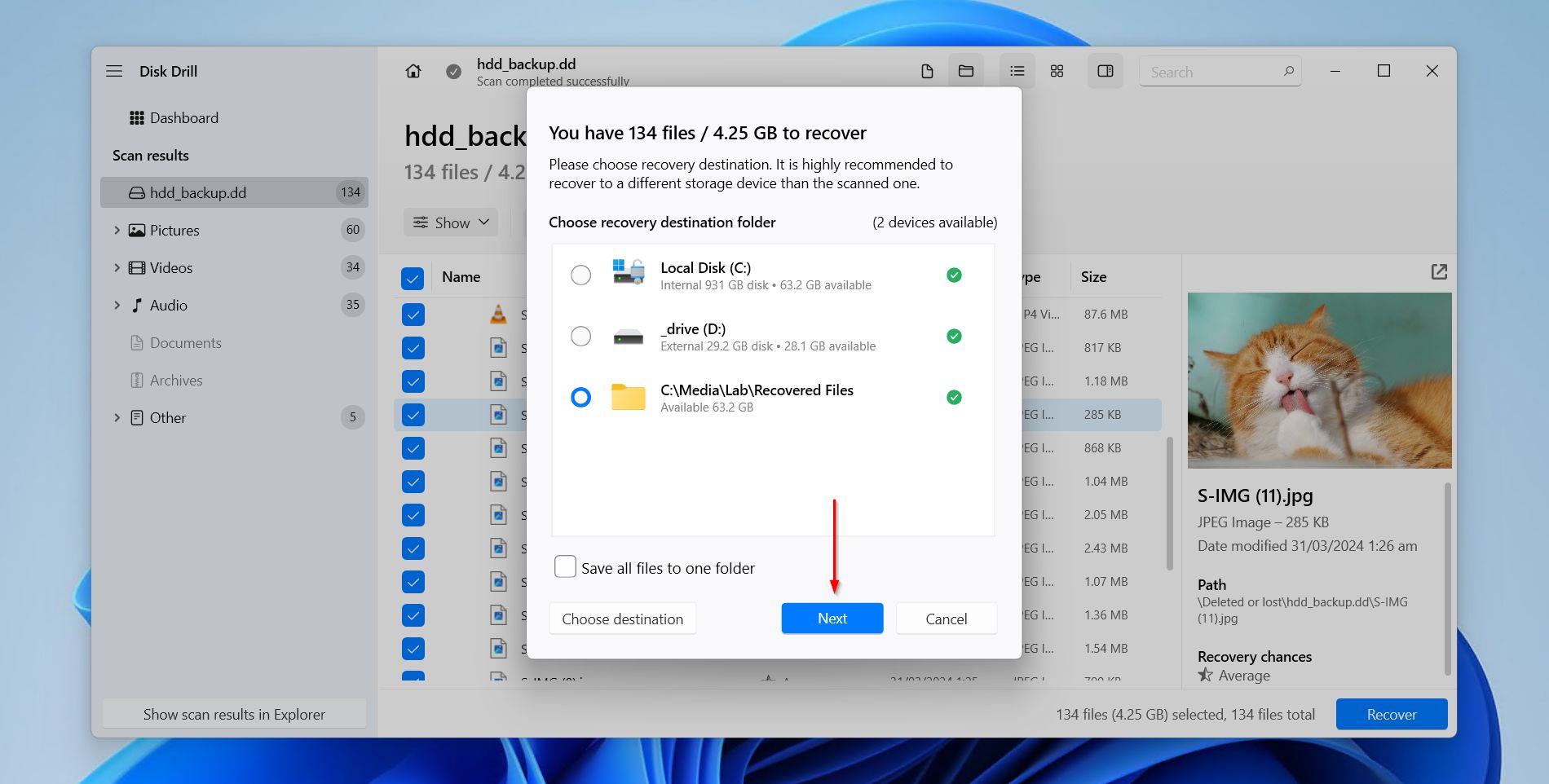
- Choose a safe recovery location and click Next.
Scenario 2: The System Drive Is Corrupted and Won’t Boot
It is possible to fix a corrupted hard drive that won’t boot, but recovering data from it is a little bit trickier (though still possible). When Windows won’t launch correctly, this is an indication that some essential system files have become corrupted.
In this case, you will need to remove the hard drive from your computer and connect it to a working computer as an external hard drive. Once connected, you will be able to perform recovery with Disk Drill like normal.
Scenario 3: The Drive Is Physically Corrupted
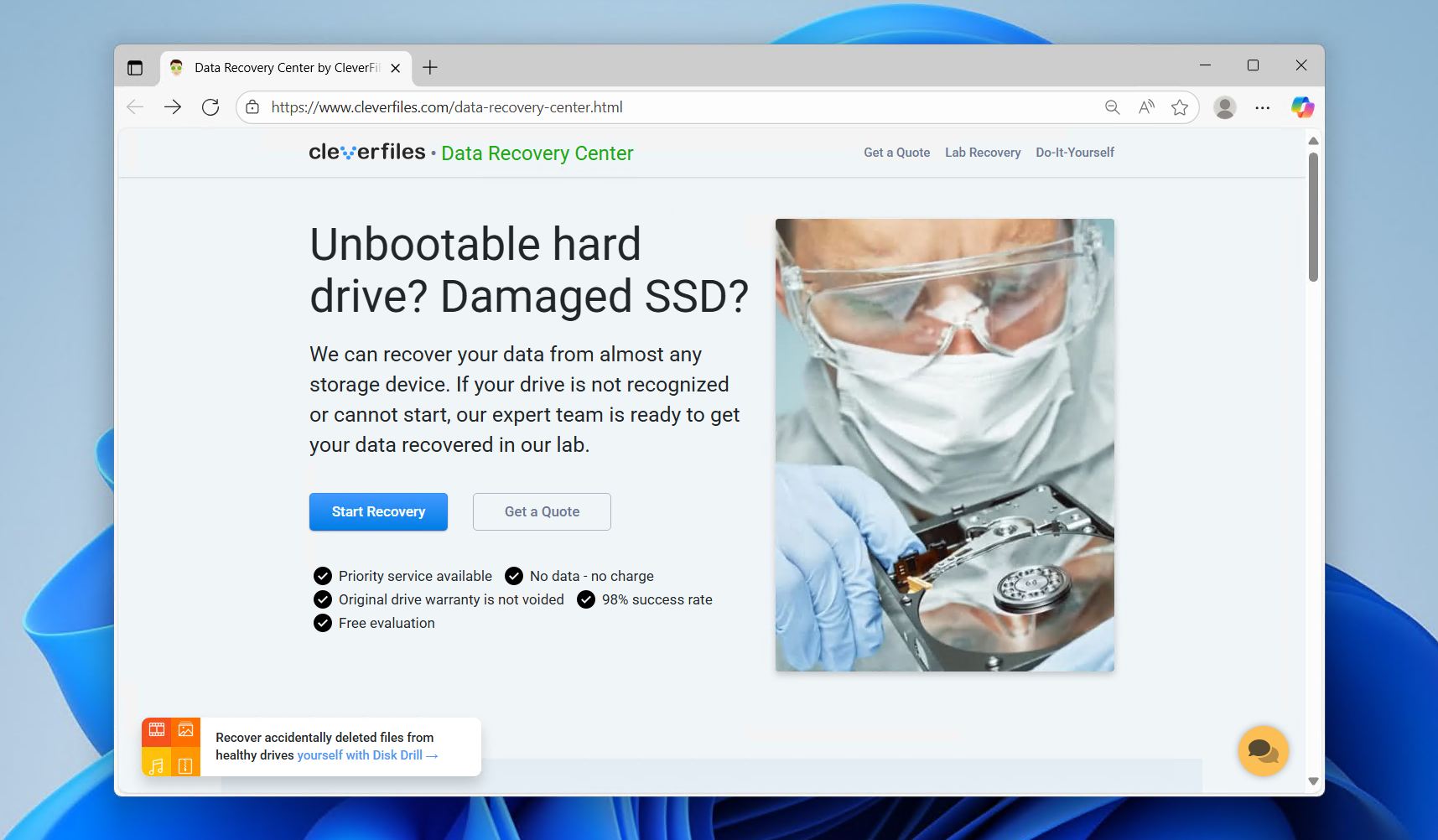
Physical corruption is typically the worst type of corruption, as physically damaged HDDs may not show up when you connect them, and there’s no reliable way to fix a broken hard drive at home. In such cases, a data recovery service is your best option, as it offers the best odds of recovering corrupted hard drives. This involves packing up your drive, sending it away for recovery, and receiving the data back on a separate, healthy storage device. This is the best possible way to recover your data, and although it is also the most expensive option, it’s the only option for physical corruption.
How to Fix a Corrupted Hard Drive on Windows
Let’s move on to fixing the corrupted hard drive once your data has been recovered. If you skipped recovery, and simply want to fix your corrupted drive, be sure to at least create a byte-to-byte backup to preserve your disk’s state. This allows for future corrupted hard drive recovery in case the drive fails or some data is lost. You can create a free drive backup with Disk Drill, or other tools like Clonezilla.
Check out these methods on how to repair a corrupted hard disk.
Method 1: Try Another Cable or Port
Sometimes a corrupted hard drive just appears as so due to a faulty cable or port. This is especially true if your external hard drive is showing corrupted, seeing as your cable is frequently connecting and disconnecting. If the damage is indeed being caused by a faulty connection, it’s a fast and easy way to fix a corrupted external hard drive without formatting.
Try another cable, then try connecting the drive to another port. If you want to be extra thorough, test the hard drive in another computer entirely. If the fault persists, move to the next solution.
Method 2: Repair Using CHKDSK
CHKDSK (CheckDisk) is a hard drive repair tool that allows you to repair corrupted hard disks using CMD. In instances where your disk structure is corrupted and unreadable, CHKDSK is one of the many ways you can fix it.
CHKDSK doesn’t work on RAW drives, with the exception being NTFS volume missing its boot sector. So, if you get the message “CHKDSK is not available for RAW drives,” move to the next method.
With how CHKDSK fixes file system issues, there is a risk of data loss. This is especially true with the /r parameter we’ll be using, as it reads sectors and relocates data from bad ones. Therefore, the data should be recovered or backed up before fixing.
Follow these steps to repair a corrupted hard drive using CHKDSK:
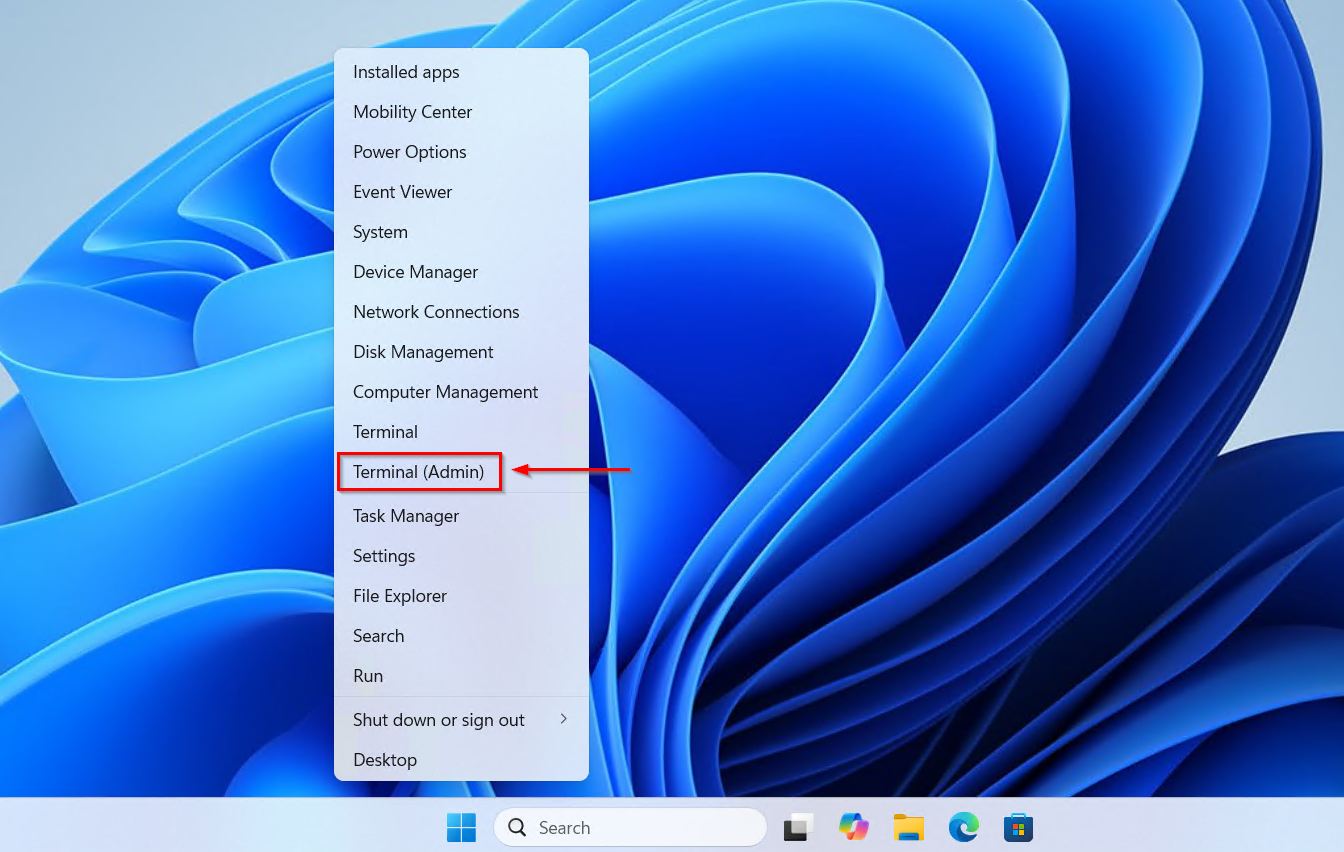
- Right-click Start and click Windows PowerShell (Admin). On Windows 11, this will be Terminal (Admin) instead.
- Type
chkdsk *: /r. Replace * with your own drive letter. Press Enter.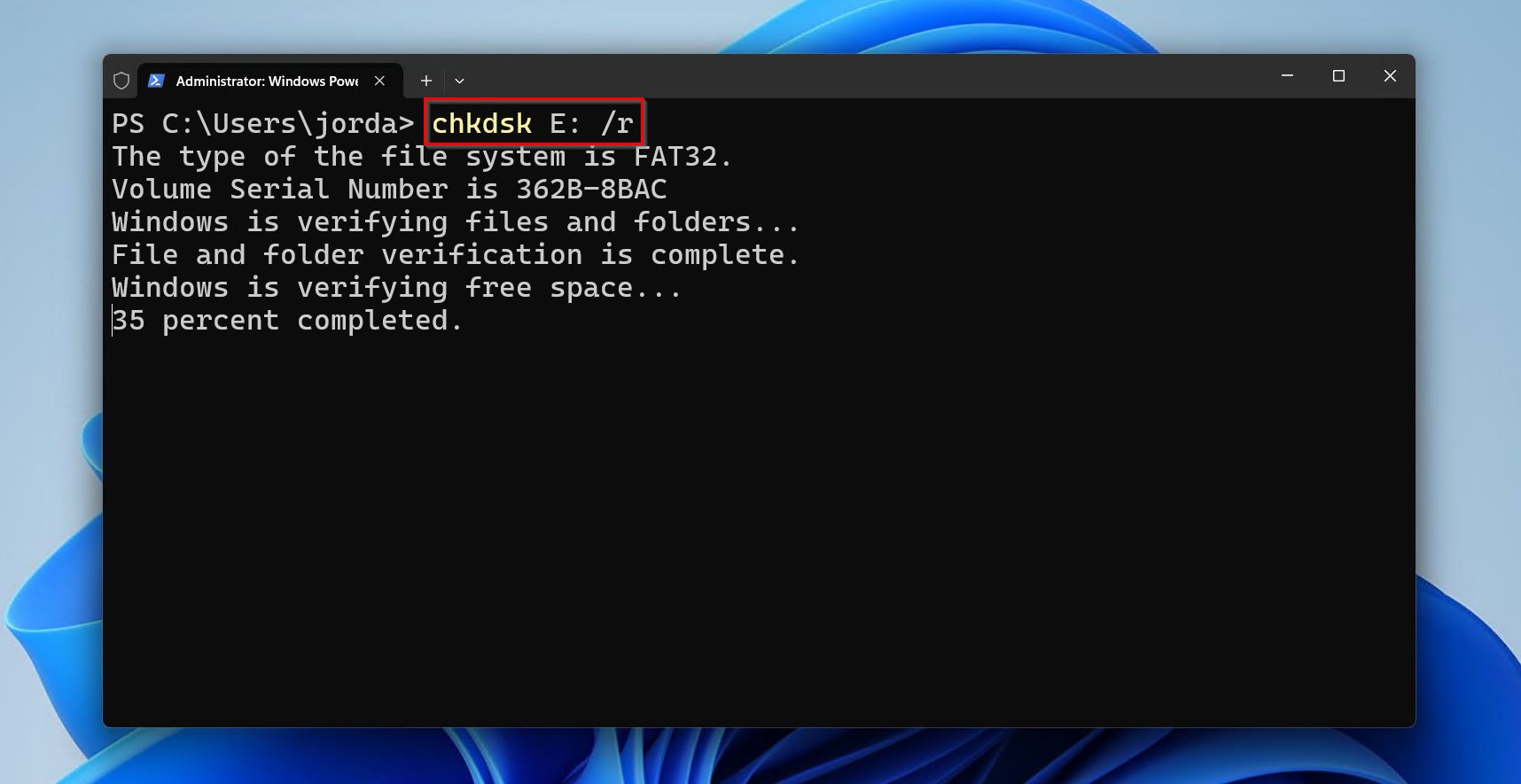
Method 4: Run SFC and DISM
If your hard drive is preventing the computer from booting, it’s possible some of your Windows system files have been damaged or corrupted. In some cases, Windows can corrupt your hard drive due to an interrupted installation or update. SFC (System File Checker) and DISM (Deployment Image Servicing and Management) are two commands that can check the integrity of your Windows system files and repair them if necessary.
Here is a quick overview of what each command does:
- SFC – This will scan your system files and verify they are in working order. Should it find any that are damaged or corrupted, it will attempt to replace them with working versions.
- DISM – If SFC is unable to fix it, DISM can repair the underlying Windows system image using Windows Update to pull the necessary files. Seeing as it relies on Windows Update, it does need an internet connection.
The only caveat is, since your system won’t boot, you’ll need to run them in the Windows Recovery Environment (WinRE). There are two ways you can get here:
- With a bootable USB. Use a bootable USB containing Windows, then from the setup screen, you can click Next, then choose to Repair your computer. This is the preferred method.
- Perform three forced restarts. This involves powering on your PC, then once the spinning dots of Windows logo appear, hold the power button until it shuts down. Do this 3 times, then on the fourth boot, you’ll be in the WinRE.
Follow these instructions to execute SFC and DISM to repair any corrupted system files:
- Boot into WinRE using one of the above methods.
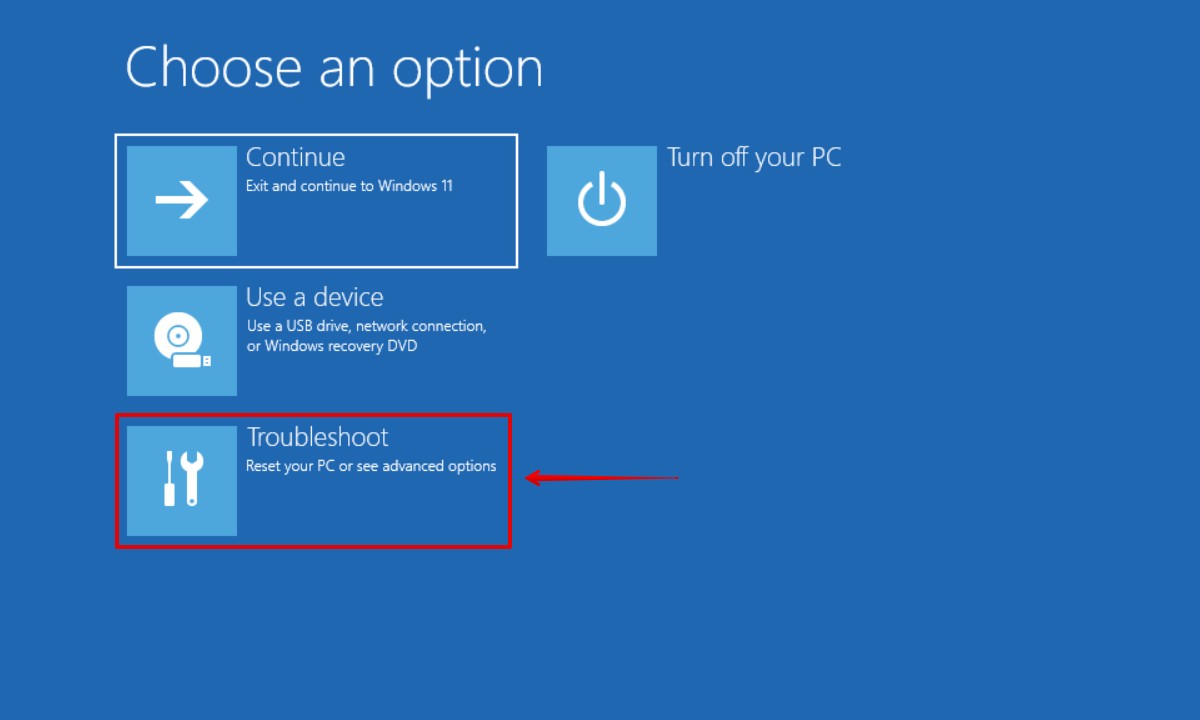
- Click Troubleshoot.
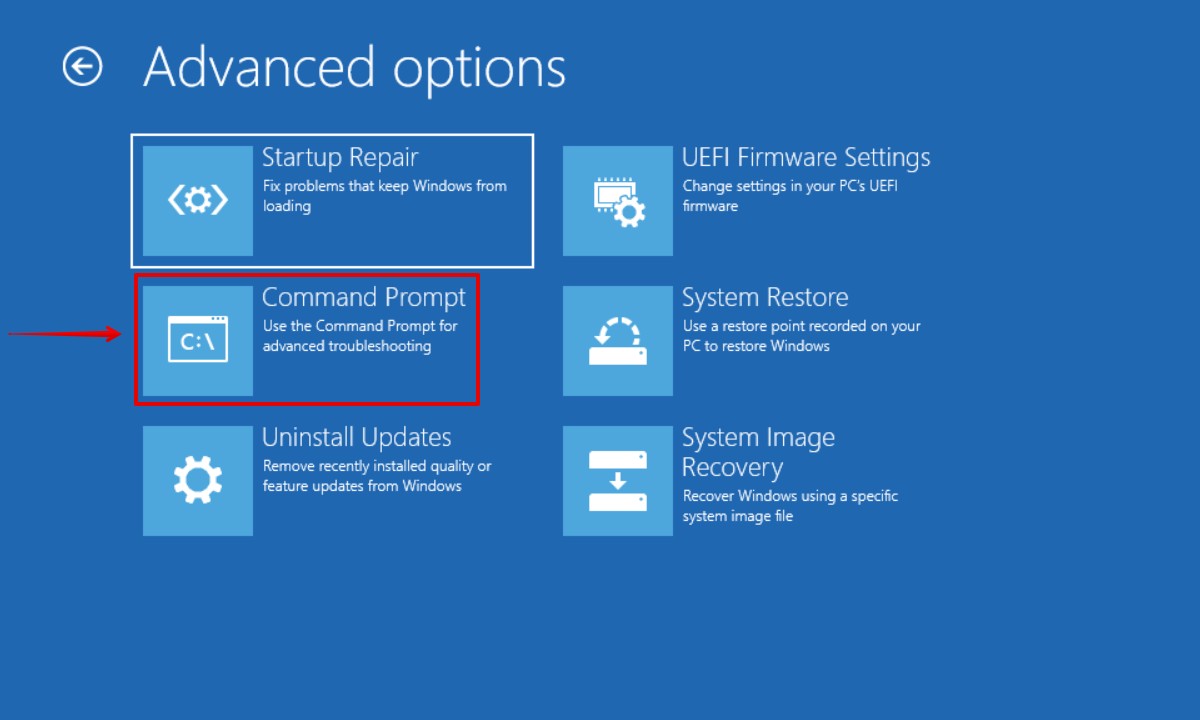
- Click Command Prompt. Those who used the three forced restarts method will need to click Advanced options first.
- Type
sfc /scannow. Press Enter. If the drive is still corrupted, try the next step.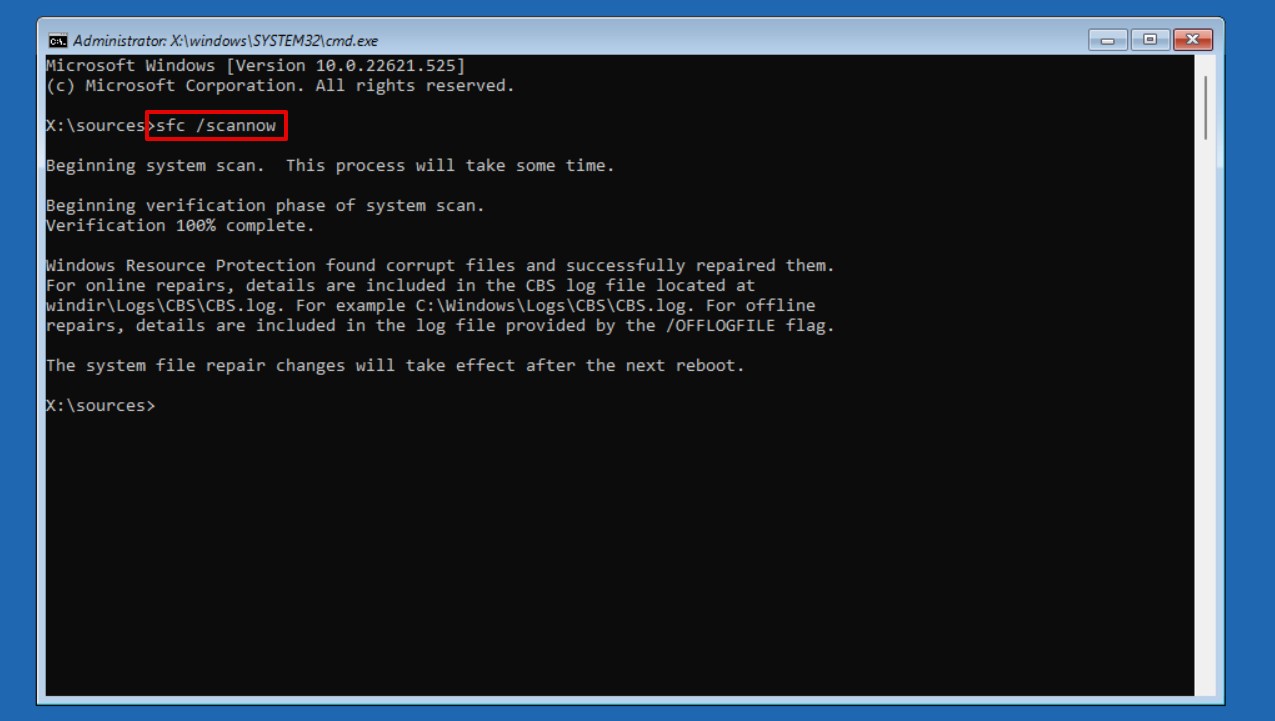
- Type
dism /online /cleanup-image /restorehealth.Press Enter.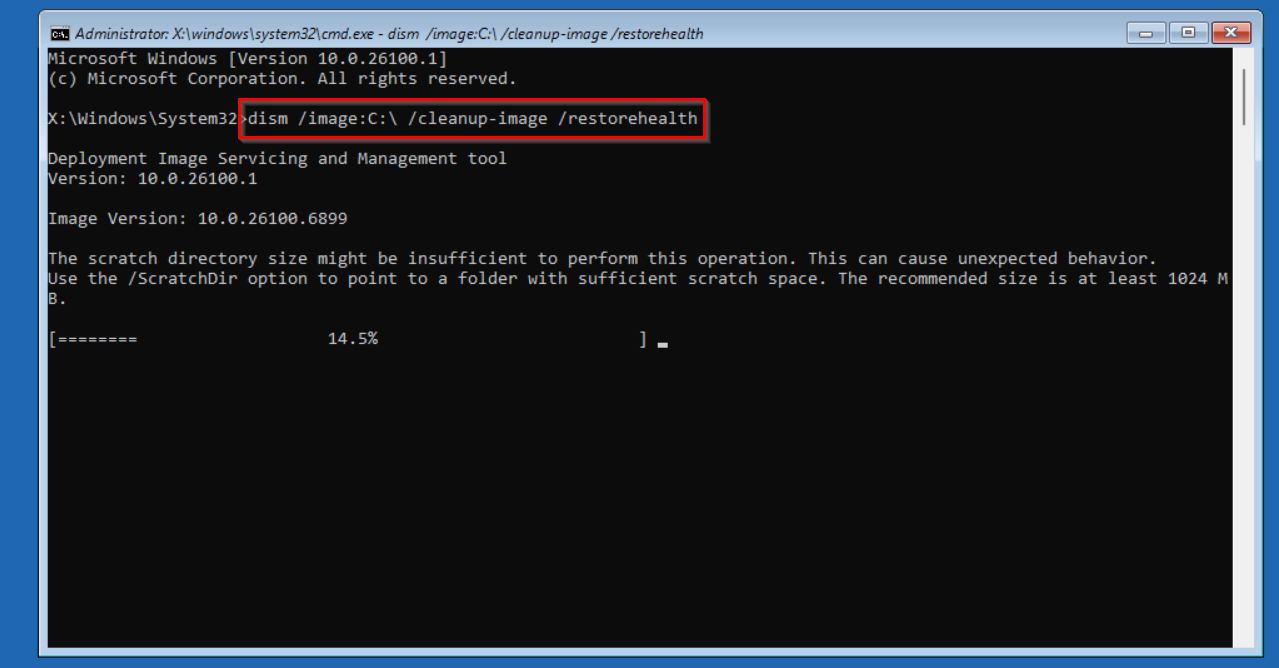
If DISM throws the error “DISM Error: 87 the Cleanup-Image option is unknown,” try Dism /image:C:\ /Cleanup-Image /RestoreHealth instead.
Method 4: Format the Drive
Answering the question, “Will formatting fix a corrupted hard drive?,” yes. In fact, one of the most effective ways to recover a corrupted hard drive is through formatting it with a new file system. When you format a corrupted hard drive, it essentially deletes the file system currently used by the corrupted volume and provides it with a new one to store data again.
Formatting is a guaranteed fix for almost any logical corruption, but it will delete your data in the process. Even though data recovery is possible afterward, your chances are reduced and so data recovery should be done before formatting.
Follow these steps on how to format a corrupted hard drive with Disk Management:
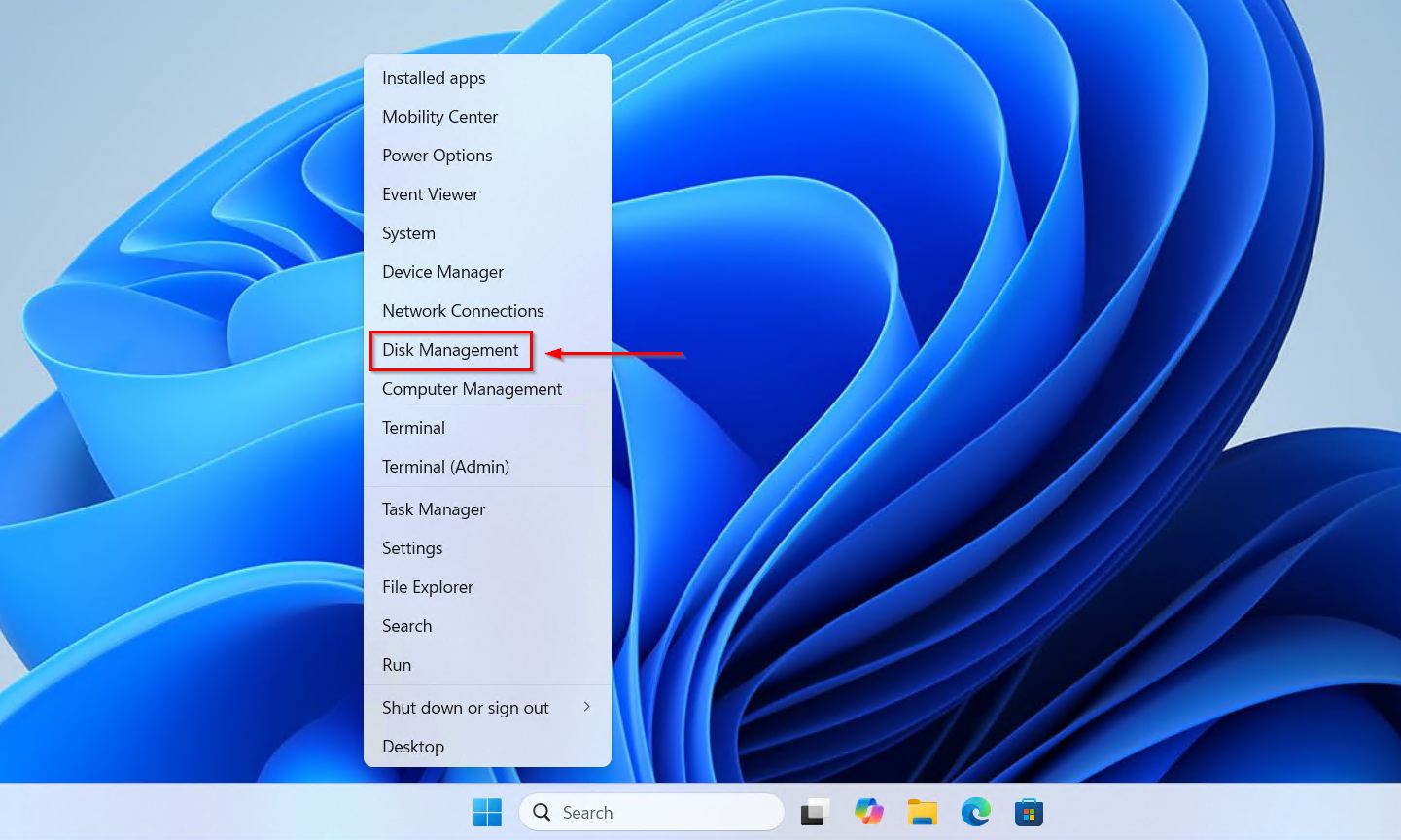
- Right-click Start and click Disk Management.
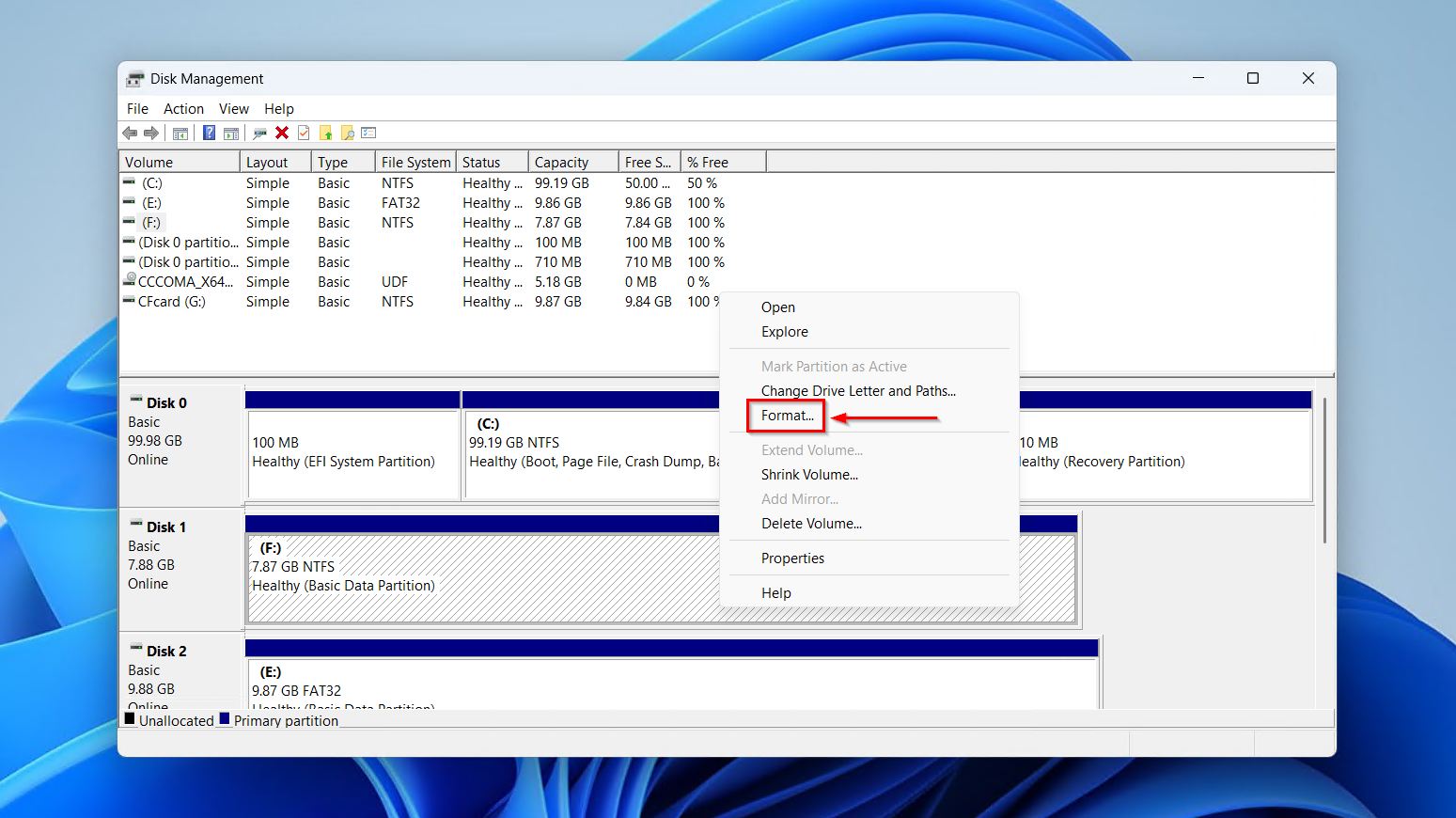
- Right-click the volume of your corrupted hard drive and select Format.
- Ensure Perform a quick format is selected and click OK.
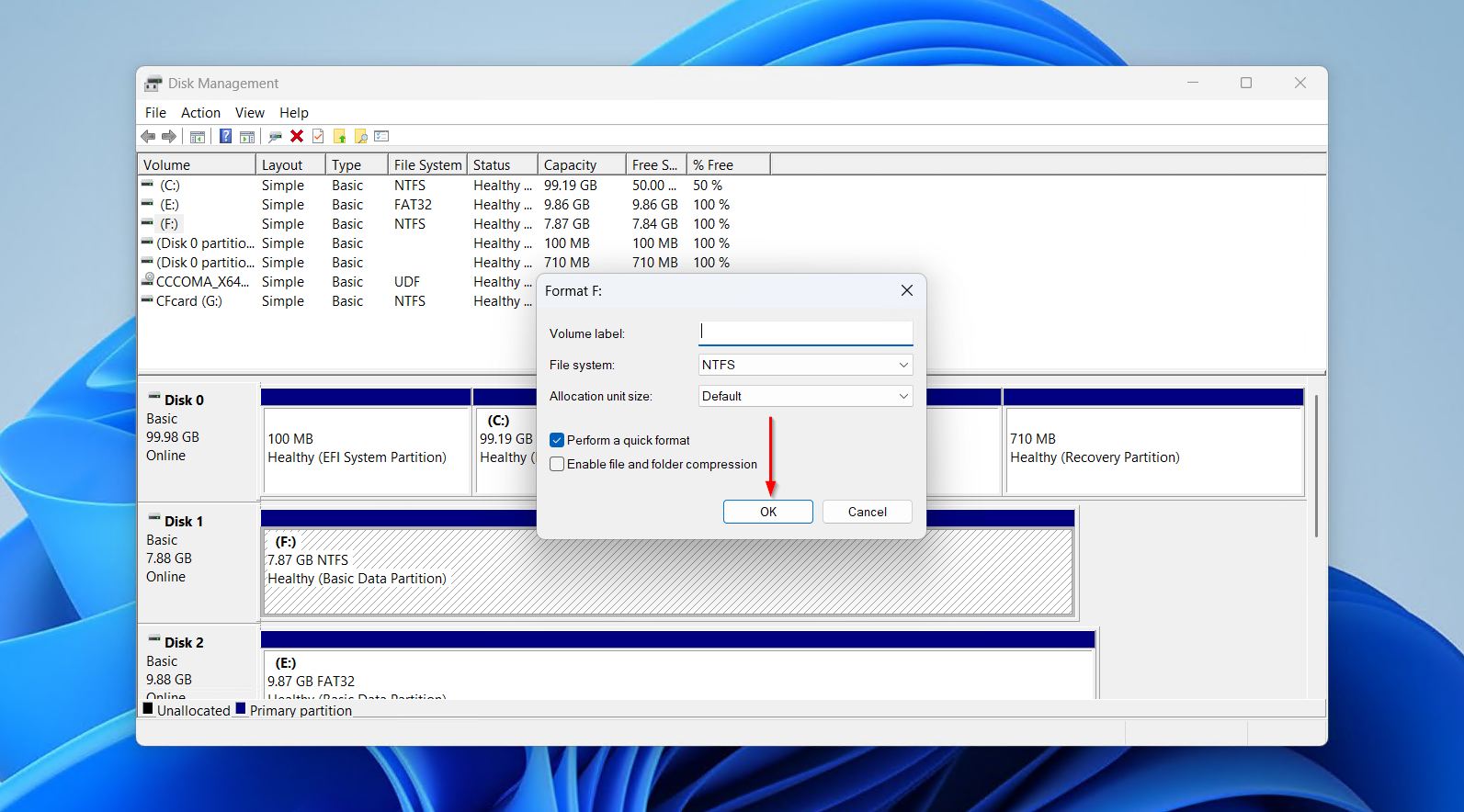
- Click OK again to confirm the action.
Conclusion
Dealing with a corrupted hard drive is tricky, but it’s rarely a lost cause. The methods outlined in this article will guide you through securing your data and fixing the drive. Going forward, your best bet for recovering from a damaged hard drive is to keep your data backed up. Then, if it happens again, you can just format the drive and restore a copy of the data.
If you run into other issues, like your disk structure becomes corrupted or unreadable, your SSD becomes corrupted, or you need to recover files from a corrupted USB drive, check out our other guides.
Did you find this guide helpful? We’re always looking to improve, and would love to hear your recovery experience in the comments.
FAQ
- Click Start and search “PowerShell”.
- Right-click Windows PowerShell and click Run as administrator.
- Type chkdsk *: /r. Replace * with your own drive letter. Press Enter.