

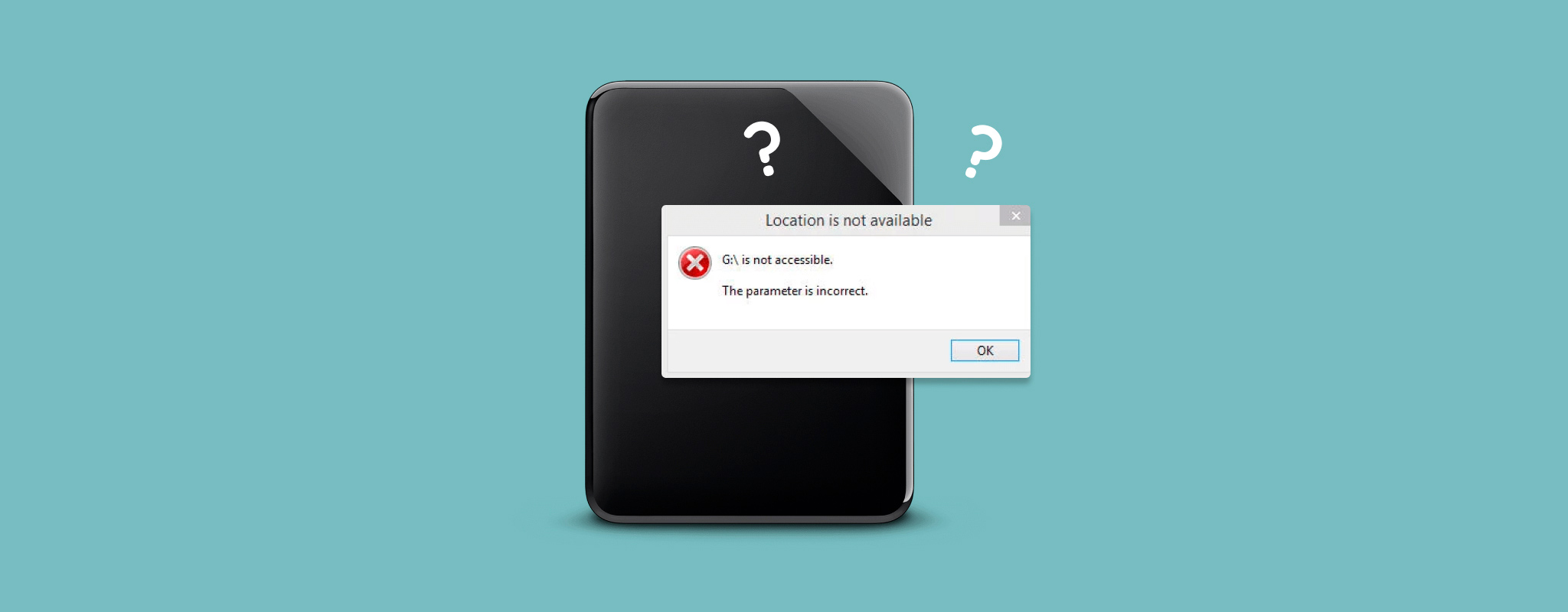
 “The parameter is incorrect” means Windows can detect your external hard drive but can’t access it properly. There are quite a few reasons why this can happen, and the problem is often related to file system corruption, a bad connection, BitLocker encryption, and more. If you still have important data on the drive, you can try to get your files back with data recovery software like Disk Drill and only then move on to fixing the parameter is incorrect error. To do that, you can run the CHKDSK command, try other Windows checks and repair tools, or, if nothing else works, format the drive. That’s exactly what we’ll cover in this article – we’ll look at the most common causes of “The parameter is incorrect” and show you how to fix the problem on Windows 11 without putting your files at unnecessary risk.
What Does “The Parameter Is Incorrect” Mean?
The error message “The parameter is incorrect” is often a generic error message that appears when your computer is being prevented from accessing the drive. Alternatively known as error 0x80070057, this error can appear for many reasons, some of which we’ll look at shortly. This message will appear whenever you attempt to access the drive. In most cases, the actual data on your drive is intact and usable. However, until the damage on the drive is repaired, the data will remain inaccessible through traditional means, like Windows Explorer.
Main Causes of “The Parameter Is Incorrect” on a Drive
There are many reasons why the error message “The parameter is incorrect” appears on Windows 10 and 11. As mentioned, it points towards some form of damage to the drive. Here are a few of the main reasons the error appears:
| Reason | Description |
| 📁 File system corruption | The file system helps organize your data. If it has become corrupted, Windows may be displaying the error as it cannot read the file system. |
| 📃 Corrupted Windows system files | Essential system files needed for the operation of Windows may be corrupted, breaking down communication between your computer and the drive. |
| ❌ Bad sectors | When a bad sector appears, it destroys the data contained in that sector. If essential system files were present, it can result in this issue appearing. |
| 🦠 Malware | Viruses can be designed to target important parts of your system, including your hard drive. If your hard drive has been damaged by malware, this error can occur. |
| 🔐 Drive encryption | If the external drive is encrypted with BitLocker, Windows may display “The parameter is incorrect” when it cannot properly unlock or read the encrypted volume. This can happen due to BitLocker-related issues, damaged encryption metadata, or problems with the file system on the encrypted drive. |
| 💥 Physical damage | Physical damage, either to the external hard drive or USB port, can prevent the hard drive from being read correctly. If a partial connection can be established, Windows may prompt this error message. |
| 🔧 Decimal symbol | This problem can be caused by using a decimal symbol other than a period, especially if you’re using a different regional format with Windows. |
Let’s look at how to fix “The parameter is incorrect” error message so it no longer appears.
How to Recover Data From a Drive With “The Parameter Is Incorrect”
Although the “The parameter is incorrect” error doesn’t damage your data by itself, some of the methods used to fix it can result in data loss. So if there’s anything important stored there, we recommend recovering it before attempting any repairs. This is relatively quick and easy with Disk Drill, a data recovery tool that frequently ranks among the best recovery software for hard drives and other storage devices, including USB flash drives and SD cards. It can recover data from an external hard drive as long as the drive appears in Disk Management with the correct size, even if you can’t access it through File Explorer. During our tests, Disk Drill scanned a 512 GB drive in around an hour, and we were able to recover all 130 GB of data stored on it.
❗ Another useful feature here is the ability to create a byte-to-byte disk image. This is especially necessary if drive corruption is behind the “The parameter is incorrect” error. Instead of putting an unstable drive through several scans and risking it getting worse in the process, you can create an image once and scan that image for lost data instead. We explain how to create and use one in more detail in our guide on working with corrupted hard drives, so head there first if your drive shows signs of corruption.
Here’s how you can recover the data from your external hard drive with Disk Drill:
- Download and install Disk Drill. While the program is installing, connect the external hard drive that’s showing the “The parameter is incorrect” error to your PC.
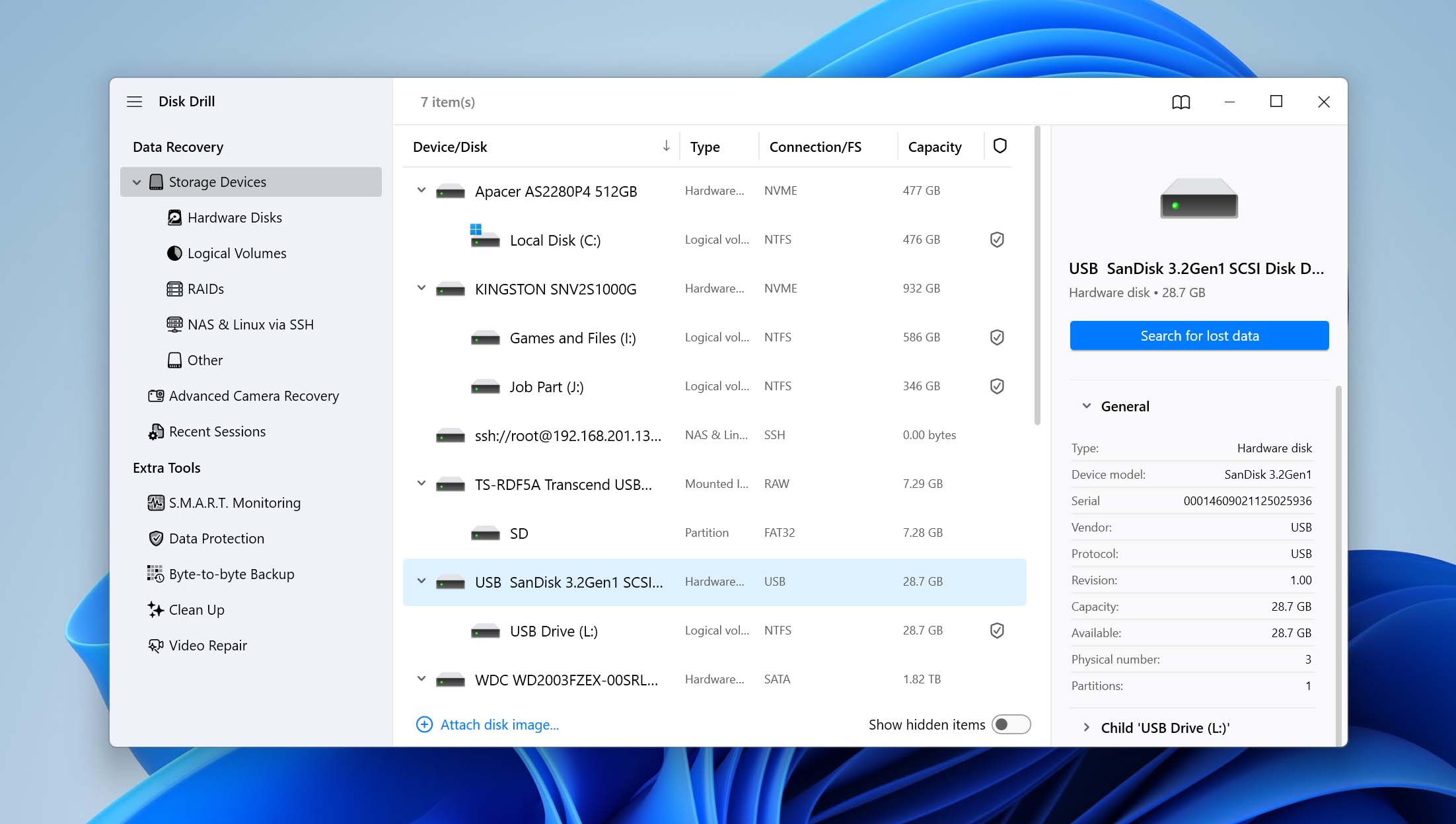
- Open Disk Drill, select your external hard drive from the list of available devices, and click Search for lost data.
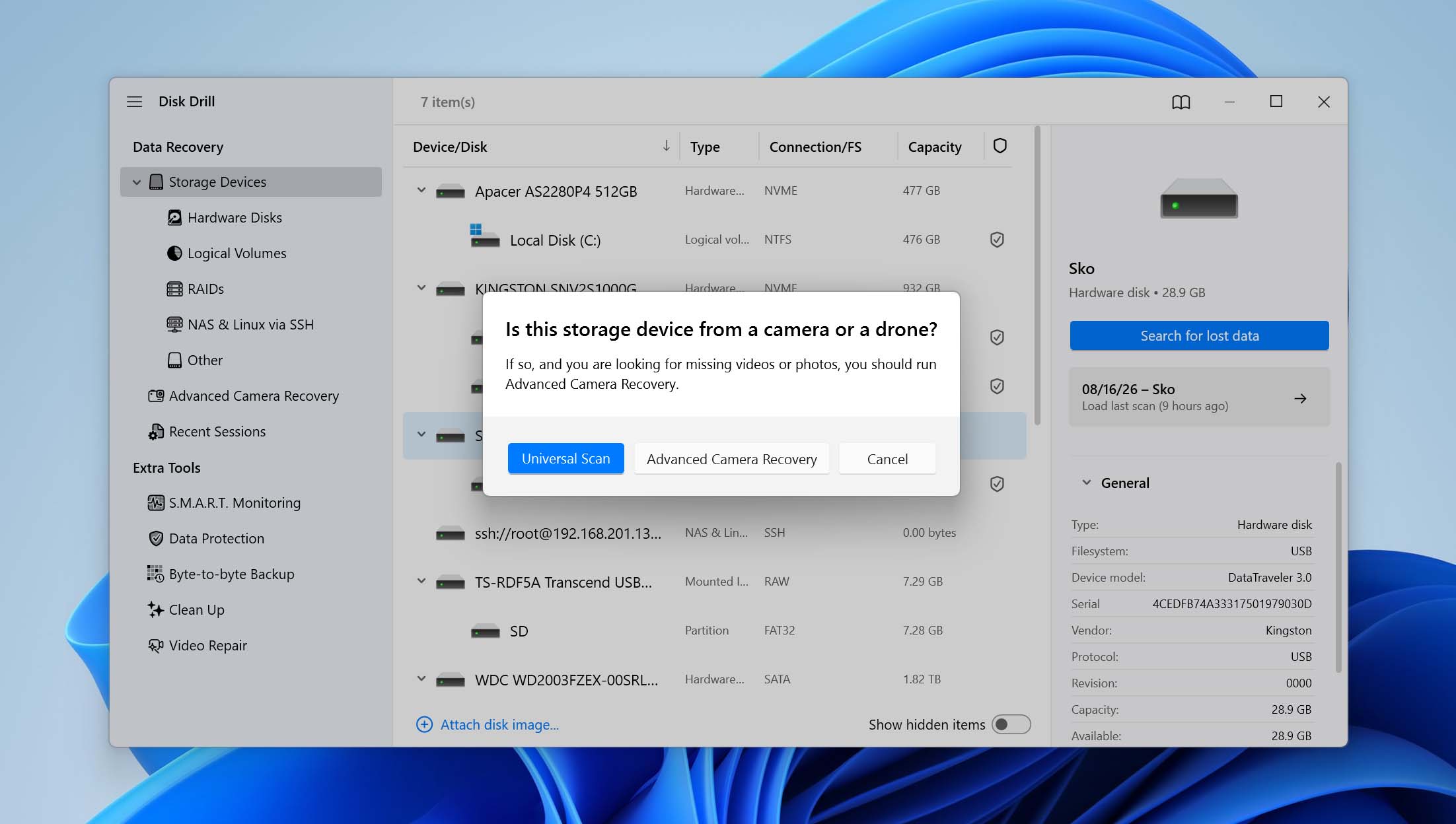
- Disk Drill will ask you to choose between Universal Scan and Advanced Camera Recovery. Select Universal Scan. Advanced Camera Recovery is designed specifically for recovering fragmented video files from SD cards used in cameras, drones, and similar devices.
- Once the scan is complete, click Review found items to see what Disk Drill found. Alternatively, click Recover all if you want to save everything it can recover. Keep in mind that the results may also include previously deleted files that haven’t yet been overwritten.
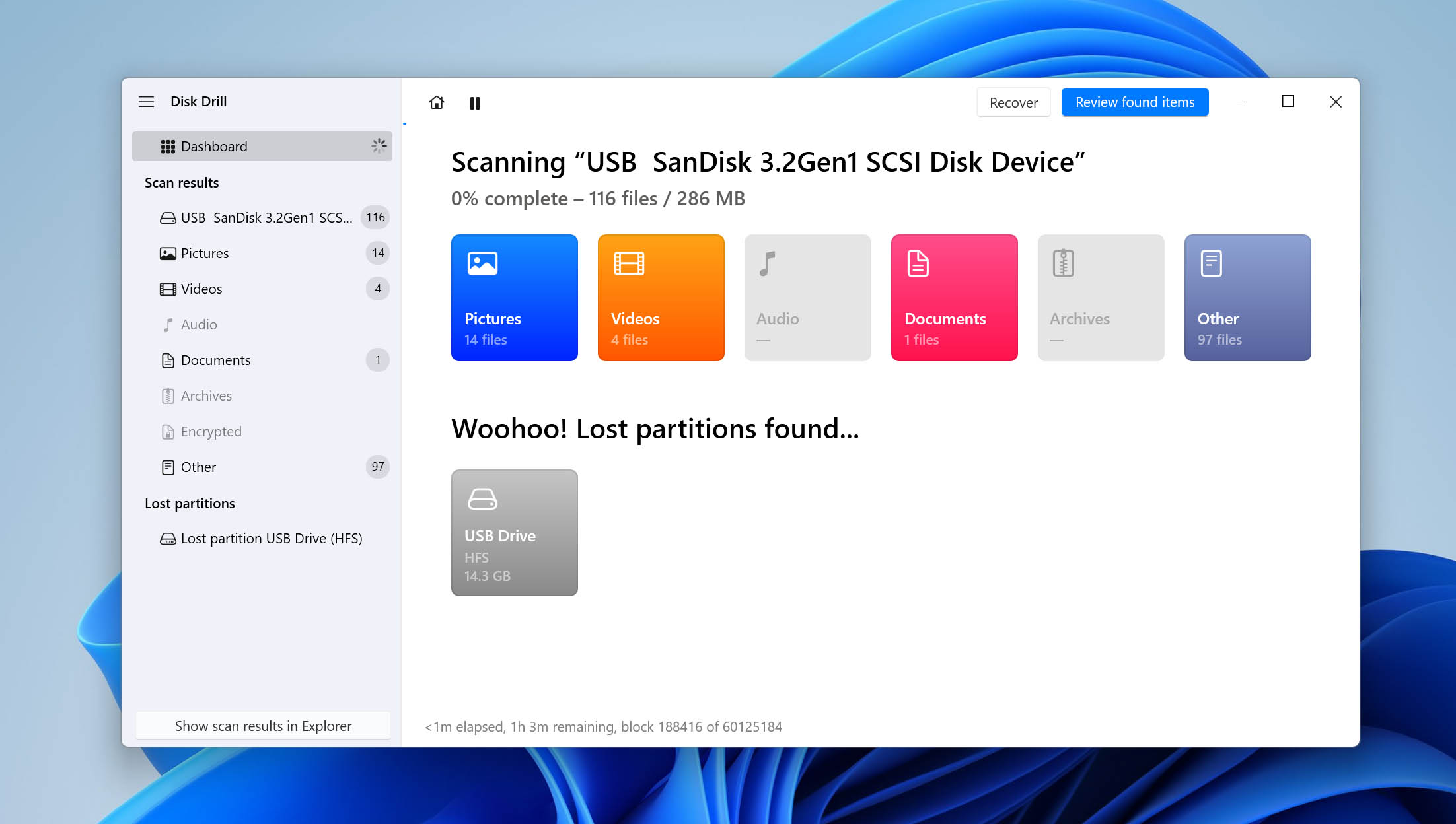
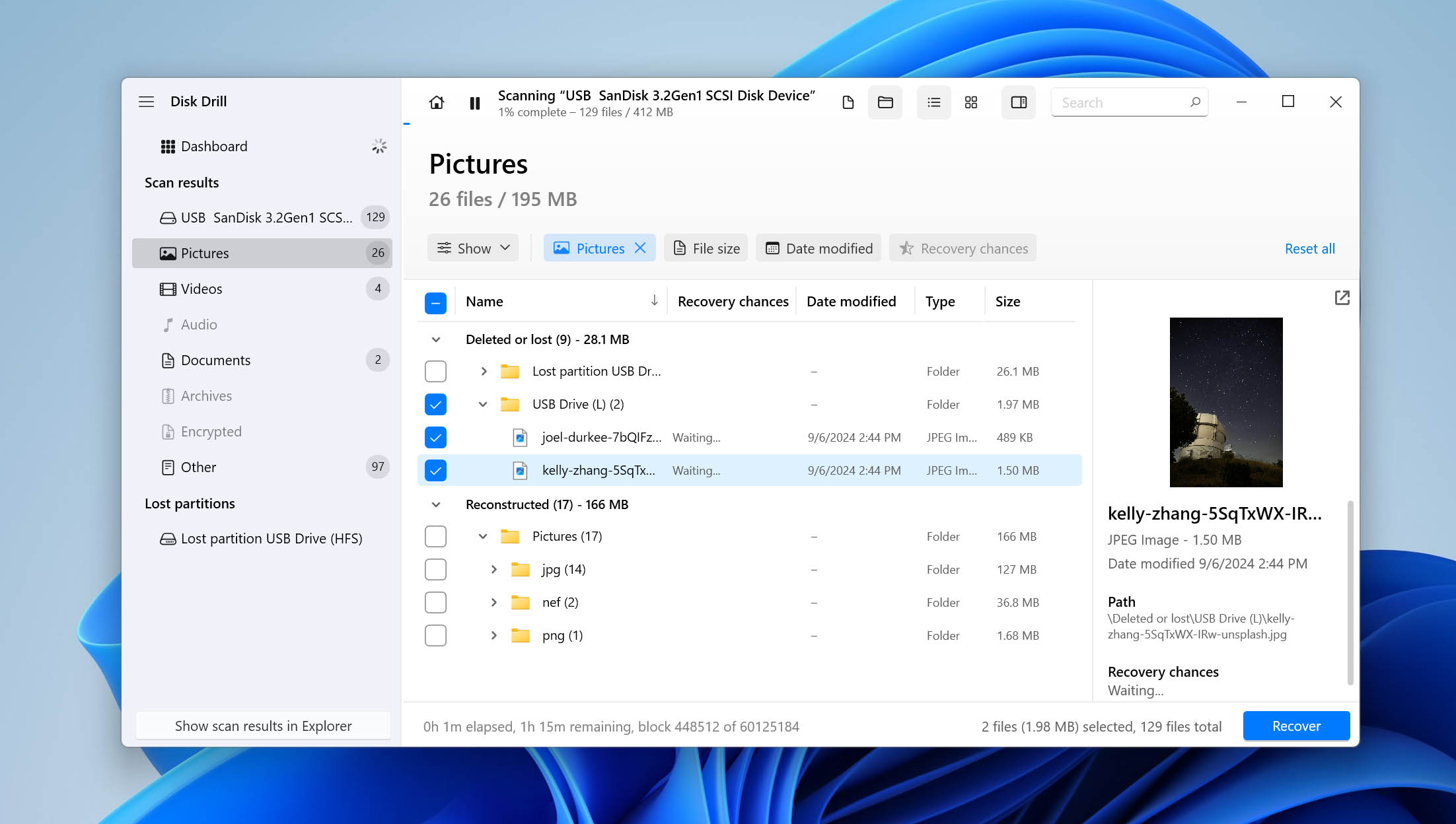
- Select the files you want to recover. Use the Recovery chances column and preview window to check the results and decide which files you need. When ready, click Recover.
- Choose an output location for the recovered files. Select a different drive rather than the external hard drive you’re recovering data from, then click Next to complete the recovery.
We should mention that you can download Disk Drill for free and use it to scan the external hard drive affected by the “The parameter is incorrect” error. However, the free Windows version only lets you recover up to 100 MB of data. If you need to recover more, you’ll need to upgrade to Disk Drill PRO. It’s best to check the official website for current prices or read our full Disk Drill review, where we also cover its additional features.
How to Fix “The Parameter Is Incorrect” on Windows 11
Now that your data is safe and secure, let’s look at the various solutions available to resolve “The parameter is incorrect” error.
| Scenario | What to try |
| “The parameter is incorrect” appears when opening an external hard drive | Try another USB port first (Solution 1). If the connection is fine, check the drive with CHKDSK (Solution 3). |
| The drive is encrypted with BitLocker | Check its BitLocker status and unlock the drive before trying other repairs (Solution 2). |
| The error started after malware or suspicious activity | Run a full scan with Windows Security (Solution 3). |
| The error appeared after file system corruption or an unsafe disconnect | Run CHKDSK to check and repair file system errors (Solution 4). |
| The problem may be caused by corrupted Windows files | Run SFC and DISM to check and repair Windows system files (Solution 5). |
| The error may be related to regional settings | Check the decimal symbol and make sure it is set to a period (.) (Solution 6). |
| The error appears when changing a Windows service or related system setting | Check the affected service’s Start value in Registry Editor and correct it if necessary (Solution 7). |
| The drive is detected but none of the other fixes work | Recover any data you still need, then format the drive (Solution 8). |
Solution 1: Connect to Another USB Port – Fixes: faulty USB ports, cables, and connections
To avoid wasting time going through more in-depth troubleshooting steps first, you should try testing the external hard drive in another USB port, preferably one directly connected to your motherboard. You should also check the USB cable and, if possible, test the drive with another compatible cable. A faulty port, damaged cable, or loose connection can interrupt communication between your external hard drive and computer, which may result in the “The parameter is incorrect” error.
Solution 2: Check BitLocker Encryption – Fixes: locked or improperly unlocked BitLocker drives
If your external hard drive is encrypted with BitLocker, Windows needs to unlock it before it can access the file system normally. Problems with the encryption status, an improperly unlocked drive, or damaged BitLocker metadata can sometimes result in the “The parameter is incorrect” error. For this reason, it’s worth checking whether BitLocker is enabled before moving on.
- Press Windows Key + S, search for Manage BitLocker, and open it.
- Find your external hard drive in the list and check its BitLocker status.
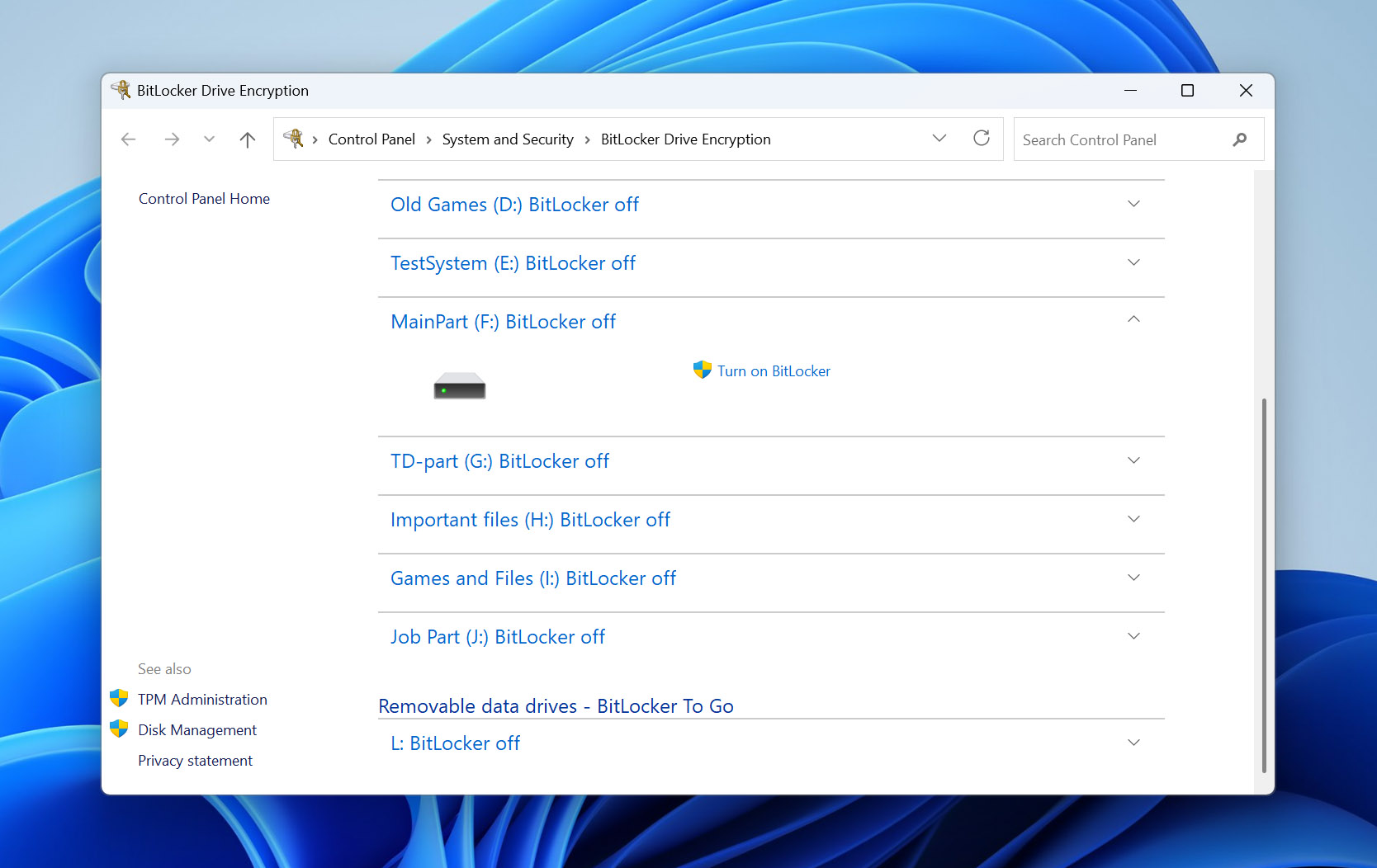
- If the drive is locked, unlock it using your BitLocker password or 48-digit recovery key.
- Once the drive is unlocked, try opening it again in File Explorer.
If you don’t have the password, check whether your BitLocker recovery key was saved to your Microsoft account, printed, stored in a file, or saved elsewhere when encryption was enabled. Don’t format the drive if you still need the data, as formatting won’t help you bypass BitLocker encryption and can make recovery more complicated.
Solution 3: Scan for Viruses – Fixes: malware-related drive access issues
Another preliminary step before jumping into other solutions is removing any viruses that may have initially caused the issue. While removing the virus now will not resolve the problem, it ensures that the problem doesn’t return after it is fixed by one of the solutions that follow. This can easily be done using Windows Defender.
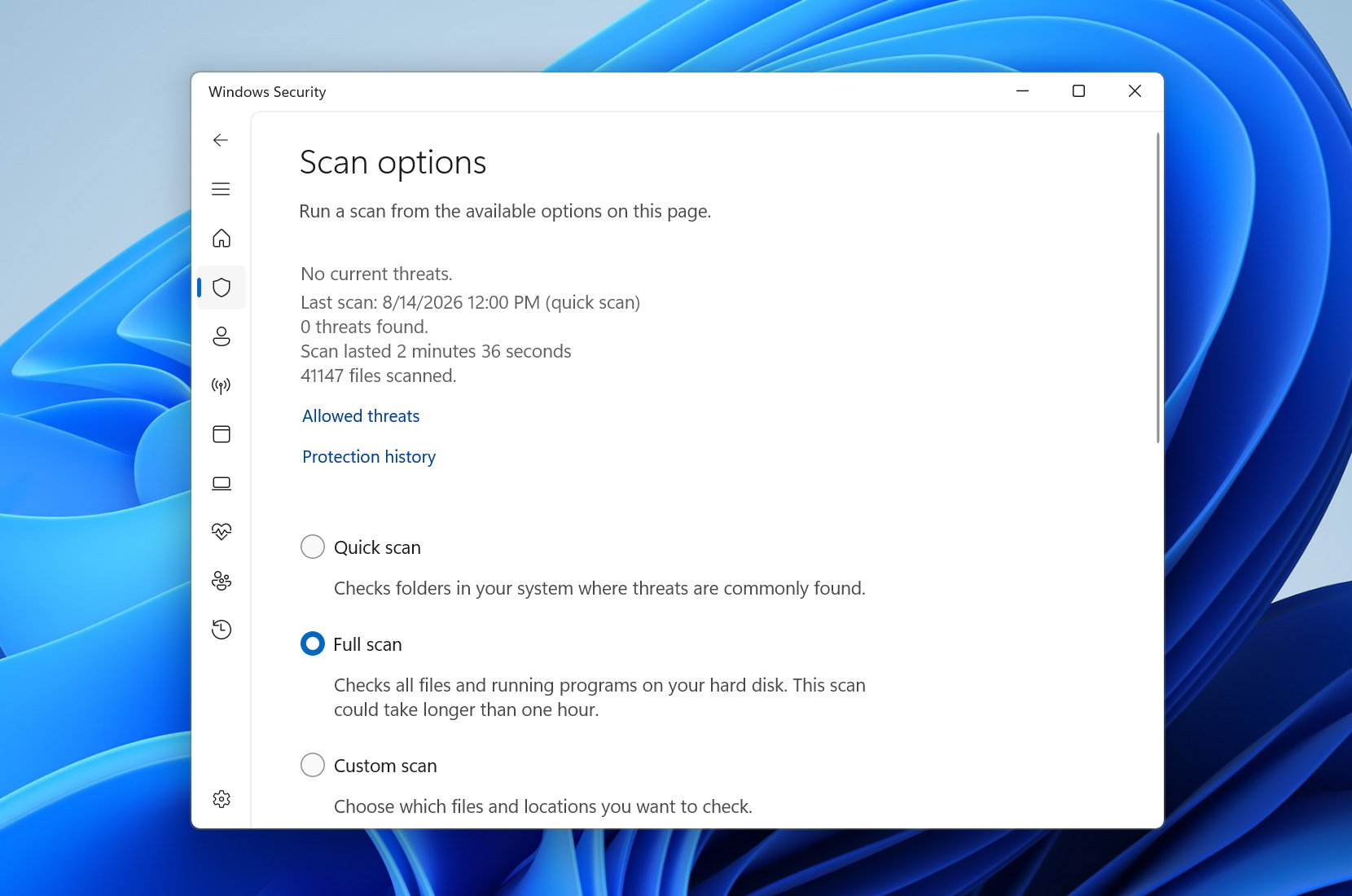
- Press Windows Key + S and search “Windows Security”. Open the first result.
- Click Virus & threat protection.
- Under Current threats, click Scan options.
- Select Full scan, then click Scan now.
Solution 4: Run CheckDisk – Fixes: file system corruption and bad sectors
CheckDisk is a file system-repair tool included with Windows that’s capable of scanning your external hard drive for errors and immediately attempting to fix them. With the right parameters, it can search for bad sectors and remap them to working ones, which may resolve the problem you’re facing.
- Right-click Start and select Terminal (Admin).
- Type chkdsk F: /r. Replace F: with your own drive letter. Press Enter.
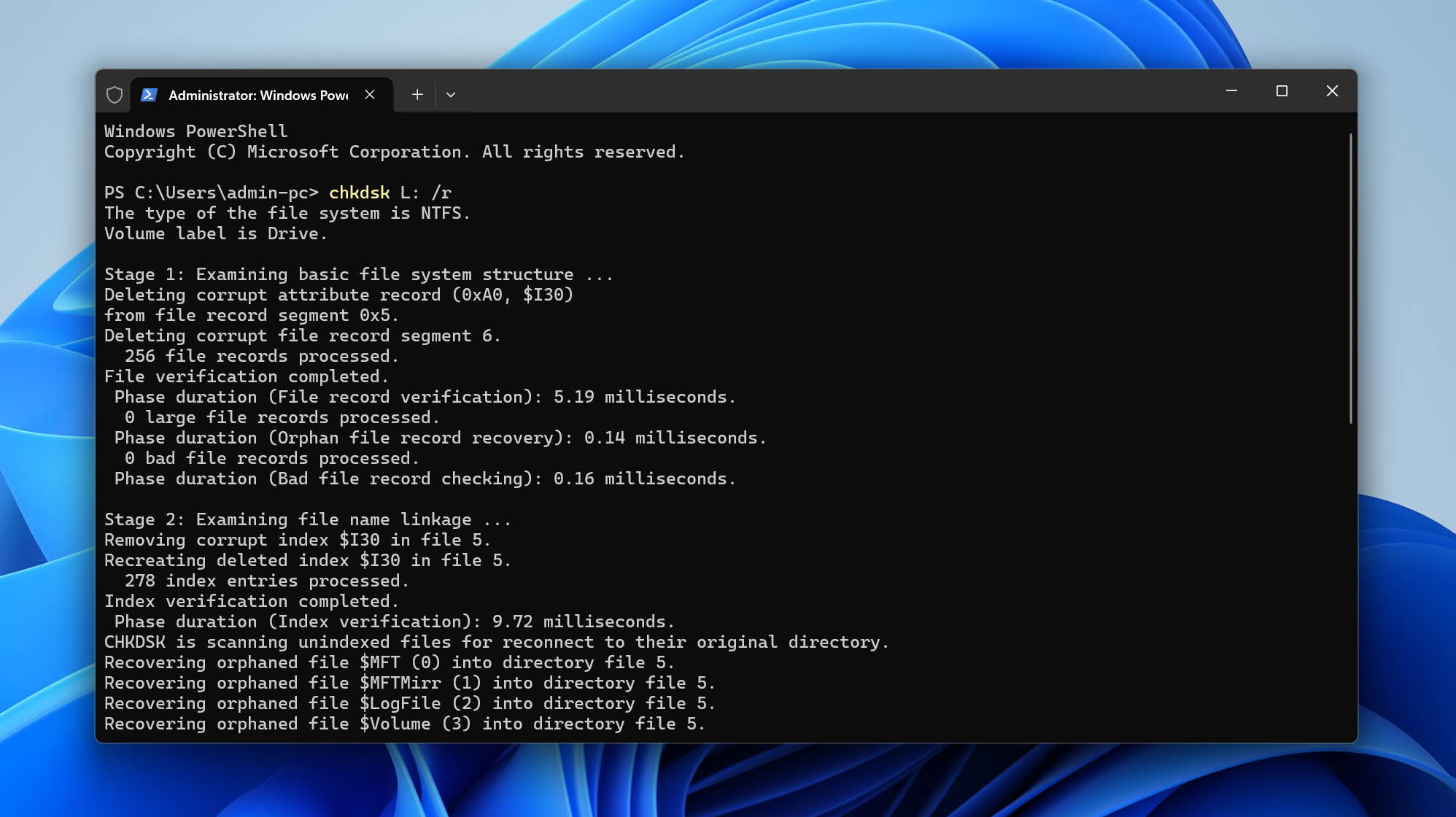
Be careful when using CHKDSK on a drive that contains important data. If file system corruption is causing the “The parameter is incorrect” error, CHKDSK may be able to repair it. However, during the repair process, it can also remove damaged file system entries along with the data associated with them. If you haven’t recovered your important files with Disk Drill as described earlier, now is a good time to go back and do that before running CHKDSK.
Solution 5: Run DISM and SFC – Fixes: corrupted Windows system files
The Deployment Image Servicing and Management (DISM) tool can repair problems with the Windows system image and restore the files that Windows uses for system repairs. Once DISM has finished, you can run System File Checker (SFC) to scan protected Windows system files for corruption and replace damaged files with working versions. If corrupted Windows system files are behind the “The parameter is incorrect” error, running these two tools may help resolve the problem.
- Right-click Start and select Terminal (Admin).
- Type DISM.exe /Online /Cleanup-Image /RestoreHealth and press Enter. The process may take several minutes to complete.
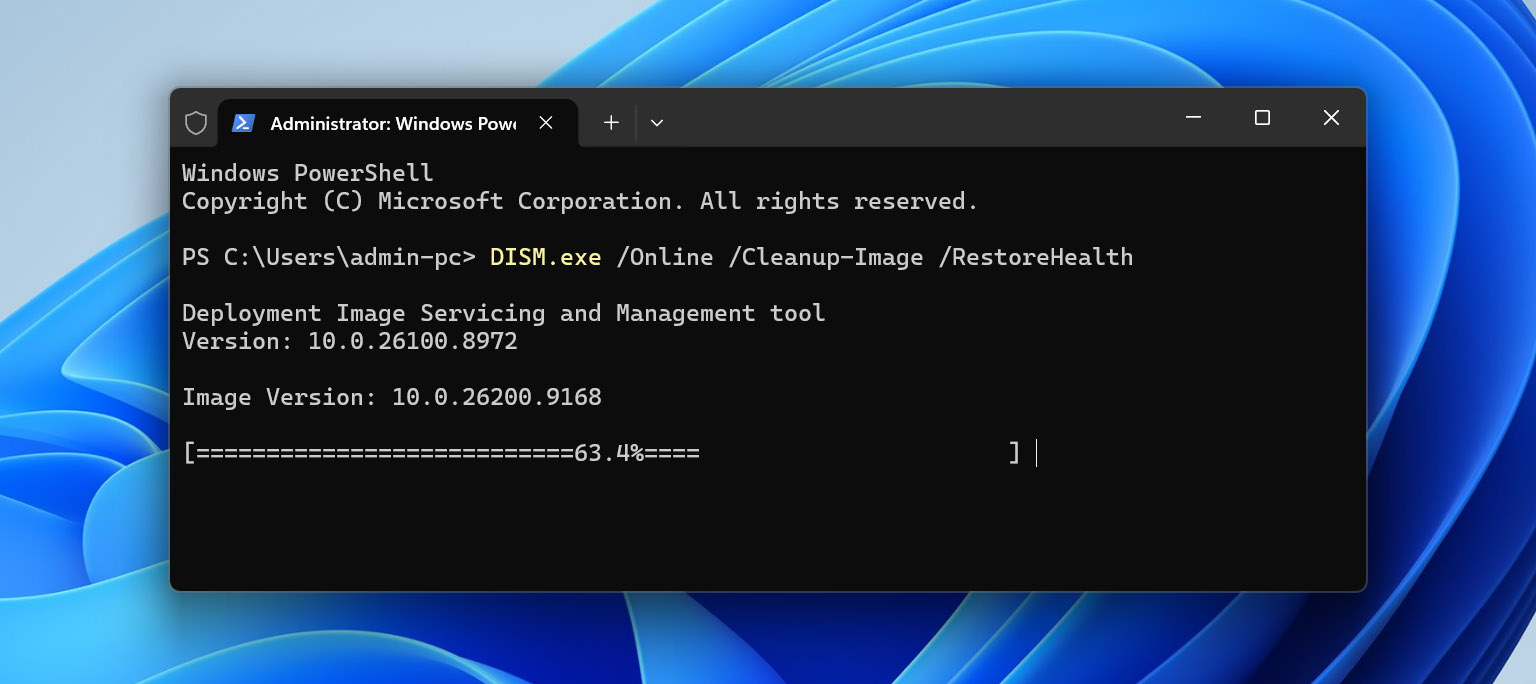
- Once DISM finishes, type sfc /scannow and press Enter.
- Wait for the scan to reach 100%, then restart your computer and check the external hard drive again.
Solution 6: Check the Decimal Symbol Settings – Fixes: regional format conflicts
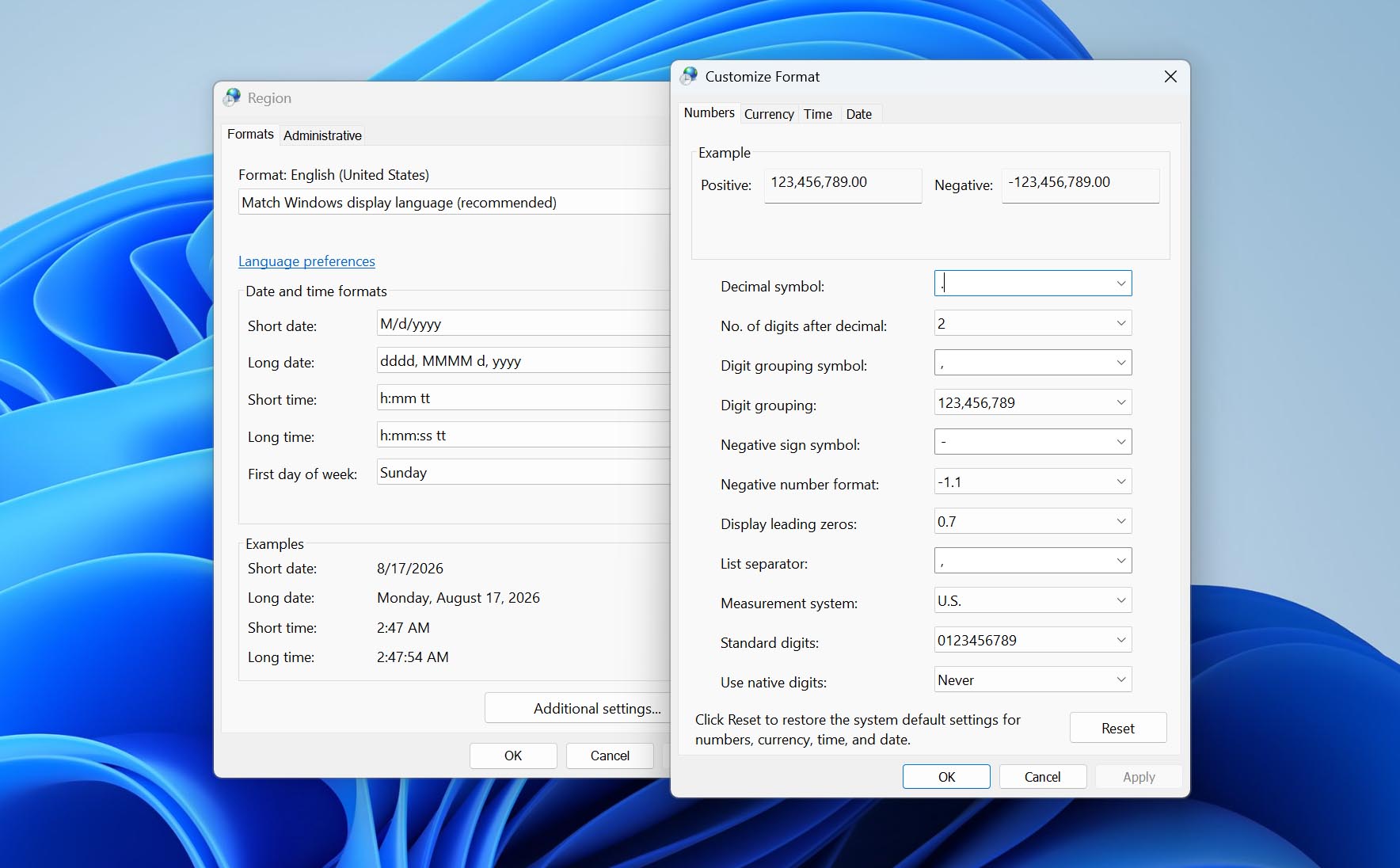
Oddly enough, the decimal symbol used by Windows can cause this issue to arise. It’s common in regional formats other than English, such as German. It can easily be fixed by updating your Region settings to use a period symbol.
- Press Windows Key + R and type intl.cpl. Press Enter.
- Click Additional settings.
- Ensure that the decimal symbol is a period. Click Apply, if needed, then OK.
Solution 7: Check the Registry Value – Fixes: incorrect Windows service settings
If you’re getting “The parameter is incorrect” while trying to start, stop, or change the settings of a Windows service rather than when accessing your external hard drive, the problem may be related to the service’s configuration in the Windows Registry. In this case, check the service’s Start value and correct it if necessary.
- Press Windows Key + R, type regedit, and press Enter. Click Yes if prompted by User Account Control.
- In Registry Editor, navigate to Computer\HKEY_LOCAL_MACHINE\SYSTEM\CurrentControlSet\Services.
- Find and open the subkey for the Windows service that is producing the error.
- Double-click the Start DWORD value.
- Check its Value data and change it to the appropriate startup value for that service. Common values are 2 for Automatic, 3 for Manual, and 4 for Disabled.
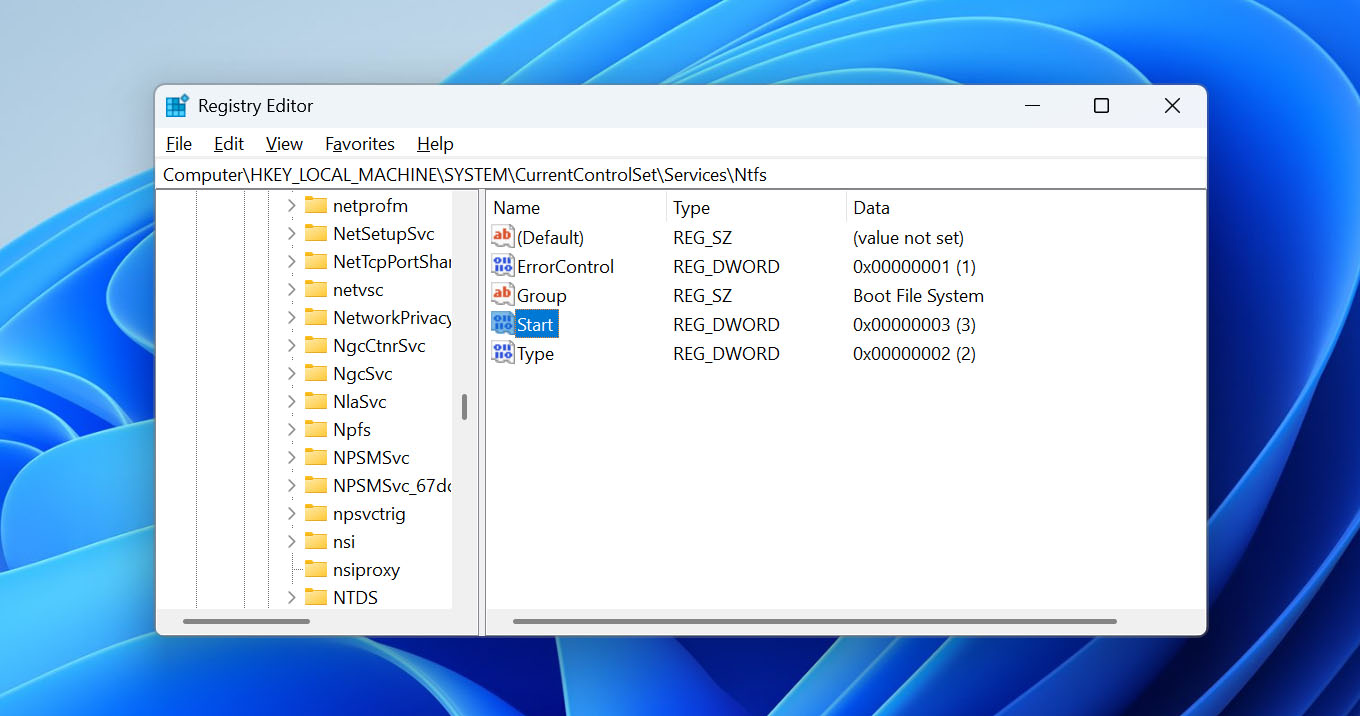
- Click OK, close Registry Editor, and restart your computer if necessary.
Be careful when editing the Windows Registry. The correct Start value depends on the particular service, so don’t change it unless you know what startup type that service should use. An incorrect Registry change can cause Windows or individual services to stop working properly.
Solution 8: Format the Drive – Fixes: severe file system corruption
If none of the previous solutions have worked, formatting your external hard drive may be your last option for fixing the “The parameter is incorrect” error. It creates a new file system on the volume, which can resolve the problem when the existing file system is damaged beyond repair.
Formatting will erase the data stored on the external hard drive. If you still have important files on it, recover them first with Disk Drill using the method we covered earlier in this article. Once your files are saved to another drive, you can proceed with formatting.
- Right-click Start and click Disk Management.
- Right-click the volume of your external hard drive, then select Format.
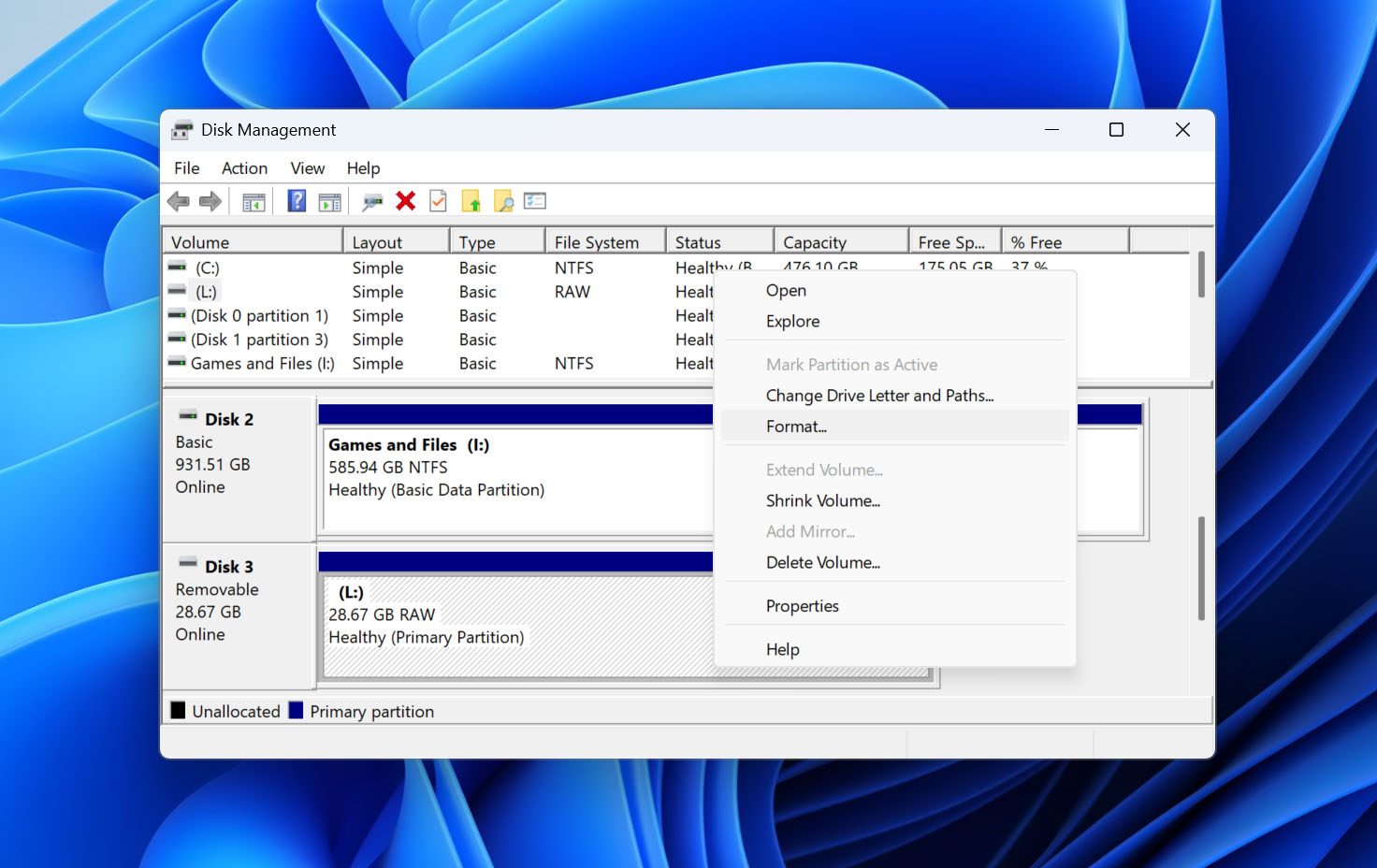
- Provide a name and specify the file system you want. Ensure Perform a quick format is selected. Click OK.
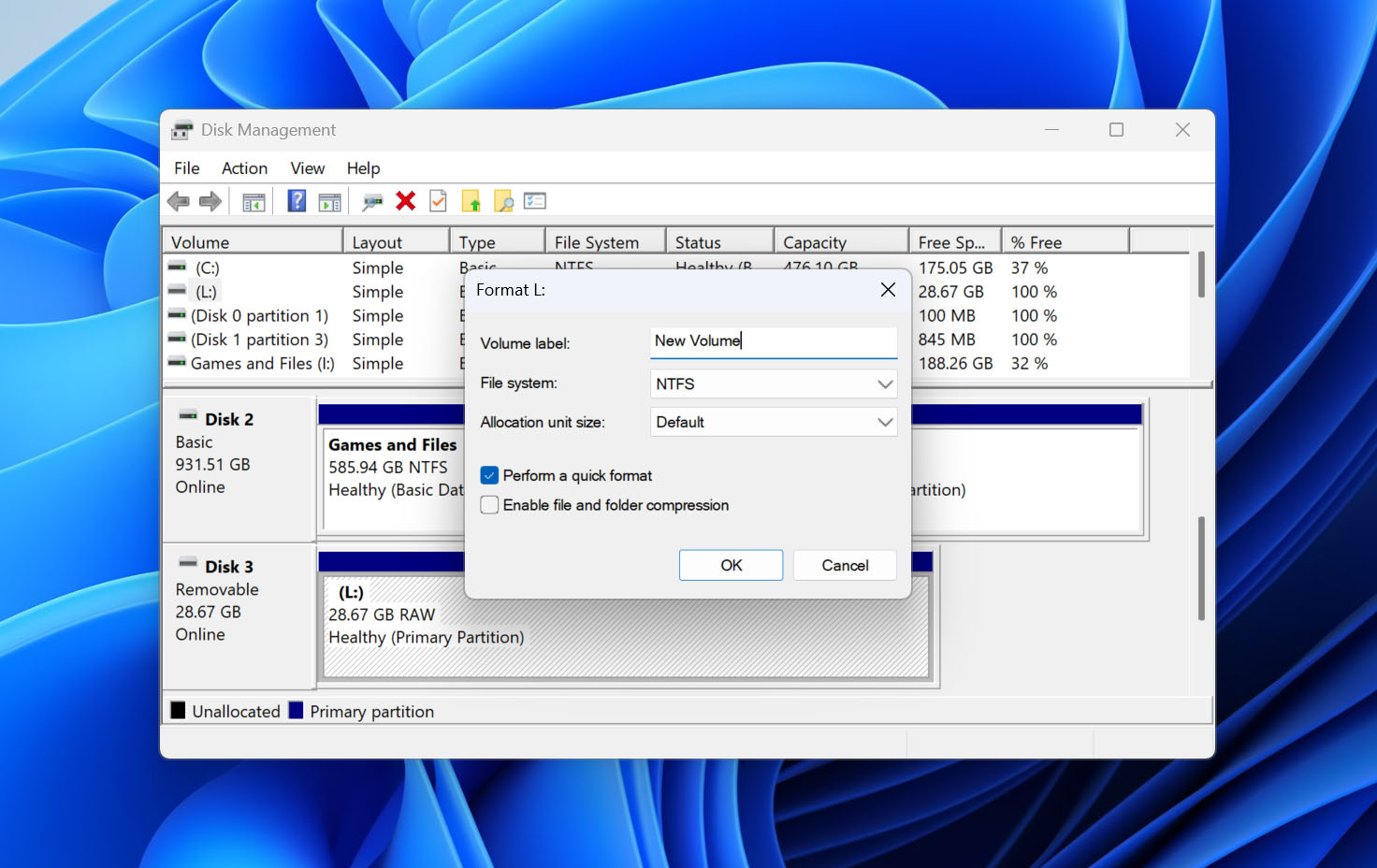
- Click OK to start the format process.
Final Thoughts
Seeing “The parameter is incorrect” when you connect an external hard drive doesn’t necessarily mean the drive has physically failed. In many cases, the cause is something you can fix yourself, such as file system corruption, BitLocker encryption, a connection problem, or an issue within Windows. The solutions we covered above should help you narrow down the cause and, hopefully, get the drive working normally again. The main thing to remember is not to put your data at risk while trying to fix the drive. Some methods, especially CHKDSK and formatting, can modify the file system or erase the data entirely. If the drive contains files you still need, recover them with Disk Drill before attempting these fixes. Once your data is stored safely on another drive, you can troubleshoot the “The parameter is incorrect” error without having to worry about losing important files in the process. And for the future, don’t keep the only copy of important files on an external hard drive. Back them up to another drive or cloud storage, always eject the drive properly before disconnecting it, and don’t ignore unusual behavior such as frequent disconnects or file system errors. A recent backup can turn the next drive problem from a data recovery job into a much simpler fix.
FAQ:
- Press the Start button on your keyboard, type 'regedit,' right-click it, and open it as an administrator.
- Then navigate to: Computer\HKEY_LOCAL_MACHINE\SYSTEM\CurrentControlSet\Services\OneSyncSvc_48ab2 (replace this with the service name you need to change).
- Double-click the 'Start' 32-bit DWORD and change its value to 2 (automatic), 3 (manual), or 4 (disabled).
- Check the USB port and cable.
- Check whether the drive is encrypted with BitLocker and unlock it if necessary.
- Scan for viruses.
- Run DISM and SFC.
- Check the Decimal Symbol Settings.
- Check the Registry Value if the error is related to a Windows service.