Deleted or lost important videos from the SD card and want the fastest way to recover? You can usually recover the deleted footage even if you accidentally delete, format, corrupt, or have file system errors. When a video is deleted, the actual data usually remains on the SD card until new files overwrite it. We’ll show you the simplest, most dependable ways to recover deleted videos from any SD card on PC or Android, as well as what to avoid before recovery.
How to Improve Your Chances of Successful Video Recovery
What you do immediately after video loss often determines the outcome of recovery. The goal is to preserve the card’s current state until you attempt recovery.
To increase your chances of success, we recommend:
- Stop using the SD card immediately. Do not record new videos, take photos, or save any files to the card.
- Remove the card from the device. This prevents background processes from writing new data to the card without your knowledge.
- Avoid formatting the card. Even if your camera, phone, or computer prompts you to format it, decline the request until you recover your files.
- Do not run repair utilities right away. Tools such as CHKDSK or built-in file system repair features can modify the card’s structure and make recovery more difficult.
- Check the card’s condition. Frequent disconnects, read errors, unusually slow performance, or missing capacity can indicate underlying hardware problems.
- Create a backup or disk image of the card whenever possible. This gives you a safe copy to work with and reduces the need to repeatedly access a potentially unstable SD card.
- Start recovery as soon as possible. The longer you wait, the greater the chance that new data will overwrite the deleted videos.
These precautions cannot guarantee recovery, but they can significantly improve the odds of retrieving your videos intact.
How to Recover Deleted Videos from an SD Card
Different video loss situations require different recovery methods. Some approaches work best for accidentally deleted videos, others help with formatted or corrupted SD cards, and certain methods focus on backup-based recovery instead of direct scanning.
Here are 4 of the most reliable methods for SD card recovery:
Method 1: Use Data Recovery Software on Your PC
Data recovery software is the method most people choose after accidental video deletion, formatting, or SD card corruption because it usually provides the fastest and simplest recovery route without specialized equipment.
Disk Drill is by far the best video recovery software we have tested. It works with SD cards from cameras, phones, drones, dash cams, and other devices, supports most popular video formats, and has one of the simplest recovery interfaces for beginners. During our tests, it also handled fragmented video recovery better than many competing tools, especially with larger 4K and camera video files.
One feature we especially recommend for deleted video recovery is Advanced Camera Recovery. Unlike standard signature-based recovery, it understands how cameras such as GoPro, DJI, Canon, Sony, and Nikon store video data. These devices often write video, audio, metadata, and other components as separate blocks rather than a single continuous file. Advanced Camera Recovery identifies and correctly reassembles these related blocks, which can improve the chances of recovering playable video files instead of corrupted or incomplete footage.
Here is how to recover deleted videos from an SD card using Disk Drill:
- Go to the official CleverFiles website and download a version for Windows or macOS. Follow the on-screen instructions to install the app.
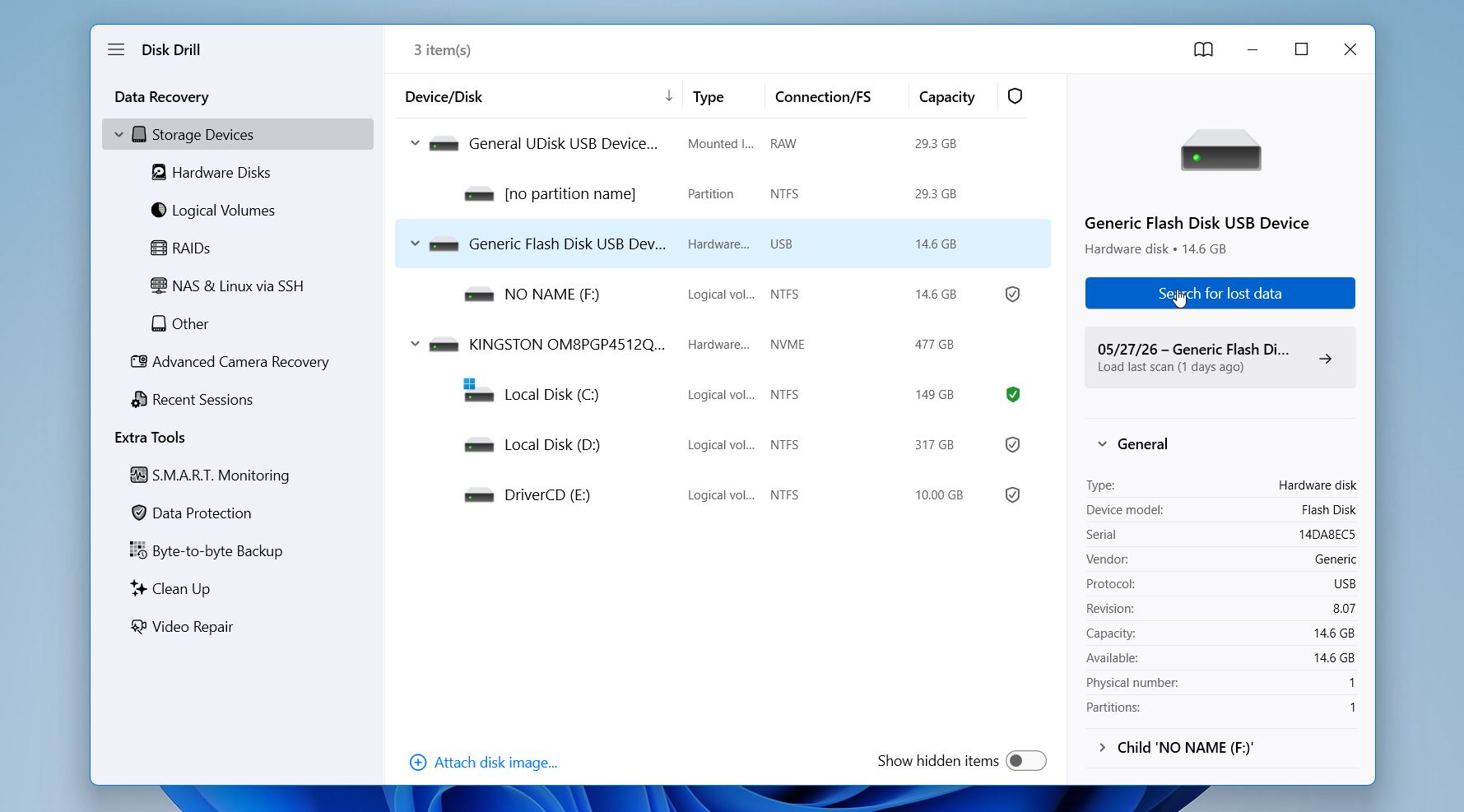
- When you open Disk Drill, you will see a list of available storage devices connected to your computer, including internal drives, external drives, USB devices, and your SD card. Select it and click Search for lost data.
- The tool will then ask you to select the recovery mode. For videos, we highly recommend Advanced Camera Recovery.
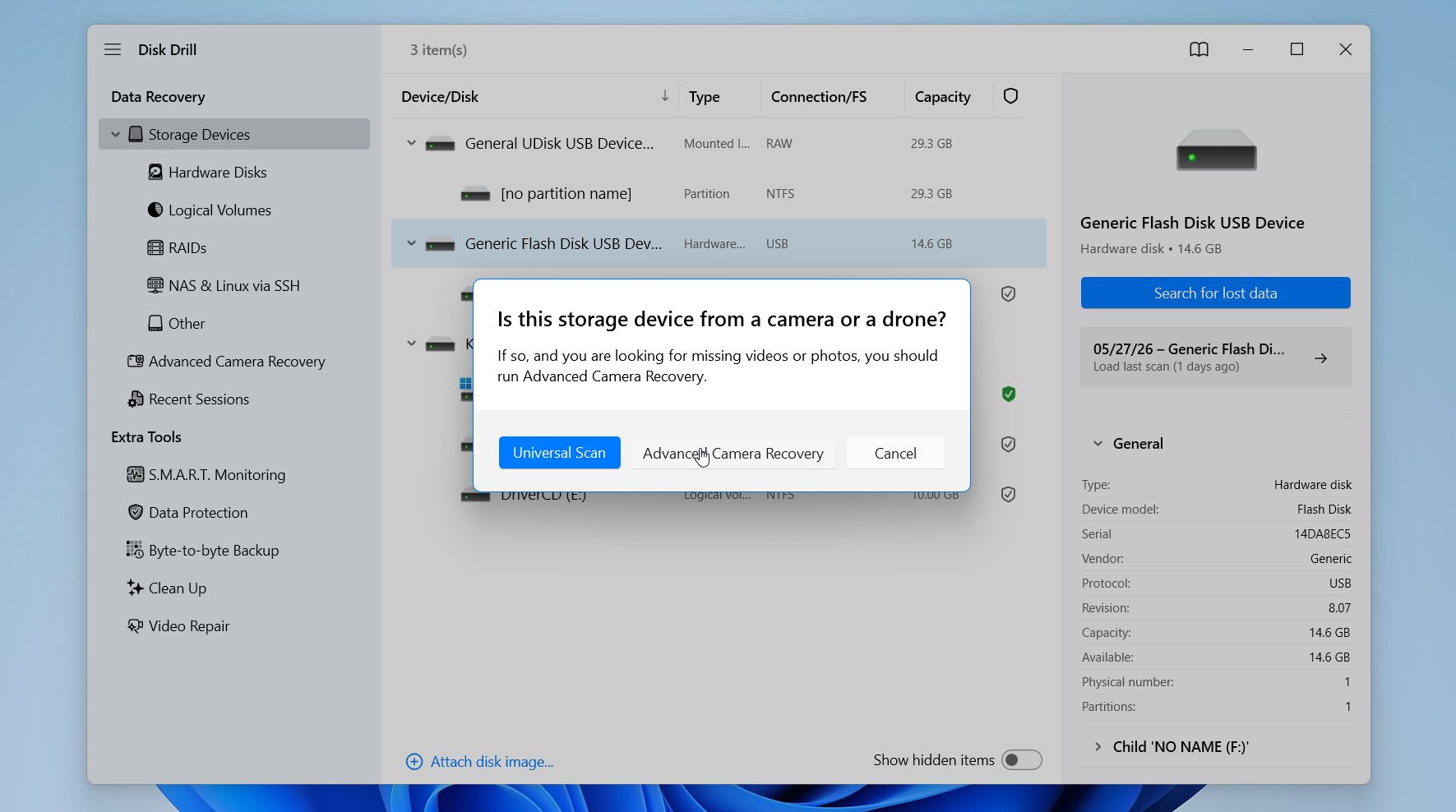
- Wait for the scan to finish. The scan can take a few minutes to an hour or more, depending on your SD card’s speed and capacity. Click the Review found items button in the top-right corner. This will let you browse the scan results without interrupting the scan itself.
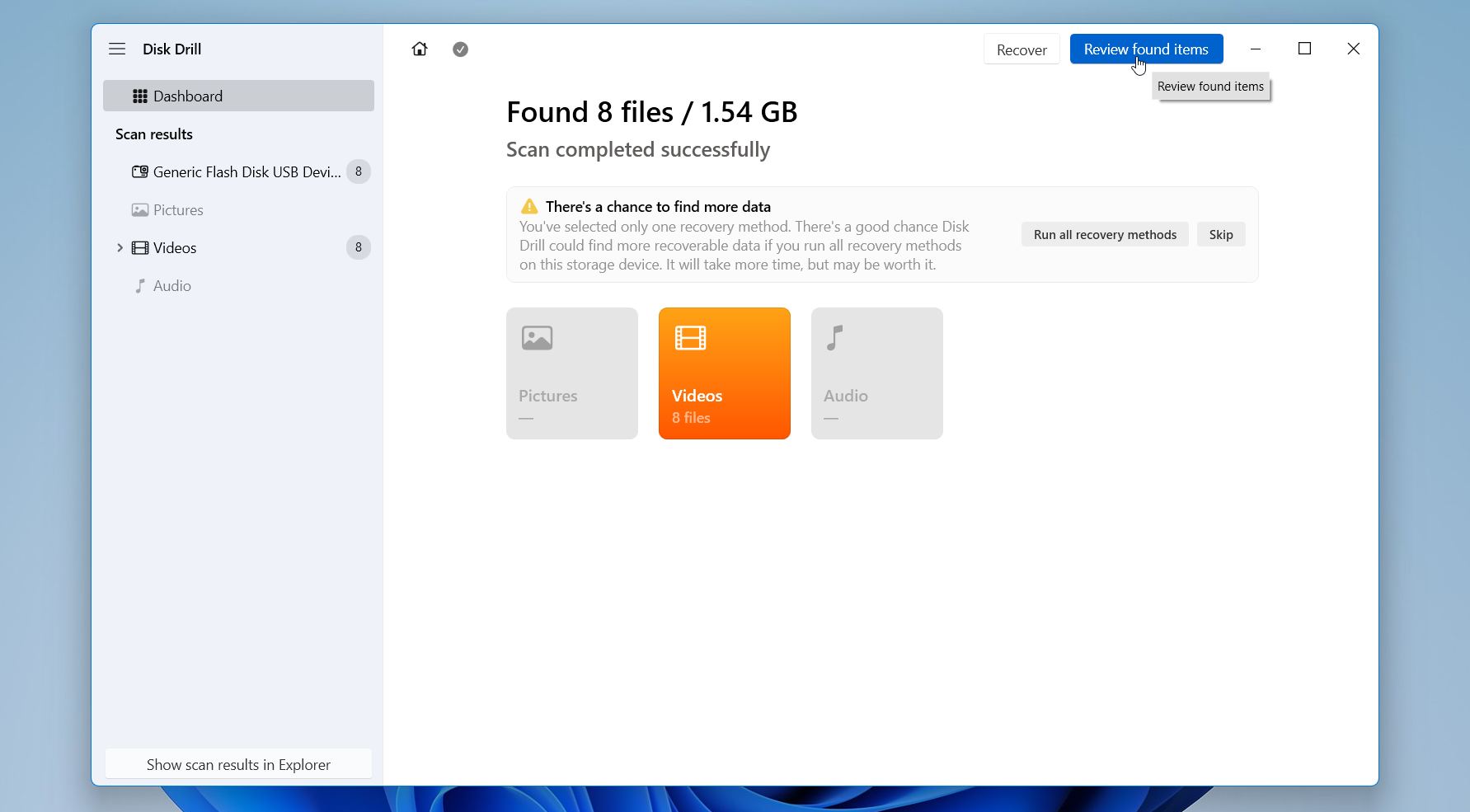
- You can use filters (type, size, date modified, recovery chances) or a search bar to narrow down the results. Don’t forget to click on the file to see a preview and verify that the recovered video still opens and plays correctly before you restore it. Select the files to restore and click Recover.
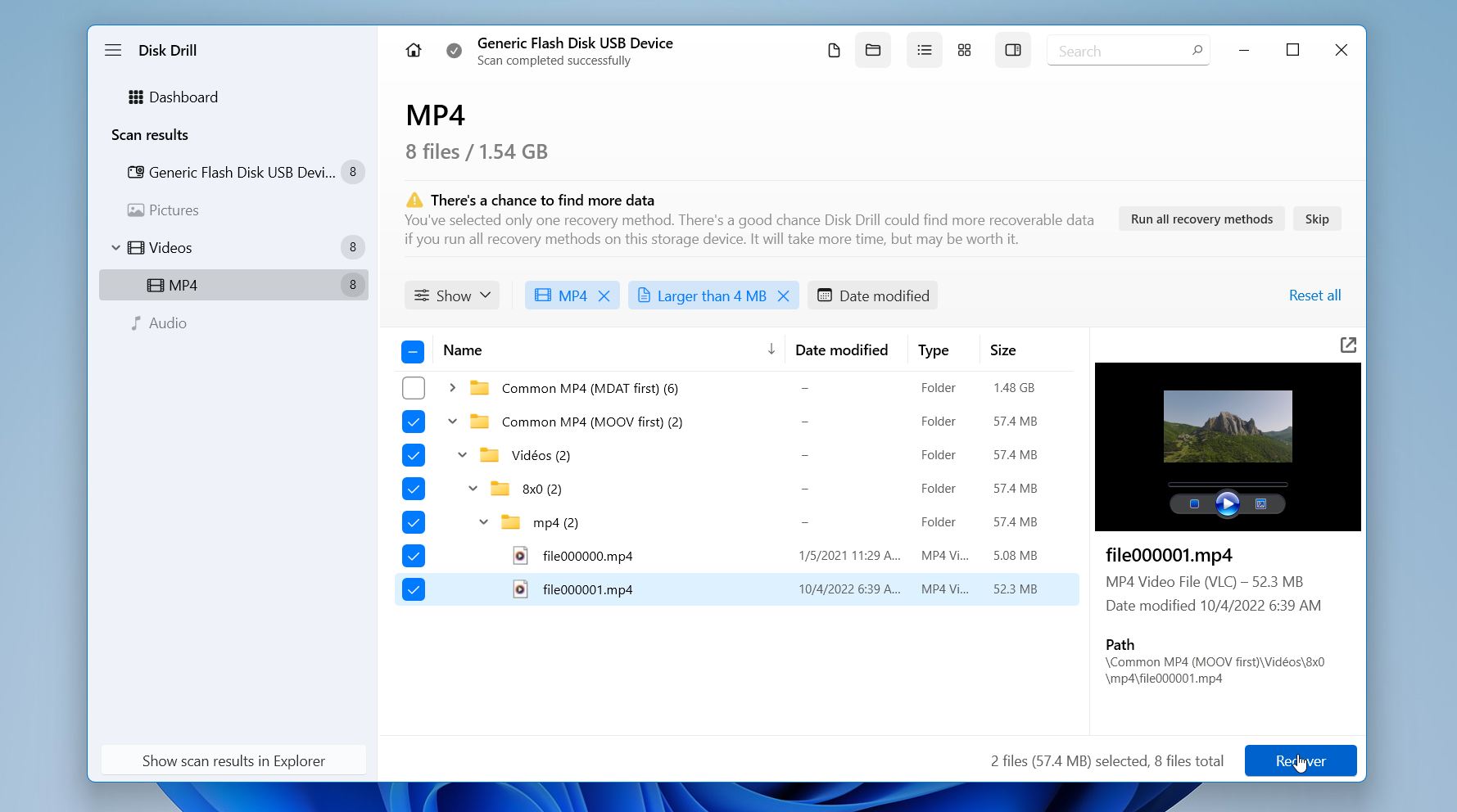
- Choose a different storage location for the recovered files, such as your computer’s internal drive or another external disk. Avoid restoring the videos back to the same SD card, since this can overwrite other recoverable data. Press Next.
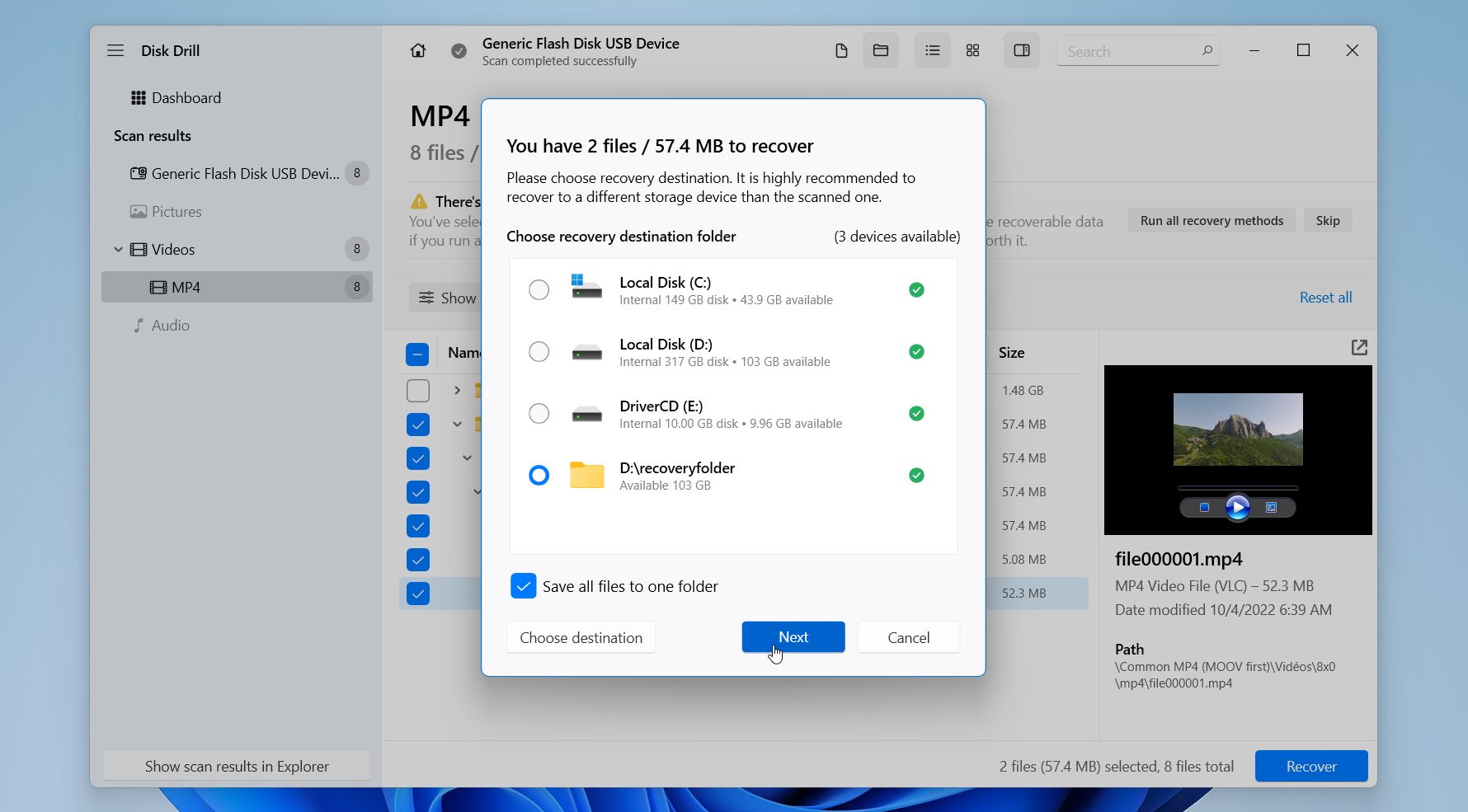
Then you will be able to see your recovered videos in File Explorer or Finder. Disk Drill for Windows allows free recovery of up to 100 MB of data, while the Mac version lets you scan and preview recoverable files for free before you decide whether to purchase a license.
If your SD card disconnects randomly, is extremely slow, throws read errors, or shows signs of corruption, we highly recommend creating a byte-to-byte backup of the card before recovery. This will make an exact copy of the SD card and allow you to scan the backup rather than the original media, avoiding additional stress on unstable storage and reducing the risk of further data loss during recovery attempts.
For a detailed breakdown of Disk Drill’s video recovery capabilities, check out our full Disk Drill review. During our testing, the software achieved one of the highest recovery success rates across the files we attempted to restore. In a dedicated DJI drone SD card test, it successfully recovered 4 out of 4 fragmented MOV video files, with every recovered video remaining fully playable and free from corruption. Our team also awarded Disk Drill a final score of 9.1/10 after evaluating recovery performance, scan speed, ease of use, and overall value.
Method 2: Recover SD Card Videos from Cloud Backup
Not all devices automatically backup videos to the cloud, so this solution isn’t going to work for everyone. But many folks forget or just don’t realize that before the videos left the SD card, cloud sync was enabled. Phones, drones, cameras, and companion apps often upload media in the background automatically, so even after you delete a video and remove it from the SD card itself, backup copies may still exist inside services like Google Photos, iCloud Photos, OneDrive, Dropbox, or DJI cloud storage.
Here is how to recover files from a cloud:
- Log into your cloud storage account on your phone or PC.
- Open the photos, videos, backups, or synced media section.
- Check folders that may contain automatically uploaded files from your SD card or camera.
- Open the Trash, Recycle Bin, or Recently Deleted folder.
- Locate the missing videos you want to recover.
- Select the files and press Restore, Recover, or Download, depending on the service you use.
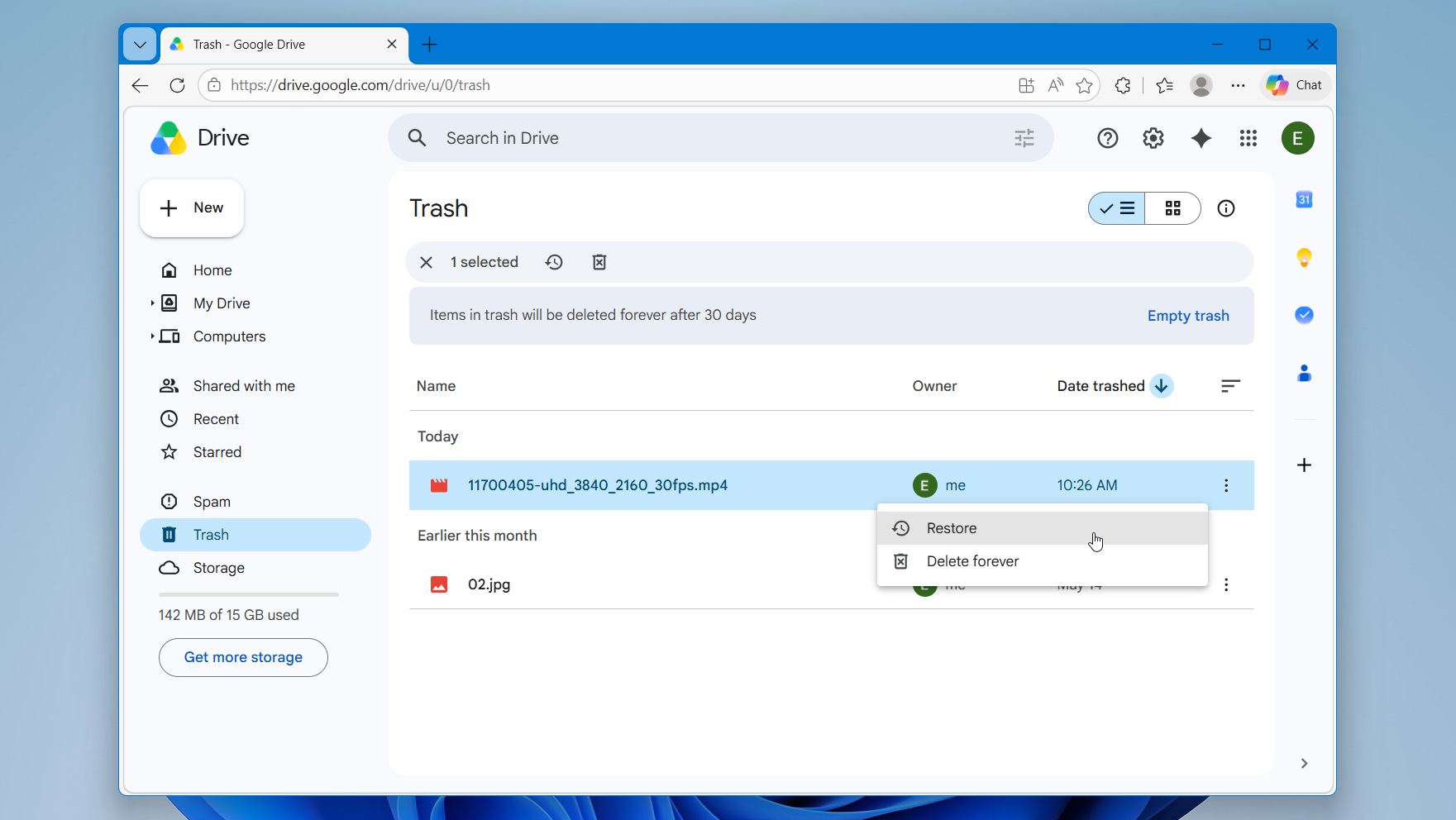
- Save the recovered videos to your computer or another storage device instead of the original SD card.
Most cloud services keep deleted files for a limited time before permanent removal. Google Photos and iCloud Photos, for example, usually keep deleted items for around 30 days before automatic deletion.
Method 3: Restore Deleted Videos from SD card on Android phone
Android recovery apps can sometimes help recover deleted videos directly from a phone or tablet without using a computer. However, Android recovery has several limitations compared to PC-based recovery. Modern Android versions restrict direct storage access, many recovery apps cannot perform deep scans without root access, and recovery quality is often lower for large or fragmented video files.
Because of this, we almost always recommend removing the SD card from the Android device and scanning it on a Windows PC or Mac instead. Desktop recovery software usually detects more deleted videos, handles damaged cards better, and works much more reliably with large camera footage.
Here’s how to restore deleted videos from an SD card with DiskDigger on Android:
- Download and install DiskDigger from the Google Play Store.
- Open the app and tap Search for lost videos.
- Select your SD card from the storage list.
- Wait for DiskDigger to scan the card for deleted videos.
- Browse through the scan results and preview the recovered videos. Select the videos you want to restore by tapping the checkbox next to each file. Tap the Recover button at the bottom of the screen.
- Choose where you want to save the recovered videos. Save the recovered videos to cloud storage, your phone’s internal storage, or another device instead of the original SD card.
- Open the recovered videos and verify that they play correctly.
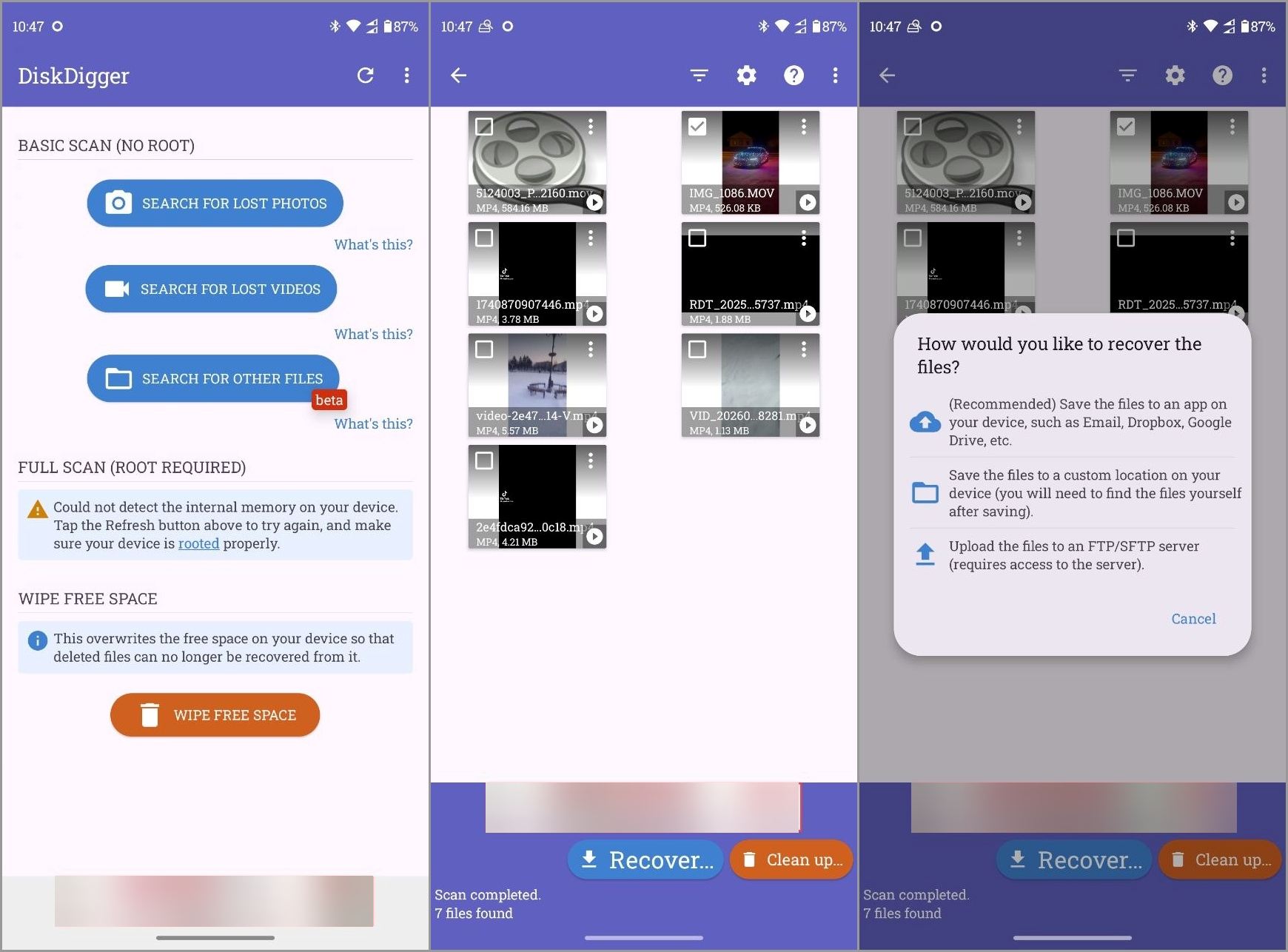
DiskDigger works best for recently deleted videos and simpler recovery situations. Recovery chances become lower after heavy phone usage, new recordings, app installations, formatting, or SD card corruption. Rooted Android devices may also allow deeper scans and better recovery results than the standard non-root mode.
Method 4: Consult SD Card Data Recovery Service
Finally, the last recovery option is to contact a professional data recovery service. This route usually becomes necessary when the SD card has physical damage, severe corruption, controller failure, water damage, burn damage, or when the card no longer appears correctly in Windows, macOS, cameras, or phones. It is also worth considering if none of the recovery methods in this article managed to recover your deleted videos.
Professional recovery labs use specialized hardware and forensic recovery equipment that normal users do not have access to. In some situations, this can provide the best chance of recovering important videos from heavily damaged SD cards. However, recovery success still depends on the condition of the card and the amount of damage present.
Most recovery services follow a process similar to this:
- Visit the recovery company’s website and start a recovery request.
- Select the type of storage device and describe the SD card problem.
- Choose the urgency level for the recovery service. Faster emergency recovery usually costs more.
- Fill out your contact information and shipping details.
- Send the SD card to the recovery lab for inspection.
- Wait for the specialists to analyze the SD card and provide a recovery estimate.
- Approve the recovery if you agree with the quoted price and expected results.
- Receive the recovered videos on a replacement storage device or through secure cloud delivery.
Professional SD card recovery can become expensive, especially for physically damaged cards, but reputable companies often follow a “no data, no charge” policy. We also recommend checking customer reviews, turnaround times, and privacy policies before sending away an SD card that contains important personal videos.
Why Videos Get Deleted from the SD Card
There are many different reasons why videos can disappear from an SD card. Sometimes the files were just deleted by mistake while in other cases the problem comes from corruption, formatting, hardware failure or device errors. The cause matters because it directly affects both chances of recovery and the best recovery method to try first.
| Cause | What happens | Recovery chances |
| 🗑️ Accidental deletion | Videos are removed from the file system but often remain recoverable until overwritten. | Usually high |
| 💽 Formatting the SD card | The file system gets reset and videos become inaccessible. | Often good after a quick format, impossible after a full format or SD_ERASE command |
| ⚠️ SD card corruption | The card may become unreadable, RAW, or show errors when opened. | Moderate to high |
| 🔨 Physical damage | The SD card may crack, stop connecting, overheat, or fail completely. | Usually lower |
| 🔌 Interrupted transfer or sudden removal | Videos may become corrupted during copying or recording. | Moderate |
| 🦠 Virus or malware activity | Files may disappear, become hidden, corrupted, or deleted. | Depends on damage severity |
| 🚫 Fake or failing SD card | The card reports false storage capacity or starts losing files over time. | Often lower |
Final Words
Deleted videos from an SD card are often recoverable, but the right recovery method depends on what happened to the card itself. Some situations only require recovery software like Disk Drill, while others may need cloud backups, Android recovery apps, or even professional recovery services for physically damaged media.
Out of all the recovery methods we tested, Disk Drill delivered the best overall results for video recovery. It combines a beginner-friendly interface with strong recovery performance, broad video format support, and useful features like Advanced Camera Recovery for fragmented camera footage from drones, GoPros, DSLRs, and action cameras.
No matter which recovery method you choose, the most important advice is simple: stop using the SD card immediately after video loss. Avoid recording new videos, formatting the card, or transferring new files onto it until recovery is complete. The sooner you start recovery and the less you use the card afterward, the better your chances of getting your videos back.