



Formatting an SD card is something most users have done at least once – photographers format their cards before every shoot to start with a clean slate, while others do it to fix corruption or other issues. In fact, we also often recommend formatting in our troubleshooting guides because it can resolve many common SD card problems.
But if the format happened accidentally and the files stored on the card were never copied anywhere else, it can easily seem like all your data has been lost. But we’re here to challenge that assumption, and in this guide, we’ll explain why your files may still be recoverable and show you exactly how to recover data from a formatted SD card.
Can a Formatted SD Card Be Recovered?
Yes, you can recover data from a formatted SD card, as long as it hasn’t been overwritten by new files. This is because formatting doesn’t necessarily erase the files themselves. In many cases, the data remains physically stored on the card until new information takes its place. Once that happens, some files may become partially or completely unrecoverable. So, avoid taking new photos, copying files to the card, or leaving it in a device that may continue writing data to it in the background (for example, a phone).
Assuming the card hasn’t been used since it was formatted, your chances of recovery can still be quite good. The table below explains the most common formatting scenarios and what you can realistically expect in each one.
| Formatting Scenario | Recovery Chances |
| Formatted on Windows using Quick Format | Excellent. A quick format usually removes only the file system information, leaving the data itself intact until it is overwritten. In most cases, you can recover the files using data recovery software. |
| Formatted on Windows using Full Format | No. Modern versions of Windows overwrite the card with zeros during a full format, making recovery impossible in most situations. |
| Formatted on a Mac | Excellent. macOS currently performs a quick format for SD cards, so the data often remains recoverable until new files are written to the card. You can usually recover the card by connecting it to a computer and scanning it with data recovery software. |
| Formatted in a digital camera | Good. Most cameras perform a quick format, so the files often remain recoverable. The main exception is some Sony cameras, which may securely erase the card during formatting and leave little to no chance of recovery. If your camera didn’t securely erase the card, connect it to a computer and scan it with data recovery software. |
| Formatted on Android as portable storage | Good. Most Android devices perform a quick format, so recovery is often possible if the card hasn’t been used afterward. You can try an Android data recovery app or connect the card to a computer using a card reader and scan it there. |
| Formatted on Android as internal storage (adoptable storage) | No. Adoptable storage uses device-specific encryption, so the contents of the card become inaccessible after formatting and cannot usually be recovered. |
How to Recover Files from a Formatted SD Card
If you’ve looked through the table above, you’ve probably noticed that most formatted SD card recovery scenarios ultimately lead to the same solution – using data recovery software. The only notable exception is an SD card formatted on Android as portable storage, where you may also have the option to use an Android recovery app directly on the phone itself. That’s exactly what we’ll cover next.
Option 1:Recover a Formatted SD Card Using Data Recovery Software
If the data stored on the SD card hasn’t been overwritten since the formatting process, data recovery software is usually your best chance of getting the files back.
Our tool of choice is Disk Drill. It’s one of the easiest recovery tools to use, but it also has powerful scanning algorithms under the hood. If enough file system metadata remains after formatting, Disk Drill can often recover files with their original names and folder structure intact. And if that information is gone, its signature scanner can still locate and recover files based on their file signatures. In our test, we had quickly formatted a 32 GB SD card containing 247 photos and 18 videos, and Disk Drill recovered 259 out of 265 files (98%), with the original names and folder structure preserved for most of them.
Another advantage is that Disk Drill is available for both Windows and macOS, and the recovery process is nearly identical on both platforms. The only notable difference is the free version – Windows users can recover up to 100 MB of data for free, while Mac users can scan and preview recoverable files but need to upgrade to complete the recovery.
The recovery process in Disk Drill is virtually identical on Windows and Mac, so to avoid repeating the same instructions twice, we’ll use the Windows version for the screenshots and step-by-step guide below:
- Download and install Disk Drill on your computer.
- Connect your SD card to the computer using an internal or external card reader, then launch Disk Drill.
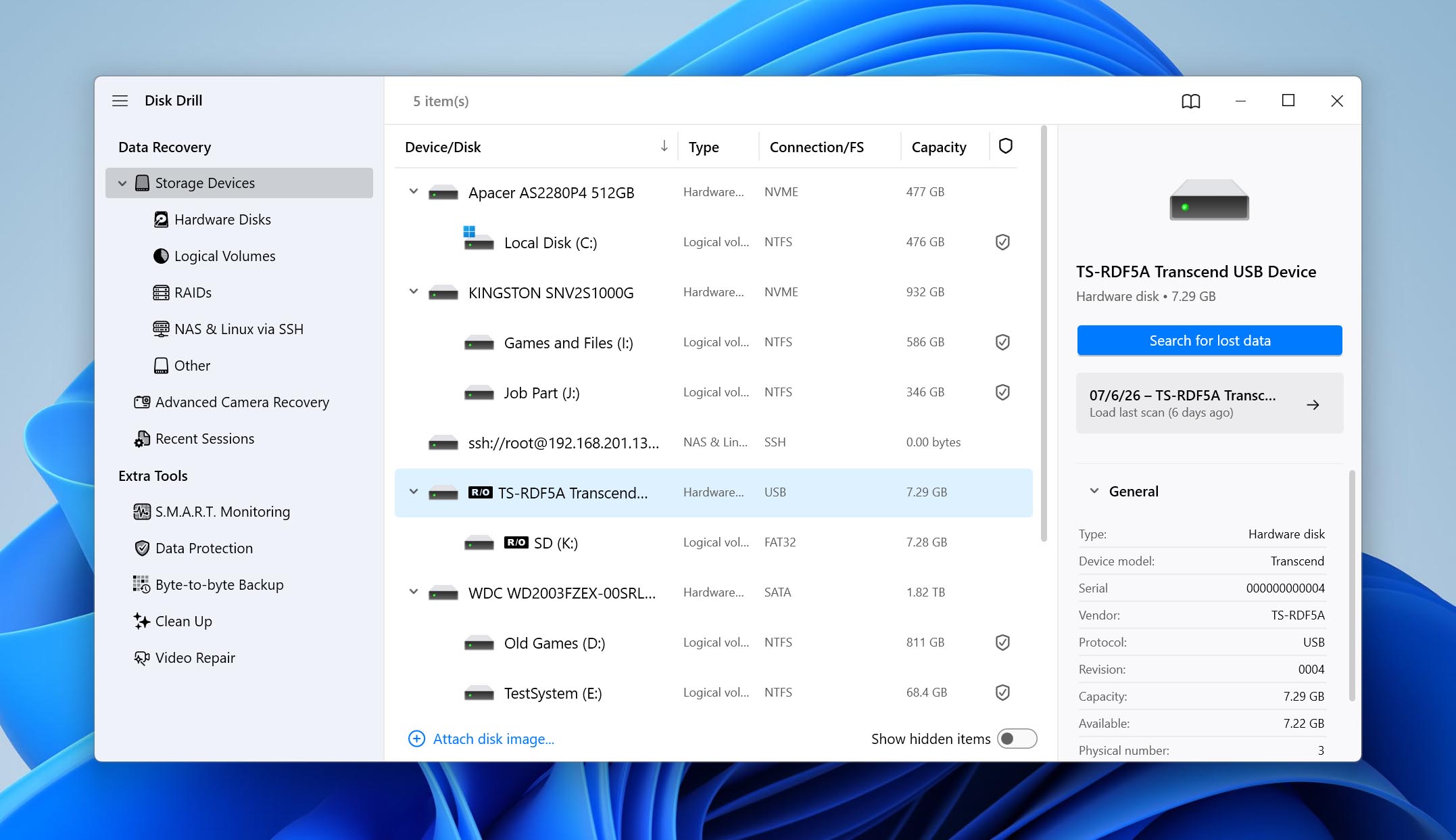
- Select your formatted SD card from the list of storage devices and click Search for lost data.
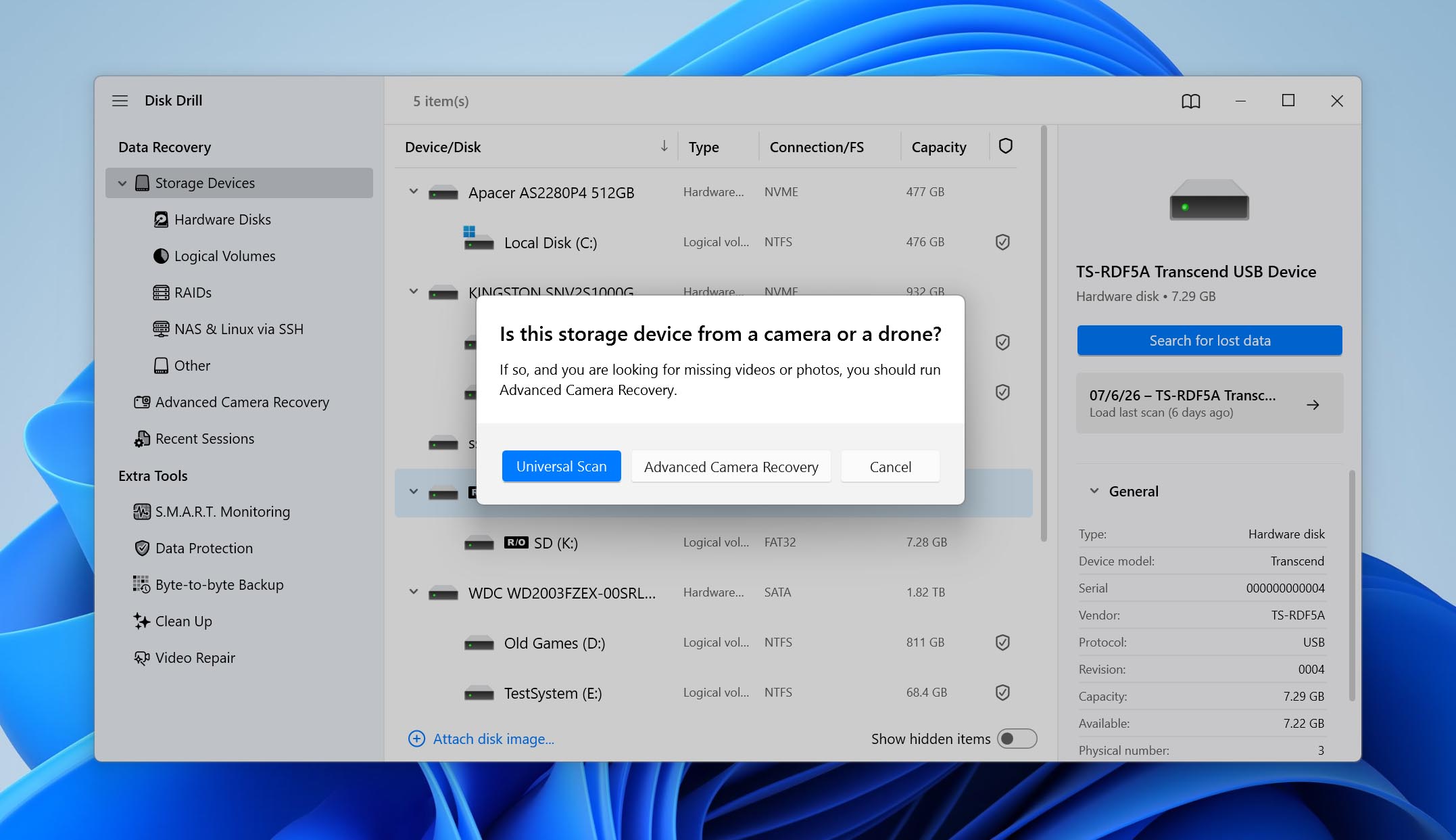
- If prompted, choose between Universal Scan and Advanced Camera Recovery. For most formatted SD cards, we recommend sticking with Universal Scan, as it combines all available recovery methods and works well for photos, videos, documents, and other common file types.
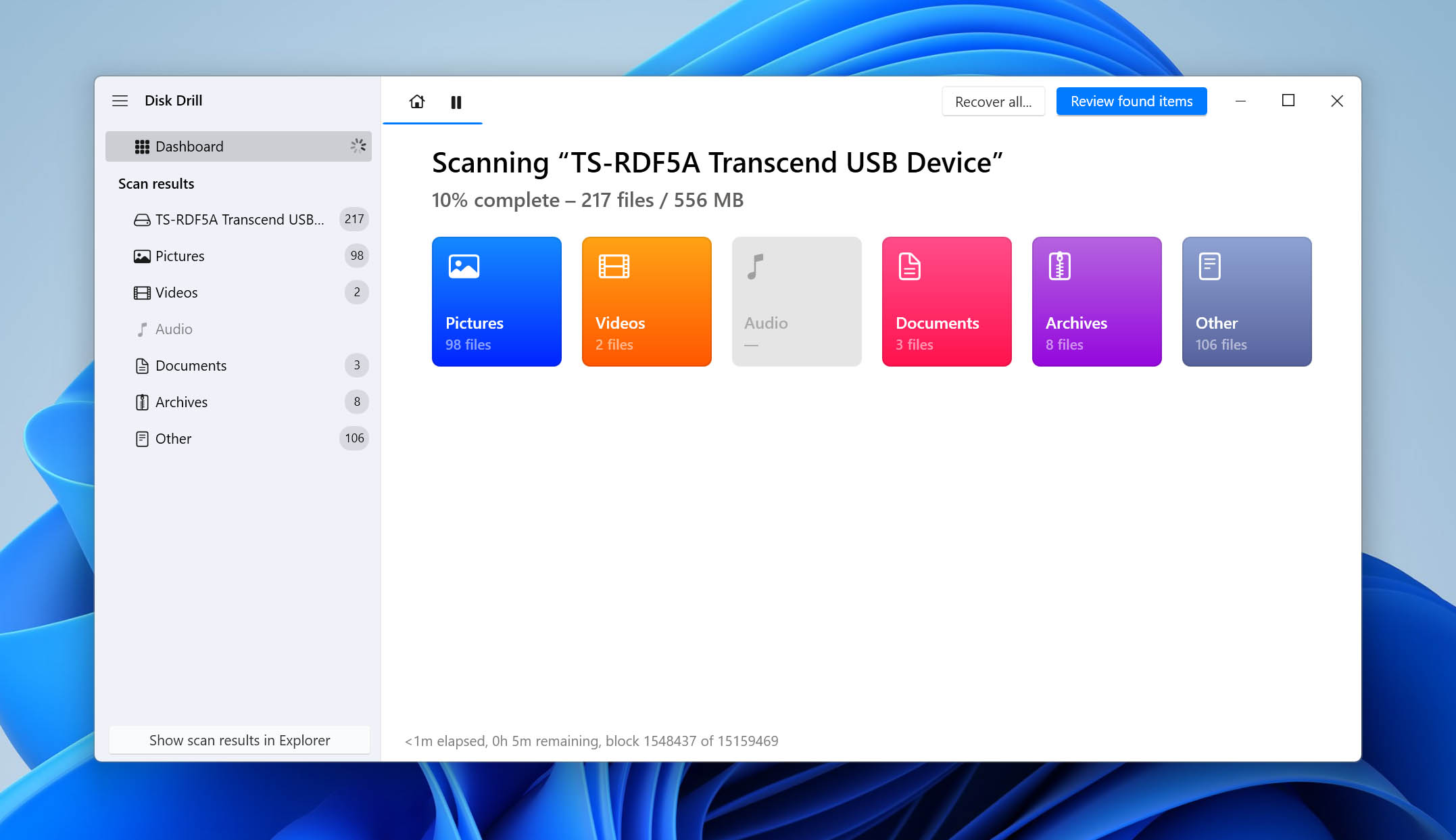
- Disk Drill will begin scanning your SD card. Depending on the card’s capacity and speed, this may take some time. You can click Review found items immediately and browse recoverable files while the scan continues in the background.
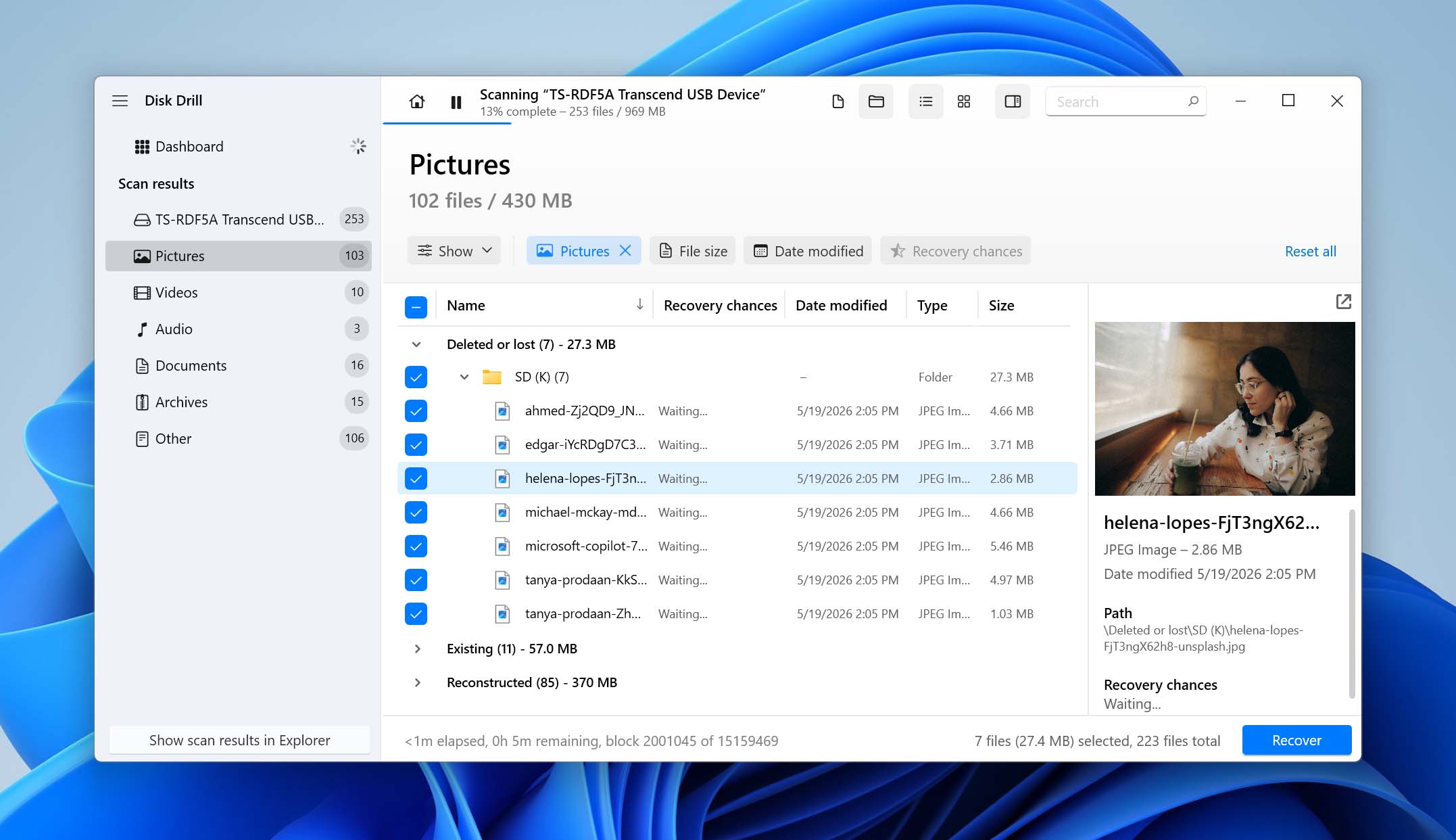
- Use the filters on the left to narrow the results by file type, or use the search bar at the top to locate specific files. You can also preview individual files directly in Disk Drill. If a file opens correctly in Preview, it can typically be recovered without issues.
- Select the files you want to recover and click Recover. If you’d rather restore everything Disk Drill found, return to the software’s previous screen and click Recover all instead.
- Choose a destination for the recovered files. Never save them back to the same SD card because doing so could overwrite other recoverable data. Instead, select your computer’s internal drive or another external storage device and click Next to complete the recovery.
💡 If your SD card came from an action camera or a digital camera and you’re missing video files, try Disk Drill’s Advanced Camera Recovery mode. It’s specifically designed to reconstruct fragmented videos from GoPro, DJI, Canon, and other camera brands. Traditional recovery methods sometimes miss these files because cameras often store video data in fragments across the card.
Advanced Camera Recovery is just one of Disk Drill’s additional features. The software also includes tools such as disk image creation, S.M.A.R.T. monitoring, and data protection features. You can learn more about them in our full Disk Drill review.
Option 2: Recover Data From a Formatted SD Card on Android
If you formatted your SD card on Android and don’t have access to a computer, an Android data recovery app may still help you recover your files directly on the phone. Though for the best results, your Android device needs to be rooted.
For this guide, we’ll use DiskDigger. While it’s not as powerful as dedicated data recovery software, it can still get the job done in certain situations. The app offers two scan modes: Basic Scan and Full Scan. Basic Scan is free and doesn’t require root access, but it’s limited to recovering deleted photos and often finds only lower-quality cached copies. Full Scan, on the other hand, can recover all supported file types and perform a deeper search of the storage, but it requires the Android device to be rooted.
- Download DiskDigger from the Google Play Store.
- Launch the DiskDigger app.
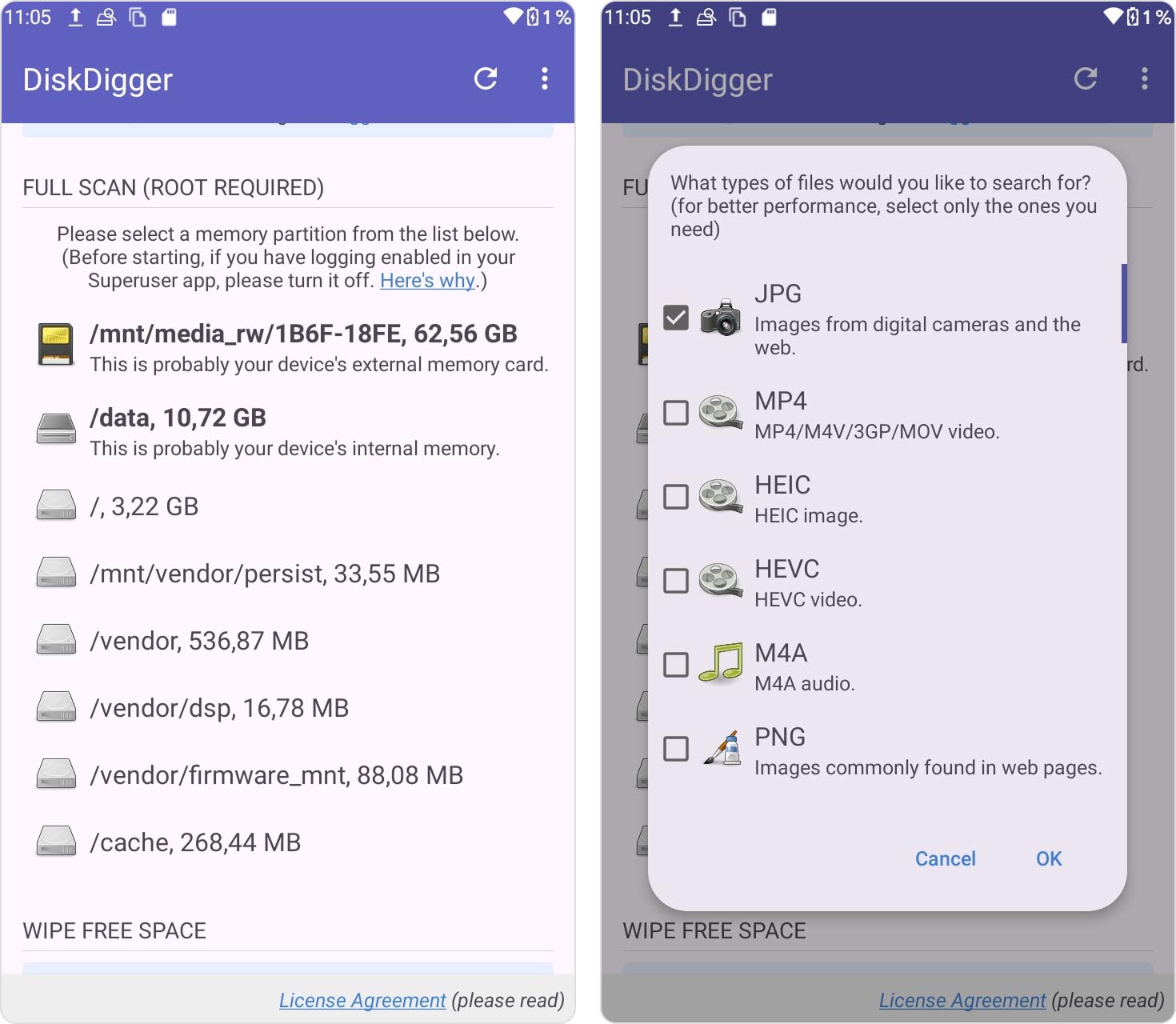
- Tap Start Basic Photo Scan, or, if your device is rooted, select your SD card from the Full Scan menu.
- Choose the file types you want to recover and tap OK.
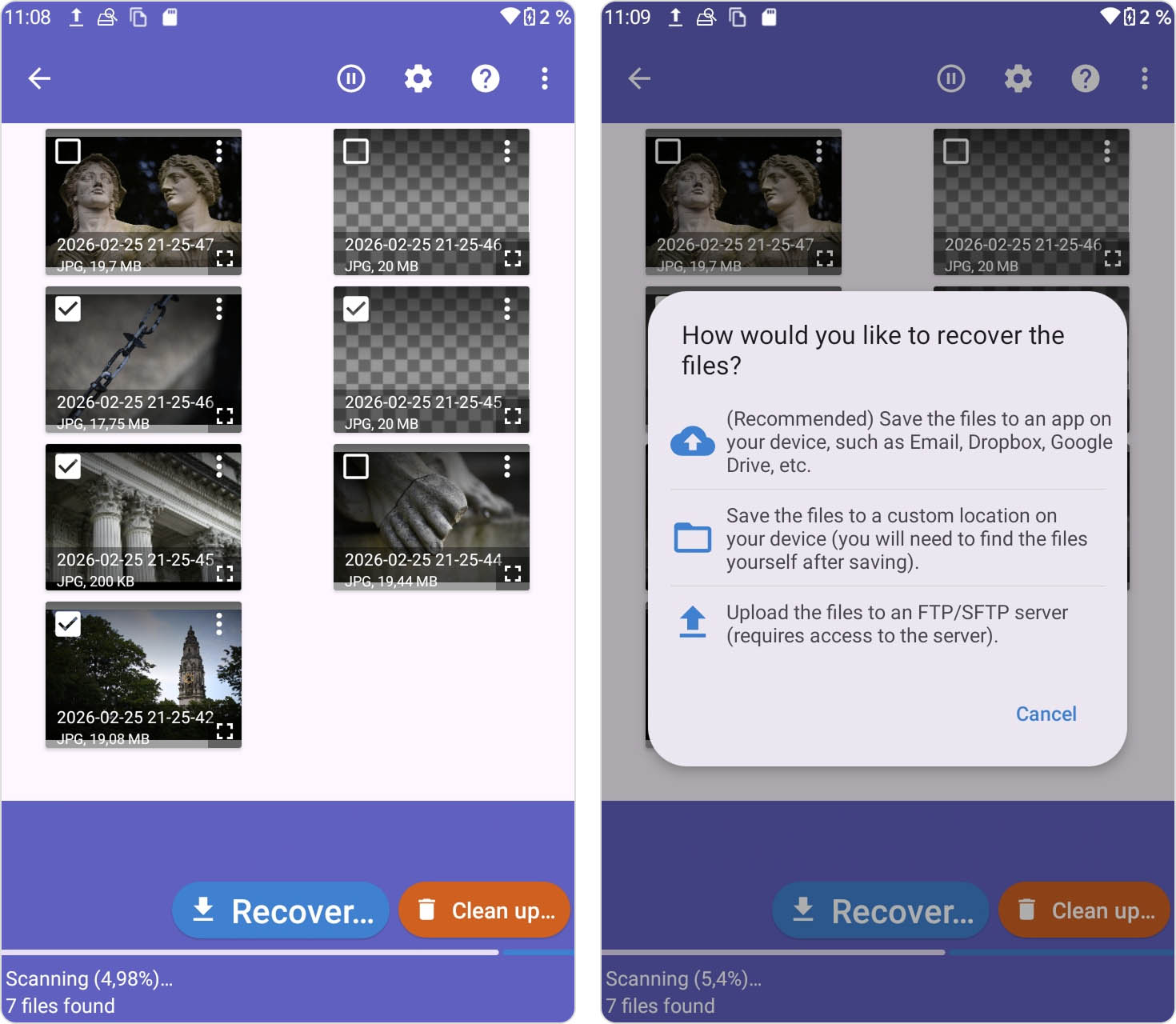
- Select the files you want to restore and tap Recover.
- Choose where to save the recovered files. You can save them locally, send them to another app, or upload them to an FTP server.
What’s Wrong With Recovering a Formatted SD Card Using Terminal Commands?
You may come across articles and forum posts that claim you can recover data from a formatted SD card for free using Command Prompt on Windows or Terminal on macOS. Unfortunately, that’s not how formatted SD card recovery works.
Formatting removes or replaces file system information. Once that happens, the operating system no longer knows where your files are located. Terminal commands don’t scan the storage device for lost data, rebuild deleted file system records, or perform signature-based recovery. They can only work with files and file system structures that still exist.
That’s why the commands below may be useful in certain situations, but they generally won’t help recover files from a formatted SD card.
| Command | What It Actually Does and When to Use It |
| chkdsk X: /r (Windows) | Checks the file system for errors and attempts to repair logical corruption. Useful when an SD card suddenly becomes RAW, asks to be formatted, or shows missing files because of file system corruption. It cannot recover files that were lost because the card was formatted. |
| attrib -h -r -s /s /d X:\*.* (Windows) | Removes Hidden, Read-only, and System attributes from files and folders. Helpful if malware or a software issue has hidden your files. It does not recover deleted or formatted data. |
| mv filename ../ (macOS/Linux) | Simply moves an existing file from one folder to another. This command assumes the file is still present and accessible. If the file disappeared because the SD card was formatted, there is nothing for the command to move. |
| cp, copy, xcopy, robocopy | Copy files from one location to another. These commands are useful only when the files are still visible to the operating system. They cannot locate or recover files that were lost after formatting. |
| diskutil repairVolume (macOS) | Repairs certain file system issues on a mounted volume. Similar to CHKDSK, it may help with corruption-related problems but cannot restore files from a formatted SD card. |
There is one exception where the command line can actually help recover data from a formatted SD card is when you’re using a data recovery tool that runs entirely in Terminal or Command Prompt. One of the best-known examples is PhotoRec, a free, open-source recovery utility that’s part of the TestDisk package. If you’d like to learn more about PhotoRec or see how it works in practice, check out our full PhotoRec review.
What Happens During SD Card Formatting?
When you format an SD card, you overwrite the current file structure with a new one. The files and folders that were previously visible on the card are no longer accessible after the card is reformatted. Most operating systems and devices offer the option to perform a Quick or Full format. The one you choose will impact your ability to recover files if you have inadvertently formatted the card before saving its contents to a safe location.
- A Quick format just overlays a new filesystem on top of the data previously stored on the SD card. It does not physically erase the data but makes it available to be recovered with one of the methods we will discuss shortly. The logical links to the files and folders are removed, making the data inaccessible to the operating system, but the underlying data remains physically intact.
- A Full format takes longer to perform and does attempt to remove all data from the SD card. Depending on the operating system, this may be done by overwriting the card to obscure the data that was stored on the device. It will be impossible to recover lost data from an SD card that has undergone a Full format.
What about cameras? Most digital cameras perform something very similar to a Quick Format, which is why photos and videos are often still recoverable. There are some exceptions, however. Certain Sony cameras may securely erase the card during formatting, making recovery impossible.
What about phones? Android devices usually perform a quick format when an SD card is used as portable storage, so recovery may still be possible
If you need to format an SD card intentionally in the future, it’s worth taking a few precautions beforehand. Check out our guide on how to format an SD card without losing your data.
Conclusion
If you were among the people who believed that recovering data from a formatted SD card was impossible, we hope this guide has convinced you otherwise. In many situations, the chances of recovery are actually quite good, especially if you stop using the card immediately and act quickly.
We’d recommend keeping this article somewhere easy to access. The next time an SD card gets formatted accidentally, you can return to the table at the beginning of the guide, identify your specific situation, and quickly determine whether recovery is still possible. It also doesn’t hurt to have a data recovery tool like Disk Drill already installed, so you can begin the recovery process without wasting valuable time.
If you run into any issues or have questions along the way, feel free to visit our forum. There are already several discussions about SD card data recovery where users have shared their experiences, troubleshooting steps, and advice. And if you can’t find an answer to your specific problem, you can always start a new topic and ask the community directly. Good luck!

Sd card formet ho gya h
Nice