


When a USB drive turns RAW, Windows can no longer recognize its file system, so your files become inaccessible. The data may still be present and recoverable. The safest approach is to recover your files first, then format the USB to make it usable again. A USB can turn RAW because of file system corruption, unsafe removal, interrupted writes, or hardware problems. We will show you how to check the condition of your USB and restore it to working order.
When we refer to a RAW drive, we mean the file system state of the USB drive, not RAW photo files produced by digital cameras.
What Is a RAW USB Drive?
A RAW USB drive is a flash drive that Windows can detect as a storage device but can’t recognize as having a usable file system. Normally, a USB drive uses a file system such as FAT32, exFAT, or NTFS, which tells the operating system how files are named, organized, stored, and located.
When Windows can’t identify that structure, it may display the volume as RAW in Disk Management instead of showing its usual file system. You may also see messages asking you to format the drive before you can use it, and the files that were previously stored there may no longer appear in File Explorer.
It’s important to understand that RAW is not a file system itself. It’s basically Windows saying that it can’t interpret the file system currently present on the volume. This can happen because the file system is damaged, important metadata is missing, or the drive uses a format that Windows doesn’t support natively.
RAW does not automatically mean that the files have been erased. The data may still remain on the flash drive even though Windows no longer knows how to access it through the normal file system.
Why Does a USB Drive Turn RAW?
A USB drive can turn RAW for several reasons, and most are related to Windows losing access to the file system or the information it needs to mount the volume correctly. However, RAW can also appear when the flash drive itself starts to fail.
| Cause | What Happens |
|---|---|
| Unsafe removal | Disconnecting the USB while data is still being written can interrupt file system updates and leave important metadata corrupted. |
| Power loss or system crash | A sudden shutdown during a write operation can leave the file system in an inconsistent state. |
| File system corruption | Damage to allocation tables, boot records, directories, or other metadata can prevent Windows from recognizing FAT32, exFAT, or NTFS correctly. |
| Partition structure damage | Corrupted partition information can prevent Windows from locating or mounting the volume properly. |
| Bad sectors or failing flash memory | Unreadable areas can affect sectors that contain important file system structures. If the number of bad sectors increases, it may indicate that the USB drive is deteriorating. |
| Unsupported file system | A drive formatted with a file system Windows doesn’t support natively, such as APFS or ext4, may appear inaccessible even though the file system itself isn’t damaged. |
| Malware or software errors | Software that modifies file system or partition information can leave the volume unreadable. |
Because these problems can produce similar symptoms, a RAW status alone doesn’t tell you exactly what happened to the drive.
Is It RAW or Is the Drive Failing
Before you scan a RAW USB, check how Windows detects the device. A normal capacity and stable connection usually point toward a logical file system problem. Incorrect capacity, repeated disconnects, or failure to detect the device can indicate a more serious hardware issue.
| What You See | What It May Mean | What to Do |
|---|---|---|
| RAW file system, correct drive capacity | Most likely a logical file system or partition problem | Recover the files before you format or repair the drive. |
| RAW, but Windows can’t determine used/free space or reports 0 bytes | File system metadata may be unreadable; if combined with other abnormal behavior, a controller or flash-memory problem is also possible | Avoid formatting and check whether the drive remains stable and reports its correct total capacity. |
| Incorrect total capacity or unusual size | Possible controller, firmware, or flash-memory problem | Avoid repeated scans or repair attempts. |
| Drive disconnects, reconnects, freezes, or becomes extremely slow | Possible failing flash memory or controller | Create a disk image first if the drive remains readable enough to do so, then scan the image rather than the original USB. |
| USB isn’t detected at all in Disk Management | Likely hardware-level problem rather than a simple RAW file system | Software recovery generally can’t access a device that the operating system doesn’t detect. Professional recovery may be necessary. |
If the drive is unstable but still detected, a disk image should come before a full recovery scan. This reduces repeated reads from the original device and lets you perform recovery attempts on the image instead. If Windows can’t detect the USB at all, however, software can’t create an image from it, so the next step is usually professional diagnosis rather than additional software fixes.
How to Recover Files from a RAW USB Drive
Data recovery software can scan the USB for remaining file system information and identify files by their signatures even when the original file system is damaged. For this process, we’ll use Disk Drill.
Disk Drill can scan a RAW drive using both available file system metadata and file signatures. If parts of the original file system are still readable, it can use metadata such as the original folder structure and file names to reconstruct files with their original information. Signature scanning works separately and can identify supported file types based on their internal data patterns when the file system metadata is missing or damaged.
Our test with a corrupted 32 GB USB flash drive showed how these scanning methods work in action. Disk Drill scanned about 4 GB of test data in under 2 minutes and detected all test files through file system metadata, signature scanning, or both. It also reconstructed the folder structure, which is possible in RAW recovery when enough of the original file system metadata remains intact. However, some file names and folder paths may be unavailable if they can’t be reconstructed from the damaged file system.
You can see the complete results in our Disk Drill review or compare them with other tools in our USB data recovery software guide.
Here’s how to recover files from a RAW USB flash drive with Disk Drill:
- Download Disk Drill, open the installer, and follow the on-screen instructions to install it.
- Connect your RAW USB flash drive to the computer. If Windows asks you to format the drive, close the prompt.
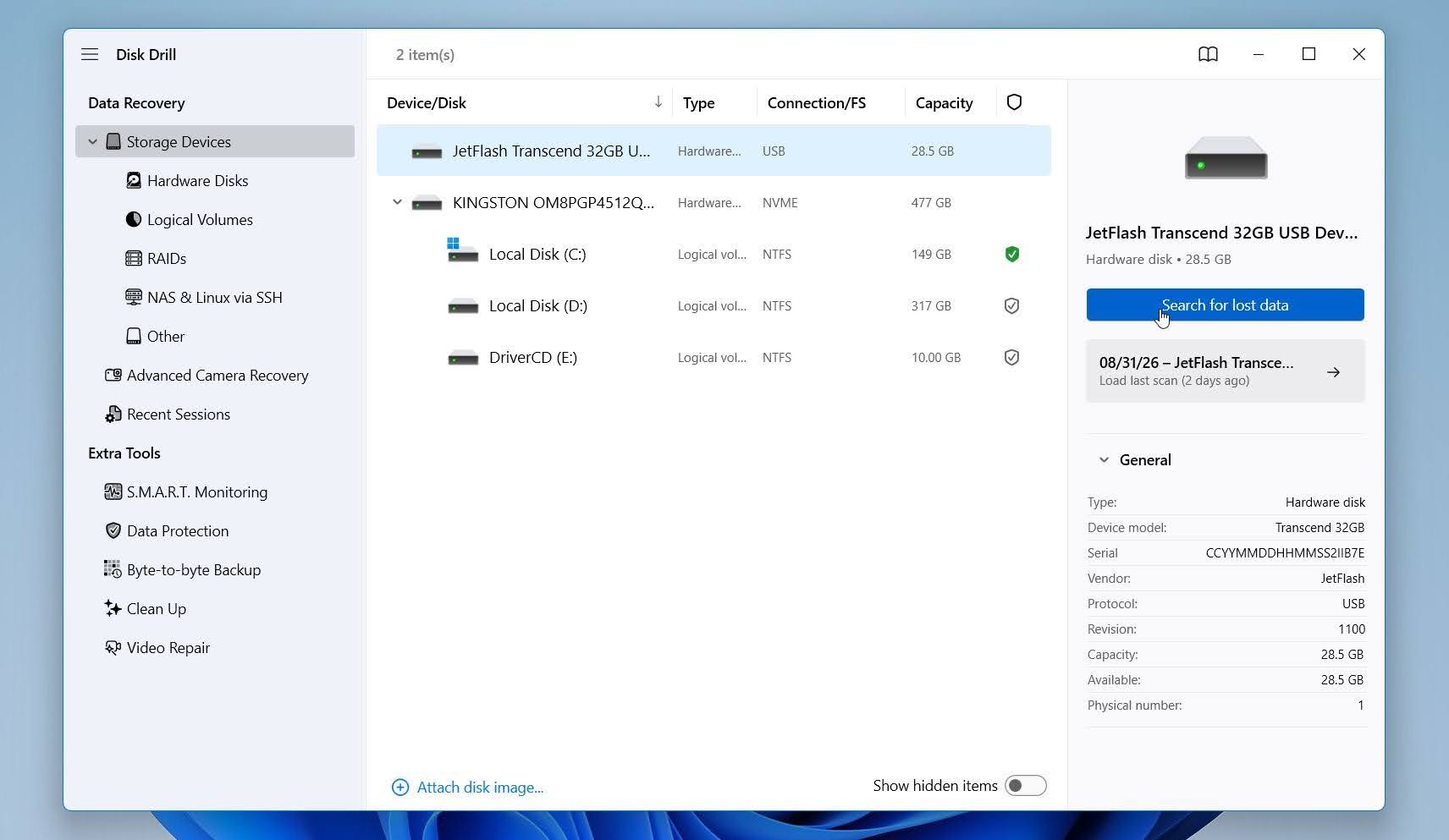
- Open Disk Drill and select the RAW USB drive from the device list. Check its capacity and other available details to confirm that you have the correct device, then click Search for lost data.
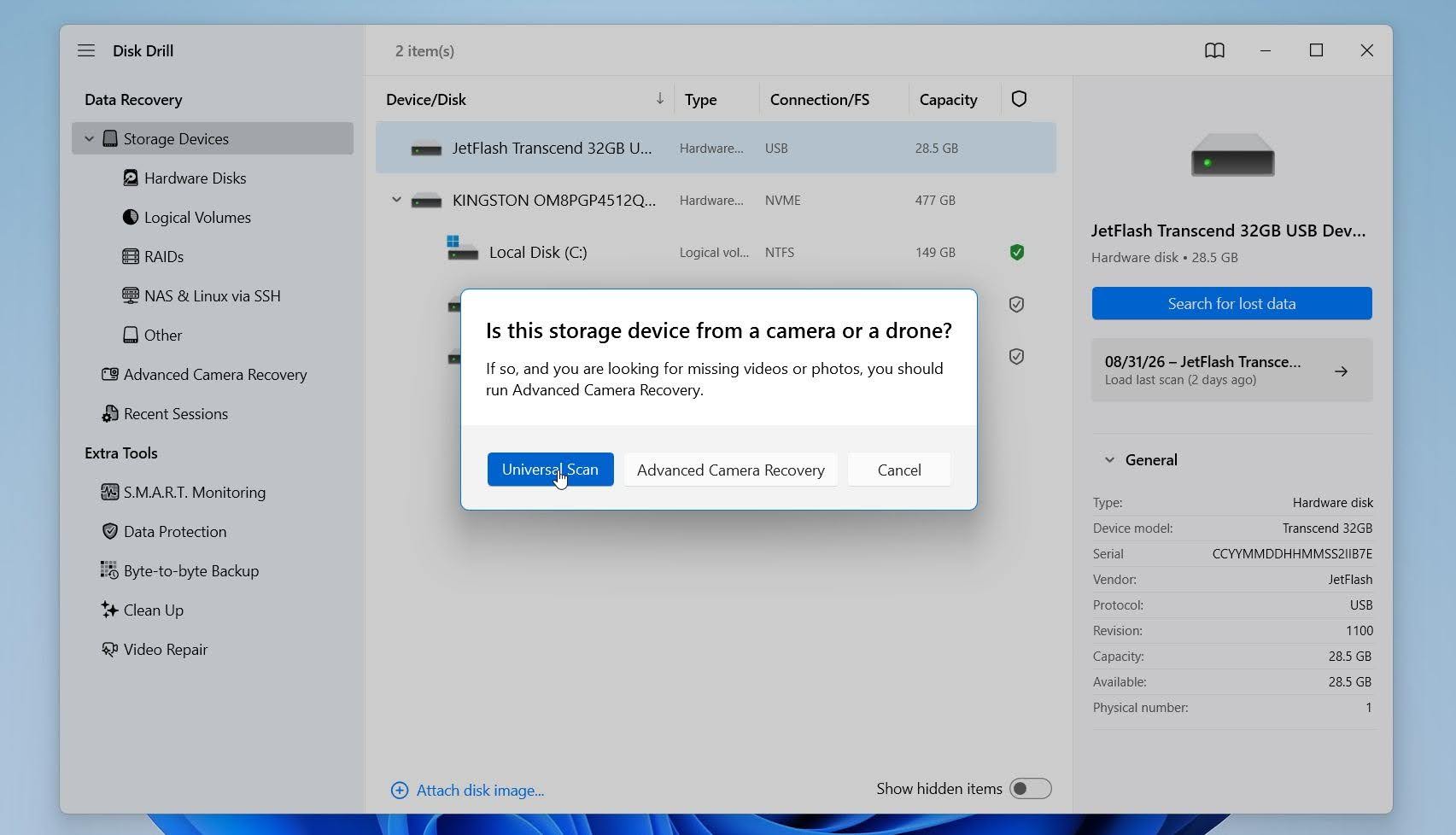
- When Disk Drill asks you to choose a recovery method, select Universal Scan. It combines the available scanning methods and is the best choice for a general-purpose USB flash drive with a RAW or damaged file system.
- Wait for the scan to complete, or click Review found items at any point to check the files Disk Drill has already found.
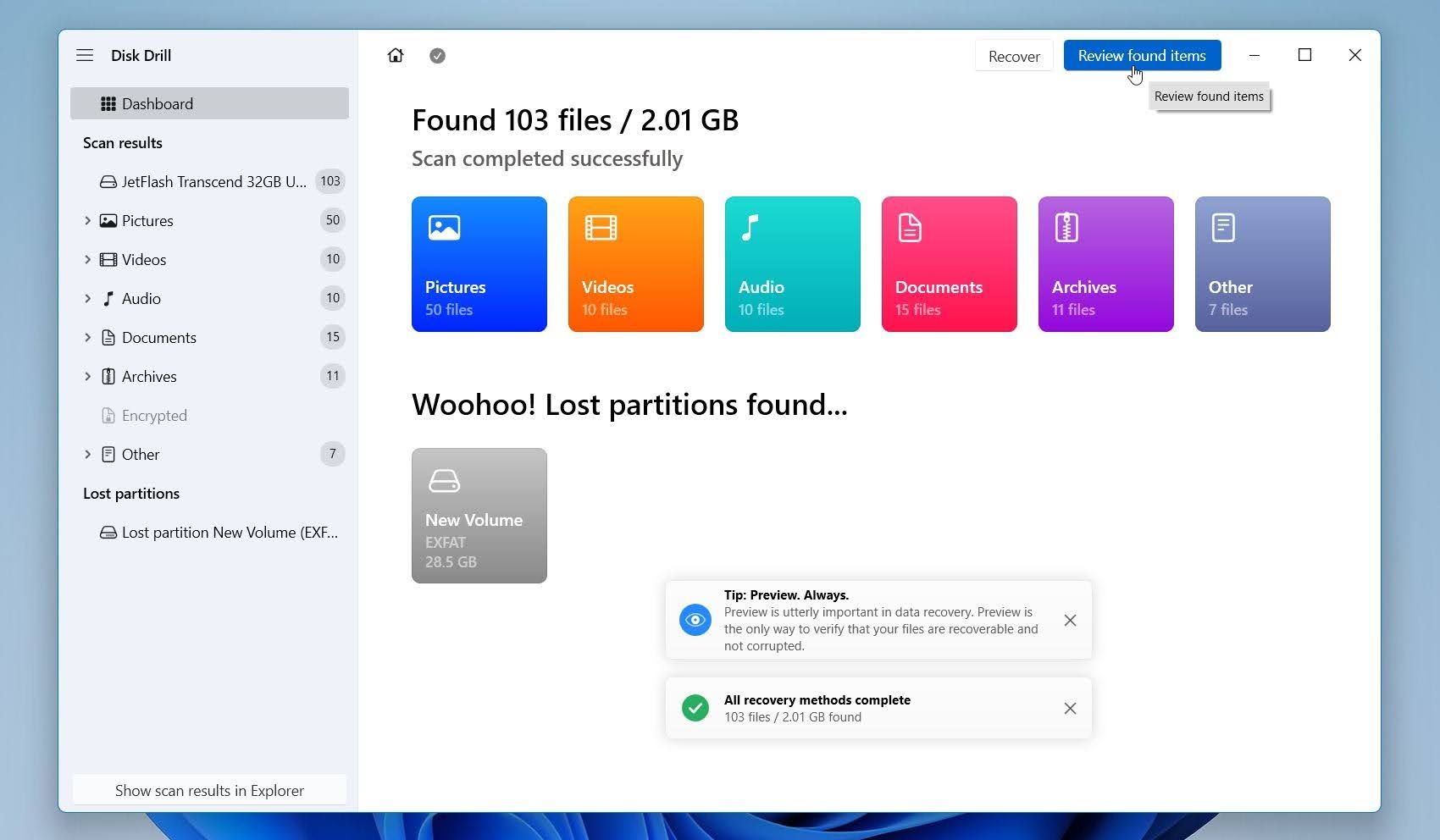
- Browse the scan results and select the files you want to restore. Use the file type filters, search, and preview feature to narrow down the results and check whether individual files are intact. Click Recover.
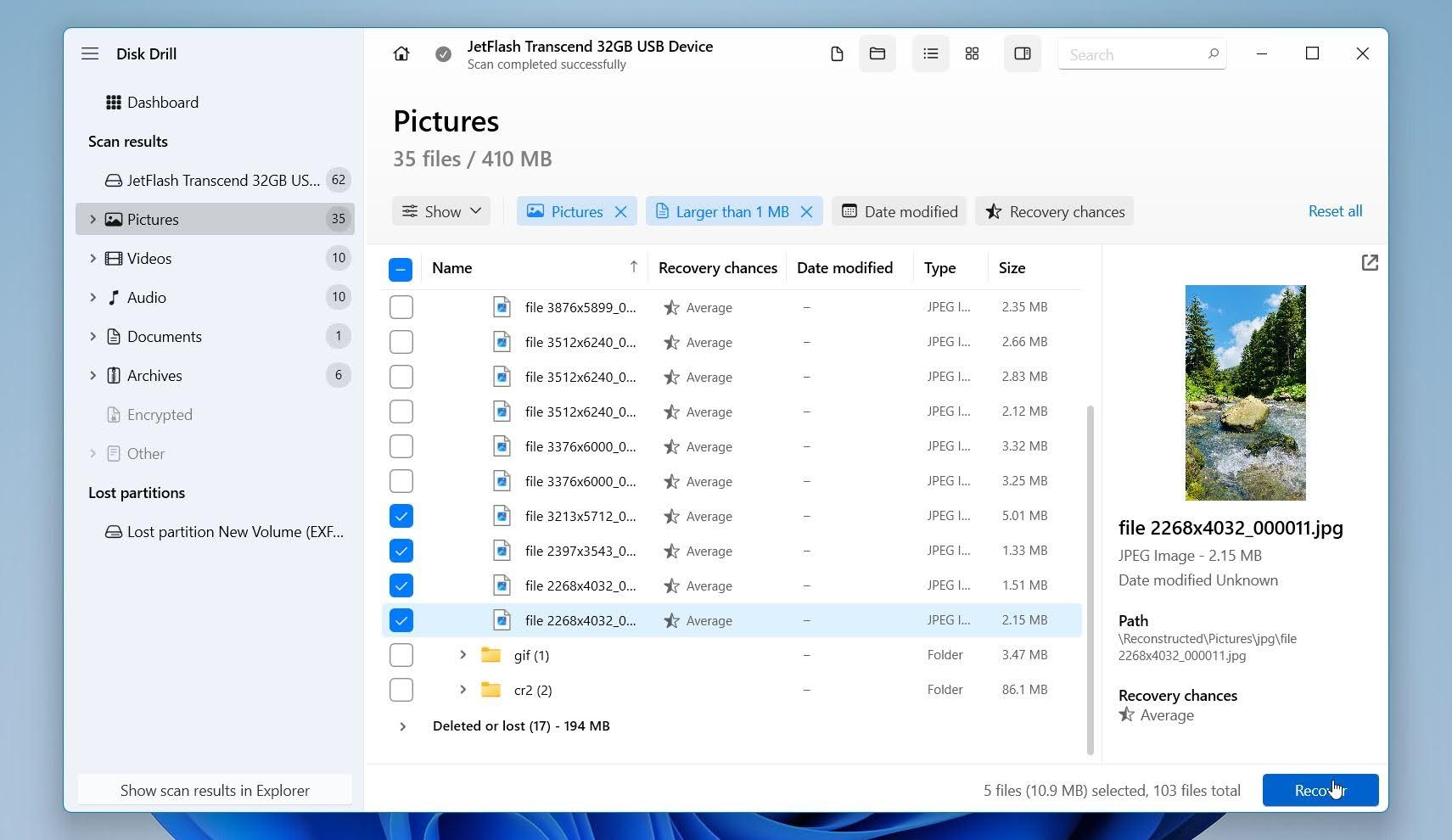
- Choose a recovery destination on a different drive. Saving files back to the RAW USB could overwrite other recoverable data. Click Next to start the recovery and wait for Disk Drill to save the selected files to your chosen location.
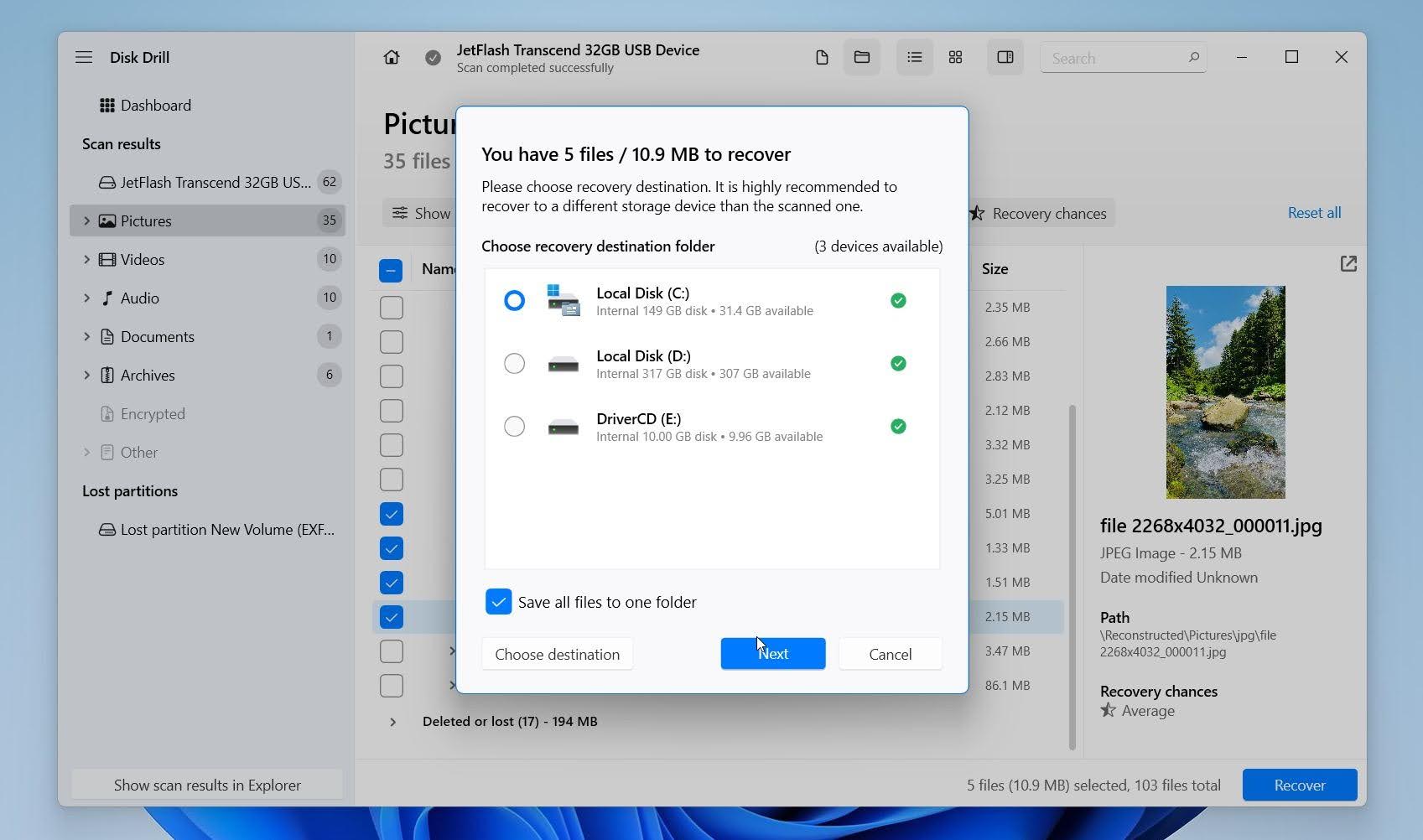
Once you’ve recovered the files you need, you can move on to the methods below to format the RAW USB drive and create a new file system.
The Windows free version lets you scan and preview recoverable files and recover up to 100 MB of data, which is enough to test the recovery process and restore a few smaller files before you decide whether you need the full version.
How to Fix a RAW USB Drive (After Recovery)
With your files safely recovered, you can now focus on getting your RAW USB flash drive back to working order. In most cases, the simplest solution is to format the drive, which replaces the damaged or missing file system with a new one.
Method 1: Disk Management
The Disk Management tool is a built-in Windows utility that lets you view and manage connected storage devices. It’s usually the easiest way to format a RAW USB drive because it can detect volumes that don’t appear normally in File Explorer.
Here’s how to format your RAW USB drive with Disk Management:
- Connect your RAW USB flash drive, right-click Start (or press Win + X), and select Disk Management.
- Find your USB drive. The volume should show RAW under File System and may not have a drive letter. Check the drive capacity carefully to confirm that you’ve selected the correct device. Right-click the RAW volume and select Format.
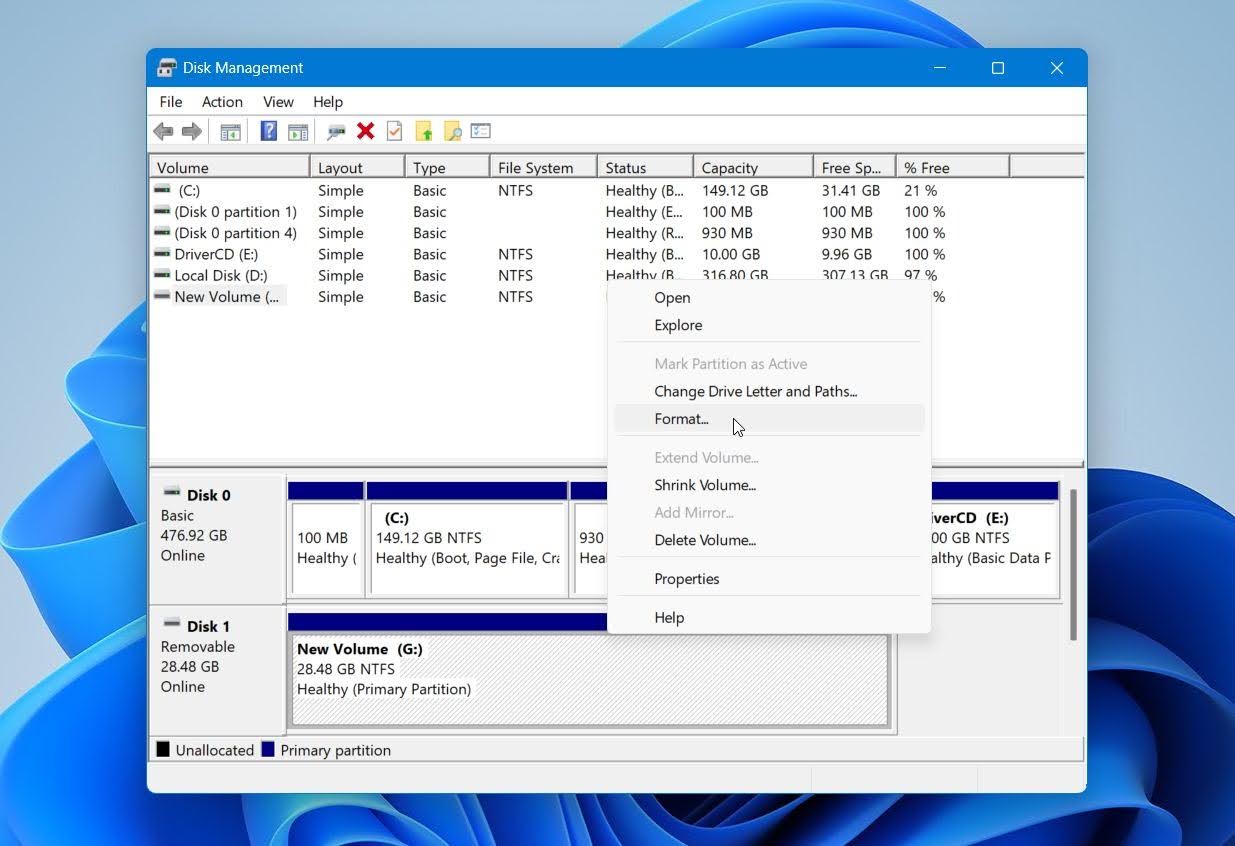
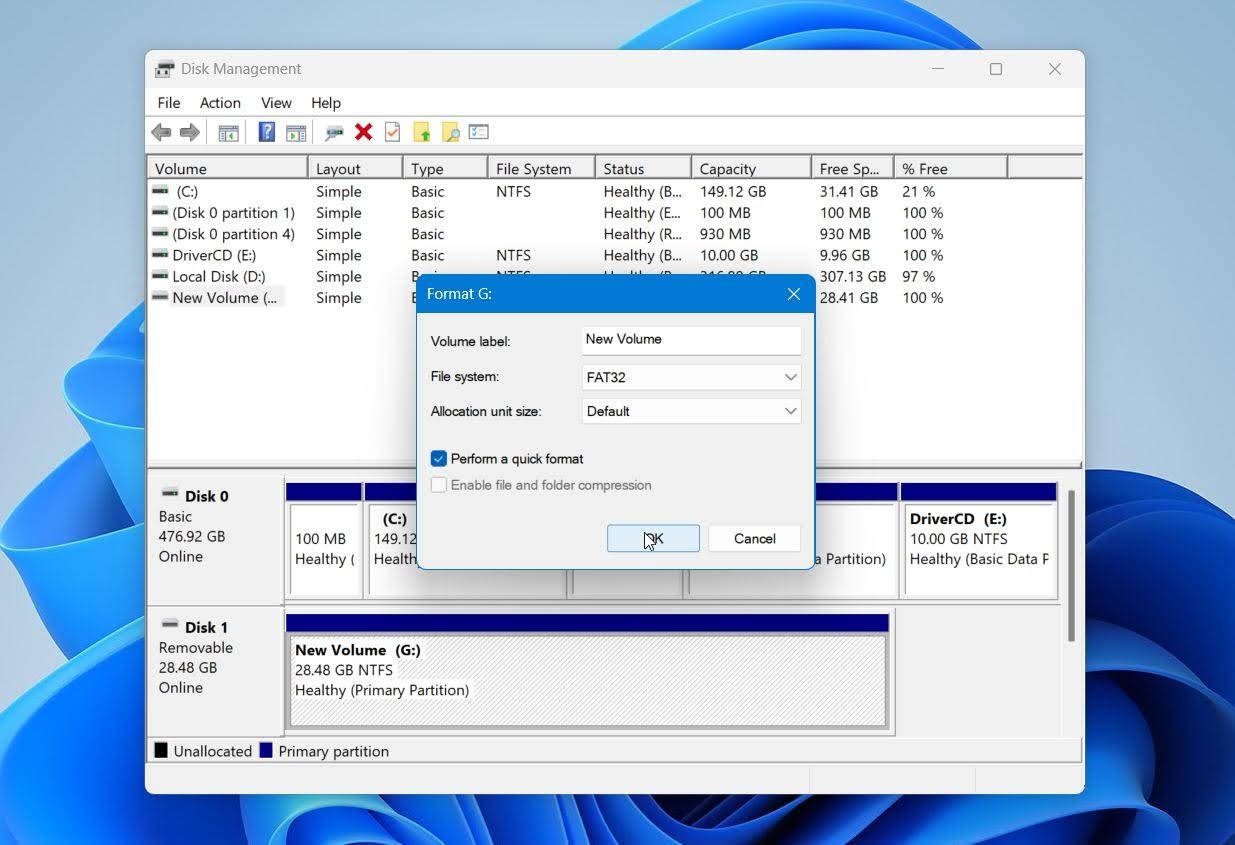
- Enter a volume label if you want one, then choose a file system. Select FAT32 if you need broad compatibility and the USB drive is 32 GB or smaller. Choose exFAT for larger drives.
- Leave Allocation unit size set to Default. Leave Perform a quick format selected and click OK. Confirm the warning when Windows tells you that formatting will erase the data on the volume.
- Wait for the format to finish. Check whether the USB drive appears in File Explorer. If it doesn’t have a drive letter, right-click the volume in Disk Management, select Change Drive Letter and Paths, click Add, and choose an available letter.
Once finished, Windows assigns a drive letter, and your USB should appear in File Explorer, ready for use.
Method 2: Diskpart
Another option is DiskPart, a built-in Windows command-line tool for managing drives and partitions. It can be useful if you can’t format the RAW USB drive through Disk Management.
Here’s how:
- Connect your RAW USB flash drive, right-click Start, and select Terminal (Admin).
- Type
diskpartand press Enter. - Type
list diskand press Enter to display all connected drives. Identify your USB drive by its size. - Type
select disk X, replacing X with the number of your USB drive, and press Enter. Double-check that you selected the correct disk before you continue. - Type
cleanand press Enter to remove the existing partition information. - Type
create partition primaryand press Enter to create a new partition. - Type
format fs=exfat quickand press Enter. For a drive up to 32 GB, you can useformat fs=fat32 quickinstead.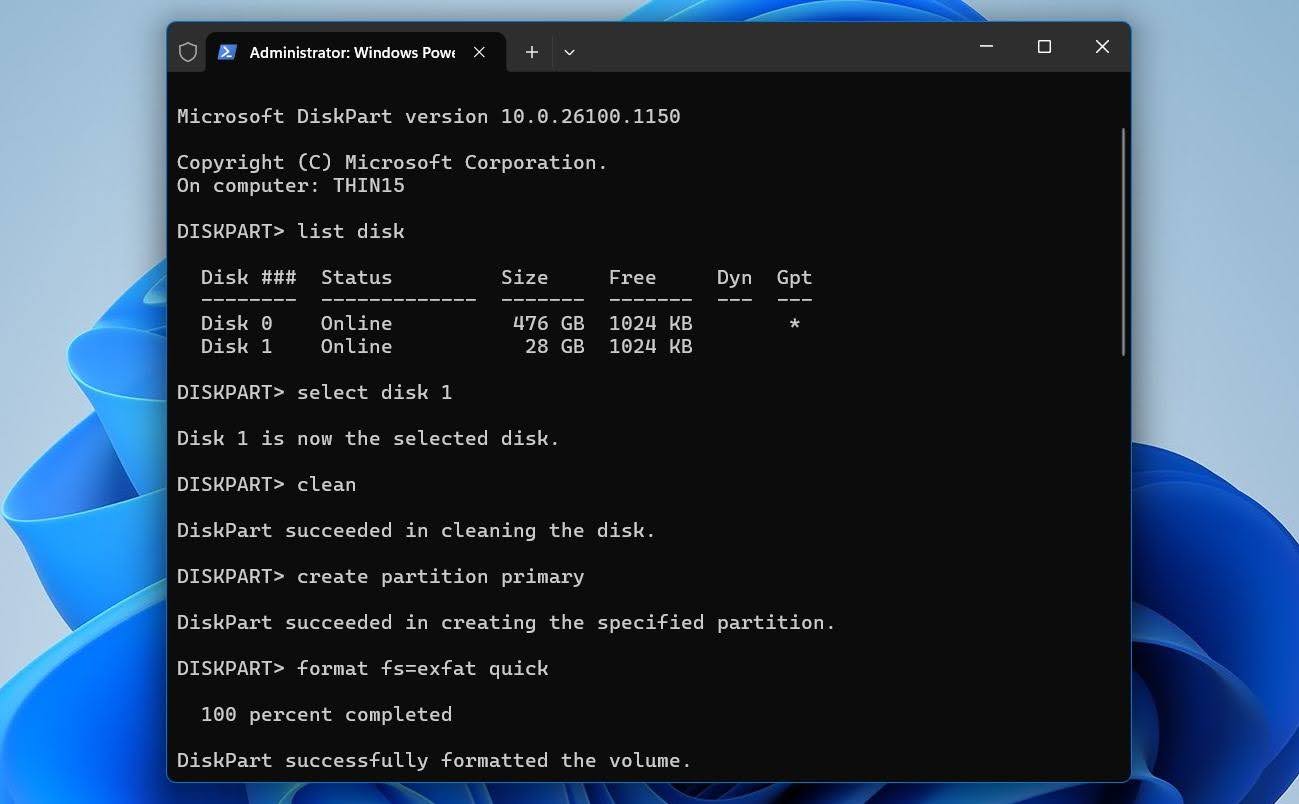
- Type
assignand press Enter to assign a drive letter. - Type
exitand press Enter to close DiskPart.
The USB drive should now have a new file system and appear in File Explorer.
The clean command affects the selected disk, so make sure you have selected the correct USB drive before you run it.
Can CHKDSK Fix a RAW USB Drive?
CHKDSK is a built-in Windows utility that checks a file system for errors and can repair certain types of logical corruption. However, it generally can’t fix a USB drive that Windows already identifies as RAW.
For example, if your RAW USB has the drive letter E:, you might try the following command in Terminal or Command Prompt: chkdsk E: /f
Instead of repairing the drive, CHKDSK will typically return this message:
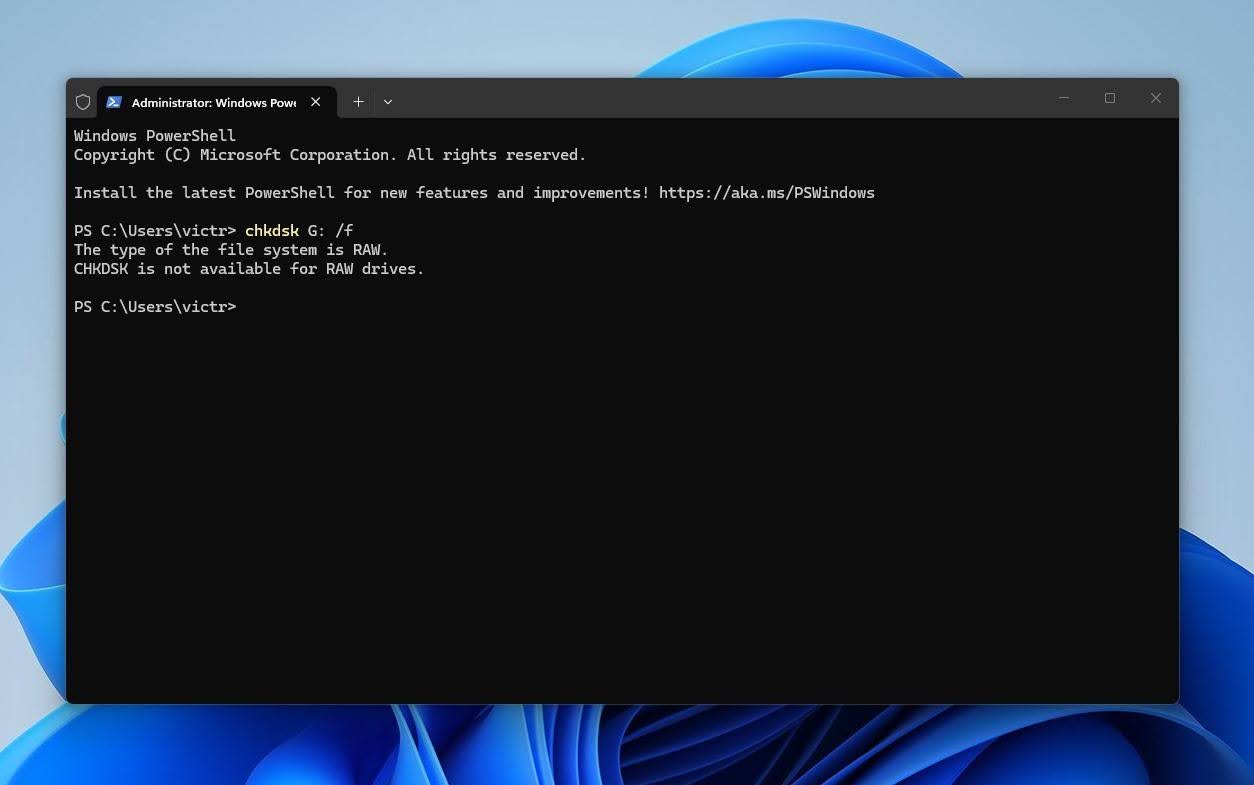
This happens because CHKDSK repairs errors within an existing file system, such as NTFS, FAT32, or exFAT. When Windows reports a volume as RAW, it can’t recognize a usable file system for CHKDSK to check and repair.
If you’ve already recovered your files, refer to the formatting methods above to create a new file system and make the USB drive usable again.
There is an exception with some damaged NTFS volumes. If the primary NTFS boot sector is corrupted but its backup copy is still intact, CHKDSK may be able to restore the damaged boot sector from the backup and make the file system accessible again. However, this depends on the type and extent of the corruption, so recover important data before attempting repairs whenever possible.
Final Thoughts
A RAW USB can look like a serious problem, especially when Windows suddenly stops showing your files or asks you to format the drive. But formatting shouldn’t be your first move. What you do next matters, so stick to this order:
- Check the USB in Disk Management and make sure it doesn’t show signs of hardware failure.
- Recover your files with a tool such as Disk Drill and save them to another drive.
- Format the USB once your files are safe to create a new file system and make the drive usable again.
RAW simply means Windows can’t recognize the file system. Your files may still be there and recoverable.
FAQ:
- Choose FAT32 if you need maximum compatibility with older computers, TVs, game consoles, cameras, and other devices. Keep in mind that FAT32 can’t store individual files larger than 4 GB.
- Choose exFAT for larger USB drives or if you need to store files larger than 4 GB. It works natively with modern Windows and macOS systems and is usually the better option for general USB storage.
- Frequent disconnects or read/write errors
- Very slow or unstable performance
- Incorrect storage capacity
- Bad sectors or other signs of flash memory failure
- Connect the USB drive to your computer.
- Right-click Start (or press Win + X) and select Disk Management.
- Find your USB drive and check the File System column.
- If it shows RAW instead of FAT32, exFAT, or NTFS, Windows doesn’t recognize a usable file system on the volume.