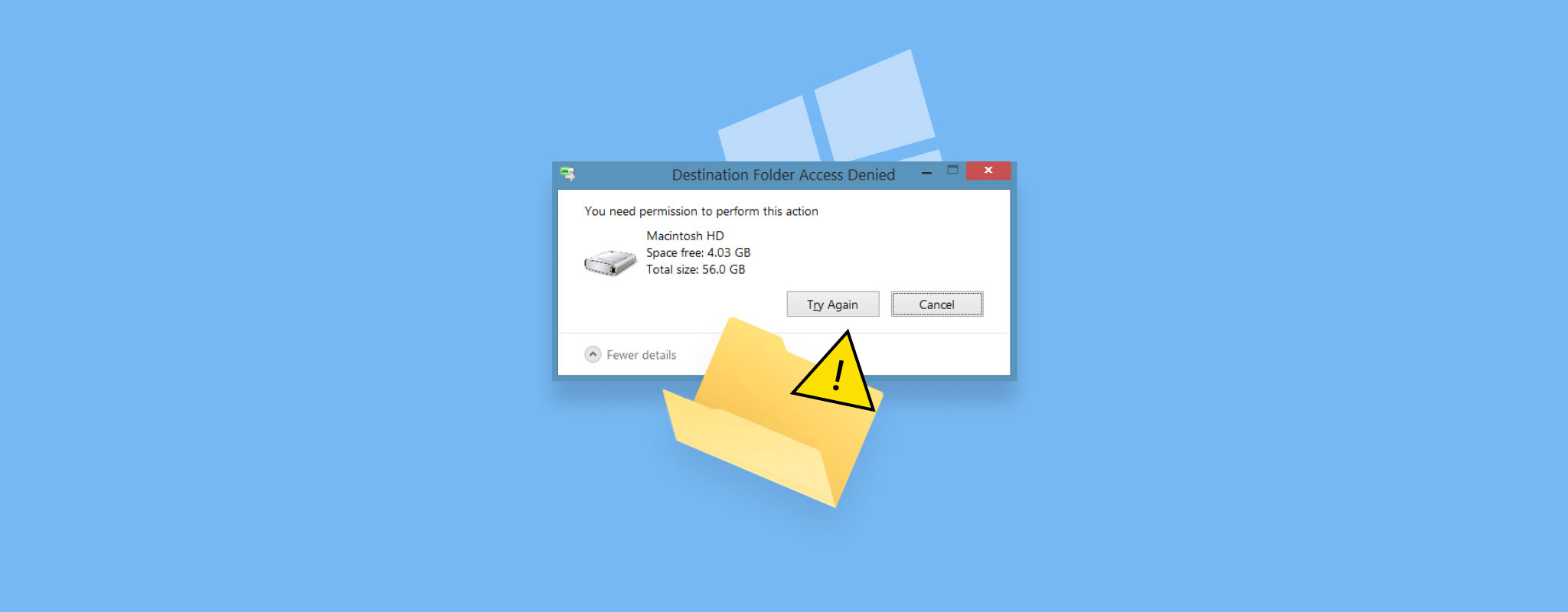
The folder access denied error can prevent you from opening or modifying a specific folder. Usually, the issue is not a cause for concern and can be fixed in a few simple steps. Even if there’s a serious issue that caused the error, you will likely retain your data. Use our guide to learn how you can regain access to the folder and secure your files.
What Causes Folder Access Denied Errors
Folder access denied errors appear in different forms depending on the action. Windows may show messages such as “Destination folder access denied” during file transfer or “You have been denied permission to access this folder” during access attempts. Despite these variations, the underlying issue usually relates to access rights or system conditions.
| Cause | Description | When It Happens |
| Insufficient permissions | The user account lacks rights to open, modify, or copy files in the folder | Common on shared systems or after file transfers between devices |
| Ownership mismatch | The folder belongs to another user account, which restricts access | After system reinstalls, user changes, or external drive use |
| Multiple user accounts | Different permission levels create conflicts between users | On workstations or family PCs with several accounts |
| Folder in use | A background process or app locks the folder | When files are open or used by running software |
| Encryption | The folder requires a specific user key for access | When EFS encryption is enabled |
| Network restrictions | Sharing or discovery settings block access to network folders | When accessing shared drives or network locations |
| Antivirus interference | Security software blocks access to suspicious files | When real-time protection flags folder content |
| File system issues | Logical damage prevents proper access to folder data | In rare cases, often linked to drive errors or bad sectors |
In rare cases, the error could crop up due to bad sectors on the hard drive, or a problematic Windows update.
Recover Data from the Drive Before Fixes
Data recovery should be a priority because the folder access denied error can be the result of logical issues on your drive, or you may not have enough time to go through the fixes and see which one works. In addition, some of them can modify the file system and lead to partial data loss. If the files matter, recover them first.
There’s an abundance of data recovery programs, but we chose to go with Disk Drill in this tutorial. The tool is user-friendly, has an advanced data recovery algorithm, and supports all major file systems and storage device types (internal and external HDDs, USB drives, SSDs, SD cards), all you need to successfully get back your files. It’s especially useful when you can’t copy files from a problematic drive or folder, Disk Drill can scan the storage directly and extract data at a low level, bypassing File Explorer access issues.
Here’s how to use Disk Drill and get back files from a folder that shows access denied:
- Download Disk Drill and install it.
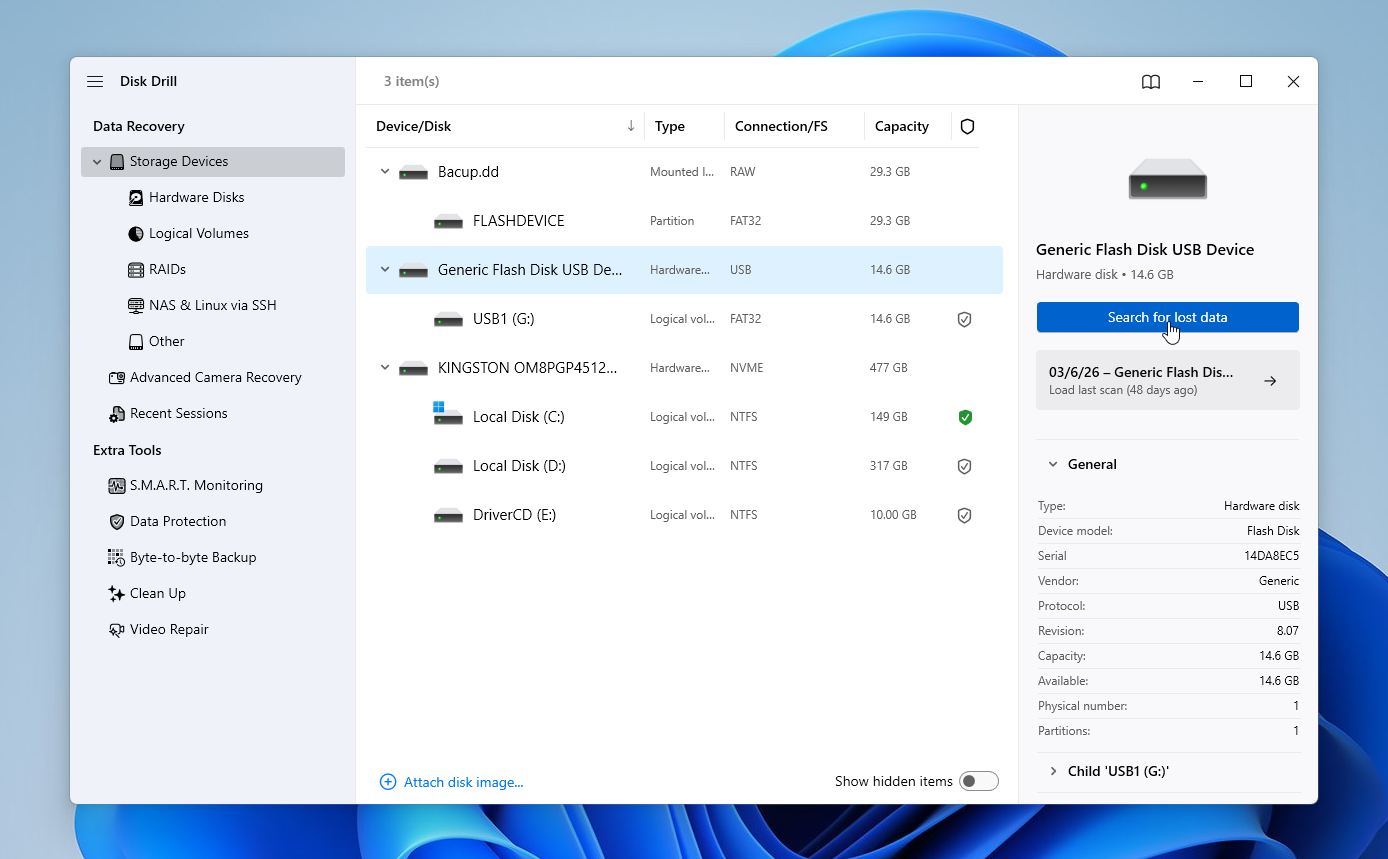
- Open Disk Drill, select the drive which contains the access denied folder, and click on Search for lost data.
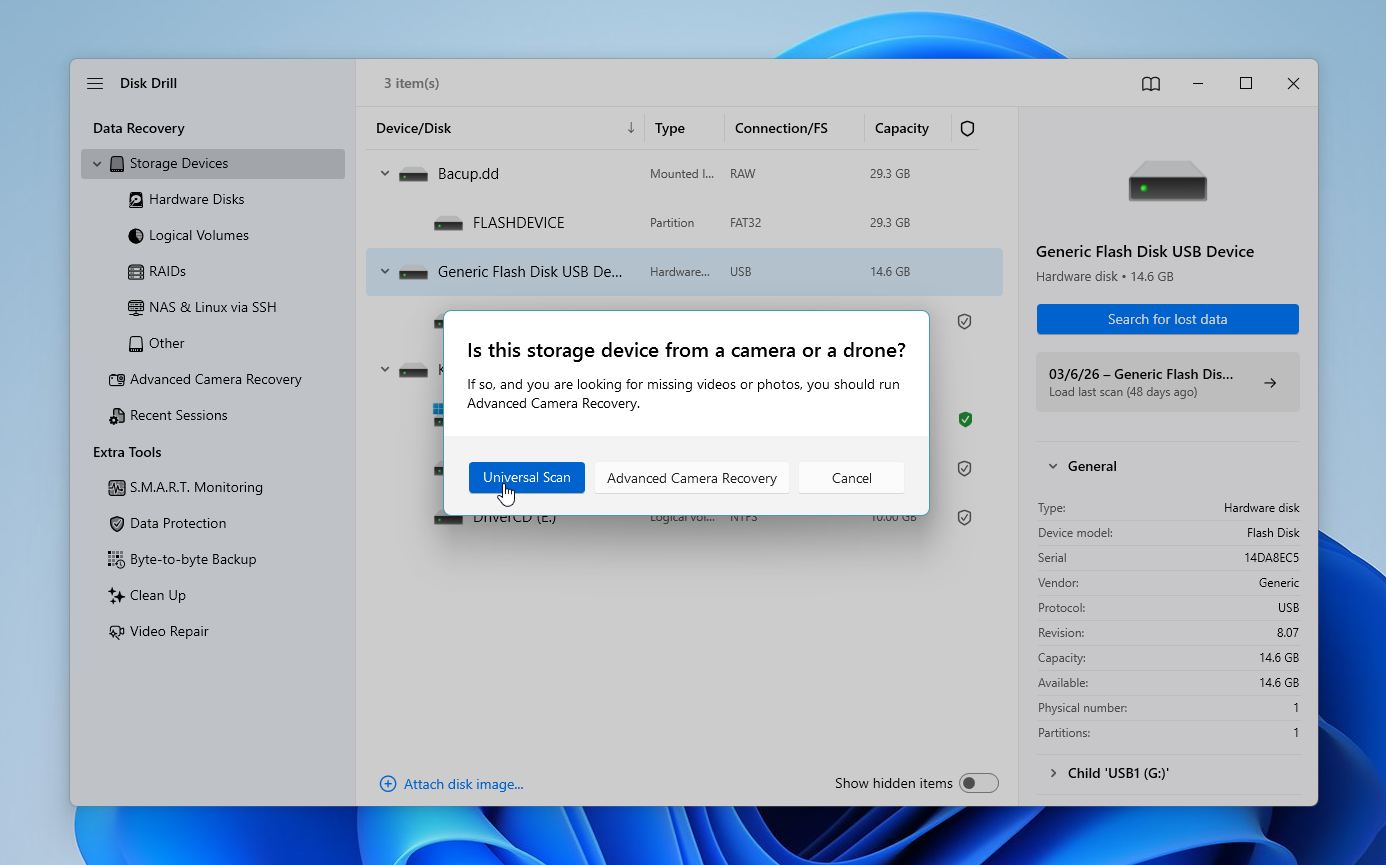
- Disk Drill may ask you to select the recovery mode. In most situations, we recommend the Universal Scan, unless you’re dealing with camera or drone footage, then use Advanced Camera Recovery.
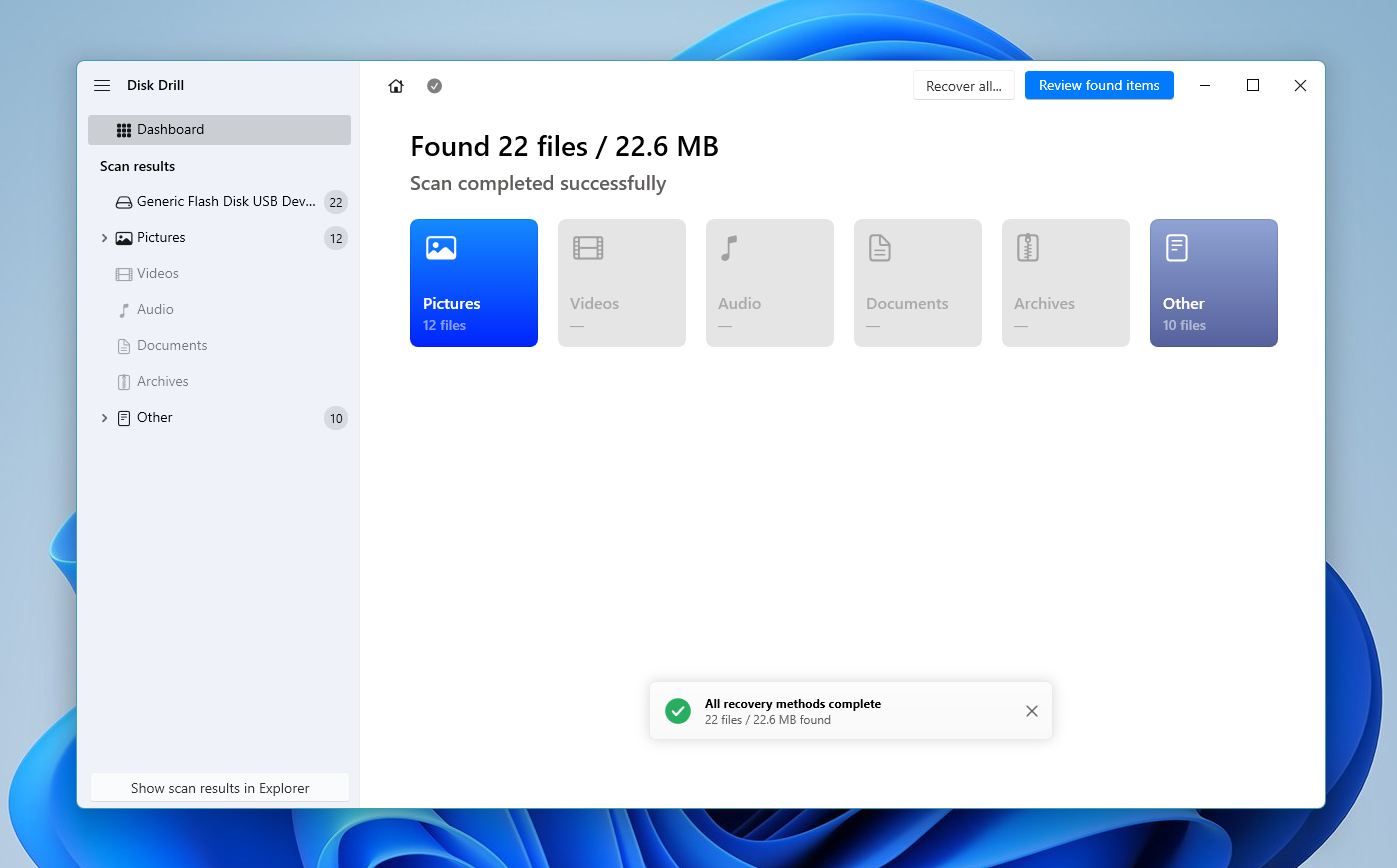
- Click on Review found items to view the recoverable files. You can opt to directly filter out the results by clicking on the relevant file type on this screen as well (Pictures, Video, Audio, Documents, Archives, and Other).
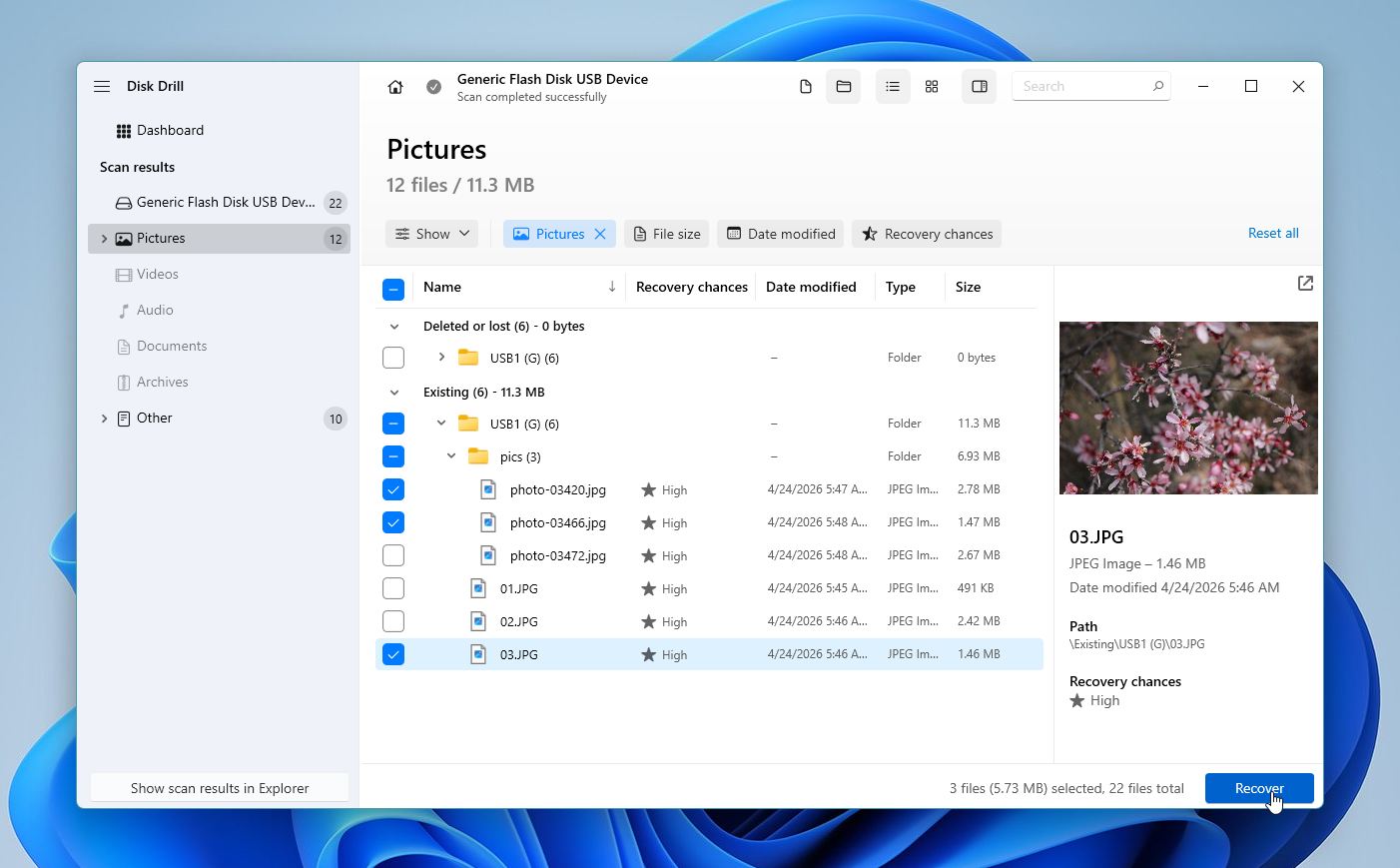
- Expand the Existing section to see the currently stored folders on the disk. Use the checkboxes to select the files you wish to recover. Disk Drill displays a preview of the currently selected file, but you can use the eye icon next to the filename to manually preview it. Click on Recover once your selection is complete.
- Choose a recovery destination for the files and click Next.
- Disk Drill will recover the selected files.
Windows users can take advantage of Disk Drill’s free trial, which lets you recover up to 100 MB of data at no cost.
How to Fix Folder Access Denied Error
The folder access denied error usually comes down to permission settings. Check and update the folder permissions to restore access. In some cases, a switch to an administrator account or a change in permissions resolves the issue. When these steps do not help, the storage drive may have logical damage.
Important note: Some fixes in this guide can modify or overwrite data (for example, CHKDSK or permission resets in certain cases). If the files inside the folder matter, go to the data recovery section first and secure your data before applying any fixes.
Method 1:Make Sure the Folder Is Not in Use by a Program
The folder access denied error can show up if you attempt to modify or access it while a program is using it in the background. While there’s no way to specifically determine which program could be using the folder, you can use the Task Manager to check for background processes and try to figure out if an app could be using the folder.
Here’s how to use the Task Manager and see what background processes may be running:
- Right-click on the Taskbar and click on Task Manager. You can also press CTRL + SHIFT + ESC to directly launch the Task Manager.
- Go to the Processes tab and check if there’s a background process that could be using the folder you want to access.
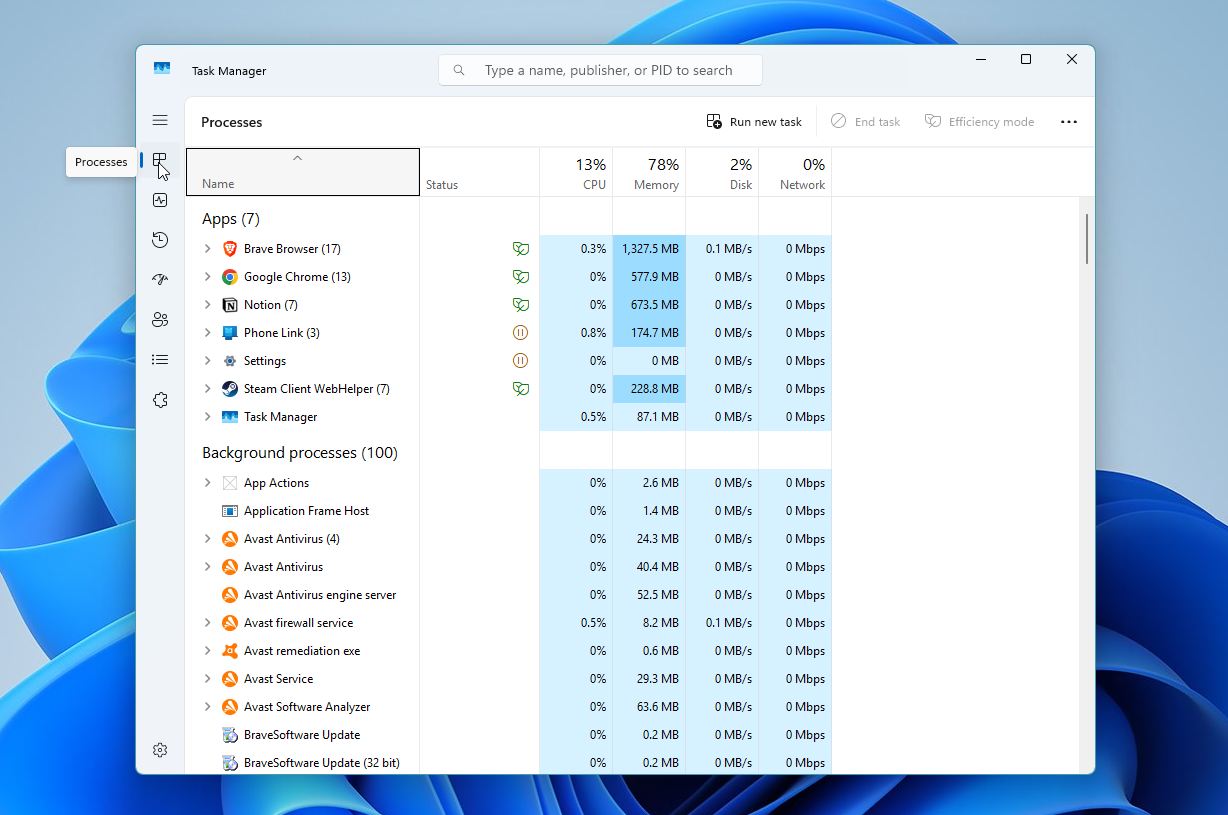
If nothing stands out and you don’t see any unfamiliar apps in Startup that could interfere, a simple system restart often clears locked processes and restores access.
Method 2:Check if You’re Using an Admin Account
An account with administrative privileges typically has complete access to folders. If you’re logged in as an administrator, Windows may still show an “access denied” message for protected locations. In this case, you’ll see a Continue button, click it to confirm and grant access with admin rights. If you’re using a regular user account, you may not have enough permissions.
To check if the user account you’re logged into is an Administrator, follow these steps:
- Right-click on the Start button and choose Settings.
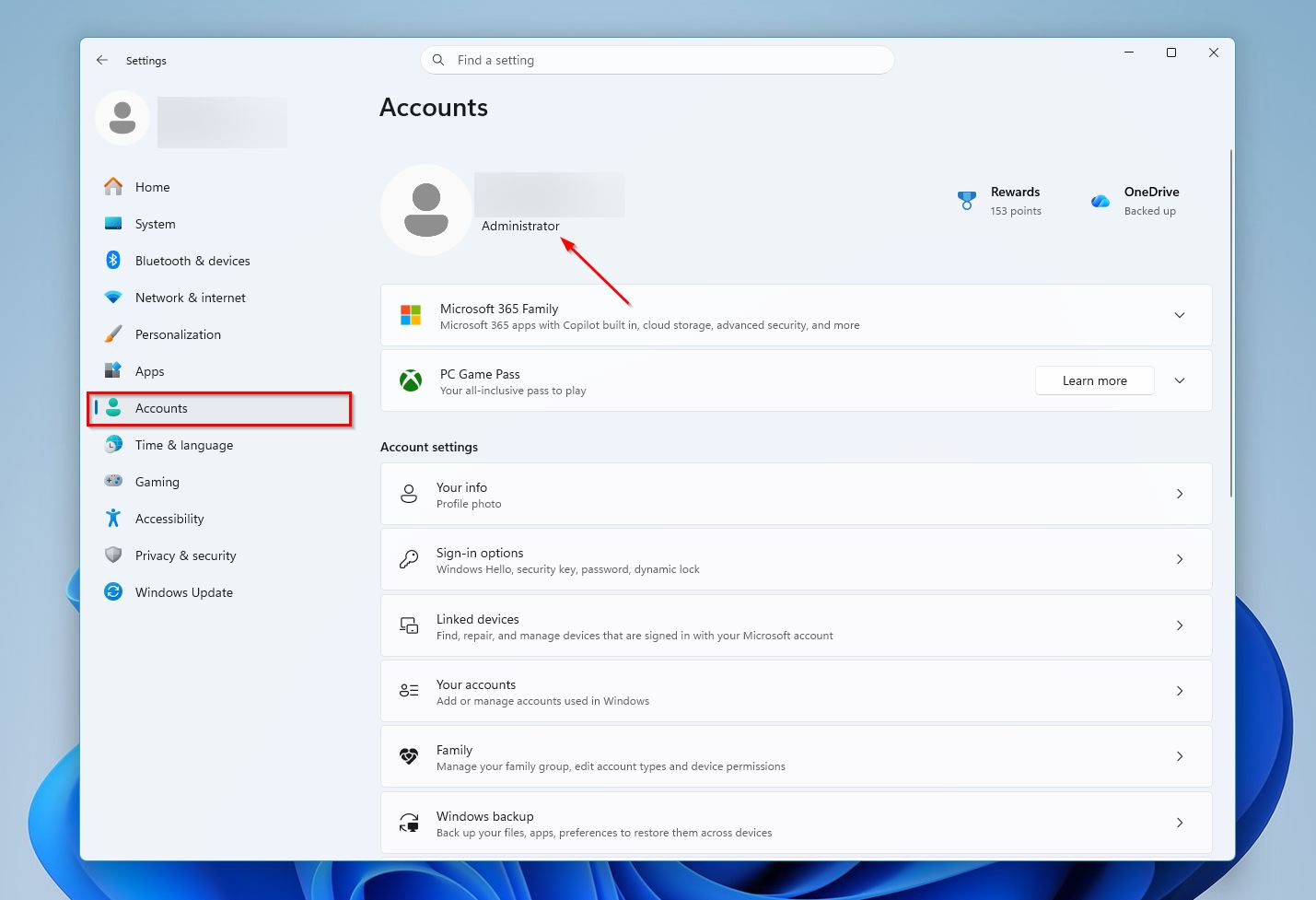
- Click on the Accounts tab.
- Check if there’s an Administrator tag under the profile info, as shown in the screenshot below.
Method 3:Change Folder Ownership
Changing folder ownership can resolve access denied errors when your account doesn’t have control over the folder. This usually happens when you’re working from a non-admin account, or when the folder comes from another PC and is still tied to a different user profile. In such cases, Windows may block access even if the files are intact, because your account isn’t listed as the owner. You can reassign ownership using File Explorer.
Here’s how:
- Open File Explorer (Windows Key + E). Go to the folder that you need to access, right-click on it and choose Properties.
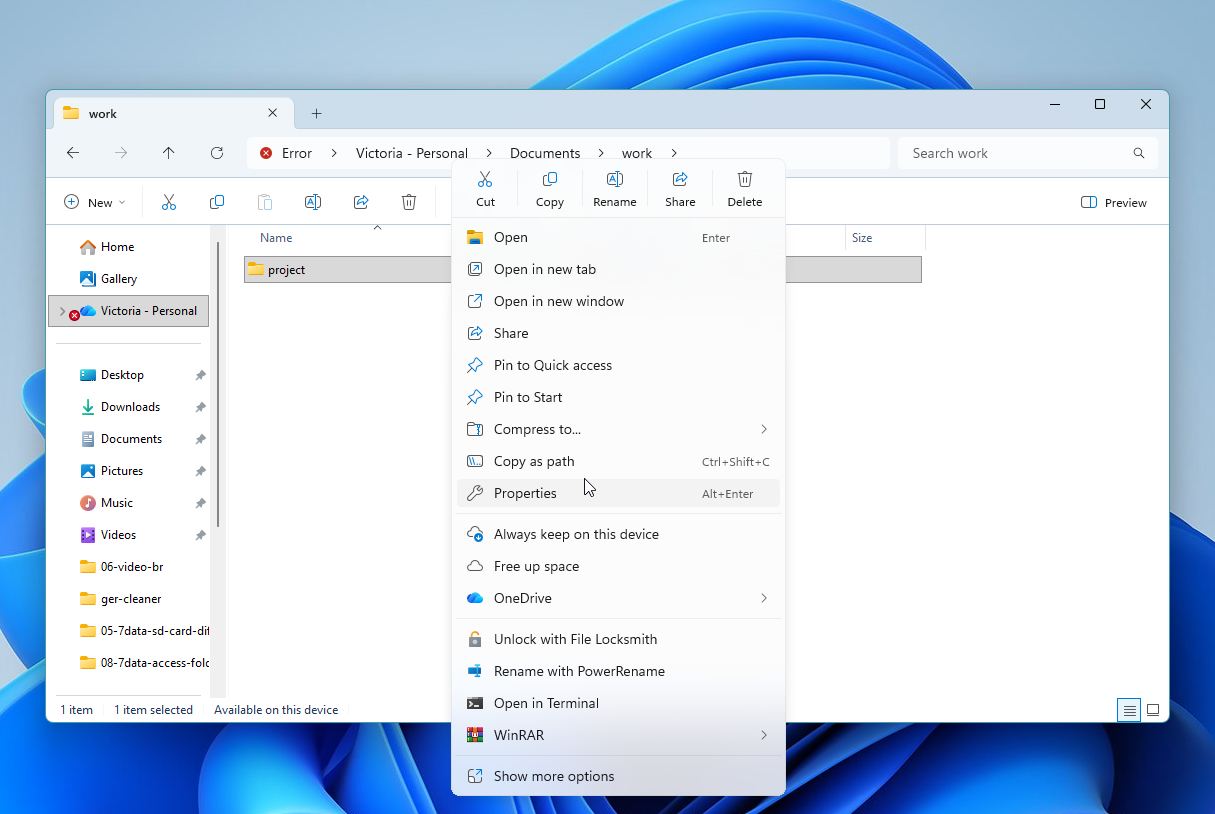
- Click on the Security tab, then select Advanced.
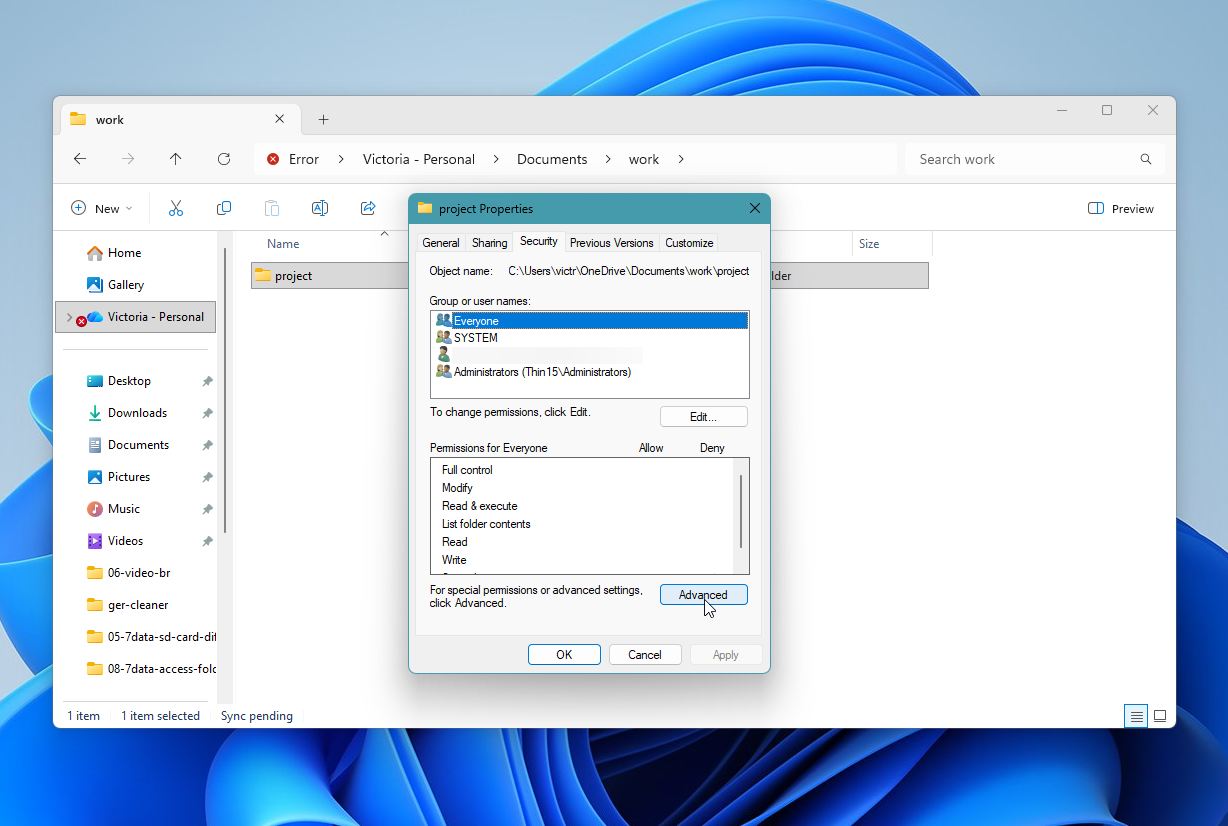
- Click on the Change option next to the Owner field.
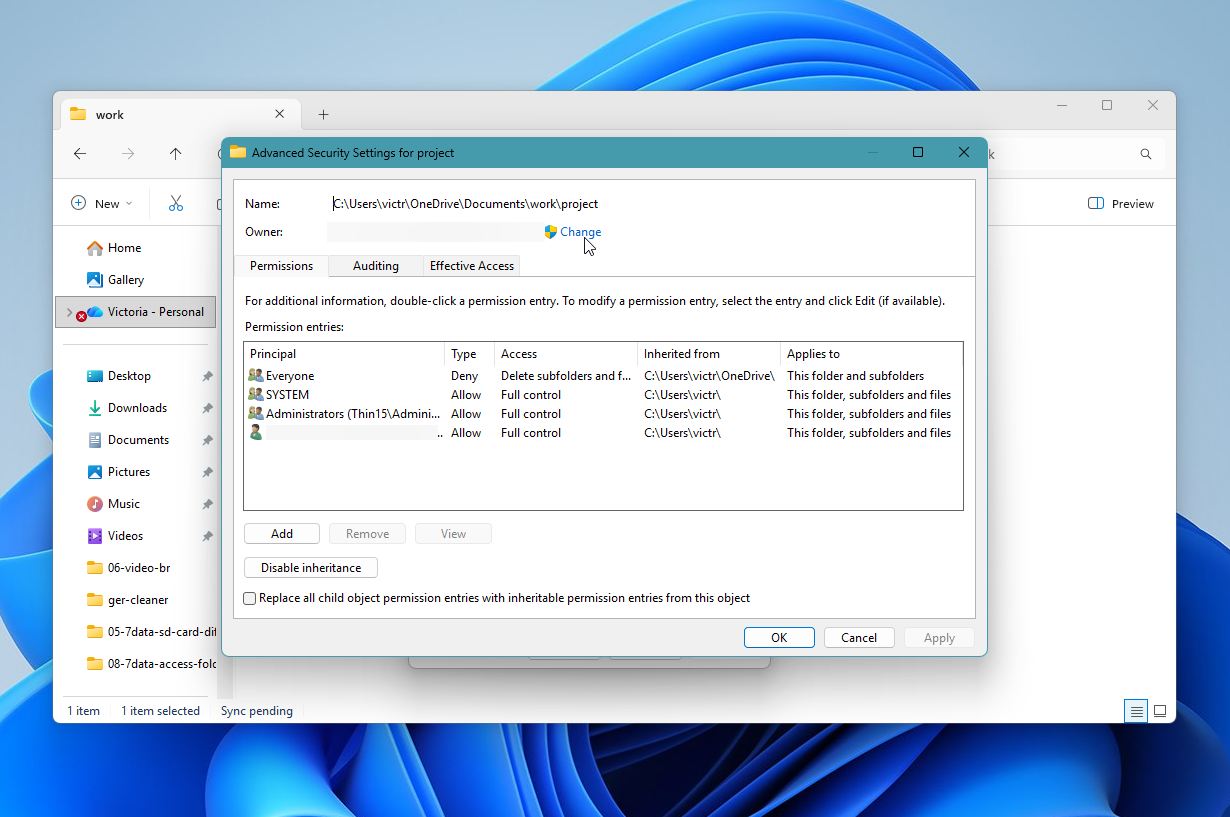
- In the Object name field, type in your user account or the account you wish to assign ownership to, and click Check Names. Click on OK.
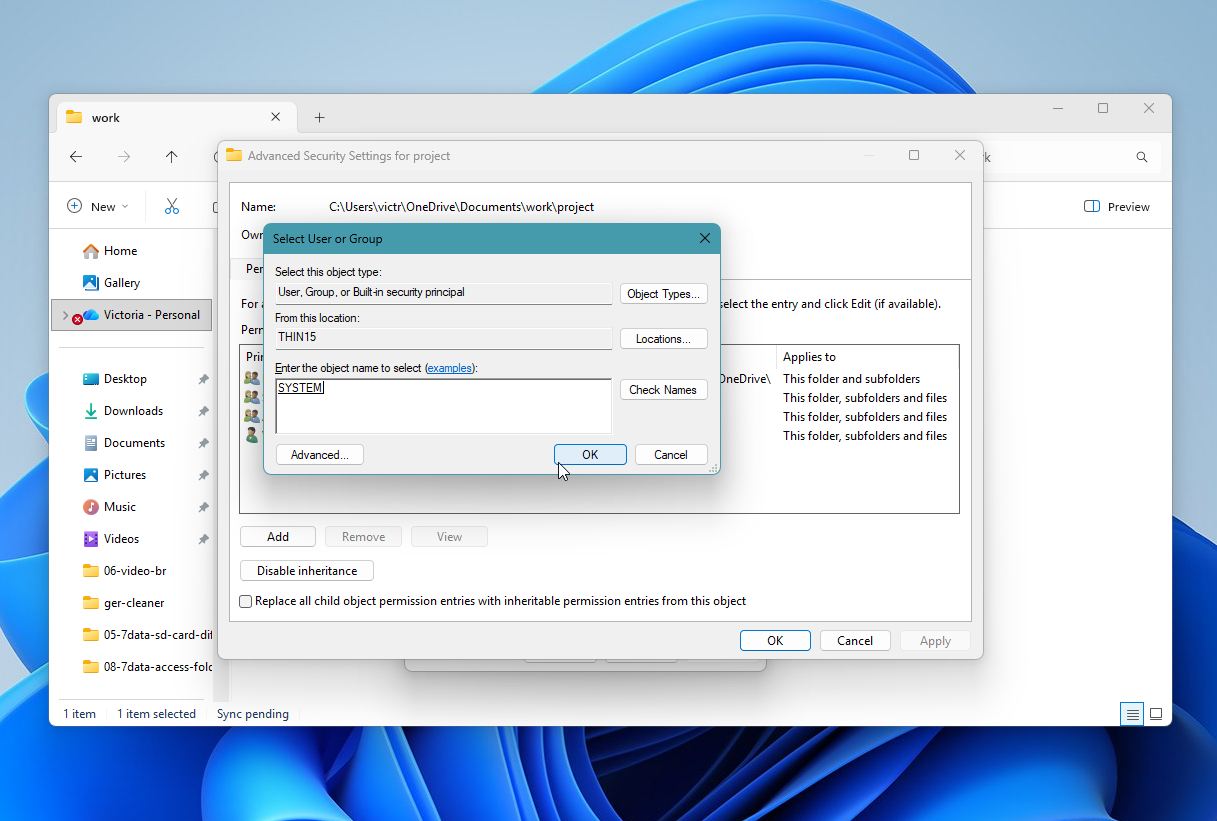
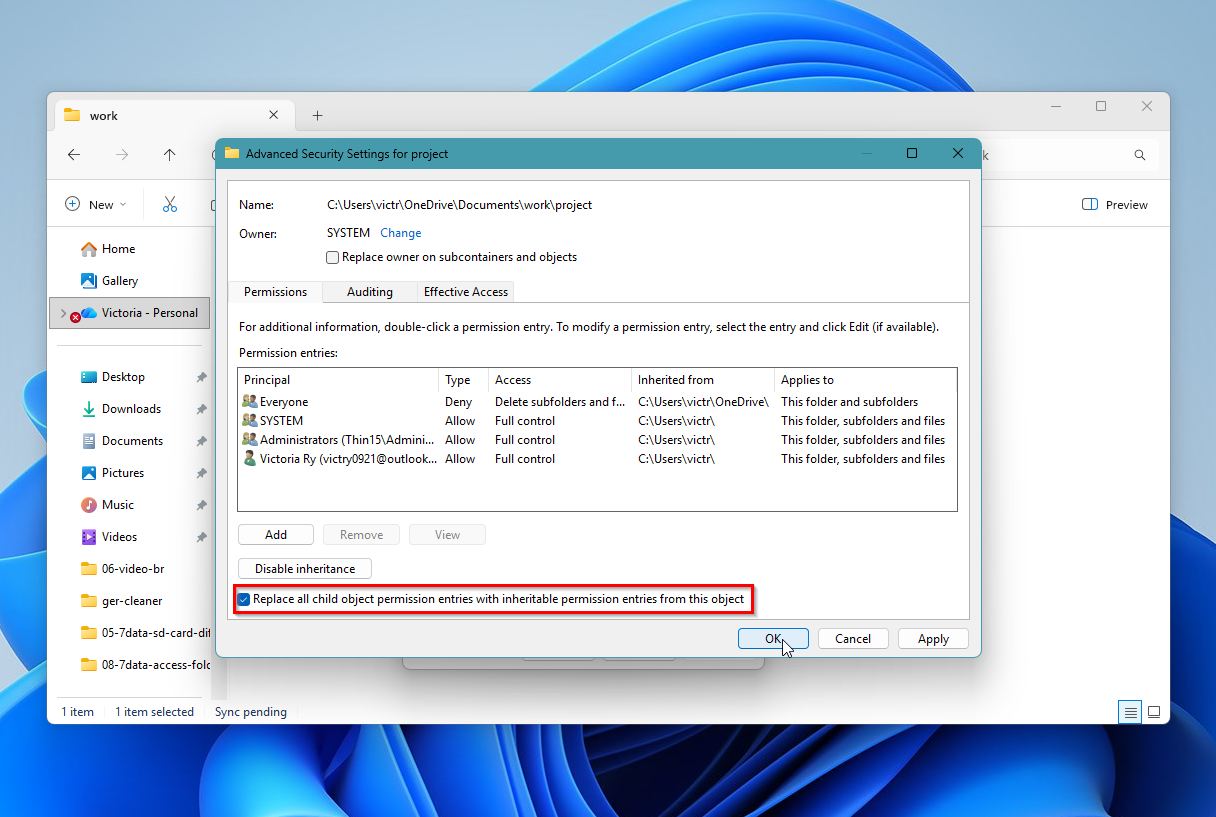
- Check the “Replace all child object permission entries with inheritable permission entries from this object” option and click OK.
Method 4:Change the Folder Permissions
If you’re unable to access the folder after taking ownership of the folder, it’s a good idea to review the folder permissions and see the extent of control different users have over the folder.
To check the folder permissions, follow these steps:
- Open File Explorer (Windows Key + E), right-click on the folder and click Properties.
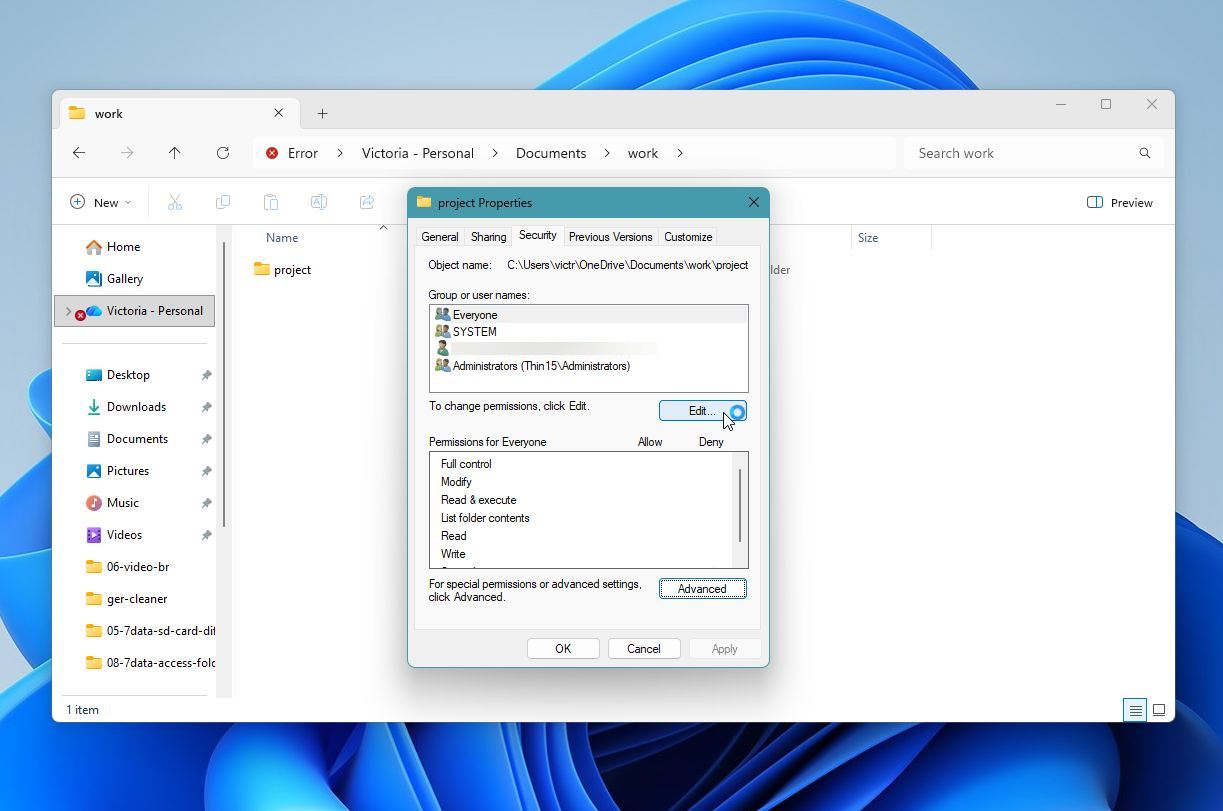
- Again, visit the Security tab. In the Group or user names field, select the user you wish to edit the permissions for, and click on Edit.
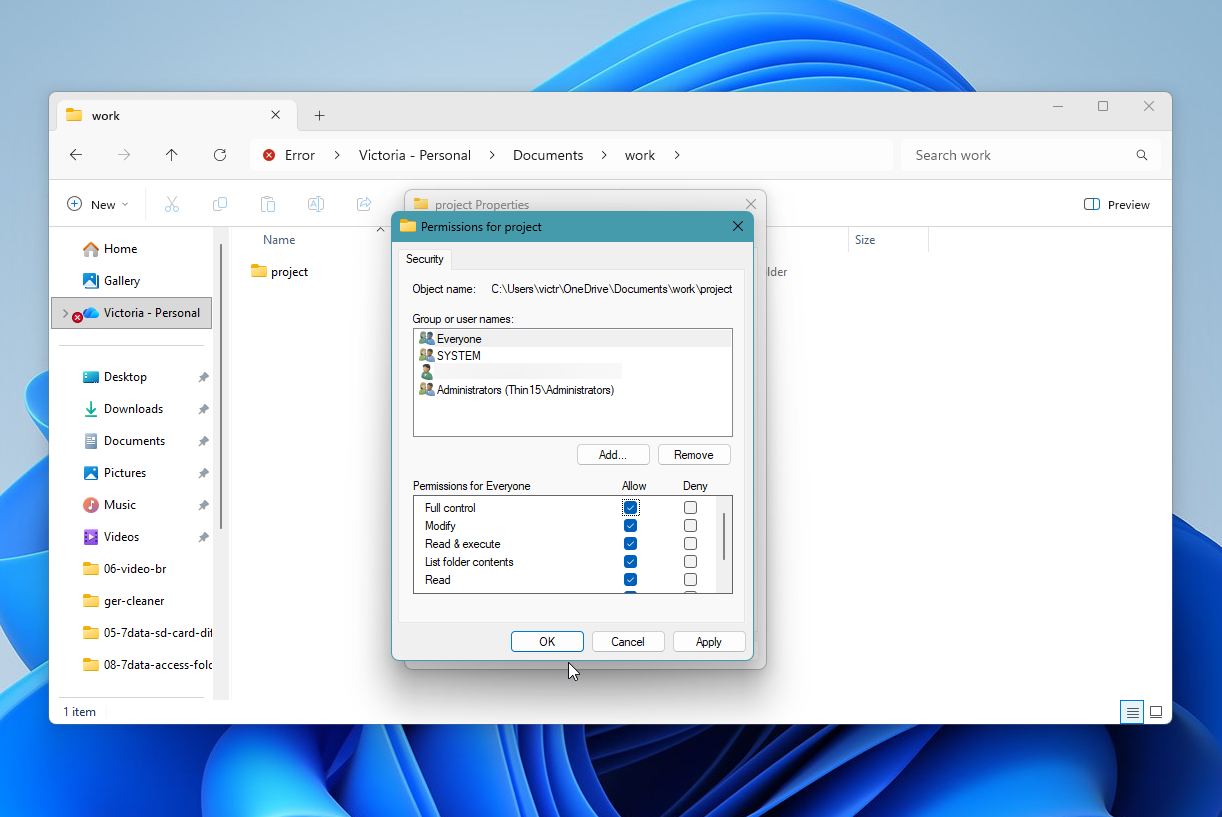
- In the Permissions for users section, check the permissions you wish to enable under the Allow column. If you trust the user account, it’s best to check the Full control option. Click on OK.
Method 5:Check the Antivirus Settings
If your antivirus suspects there’s a malicious file stored in the folder in question, it may restrict access to it. If you’re sure the folder doesn’t contain any malware, open your antivirus program’s settings. Disable any folder shield and ransomware protection options and see if you can access the folder. If that doesn’t work, disable the antivirus program and check if you’ve regained access to the folder.
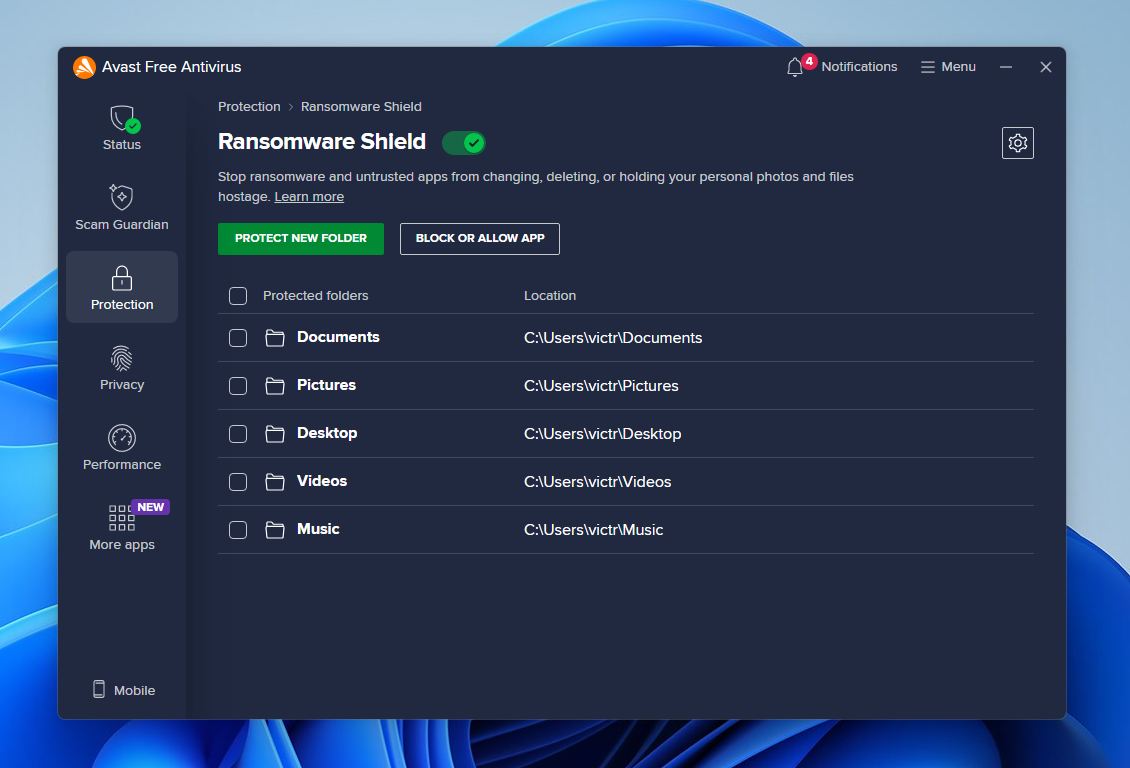
If you can access the folder after disabling your antivirus, add the folder as an exception in the antivirus settings and enable the antivirus program.
Method 6:Turn on Network Discovery & File Sharing
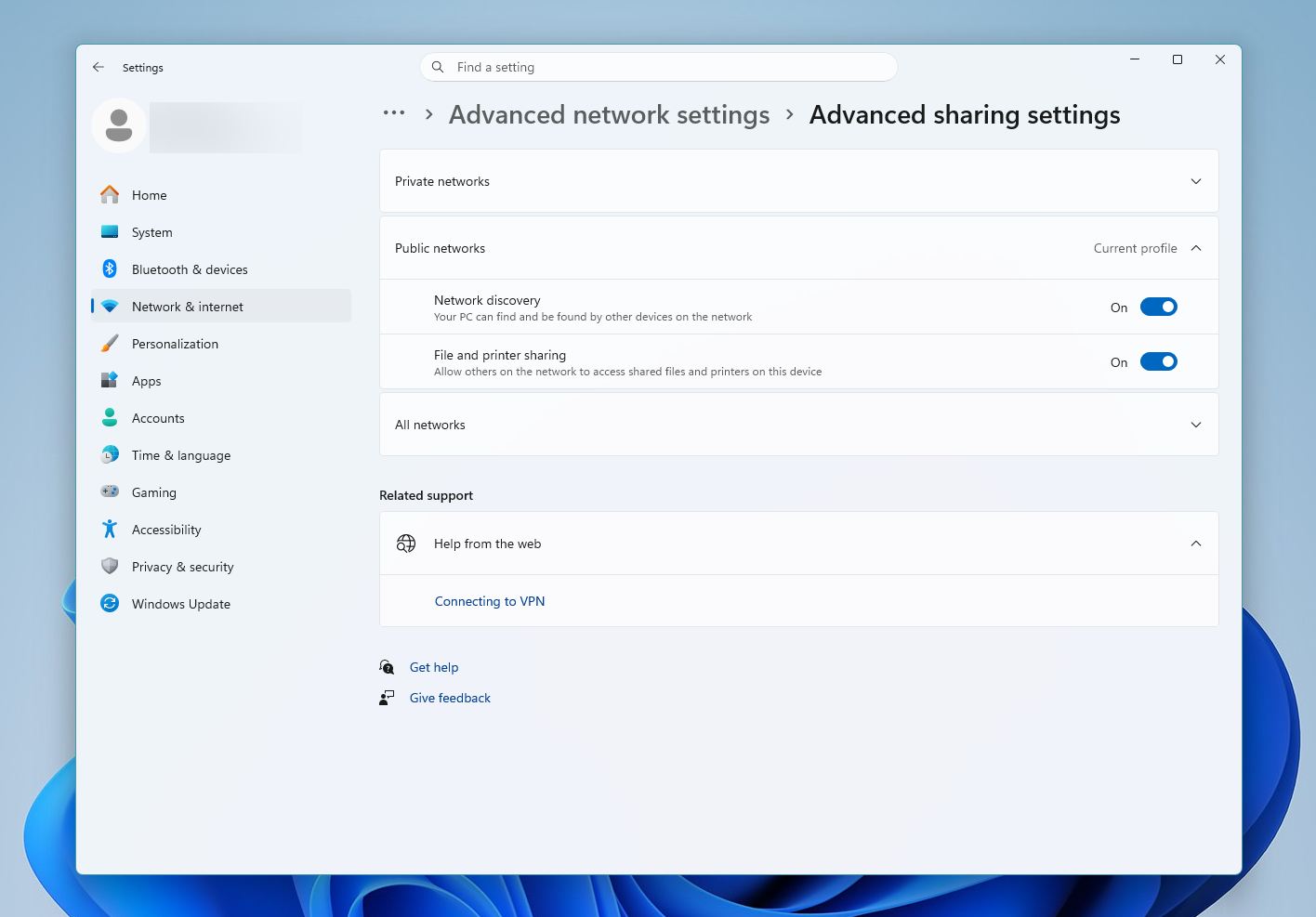
If the folder you’re unable to access is stored on a network location, it’s recommended you check if Network discovery and file sharing is turned on. If the option is switched off, Windows will display the “Destination folder access denied” message when you try to copy files to or from the network location.
To switch on Network discovery and file sharing, follow these steps:
- Type “control panel” in Windows Search (Windows Key + S) and click on the Control Panel.
- Click on the Network and Internet option.
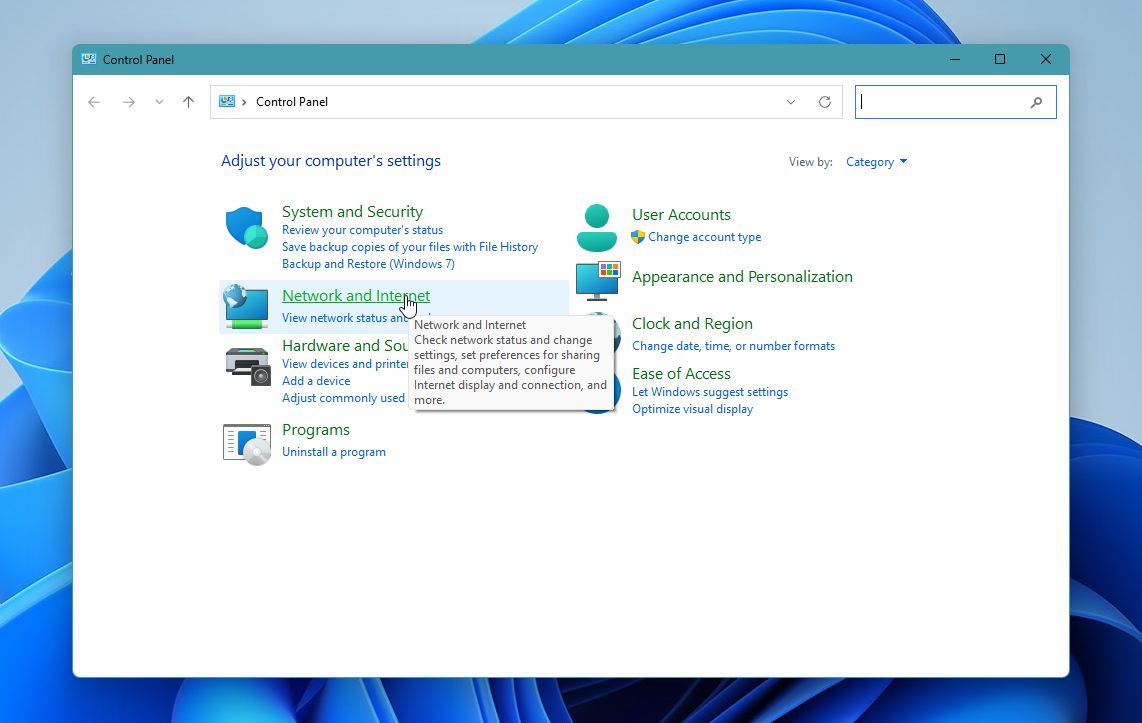
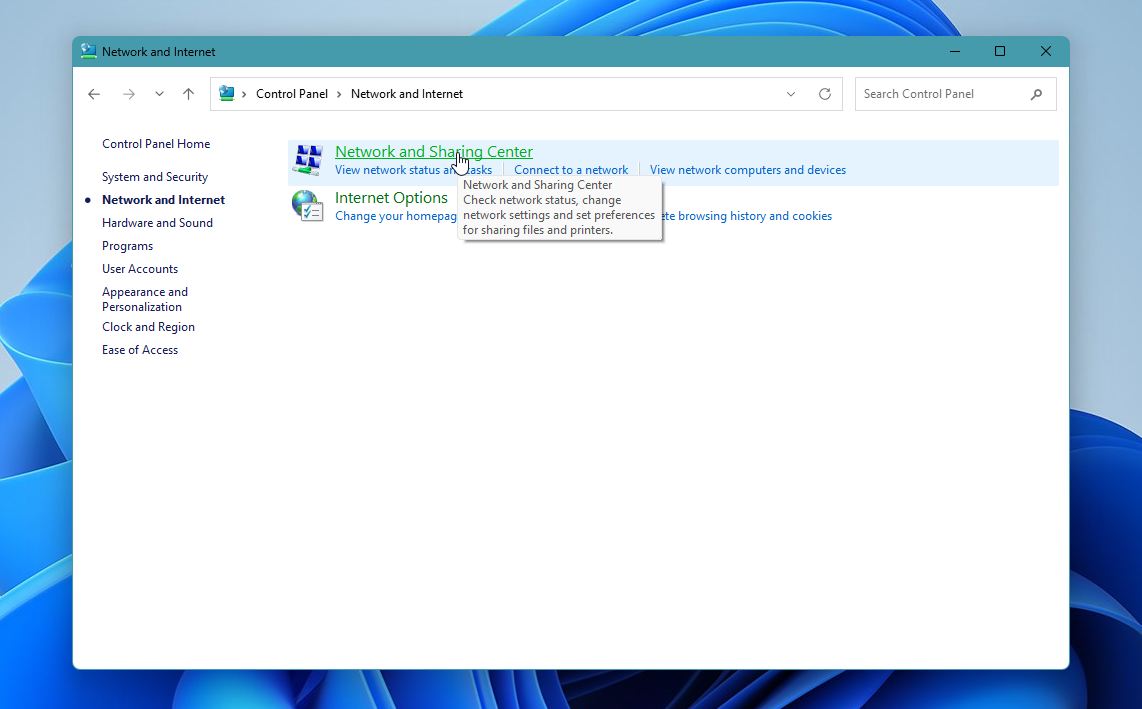
- Click on the Network and sharing center option.
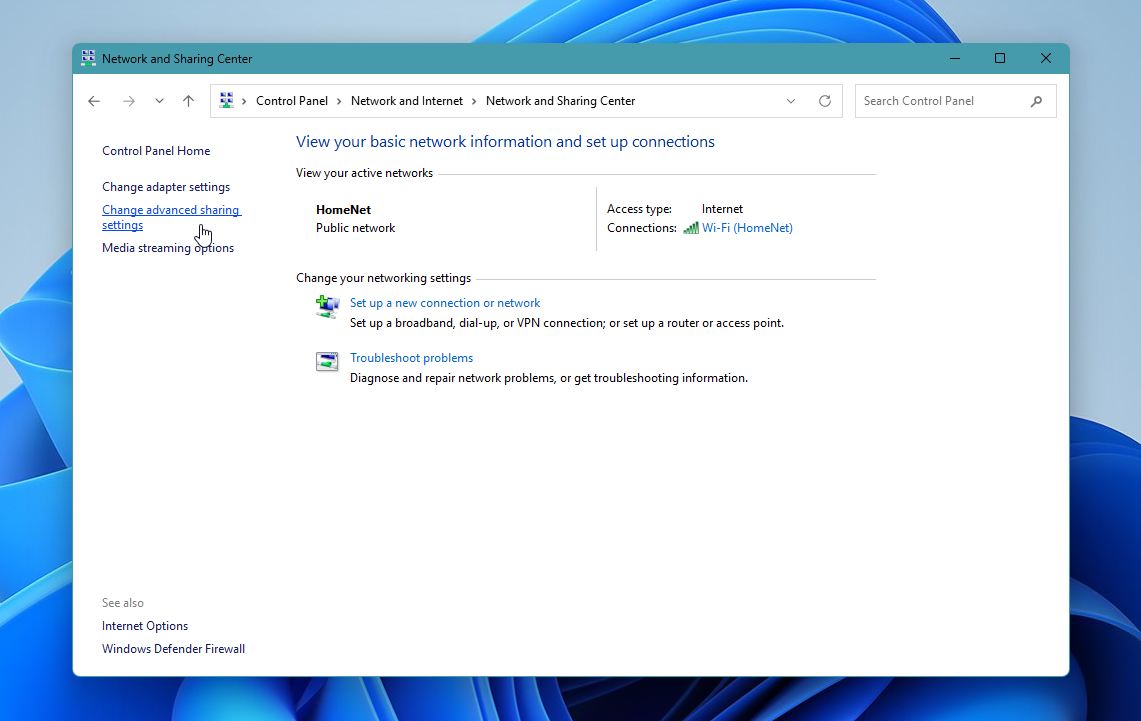
- Here, click on Changed advanced sharing settings.
- Make sure that Network discovery, and File and printer sharing are switched on.
Method 7:Check if the Folder Is Encrypted
The Professional version of Windows allows users to encrypt folders. Encrypted folders can only be accessed by users who have the required key. If you’re logged in to a user account without the required key, you won’t be able to access the folder. It’s a good idea to check whether the folder is encrypted and log in using an account that has the required key.
Here’s how you can check if the folder and its contents are encrypted:
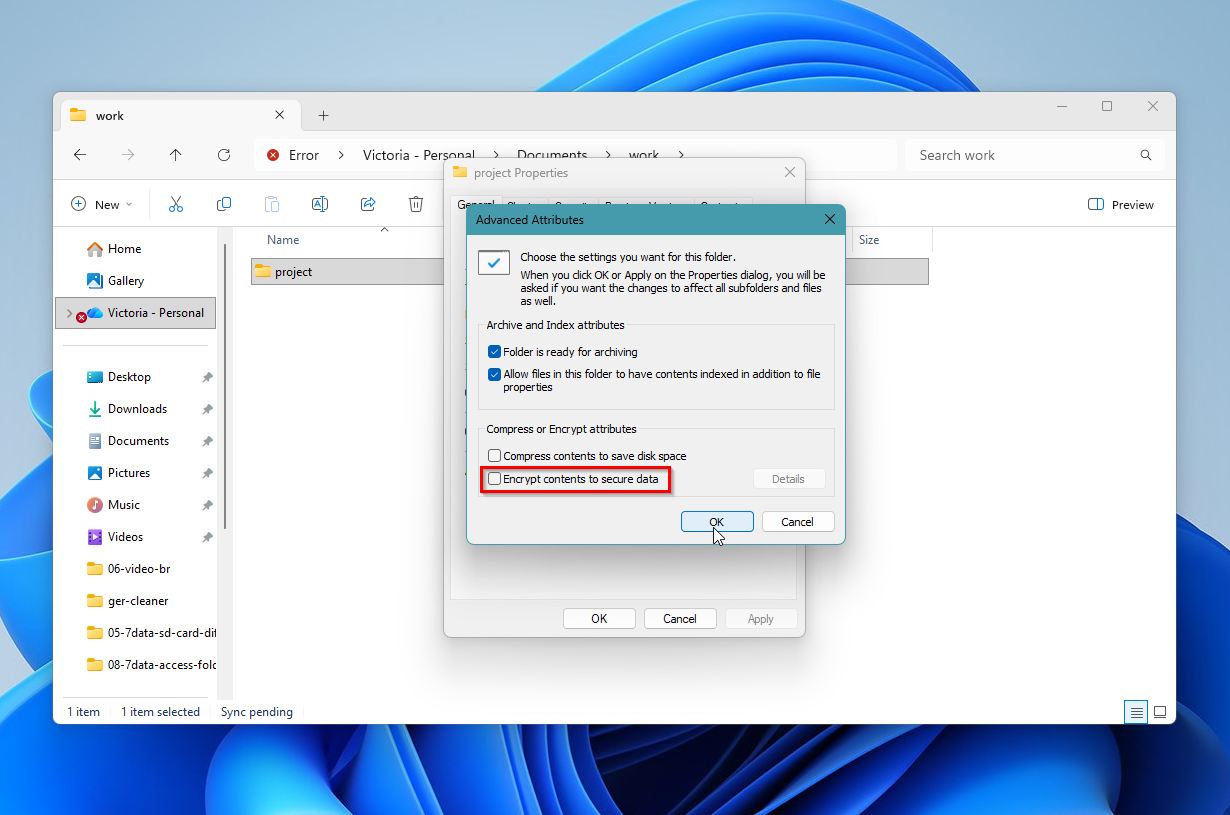
- Go to the folder in the File Explorer (Windows Key + E), and right-click on it, choose Properties.
- In the General tab, click on Advanced in the Attributes section.
- See whether the Encrypt contents to secure data option is checked or not. If it’s checked, it means the folder is encrypted. You can also attempt to uncheck that box and see if it helps.
Method 8:Run CHKDSK
If none of the methods above were able to resolve the folder access denied error, bad sectors could be causing the issue. You can use an in-built Windows utility, CHKDSK, to scan the drive for bad sectors and repair it. Being a command-line utility, you need to use the Command Prompt (CMD) to run it.
Warning: CHKDSK attempts to repair file system errors, but this process may modify or remove damaged data. In some cases, files become partially corrupted or disappear after the scan. If the data is important, return to Method 1 and recover your files before you proceed with CHKDSK.
Here’s how to use CHKDSK:
- Type “cmd” in Windows Search (Windows Key + S). In the search results, right-click on Command Prompt > Run as administrator.
- In the console, type chkdsk Y: /r /x and press Enter. Replace Y with the drive letter of the partition which contains the folder you can’t access.
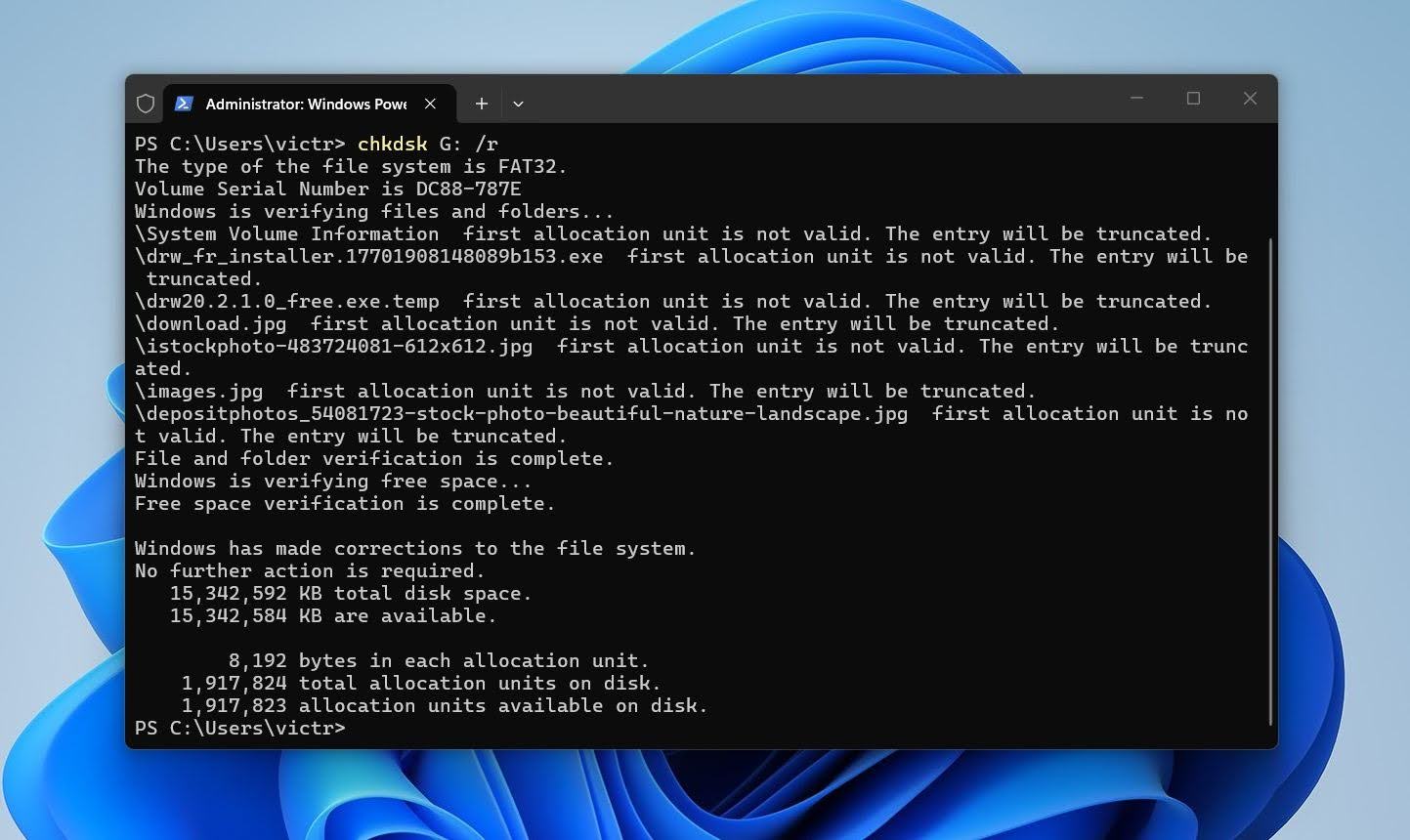
- Wait for CHKDSK to scan and repair the bad sectors, then reboot your PC.
Final Thoughts
Usually, the folder access denied error is nothing serious. In most cases, a quick check of permissions or ownership resolves it and restores normal access without much effort.
At the same time, this error can sometimes point to deeper issues like file system inconsistencies or drive problems. In those situations, data recovery software is simply another option you can use alongside standard fixes, not something you must do first. For example, Disk Drill can scan the drive and pull files out of folders that remain inaccessible, with preview support to check file integrity before recovery.
Most users will fix the issue through permissions, ownership, or account settings. Recovery tools come into play when those steps don’t help or when access remains blocked for specific files.
FAQ
- Open File Explorer and locate the folder.
- Right-click the folder and select Properties.
- Go to the Security tab.
- Select your user account and click Edit.
- Enable the required permissions under the Allow column or select Full control.
- Add your account manually if it does not appear.
- Open Advanced settings and change the owner if permission changes do not apply.