



If Windows does not recognize a USB device, it doesn’t necessarily mean that your files are gone. The cause can range from a simple connection problem to file system corruption or a hardware issue. The next step depends on where Windows can still detect the USB drive, so we’ll first show you how to diagnose the problem step by step and determine what Windows can see. From there, you can choose the right recovery or repair method. If the files on the USB drive are important, recover them first with data recovery software such as Disk Drill before you make changes to the drive.
The problem can show up in several ways in Windows 11. You might see a “USB Device not recognized” message, find the drive listed as Unknown Device, or see it appear as RAW, Unallocated, or 0 bytes in Disk Management. Sometimes the USB drive lights up but doesn’t appear in File Explorer at all.
We’ll help you try the appropriate fixes and recover your files when there’s a risk of data loss.
Why Is My USB Drive Not Recognized?
The easiest way to find out why Windows doesn’t recognize your USB drive is to check Disk Management and Device Manager. Press Win + X, open each tool, and look for your USB drive. Where the drive appears and how Windows reports it can point to the likely problem and the right next step.
| Where the Drive Appears | What It Means | What to Do |
|---|---|---|
| Disk Management: Healthy partition, but no drive letter | Windows recognizes the USB drive and its partition, but it can’t appear in File Explorer without a drive letter | Assign a drive letter |
| Disk Management: RAW | Windows detects the partition, but the file system is corrupted or unreadable | Recover your files first, then repair or format the USB |
| Disk Management: Unallocated | Windows detects the physical USB drive, but it can’t find a usable partition | Recover your data before you create a new partition or format the drive |
| Disk Management: 0 bytes or No Media | Windows detects the USB device, but it can’t access its storage capacity | Check for physical failure |
| Device Manager: Unknown USB Device or warning icon | Windows detects the USB device but can’t communicate with it correctly | Troubleshoot the USB connection |
| Device Manager only, but not Disk Management | Windows detects the USB hardware but not as an accessible storage device | Check the USB connection and hardware |
| Neither Disk Management nor Device Manager | Windows isn’t detecting the USB device at all. This can point to a connection or hardware problem | Try another USB port or computer and check for physical failure |
Case 1: The Drive Doesn’t Appear Anywhere
If the USB drive doesn’t appear in File Explorer, Disk Management, or Device Manager, start by ruling out a problem with the computer or USB port.
- Try a different USB port. Connect the drive directly to another port. If it appears, the original port or connection was likely the problem.
- Try a different computer. If the drive still doesn’t appear, connect it to another PC. This helps determine whether the problem follows the USB drive.
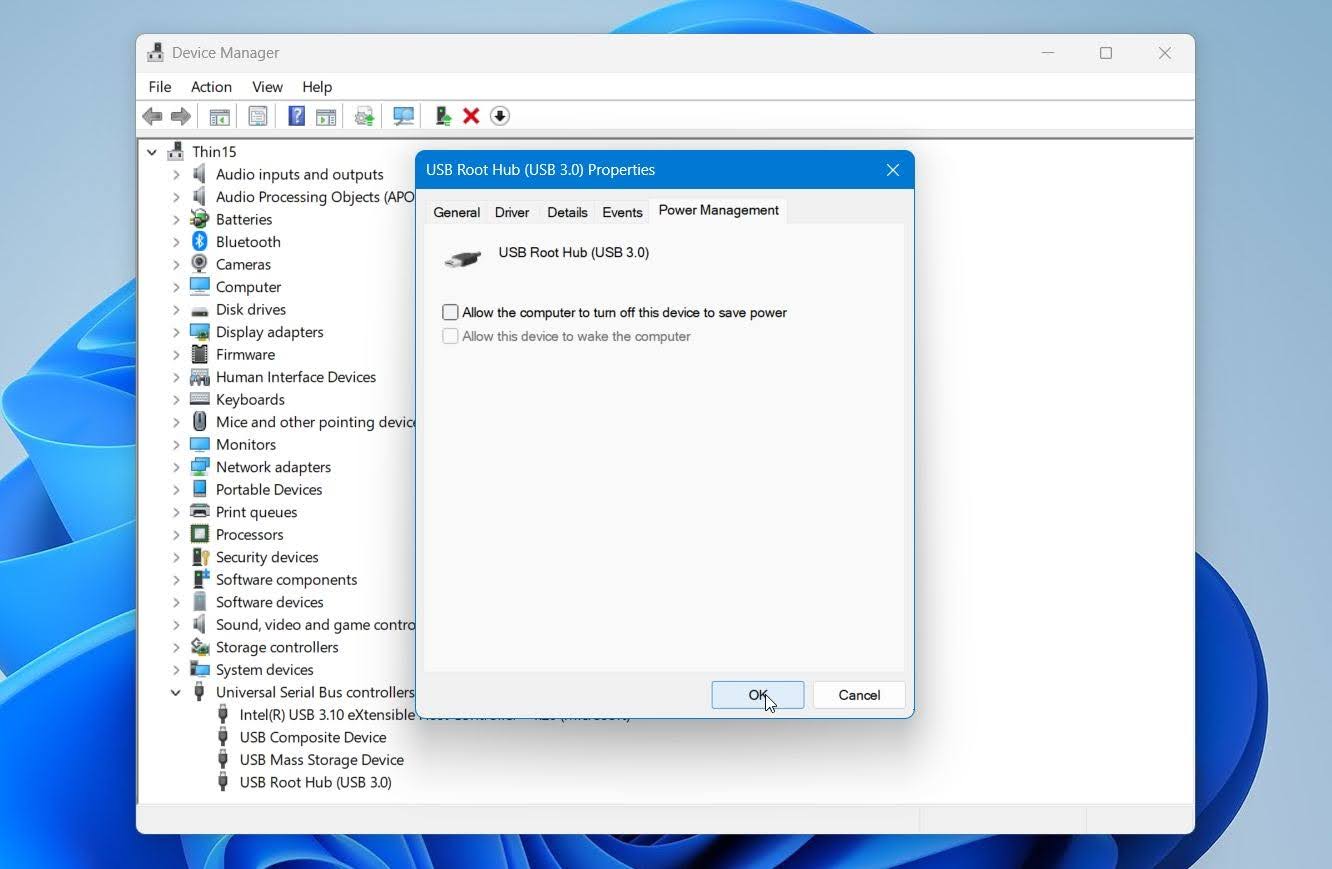
- Check USB power management. Open Device Manager > Universal Serial Bus controllers, right-click USB Root Hub, and select Properties > Power Management. Clear Allow the computer to turn off this device to save power and reconnect the USB. Repeat this for other USB Root Hub entries if necessary.
If the USB drive doesn’t appear in Disk Management or Device Manager on another computer either, the problem is most likely hardware related. Windows isn’t detecting the device at all, so software based recovery and repair methods won’t be able to access it. If you need the files, professional data recovery is the safest next option.
Case 2: Shows in Device Manager Only (Unknown Device)
If the USB appears in Device Manager as Unknown Device, Unknown USB Device, or with a warning icon, but does not appear as a storage device in Disk Management, Windows can detect something connected to the USB port but cannot access the flash storage itself.
This can point to a failed or malfunctioning USB controller, especially if the same behavior occurs on another computer. Disk Drill cannot recover data at this stage because Windows does not expose the USB as a storage device that recovery software can scan.
Before you assume hardware failure, reinstall the device and its driver as a final free troubleshooting step:
- Right-click Start and select Device Manager.
- Check Disk drives, Universal Serial Bus controllers, and Other devices for the affected USB or an unknown device.
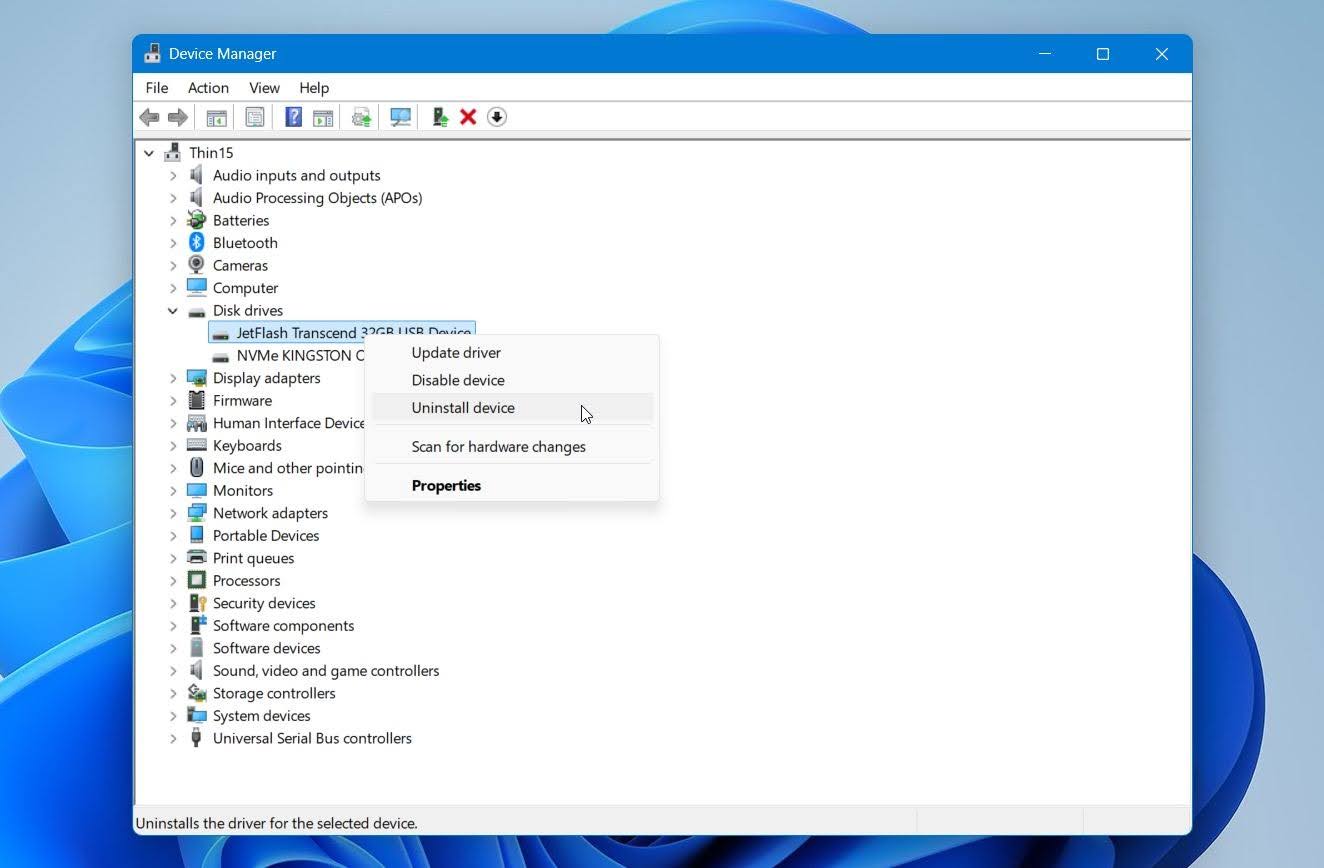
- Right-click the device and select Uninstall device.
- Click Uninstall, then disconnect the USB drive.
- Restart the computer and reconnect the drive. Windows should detect it and reinstall the necessary driver.
Check Disk Management after you reconnect the drive. If it now appears there, move to the appropriate recovery or repair method. If it still shows as an unknown device on multiple computers, the more likely cause is hardware failure.
Case 3: The USB Has a Partition but No Drive Letter
If the USB drive appears correctly in Disk Management but not in File Explorer, check whether its partition has a drive letter. Windows normally assigns one automatically, but the letter may be missing or conflict with another device.
Assigning or changing a drive letter is safe and does not delete or modify the files stored on the USB drive:
- Right-click Start and select Disk Management.
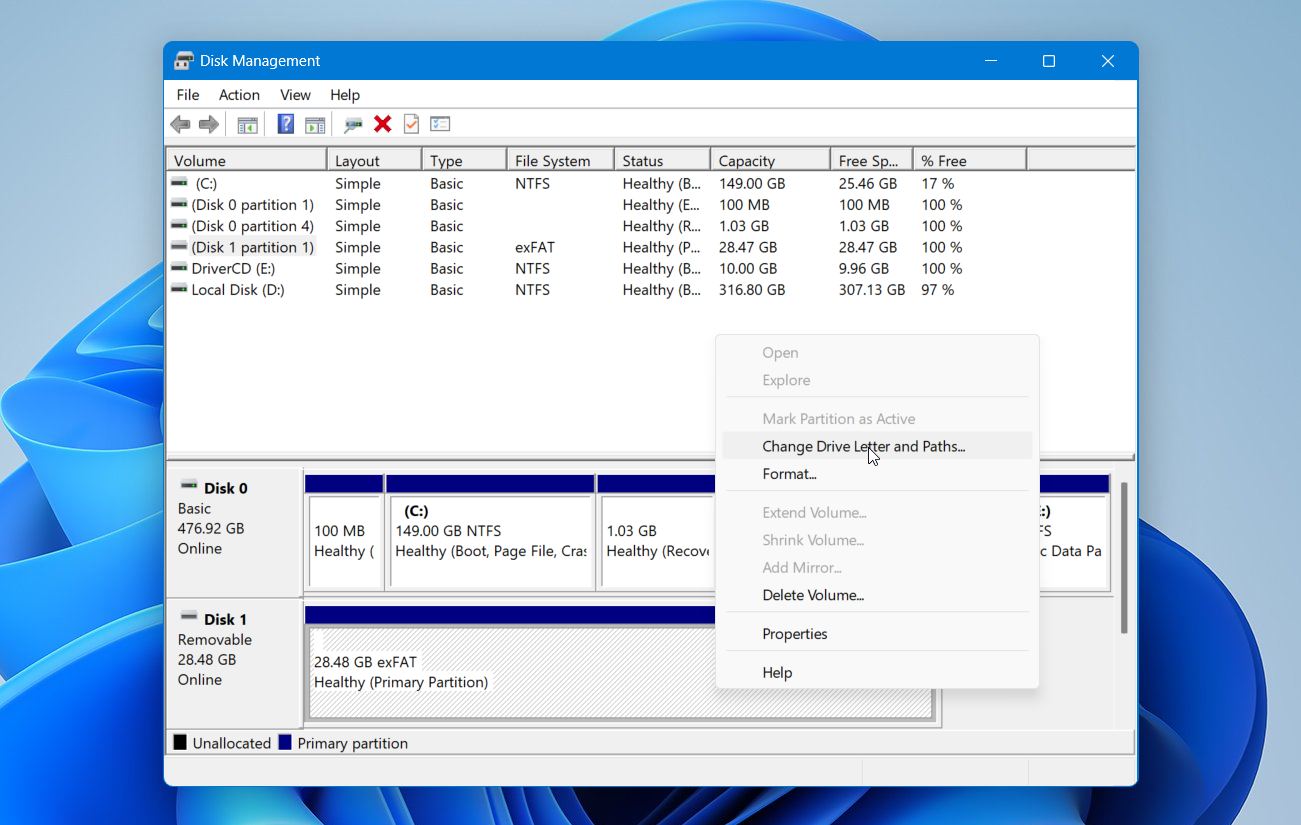
- Find the USB drive and right-click its volume.
- Select Change Drive Letter and Paths.
- Click Add.
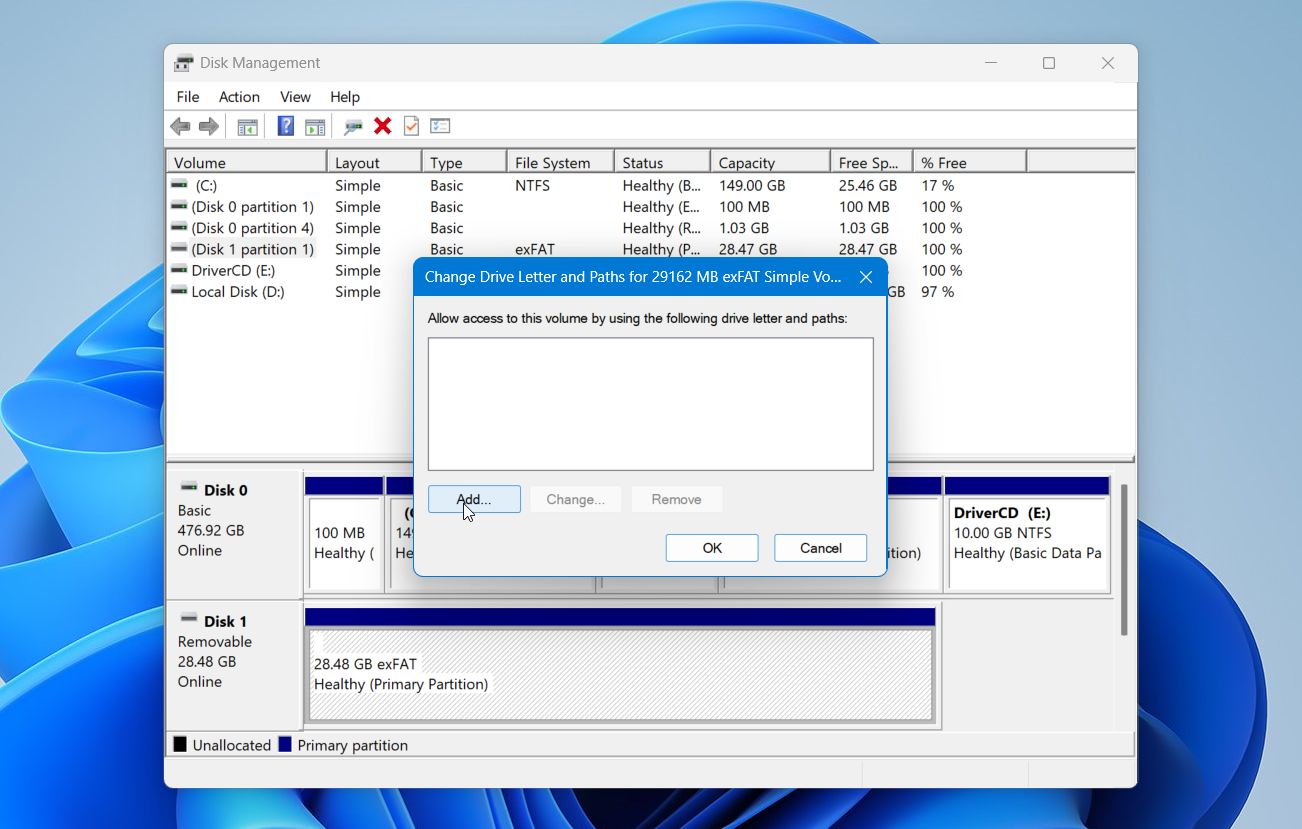
- Select an unused drive letter and click OK.
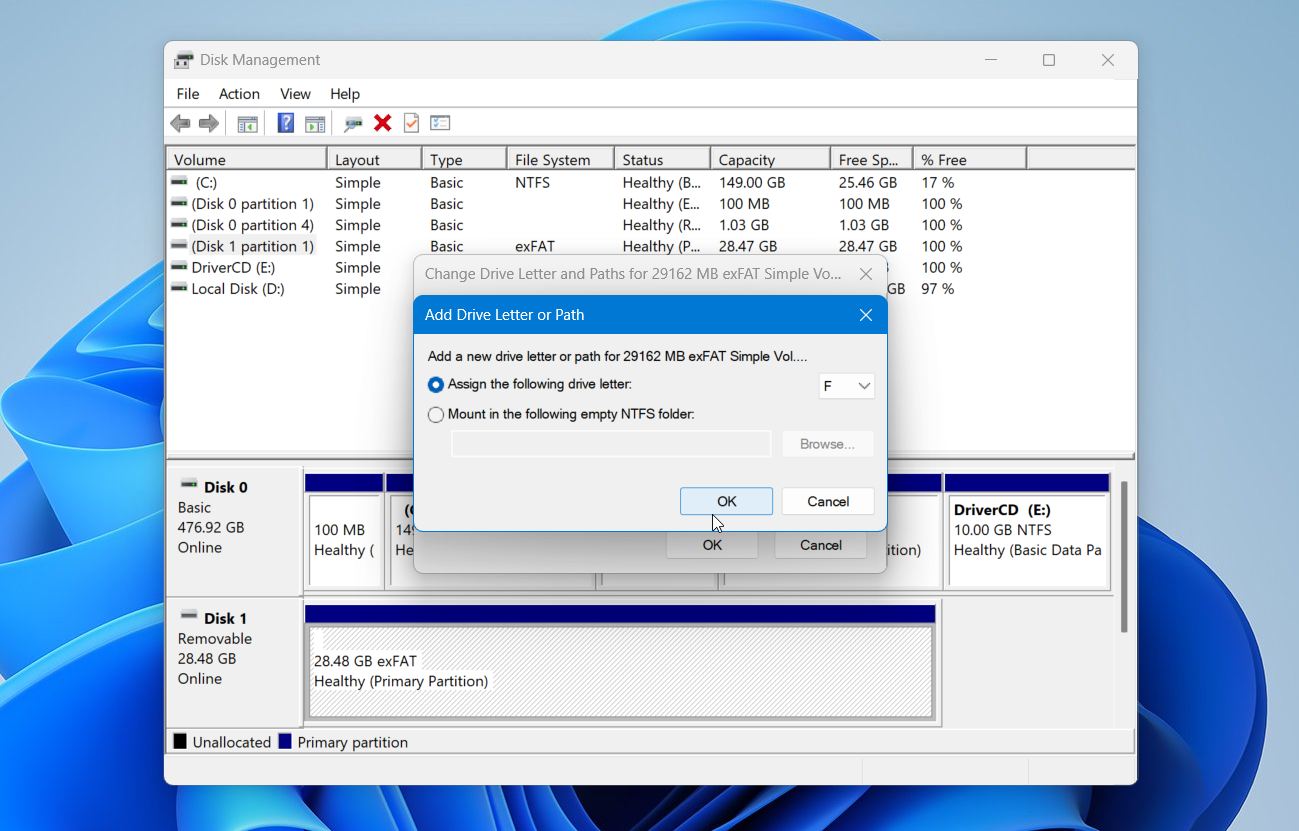
- Click Yes if Windows asks you to confirm.
Open File Explorer and check whether the USB drive now appears under This PC.
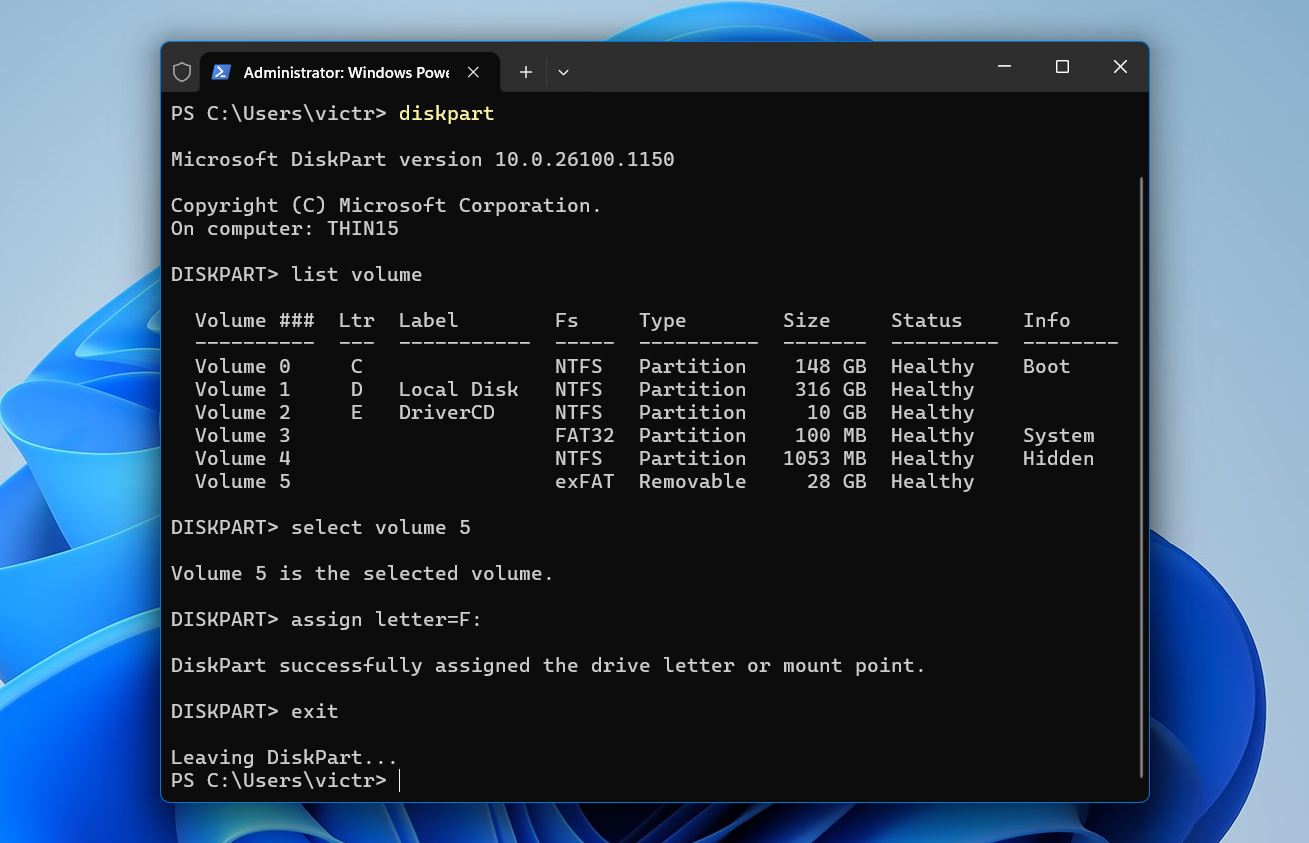
Advanced option: If Disk Management does not let you assign a drive letter, you can try DiskPart:
- Right-click Start and open Terminal (Admin).
- Type diskpart and press Enter.
- Type list volume and press Enter.
- Identify the USB volume and type select volume X, where X is its volume number.
- Type assign letter=E:, with an unused letter in place of E.
- Type exit and press Enter.
If the USB appears in Disk Management but its space is Unallocated rather than shown as an existing volume, a missing drive letter is not the problem. The partition itself is missing, so proceed to the partition recovery steps instead.
Case 4: Shows as Unallocated Space in Disk Management
If the USB appears in Disk Management but its storage is marked as Unallocated, a drive letter is not the problem. Windows no longer sees a usable partition that it can mount in File Explorer.
If you need the files, do not create a new volume or format the USB yet. Both can write new file-system information to the drive and make recovery more difficult. Recover the files first with data recovery software. For this, we recommend Disk Drill. It’s one of the best usb recovery software, because it can scan devices with damaged or RAW file systems, supports hundreds of file types, provides file previews, and includes a disk imaging tool for drives that may be unstable.
We put Disk Drill through our own recovery tests. On a 32 GB USB flash drive with a corrupted file system, it completed the scan in just under two minutes, with speeds of up to 260 MB/s. It detected all of our test data, and the files we restored were intact. You can see the complete results in our Disk Drill review.
Note: A USB that’s not recognized is a sign that logical or physical damage is present. In this case, it’s best to work from disk image instead. This is a full copy of your USB, preserving its current state in case it fails further.
To recover your files:
- Download and install Disk Drill on your Windows PC.
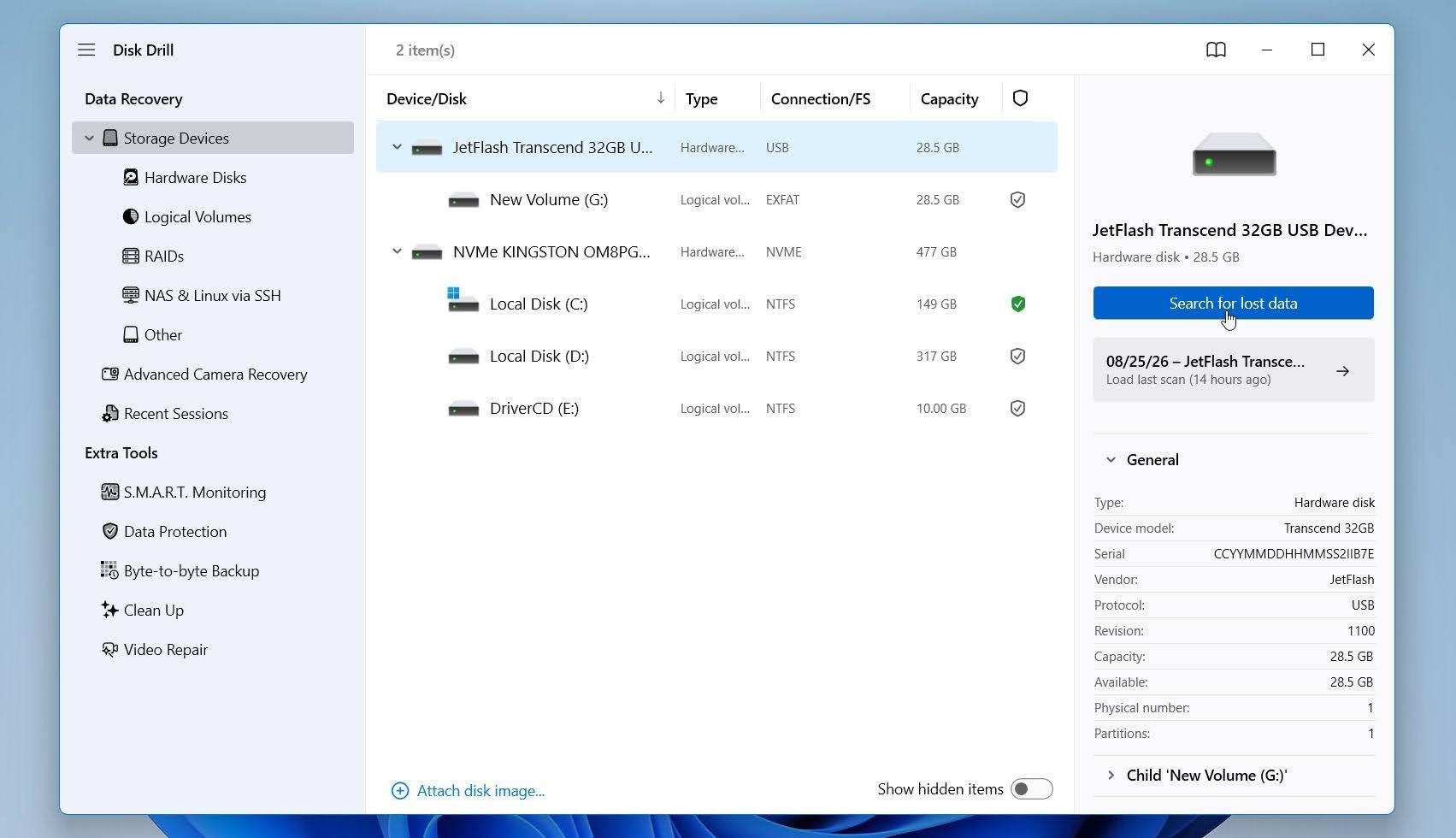
- Connect the USB drive and open Disk Drill. Select the physical USB device from the list of available drives and click Search for lost data to start the scan.
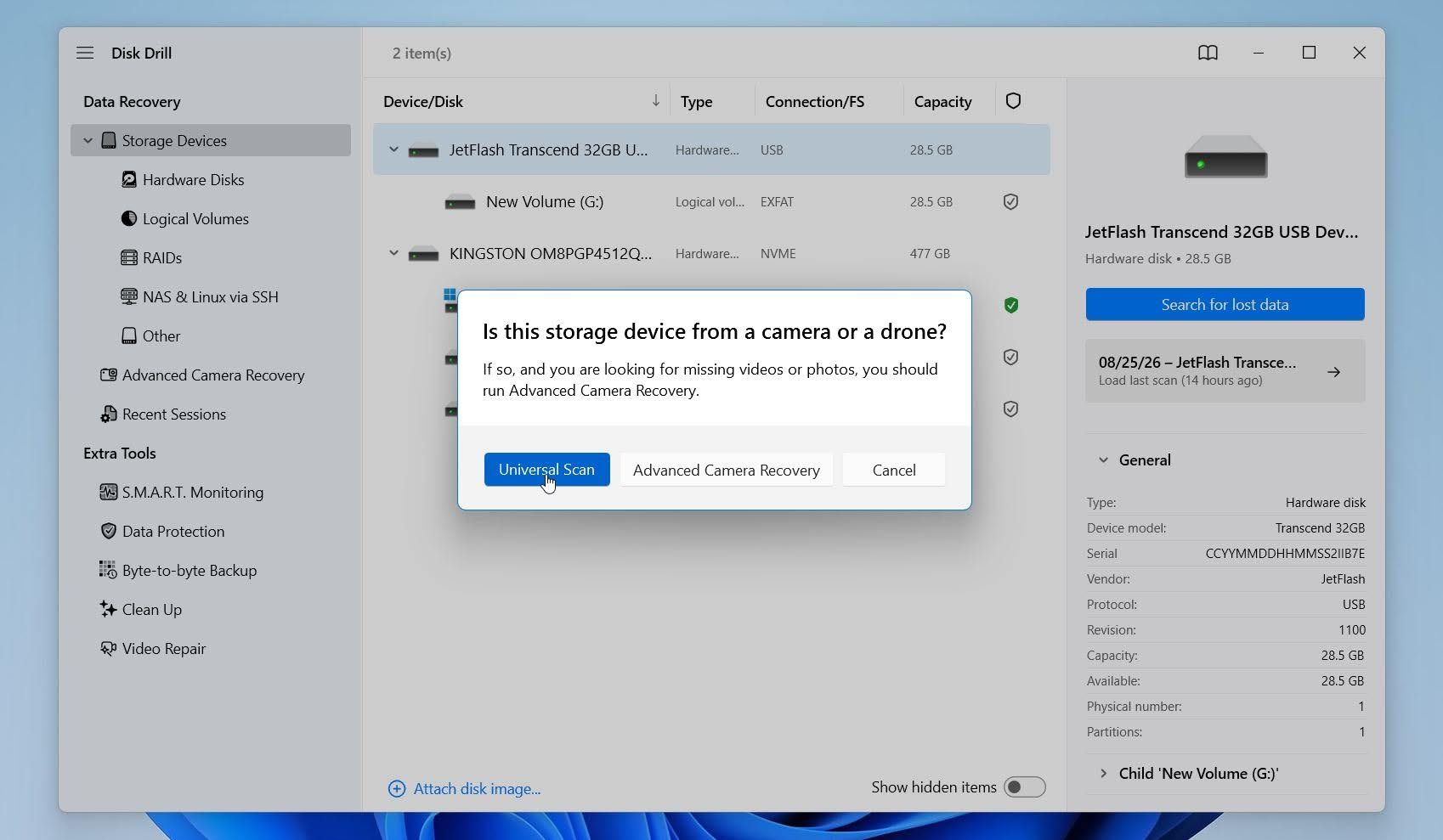
- If prompted, click Universal Scan if you want to search the USB drive for all types of recoverable data. This is the best option for a typical USB flash drive. Advanced Camera Recovery is designed specifically for fragmented video recovery from cameras and drones, so you generally won’t need it for a standard USB drive.
- Wait for Disk Drill to scan the drive. You can open Review found items at any point to check the results, or let the scan finish first.
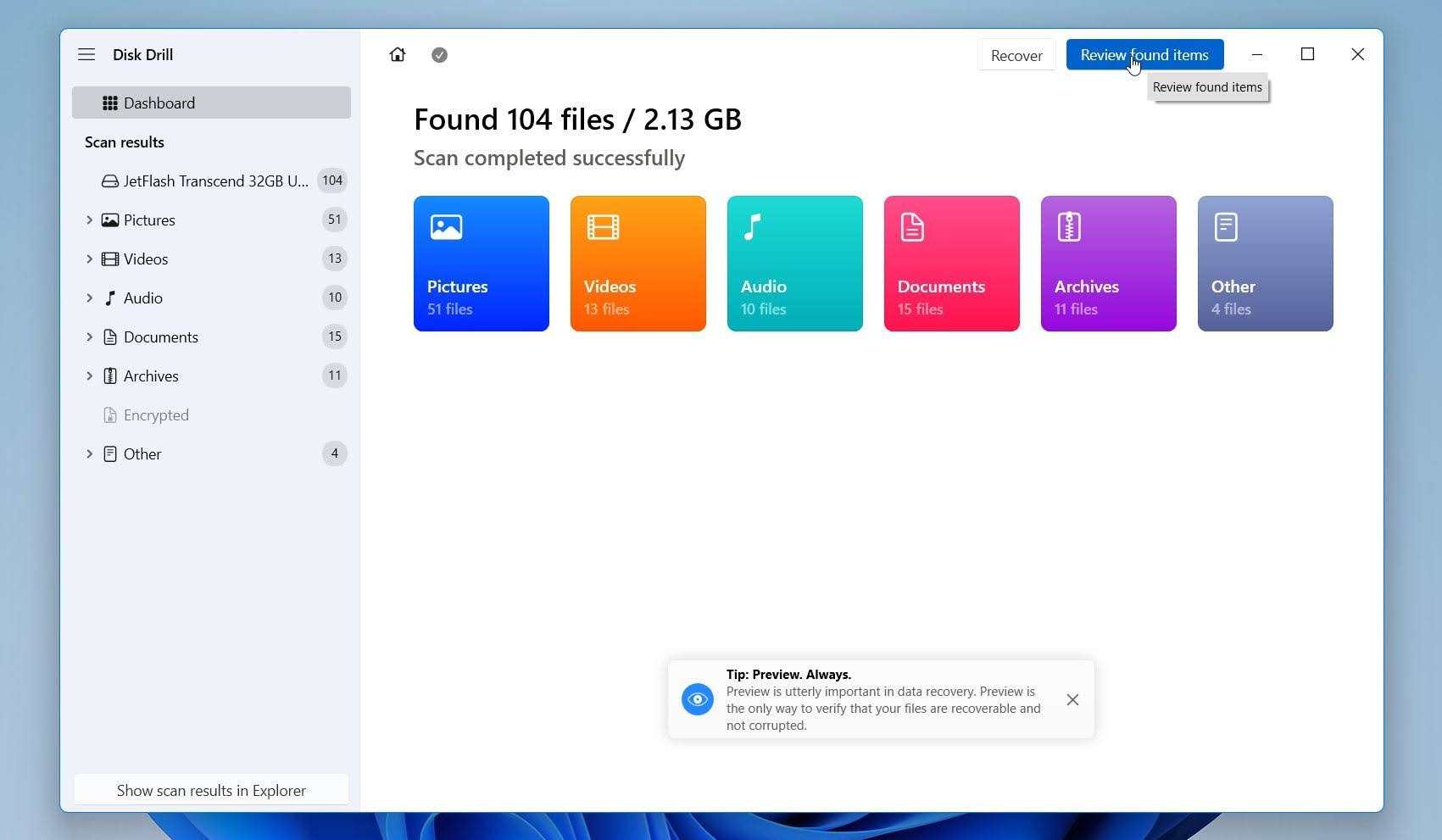
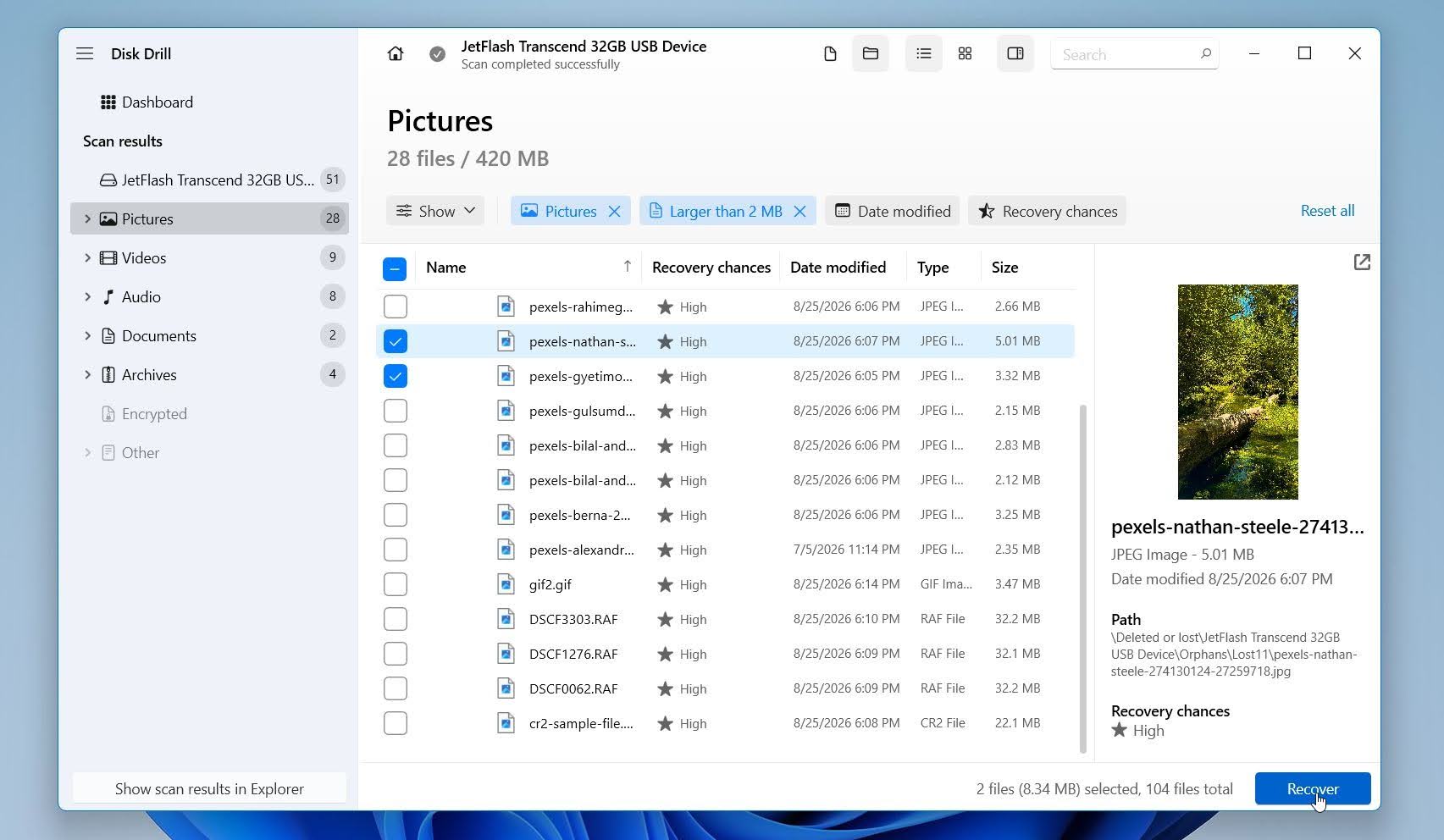
- Use the file-type filters or search field to narrow down the results, then preview the files you want to recover. If a file previews correctly, that’s a good indication that it can be recovered intact. Once you’ve found the files you need, select them and click Recover.
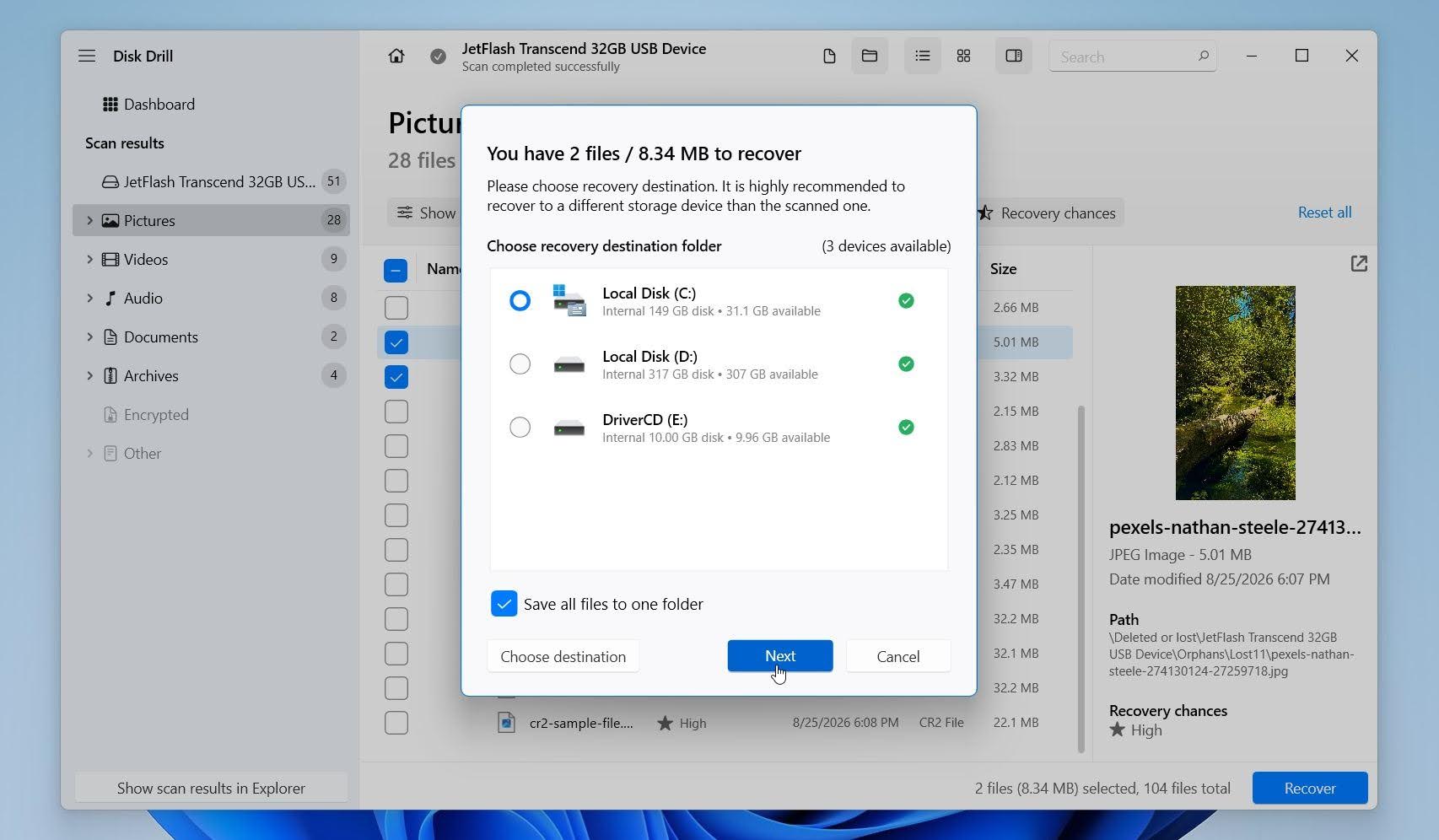
- Choose a different storage device as the recovery destination, not the affected USB drive, because saving new data to it could overwrite files that haven’t been recovered yet. Click Next to start the recovery.
Disk Drill for Windows lets you scan and preview recoverable files for free and recover up to 100 MB at no cost. That limit is enough to test the recovery process and restore a few smaller files before deciding whether you need the paid version. After recovery finishes, open a few of the recovered files to confirm that they work correctly. Once your important data is safely stored elsewhere, you can move on to repairing or formatting the USB drive.
Disk Drill can only help if Windows detects the USB drive as a physical storage device. If the drive doesn’t appear in Disk Management at all, or shows clear signs of physical damage, software recovery may not be possible.
Once you have recovered and verified any important files, you can create a new partition and format the USB so Windows can use it again:
- Right-click Start and select Disk Management.
- Find the USB drive, right-click its Unallocated space, and select New Simple Volume.
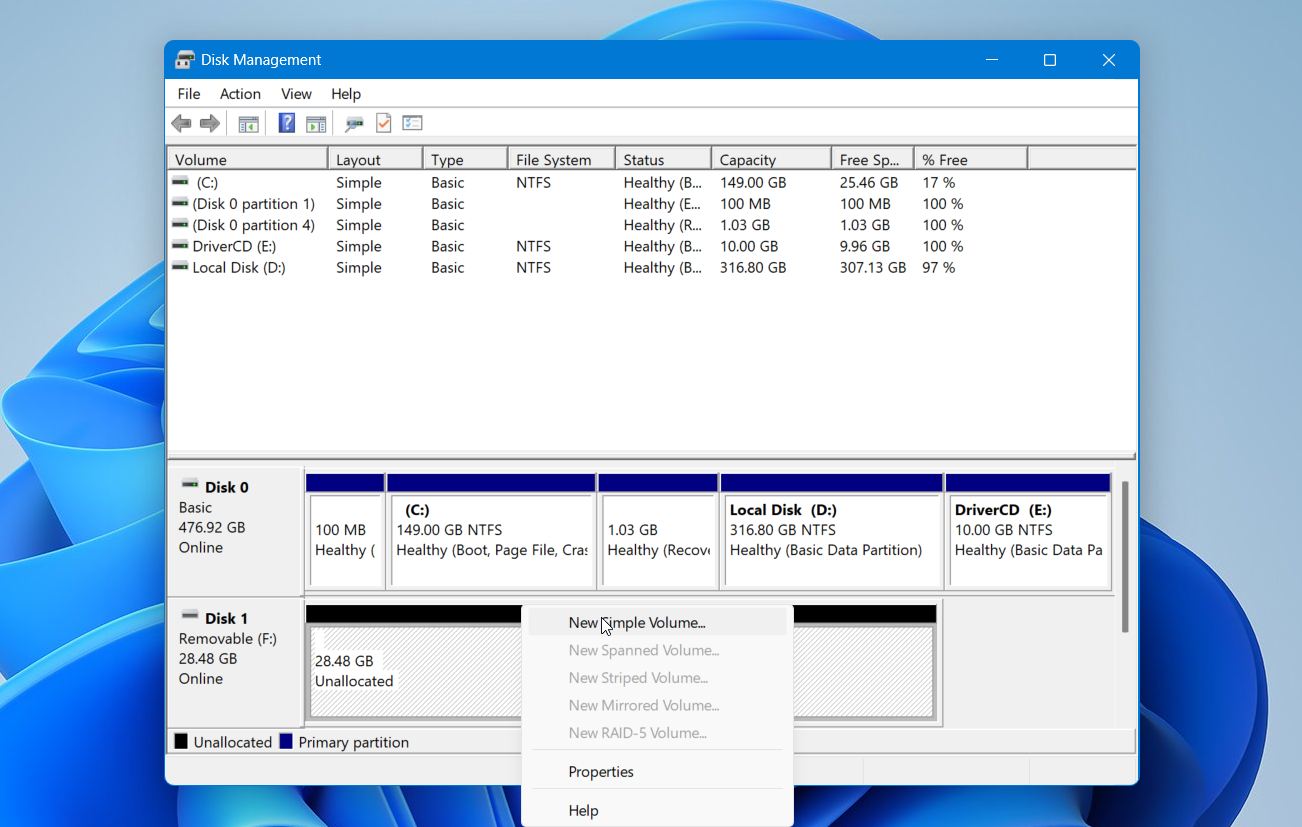
- Click Next and choose the volume size. If you want to use the entire USB drive as one partition, leave the default value and click Next.
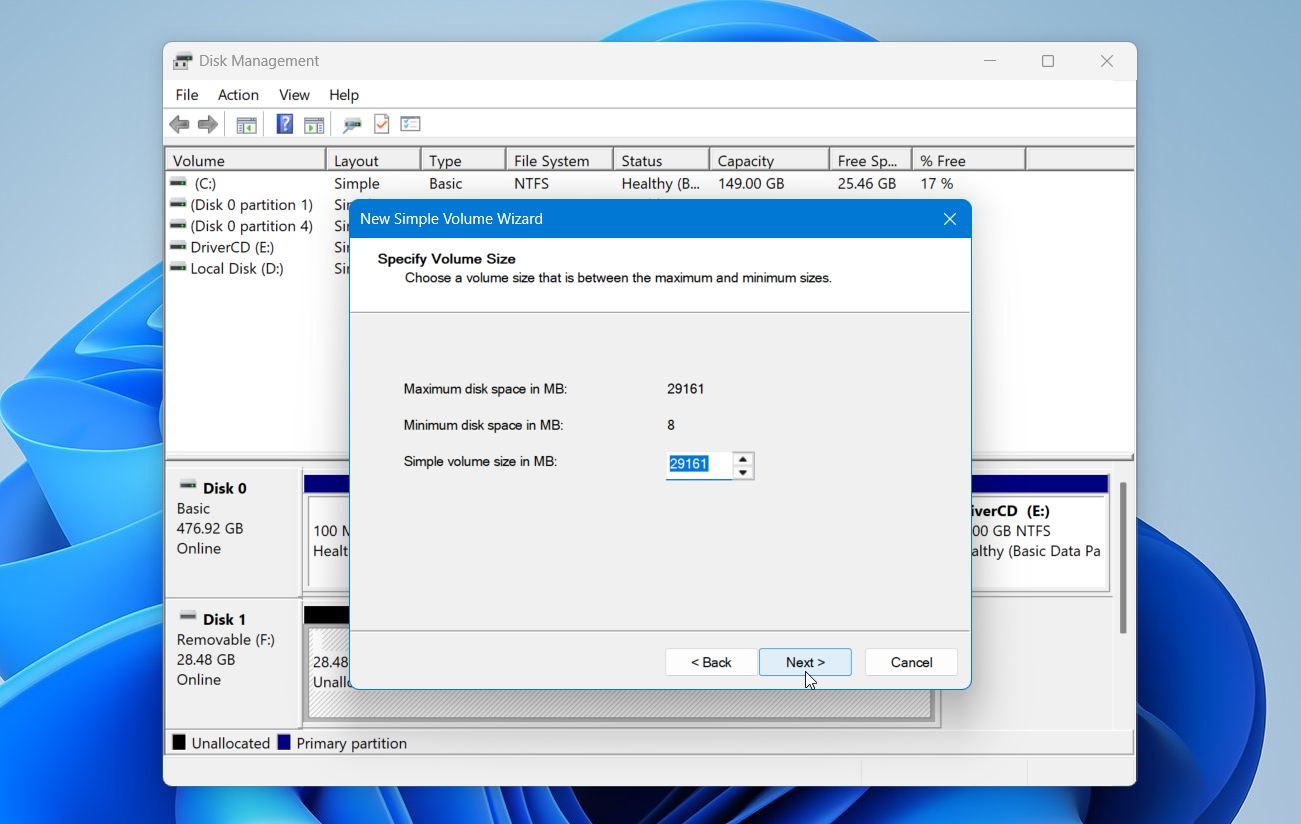
- Assign an available drive letter and click Next.
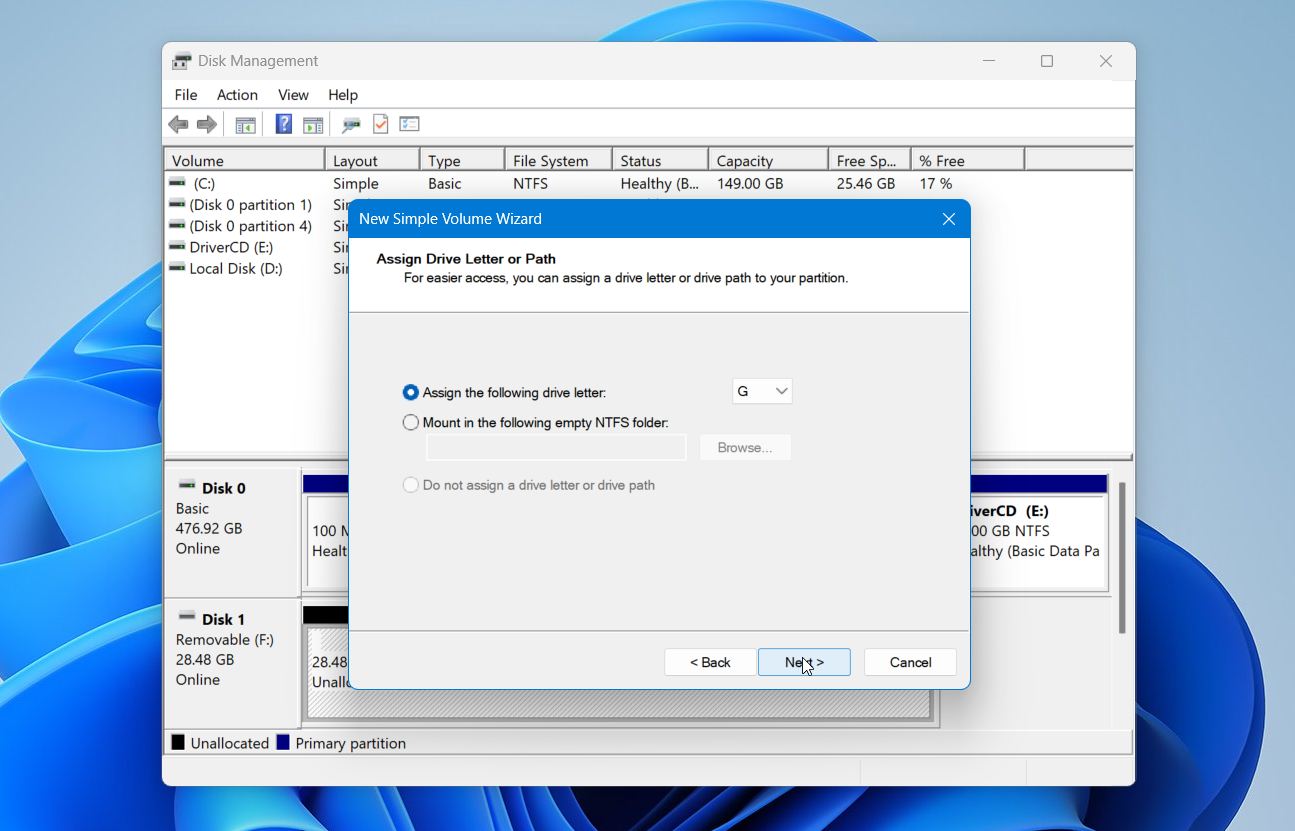
- Select the file system you want to use. Keep Perform a quick format selected, enter a volume label if you want one, and click Next.
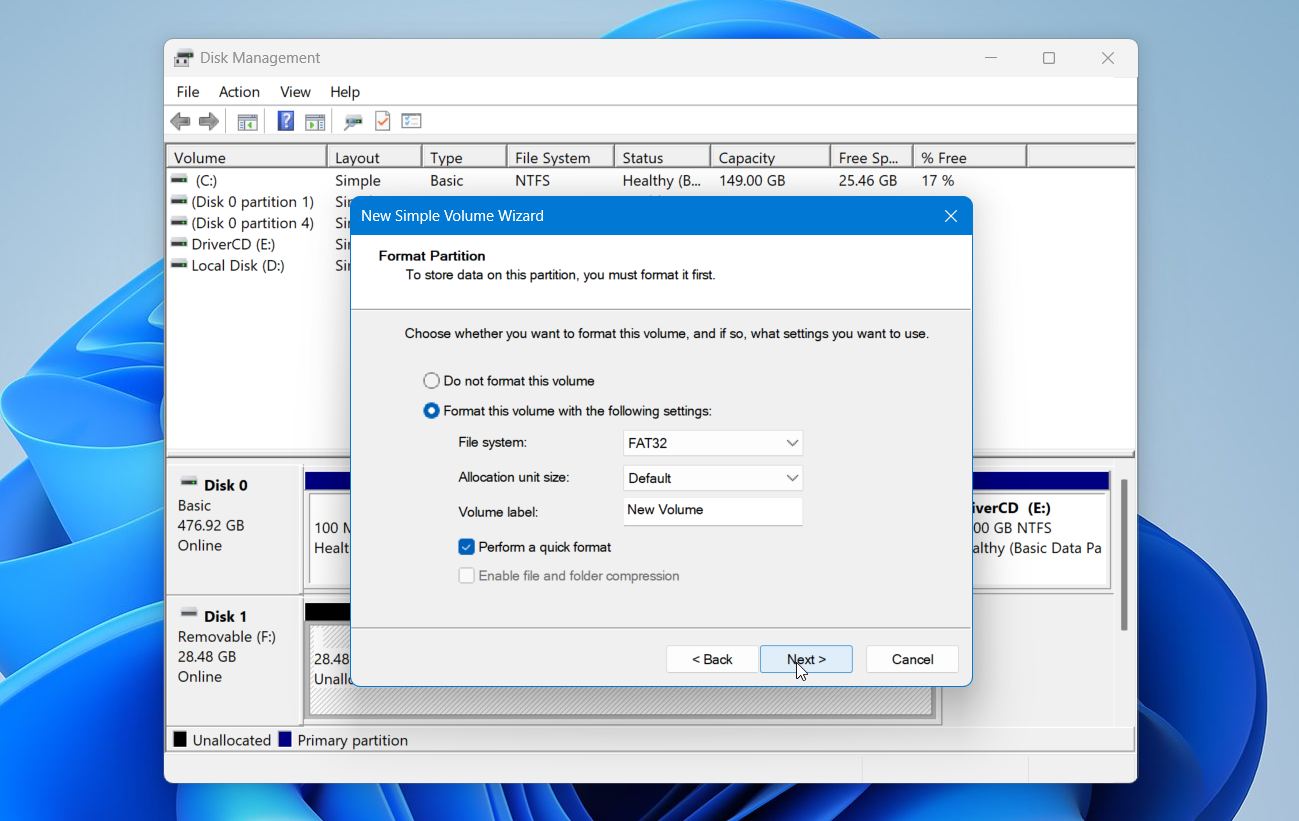
- Review the settings and click Finish.
Windows will create and format the new volume. Once the process finishes, the USB drive should appear under This PC in File Explorer.
Case 5: USB Shows as RAW
If the USB drive appears in Disk Management with its file system listed as RAW, Windows can detect the partition but cannot recognize or read its file system. This usually points to file system corruption rather than a missing drive letter.
If you need the files, do not format the USB or run CHKDSK yet. CHKDSK is not designed to work with a RAW file system, and formatting would create a new file system. Instead, recover your files first with data recovery software.
You can use Disk Drill to scan the physical USB drive even if its partition appears as RAW. If the drive is unstable, disconnects unexpectedly, or produces read errors, create a disk image first and scan the image rather than the original USB.
After you recover and verify your files, you can format the USB.
Case 6: Shows 0 Bytes or No Media
If the USB drive appears in Disk Management as 0 bytes or No Media, Windows can detect the USB device but cannot access the flash memory behind its controller. This is different from a RAW or Unallocated drive because Windows does not have accessible storage for recovery software to scan.
First, connect the USB drive to another USB port and another computer to rule out a problem with the current connection. If it still reports 0 bytes or No Media, the problem is likely hardware related.
At this point, formatting and data recovery software will not help because these tools require Windows to expose the USB’s storage capacity. If the files are important, consider a professional data recovery service that can diagnose the device and, when possible, recover data directly from the flash memory.
Final Thoughts
A USB drive that Windows doesn’t recognize isn’t necessarily beyond repair. What matters most is how Windows detects the drive and whether you still need the files stored on it.
Here’s a quick checklist to keep in mind:
- Rule out connection problems first. Try another USB port and another computer to see whether the drive itself is the source of the problem.
- Check Disk Management and Device Manager. The USB’s status can point you toward a missing drive letter, driver issue, corrupted file system, or another problem.
- Recover important files before repairs. If the data matters, scan the USB with Disk Drill and save the recoverable files elsewhere before you run CHKDSK, format the drive, or make other changes to its file system.
- Choose the fix based on the symptom. A missing drive letter, driver error, power issue, and RAW file system each call for a different solution.
You can also check our forum thread about a USB device not recognized in Windows 11 to see how a real user dealt with a similar problem.


Solid guide. I managed to fix my USB issue by updating the drivers. Didn’t even know that was a thing! Appreciate the help.