


Yes, you can often fix a corrupted SD card without formatting it. If you suspect SD card corruption because the card is no longer recognized properly by your device or keeps asking to be formatted, don’t format it and stop using it immediately. Recover your data first or create a drive image, then try to repair the corrupted SD card without formatting. If other methods don’t work, you can leave formatting as a last resort.
In this article, we’ll show you how to repair an SD card without formatting and walk you through each method you can try to make the card accessible again without losing your data.
Note: We’ll cover two steps: recovery and repair. Recovery means getting your files back from the SD card, while repair means trying to restore the card itself to working condition. If the card contains important data, you should recover the files or create a backup first before attempting any repairs, as some repair methods can modify the file system and affect your chances of recovering the data later.
What to Do When Your SD Card Is Corrupted
SD card corruption doesn’t always look the same. A format prompt is one of the most obvious signs, but you may also have trouble opening the card, writing files to it, or getting Windows to recognize it correctly. The table below can help you match the problem with the next steps to try.
| Problem / Symptom | What It May Indicate | Next Steps |
| SD card asks to be formatted | File system corruption or an unsupported/damaged file system | Cancel the format prompt > check the card in Disk Management > proceed with the repair methods |
| SD card appears as RAW | Windows can detect the partition but cannot recognize a usable file system | Check the card in Disk Management > proceed with file system repair options |
| SD card is detected but won’t open | File system errors, drive letter issues, or other logical corruption | Check or assign a drive letter > run Error Checking or CHKDSK |
| SD card doesn’t appear in File Explorer | Missing drive letter, driver issue, card reader problem, or the card isn’t being detected correctly | Check Disk Management > try another reader/USB port > check the drivers |
| SD card repeatedly disconnects | Card reader/USB connection issue or a problem with the card itself | Try another USB port > another card reader > another computer |
| SD card is read-only or you can’t modify files | Read-only attribute or write protection | Check for physical write protection > remove the read-only attribute with DiskPart |
| Files can be opened, but errors keep appearing | File system errors or developing corruption | Stop making changes to the card > check the file system with Error Checking or CHKDSK |
| SD card is not detected anywhere | Reader/contact issue or possible physical damage | Try another reader and computer > if the card still isn’t detected, avoid software repair attempts |
Note: If your files are still on the card, try to recover the SD card without formatting before moving on to repairs.
What Causes SD Card Corruption
SD card corruption can happen for several reasons, from interrupted write operations to physical damage. In some cases, the card remains detectable but files become inaccessible or errors start appearing. In others, Windows may no longer recognize the file system and ask you to format the card.
- ❌ File system errors – Damage to the file system can prevent your device from reading the SD card or accessing the files stored on it. The card may appear as RAW or trigger a format prompt.
- 💥 Physical damage – Damaged contact pins or other physical problems can interfere with the connection between the SD card and the card reader.
- ⏏️ Improper removal – Removing an SD card while data is being written can interrupt the operation and corrupt the file system or individual files.
- 🔌 Interrupted write operations – A device shutting down, losing power, or crashing while saving data to the card can also result in corruption.
- 🦠 Malware – Malware can modify or damage the file system and files stored on the SD card, making some or all of the data inaccessible.
- 📷 Device or card issues – Problems with the camera, phone, card reader, or the SD card itself can cause read/write errors that may eventually lead to corruption.
How to Recover Data From a Memory Card Without Formatting
To recover SD card data without formatting, we’ll be using Disk Drill SD Card Recovery, which took first place in our ranking of the best SD card recovery software. Disk Drill can scan your device for recoverable data and restore the files to a location of your choice. The recovery process is fairly intuitive, and in our tests, the software also performed well in both speed and recovery rate: it scanned a 32 GB SD card in under 7 minutes and recovered 98% of the test data.
Note: We recommend creating a byte-to-byte image of the corrupted SD card before scanning it for lost data. This lets you scan and recover files from a copy instead of repeatedly accessing the original card. In the steps below, we’ll show you how to create the image with Disk Drill first and then use it for recovery.
Before starting, connect your SD card. If Windows prompts you to format, dismiss the window by clicking Cancel. These instructions will help you understand how to recover data from a memory card without formatting:
- First, download and install Disk Drill on your computer.
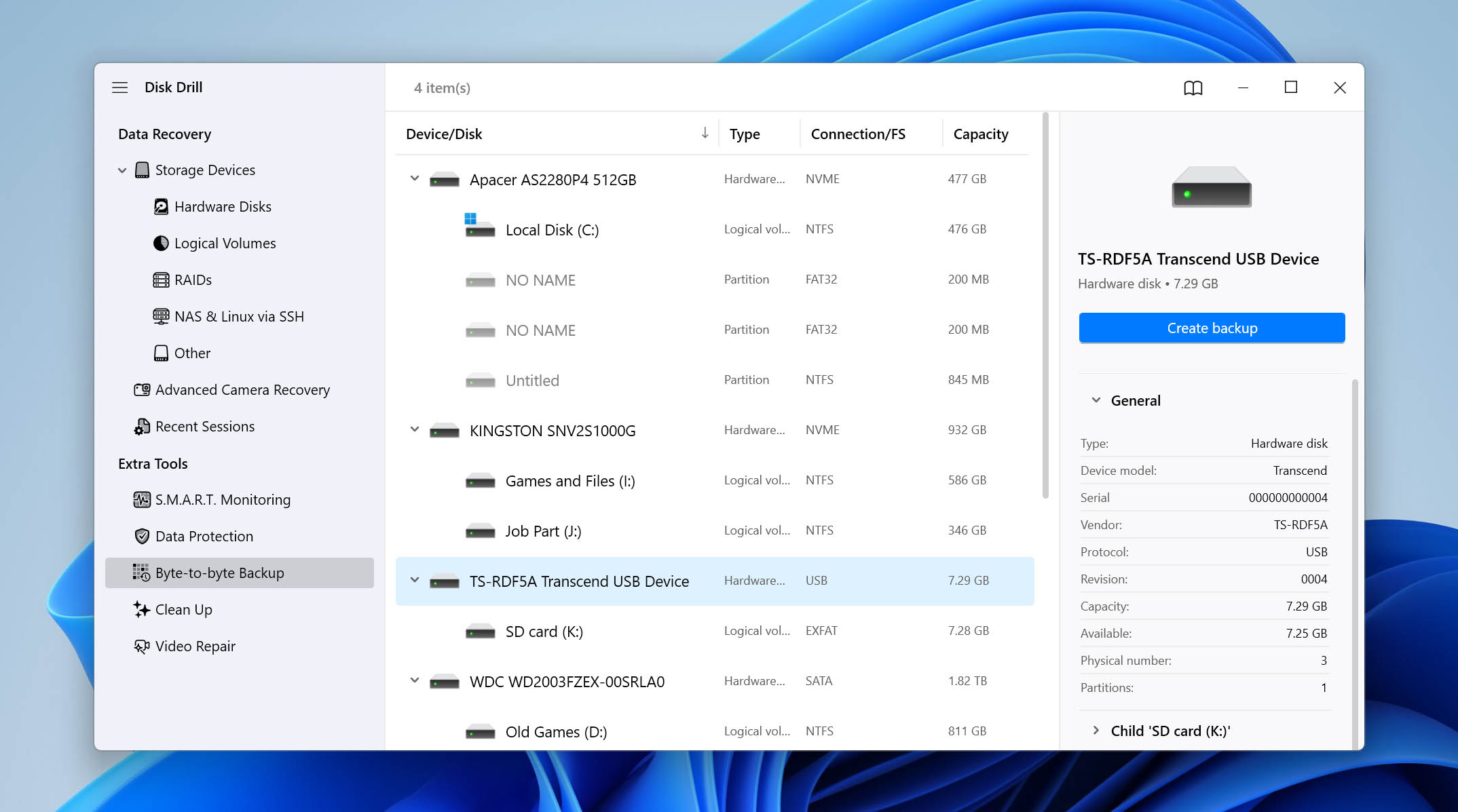
- Launch Disk Drill and select Byte-to-Byte Backup from the left sidebar. Choose your SD card from the list of available devices and click Create backup.
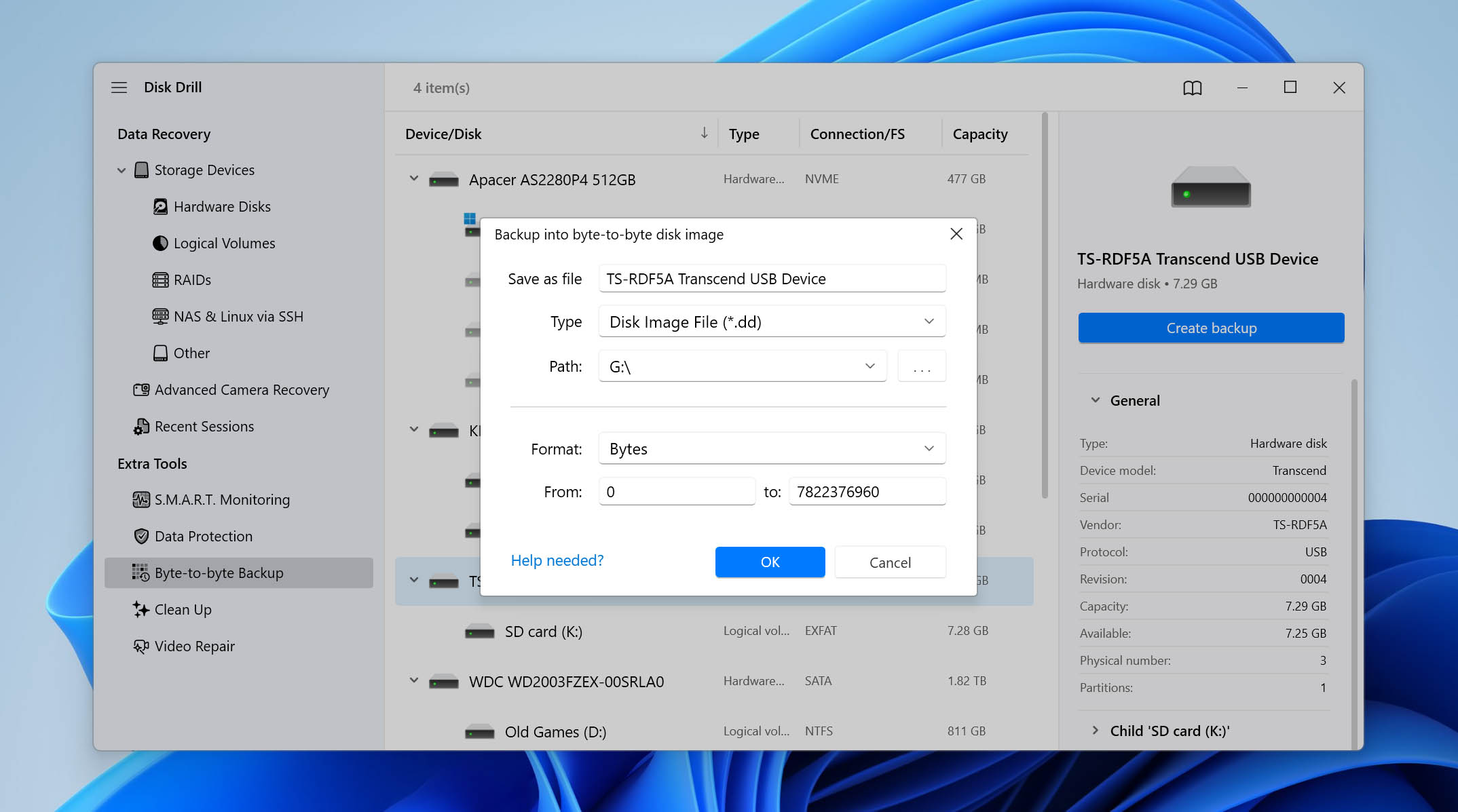
- Choose where you want to save the disk image. Make sure the destination has enough free space, as the image may require approximately as much space as the full capacity of the card.
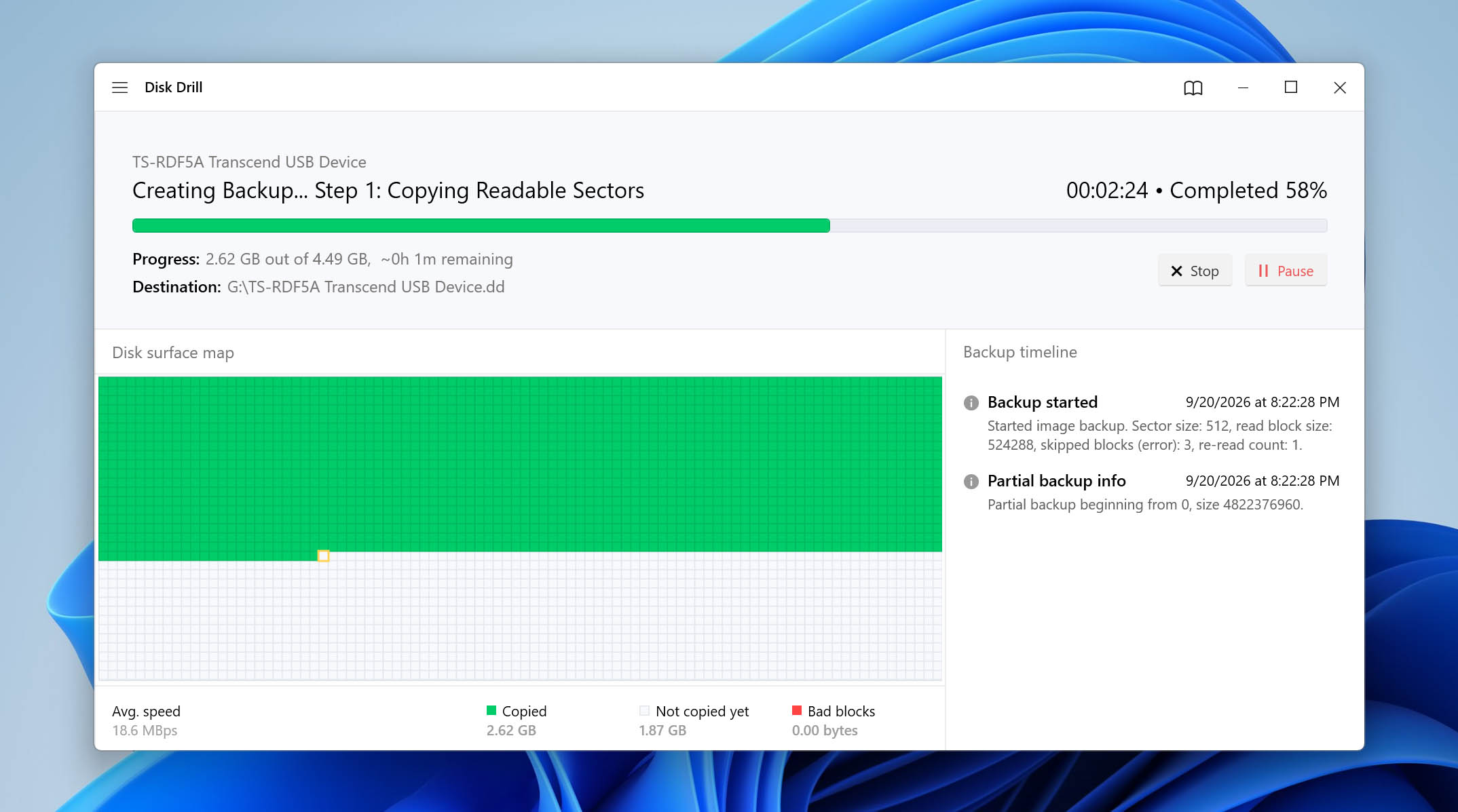
- Wait for Disk Drill to finish creating the byte-to-byte image. Once you have the backup, you can use it for recovery instead of continuing to work with the corrupted SD card directly.
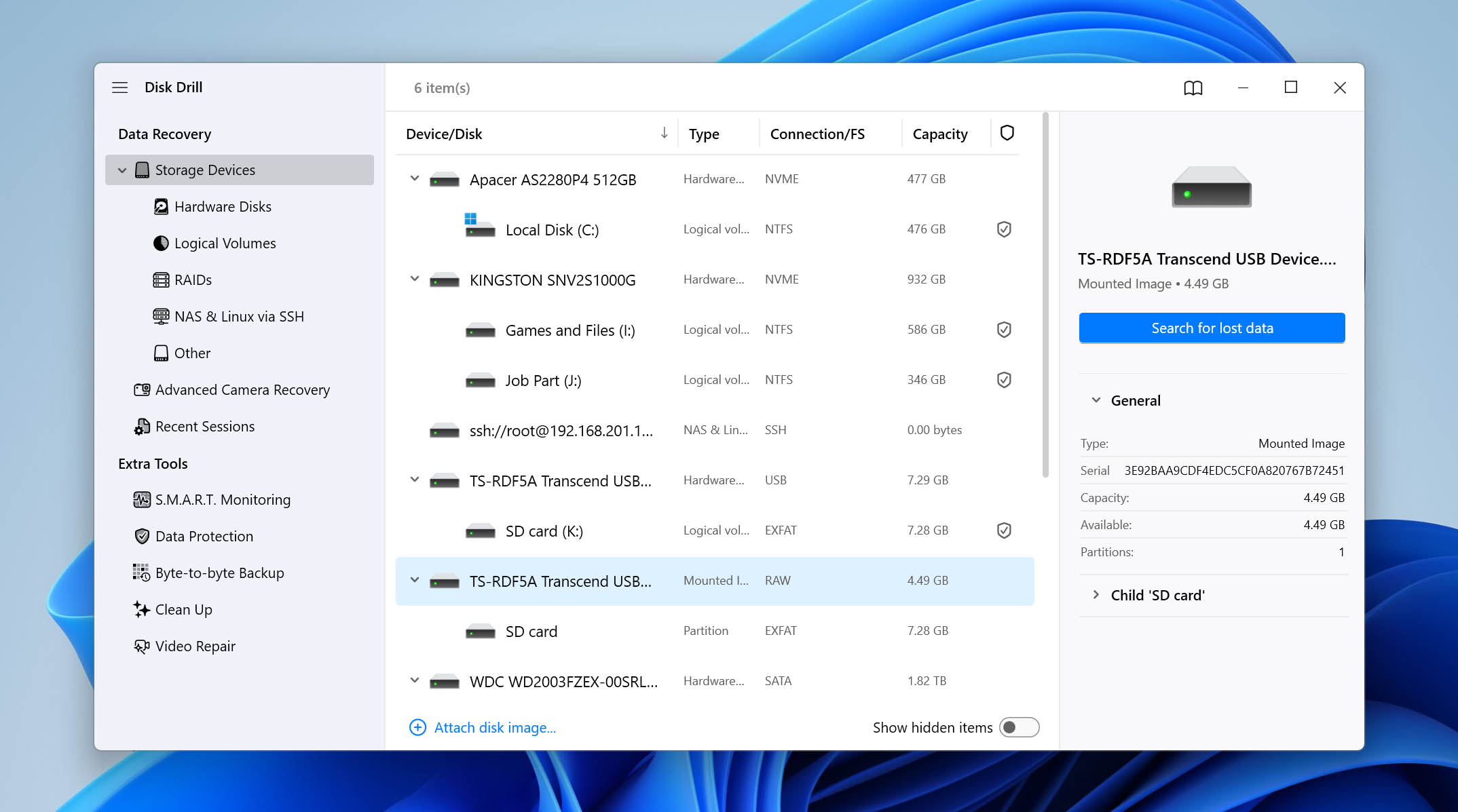
- Go to Storage Devices in Disk Drill and click Attach disk image at the bottom of the device list. Select the image you just created.
- Select the attached SD card image and click Search for lost data.
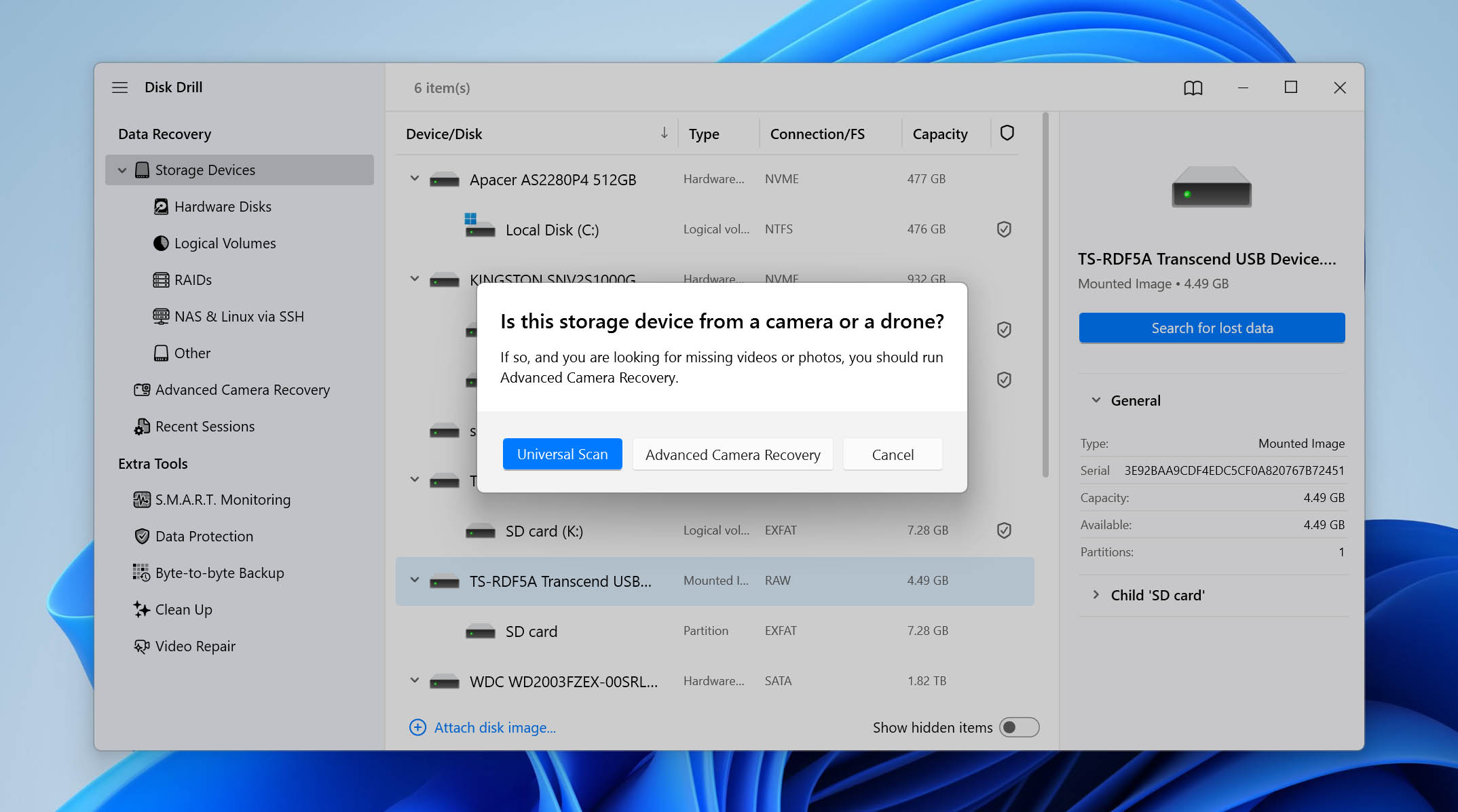
- Choose Universal Scan to search for all recoverable files on the image. If you’re recovering videos recorded with a camera, you can also run Advanced Camera Recovery separately. It is designed to reconstruct fragmented video files recorded by cameras.
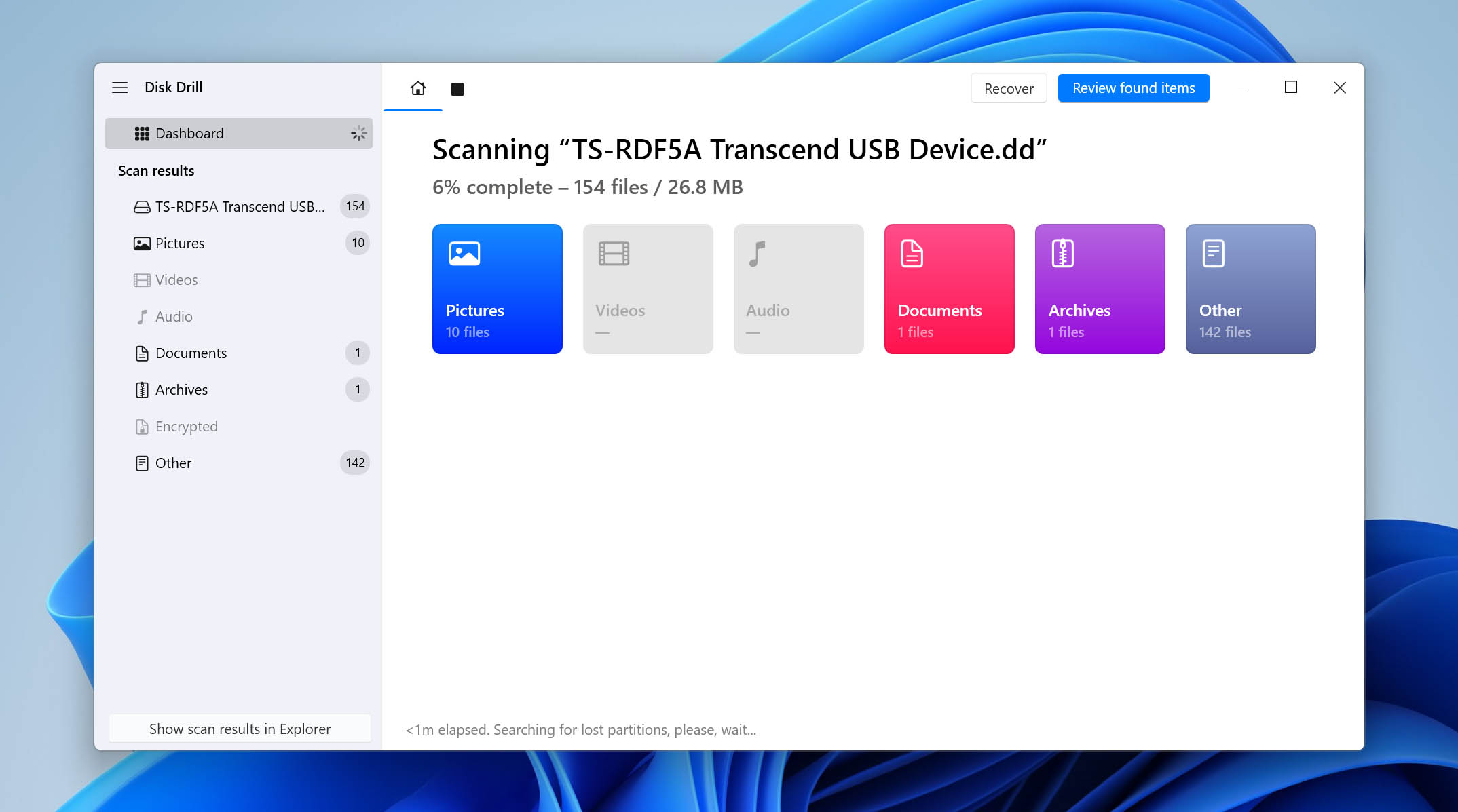
- Wait for the scan to finish, or click Review found items to start checking the results while Disk Drill continues scanning in the background.
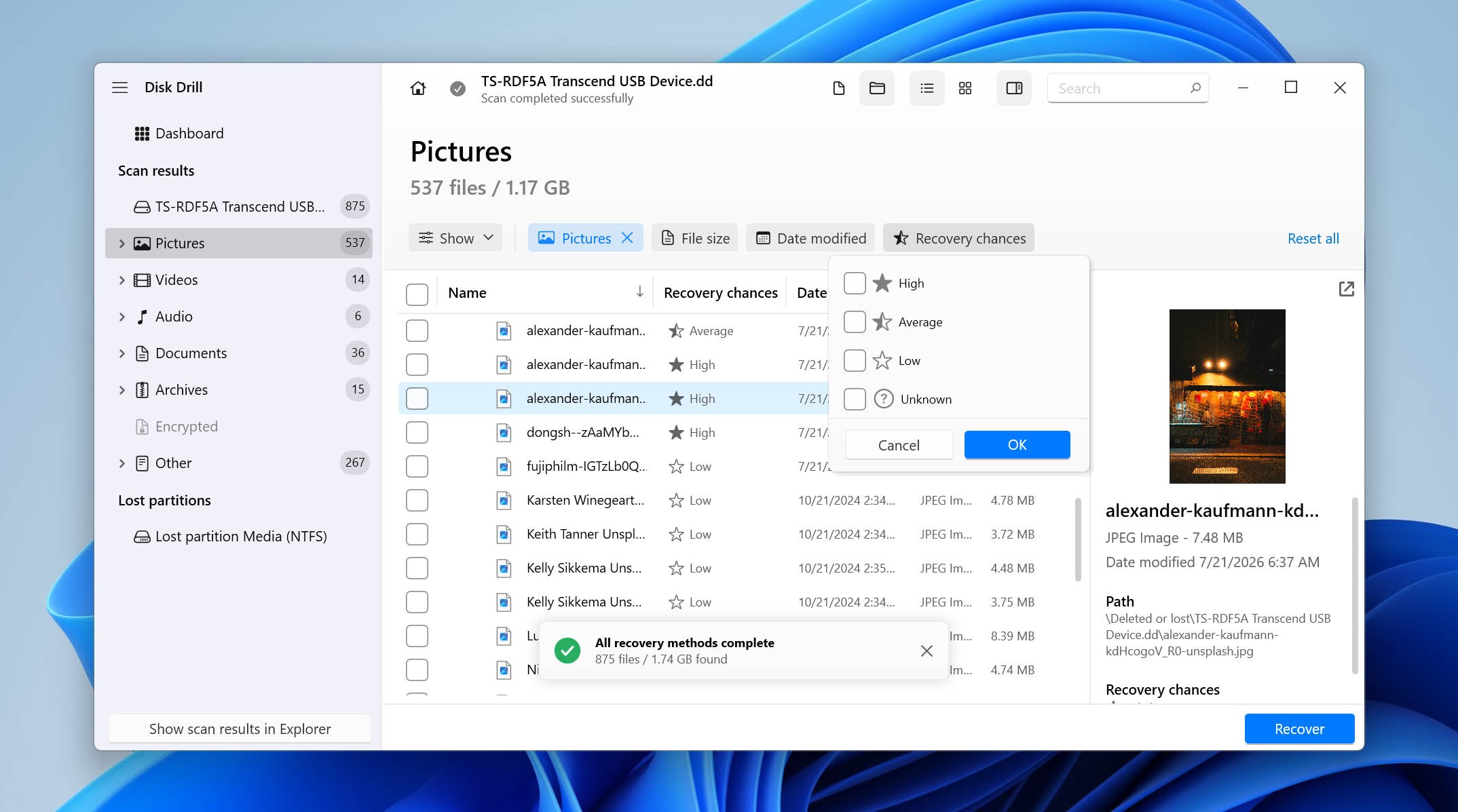
- Go through the found files and select everything you want to recover. Use the filters to narrow down the results by file type, preview supported files, and check the Recovery chances to see which files have the best chance of successful recovery.
- Click Recover and choose a recovery destination on a different drive. Don’t restore files to the corrupted SD card, as writing new data to it can overwrite other recoverable files.
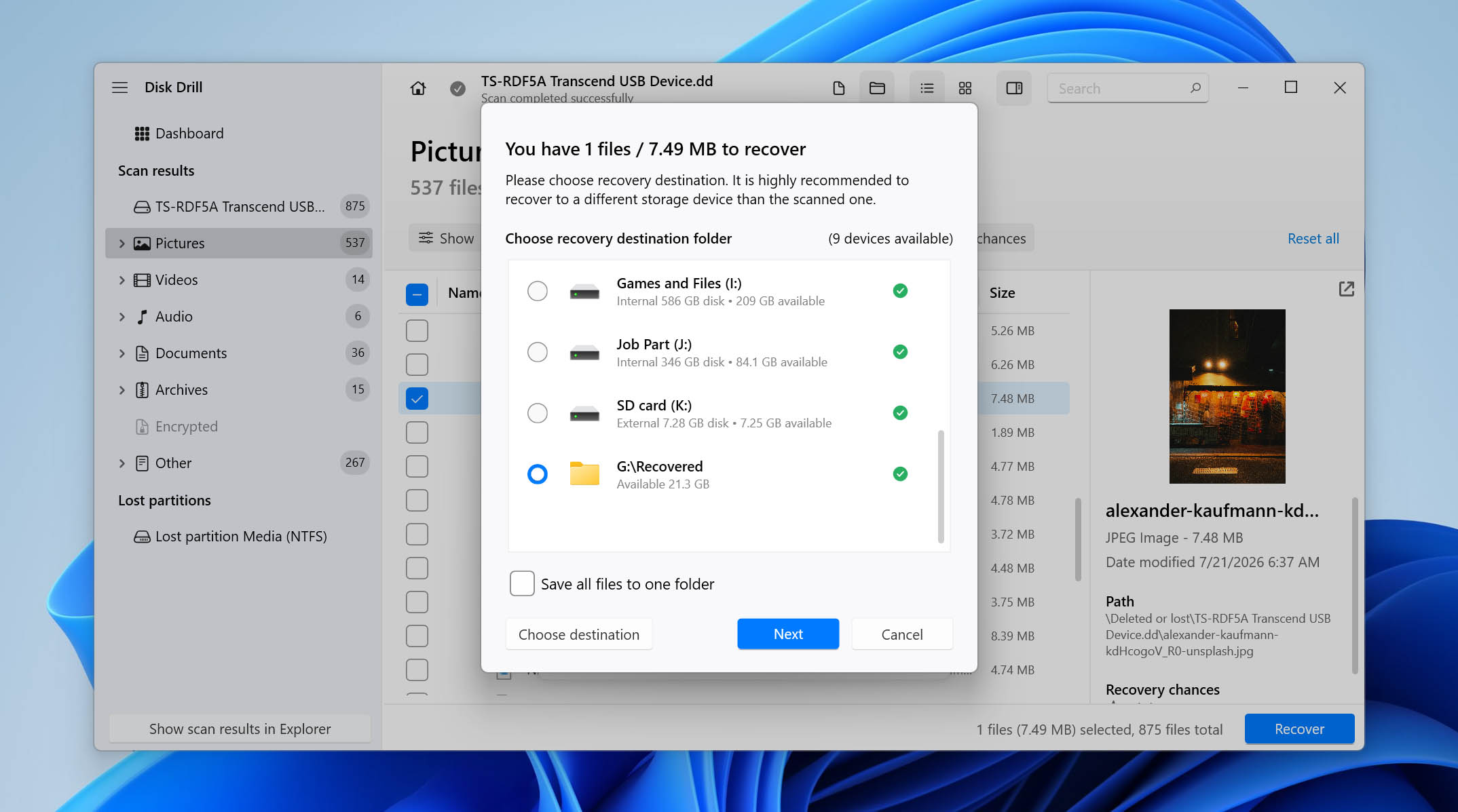
- Click Next and wait for the recovery to finish. Once it’s complete, open the destination folder and check the recovered files before moving on to the SD card repair methods.
Byte-to-Byte Backup and Advanced Camera Recovery are just two of the features available in Disk Drill. The software includes several other tools for data recovery and disk management, which we don’t cover here. If you want to see what else it offers and how these features performed in our testing, you can check our full Disk Drill review.
Your SD may continue to function normally even if you don’t format it. But the corrupted files will not be recovered, and errors may persist. In some cases, you might experience challenges in saving files, slow performance, and the risk of losing data occasionally.
6 Ways to Fix SD Card Without Formatting
The methods outlined below will allow you to repair your memory card without formatting. Be sure to start with the first method and work your way down to ensure you don’t miss any steps.
Ideally, you’ll want to do your troubleshooting on a Windows machine, as the screenshots demonstrate. If you only have an Android device, skip to the next section for Android-specific solutions.
Method 1: Try Another SD Card Reader or USB Port
Before attempting to fix anything, you must first understand where the problem originates. The problem may not be with your SD card, but instead with the SD card reader or USB port you’re using. Try the following steps to isolate the cause:
- Remove your card reader and connect it to a different USB port.
- If the problem persists, try connecting the card reader to another computer.
- Finally, try plugging the SD card into a different card reader.
A faulty SD card reader or USB port can cause the SD card to constantly disconnect, resulting in it becoming corrupted and Windows recommending to format.
Method 2: Add or Change the Drive Letter
When a storage device is connected to your computer, Windows automatically assigns a drive letter. If the assigned drive letter conflicts with another device that already has that drive letter, problems can arise because Windows doesn’t know which device the drive letter actually belongs to. Moreover, if no drive letter is assigned, your SD card may not show as accessible at all.
Adding a drive letter or changing the existing one can fix this. Follow these simple steps:
- Right-click Start and select Disk Management.
- Right-click the SD card volume and click Change Drive Letter and Paths.
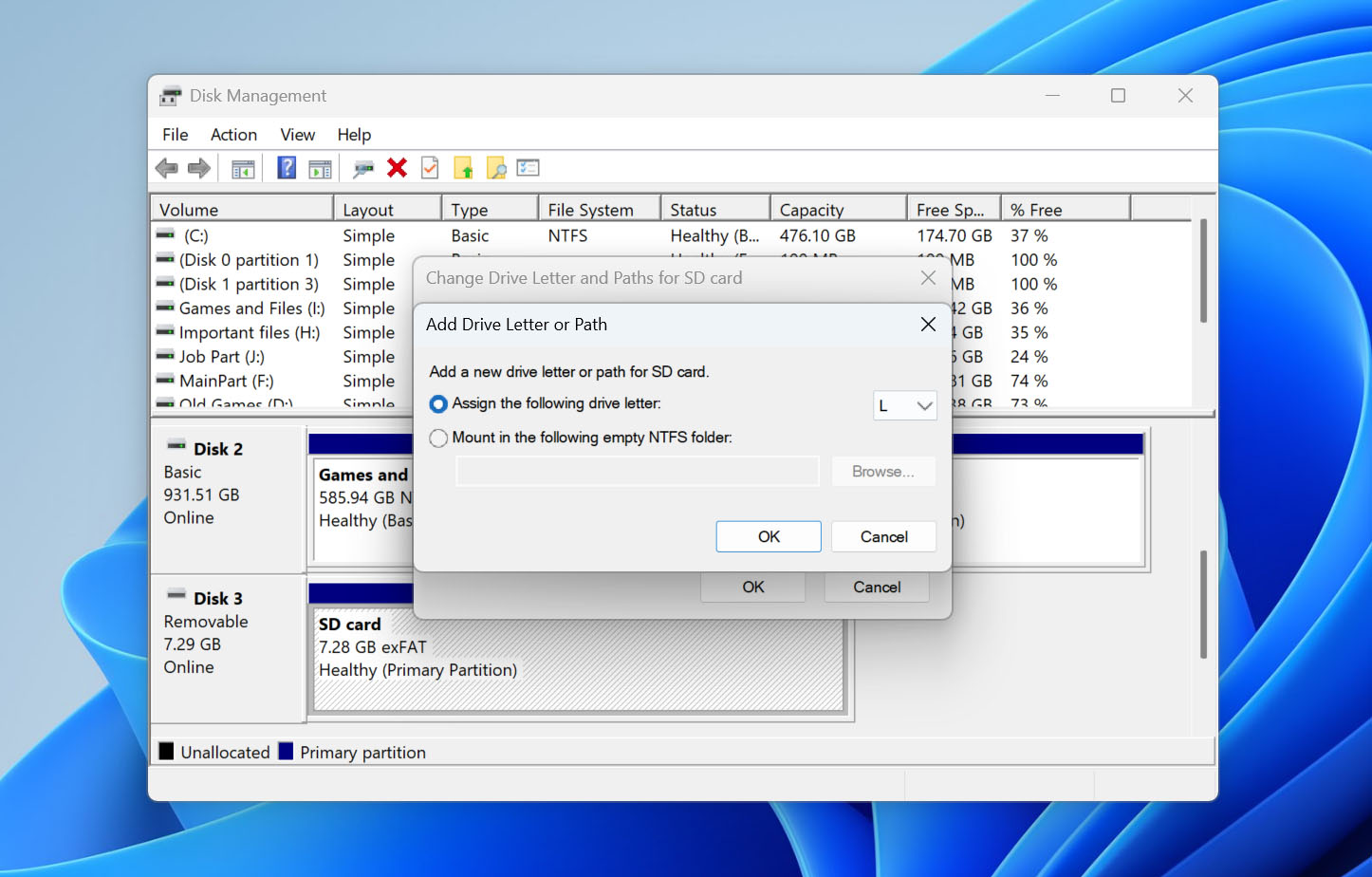
- If you don’t have a drive letter, click Add. If you do, click Change.
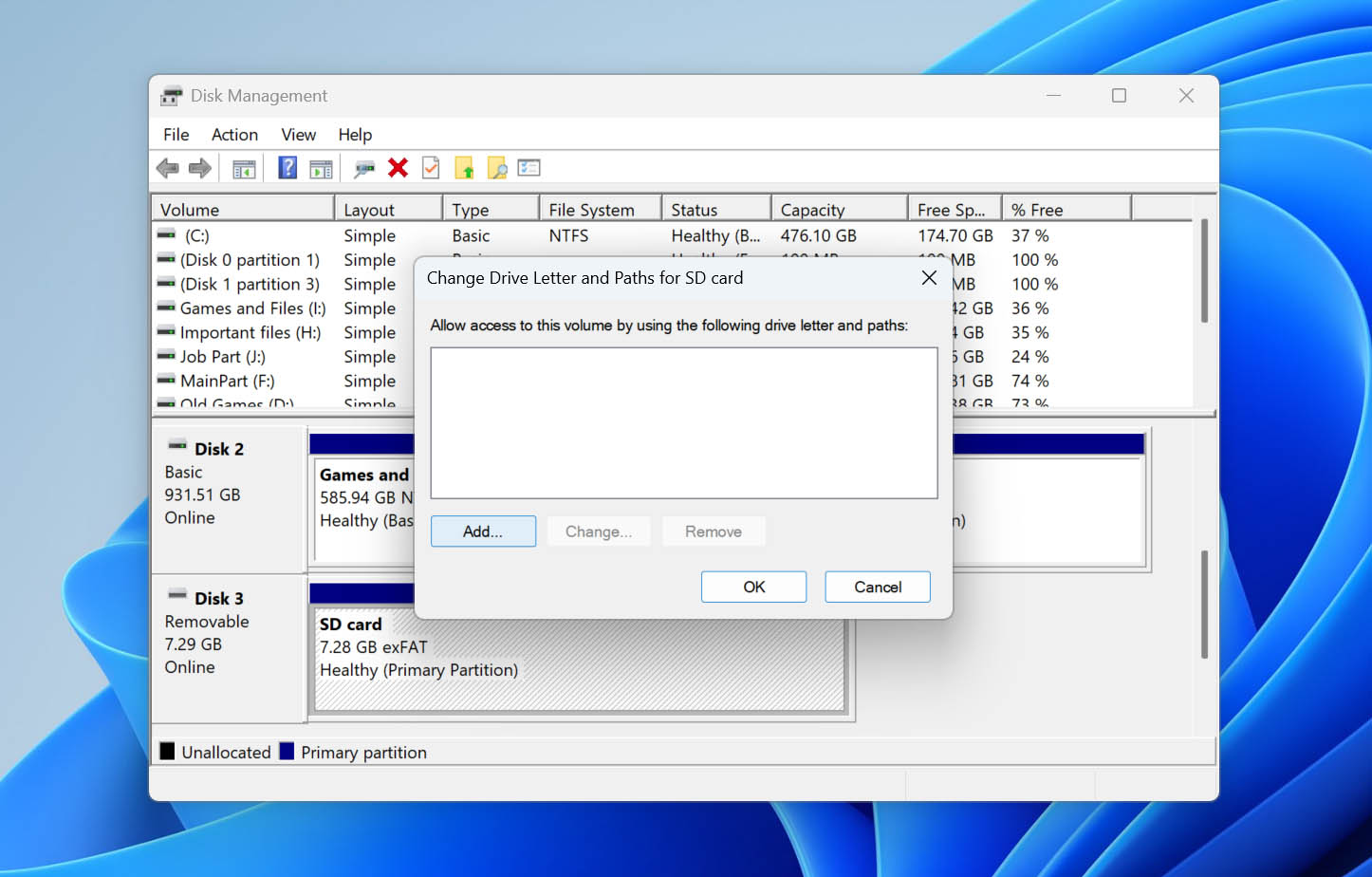
- Select a drive letter from the dropdown list and click OK, then OK again.
Method 3: Repair File System Errors
If your SD card is still detected by Windows but shows file system errors, you can try repairing them with the built-in CheckDisk utility. Windows gives you two ways to run this check: through the command line with CHKDSK or through the graphical Error Checking tool in File Explorer.
Note: Both options can make changes to the file system while attempting repairs. If the SD card contains important data, recover your files or create a byte-to-byte backup first before running either method.
Option 1: CHKDSK
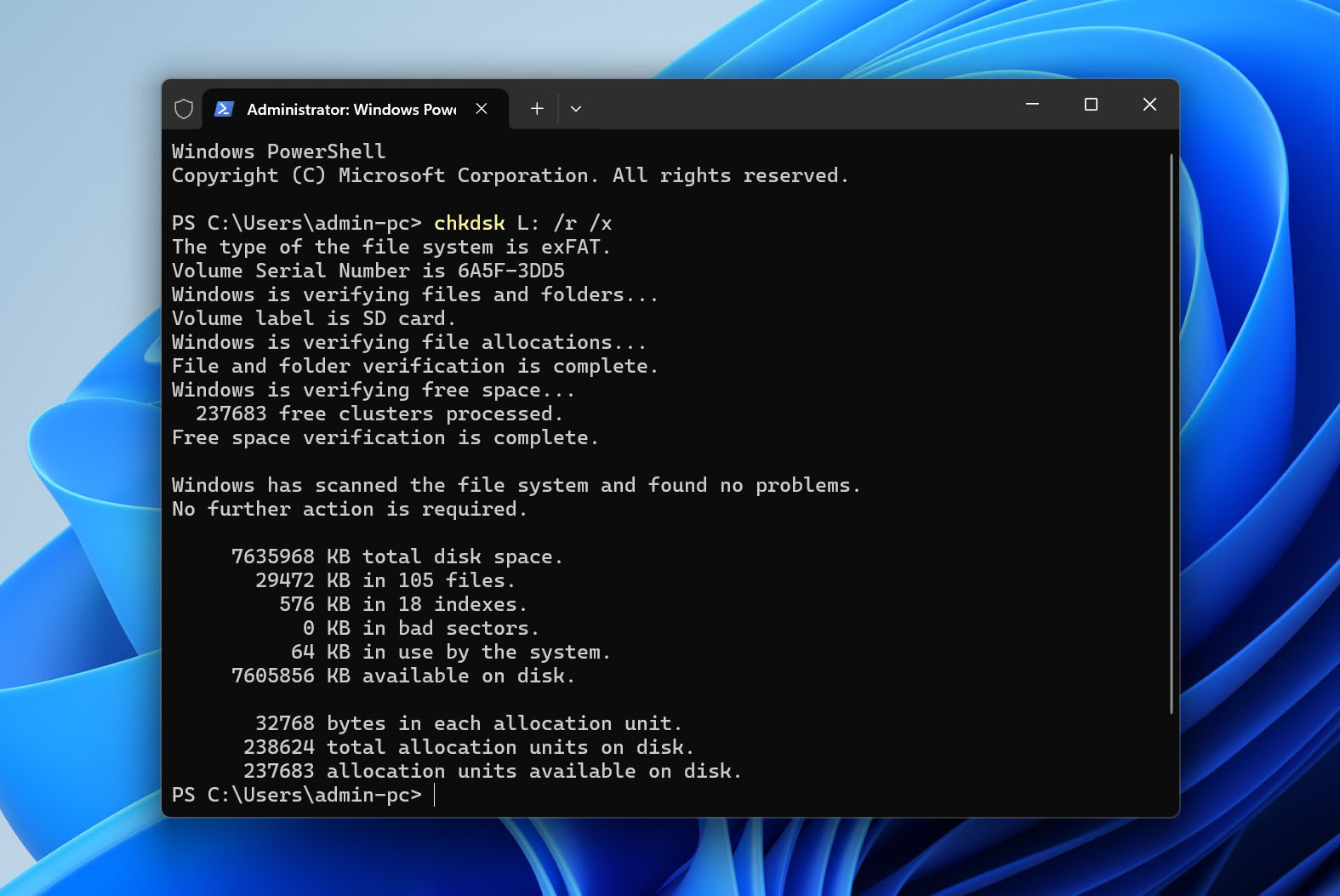
CHKDSK gives you more control over how the scan is performed. In this case, we’ll use the /r parameter, which looks for file system errors and bad sectors and attempts to recover readable information. The /x parameter forces the volume to dismount before the check begins.
Follow these steps:
- Right-click Start and open Windows Terminal (Admin) or PowerShell (Admin). Click Yes if prompted by UAC.
- Type chkdsk D: /r /x, replacing D: with the drive letter assigned to your SD card.
- Press Enter and wait for CHKDSK to finish checking and repairing the card.
Option 2: Windows Error Checking
If you prefer not to use the command line, Windows also provides a graphical Error Checking tool that performs the same type of file system check.
- Make sure the SD card is connected, then open File Explorer.
- Right-click the SD card and select Properties.
- Open the Tools tab and click Check.
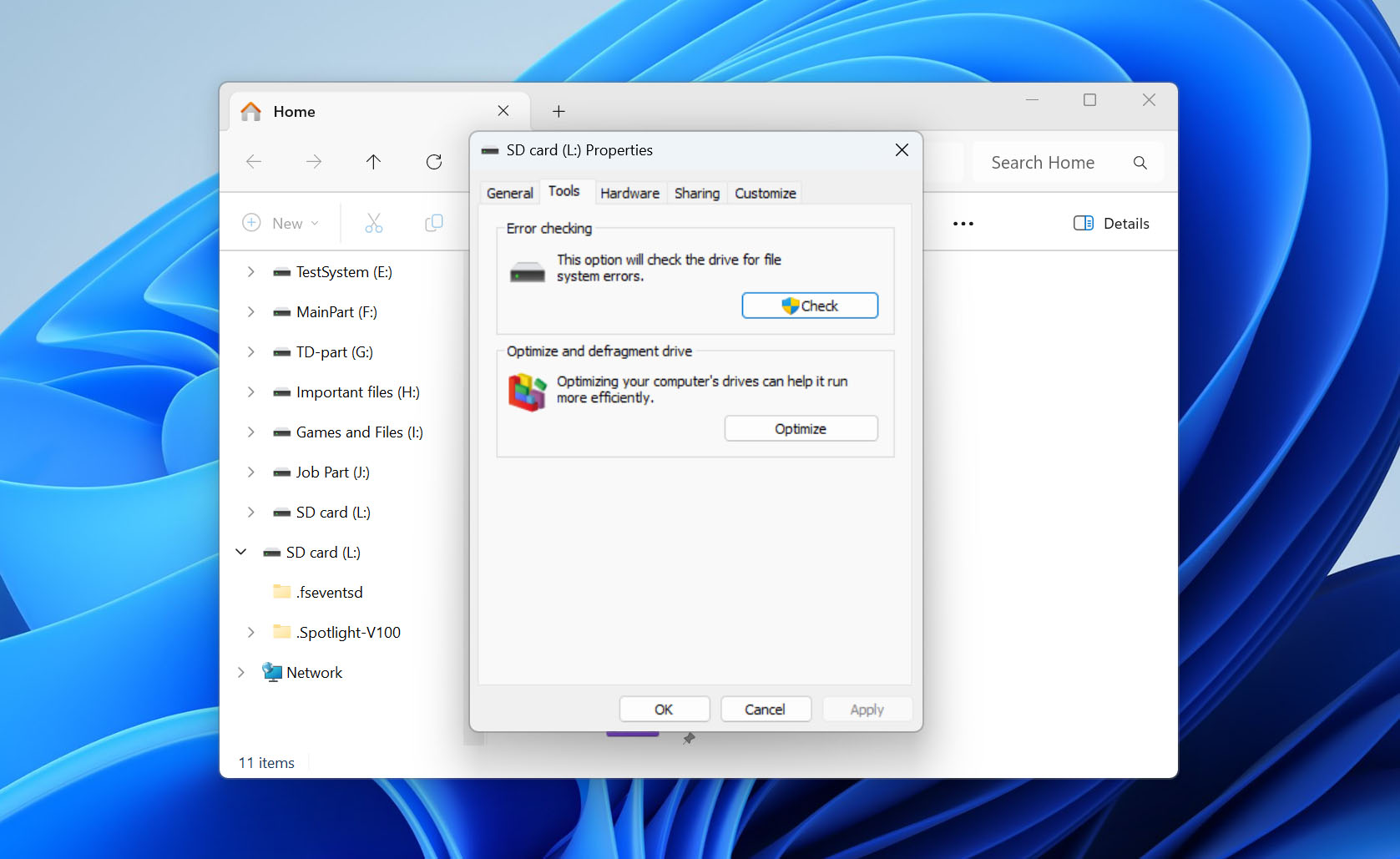
- Click Scan and repair drive and wait for Windows to complete the process.
Method 4: Update/Reinstall Drivers
Every device you connect to your computer requires drivers to function properly. The drivers are designed to establish communication between the device you connect and your operating system. If they’re outdated, corrupted, or missing, you won’t be able to use or access your SD card correctly.
These steps will guide you through updating your drivers or reinstalling them if they’re corrupted or missing:
- Right-click Start and click Device Manager.
- Expand the Disk drives dropdown. Right-click your SD card and click Properties. The name of your SD card will vary based on the brand.
- In the Driver tab, click Update Driver.
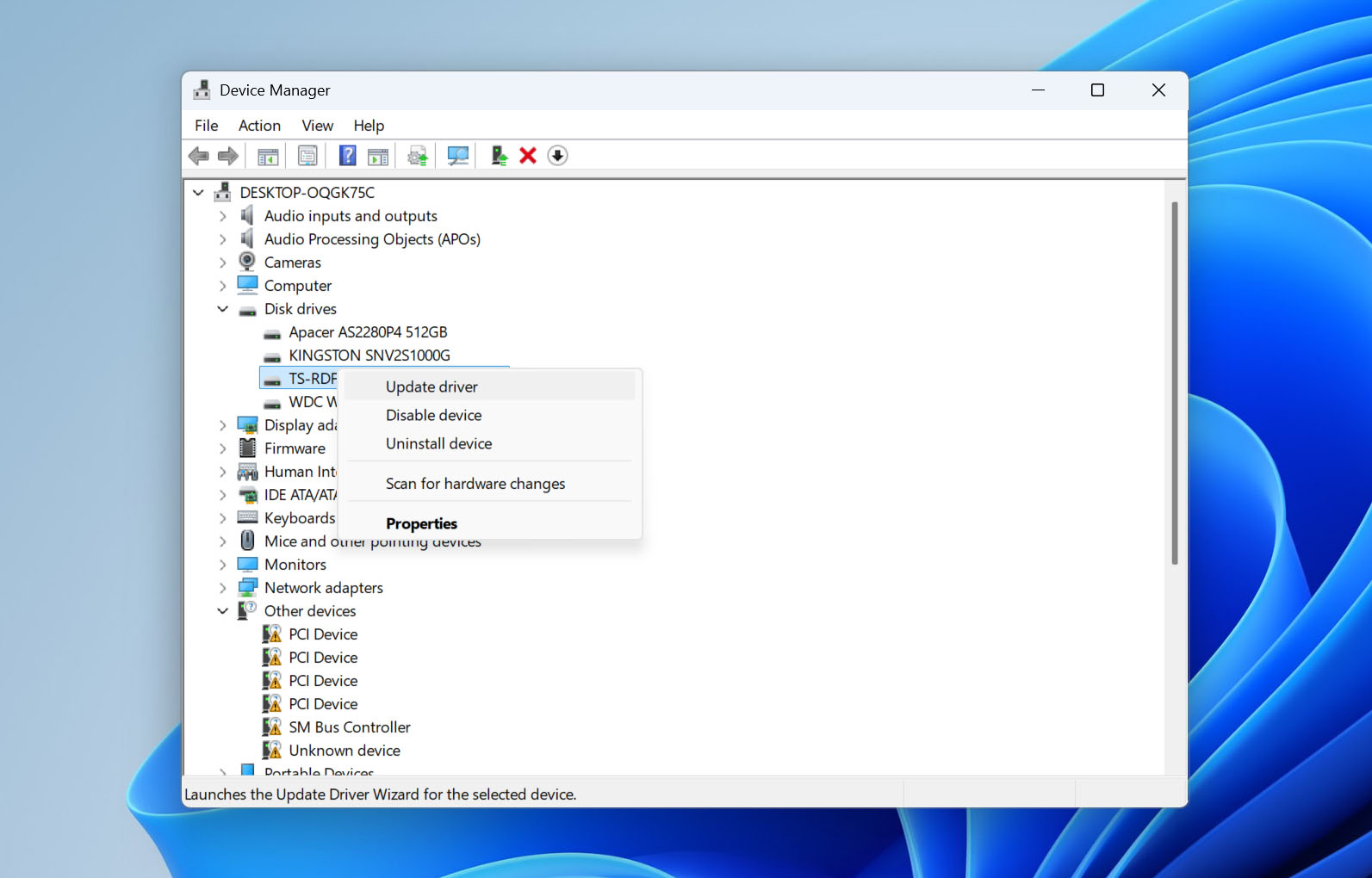
- Click Search automatically for drivers.
- If there are no updates available, click Close.
- Click Uninstall Device.
- Click Uninstall.
- Disconnect the SD card from your computer and reconnect it. This will force the driver to install again.
Method 5: Attempt to Fix the Partition Using TestDisk
TestDisk is a free open-source recovery tool that specializes in repairing damaged file systems. If successful, it has a chance of recovering the partition, along with any data that was stored on it.
Follow these steps to repair your partition using TestDisk:
- Download and extract TestDisk, then open testdisk_win.exe.
- Select Create and press Enter to create a new log file.
- Highlight your SD card in the list of detected disks and press Enter. Double-check its capacity to make sure you’ve selected the correct device.
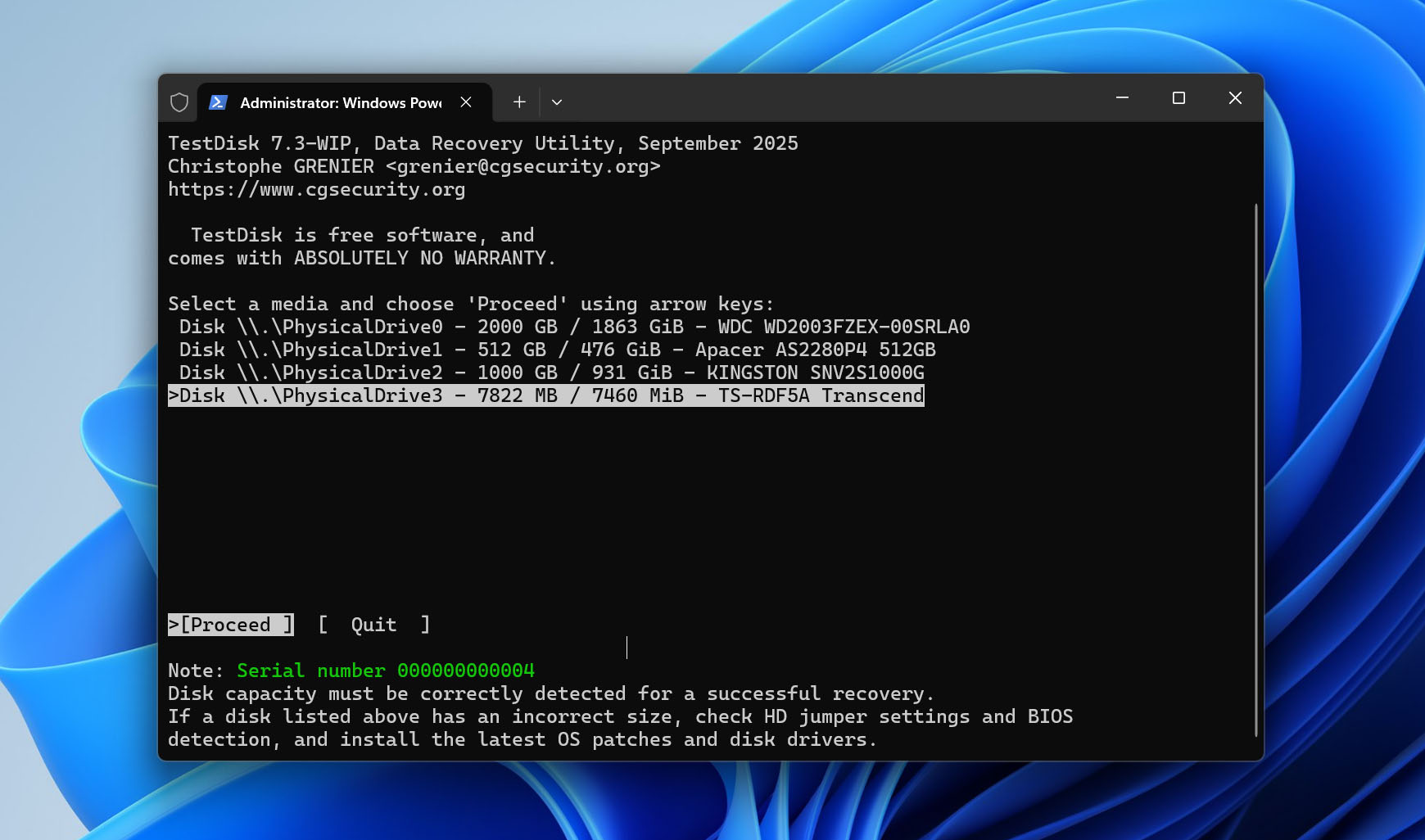
- Select the partition table type. TestDisk usually detects the correct type automatically, so in most cases you should leave the suggested option selected. For SD cards using a standard MBR partition table, this will typically be Intel/PC.
- Select Analyse and press Enter to check the current partition structure.
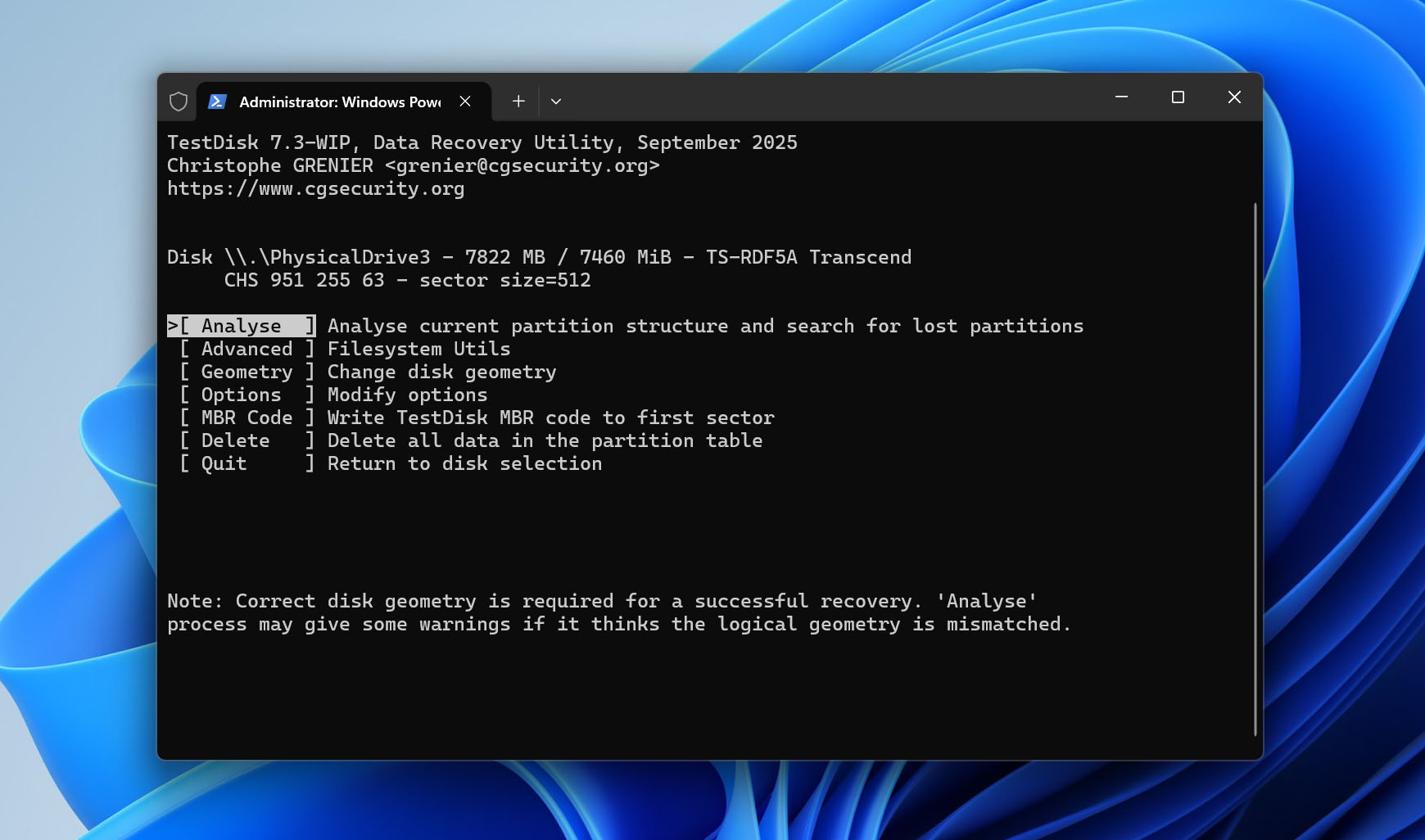
- Select Quick Search to search for lost partitions. If TestDisk finds the partition you’re looking for, highlight it and press P to list its files. Check that the folders and files you expect to see are actually there.
- If Quick Search doesn’t find the correct partition, return to the search screen and run Deeper Search. It takes longer but performs a more extensive search for partition information.
- Once you find the correct partition, highlight it and press P again to check its files before proceeding. Verify the partition size and file system as well. Don’t use Write if the partition details look incorrect or the expected files aren’t there.
- When you’re confident that TestDisk has identified the correct partition, continue and select Write to save the recovered partition structure to the SD card.
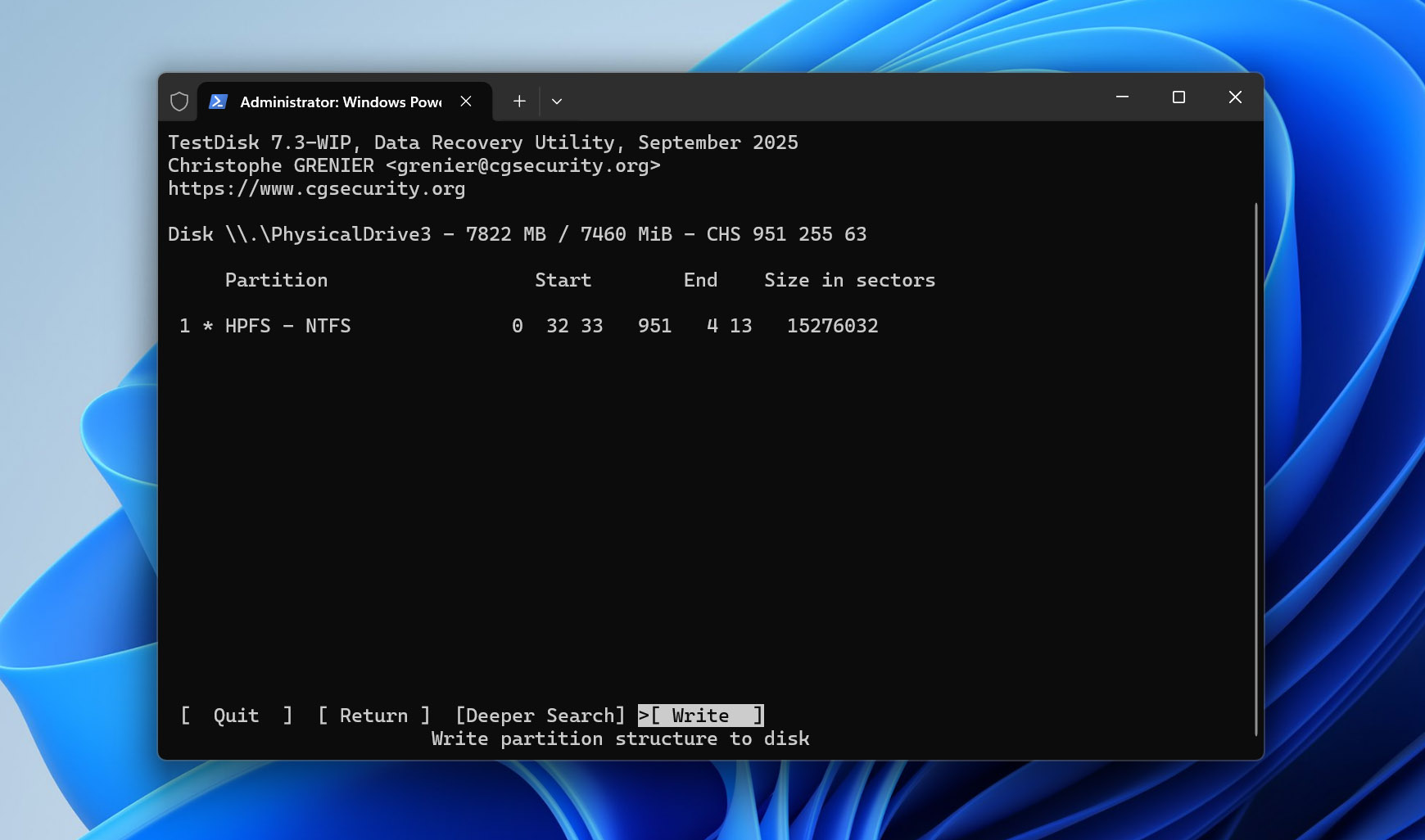
- Press Y to confirm the change, then restart your computer and check whether the SD card and its files are accessible again.
Note: TestDisk has other features that we don’t cover in this method. If you want to learn more about what it can do, check our full TestDisk review. And if you’re looking for a completely free data recovery tool for SD cards, we also recommend checking our PhotoRec review. PhotoRec comes bundled with TestDisk when you download it.
Method 6: Remove the Read-Only Attribute Using DiskPart
In some cases, your SD card may be inaccessible because it’s marked as read-only. When in read-only mode, you cannot write new data to the SD card or edit the existing data. The only way to fix this is by removing the read-only attribute. This can be done using DiskPart, a command-line utility in Windows.
Follow these steps to remove the read-only attribute from the SD card using DiskPart:
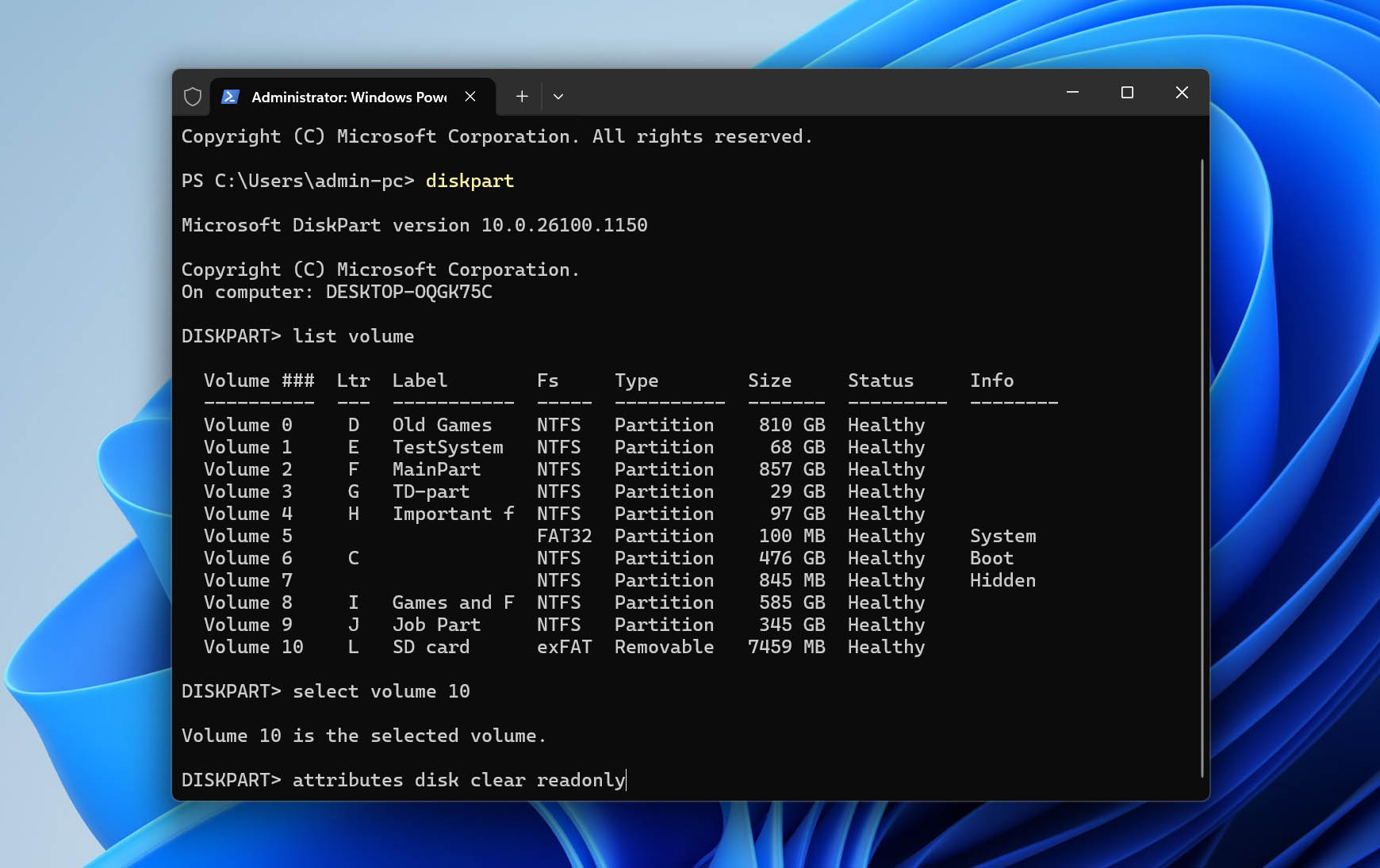
- Right-click Start and select Windows PowerShell (Admin). If prompted by UAC, just click Yes.
- Type diskpart and press Enter.
- Type list volume and press Enter.
- Type select volume 4. Replace 4 with the number of your own volume.
- Type attributes disk clear readonly and press Enter. Once you do, the read-only attribute will be removed.
If none of the methods above helped uncorrupt your SD card and make it usable again, formatting may be the only option left. It creates a new file system on the card, which can resolve file system corruption that the previous repair methods couldn’t fix. You can read more about how formatting works here. If you still have important files on the card, don’t format it before dealing with the data. We have a separate guide that explains how to format an SD card without losing data and walks you through the process.
How to Fix a Corrupted SD Card on Android Without Formatting
Android has fewer options for dealing with SD card corruption than Windows. If your phone suddenly stops recognizing the card, reports a problem with it, or asks you to format it, start with a few basic checks that don’t make changes to the data.
- First, restart the phone and check whether the SD card becomes accessible again. If it doesn’t, turn the phone off, remove the card, and insert it again. You can also open Settings > Storage and, if your device provides the option, unmount the SD card and mount it again.
- If nothing changes, try the card in another phone or, preferably, connect it to a computer through a card reader. This is also a useful way to determine whether the problem is with the SD card itself or with the phone or its card slot.
These steps can help with detection and mounting problems, but Android doesn’t provide the same file system repair options available on a PC. If the card is actually corrupted, remove it from the phone and connect it to a Windows computer through a card reader. You can then try the file system repair methods described above, including CHKDSK, or use TestDisk if the problem involves the partition structure.
How to recover data from a corrupted Android SD card? If you need the files stored on the SD card, the recovery process is essentially the same as for any other removable SD card. The important part is to remove the card from the Android device and connect it directly to your computer with a card reader. You can then follow our Disk Drill recovery method above. Save anything you recover to your computer or another storage device, not back to the affected card.
Final Thoughts
In many cases, you can recover an SD card without formatting and then attempt to repair the underlying logical problem. However, recovery and repair are two separate processes, and even if both are successful, neither means that the SD card will remain reliable in the long term.
Once an SD card has experienced corruption, keep a backup of any important data you continue to store on it. If the same errors return, the card becomes inaccessible again, or you notice other recurring problems, replacing it is safer than continuing to rely on it.
If you’re dealing with a specific case and aren’t sure what to try next, you can also visit our data recovery forum. There’s already a discussion about how other users recovered files from corrupted SD cards, and you can create your own topic to describe your problem and get help from the community.