Did you find unreadable files inside the LOST.DIR folder on your Android phone or SD card? Often, they can still be recovered. LOST.DIR is an Android system folder that stores file fragments after crashes, interrupted file transfers, SD card errors, or other storage problems. The files often lose their original names and extensions, which makes them appear unusable even when the data remains intact.
The best recovery method depends on the situation. The table below compares the most reliable options and when to use them.
| Methods | Best For | Requires PC? | Success Rate |
| Use data recovery software (Method 1) | Deleted LOST.DIR files, corrupted SD cards, missing files | Yes | High |
| Rename files with the correct extension (Method 2) | Accessible LOST.DIR files without filenames or extensions | No | Moderate |
| Use cloud backups (Method 3) | Files previously synced to Google Photos, Drive, OneDrive, etc. | No | High |
| Recover from Android internal storage (Method 4) | LOST.DIR files stored in phone memory | Usually | Moderate to High |
If you need the fastest approach, start with these steps:
- Stop using the SD card immediately.
- Remove the card from the Android device.
- Connect it to a computer with a card reader.
- Scan it with Disk Drill using Universal Scan.
- Preview the found files.
- Recover the files to a different drive.
Each method serves a different purpose, and the following sections explain when to use them and what results you can expect.
Why Android creates the LOST.DIR Folder?
Android creates a separate LOST.DIR folder on every storage device mounted on the phone. That includes both the device’s built-in storage, as well as any inserted SD card. If the system turns off suddenly while you are transferring a file, using an app, taking photos, recording videos or downloading something, Android may copy some of the broken or partial file fragments into this folder during the next boot process.
The files inside LOST.DIR are not actually deleted. They often lose their original filenames and extensions instead, which is why they may appear as unreadable or unknown files. Photos, videos, audio files, documents, and app data can all end up there after corruption or interrupted write operations.
Deleting the LOST.DIR folder itself is generally safe. Android automatically recreates it whenever needed. The only risk comes from deleting files inside the folder before checking whether they contain recoverable data.
How to Recover Files Deleted from Lost.Dir Folder
Files deleted from the LOST.DIR folder are often still recoverable. The exact recovery method depends on where the LOST.DIR folder was located. Recovery from SD cards is usually much easier because the card can be connected directly to a computer and scanned with specialized Android recovery software. We will mostly focus on this case.
Internal Android storage presents more limitations due to modern Android encryption and security restrictions, although cloud backups and synced services can still help some files.
Here are 4 different methods that can help you recover your files:
Method 1: Use Data Recovery Software
Data recovery software is usually the best option when LOST.DIR files have been deleted, the Android SD card has become corrupted, or the original files no longer appear inside the LOST.DIR folder. These tools scan the storage device directly and search for recoverable data that still exists on the card, even when Android can no longer access it normally.
We recommend starting with Disk Drill because it works well with Android SD cards and supports photos, videos, documents, audio files, and many other formats commonly associated with LOST.DIR content. Since LOST.DIR often contains files that Android incorrectly identifies as damaged or incomplete, Disk Drill can sometimes recover the original files directly from the card rather than relying on the contents of the LOST.DIR folder itself. It also includes multiple scan modes for different recovery situations, preview support, and a beginner-friendly interface.
Here is how to recover LOST DIR files from memory card using Disk Drill:
- To begin, download the Disk Drill installer. Then, launch the setup and follow the instructions for successful installation. Connect the Android SD card to the PC.
- Launch Disk Drill and locate the Android SD card in the device list. Select the card and click Search for lost data.
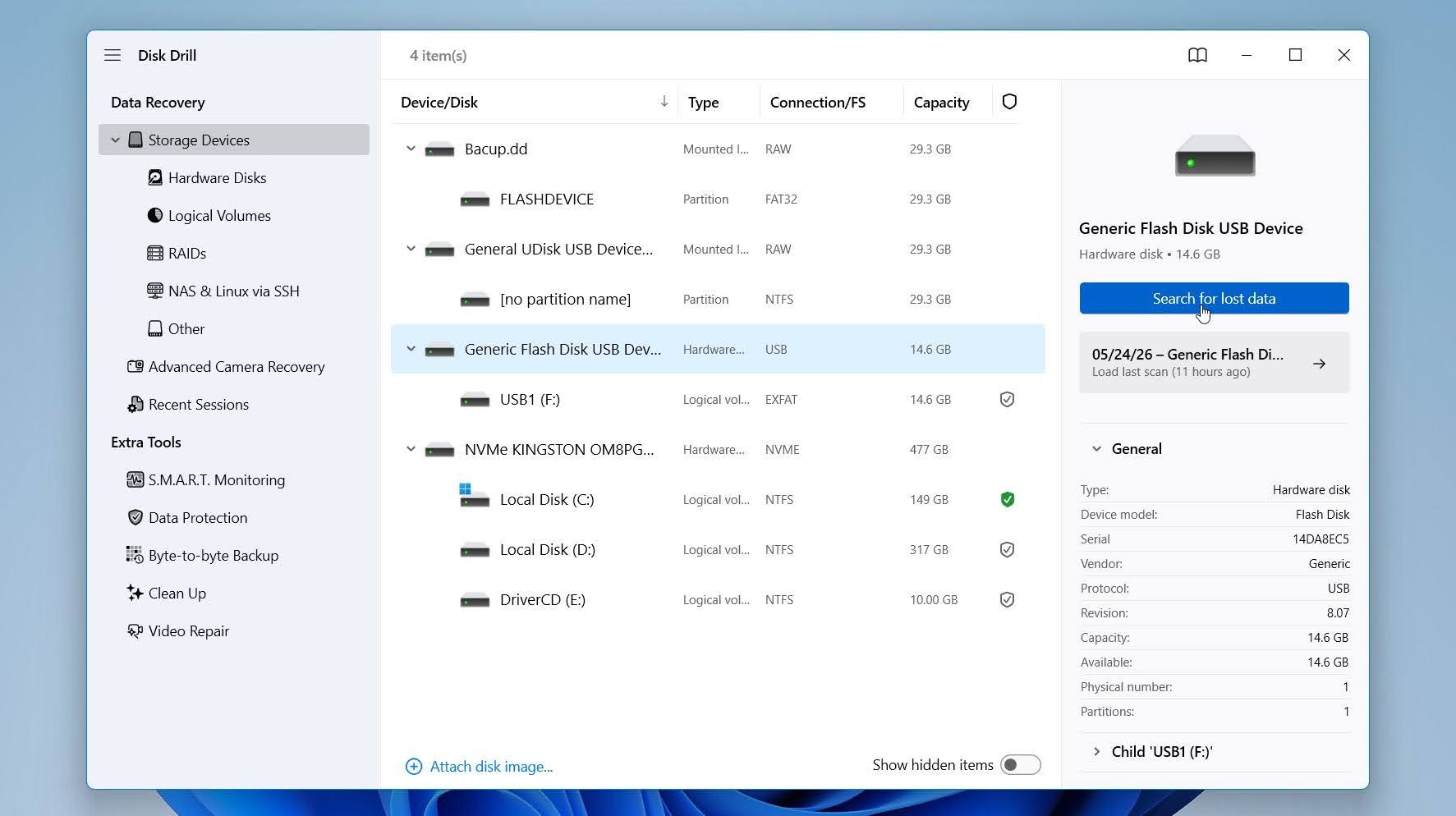
- Disk Drill will ask you to select the recovery mode, choose the Universal Scan.
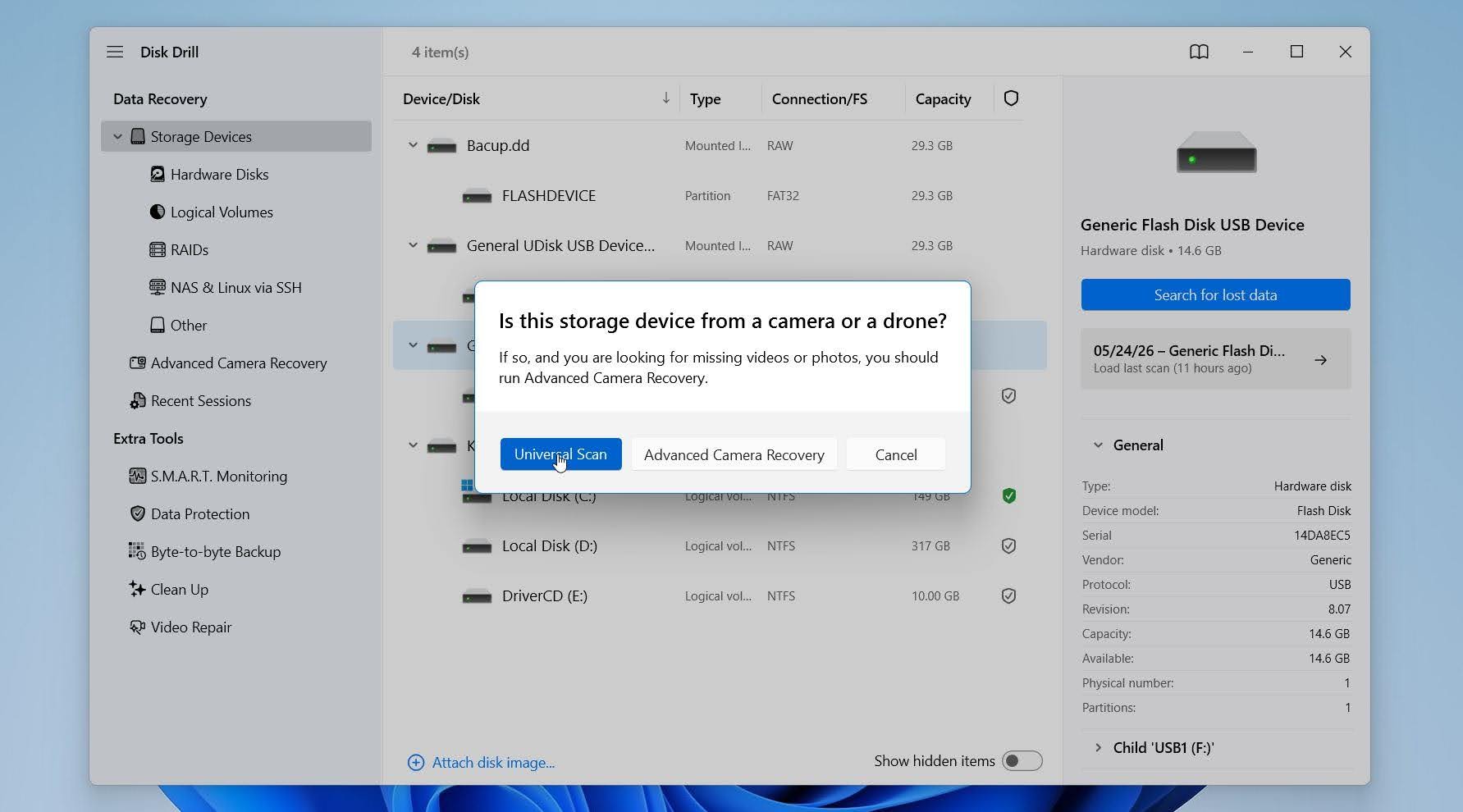
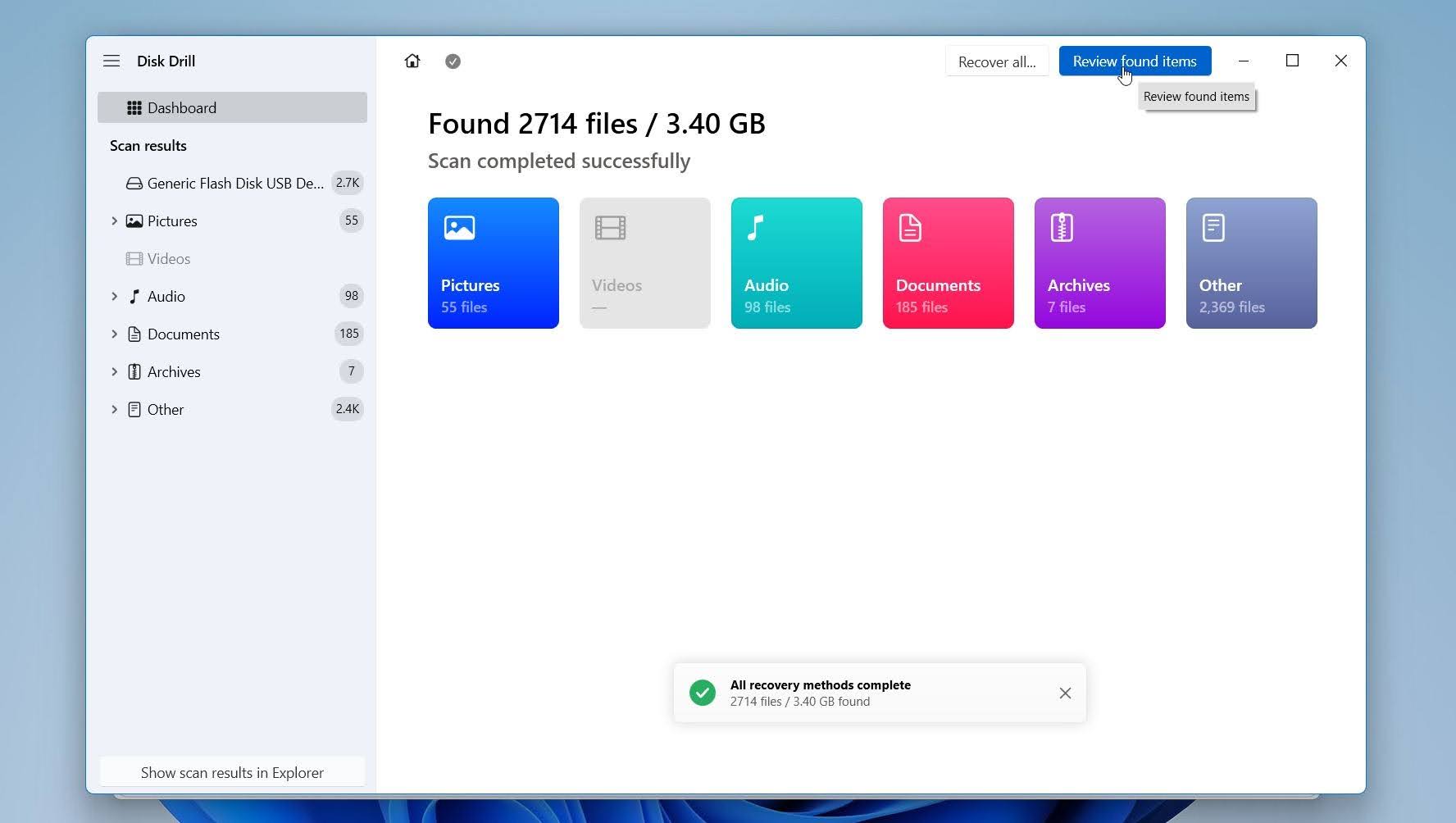
- Once the scan is complete, press Review found items.
- Use the preview feature whenever possible because previewable files usually have much higher recovery chances. Select the files you want to restore and click Recover.
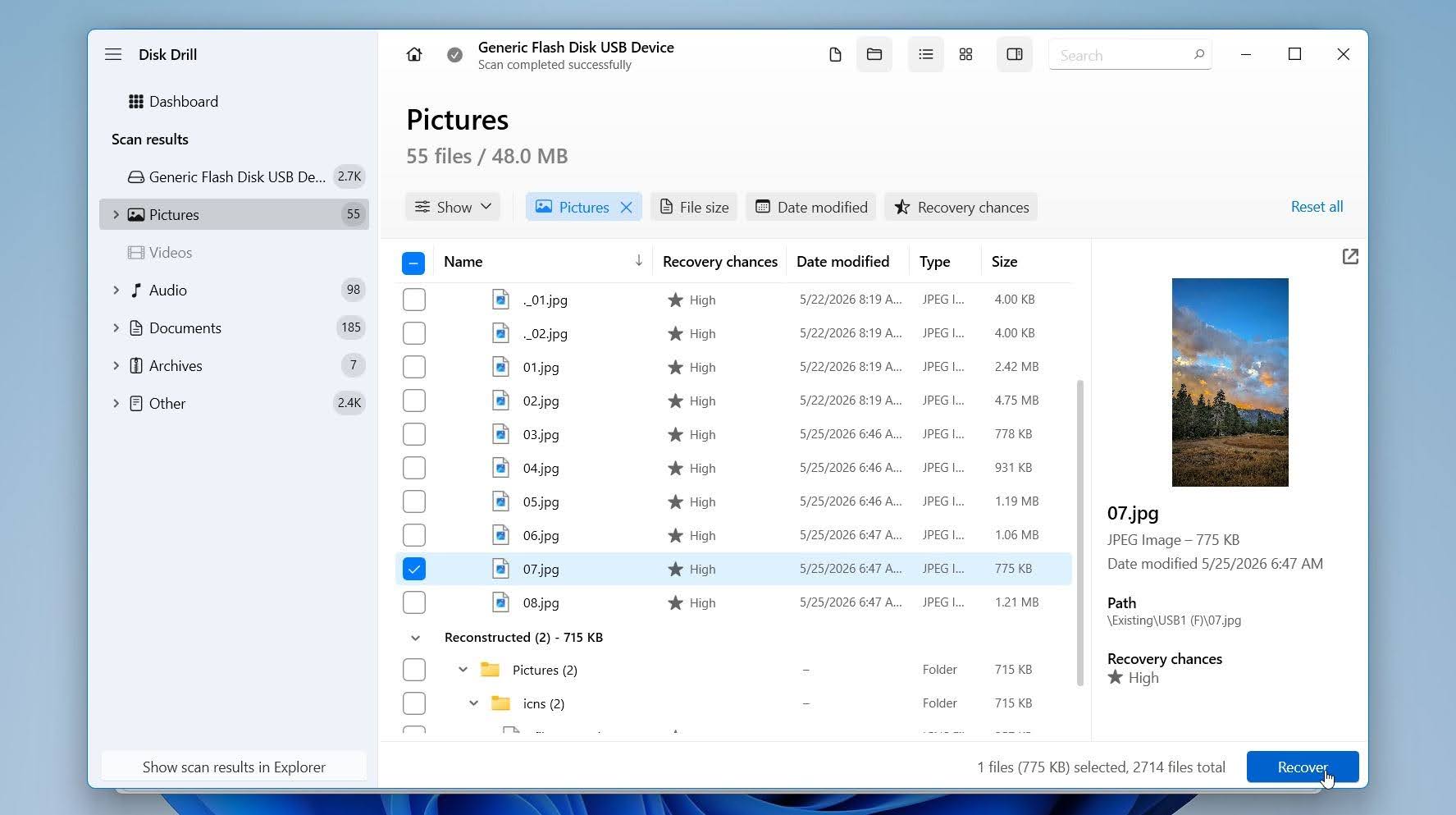
- Save the recovered files to a different drive, not back to the Android SD card and press Next.
On Windows, Disk Drill allows free recovery of up to 100 MB of data. On Mac, the free version allows unlimited scanning and file preview, but recovery requires a paid license.
If the SD card behaves unstably, disconnects randomly, or shows read errors, create a byte-to-byte backup first before you scan it. Disk Drill includes a built-in backup feature that allows you to scan the image instead of the original card, which reduces stress on unstable storage devices.
Data recovery software cannot guarantee recovery in every situation. Files that were heavily overwritten, severely corrupted, or stored on physically damaged cards may remain inaccessible. Still, for deleted LOST.DIR files and corruption, this method usually provides the highest recovery chances.
You can recover deleted files from SD card on Android, however, tools available for a phone usually aren’t as good or reliable as desktop tools. Moreover, without root, their capabilities are way more limited.
Method 2: Rename Files with the Correct Extension
Android sometimes places files in the LOST.DIR folder without their original filenames or extensions. As a result, the files may look unreadable until you assign the correct extension. This method works best after you already recover or copy the LOST.DIR files to a safe location, because you can test different extensions without changing the originals.
Data recovery software should still come first when the LOST.DIR files were deleted, the SD card shows errors, or the folder itself is missing. A recovery tool can scan the storage device and restore more file records before you start manual renaming. Extension changes only help with files you can already access and copy.
Here is how to rename LOST.DIR Files on a PC:
- Connect the Android SD card to your computer with a card reader.
- Open the storage device in File Explorer on Windows or Finder on Mac, then find the LOST.DIR folder.
- Copy the files from this folder to a separate folder on your computer.
- Enable file extensions. On Windows, open File Explorer > View > Show > File name extensions. On Mac, open Finder > Settings > Advanced > Show all filename extensions.
- Rename one copied file at a time. Add a likely extension to the end of the filename.
- Open the renamed file with a suitable app.
- Try another extension on a copy if the first one does not work.
For example, rename a file from 123456 to 123456.jpg or 123456.mp4, then try to open it. Use copies for tests so you can return to the original file at any point.
How to rename LOST.DIR files directly on Android:
- Open a file manager app, such as Files by Google, My Files on Samsung, or another trusted file manager.
- Open Internal Storage or SD Card, depending on where the LOST.DIR folder is located.
- Find and open the LOST.DIR folder.
- Copy the files to another folder first, such as Downloads or a new folder named Recovered LOST.DIR Files.
- Tap and hold one file.
- Select Rename.
- Add a likely extension to the end of the filename.
- Tap Save, Done, or OK.
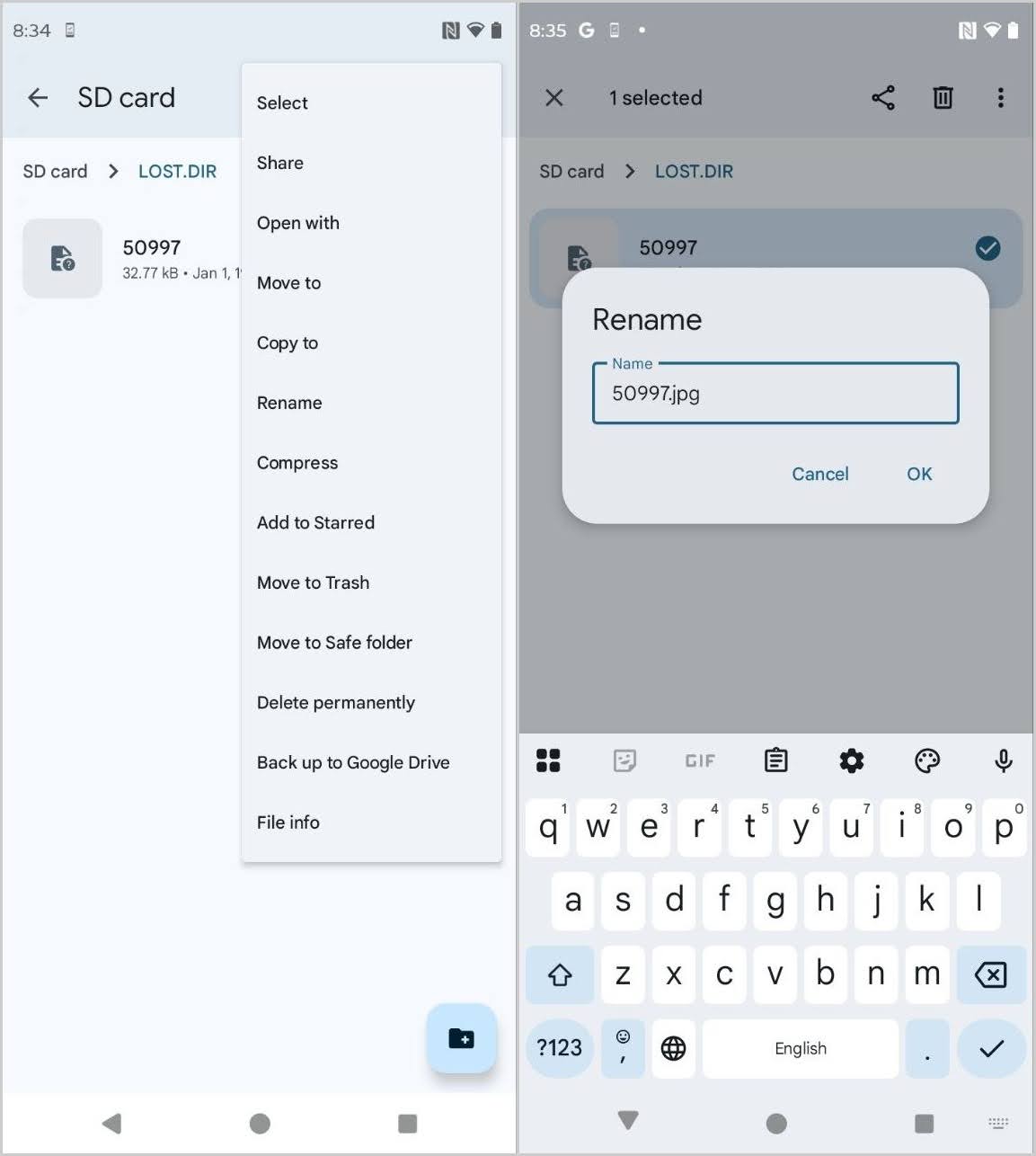
- Open the renamed file in Gallery, Google Photos, VLC, or another app that supports that format.
- Repeat the process with another copy if the file does not open.
There is no guaranteed way to identify every LOST.DIR file by sight, but these clues can help:
| Clue | What It May Suggest |
| Large file size, often hundreds of MB or more | Video file, usually .mp4, .3gp, or .mov |
| Medium file size, a few MB | Photo, often .jpg, .png, or .heic |
| Small file size with document-like content | Document, possibly .pdf, .docx, or .txt |
| The file opens partly after renaming | The extension may be correct, but the file may be corrupted |
On a PC, you can also use file identification tools or hex editors or viewers to check the file signature. For example, JPEG files often start with FF D8 FF, PNG files start with 89 50 4E 47, and PDF files start with 25 50 44 46. This method is more technical, but it helps when the file has no name, no extension, and no obvious source.
Method 3: Recover Files from Android Cloud Backups
This is more of a niche recovery method, but it can work surprisingly well in the right situation. Instead of recovering files directly from the LOST.DIR folder, this method checks whether the original files already exist in a cloud backup service such as Google Photos, Google Drive, Samsung Cloud, Dropbox, or OneDrive.
This approach only works when cloud sync or automatic backups were enabled before the files disappeared or moved into LOST.DIR. If the files never uploaded to the cloud, this method will not help.
Here is how to recover lost files on SD card using cloud backups:
- Open the cloud storage or backup app connected to your Android device. Common examples include Google Photos, Google Drive, Samsung Cloud, Dropbox, OneDrive, or another backup service you previously used.
- Sign in with the same account connected to the Android device where the LOST.DIR files appeared.
- Check folders commonly used for automatic backups.
- Use the search function and sort files by date if the service supports it.
- Open the service’s Trash, Bin, or Recently Deleted section and look for missing files there.
- Preview the files when possible to confirm they are intact.
- Download or restore the files back to your device or computer.
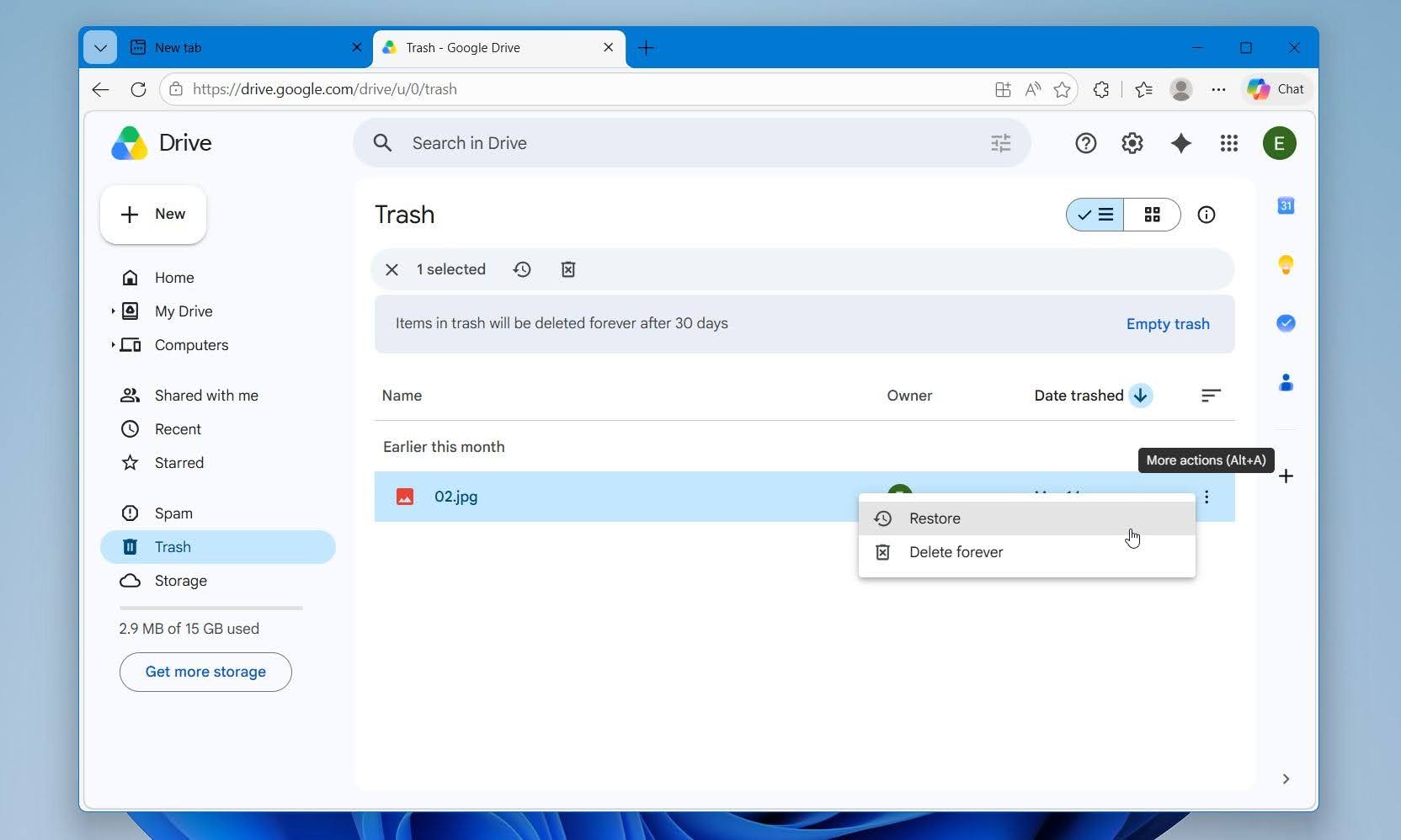
Most cases of LOST.DIR recovery involve files that did not save properly in the first place. Cloud services usually cannot sync inaccessible, corrupted, or incomplete files. That is why recovery software and manual file restoration methods remain much more reliable for serious LOST.DIR recovery situations.
Method 4: Recover LOST.DIR from Android Internal Storage
LOST.DIR folders can appear on Android internal storage as well as SD cards. Several recovery methods discussed earlier still apply, especially when the files remain inside the folder.
You can try the following:
- Rename files with the correct extension on Android. Use a file manager app to locate the LOST.DIR folder, copy the files to another folder, and test common extensions such as .jpg, .mp4, .png, .pdf, or .docx.
- Rename files with the correct extension on a PC. Connect the Android device to your computer with a USB cable, enable file transfer mode if prompted, and copy the LOST.DIR folder to your computer. You can then rename the files and test different extensions without modifying the originals stored on the phone.
- Check cloud backups. Google Photos, Google Drive, Samsung Cloud, OneDrive, Dropbox, and similar services may contain copies of the original files.
If the files still exist inside the LOST.DIR folder, recovery chances are usually quite good because the data is already present on the device.
Recovery becomes much more difficult once the files disappear from LOST.DIR or are deleted from internal storage. Unlike SD cards, Android internal storage cannot be scanned easily with traditional data recovery software. Android restricts low-level access to internal storage, and most Android and PC recovery tools require a rooted device before they can perform a full scan.
Is It Possible to Prevent LOST.DIR Files Loss on Android Phone?
The LOST.DIR folder itself is not the real problem. It is usually a symptom of interrupted storage activity, file system corruption, unstable SD cards, or unexpected Android shutdowns. While Android automatically creates LOST.DIR to collect recoverable file fragments, prevention mainly involves reducing situations that interrupt read and write operations on your phone or SD card.
A few simple habits can greatly reduce the chances of seeing damaged, incomplete, or misplaced files inside the LOST.DIR folder:
- Always eject the SD card properly before removing it from the phone. Android may still access files in the background even when no transfer is visible, and sudden removal can interrupt active read or write operations.
- Keep enough free storage space available on both internal storage and the SD card. Very low free space increases the risk of failed recordings, incomplete downloads, app crashes, and storage instability.
- Avoid sudden shutdowns during file transfers, downloads, updates, or video recordings. Battery drain or forced restarts during storage activity commonly trigger LOST.DIR file creation.
- Use reliable SD cards from trusted brands. Cheap, counterfeit, or heavily worn cards develop file system errors much more often and may start corrupting files during normal use.
- Back up important files regularly with services such as Google Photos, Google Drive, external drives, or computer backups. A backup is still the safest protection against unexpected Android storage issues.
- Watch for early warning signs of SD card failure, including slow transfers, missing files, random disconnects, “SD card damaged” messages, or apps crashing while accessing media. When those symptoms appear, back up the card immediately and avoid storing important files on it until you replace or test it further.
These precautions cannot eliminate LOST.DIR issues, but they greatly reduce the chances of corruption, incomplete files, and accidental file loss on Android devices.
Key Takeaways
LOST.DIR recovery often looks more complicated than it actually is. In many situations, the files are still recoverable with the right approach and without advanced technical skills.
- The LOST.DIR folder is an Android system folder created after crashes, interrupted transfers, SD card errors, or unexpected shutdowns.
- Files inside LOST.DIR often lose their original names and extensions, which can make them appear unreadable.
- Data recovery software usually provides the highest recovery chances for deleted LOST.DIR files or corrupted Android SD cards.
- Disk Drill works particularly well for Android SD card recovery because it supports Universal Scan, Advanced Camera Recovery, and previewable recovery results.
- Renaming LOST.DIR files with the correct extension can sometimes restore access to photos, videos, documents, and audio files.
- Cloud backups may help restore the original files when automatic sync was enabled before the problem occurred.
- Stopping all use of the SD card immediately after data loss greatly improves recovery chances.
Even when LOST.DIR files seem unreadable or completely missing, recovery is often still possible. The most important thing is to avoid using the device further and start recovery attempts as early as possible. If you still have questions, you can visit our forum to see if other users have faced a similar problem and get advice based on their experiences.