


Quick answer: To recover a permanently deleted folder in Windows 10 or Windows 11, first check whether it’s still available through the Recycle Bin or the Ctrl + Z undo shortcut. If those options aren’t available, use data recovery software to scan the drive as soon as possible. If you previously enabled File History, Previous Versions, or another backup solution, you may also be able to restore the folder from a backup.
Need the fastest route?
Folder was just deleted? → Go to Method 1: Restore the Folder Immediately (Ctrl + Z or Recycle Bin)
Folder was permanently deleted? → Go to Method 2: Recover with Data Recovery Software
Did you accidentally delete an important folder in Windows 10/11? In many cases, you can still recover it, even after permanent deletion. We explain what happens when Windows deletes a folder and show you the most reliable ways to get it back, with or without a backup.
| Method | Works if permanently deleted? | Requires setup beforehand? | Best for |
|---|---|---|---|
| Data recovery software | ✅ | ❌ | Permanently deleted folders, formatted drives, and most data loss scenarios |
| Recycle Bin or Ctrl + Z | ❌ | ❌ | Folders deleted only moments ago |
| File History | ✅ | ✅ | Folders backed up with Windows File History |
| Backup (Google Drive, OneDrive, external drive, etc.) | ✅ | ✅ | Folders included in an existing backup |
What Happens When You Delete a Folder?
When you delete a folder, Windows removes its entry from the file system, but the actual data usually remains on the storage device. As long as that data hasn’t been replaced, there’s often a good chance to recover the folder. That’s why it’s best to stop saving new files to the affected drive and begin recovery as soon as possible.
Note: Internal SSDs work differently from traditional hard drives. Most modern SSDs and SMR HDDs support TRIM, a feature that tells the drive which blocks no longer contain useful data after you delete a file or folder. The SSD can then erase those blocks in the background to improve write performance. Once that happens, recovery software usually can’t restore the deleted data. External SSDs connected through USB often don’t receive TRIM commands, so recovery is generally more successful on those devices.
How to Recover Deleted Folders on Windows 10 & 11?
If you can’t find a folder and believe it was permanently deleted, don’t give up just yet. In many cases, you can still recover it. The right method depends on how the folder disappeared, whether you created a backup beforehand, and how much you used the drive after the deletion. We start with the option that works in the most situations and then cover Windows’ built-in recovery tools.
Looking for instructions on how to recover a permanently deleted folder in Windows 10? The methods in this article work for both Windows 10 and Windows 11. The recovery process is almost identical, though some menus and interface elements may look slightly different.
Method 1: How Can You Recover a Recently Deleted Folder? (Recycle Bin or Ctrl + Z)
If you deleted the folder only a few moments ago, Windows 11 offers two quick recovery options. The first is Ctrl + Z, the familiar undo shortcut that can reverse a recent file or folder deletion in File Explorer. If the undo history is no longer available, the Recycle Bin is the next place to check because folders deleted with the Delete key or the context menu usually remain there until you empty it.
Here’s how to restore the folder from the Recycle Bin:
- Open the Recycle Bin from your desktop. If you don’t see its icon, press Win + S, type Recycle Bin, and open it from the search results.
- Find the deleted folder. If necessary, use the search box in the upper-right corner or sort the contents by Date Deleted.
- Right-click the folder and select Restore.
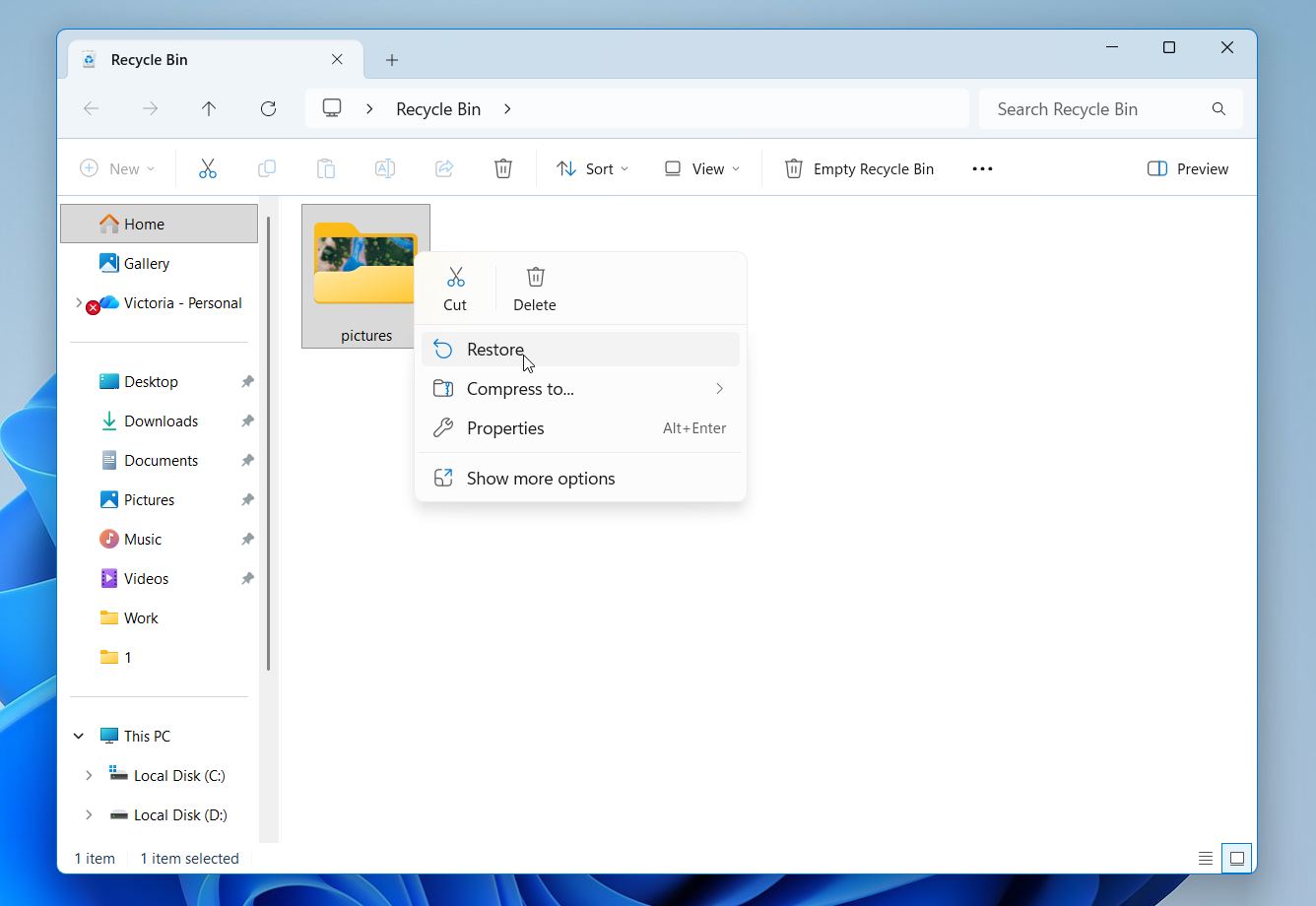
- Windows will return the folder, together with all of its contents, to its original location.
Neither Ctrl + Z nor the Recycle Bin can help if you deleted the folder with Shift + Delete, emptied the Recycle Bin afterward, or deleted the folder from a storage device that bypasses the Recycle Bin. In that case, continue with the next recovery method.
Method 2: How Can You Recover a Permanently Deleted Folder with Data Recovery Software?
Data recovery software is usually the best choice when you need to recover a permanently deleted folder. The problem is that there are dozens of recovery tools available, and not all of them deliver the same results or offer the same features.
Our top pick is Disk Drill. In our testing, it consistently produced the best results, and its interface is easy enough for beginners to pick up quickly. It can recover whole folders or individual files, preserve the original folder structure when possible, and display recoverable content in a familiar File Explorer–style view. You can also preview files before recovery to make sure you’ve found the right ones. It supports all major Windows file systems and works across internal drives, external hard drives, USB flash drives, and memory cards.
We recently tested Disk Drill in multiple real-world recovery scenarios, including a corrupted USB flash drive and a DJI drone SD card with deleted files. It successfully recovered all of the files we selected for testing, including 4 out of 4 fragmented videos. You can find the complete results, feature breakdown, and user feedback in our Disk Drill review.
Here’s how you can use Disk Drill to recover a permanently deleted folder on Windows:
- Download and install Disk Drill. If you’re recovering files from your system drive, install the program on a different drive or partition to avoid overwriting deleted data.
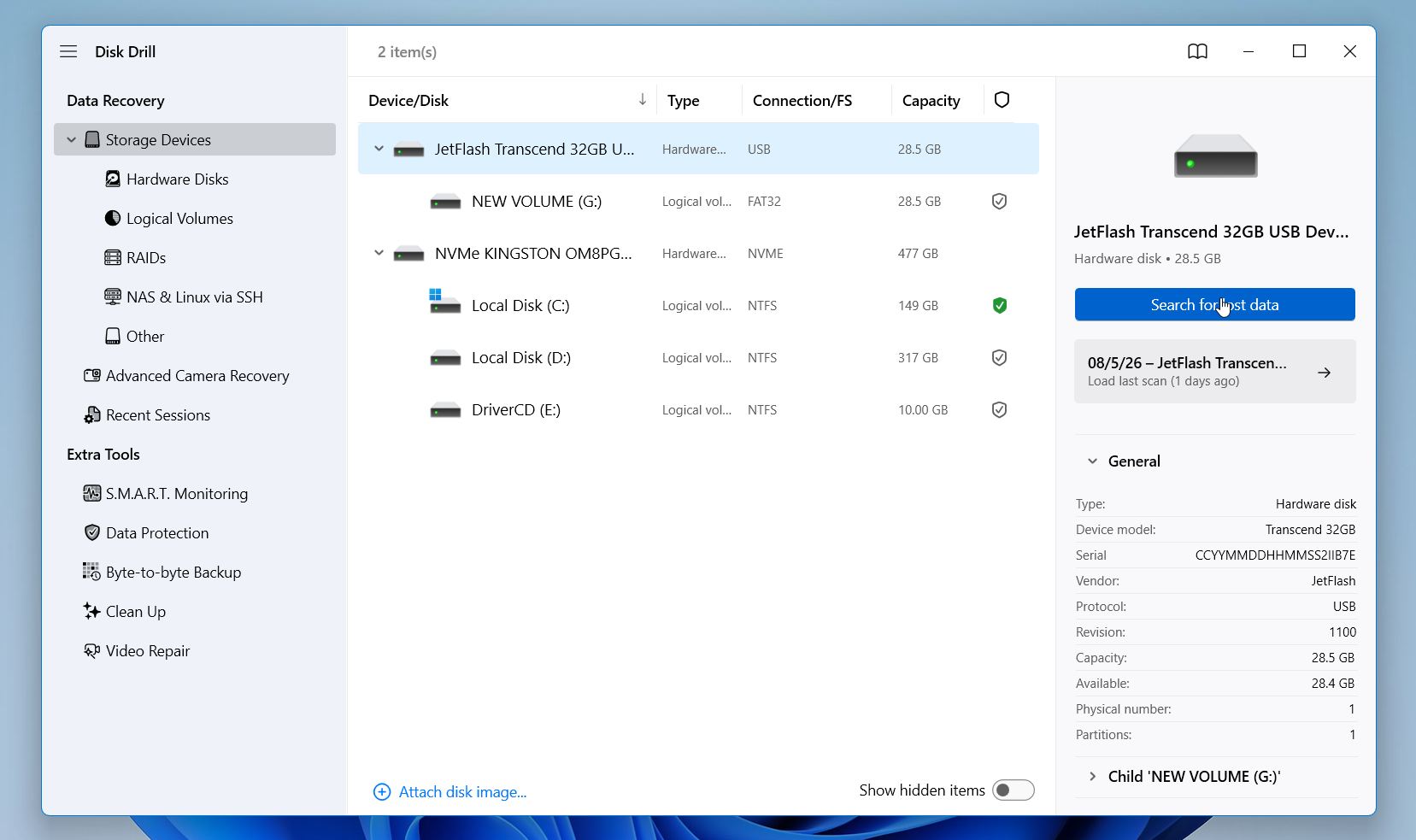
- Launch Disk Drill and select the correct drive. Find the drive where the folder was originally located. For example, if the folder was on your Desktop or in Documents, select the system drive. Click Search for lost data.
- If you’re scanning a non-system drive, such as a USB flash drive, external hard drive, or memory card, choose Universal Scan when prompted.
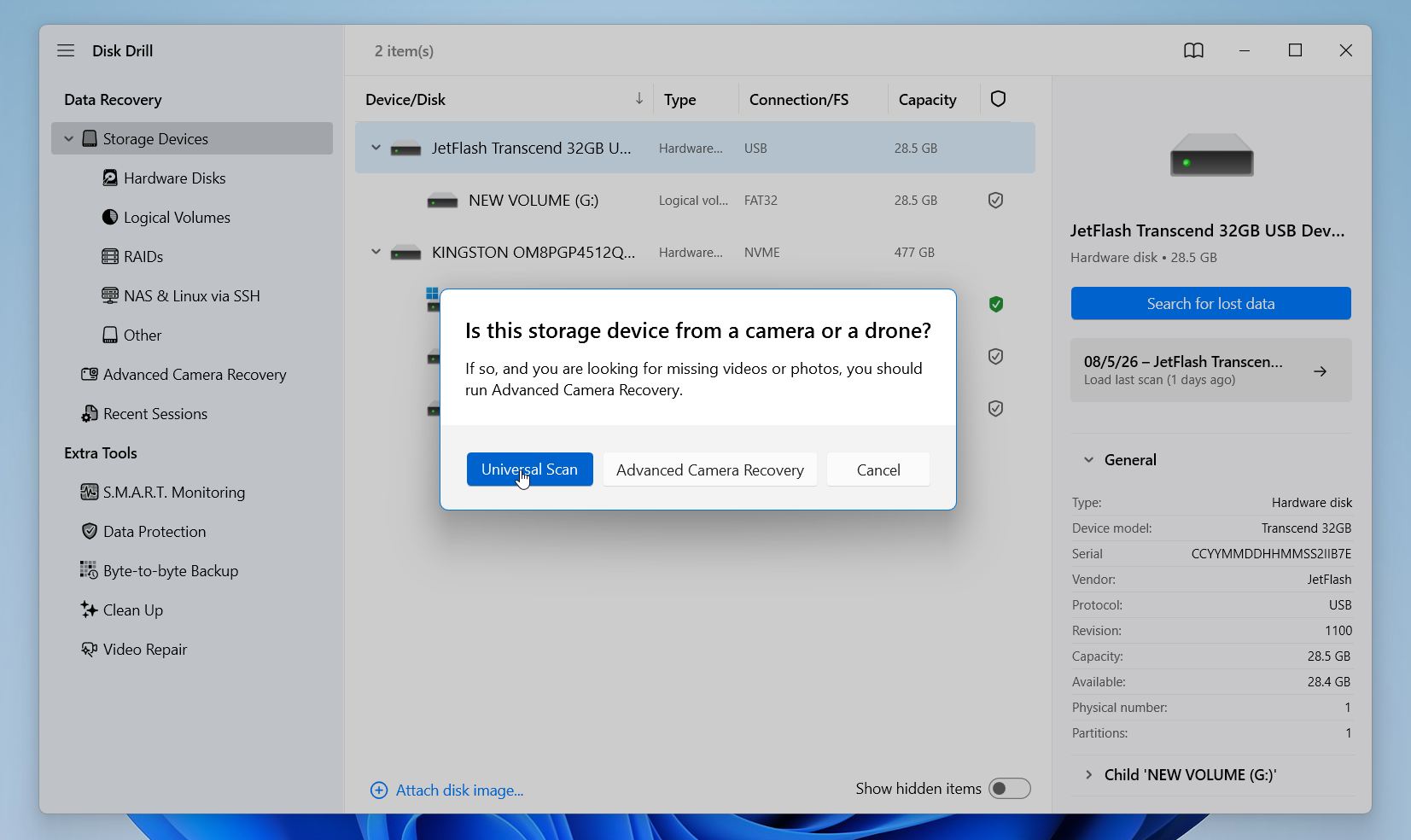
- During the scan, you can monitor its progress, including the number of files found, the percentage of the drive that has been analyzed, and the estimated time remaining. Wait for the scan to finish, then click Review found items.
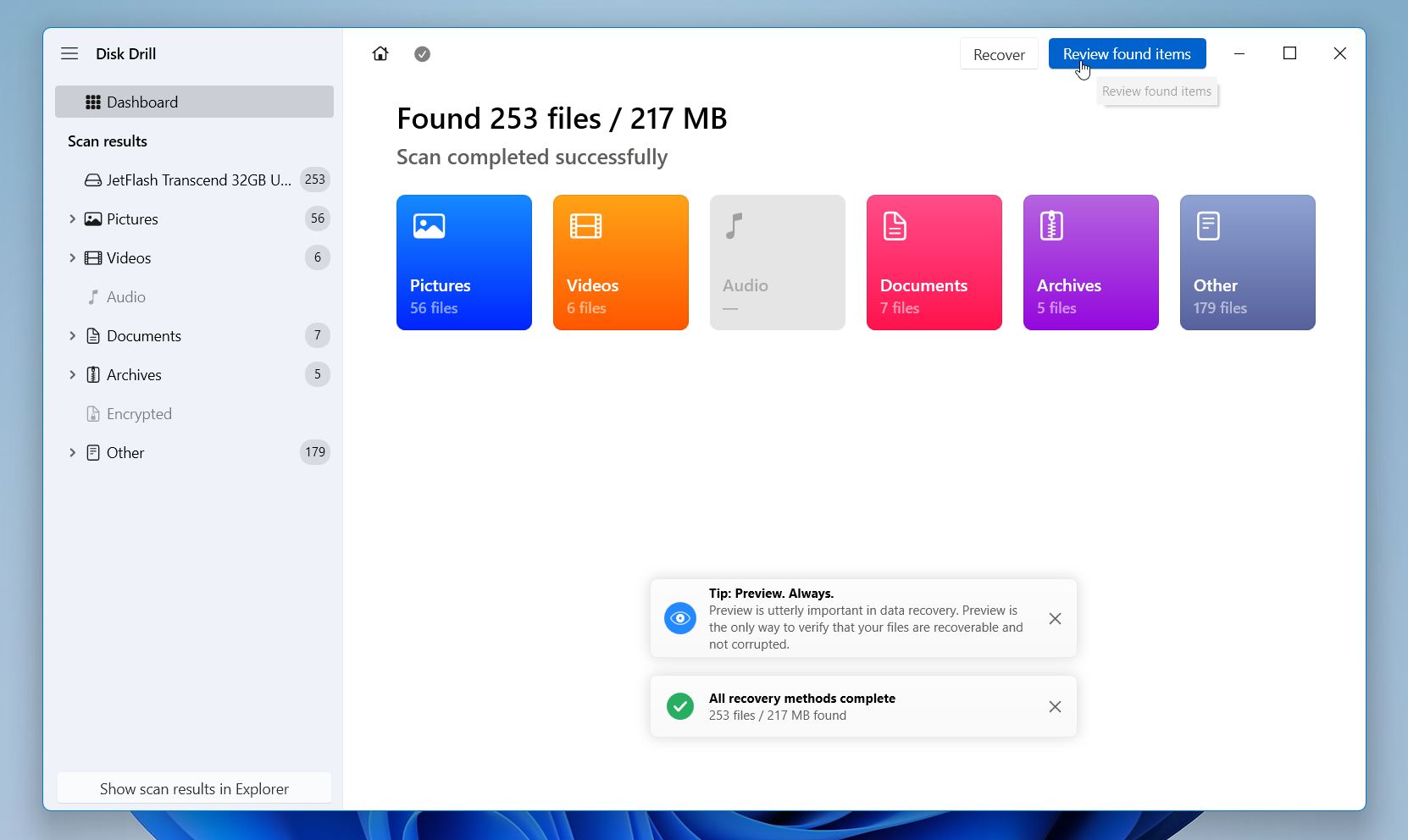
- Use the search box if you remember the folder or file name, or browse the results manually. You can sort files by date, size, or name and use filters to display only specific file types, such as documents, photos, or videos. If the original folder structure is intact, simply select the entire folder. Otherwise, choose the individual files you want to restore. Click Recover.

- Choose a recovery destination on a different drive from the one you scanned. If you restore the files to the same drive, Windows may overwrite other deleted data before you have a chance to recover it. Press Next.
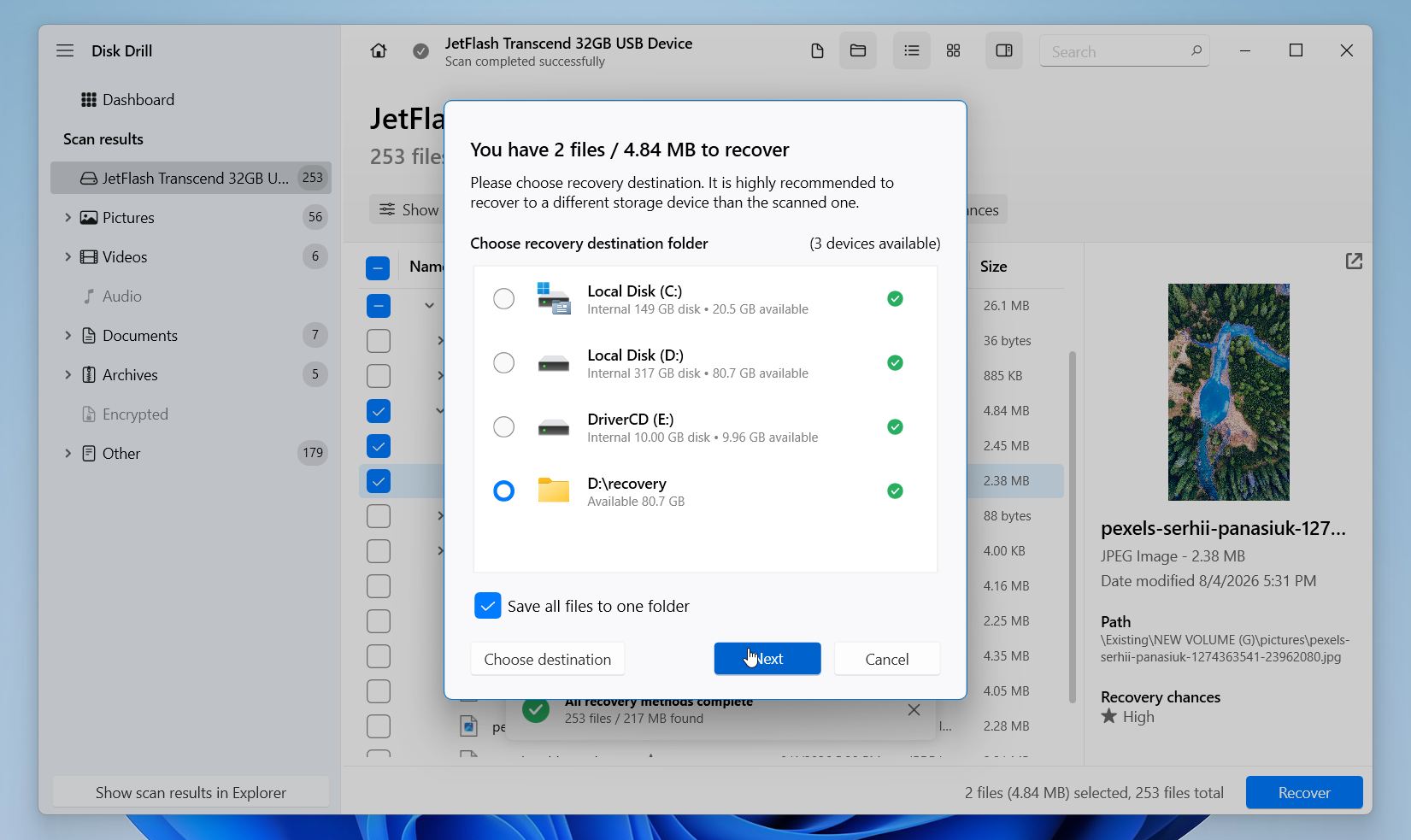
The free Windows version lets you perform a full scan of your drive, preview every recoverable file, search through the scan results, and recover up to 100 MB of data at no cost. For many users, that’s enough to restore several important files before deciding whether the full version is necessary.
Method 3: How Do You Recover a Deleted Folder with File History?
If you enabled File History before the folder disappeared, this is one of the easiest ways to get it back. File History is Windows’ built-in backup feature that automatically saves copies of files stored in common locations such as Desktop, Documents, Pictures, Music, and Videos. It also keeps multiple versions of the same files, so you can restore an earlier copy if needed.
Unfortunately, File History only works if it was turned on before the folder was deleted. If you never enabled it, Windows won’t have any backups to restore.
To restore a folder with File History:
- Press Win + S, type Restore your files with File History, and open the matching result.
- Browse to the location where the deleted folder was originally stored.
- Use the Previous and Next arrows at the bottom of the window to browse available backup dates.
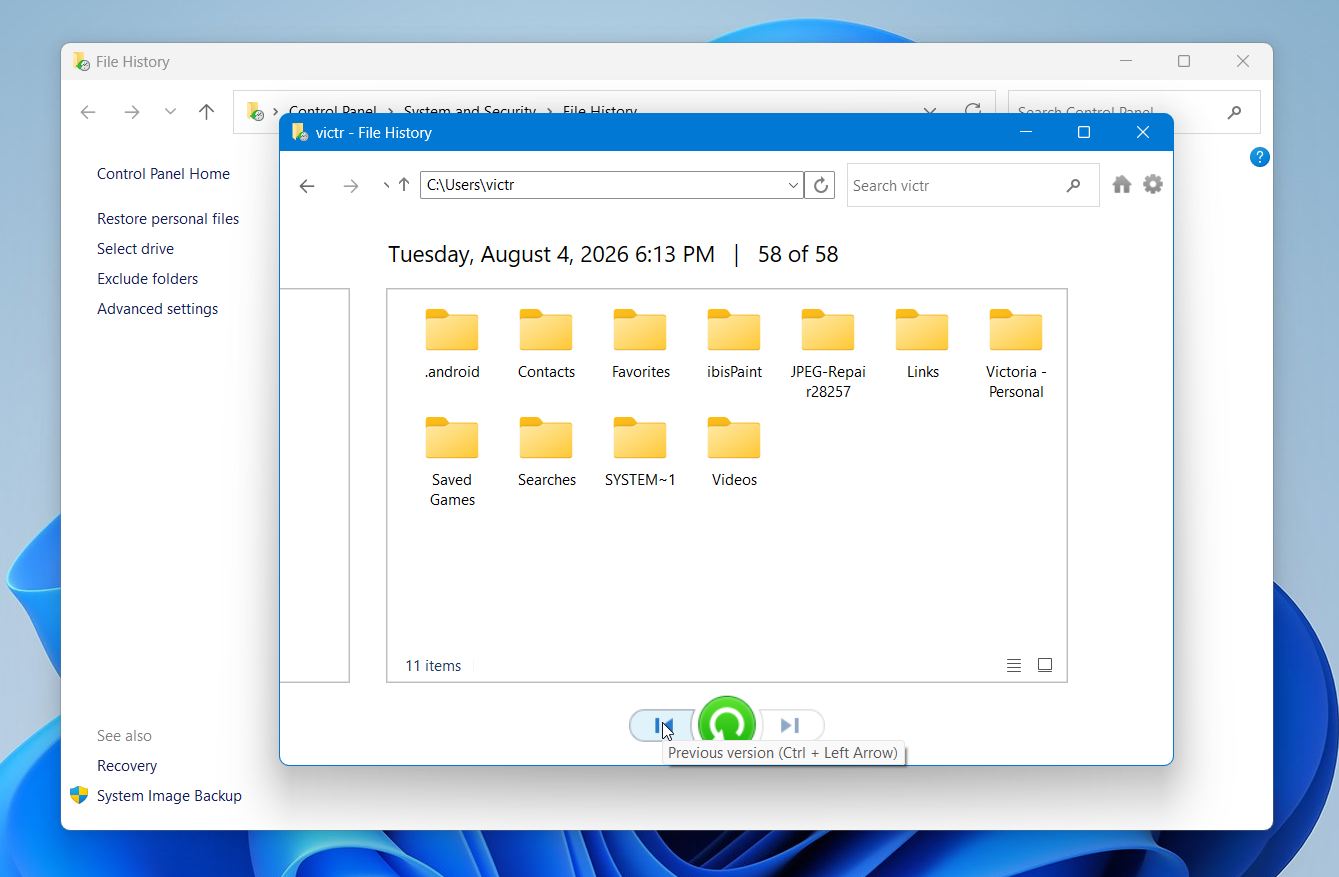
- Select the folder you want to restore.
- Click the green Restore button.
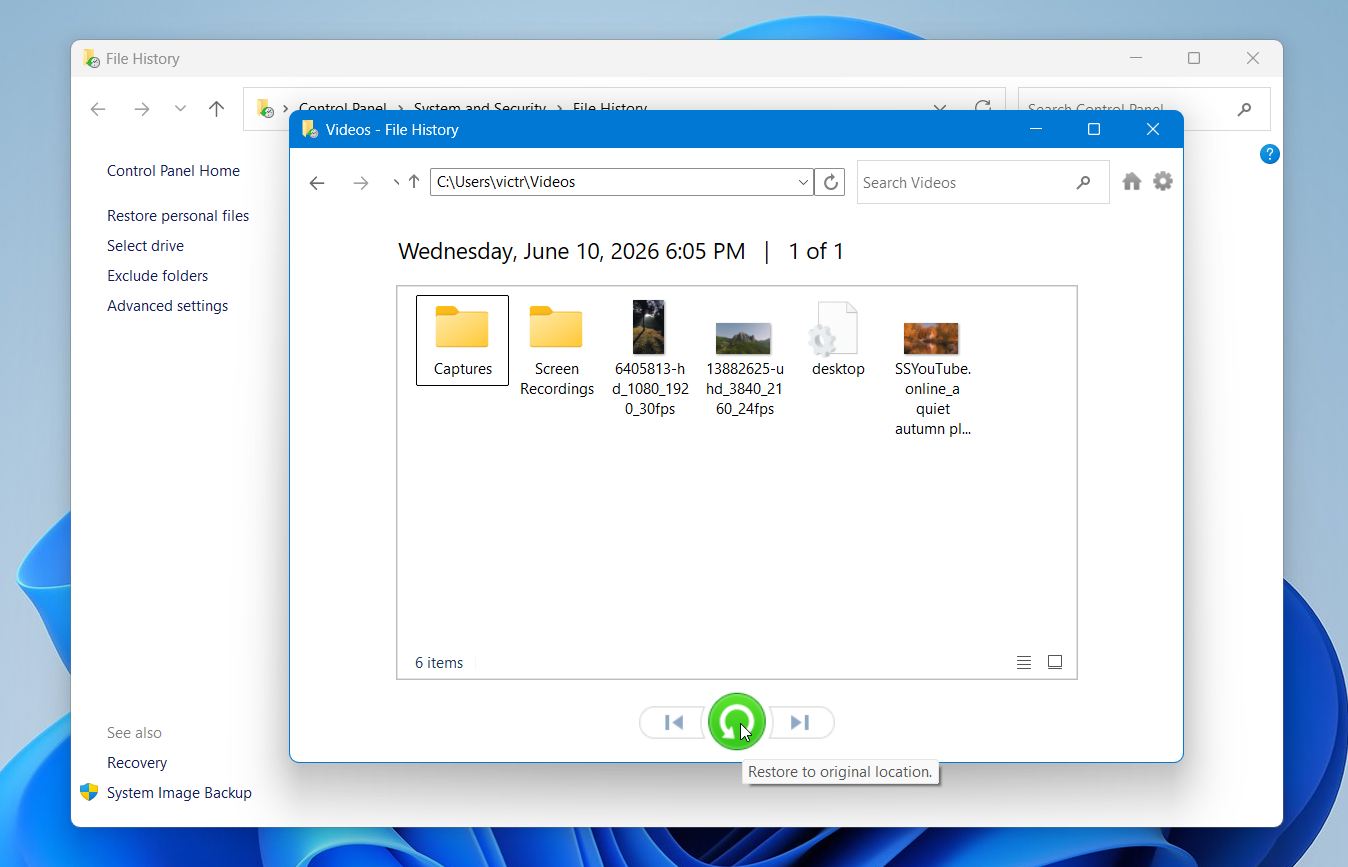
Windows will return the folder to its original location together with all files it contained.
Method 4: How to Restore a Folder from Third-Party Backups?
If you regularly back up your files, this is often the quickest and most reliable recovery method. This includes cloud storage services, Windows Backup & Restore, and third-party backup software. The exact steps depend on the backup solution you use, but they all follow the same basic idea: find a backup that was created before the folder was deleted and restore only the missing folder if possible.
For example, if you backed up the folder to Google Drive:
- Open Google Drive in your web browser and sign in to your Google account.
- Browse to the folder or use the search bar to locate it.
- Right-click the folder and select Download.
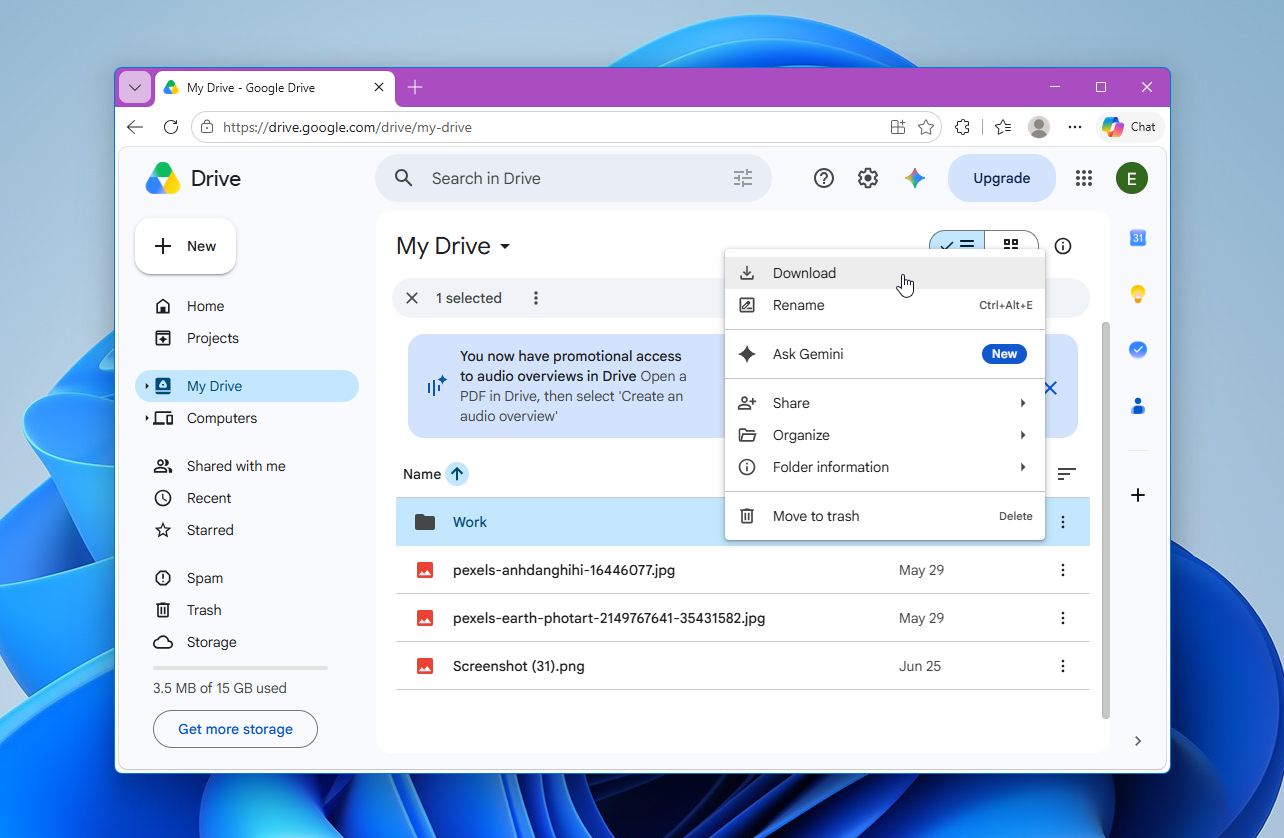
- Save the downloaded ZIP file to your computer and extract it to restore the folder.
Other backup solutions work in a similar way. If you use Backup & Restore or a system image, open the Backup settings or recovery tool and restore the folder from a backup created before the deletion. Most third-party backup applications, such as Macrium Reflect or Acronis True Image, also let you browse backup contents and restore individual folders instead of the entire backup.
If you use OneDrive, remember that it primarily synchronizes files rather than creating independent backups. If the deletion has already been synchronized, the folder may disappear from both your PC and OneDrive. Before you move on, sign in to OneDrive on the web and check the Recycle Bin, where deleted files and folders are usually kept for a limited time before permanent removal.
Keep in mind that emptying the Recycle Bin on your computer does not empty the OneDrive Recycle Bin, since Recycle Bin cleanup itself is not synced. This means a file may still be available in OneDrive even if you already cleared it from your PC’s Recycle Bin.
What Causes Folder Loss?
Folders can disappear for many reasons. Some cases involve accidental deletion, while others result from hardware problems or software issues. The most common causes include:
- Accidental deletion. This is the most common reason. A folder can disappear after you press Delete or Shift + Delete, empty the Recycle Bin, or remove files during a cleanup without realizing the folder contains important data.
- Malware or viruses. Malicious software can delete folders, encrypt them, hide them, or damage the file system. Before you continue using the affected drive, run a full scan with a trusted antivirus program to remove any threats.
- Bad sectors or drive failure. As a storage device begins to fail, Windows may lose access to certain areas of the drive, which can make folders appear missing. Logical bad sectors are often recoverable, while physical damage usually requires professional recovery.
- File system corruption. Power outages, improper shutdowns, interrupted file transfers, or software errors can damage the file system and make folders inaccessible. In some cases, Windows may even ask you to format the drive before you can open it.
- System crashes or failed Windows updates. A crash during a file operation or an unsuccessful Windows update can interrupt write operations and leave folders missing or corrupted.
- Cloud sync issues. Services such as OneDrive, Google Drive, or Dropbox can remove folders from your computer after a synchronization conflict or an accidental deletion on another device. The folder may still be available in the service’s online Recycle Bin or version history.
Most of these problems are preventable. Regular backups, a reliable antivirus solution, safe drive removal, and careful file management can greatly reduce the risk of folder loss and make recovery much easier if something does go wrong.
Final Thoughts
A permanently deleted folder isn’t always lost completely. If you act quickly, there’s often a good chance to recover it, especially on traditional hard drives and external storage devices. Disk Drill remains our first recommendation because it consistently delivered the best results in our tests, preserves the original folder structure whenever possible, and makes it easy to locate and restore the files you need.
If data recovery doesn’t work or you previously created a backup, File History, Previous Versions, and cloud or local backups can also help restore your folder. The methods covered in this guide work for both Windows 10 and Windows 11, with only minor differences in the interface.
If you have questions about a specific recovery situation or none of these methods worked, visit our forum, where you’ll find additional guides and advice from data recovery experts and experienced users.
FAQ:
- Search with Windows Search. Press Win + S and search for the folder name or the name of one of the files it contained.
- Search in File Explorer. Open This PC and use the search box in the upper-right corner to search the entire drive.
- Show hidden items. In File Explorer, select View > Show > Hidden items to check whether the folder is hidden instead of deleted.