



Just lost files from your SD card and wondering if there’s any way to get them back? The short answer is yes, in many cases recovery is still possible as long as the data hasn’t been overwritten. The exact method depends on the device you used, a Windows PC, Mac, Android phone, or camera. We will walk through the most reliable ways to recover deleted files across different devices, explain what actually works in each case, and point out what to avoid so the data does not get lost for good.
SD Card File Recovery Across Different Devices
Different devices handle SD cards in different ways, which directly affects how recovery works. A camera usually writes files in a simple structure, while phones may add restrictions or limit direct access. That is why the recovery method often depends on where the SD card was used.
The table below breaks down the most common devices and what to expect:
|
Device |
What Happens After Deletion | Recovery Chances |
Recommended Approach |
| Digital Cameras (DSLR, Mirrorless) | Files are removed from the file system but data often remains on the card | High, especially for photos and videos | Remove the SD card, connect it to a computer, and scan it with a desktop recovery tool like Disk Drill |
| Action Cameras / Drones | Large video files may be fragmented across the card | Medium to High | Connect the SD card to a computer and use a tool that can handle fragmented video files |
| Android Phones (with SD card) | Files may be deleted or hidden, and Android may limit access to the card | Medium | Remove the SD card and connect it to a computer for the best results. Some PC recovery tools can also scan the SD card directly through the phone when no card reader is available, but just like mobile recovery apps, root access is often required |
| Dash Cams | Loop recording may overwrite old footage very quickly | Medium | Stop using the card right away, connect it to a computer, and scan it as soon as possible |
| Game Consoles (Switch, Steam Deck) | Data may be stored in a structured or proprietary way | Low | Remove the SD card, connect it to a computer, and try a full scan, though results may vary |
In most cases, the best option is to remove the SD card and connect it to a computer. Desktop recovery tools usually have fewer restrictions and give you a better chance to recover deleted files than phone apps. Still, in the next sections we will show all the methods available.
How to Recover Files from SD Cards on Windows and macOS
If you removed the SD card from a camera, phone (as long as it is not configured as an extension of internal storage), drone, or any other device, the next step is to work with it on a computer. Windows and macOS give you full access to the card and allow recovery tools to scan it without the limitations you usually face on mobile devices. This approach works for deleted files, formatted cards, and even cases where the SD card shows as RAW or unreadable.
We will show you two tools that are great for SD card recovery. Our steps are shown on Windows, but if you need to recover deleted files from SD card on Mac, Disk Drill and PhotoRec work on macOS too.
Before you begin, stop using the SD card completely. Even a small file can overwrite deleted data. Use a card reader instead of connecting through a device, as devices often use MTP mode, which does not provide full access for data recovery tools. You can launch your recovery app to confirm that the card is detected.
Method 1: Use Disk Drill to Recover Files from SD Card
In our experience, Disk Drill is one of the strongest software to recover deleted files from SD card, especially in cases involving accidental deletion, formatting, or RAW format errors. It supports both FAT32 and exFAT file systems, handles SD and microSD cards well, and includes a deep scan mode alongside a file preview function.
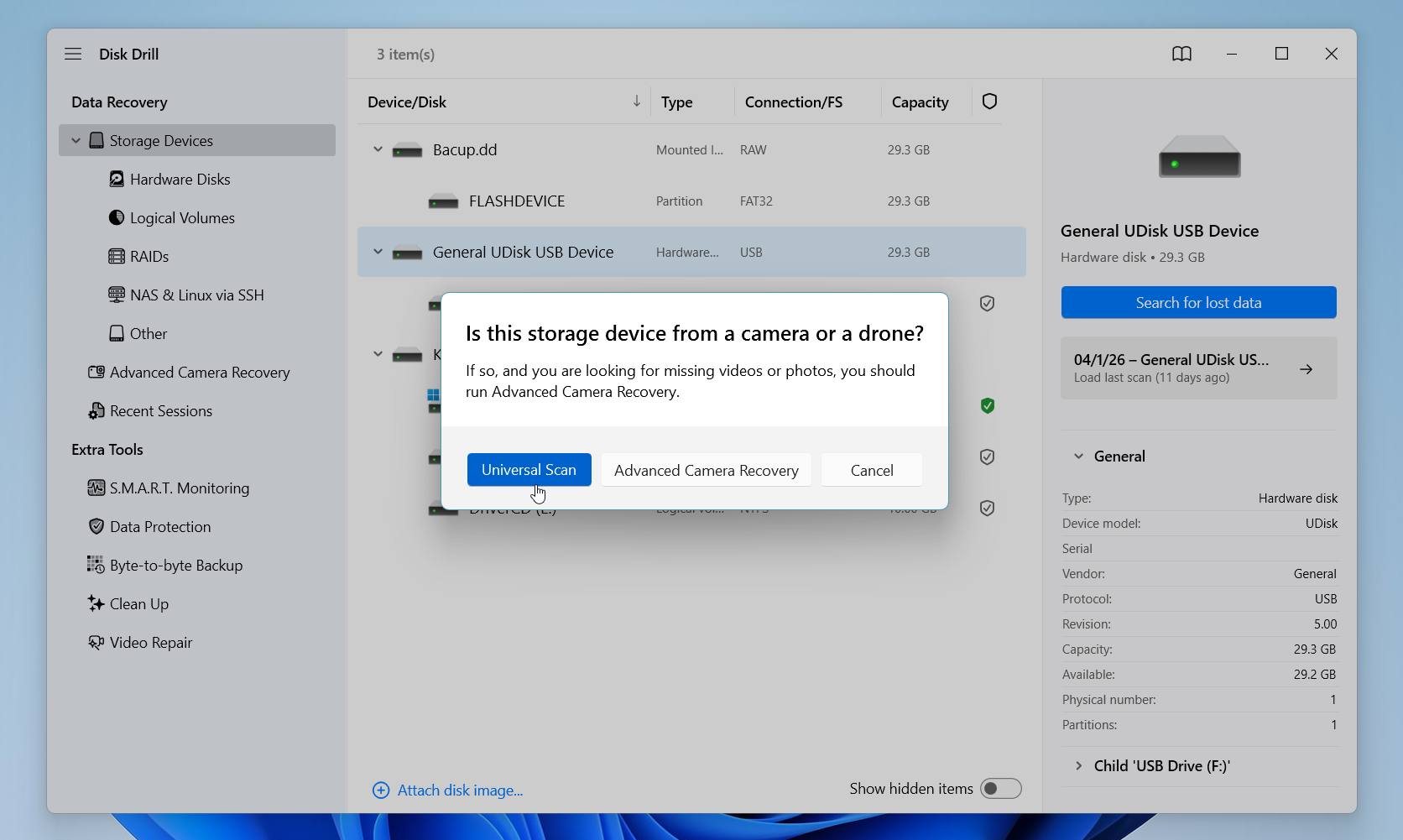
One feature we think deserves special attention is Advanced Camera Recovery. This mode is built specifically to target video files from cameras and drones like GoPro, DJI, Canon, and Sony. Video files are rarely stored as a single continuous block on a card. Instead, they are scattered in fragments across different sectors, and standard scans may reconstruct them improperly, which can lead to corrupted or partially playable videos. Advanced Camera Recovery analyzes raw data and reconstructs those fragments into playable files, which makes it the better choice whenever video recovery is the priority.
Here is how we recommend using Disk Drill to recover files from an SD card:
- Download and install Disk Drill from the official site.
- Connect your SD card to your computer through a card reader and open Disk Drill.
- Locate your SD card in the drive list and click Search for lost data to begin the scan.
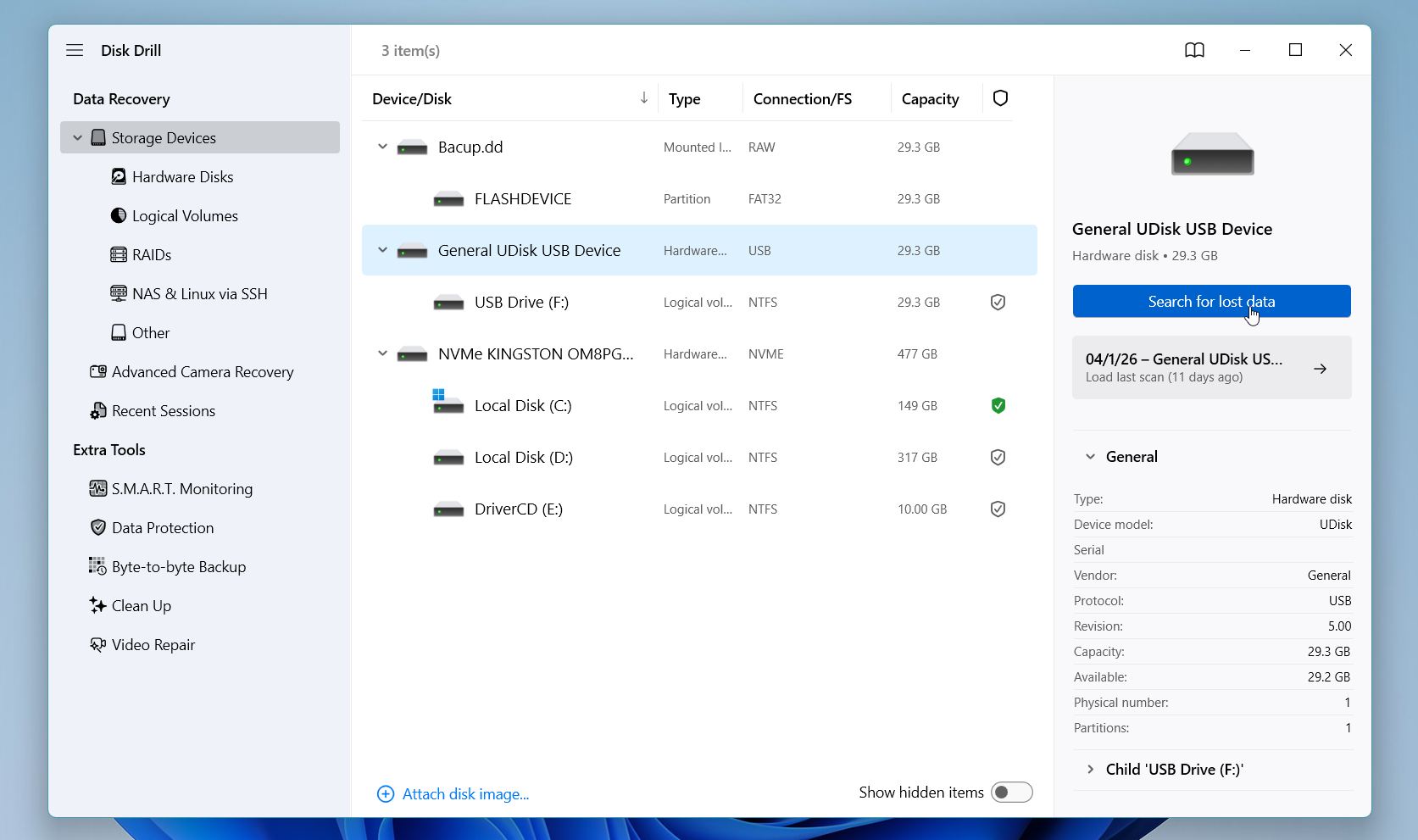
- Select a scan mode. For most situations we recommend Universal Scan, but if you need to recover video files such as MP4 or MOV, switch to Advanced Camera Recovery instead.
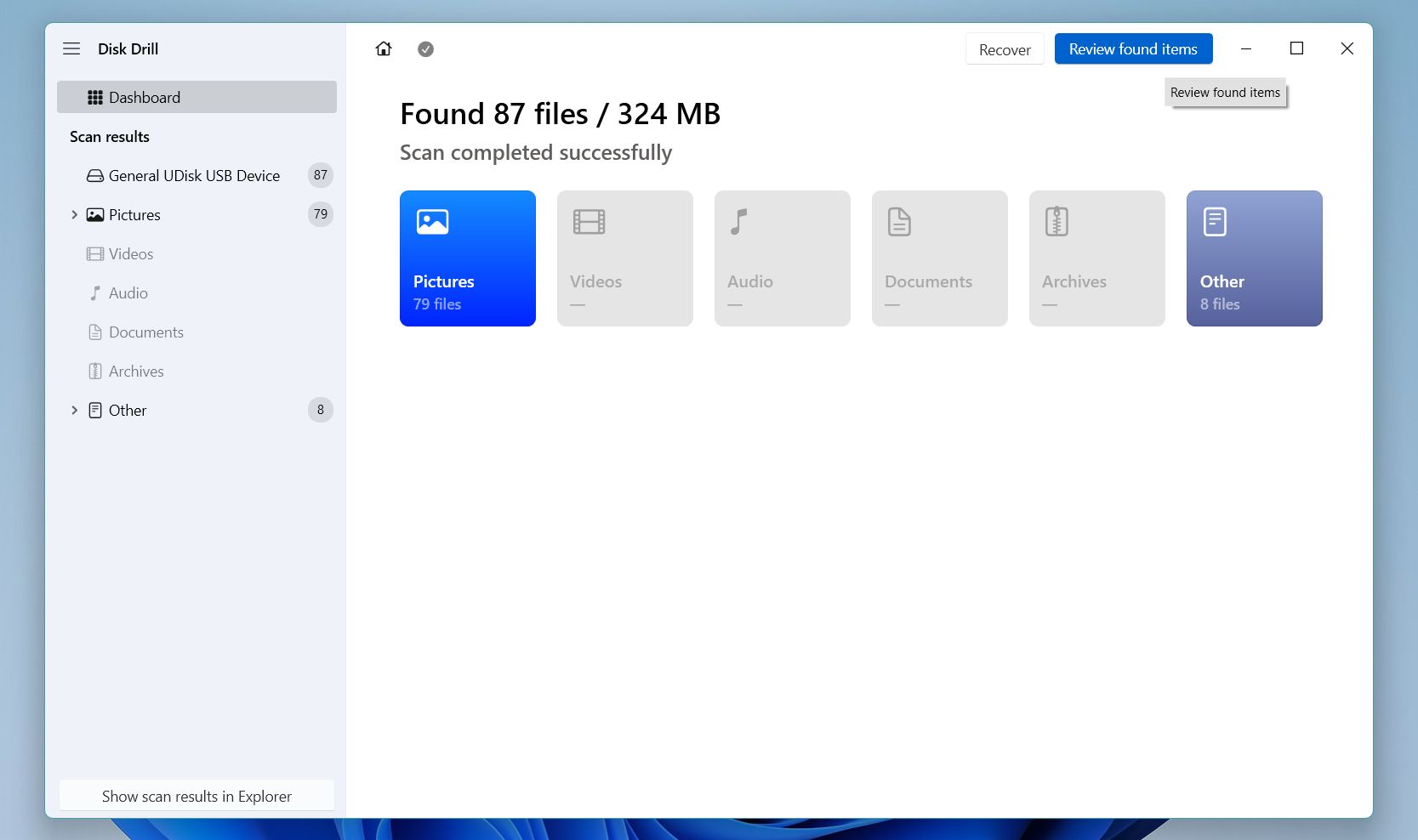
- Wait for the scan to finish, then click Review found items.
- Use the file type, date, and size filters or the search bar to narrow down the results and find your files faster. Select a file and preview it before recovering. If the preview loads correctly, the file is in good shape and worth recovering.
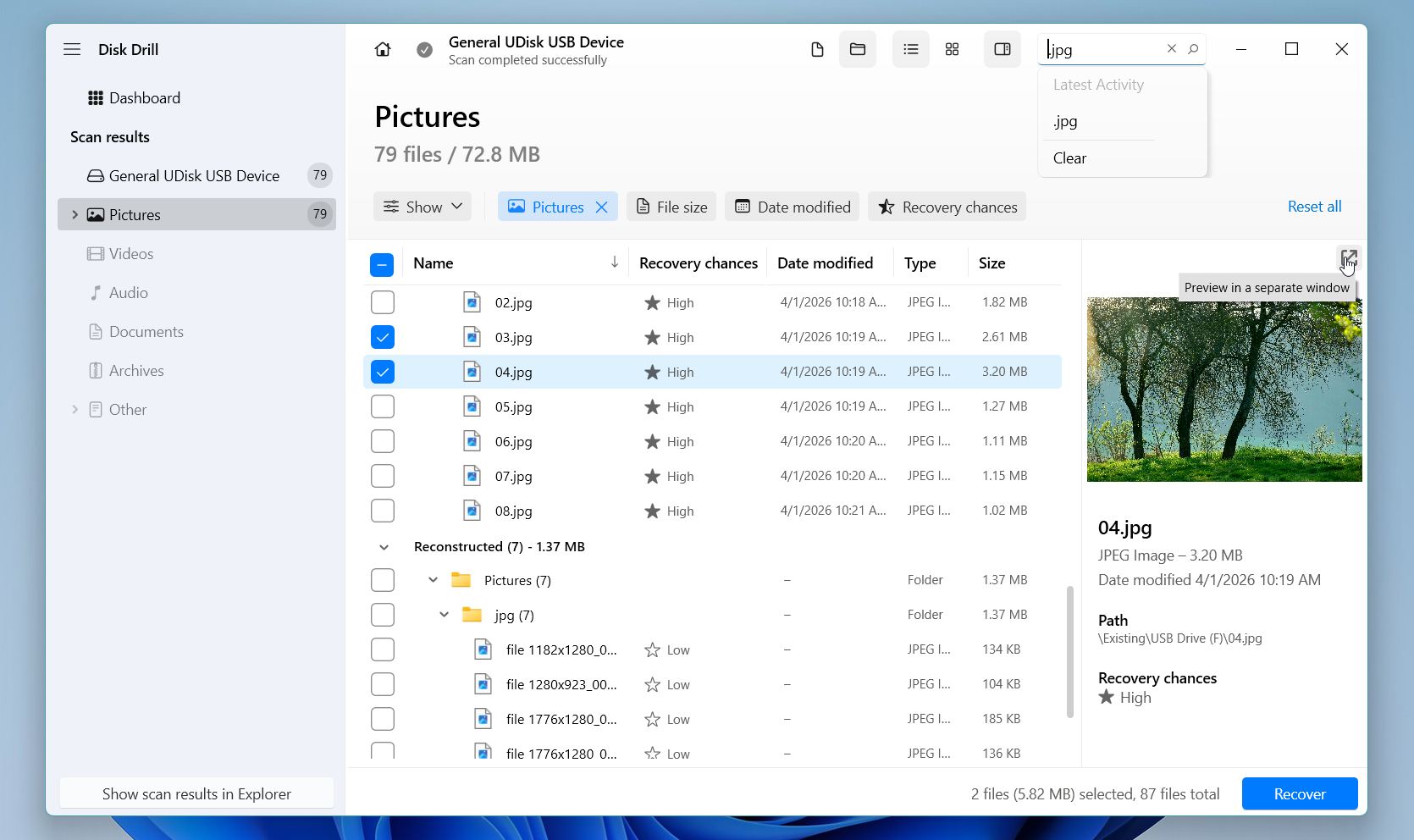
- Select everything you need, click Recover, choose a destination on a different drive, and confirm.
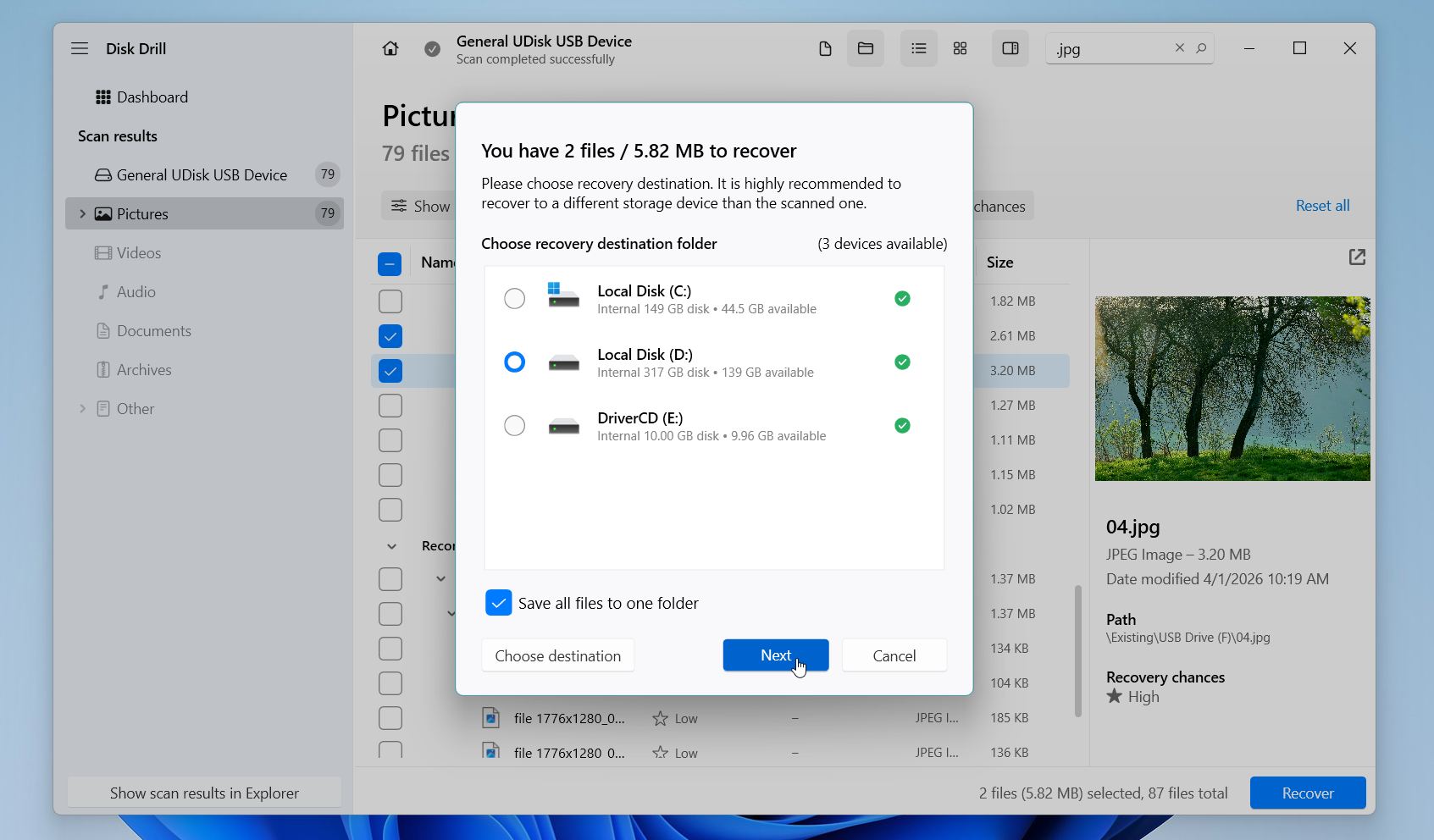
On Windows, Disk Drill allows up to 100 MB of free recovery, and file previews are unlimited regardless of plan. One more thing we strongly advise: if your SD card is freezing, disconnecting unexpectedly, or throwing read errors, create a byte-to-byte backup of the card first and run the scan on that image rather than the card itself.
Method 2: Retrieve Deleted Files SD Card using PhotoRec
PhotoRec is a free, open-source tool that we regularly recommend to users who need a capable recovery option without spending anything. Despite the name, it recovers far more than photos: documents, videos, archives, and dozens of other file types are all within its range.
It works by scanning raw data directly on the card rather than relying on the file system, which is exactly why it performs well even on heavily corrupted or formatted cards. The tradeoff is that PhotoRec is command line based and recovers files without their original names or folder structure, so it takes a little more patience to work through than a graphical tool.
Here is how we recommend using PhotoRec to recover files from an SD card:
- Download PhotoRec from the official TestDisk website and extract the archive. No installation is required.
- Connect your SD card to your computer via card reader, then launch PhotoRec as administrator.
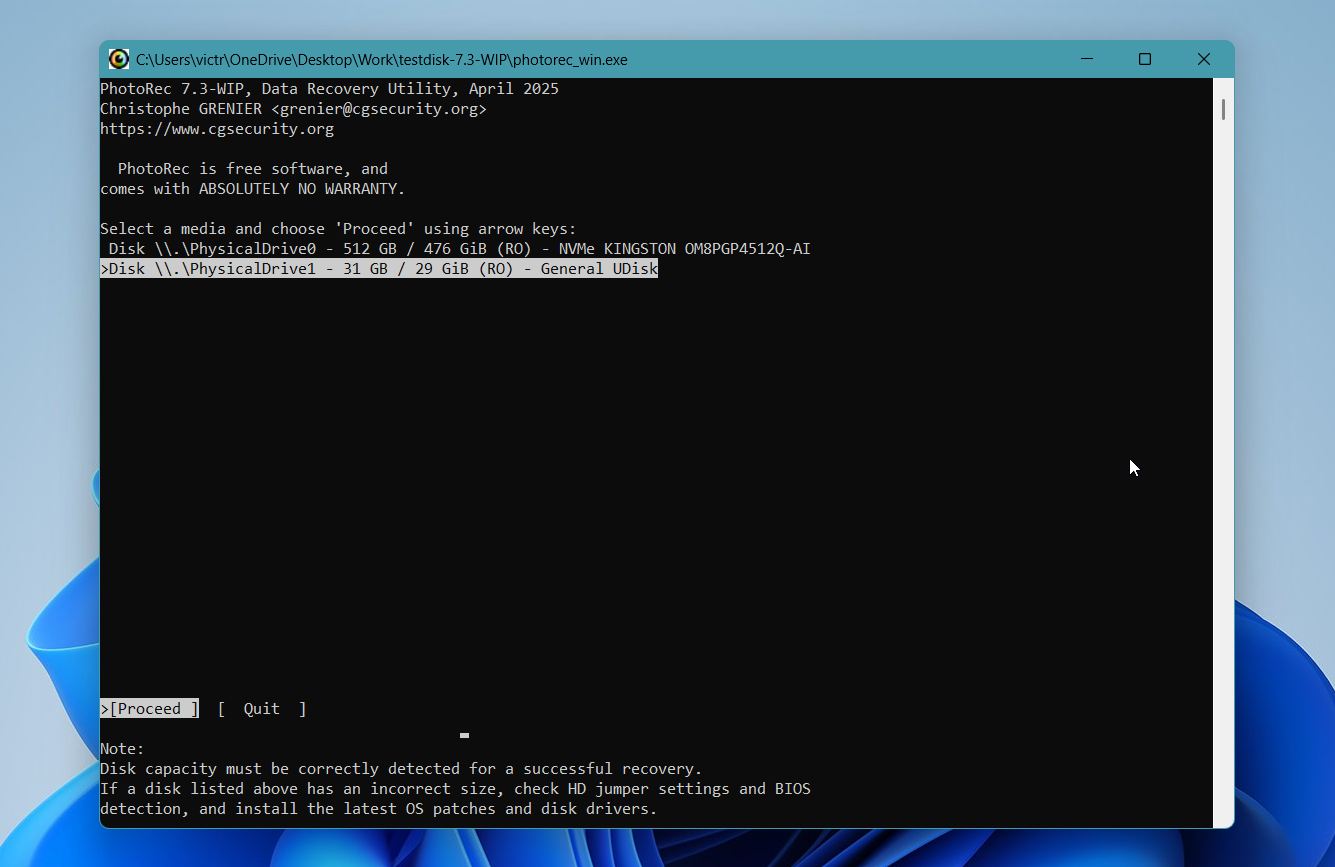
- Select your SD card from the list of detected drives and press Enter.
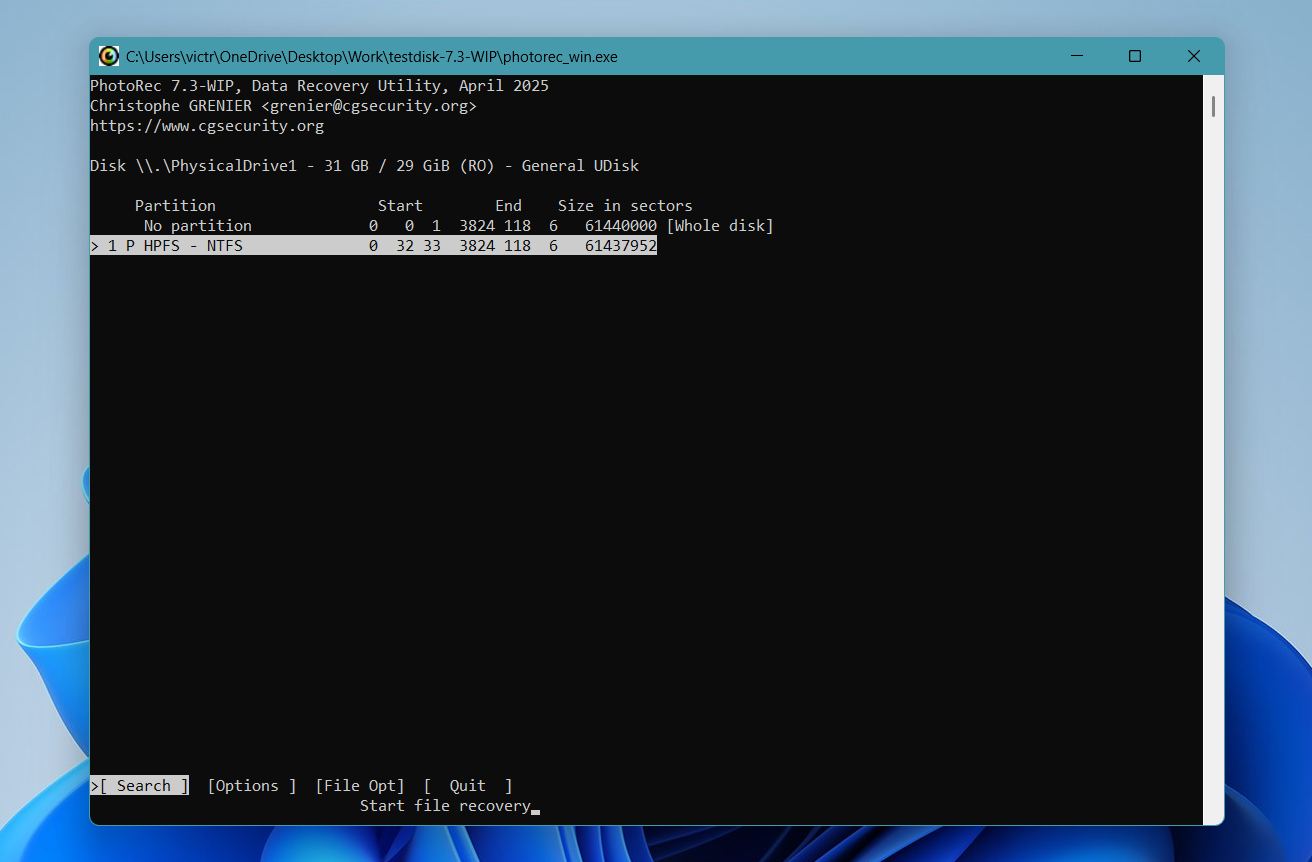
- Choose the partition you want to scan. If you are unsure, select the whole disk.
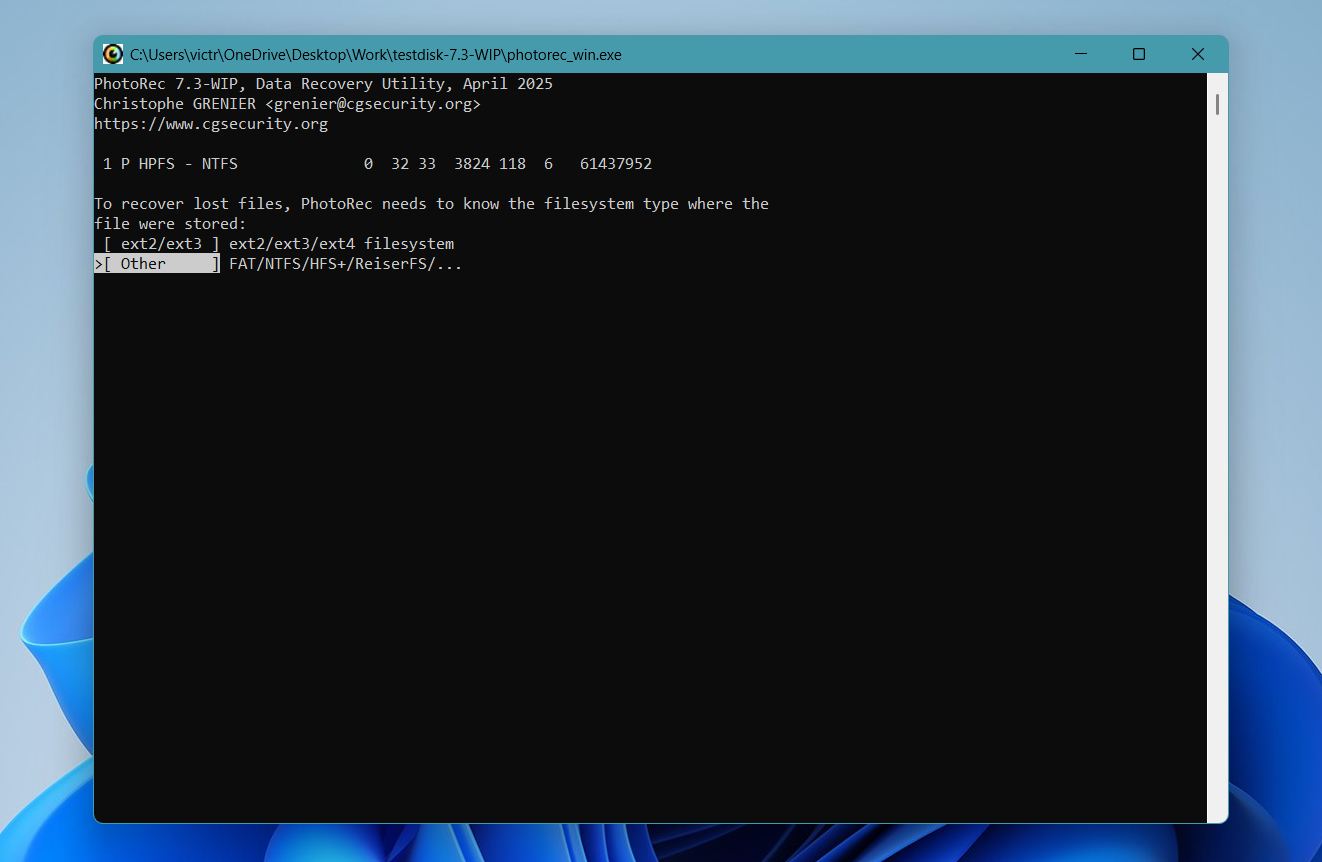
- Select the file system type. For most SD cards, choose Other.
- Choose whether to scan the full card or only the free space, then select a recovery destination folder on a different drive.
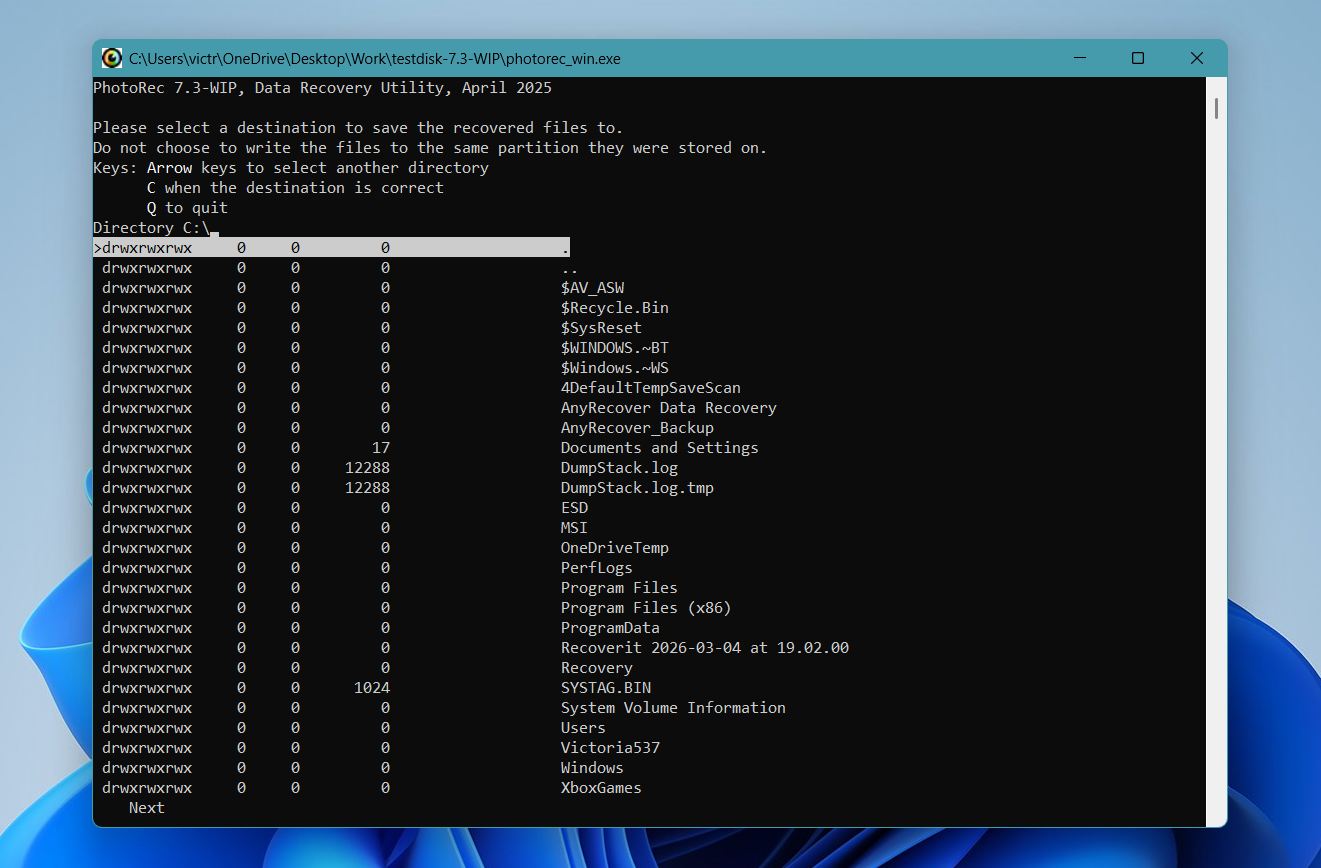
- Press C to start the scan and wait for it to complete. Recovery time depends on card size and condition.
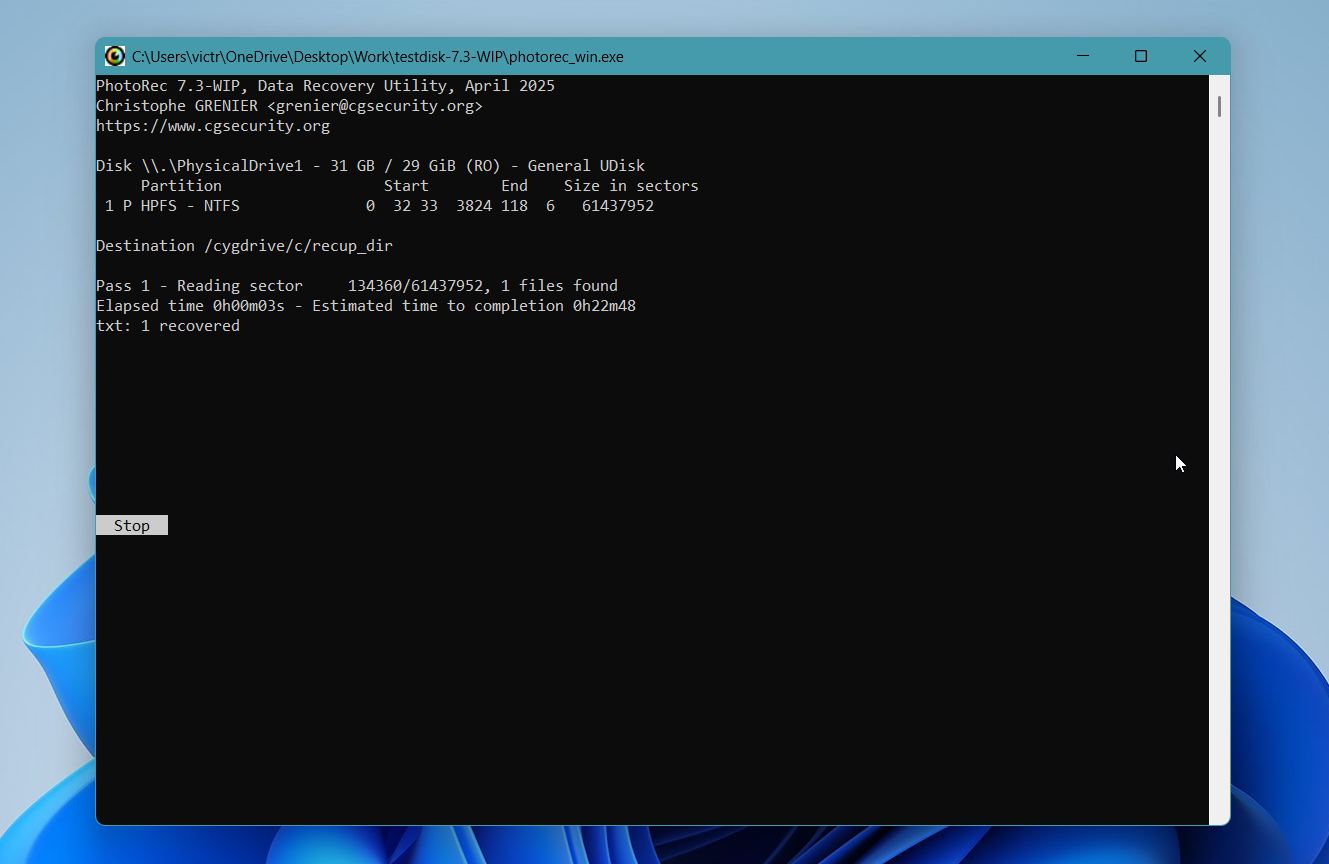
- Once finished, browse the recovered files in the destination folder. PhotoRec organizes them into subfolders by file type.
PhotoRec is completely free with no recovery limits, which sets it apart from most tools in this space. The main thing to be aware of is that recovered files come back without their original filenames, which can make sorting through the results time consuming if you had a large amount of data on the card. For photo recovery in particular, we suggest using a media viewer that shows thumbnails to make the process faster.
How to Recover Files without Computer
Apps like DiskDigger can come to your aid if you need a data recovery tool that you can run directly on your Android phone.However, we recommend that you only rely on this solution if you can’t connect your card to your computer for any reason, or if it is configured as an extension of internal storage. Android-based data recovery apps often require root access to function fully, which limits their capabilities compared to desktop data recovery solutions.
To recover deleted files from SD card on Android without PC, simply follow the steps below:
- Install DiskDigger from the Google Play Store.
- Launch the app.
- Choose the file formats that you want DiskDigger to scan and find.
- Then, tap OK to start scanning your SD card.
- Once the scan has finished, you should see all the files it scanned. Select the ones you want to recover, and tap the Recover button.
- You can choose to save your recovered files to a cloud service, to another location on your phone, or to upload your files to an FTP/SFTP server. Tap your choice to save your files.
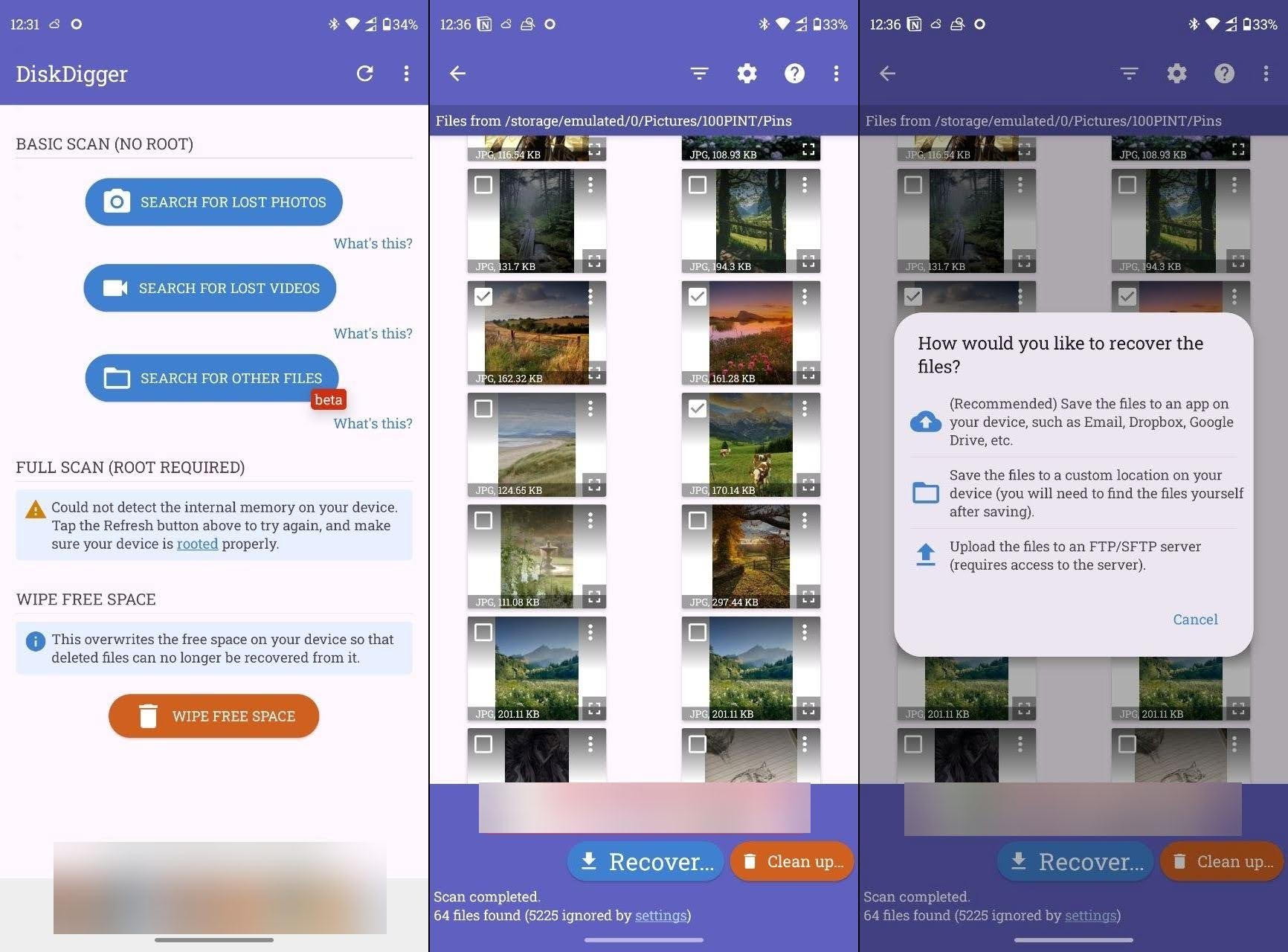
Remember that desktop data recovery software is still more powerful than this, especially for unrooted devices. For better results, the tool recommends you use the Pro version, combined with rooting your device.
Additional Tips that Might Help
It could be that the files or folders you are looking for are still there and you just missed them for some reason. Here is how to recover deleted files from SD card without software:
Tip 1: Use the Search Utility
Every digital device, including your computer, smartphone, digital camera, and tablet have the capacity to search the data in its storage. Take the time to carefully review the files that reside on your device. It is possible that you just missed the file previously or were looking for it under a different name. If you are lucky, the journey ends here with the discovery of the missing data.
You can also use the respective search functions’ advanced settings, where you can try to filter your search results by file formats, among others.
Tip 2: Enable Hidden Files to Be Displayed
Sometimes, when you connect the SD card to your computer, the OS may not be able to see the files. Perhaps they were hidden by a virus and all you need to do is to make them visible again. The specific details are dependent on your machine and operating system.
Hopefully, one of these techniques has worked and you have access to your files again. If not, move on to the next step to recover deleted data from an SD card.
On Windows:
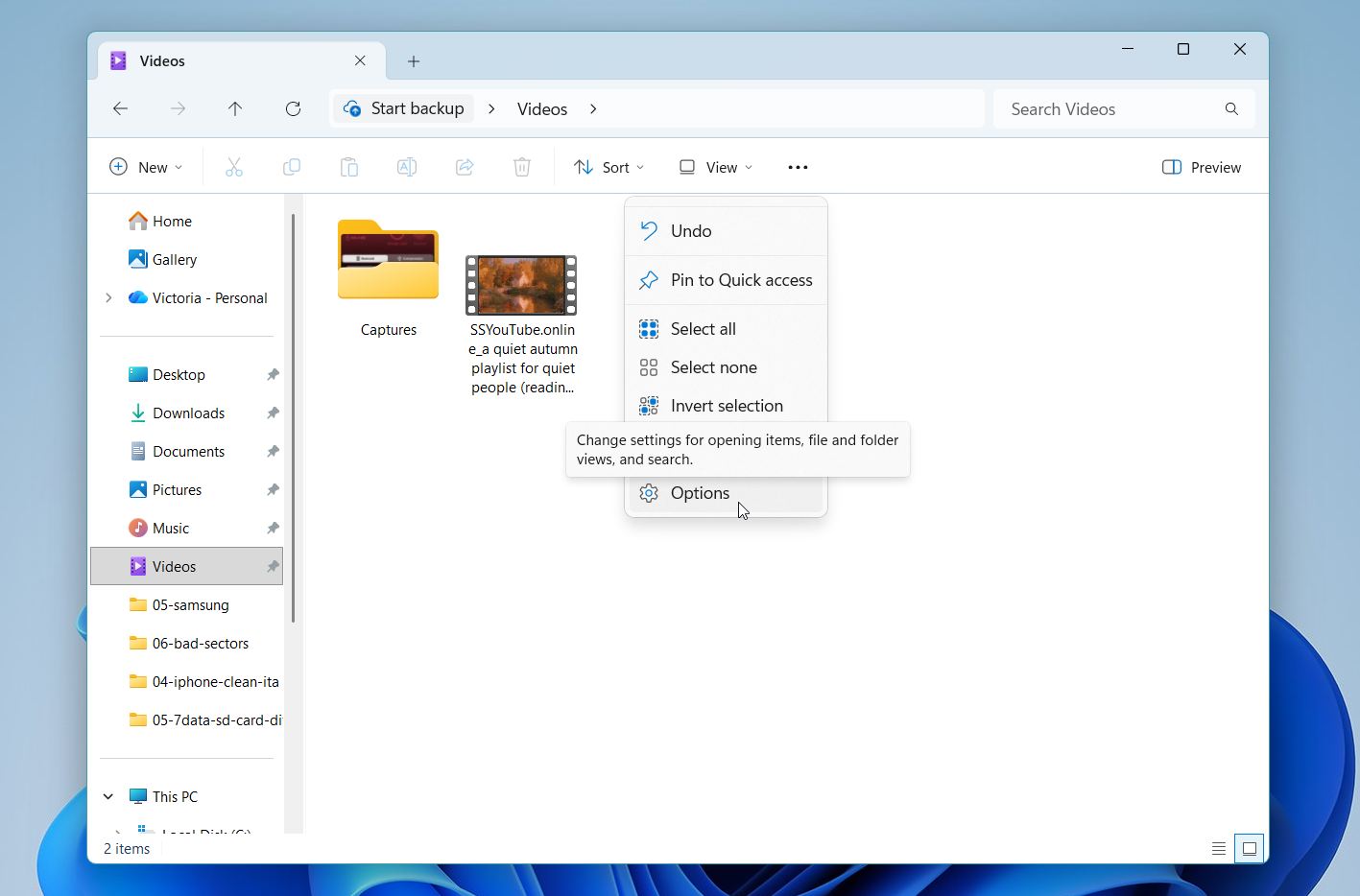
- Open File Explorer
- Go to your folder. Then, click three dots to see more.
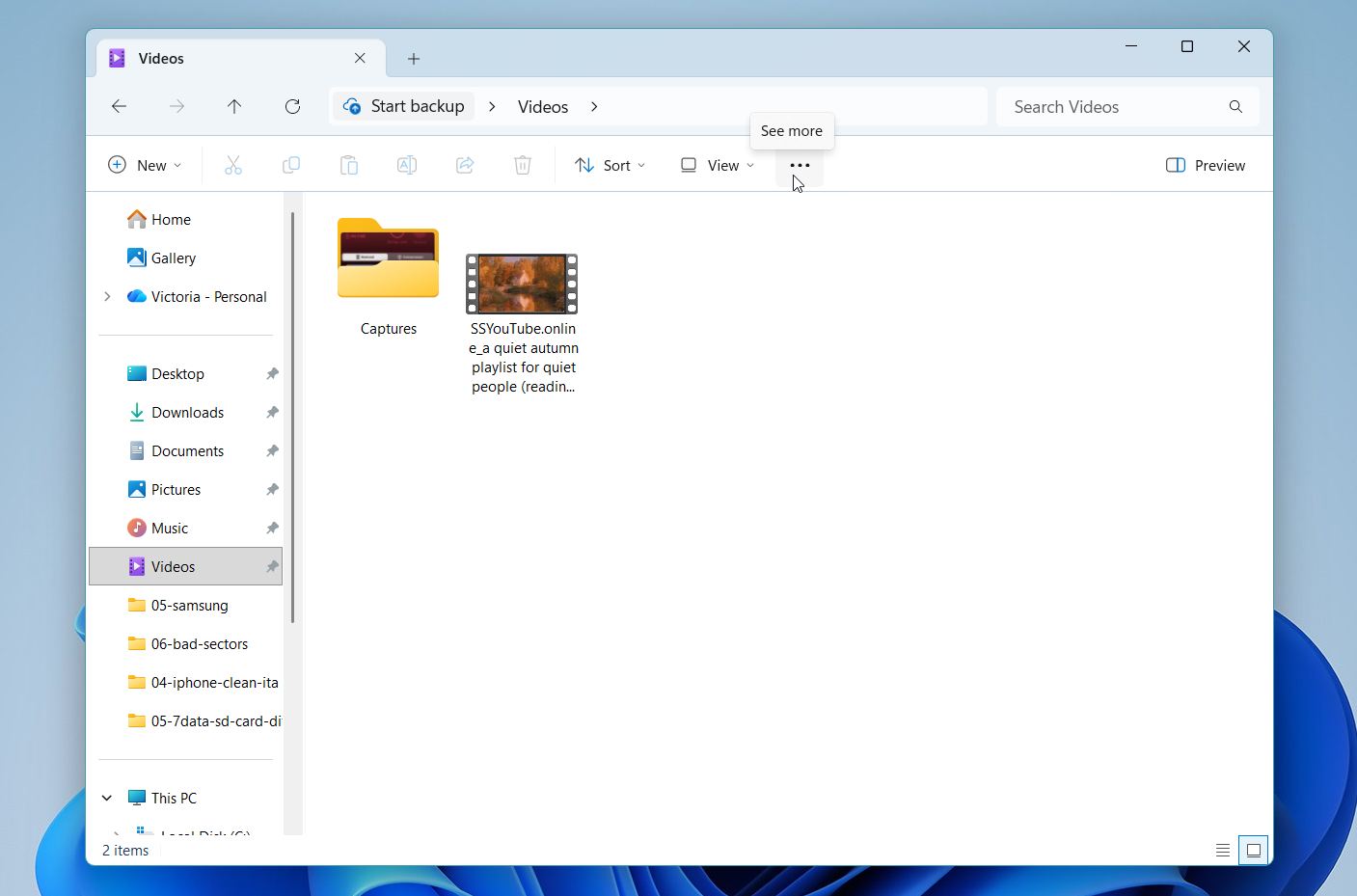
- Select Options.
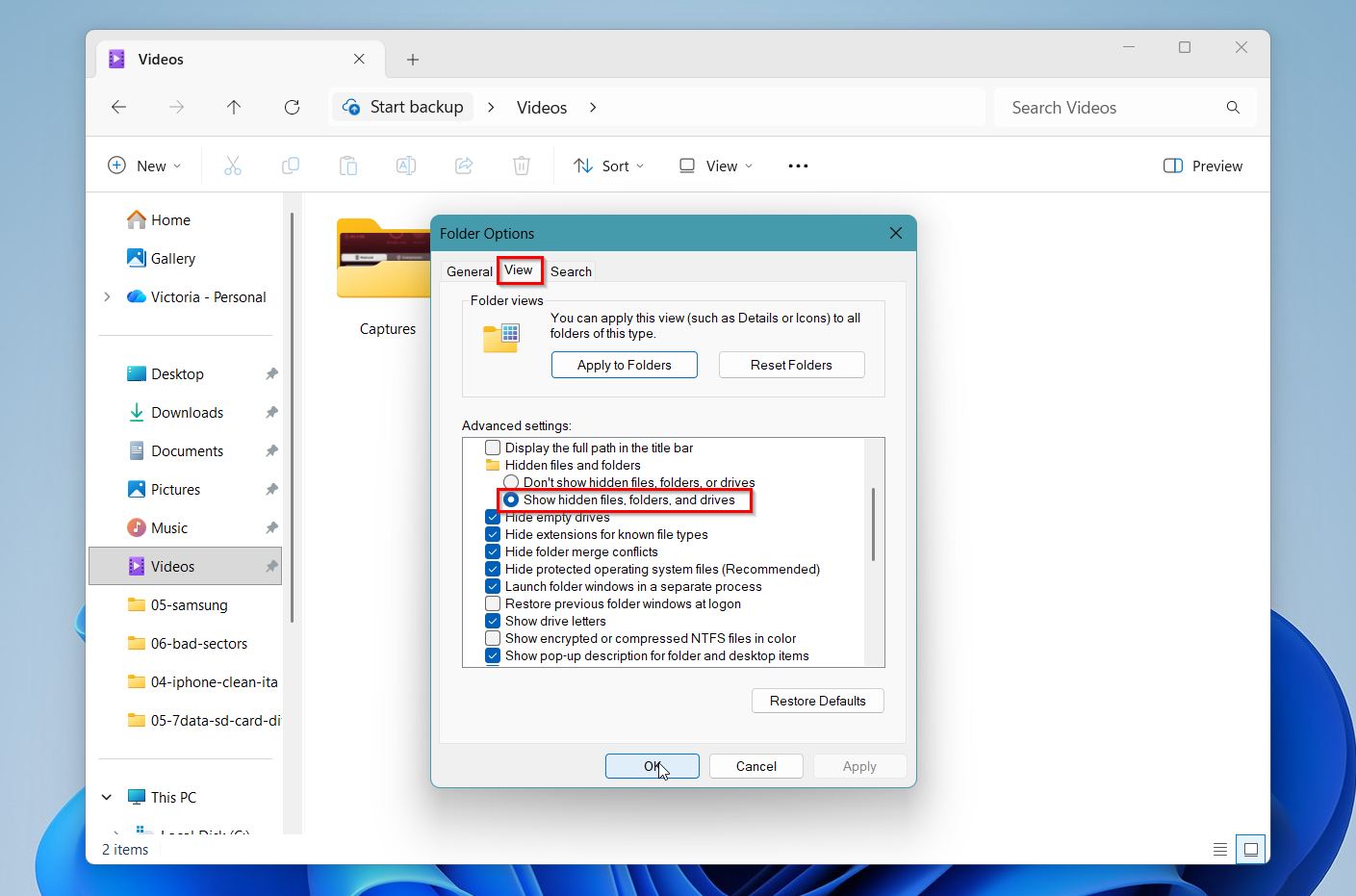
- Click View, then select Show hidden files, folders, and drives.
On Mac OS:
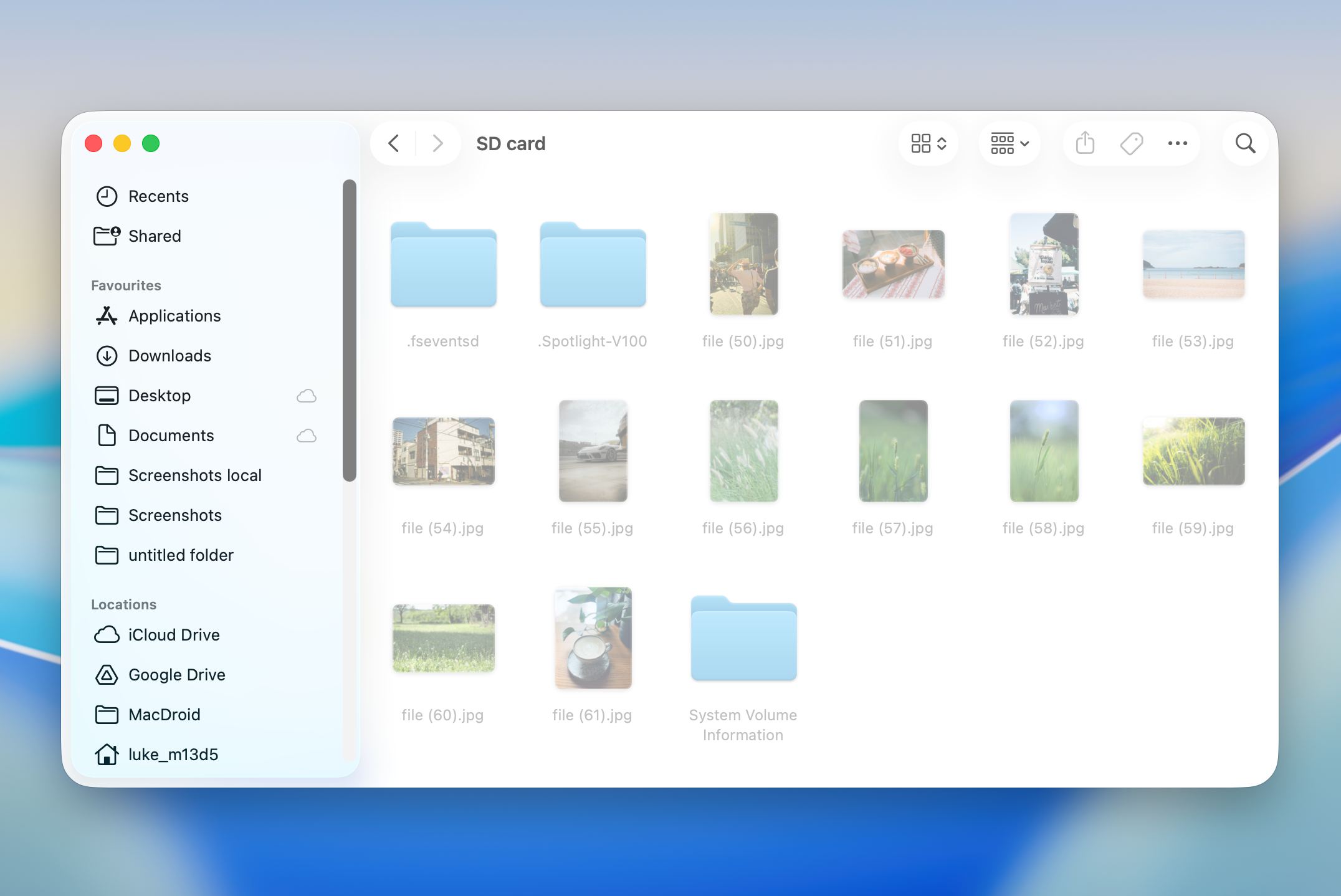
- Go to Finder and navigate to your folder.
- Press Command + Shift + . (the period key) to show hidden files in the folder.
Tip 3: Unhide Files using Command Line Tools
Some deleted files may only be caused by being accidentally hidden. Luckily, there are commands you can run to change the attributes of files on Windows or Mac OS.
Unhide files using Command Prompt (Windows):
- Connect your SD card to your computer.
- Run Command Prompt as Administrator by searching from the Start Menu.
- In the command line, navigate to your SD card by typing the drive letter of your SD card and pressing Enter.
- Type attrib -h -r -s /s /d *.* and press Enter. This command should remove hidden, read-only system attributes from all the files and folders on your SD card.
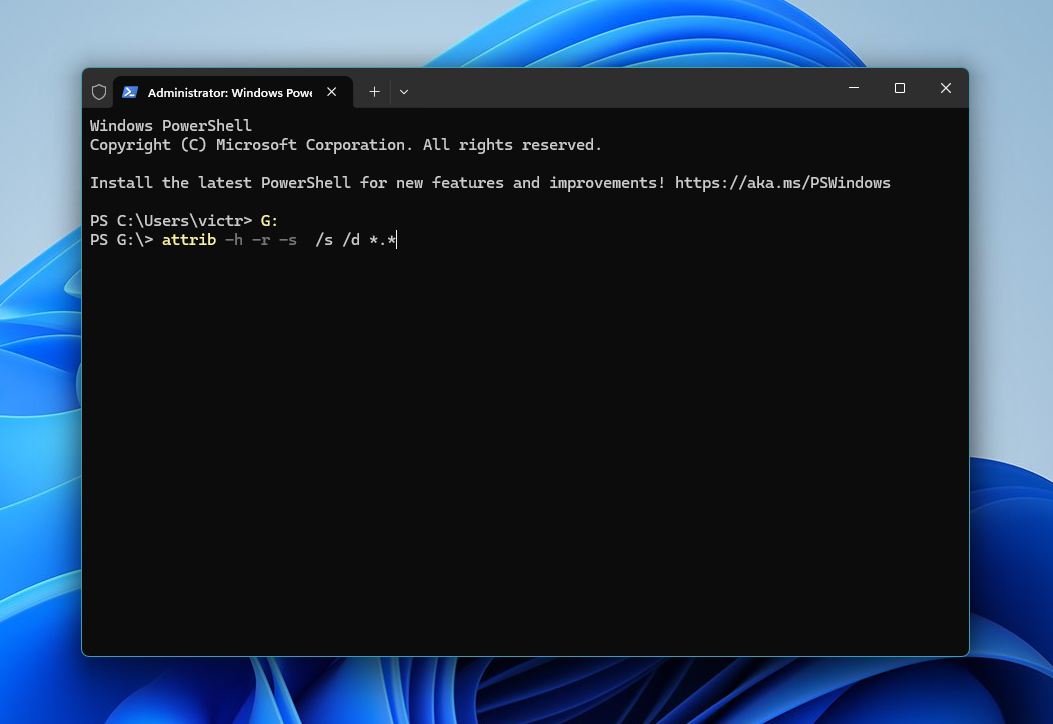
Once the process has finished, exit Command Prompt and browse through your SD card to check if your files have become accessible again.
Unhide Files Using Terminal (Mac OS):
- Connect your SD card to your Mac and open Terminal (Applications > Utilities > Terminal, or press Command + Space, type Terminal, and press Enter).
- To remove the hidden attribute from a specific file, type the following command and press Enter: chflags nohidden /Volumes/YourSDCardName/filename
- Replace YourSDCardName with your SD card name and filename with the actual file name.
- To apply this to all files on the SD card, use: chflags nohidden /Volumes/YourSDCardName/*
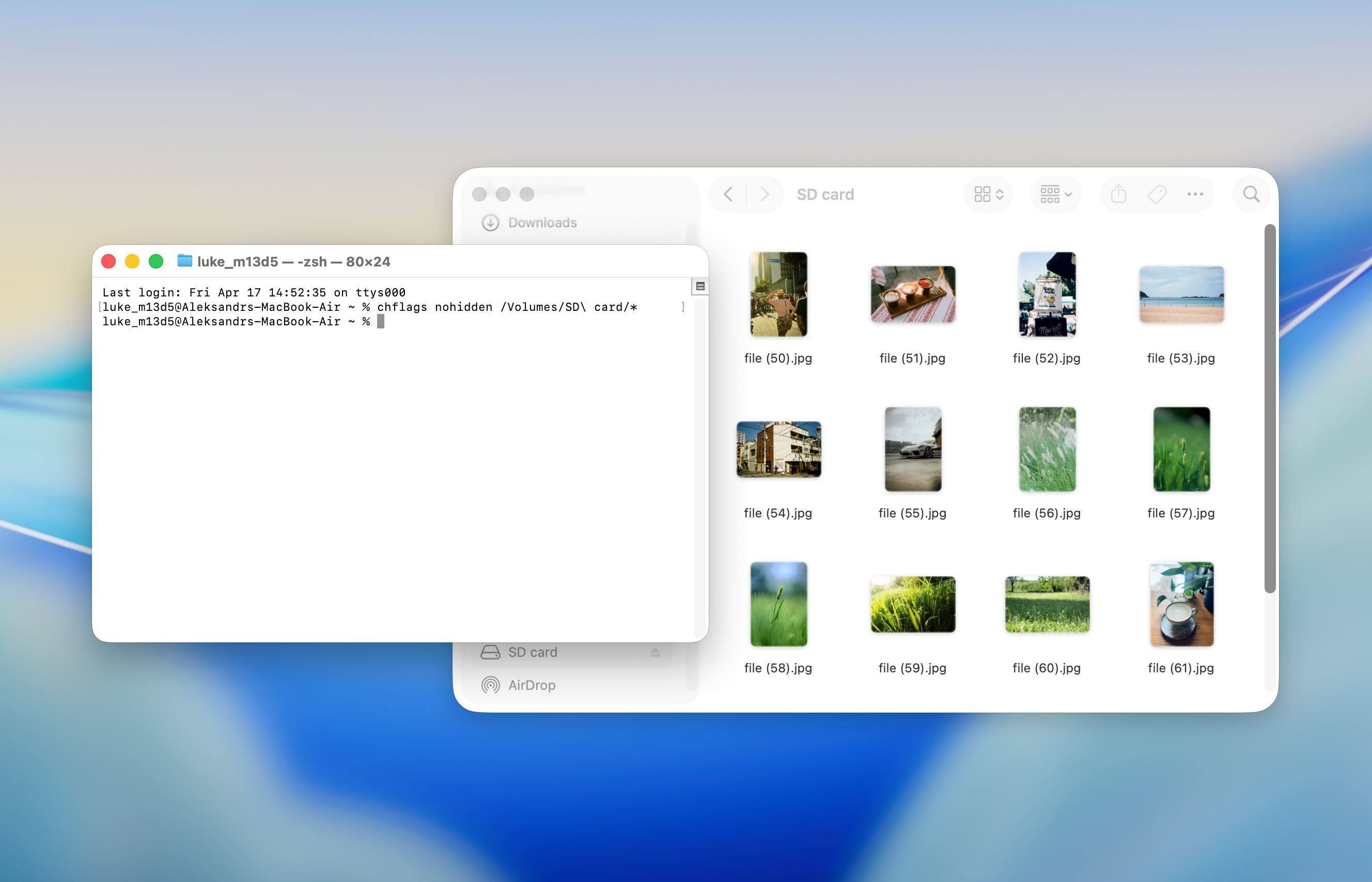
- This removes the hidden attribute and makes the files visible again in Finder.
Note that the effectiveness of this method will vary depending on your user privileges. Sometimes, you might be greeted by a message saying “permission denied”, not allowing you to successfully unhide files from your SD card.
Key Takeaways
After reviewing all recovery methods and device-specific scenarios, these are the points that matter most when dealing with SD card data loss:
- Deleted files from an SD card are often still recoverable until new data overwrites them
- The safest first step is to stop using the SD card and connect it to a computer for recovery
- Desktop tools provide better results than mobile apps due to fewer system restrictions
- Disk Drill offers an easier workflow with preview and filtering, while PhotoRec works well for deeper or corrupted cases
- Advanced scenarios like camera video recovery may require specialized scan modes for fragmented files
- If the SD card shows errors, disconnects, or freezes, creating a byte-to-byte image first helps protect remaining data
- Always recover files to a different drive, never back to the same SD card
- Free tools can handle simple cases, but more complex recovery often requires more advanced software
- Some “missing” files may still exist but are hidden or inaccessible due to file system issues, not actual deletion
I had no idea it was possible to recover files from a formatted SD card! This guide was incredibly helpful. Thanks for including multiple methods.