

 After connecting your USB flash drive to your computer, you’re met with a message that states it needs to be formatted before you can use it. This will come as a surprise, as you’ve been using the thumb drive like normal up until this point. So, what has changed and what should you do?
In this article, we’ll discuss why this message appears and how to recover data from a flash drive that needs to be formatted so you don’t have to lose everything.
Before you go any further, when the window pops up with the message that your USB drive needs to be formatted, just close it. Don’t click Format and don’t try random fixes yet. It’s better to first understand what’s going on and what your next step should be.
How to Recover Files From a Flash Drive That Needs to Be Formatted
A USB drive that says it needs to be formatted will usually still have your data on it, but you won’t be able to access it using normal methods. This is where data recovery software comes in. These tools can bypass system prompts and scan the flash drive directly to locate your files.
One of the better options for this is Disk Drill. Along with its data recovery capabilities, it also includes several additional features. In situations where a flash drive asks to be formatted, one of the most useful options is the ability to create a byte-for-byte image of the device. Since the issue may be caused by corruption, scanning the device directly isn’t recommended, so working with a copy instead helps reduce the risk.
If you’re interested, you can read more about Disk Drill’s other features in the full review.
- Connect your USB to your computer. When the message appears saying the drive needs to be formatted, click Cancel and don’t interact with the drive any further.
- Download and install Disk Drill, then open it. You’ll see a list of available storage devices.
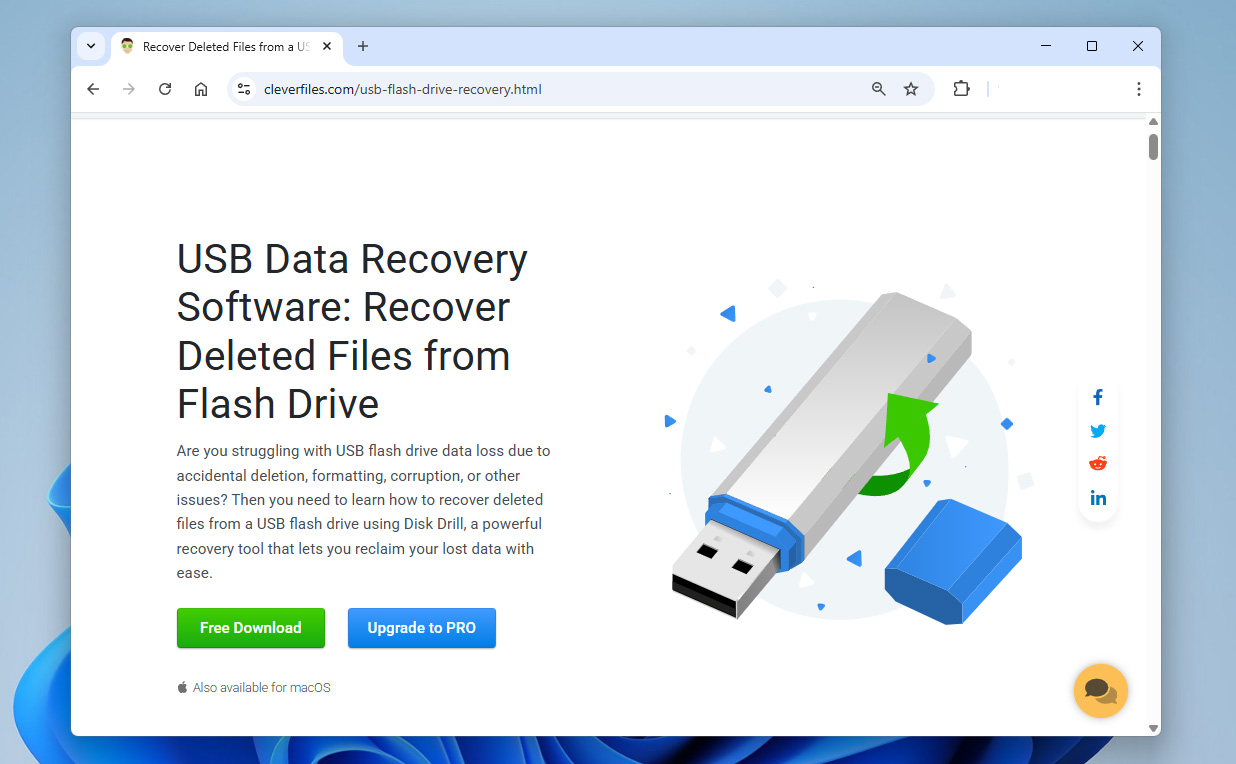
- Click Byte-to-byte Backup to open the Drive Backup feature. Select your USB flash drive from the list, then click Create backup.
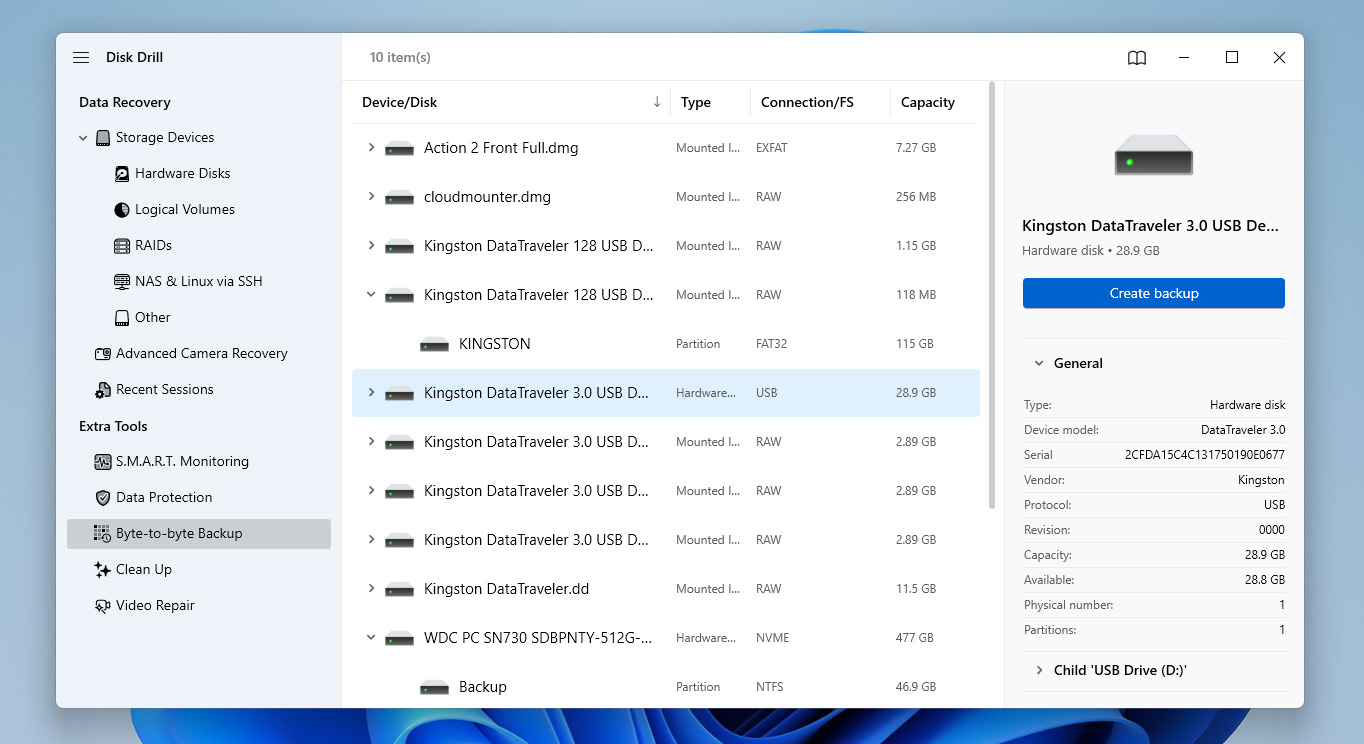
- Choose a name and location for the backup, preferably on a different drive with enough free space, then click OK. Wait until the backup process is complete before continuing.
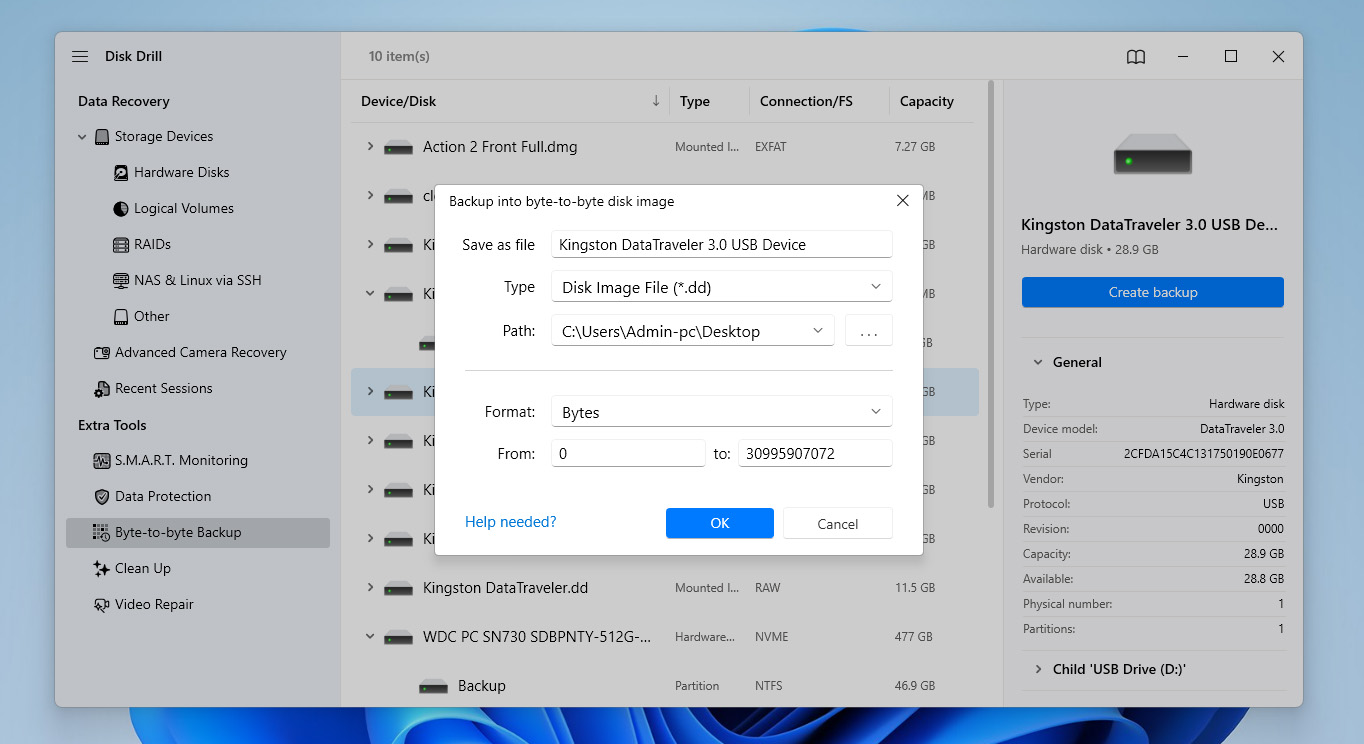
- Once the image is created, return to the Storage devices section and attach the disk image you just made.
- Select the attached disk image, then click Search for lost data to start scanning it.
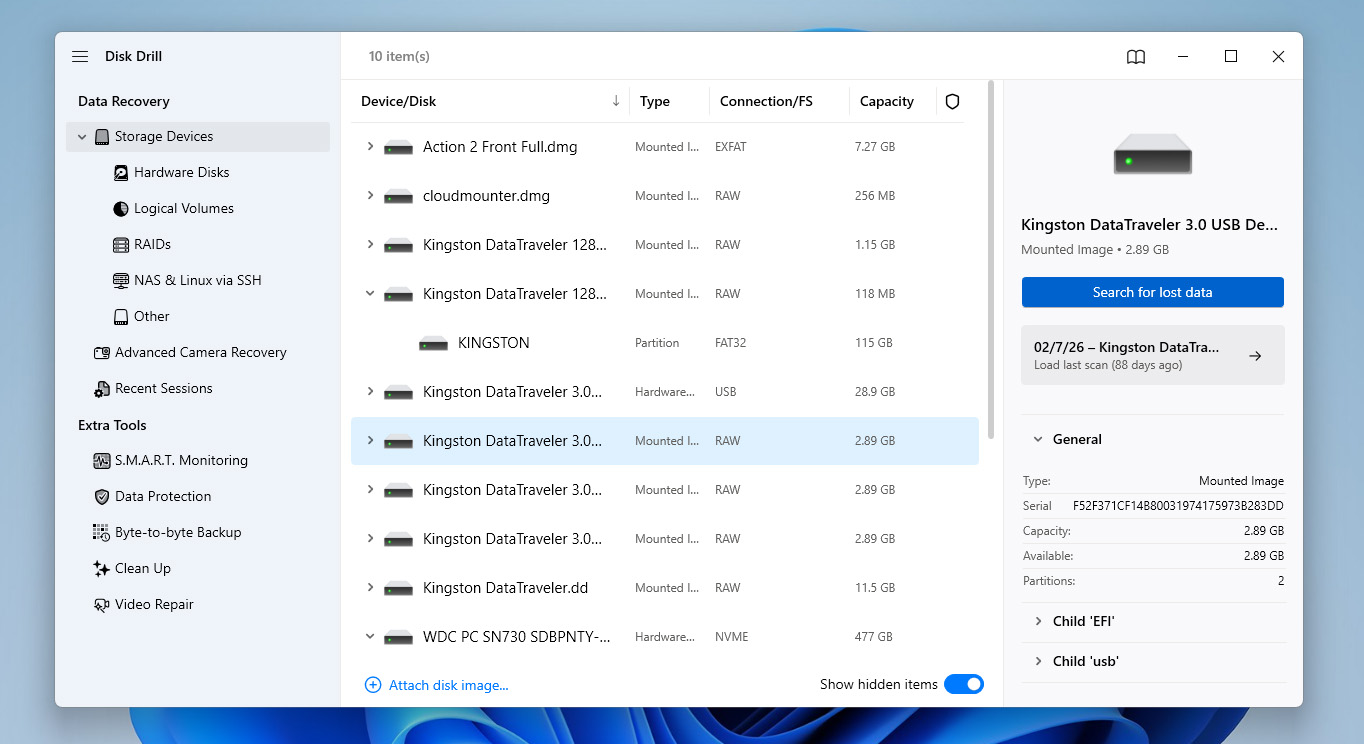
- When prompted, choose Universal Scan. If you’re trying to recover videos recorded on cameras or drones, you can also run Advanced Camera Recovery as a second scan, as it’s specifically designed for that type of footage.
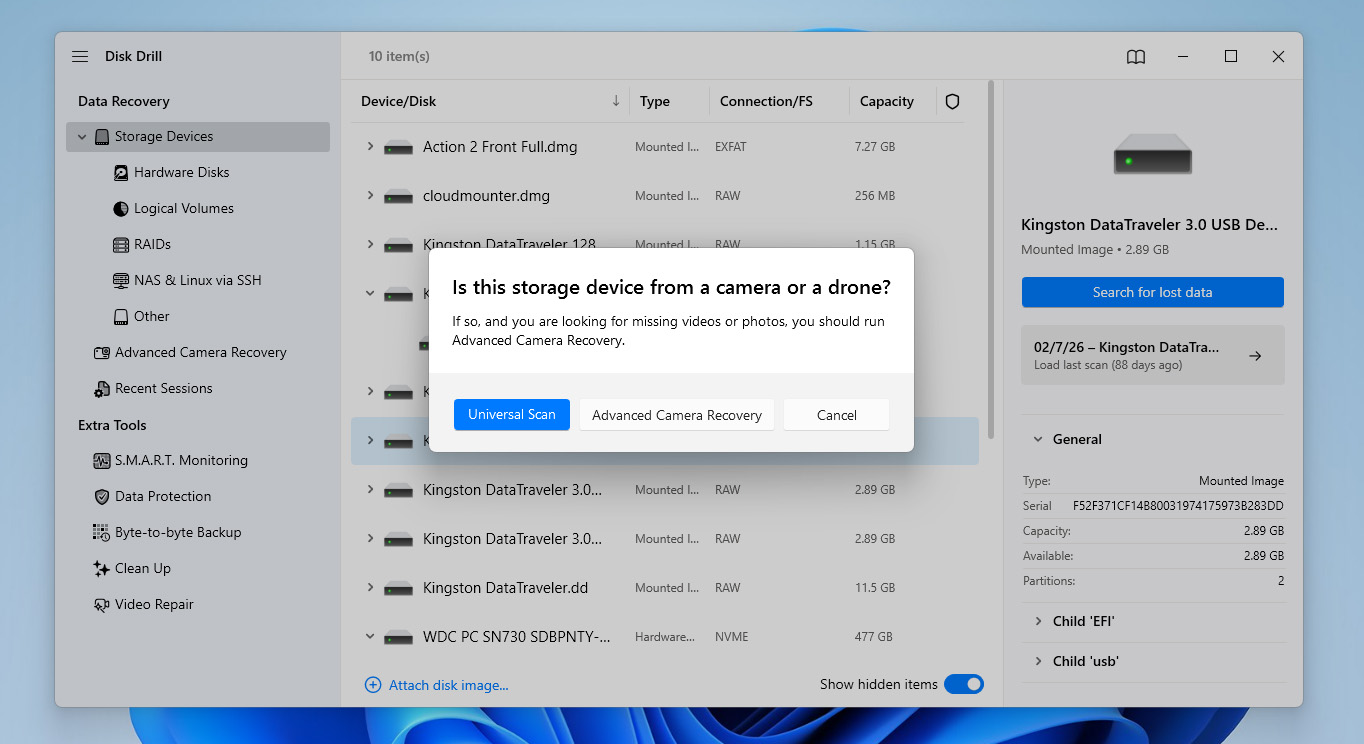
- After the scan finishes, click Review found items to go through the results. If you prefer, you can also click Recover all to restore everything in one go.
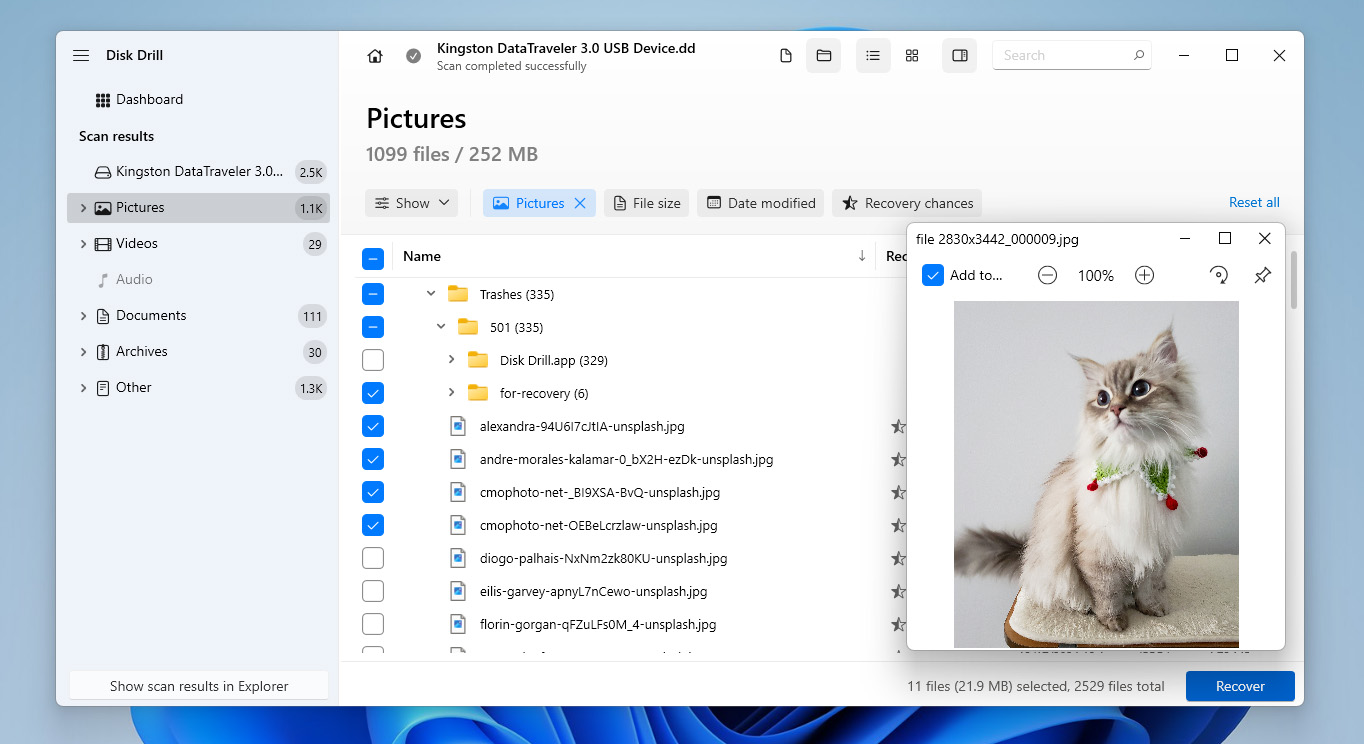
- Browse the found files and select what you want to recover. You can use filters to sort by file type and preview files to make sure they’re intact. Pay attention to the recovery chances indicator to estimate the result. When you’re ready, click Recover.
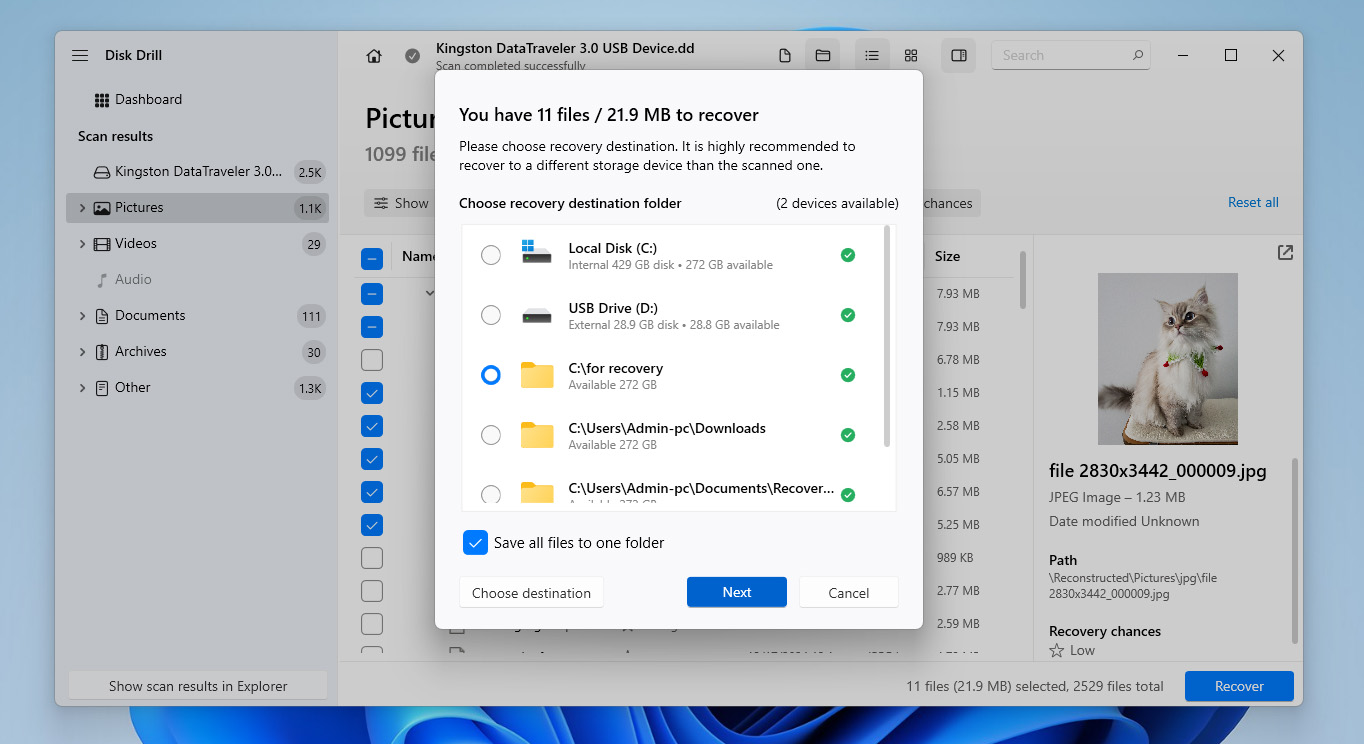
- Then choose a safe location to save the files. Click Next to complete the recovery process.
- Once the files are recovered, Disk Drill will show you the results of the recovery process and provide you with a shortcut to go straight to the folder you chose for recovery.
Already formatted your USB drive before finding this guide? If you performed a quick format and haven’t added any new files since then, there’s still a good chance you can recover your data. Just follow the recovery steps outlined in this guide.
How to Fix a Flash Drive That Says It Needs to Be Formatted
Before you move on to fixing a USB drive that says it needs to be formatted, make sure you’ve already recovered your files or at least created a disk image. Skipping this step can lead to permanent data loss. The root cause of the issue can vary, and in some cases, repairing the file system may result in the loss of some of your data.
If you start dealing with a USB that says it needs to be formatted from here, it’s strongly recommended to go back to the previous section and follow the recovery steps first.
Method 1: Run a File System Check on the USB Drive
If the reason your USB drive is asking to be formatted is minor file system corruption, the built-in CHKDSK utility may be able to fix it.
It scans the file system for logical errors and inconsistencies. If it finds any issues, it attempts to repair them by fixing damaged structures, re-linking file records, or isolating problematic sectors. In some cases, this is enough to restore access to the drive without formatting.
Keep in mind that CHKDSK fixes problems by modifying the file system. This means that some data may be removed or altered in the process.
- Press Win+S, type cmd, then right-click Command Prompt and select Run as administrator.
- Type the
chkdsk X: /fcommand, replacing X with the letter of your USB drive, and press Enter.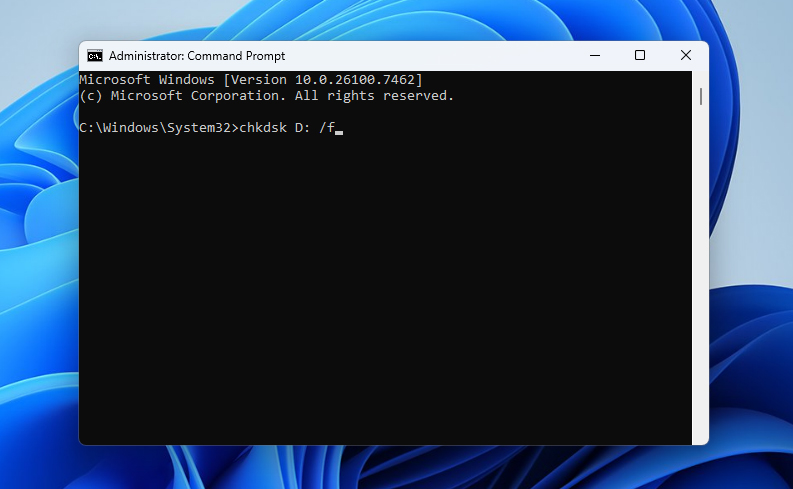
- Wait for the scan to complete. Once finished, close the Command Prompt and check if you can now access your USB drive normally.
Method 2: Repair the USB Partition to Restore Access
If the previous method didn’t help, you can try to fix a flash drive that’s asking to be formatted using a free and open-source recovery tool called TestDisk. It can do so by fixing the underlying damage that has been caused to your file system. Doing so will also restore access to your data (but we recommend recovering your data using a separate tool before using TestDisk to avoid causing further damage if something happens during the repair process).
TestDisk also lacks a graphical user interface. Instead, it uses a CMD window that guides you through each step. We’ve provided a walkthrough below, but you can also refer to the official documentation if you need something more comprehensive.
- Download and extract TestDisk. Open testdisk_win.
- Press Enter to create a new log file.
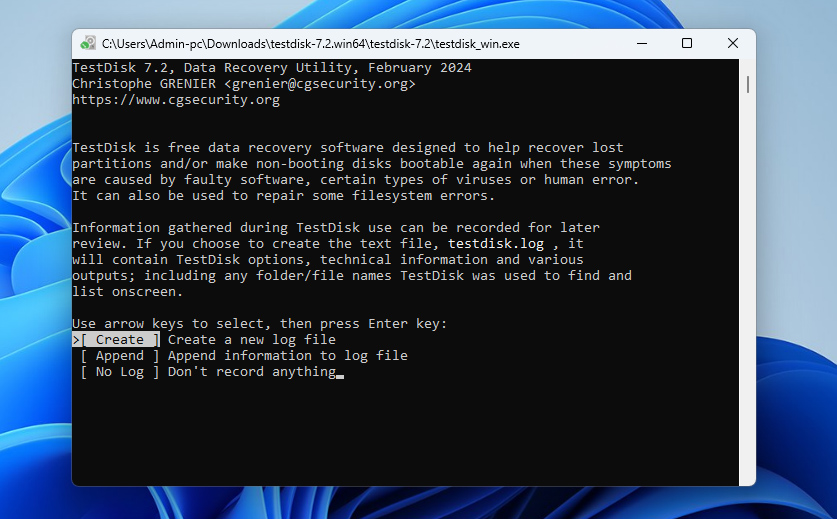
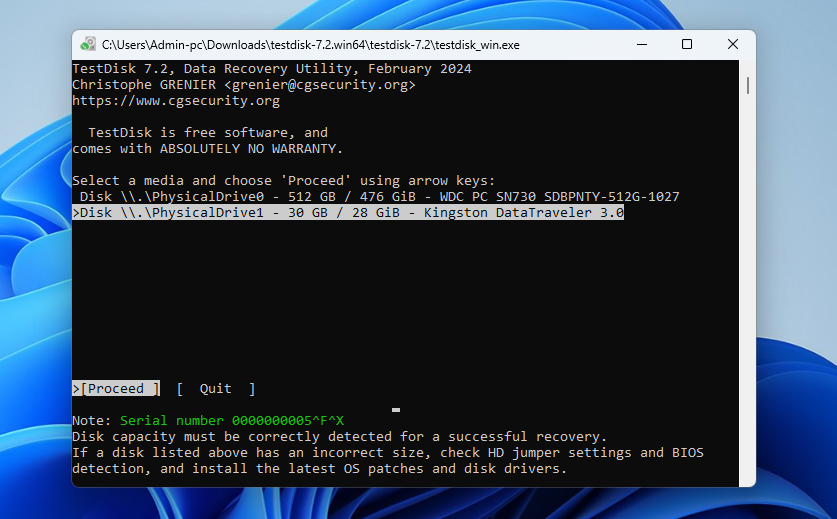
- Highlight the USB using the up and down arrow keys, then press Enter.
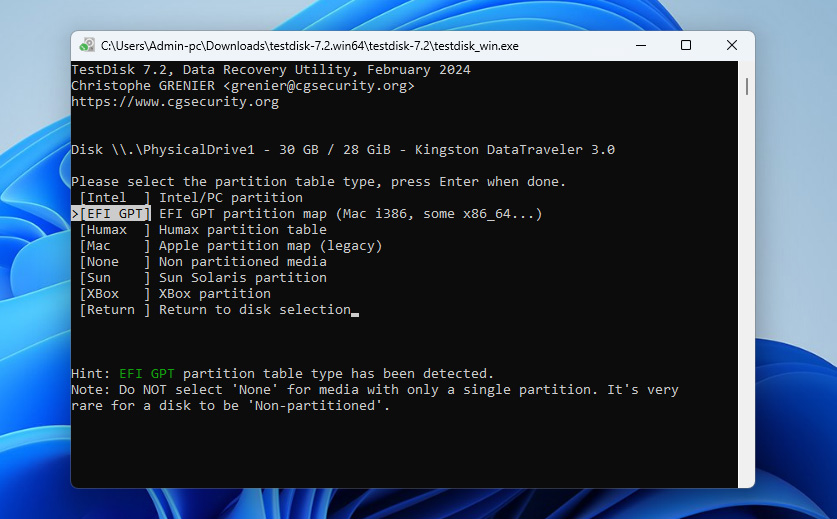
- Select the partition table type your USB drive is using then press Enter.
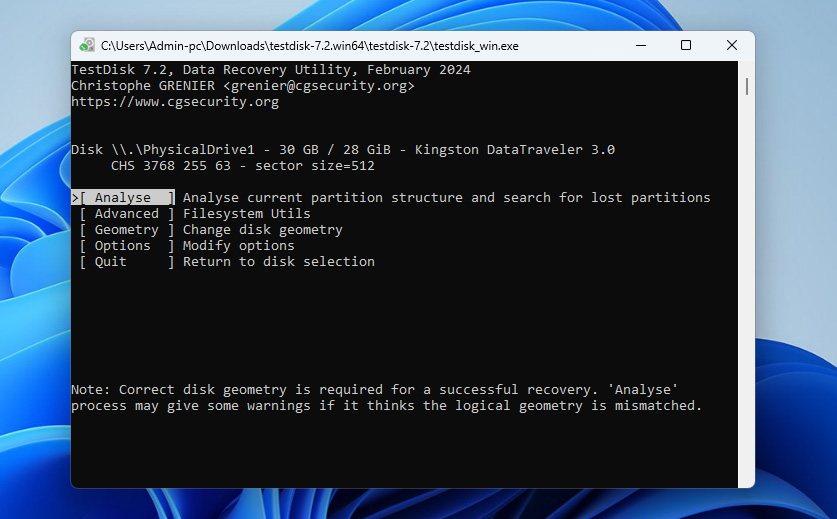
- Press Enter to analyze the current partition structure of your USB.
- Press Enter to begin the quick search.
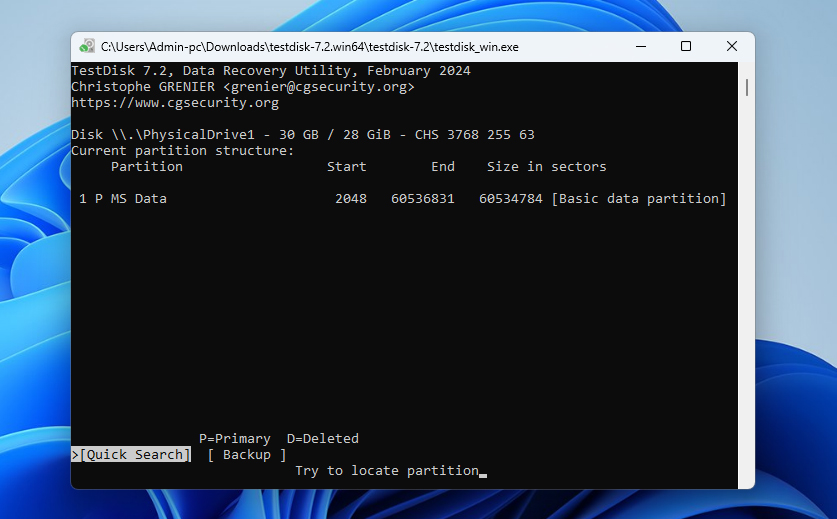
- Press Enter to continue.
- Select your lost partition. If your partition is not there, you may need to perform a deeper search. Additionally, you may need to change the characteristic from D (Deleted) to P (Primary) using the left and right arrow keys. When ready, press Enter.
- Select the Write option, then press Enter.
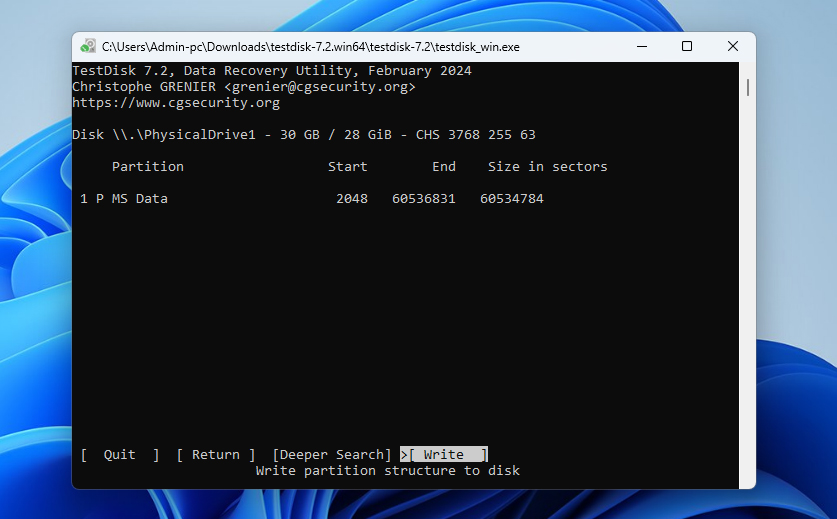
- Press Y to confirm.
Method 3: Format the USB Drive
If the previous methods didn’t give you the result you expected, or you just want the simplest way to fix a USB drive that says it needs to be formatted, you can do exactly what the system suggests – format the drive.
There are several ways to format a USB drive on Windows, but here we’ll go with one of the most common methods using Disk Management. If you want to explore other formatting options, you can check a guide to USB formatting, which covers all available methods.
- Press Win+X and select Disk Management from the list.
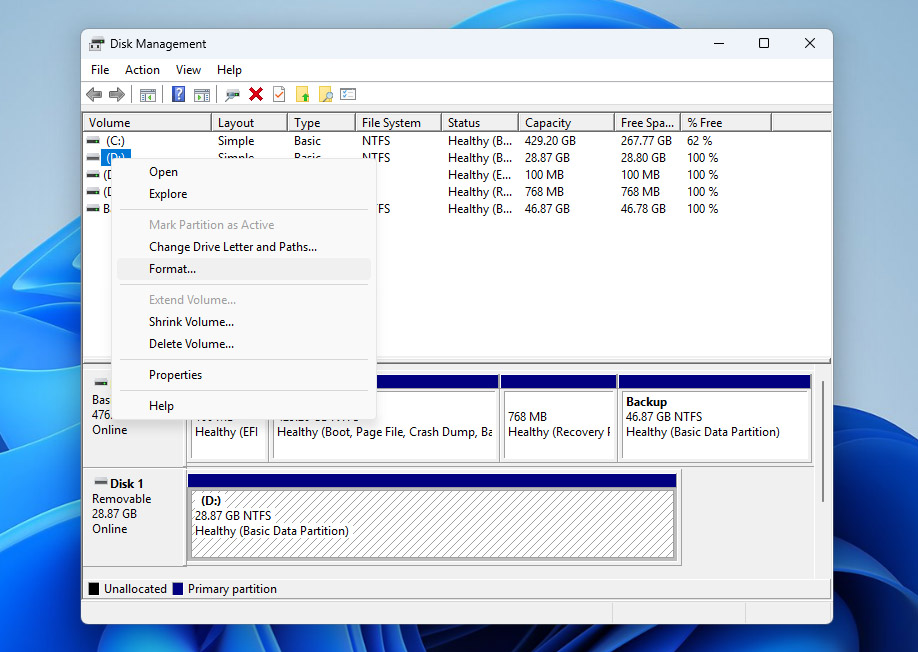
- Find your USB drive in the list of storage devices. Make sure you identify it correctly by its size.
- Right-click on the USB partition and select Format.
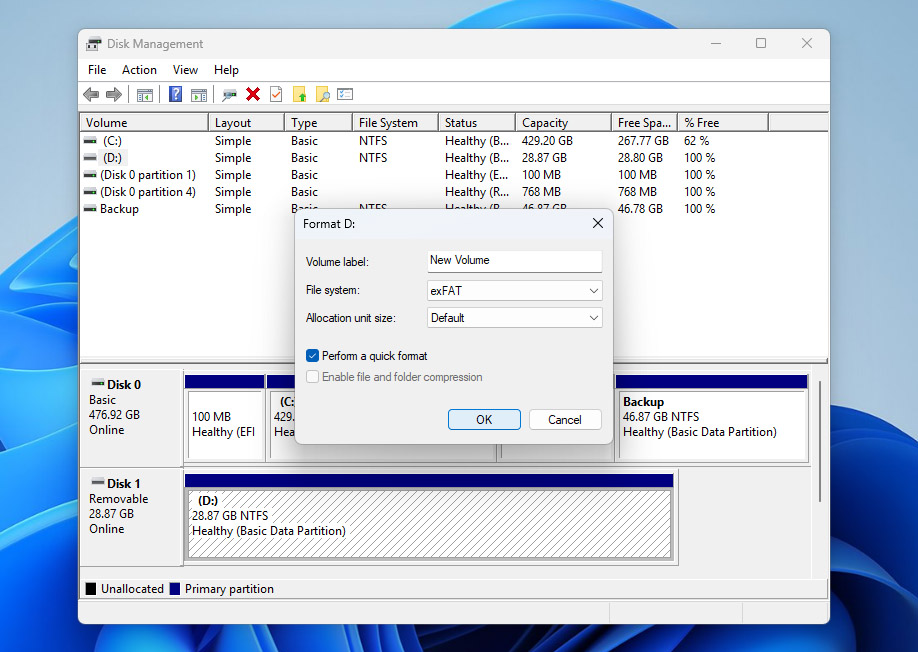
- Choose the file system (usually exFAT or NTFS), assign a volume label if needed, and make sure that Perform a quick format is checked.
- Click OK, then confirm the action when prompted.
- Wait for the process to complete. Once done, your USB drive should be accessible again and ready for use.
What Causes USB Errors and Does a Flash Drive Need to Be Formatted
This message usually appears when the file system on your flash drive becomes corrupted or damaged to the point where your system can no longer read it. As a result, Windows suggests formatting the USB to restore access.
Now that you’ve dealt with the issue, it makes sense to look at what may have caused it and how to avoid running into the same problem again:
| Issue | Description | How to Prevent It |
| 📁 File system corruption | If the file system on your USB becomes corrupted, Windows will no longer be able to read it properly and may suggest formatting. | Always eject the USB safely and avoid disconnecting it while files are being copied or accessed. |
| ❌ Compatibility issue | If the USB uses a file system that isn’t supported by your operating system, it may appear unreadable and trigger a format prompt. | Use widely supported file systems like exFAT when working across different devices and operating systems. |
| 💥 Physical damage | Damage to internal components can cause unstable behavior, including errors like the format request. | Store the USB properly and avoid physical stress, moisture, or extreme temperatures. |
| 🗃️ Missing file system | If the drive doesn’t have a valid file system, the system will prompt you to format it before use. | Make sure the formatting process completes properly and avoid interrupting it. |
After going through this guide, it should be clear that formatting isn’t always necessary. The priority is to take care of the data stored on the USB drive and recover it first. Only after that should you try different fixes to restore the drive itself. If one of them works, you can avoid formatting altogether. That said, in some cases formatting is still required (if none of the repair methods resolve the issue).
Conclusion
Now you know how to deal with a USB drive asking to be formatted, what may have caused it, and how to reduce the chances of it happening again.
To sum it up, your first priority should always be your data. Recover it using a tool like Disk Drill, or at least create a byte-to-byte image of the drive before doing anything else. Once your files are safe, you can try to fix the flash drive without formatting using the available tools. If that doesn’t work, formatting the drive is always an option, and sometimes the only one left.
If you still have questions about this topic, feel free to visit our forum. You’ll find existing discussions around similar USB issues, or you can start your own and get input from both experienced users and others who have dealt with the same problem.
FAQ:
- Connect your device to another computer to see if the issue is isolated.
- Scan for potential virus/malware infections.
- Use the CHKDSK utility on Windows by opening CMD as an Administrator and entering “chkdsk N: /r /x,” where N is the letter of your USB drive.
- Use data recovery software to recover files if necessary. Then, format the drive.
- The USB drive is new
- The USB drive has file system errors that can’t be fixed by other tools
- You need to change the file system of your storage device
- The USB drive is infected with a virus/malware, and antivirus tools did not resolve the issue