Dropped your hard drive, now it won’t turn on? Or maybe it just powered off one day, then never came back on. When a hard drive dies, it stops responding to anything. Therefore, your first thought is about your data and how to get it back.
Your chances of recoverability depend on whether the drive is actually well and truly dead. In many cases, you can recover data from a dead hard drive because it’s not actually dead, and just appeared so.
Our team deals with data recovery on a daily basis, and that includes dead hard drives. We’ve put together this guide to help you diagnose the state of your hard drive, and if it’s not completely dead, recover data from it.
Is Your Drive Truly Dead? Know the Symptoms
Before any attempt at dead HDD recovery, it’s important to determine exactly what we’re dealing with. More specifically, look at what problem we’re dealing with, and whether it’s a symptom of a dead hard drive or something else. We’ve categorized the most common instances of dead hard drives being mentioned on the internet, along with what your most recommended steps are:
| Category | Symptoms | Next Steps |
| Logical failure |
|
These are software-level issues, usually related to file system corruption. Recovery software can scan the drive and recover data. Be sure to also check for faulty cables, ports, or enclosures. |
| Mechanical failure |
|
Seeing as these are signs of physical failure, usually a read/write head or motor damage, power down the drive immediately. DIY recovery is not recommended, and you should contact a data recovery professional. |
| Complete failure |
|
Complete failure cannot be dealt with at home. Professional recovery is required. |
In any case, it’s also worth taking a close look at any cables, ports, and enclosures used to access the drive. The next section will focus on your options for recovery.
How to Retrieve Data from a Dead Hard Drive
Depending on your symptoms, you have two recovery options for how to get data off a broken hard drive. If the drive is visible in Disk Management with the correct capacity, and there are no strange clicking or grinding noises, using recovery software is the way to go. But if the drive isn’t appearing, or it’s reporting the incorrect size, professional recovery will be required to avoid further damage.
Method 1: Data Recovery Software
If your drive is just appearing as dead due to other issues, you can recover the data from it using Disk Drill, a professional data recovery tool. Disk Drill can recover data from hard drives, SD cards, USB drives, and more that aren’t recognized by Explorer, showing as RAW, or appearing as unallocated space. It includes the built-in ability to create byte-to-byte backup images, which is especially useful for unstable disks like this, as you can recover data from the image without stressing the drive itself.
Follow the steps to performdead hard drive recovery with Disk Drill:
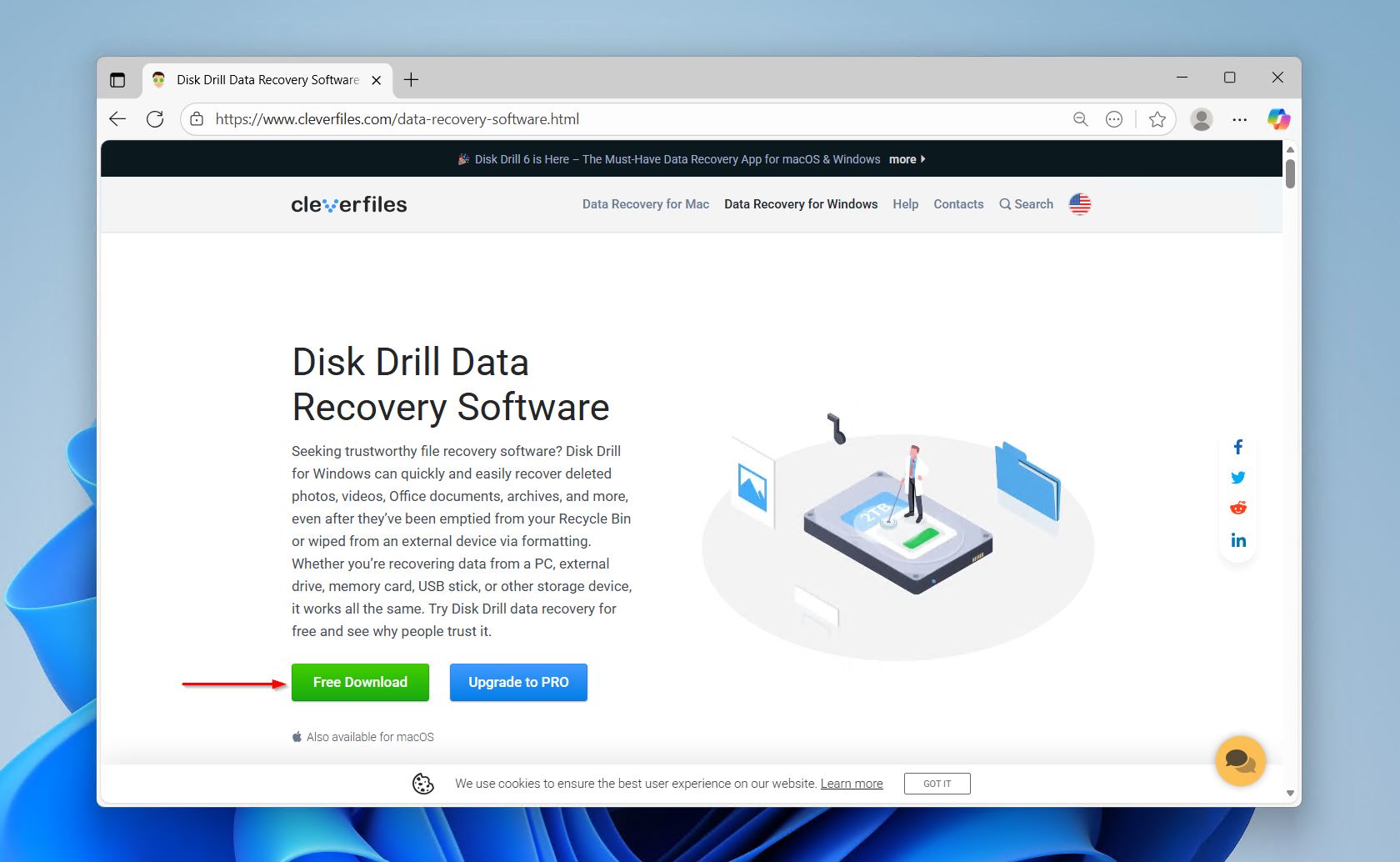
- Download Disk Drill. Install it and open it.
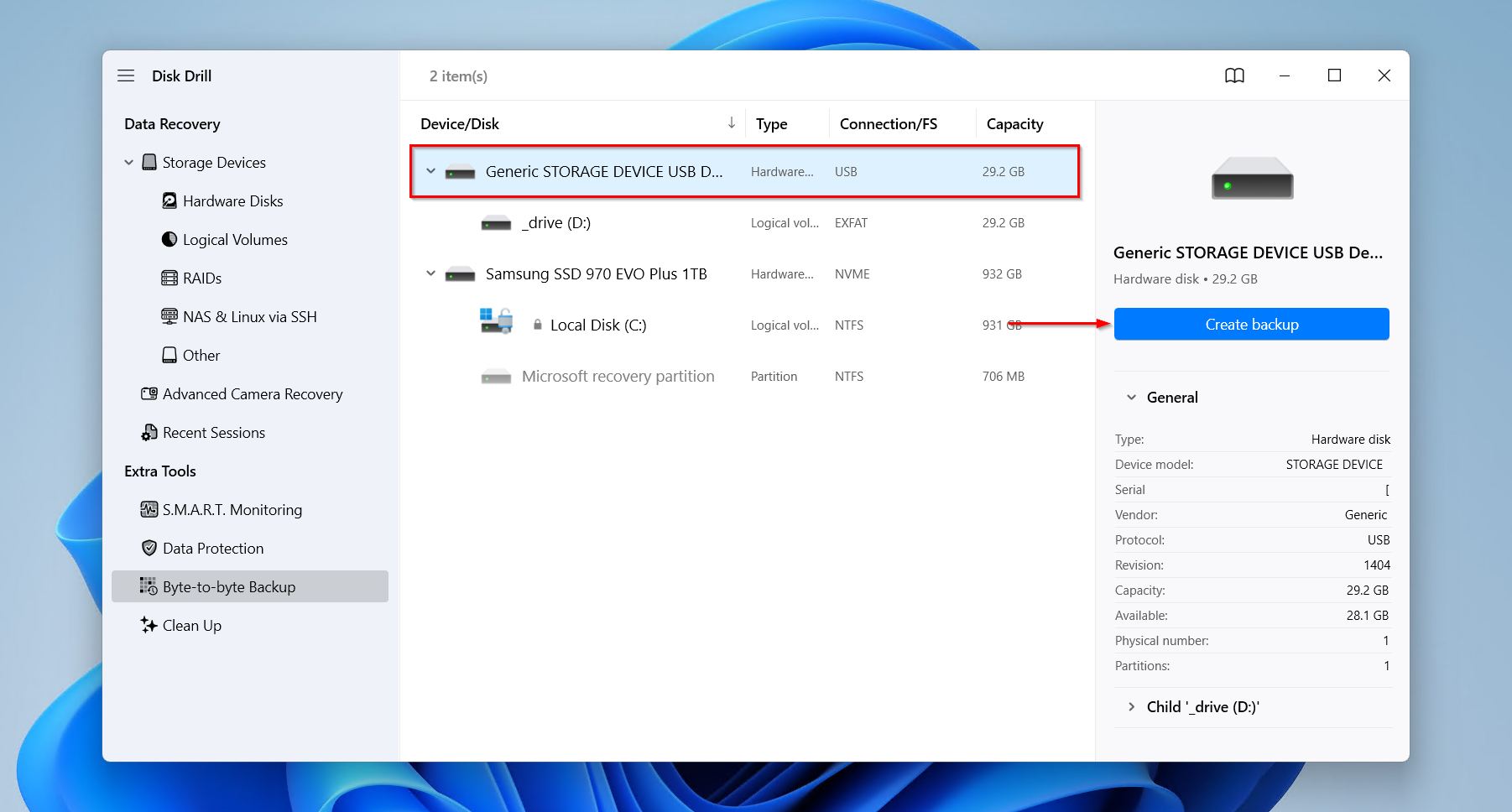
- Click Byte-to-byte Backup.
- Select the drive for dead hard disk recovery, then click Create backup.
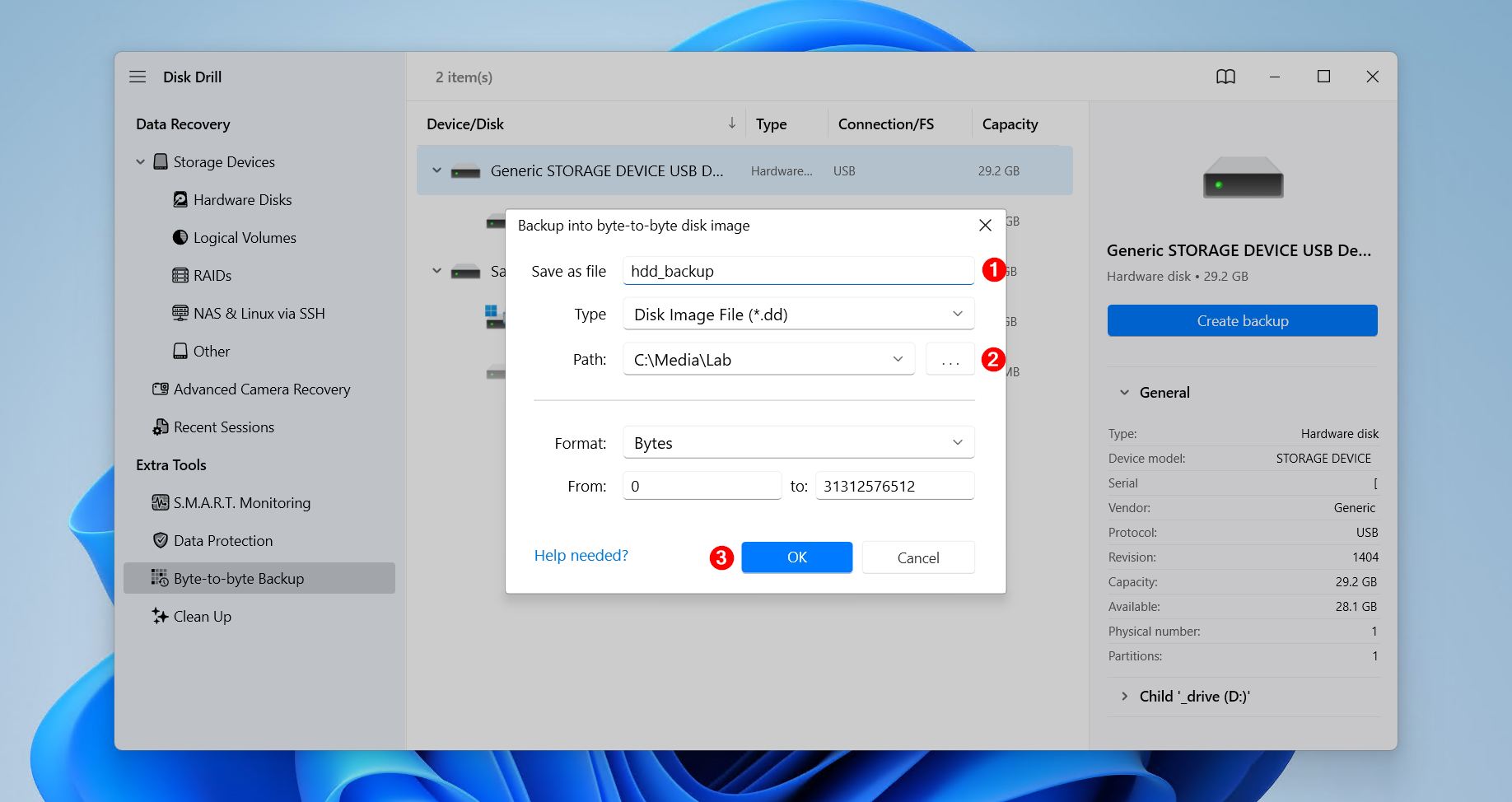
- Give the backup image a name, specify where it will be stored, then click OK.
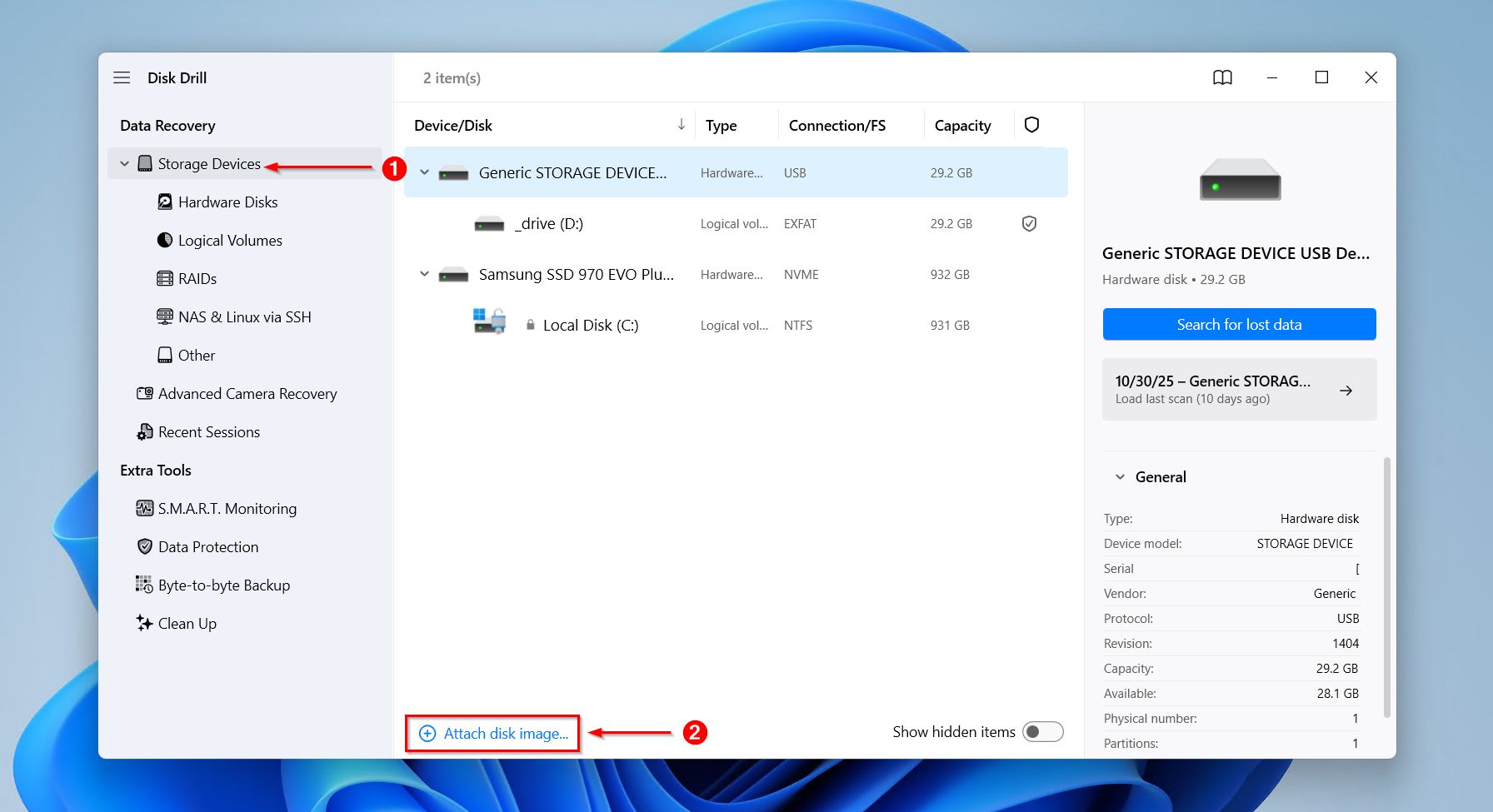
- Return to the Storage Devices section, then add the image we just created by clicking Attach disk image.
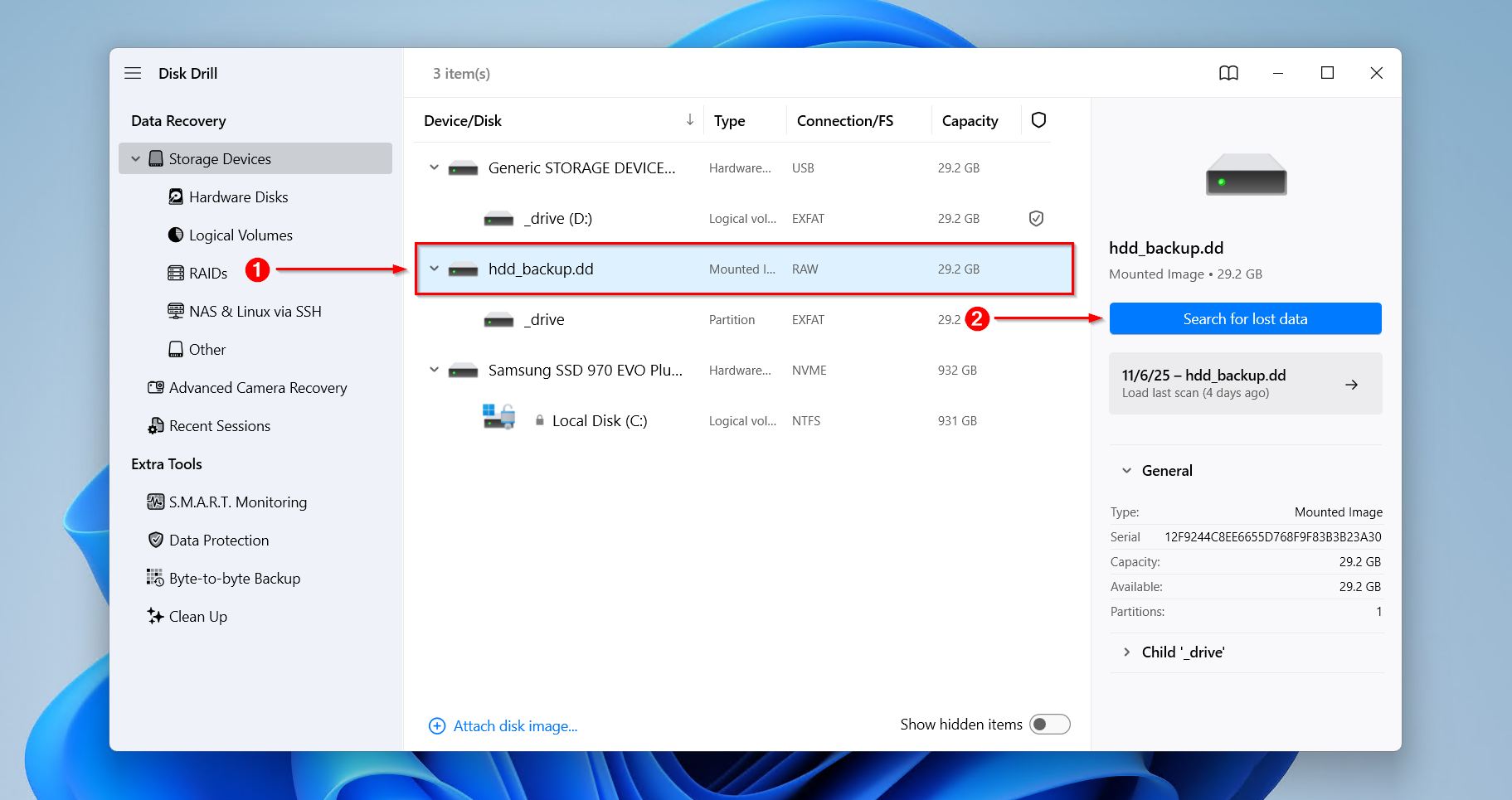
- Select the dead hard drive image, or the drive itself if you opted to avoid creating the backup, and click Search for lost data.
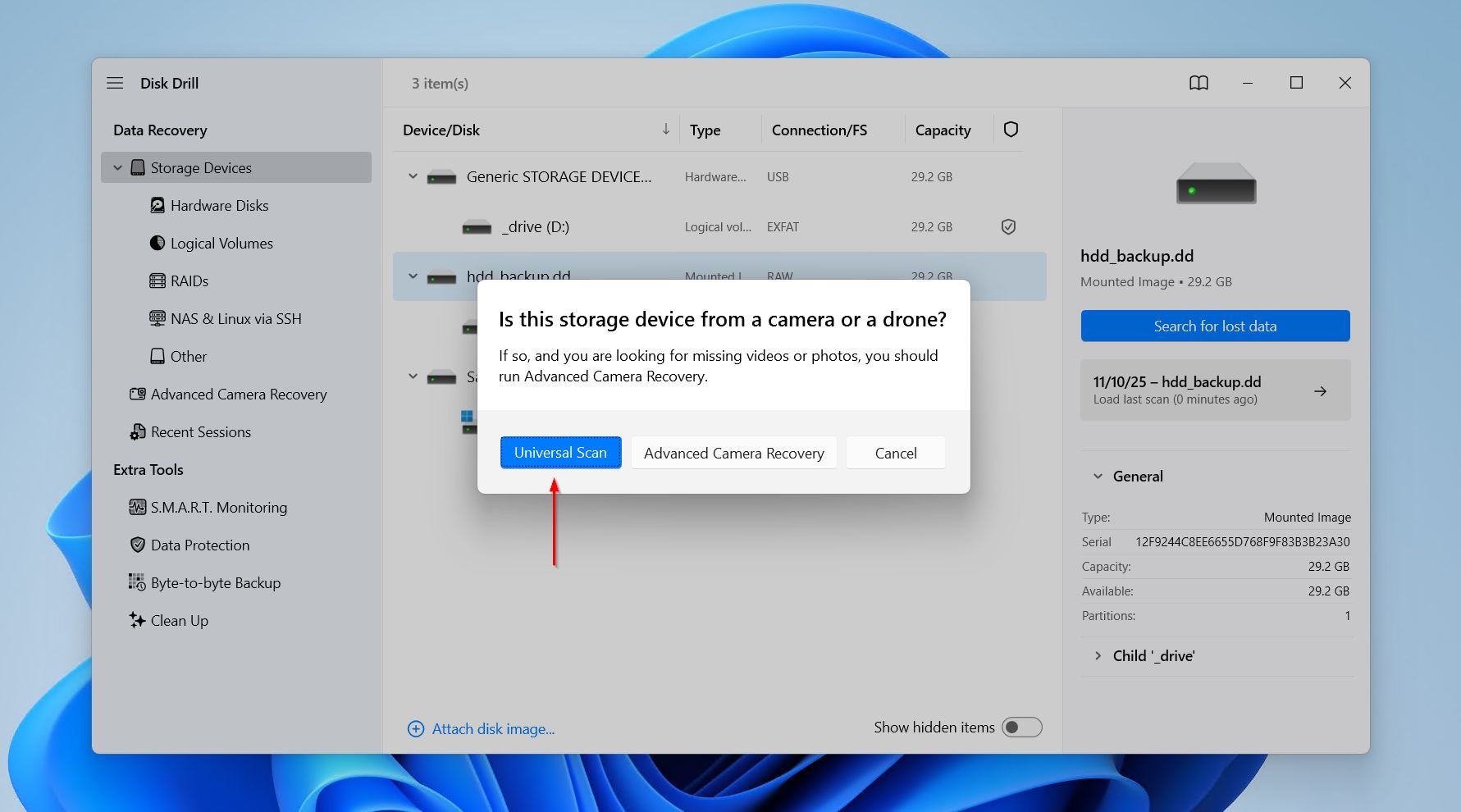
- Click Universal Scan to begin searching for all files on the drive. Advanced Camera Recovery is only for recovering fragmented videos from cameras or drones.
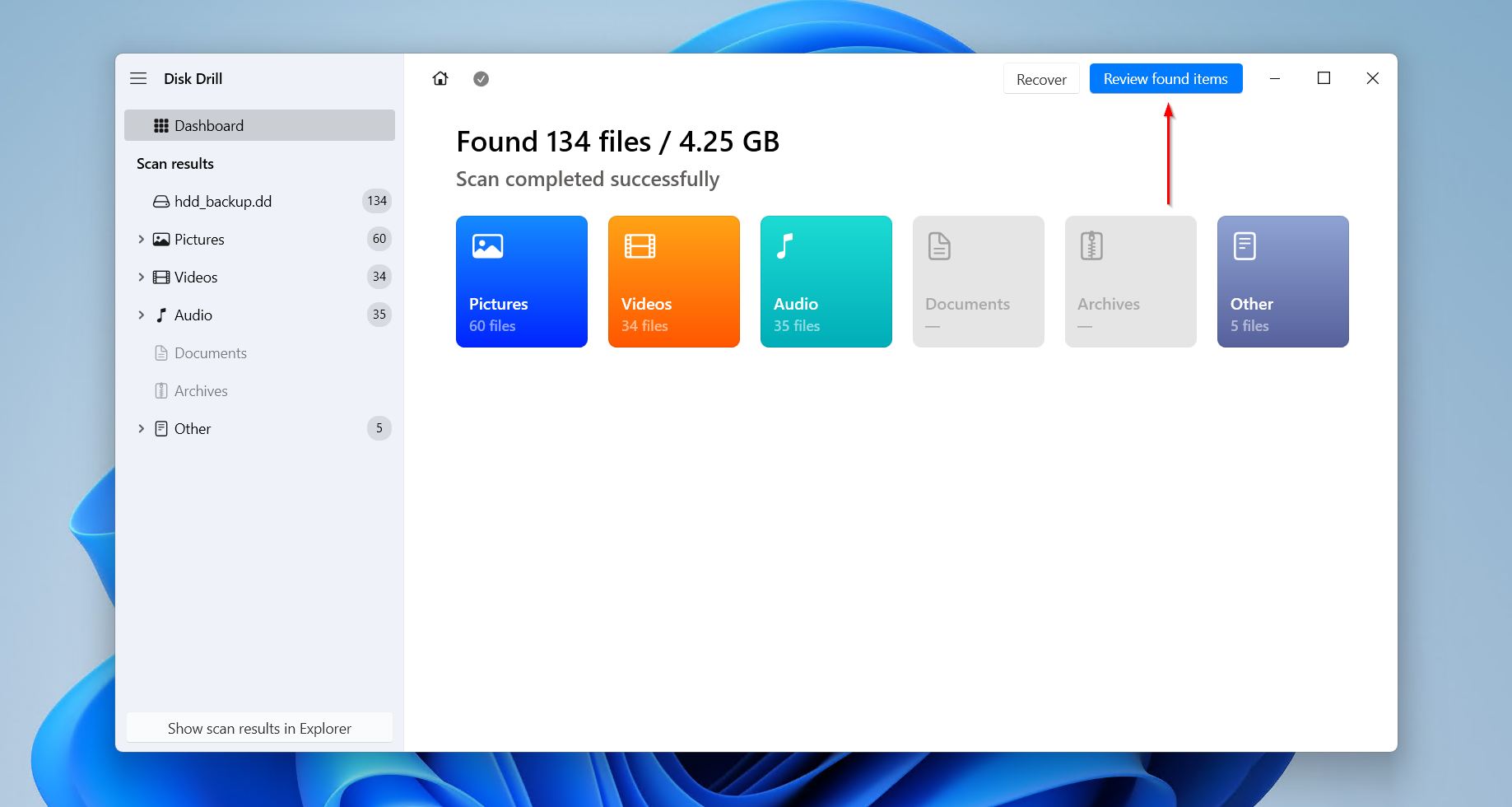
- Click Review found items once the scan has finished.
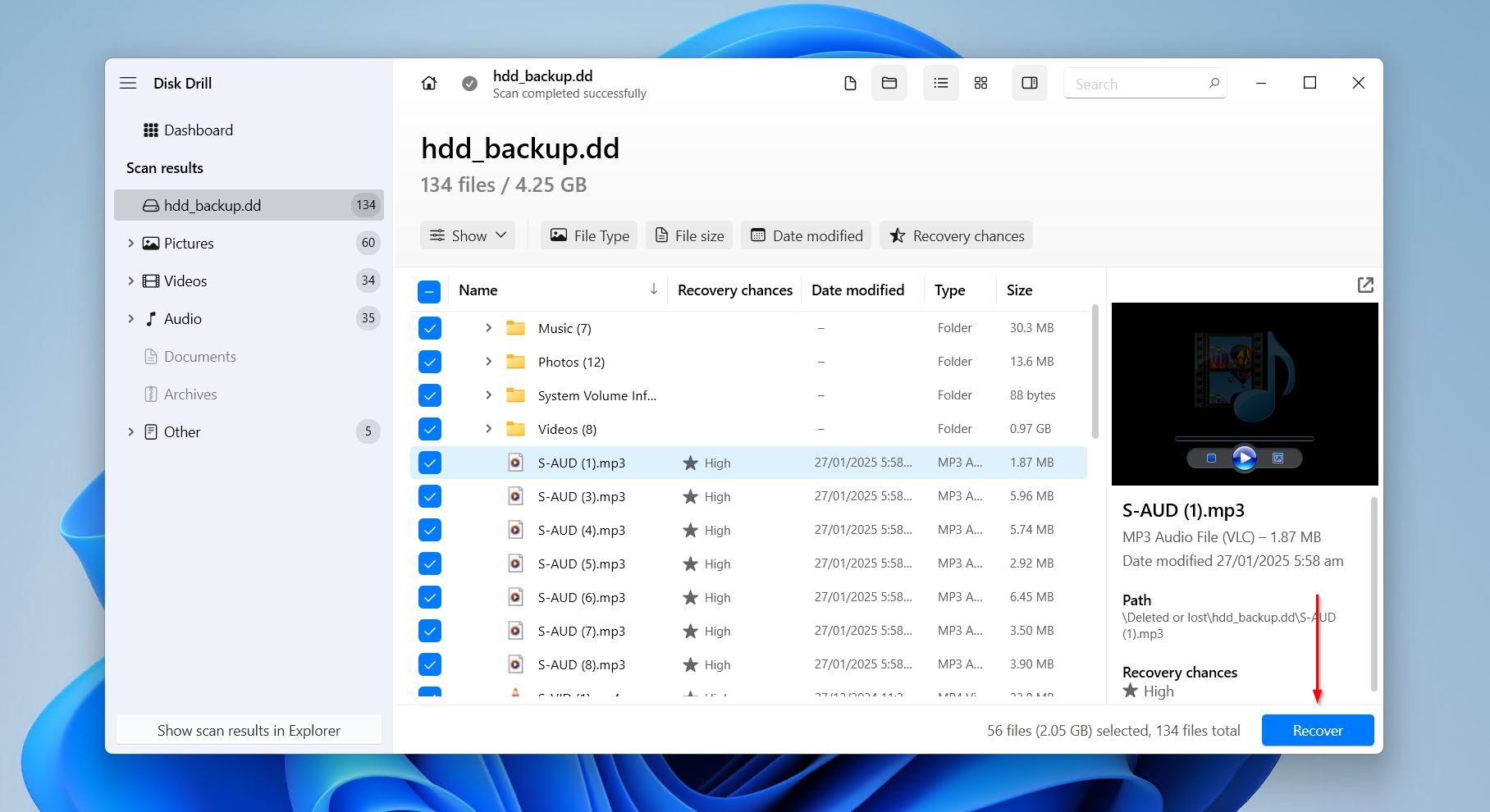
- Preview and mark your files for recovery by checking the tickbox next to each file. Your data will be categorized under Deleted or lost, Existing, or Reconstructed based on its state. When ready, click Recover.
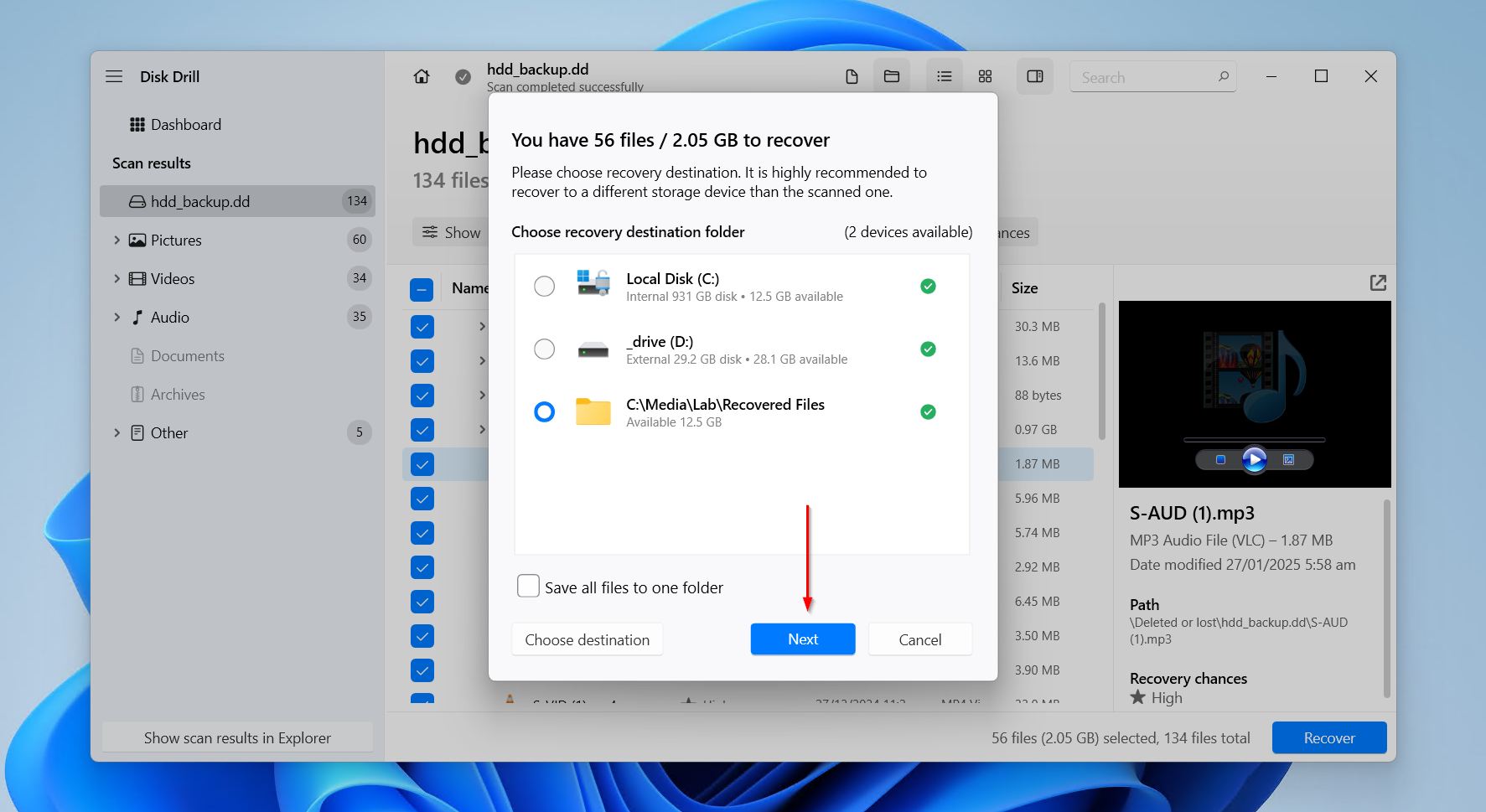
- Specify a location where your recovered files can go. Then press Next. Disk Drill lets you recover up to 100 MB for free, which is usually enough for critical files, or to at least try the software.
Disk Drill is just one of the many data recovery tools we’ve tested in real-world data loss cases. We have a full list of the best data recovery software we’ve tested and reviewed, some of which have their own disk imaging features.
Method 2: Data Recovery Service
If your hard drive is indeed dead and no data recovery software can detect or access it, the only remaining option for getting that data back is through a data recovery service. Such services employ cleanroom environments and specialized tools for delicate, high-risk recovery operations where mechanical or physical damage is present.
Most reputable labs offer a free diagnosis and follow a “No data, no fee” policy, as this at least promises you’ll at least get some data for your money. However, costs can range from the low end of $300 for basic recovery, all the way up to $3000 and beyond. The price can vary wildly as it all comes down to (1) the difficulty of getting the data back, (2) what tools are required, and (3) the cost of labor. Therefore, avoid companies that skip inspection or offer a flat rate, as each recovery case is unique.
If you decide to proceed, there are many recovery services that can do data recovery from dead hard disk. We’re going to demonstrate the process with the CleverFiles Data Recovery Center, but these general steps serve as a means of understanding how to recover data from a dead hard drive through a lab:
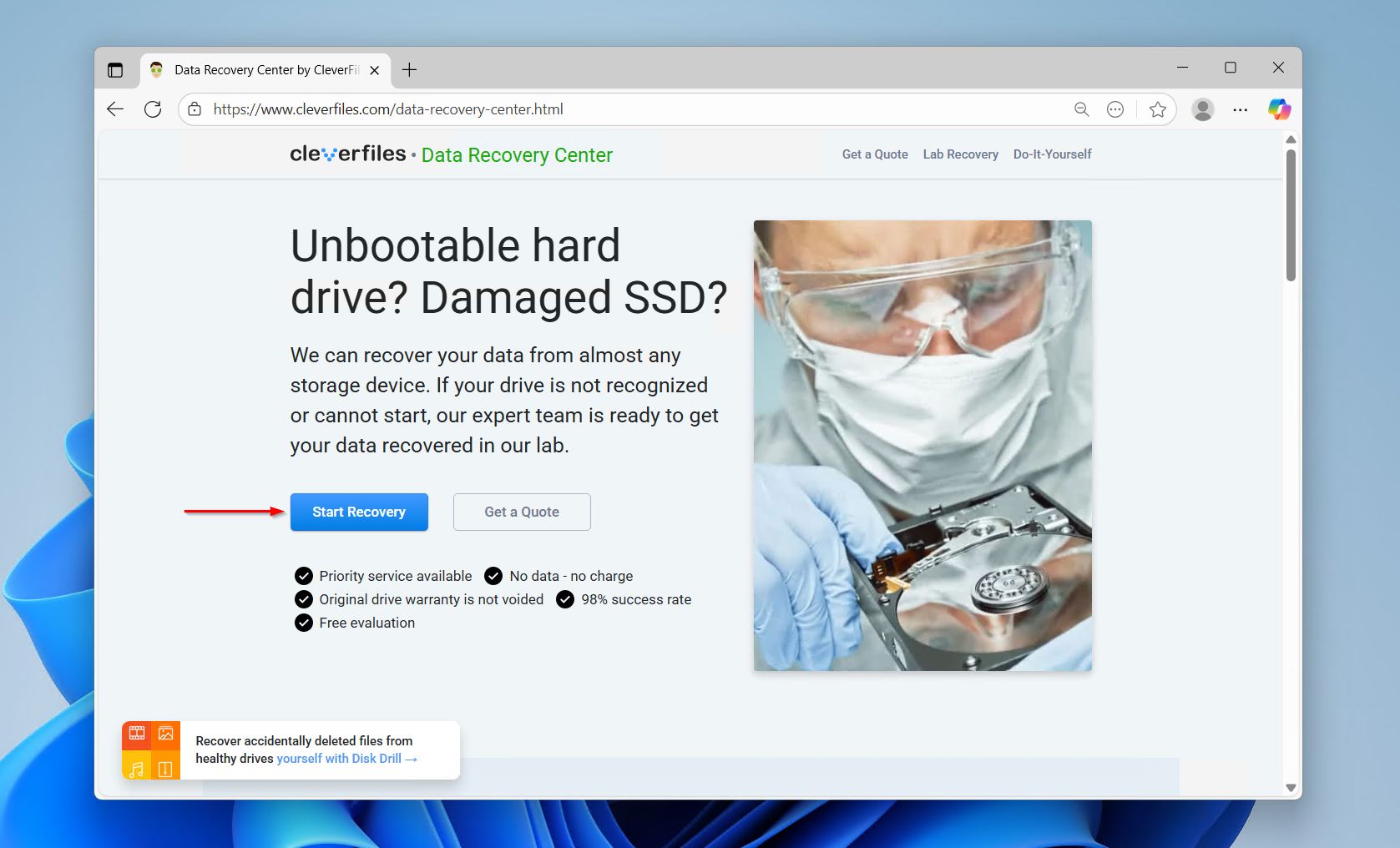
- Visit the site of your chosen data recovery service and click Start Recovery.
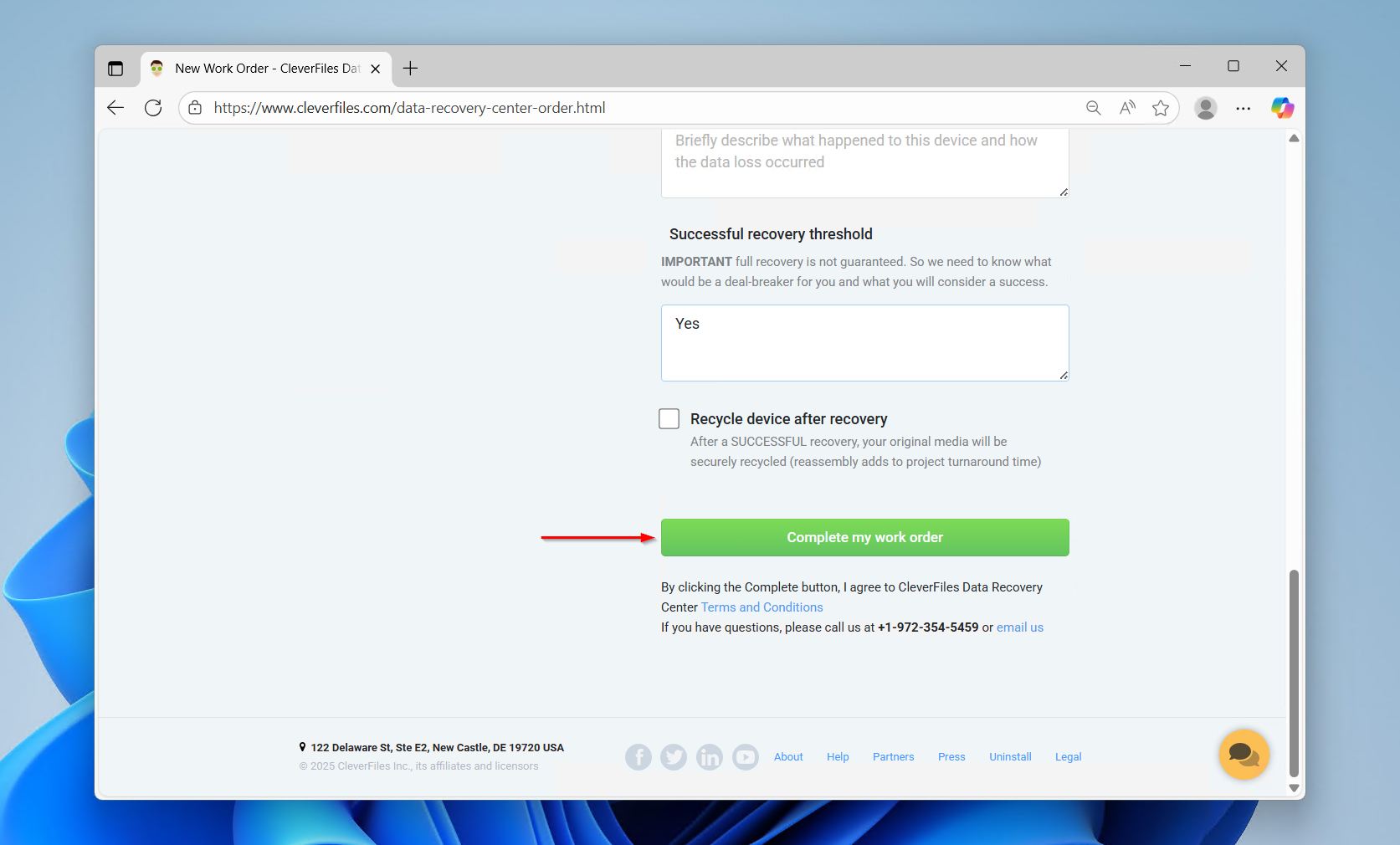
- Fill in all applicable fields. This will include what type of service you need, your contact information, and details pertaining to the actual storage device. When finished, click Complete my work order. At this point, you will send your device in for recovery.
- When the drive is received, it is inspected by an expert who will provide you with a guaranteed price quote. After providing your approval, the data will be recovered and returned to you on a DVD, flash or external hard drive.
If you’re unsure about anything, and want to make this is absolutely the best option for how to recover files from a dead hard drive, reach out to the recovery service before making any decisions. They can answer your questions and clear up any confusion about the process.
How to Prevent Another Dead Hard Disk Disaster
Many times you can notice the warning signs of a failing hard drive before it’s too late, potentially letting you avoid dead hard disk data recovery altogether. Clicking noises, egregiously slow performance, random file corruption or access issues, or even the occasional Blue Screen of Death (BSoD) can all point to trouble. If any of these happen, backing up your files or moving them is the next move. It may seem drastic, but it may also be your only chance of saving the data.
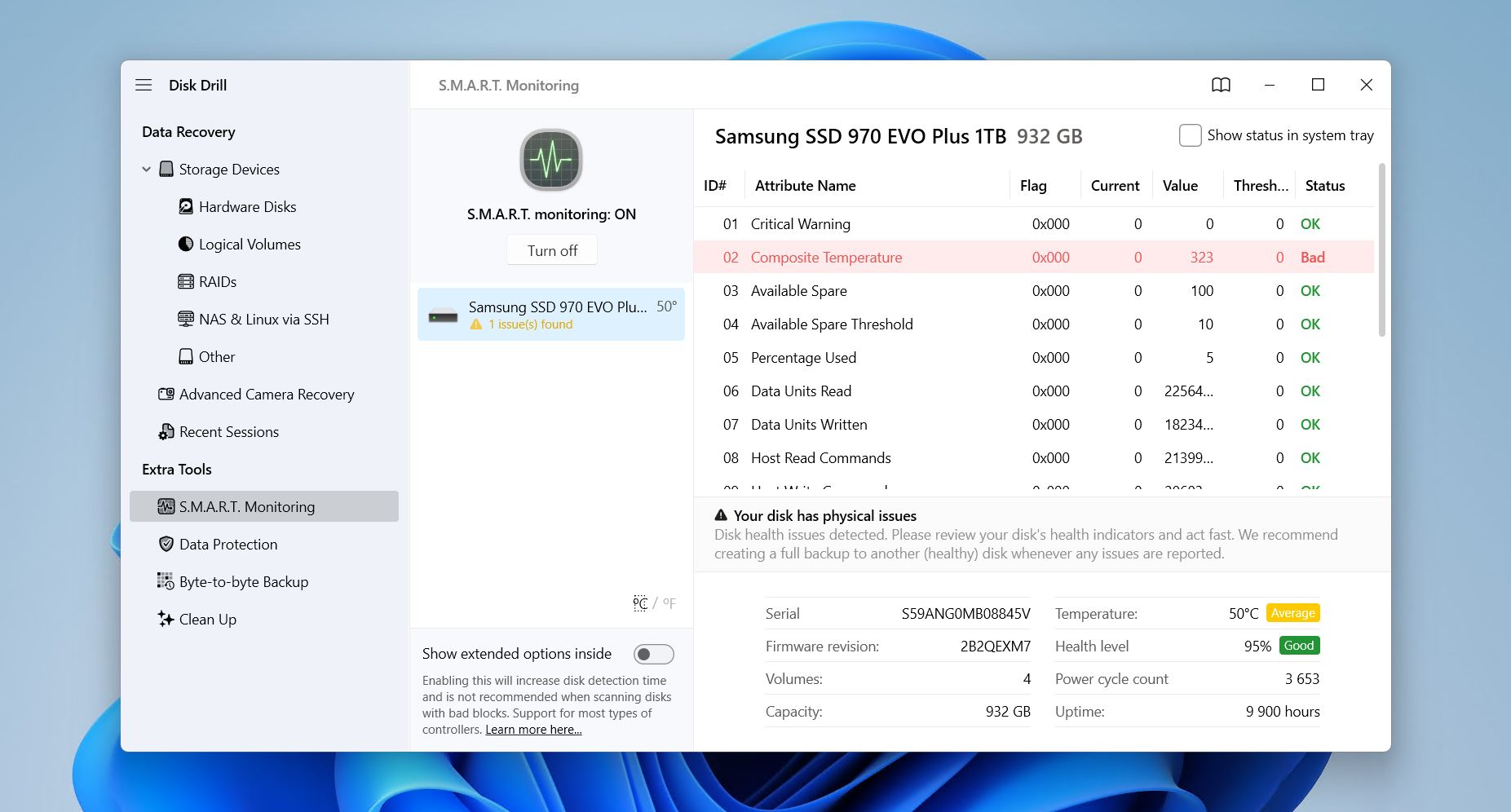
Modern drives include S.M.A.R.T. (Self-Monitoring Analysis and Reporting Technology) disk monitoring, a built-in system for tracking various health indicators. While not a perfect system that doesn’t work in every instance, it can still give you a heads up to avoid having to recover data from a failed hard drive.
A proper breakdown of your S.M.A.R.T. data is only visible with third-party software, like CrystalDiskInfo. Disk Drill also has S.M.A.R.T. monitoring, and makes it simpler by marking concerning values as “Caution” or “Bad”, depending on their severity. The values that are important to keep an eye on are
- Reallocated Sector Count
- Current Pending Sector Count
- Uncorrectable Sector Count
And, to avoid another data loss incident where you need to recover data from a bad hard drive in the future:
- Enable active S.M.A.R.T. monitoring, or check it regularly every so often.
- Replace drives that are showing early signs of failure.
- Utilize a surge protector to guard against power damage.
- Follow the 3-2-1 backup rule (3 copies, 2 types of storage media, 1 offsite).
- Consider replacing old, heavily-used consumer drives after 3 to 5 years. While they can last longer, but this is their average lifespan, and the ideal time to clone it is when it’s working.
Have a Question About Dead Hard Drive Recovery? Comment Below
When a hard drive appears dead, it isn’t always so. It may show some of the same symptoms as a dead hard drive, but if it’s at least visible in Disk Management with the correct capacity, you’ll be able to perform dead HDD data recovery with data recovery software.
Struggling with something specific? Check out the frequently asked questions section below. If the FAQs don’t answer your question, or you simply want to share a personal recovery experience, feel free to leave us a comment.