Did you somehow format your external SSD and now need a way to recover the data that disappeared during the process? The first thing to do is check any backups you may have and confirm whether a copy of the files still exists. But if you’re reading this article, chances are you don’t have one. Still, this isn’t the end of the road. SSD recovery after formatting can work, but only if you act fast and avoid careless steps. Below, we cover two recovery options for a formatted external SSD, along with the key nuances that affect your chances. Read both methods carefully and pick the one that fits your situation.
Everything You Need to Know Before Starting Data Recovery from a Formatted SSD
The possibility of recovering data from a formatted SSD, when no backups are available, depends on whether the deleted data still physically exists on the drive. You won’t see those files when you connect the SSD to your PC, but specialized recovery software or professional technicians may still detect them. That’s what determines your chances:
- First, consider the type of formatting that was performed. If it was a quick format, the system typically removes file system references but does not immediately erase the actual data blocks. In this case, the files may still reside on the SSD until new data overwrites them. As long as the conditions below are met, recovery remains possible. However, if a full format was performed, the situation changes entirely. A full format rewrites sectors and clears stored data at the physical level. Once this happens, recovery of formatted data from the SSD becomes impossible because the original data blocks no longer exist.
- Next, the deleted data must not be overwritten. The moment new files occupy the same physical blocks where the formatted data previously existed, recovery becomes impossible. SSDs reuse available blocks efficiently, so continued use of the drive significantly reduces your chances. For that reason, you should immediately stop using the SSD after formatting.
- Another factor that can influence the outcome is the TRIM command. This primarily affects internal SSDs, but some external SSD setups can also support TRIM depending on the USB-to-SATA or USB-to-NVMe adapter used. Some adapters block TRIM entirely, while others allow it only in specific modes, such as UASP. If TRIM executes and clears the affected blocks, recovery becomes far less likely. If you’re dealing with an internal SSD, you may want to refer to our dedicated article on SSD recovery for more details.
To summarize: if all three conditions are met (no full format, no overwrite, and no TRIM-triggered block cleanup) recovery of formatted data from an SSD is possible. If even one of these conditions has already been violated, you can still attempt recovery, but your chances decrease significantly.
How to Recover Data from Formatted SSD
Now that we’ve covered the fundamentals, let’s move on to the actual methods of recovering data from a formatted external SSD. In practice, you have only two options: (1)use data recovery software or (2)seek assistance from professional data recovery services if DIY recovery feels risky or you’re not confident you can handle recovery from a formatted SSD on your own. Below are the details for each of them.
Method 1: Use SSD Data Recovery Software
If all the conditions described above are met, data recovery software can scan your formatted external SSD, detect recoverable files, and restore them.
Among all available recovery tools, we most often recommend Disk Drill. In our tests, it demonstrated a strong recovery rate across different data loss scenarios. It can recover files of various formats and preserve the original folder structure whenever possible. If the file system on your SSD is corrupted, Disk Drill switches to signature-based scanning to locate files by their known patterns instead of relying on file system records.
If the formatted SSD also has additional issues, Disk Drill provides extra tools that may help. You can check the drive’s S.M.A.R.T. data to assess its health and create a disk image before scanning, so you work with a copy and leave the original drive untouched. For a detailed overview of these features and other capabilities, we recommend reading the full Disk Drill review.
Here’s how to use Disk Drill to recover data from your formatted external SSD:
- Download and install Disk Drill on your computer.
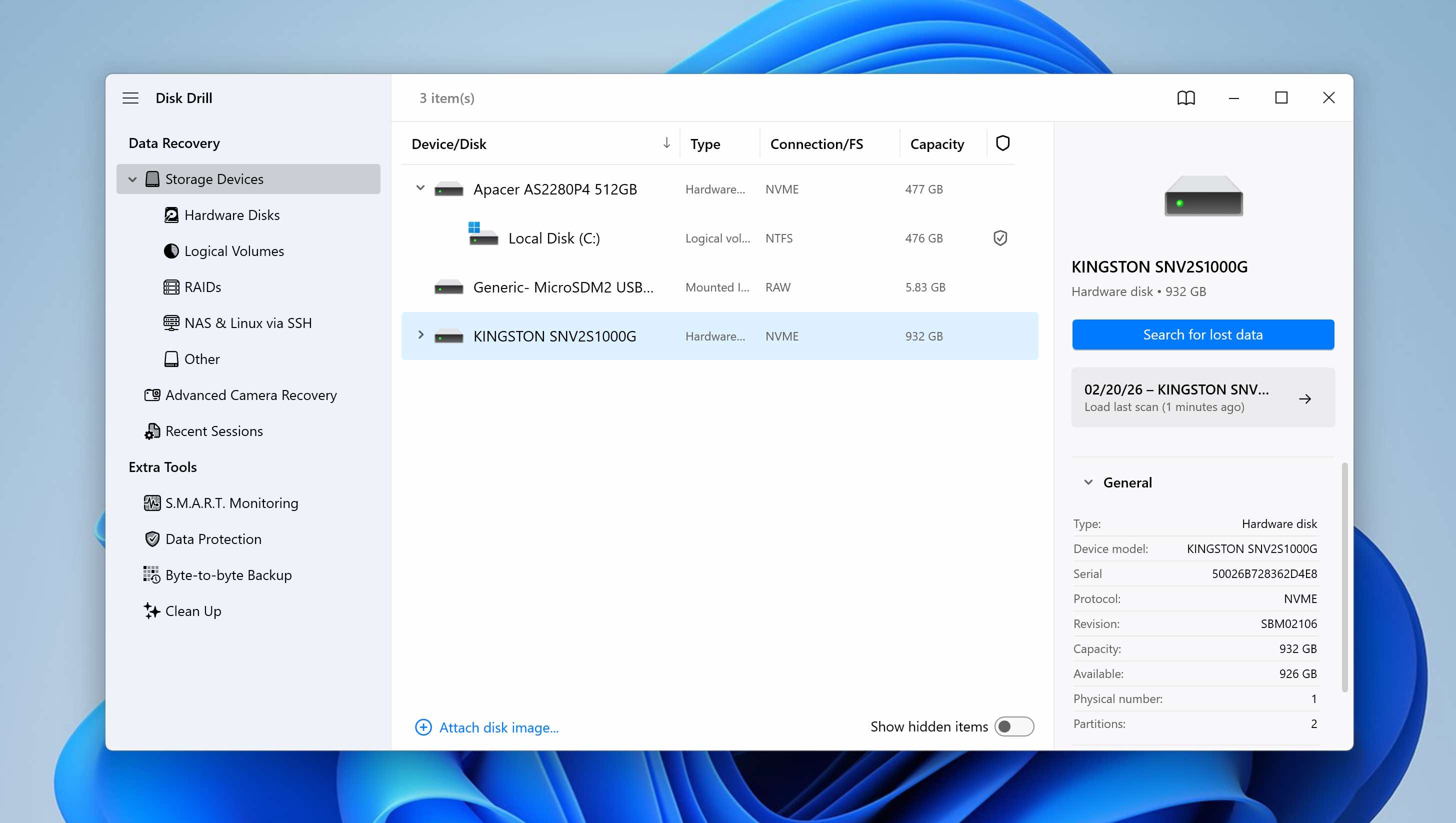
- Connect your external SSD to the computer. Launch Disk Drill, select your external SSD from the list of drives, and click Search for lost data.
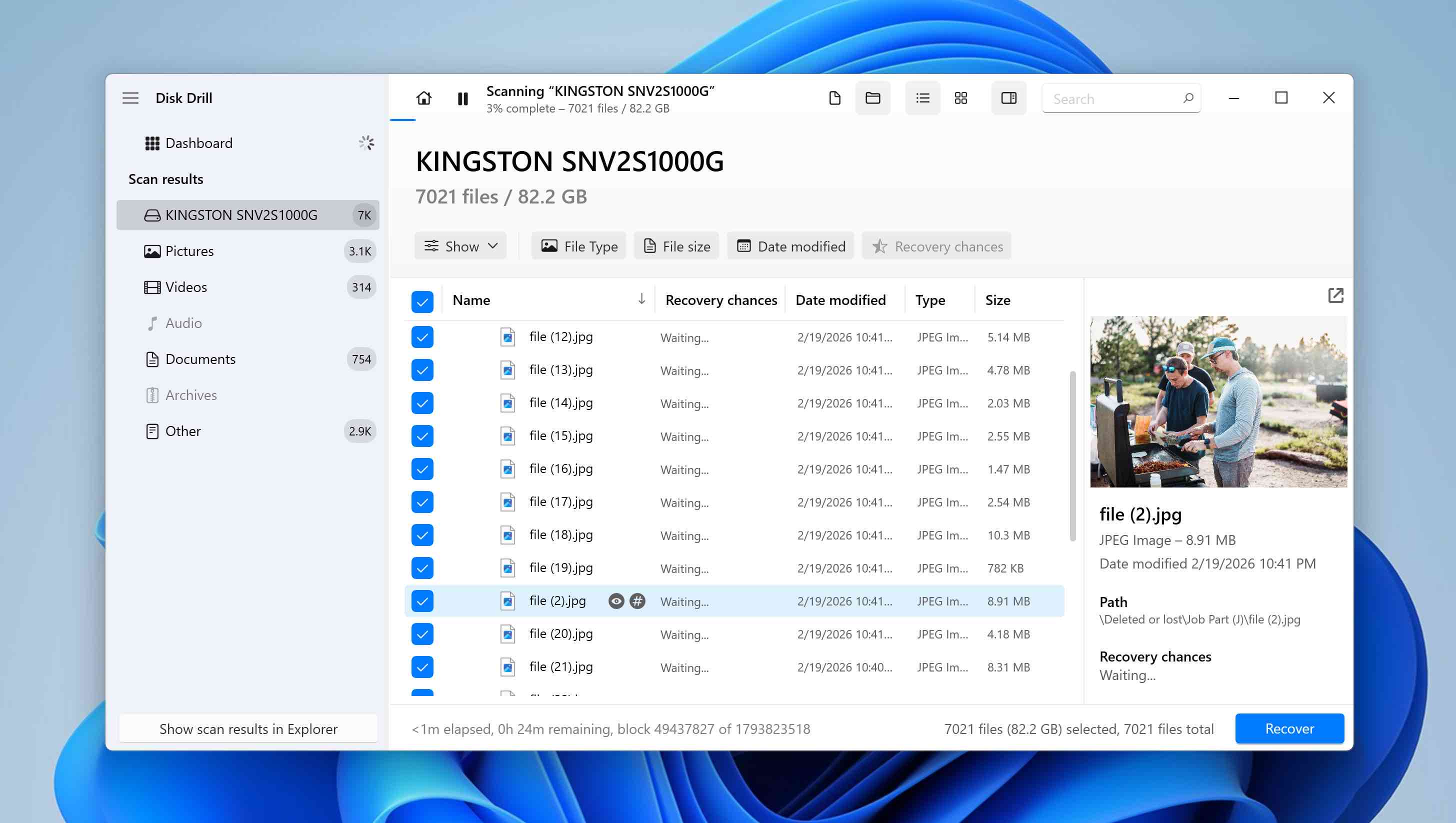
- Disk Drill will begin scanning your formatted external SSD for recoverable files. The scan may take some time depending on the size and condition of the SSD. While recovery can technically start during the scan, it’s better to wait until the process finishes. After completion, Disk Drill displays recovery chances for each file as High, Average, or Low.
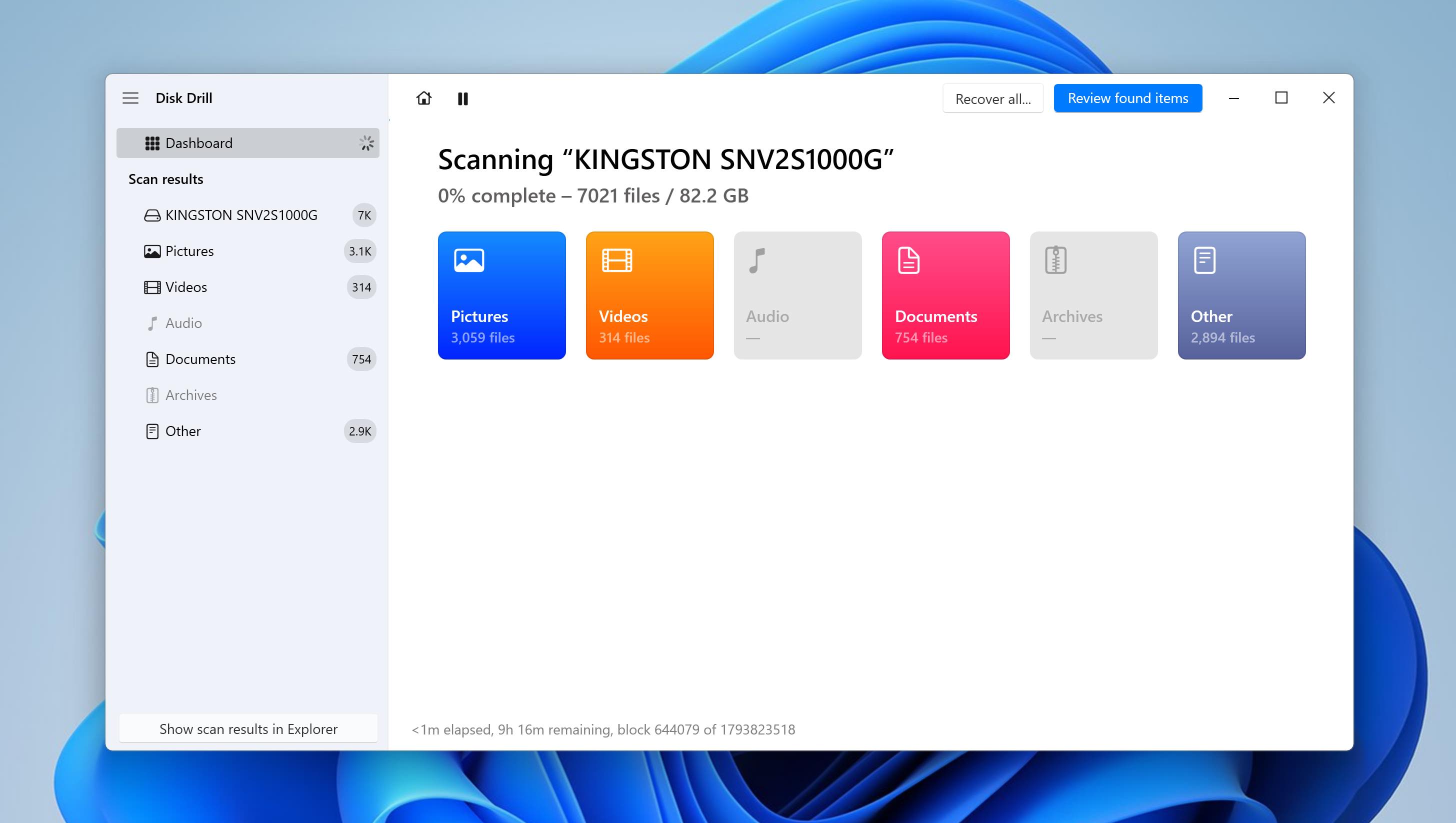
- Once the scan is complete, you can click Recover All in the top-right corner if you want to restore everything found. If you prefer selective recovery, click Review found items instead.
- You can filter the results using the panel filters or the search bar. Disk Drill also provides a preview feature for files supported by your Windows system. To preview a file, double-click it or click the eye icon next to its name.
- Select the files you want to recover by ticking the checkboxes, then click Recover.
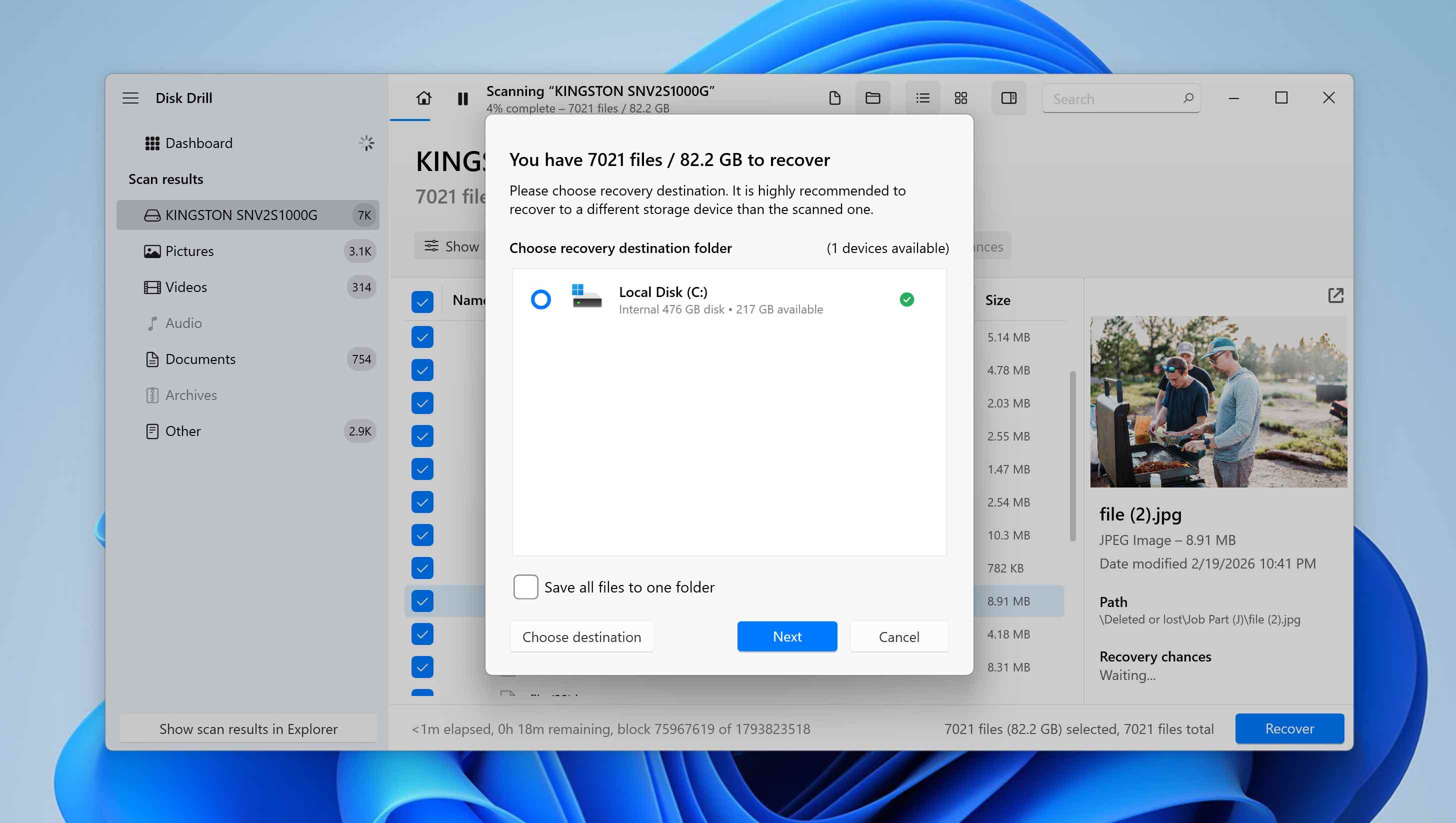
- Choose a different storage location for the restored data (never select the same formatted SSD as the destination). Click Next to begin recovery.
- Disk Drill will display the recovery progress and notify you once the process is complete. At that point, you can click Show recovered data on Explorer to open the recovered files or close the program and navigate manually to the selected recovery folder.
Disk Drill is available as a free download. You can scan your formatted external SSD at no cost and recover up to 100 MB of data for free. After that limit, a Pro version is required. For full recovery after formatting, 100 MB is usually not enough, but it’s sufficient to test the software, preview files, and evaluate your recovery chances before purchasing a license.
Method 2: Use Data Recovery Services
If your SSD contains valuable and irreplaceable information and you don’t want to risk DIY recovery, it’s better to consult a professional data recovery service provider. This is also the safer option if your SSD shows visible signs of damage, for example, if it was dropped, exposed to impact, or behaves abnormally when connected. In such cases, attempting software-based recovery may worsen the condition of the drive.
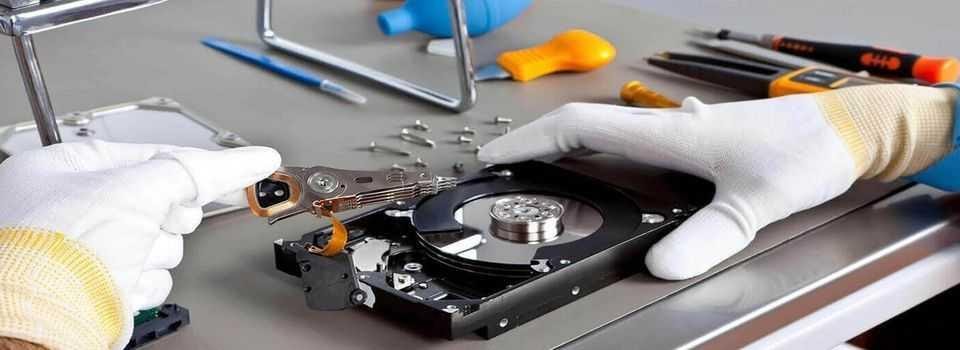
While data recovery services can often seem expensive, they have teams of highly skilled professionals and resources that can be incredibly helpful in rectifying data loss situations.
However, keep in mind that data recovery services are not magicians. If the conditions we described earlier were not met and the data no longer physically exists on the formatted SSD, even professionals won’t be able to restore it. If a full format rewrote the sectors, if new data overwrote the original blocks, or if TRIM permanently cleared them, the information is simply gone at the physical level. Recovery tools and laboratories work with existing data remnants, they cannot reconstruct files from blocks that have already been erased or replaced.
✅ To find and select a reliable recovery service, ensure that you schedule a free consultation and get your price quotes in advance. After that, you can visit them in person or ship the SSD drive to them. If you approach a trusted data recovery service, they will try their best to recover your data. But in the rare case that they can’t, most services have a “no data/no charge” policy.
Conclusion
As you can see, there aren’t many ways to recover data from a formatted external SSD. There is no better or worse method, you either use data recovery software like Disk Drill or turn to professional recovery services if you’re willing to pay for expert assistance.
We also want to emphasize that successful recovery from a formatted SSD depends on a combination of factors: what happened during formatting, what you did immediately after, and how correctly the chosen recovery method was applied. If critical conditions were violated and the data was physically erased, neither the software nor the specialist is to blame – the data simply no longer exists on the drive.
Do you still have questions about recovering data from a formatted SSD? If you don’t find the answer in the FAQ section below, feel free to leave a comment under the article or visit our forum to start a new discussion or join an existing one.
FAQs
- Download, Install and Launch Disk Drill.
- Select your Samsung SSD from the list of drives, and click on Search for Lost Data.
- Once the scan is complete, click on Review Found Items.
- Select the required files and click Recover.