Did you delete an app you wish you hadn’t? Maybe it’s a travel app you realized you need before a flight, or a banking app required for verification. The good news is that you can usually restore deleted apps easily. The better news is that you may even be able to restore your old app data, so you can immediately pick up where you left off.
In this guide, we’ll show you how to recover deleted apps on an iPhone. We’ll also show you how to restore your app data, even if the app itself is no longer available.
How to Find and Restore an App to the iPhone Home Screen
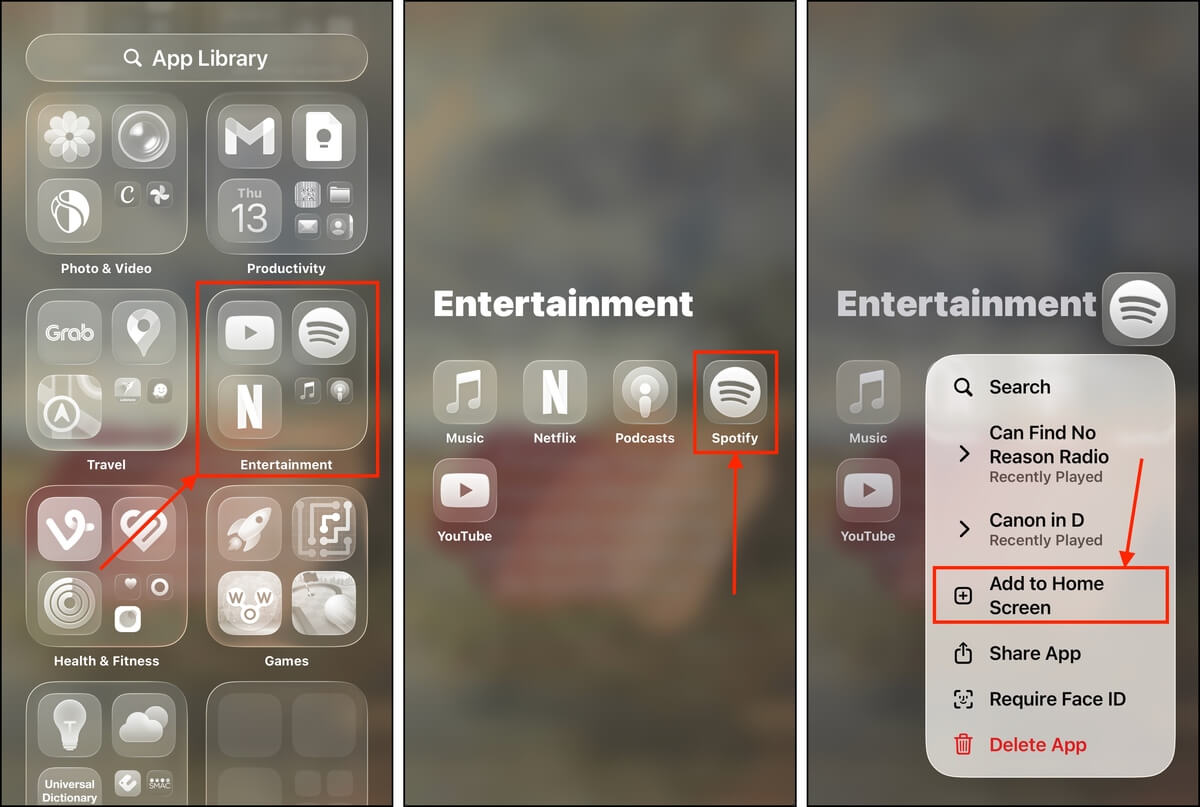
If you accidentally removed an app from your home screen (and didn’t uninstall it), you just removed its shortcut. You can still find it in your App Library, where all your device’s applications are compiled in auto-generated categories for you to browse.
We’ll show you how to find the App Library, quickly search for the app, and restore it to your home screen.
- On your iPhone’s Home Screen, keep swiping left until you open the App Library.
- Browse your App Library’s various categories and locate the app you want to restore to your Home Screen. To find it faster, tap the search bar at the top of your screen and type the name of the app.
- Finally, tap and hold the app you want to save to your home screen. Then, in the context menu that appears, tap Add to Home Screen.
If the app doesn’t appear in the search, your settings may be preventing it from getting indexed. Scroll to the very bottom of your App Library and check for a Hidden folder, in case it was hidden. It may also be age-restricted via Screen Time Settings. See Settings > Screen Time > Content & Privacy Restrictions > Content Restrictions > Apps).
How to Recover a Deleted App on iPhone
The only way to way to restore deleted apps on an iPhone is through the App Store—this is part of Apple’s security design. Fortunately, iOS makes it easier by keeping a history of the apps you installed on your device. We’ll show you how to find this page and use it to re-download a previously installed app.
You can’t recover deleted apps on an iPhone if they were removed from the App Store by the developers or by Apple itself (due to platform rules). This is also part of Apple’s security measures.
- Open the App Store.
- On the top right corner of your screen, tap on your Apple Account profile button.
- In the menu that appears, tap Apps.
- On the top of your screen, tap the Not on this iPhone category. You’ll see a list of formerly installed apps with icons of clouds beside them. Tap the cloud button beside the app you want to reinstall.
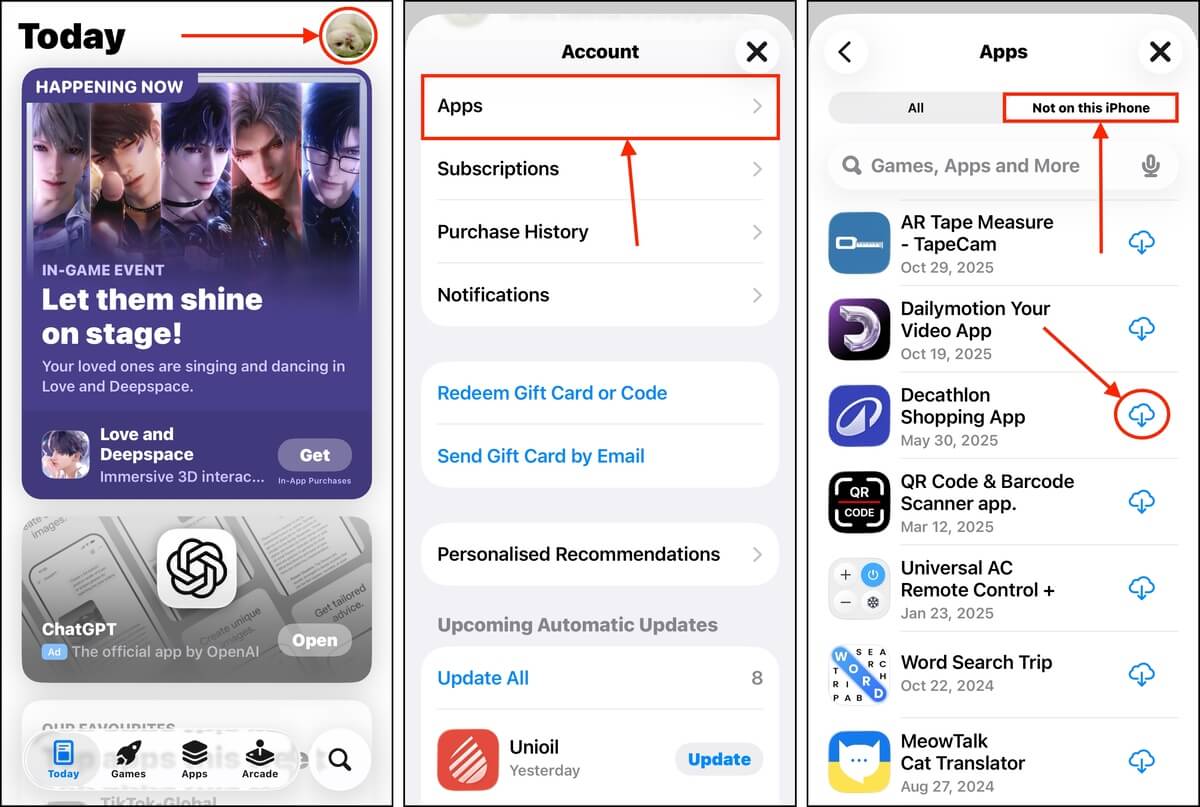
Alternatively, you can simply search for the app in the App Store. You’ll see the same cloud button in the application’s store page, which you can tap to begin the reinstallation process.
How to Restore Deleted App Data on iPhone
Some apps store your data on their own server, and not on your device’s local disk. In this case, reinstalling the app and signing into your account will usually restore your data.
Social and messaging apps, like Telegram, Instagram, and WhatsApp, are good examples of apps that store data on their external servers.
However, certain apps utilize your local storage to save or process your data. If you need this data back, you’ll have to use one of the methods we’ll demonstrate for you below.
Method 1: Recover App Data Using Data Recovery Software
Data recovery software is a type of application that can restore lost files from a device’s storage disk—and it’s the only way to get back your data without any backups. However, you’ll need to act fast because of the way iPhones handle data.
There are several applications you can choose from, but we’ll be using Disk Drill for this demonstration. It’s the easiest recovery app for beginners to pick up, and it supports all known iOS file types. We’ve also found that it has a great success rate for iOS due to how it handles recovery.
iPhones have great security, so Disk Drill creates a full backup of your device and works with the backup file instead—this provides much better access to your data. With this in mind, you’ll need a Mac with twice as much free storage space as your iPhone’s used storage space.
So if you used 50 GB of your iPhone’s total storage space, you’ll need 100 GB of free storage space on your Mac.
Here’s a full demo on how to recover deleted app data on an iPhone using Disk Drill:
- Download and install Disk Drill on your Mac. Then, securely connect your iPhone to your Mac using the appropriate cable.
- Open Disk Drill. Under the iPhones & iPads subsection in the sidebar, click Devices. Then, select your iPhone from the list and click Search for lost data.
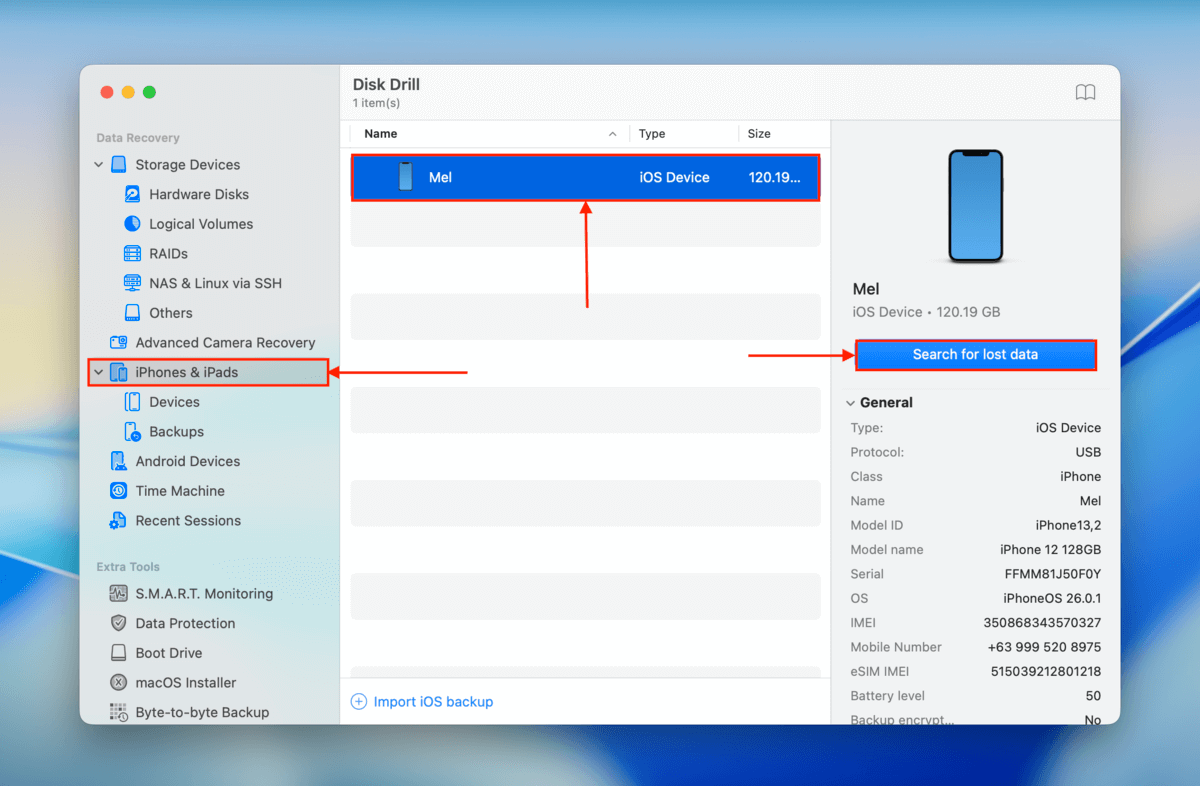
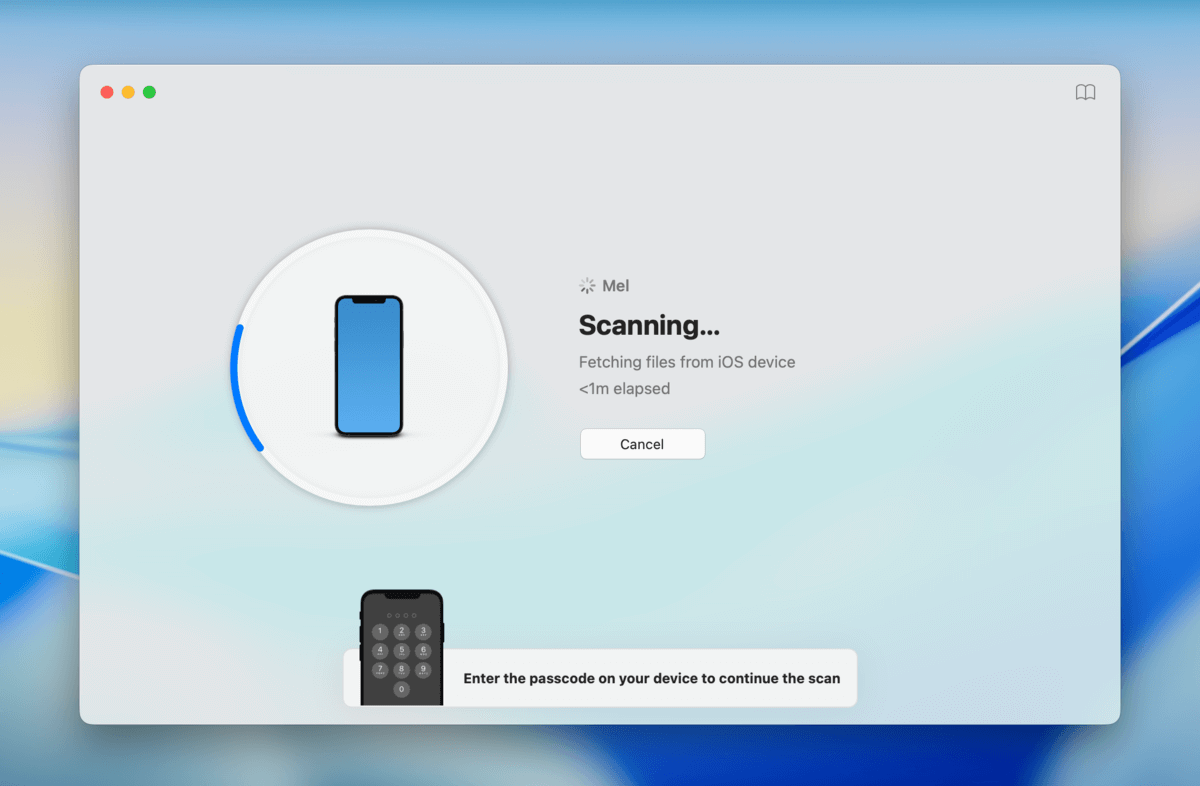
3. As the scan begins, you’ll be prompted to enter your passcode on your iPhone. Do so to proceed.
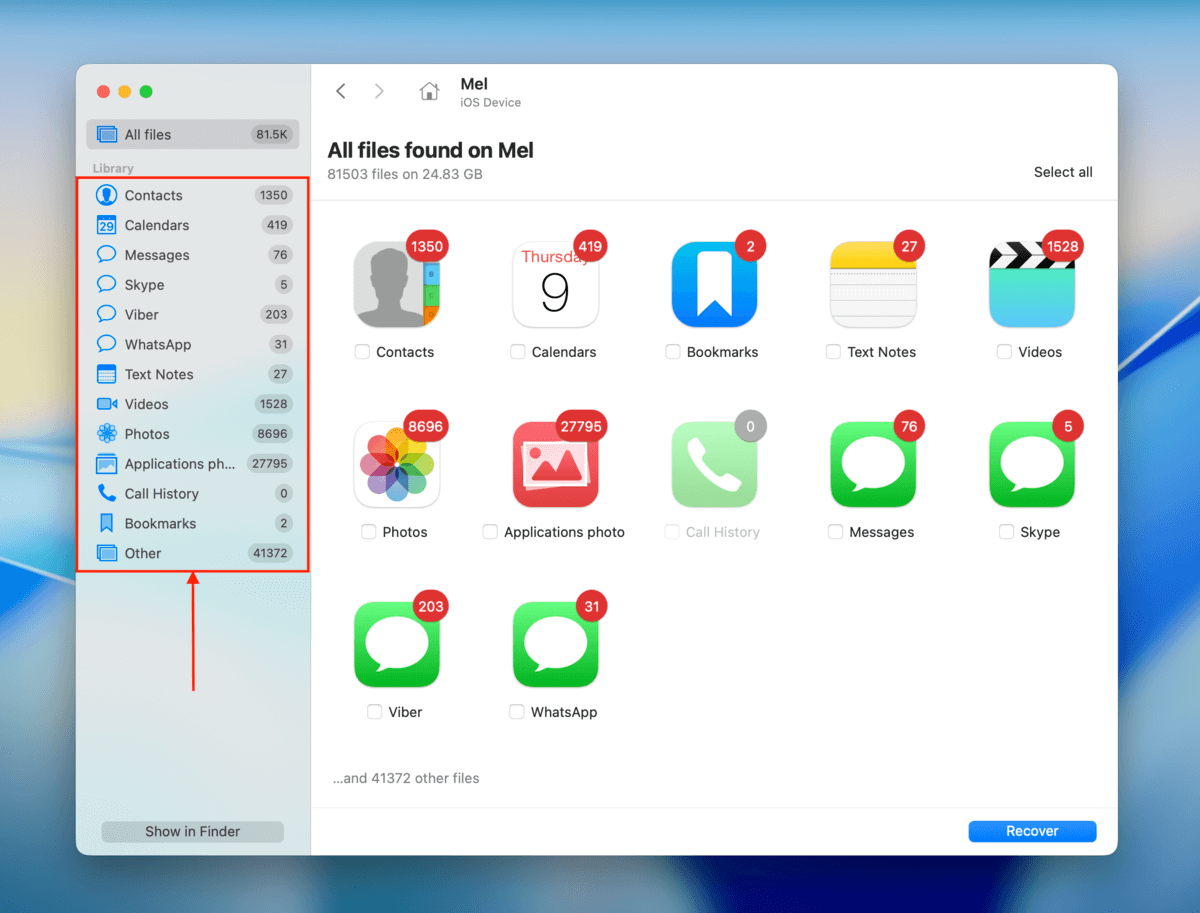
4. Once Disk Drill is done scanning your iPhone, you’ll see the categories of the data it found. Click a category (in the main window or in the sidebar) to review the data.
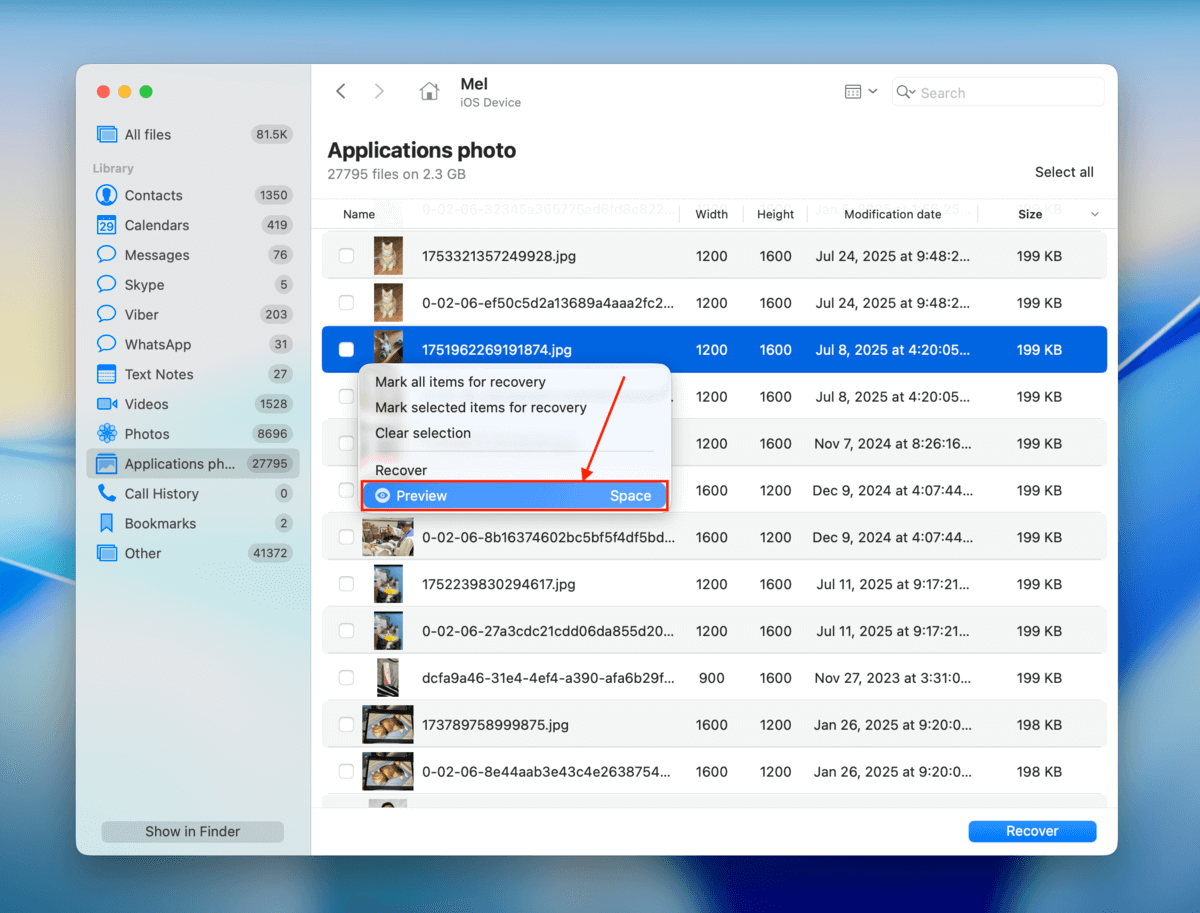
5. You can click the headers of each of the columns to sort your files in different ways. Once you locate the files you want to restore, preview them (right-click > Preview) to make sure they’re recoverable.
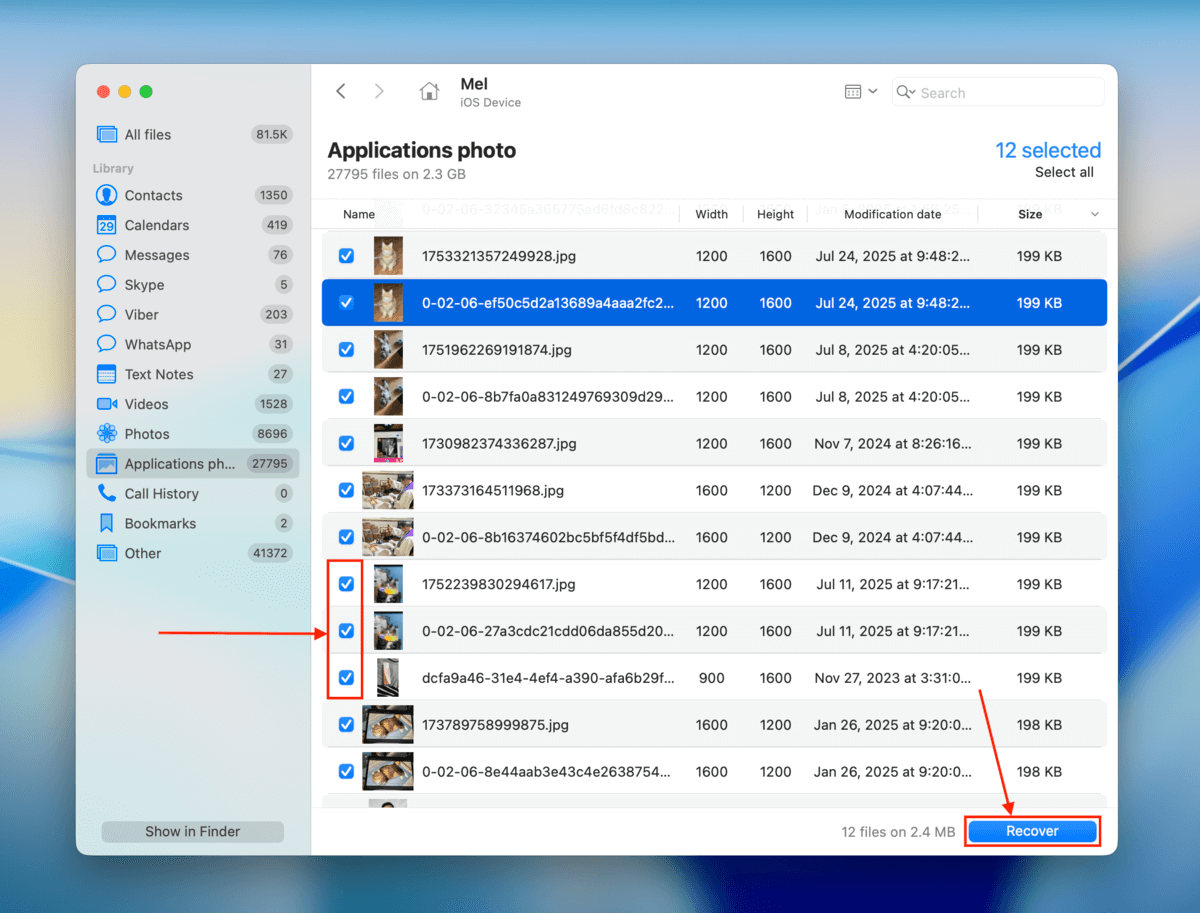
6. Mark the boxes beside the files you want to restore. Then, click Recover.
7. Choose a folder on your Mac that you want Disk Drill to save the recovered files to. Finally, click Next to initiate the recovery process.
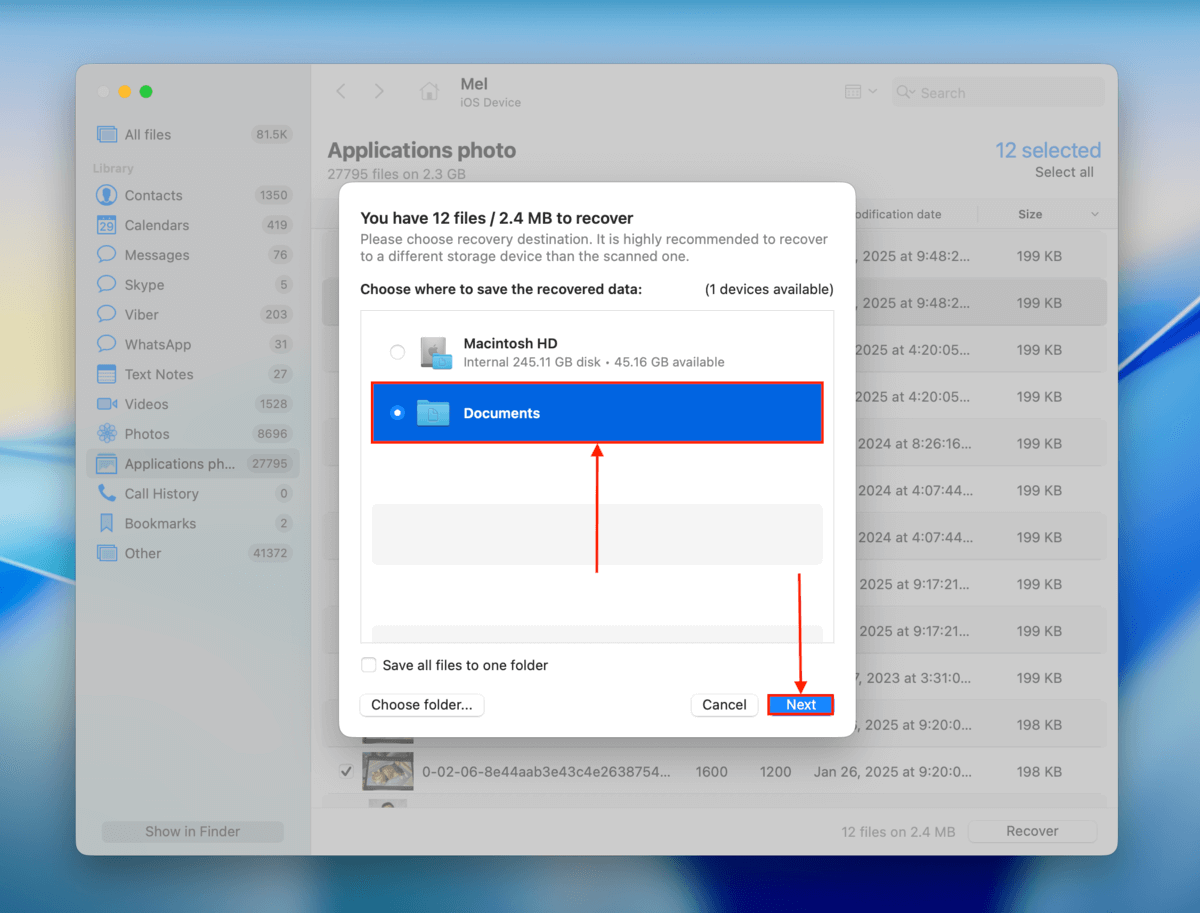
8. Once Disk Drill is done restoring your app data, you’ll find your files in the location you specified in this 7. Make sure to confirm that you can open them without errors before closing Disk Drill.
Disk Drill Pro for Mac does not offer free data recovery. However, you can use it to scan your iPhone and preview your files as much as you want for no cost. This is a great way to find out if your files are even recoverable.
Method 2: Restore the App from iTunes Backup
Did you back up your iPhone with your Mac while your app data was still on your device? If so, that Finder backup (or iTunes backup, for older macOS devices) should contain your data–as long as it isn’t synced to iCloud.
Your backup file won’t contain the app itself, but it saves locally stored app data and lists the apps installed on your device. Upon restoring the backup, iOS will automatically try to re-download all the apps on that “list”, as well as restore the local data.
Restoring a backup using Finder or iTunes will wipe all the existing data on your device and replace it with the backup data. Before proceeding, make sure your important files are saved in the backup, uploaded to iCloud, or stored in a different location (e.g., on your Mac).
- With the appropriate cable, securely connect your iPhone to your Mac.
- Open Finder and click your iPhone in the Locations section in the sidebar. Then, navigate to the General tab and scroll down to the Backups section. Click Restore Backup… Finally, choose the backup you want to restore; the process should begin immediately after.
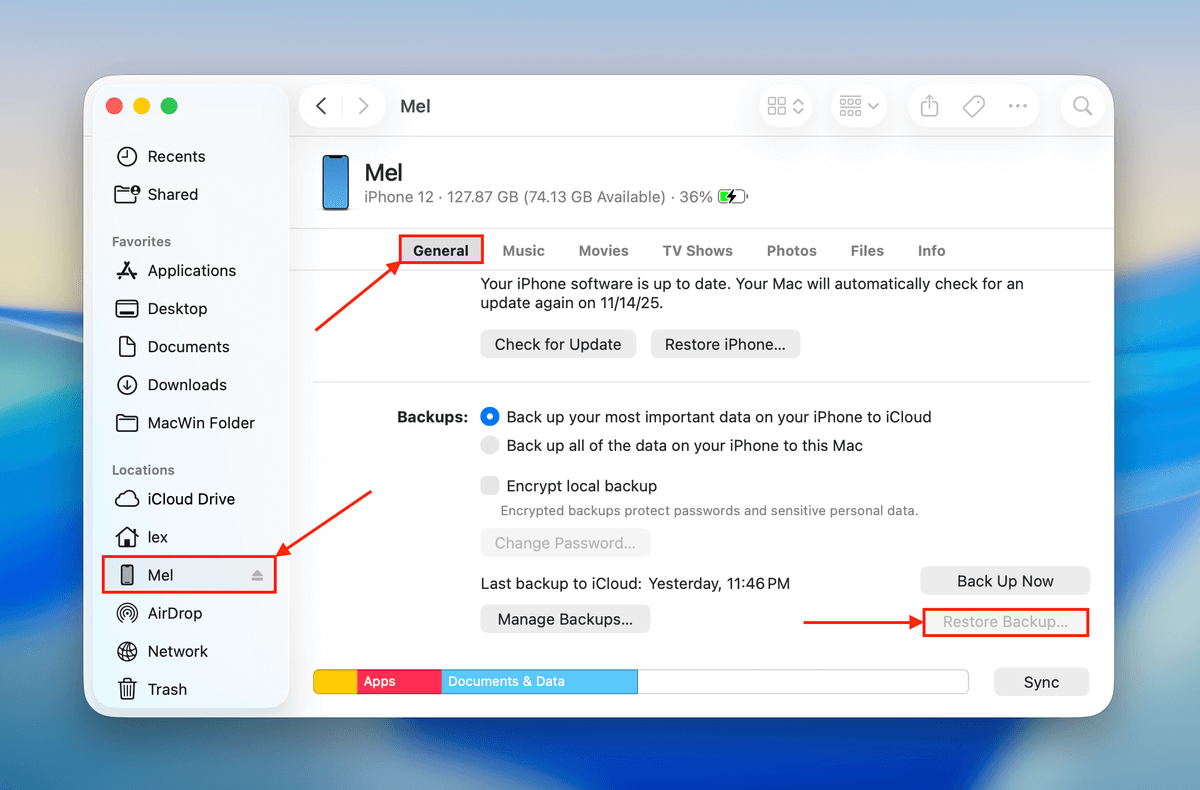
During the restore process, make sure that you keep your iPhone securely connected to your Mac. Do not move it, turn it off, or disconnect it until the process is complete.
Method 3: Restore the App Data from the iCloud Backup
If you created an iCloud backup before your app data got deleted, restoring that backup will also restore the app data. Similar to Finder or iTunes, iCloud notes the apps you had installed at the time of the backup. Restoring that backup re-downloads the installed apps, as well as your app data.
This method only works for data not synced to iCloud. iCloud-synced data will simply be restored when you reinstall the app and sign into your account (e.g., Apple Notes).
Restoring an iCloud backup will replace all the existing data on your iPhone with backup data. Make sure your important files are in a safe location (e.g., iCloud or your Mac).
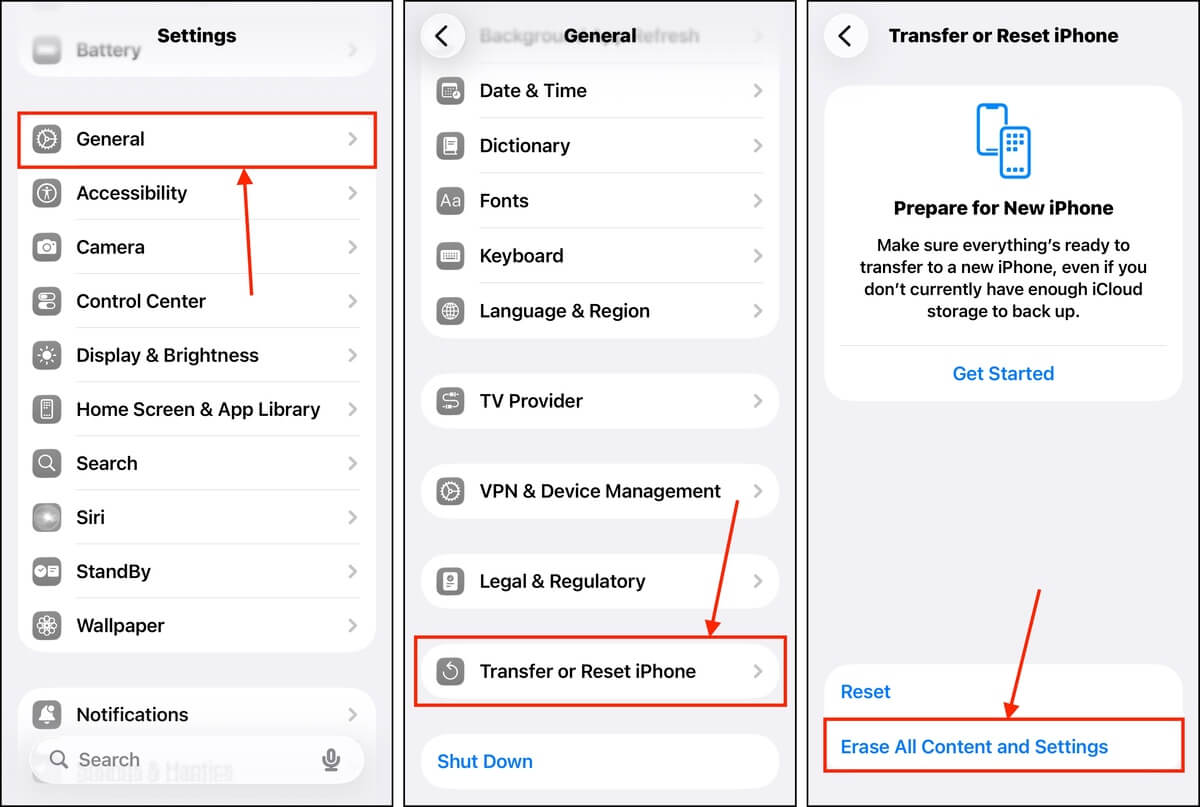
- Open the Settings app on your iPhone.
- Tap General.
- Scroll down to the bottom of the General menu and tap Transfer or Reset iPhone.
- Tap Erase Content and Settings; you may be prompted to enter your Apple Account details—do so. Then, you’ll be asked to confirm the data you want to delete.
- Your iPhone will restart itself. Once you get to the Apps & Data section, make sure to choose the Restore from iCloud Backup option. Then, sign in with the same Apple Account you used to create your backup, and choose the backup you want to restore.
We recommend keeping your iPhone plugged into a power source to avoid the process getting interrupted, especially if your device isn’t fully charged.
Conclusion
Restoring a deleted app is usually as easy as downloading it from the App Store, as long as it’s still on Apple’s servers. However, recovering app data can be more challenging–especially if you don’t have any backups, as data recovery software only has a limited window of time to work.
If you often delete your apps and app data to free up space, only to download them later when you need them again, we recommend offloading the app instead. This makes it easy to re-download the app, and it keeps your app data saved so you can pick up where you left off.
We hope this article on how to restore a deleted app on an iPhone was helpful. If you’ve got thoughts, questions, or feedback, please leave them in the comments section below!
FAQ
- Open the App Store on your iPhone.
- Tap on your profile icon in the top-right corner. Then, select Purchased apps.
- Check for the apps with the cloud download icon on their right side. These are the apps you have uninstalled on your device. Alternatively, you can go to the Not on this iPhone tab to see the history of deleted apps on your iPhone.
- Open the App Store. Then, tap on your profile icon in the top-right corner.
- Tap Not on this iPhone to see recently deleted apps. Their dates of download are also displayed below each app’s name.
- Old device: If restoring an app from your old iPhone to a new device, you can use the Quick Start feature (place the devices near each other) or restore an iPhone or computer backup. Your apps will automatically be re-downloaded. Alternatively, you can reinstall them manually from the Not on this iPhone column in the Apps page in your App Store Profile menu.
- Family Sharing: If you have Purchase Sharing enabled for your Family Account, you can download deleted apps from other members of the account. Open the App Store > your profile page > Apps, then tap a member to access their purchased apps.