



Lost your .docx file and wondering, “Can you recover a deleted Word document?” In many cases, yes. A deleted Word document can often be recovered on Windows, but what you should try first depends on how it was deleted. You may be able to restore a recently deleted document from the Recycle Bin, undo the deletion with Ctrl + Z, recover a copy from OneDrive, or use data recovery software if you emptied the Recycle Bin or used Shift + Delete. If the document was never saved, Word’s built-in recovery features offer a different route.
We’ll explain how to recover a deleted Word document in each of these situations, including permanently deleted DOC and DOCX files and unsaved documents.
If your file was permanently deleted, stop using the affected drive and avoid saving new files to it until you attempt recovery. New data can overwrite the deleted document and reduce your chances of getting it back.
What to Do After Deleting a Word Document?
Deleted doesn’t always mean permanently gone. What you should do next depends on how the Word document was lost:
- Recently deleted: If you deleted the document normally, check the Recycle Bin. If deletion was your most recent action, you can also try Ctrl + Z.
- Emptied Recycle Bin: Emptying the Recycle Bin removes normal access to the file, but its underlying data may still be recoverable until it is overwritten.
- Shift + Delete: This bypasses the Recycle Bin and permanently deletes the document. Check your backups or use data recovery software.
- Unsaved document: If the document was never saved, deleted-file recovery methods don’t apply. Instead, check Word AutoRecover, temporary files, and Recover Unsaved Documents.
| What happened? | Best method to try first | What to know |
|---|---|---|
| I just deleted the Word document | Ctrl + Z / Undo Delete | If you haven’t performed many other actions since deletion, Windows may still let you undo it and return the file to its original folder. |
| I deleted the file normally | Recycle Bin | Files deleted normally from an internal drive usually go to the Recycle Bin, where you can right-click the document and select Restore. |
| I emptied the Recycle Bin | Backup or data recovery software | The document is now permanently deleted from Windows, but its data may remain on the drive until it is overwritten. |
| I used Shift + Delete | Backup or data recovery software | Shift + Delete bypasses the Recycle Bin. Check for a backup first; otherwise, scan the affected drive with recovery software. |
| The document was synced with OneDrive | OneDrive Recycle Bin / Version History | A synced copy or an earlier version may still be available through OneDrive, depending on how the document was deleted or changed. |
| I never saved the document | Word AutoRecover / Recover Unsaved Documents | The document may exist as an AutoRecover or temporary recovery file even though you never created a normal DOCX file. |
| I overwrote the document | Version History / Previous Versions | Look for an earlier version rather than trying to recover the current file, since the document itself hasn’t been deleted. |
SSD note: Permanently deleted files can be harder to recover from an SSD because of TRIM. TRIM allows the SSD to clear blocks that are no longer needed after deletion. Once the blocks that contained your Word document have been cleared, data recovery software generally can’t recover it.
How to Recover a Deleted Word Document
There are several ways to recover a deleted Word document in Windows, and it’s best to start with the simplest option that matches your situation. The methods that follow cover everything from undoing a recent deletion and restoring a file from the Recycle Bin or OneDrive to checking backups and recovering a permanently deleted document with data recovery software.
Start with the method that applies to how your document was lost. If you’re not sure what happened to it, work through the methods in order.
Method 1: Undo the Deletion with Ctrl+Z
Ctrl+Z is worth trying if you deleted the Word file just moments ago and haven’t performed any actions since. However, it won’t help if you used Shift + Delete, emptied the Recycle Bin, restarted your PC, or continued using the computer after the deletion.
Follow these steps to undo the deletion of a Word file:
- Return to File Explorer and press Ctrl + Z (or right-click and select Undo Delete).
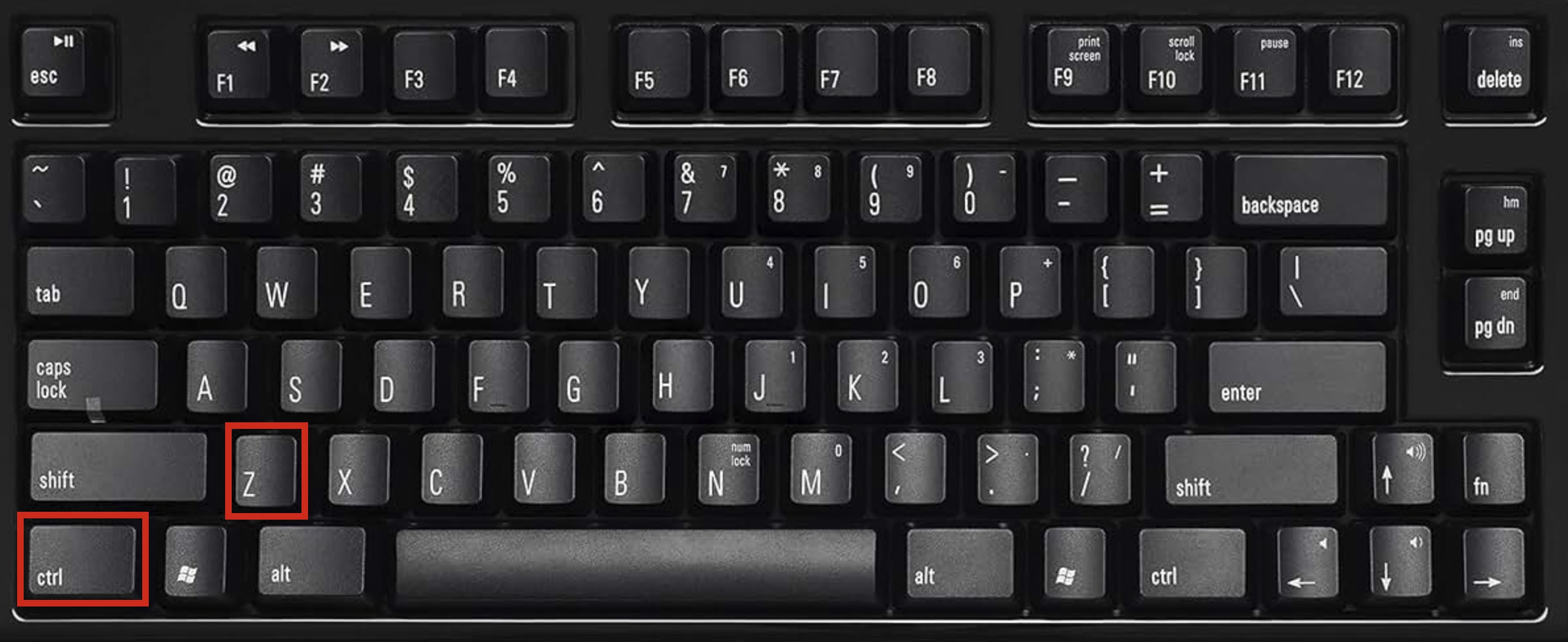
- If the undo operation is still available, your Word document should reappear in its original location.
If Ctrl+Z doesn’t work, your document isn’t necessarily gone. Check the Recycle Bin next.
Method 2: Restore from the Recycle Bin
If you deleted the Word document normally, the Recycle Bin is the first place you should check. Files deleted with the Delete key or the Delete option usually remain there until you empty the Recycle Bin.
⚠️ Important: This method only works if you deleted the file normally (using Delete key or right-click > Delete). If you used Shift+Delete, your file bypassed the Recycle Bin entirely and you don’t have a backup, then skip to Method 5 for data recovery software. The same applies if you’ve already emptied the Recycle Bin or deleted the files from a USB flash drive or other removable storage device.
Here’s how to restore a deleted Word document from the Recycle Bin:
- Double-click the Recycle Bin icon on your desktop.
- Look for the deleted Word document. If the Recycle Bin contains many files, search by file name or look for .doc and .docx files. You can also sort by Date Deleted to find recently deleted documents faster.
- Either right-click the file and select Restore to send it back to its original location, or simply drag it to wherever you want it (Desktop, Documents folder, etc.).
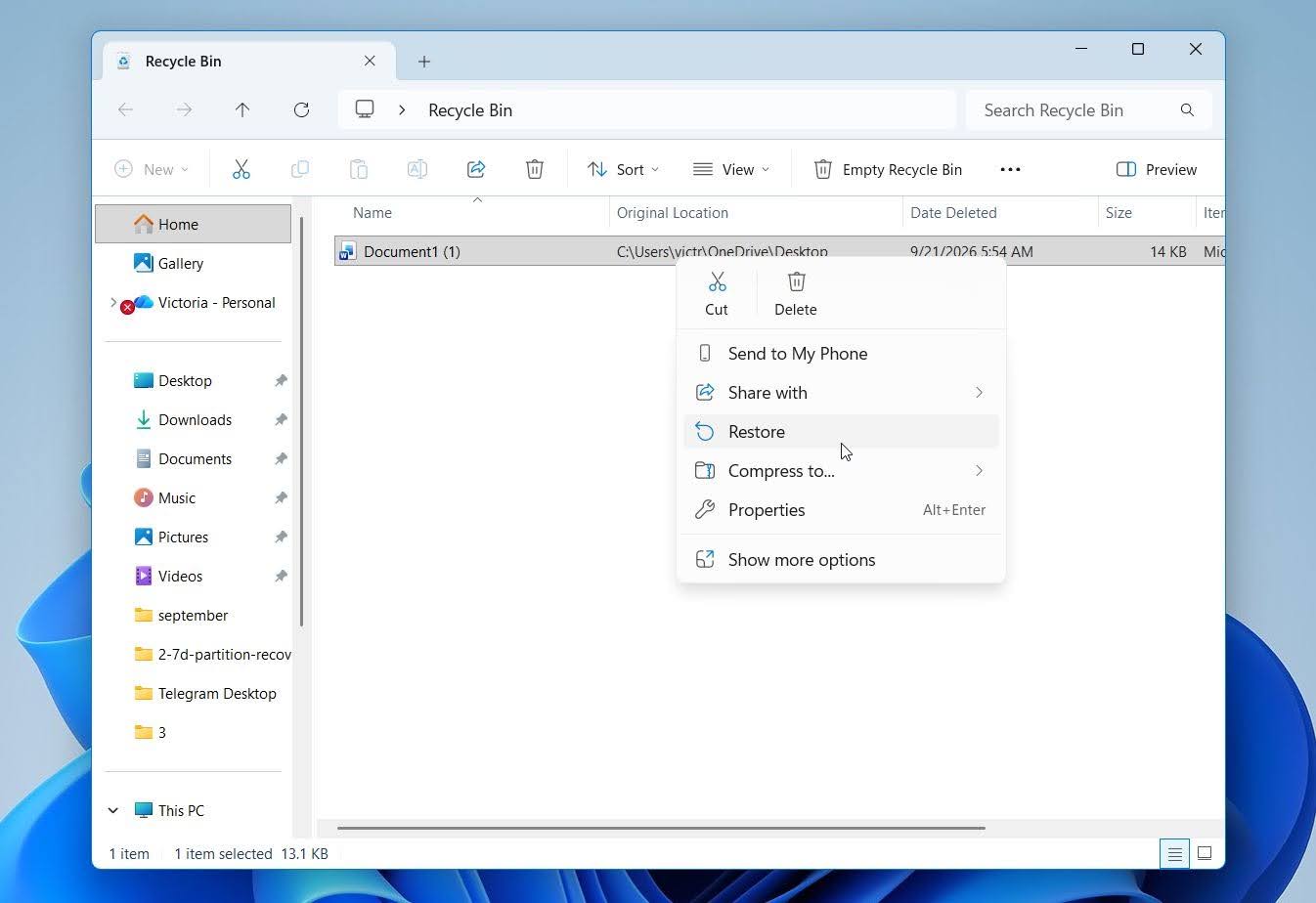
If you’re certain the document should be in the Recycle Bin but can’t find it, right-click the Recycle Bin icon and select Properties. Check whether Don’t move files to the Recycle Bin. Remove files immediately when deleted is enabled for the relevant drive. If it is, files deleted from that drive bypass the Recycle Bin and are removed immediately.
Method 3: Recover from OneDrive
OneDrive can help recover a deleted Word document if the file was stored in OneDrive or in a folder synced with OneDrive before it was deleted. When you delete a file from a synced OneDrive folder on your PC, that deletion normally syncs to OneDrive as well. However, the file may still be available in the OneDrive Recycle Bin, where you can restore it. If the document was stored only on your PC in a folder that wasn’t synced with OneDrive, OneDrive won’t have a copy to recover.
If you use Google Drive, Dropbox, or another cloud storage service, check its Trash or deleted-files section as well. Synced deletions can also propagate to the cloud, but the service may retain the deleted file temporarily so you can restore it.
Here’s how to recover a deleted Word document from OneDrive:
- Go to onedrive.com and sign in with the Microsoft account you use for OneDrive.
- Click Recycle Bin in the left navigation panel.
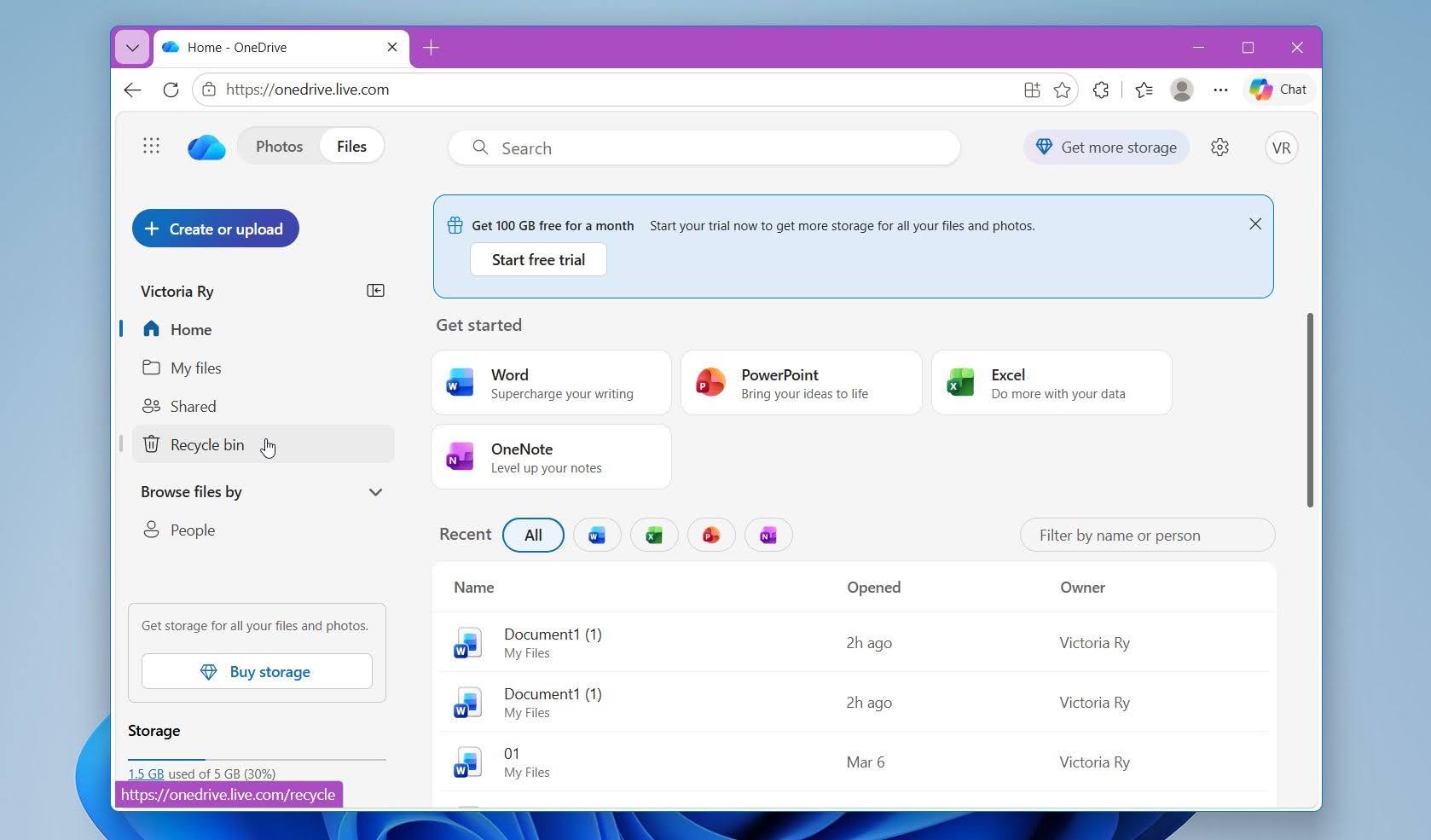
- Look for your Word document. You can sort the contents by Date deleted to find recently deleted files faster.
- Select the document, then click Restore at the top of the page.
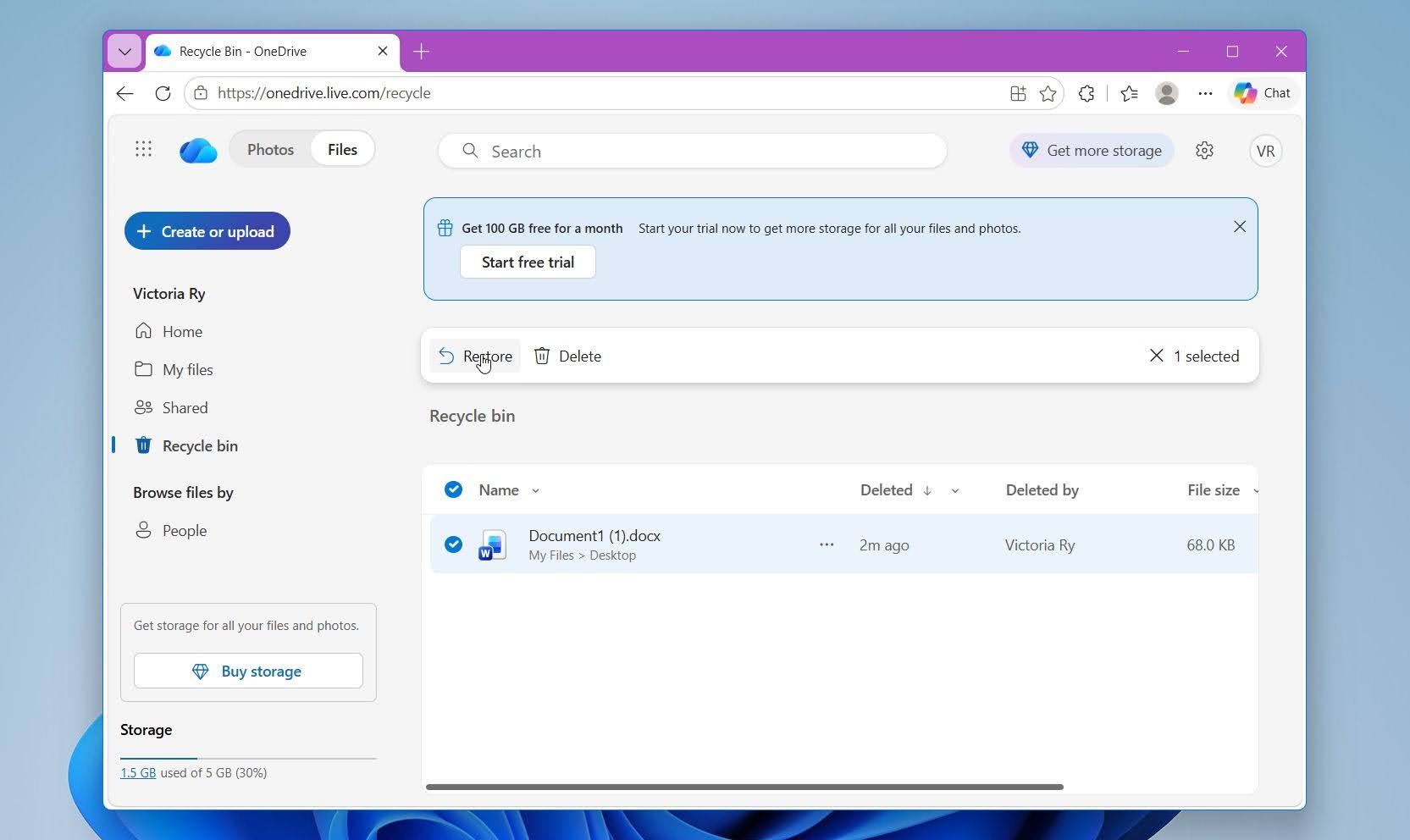
- OneDrive will restore the document to its original folder. If that folder is synced with your PC, the file should also appear there again.
⚠️ Important: For personal Microsoft accounts, files in the OneDrive Recycle Bin are automatically deleted after 30 days. Work or school accounts typically retain deleted items for 93 days, although administrators can change retention settings.
Method 4: Restore the Document with File History
If File History was enabled before your Word document was deleted, Windows may have a backup copy that you can restore. File History periodically saves copies of files from protected folders, so this method is worth checking if the document was stored in a location included in your File History backup.
Here’s how to restore a deleted Word document with File History:
- Open Control Panel.
- Go to System and Security > File History.
- Click Restore personal files.
- Browse to the folder where your Word document was originally stored.
- Use the arrows to move through available backup dates until you find a version from before the document was deleted.
- Select the Word document you want to recover.
- Click the green Restore button to return it to its original location. Alternatively, right-click the button and select Restore to if you want to save the recovered document somewhere else.
File History can only recover the document if it backed up the file before it was deleted. If File History wasn’t enabled or the document wasn’t included in a previous backup, turning the feature on now won’t recover it.
Method 5: Recover with Data Recovery Software
If your Word document has been permanently deleted, data recovery software may still be able to retrieve it. This is the method to try after Shift + Delete, an emptied Recycle Bin, or when no backup or previous version is available.
For this method, we’ll use Disk Drill, a data recovery application for Windows that can scan internal and external storage for deleted files. It supports Word documents and related file formats, while its filters help narrow the scan results to DOC, DOCX, TMP, and ASD files. Disk Drill also lets you preview found documents before recovery, which helps confirm that the file is intact and recoverable.
Here’s how to recover a permanently deleted Word document with Disk Drill:
- Download and install Disk Drill. Whenever possible, install it on a drive other than the one that contained the deleted Word document.
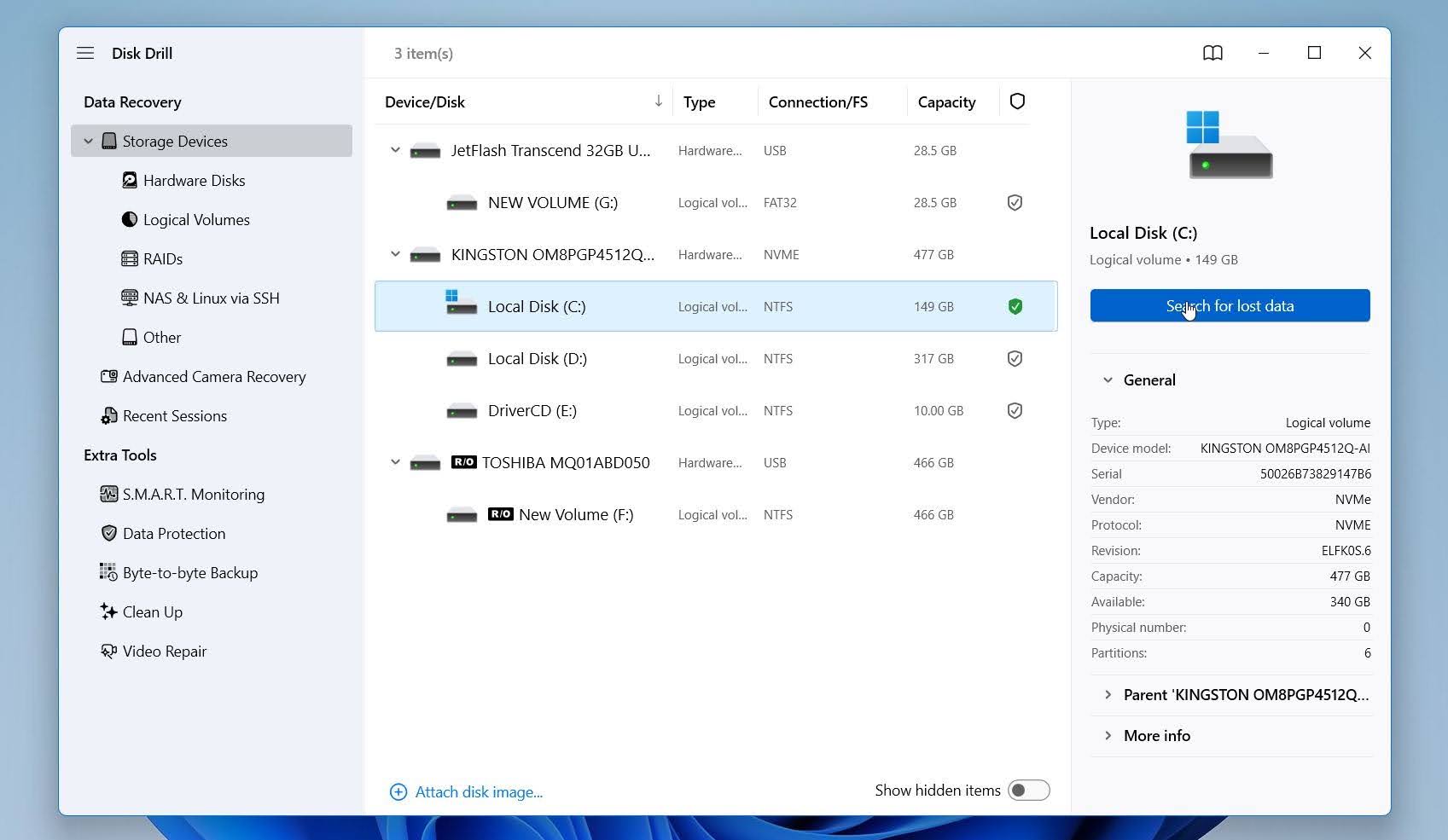
- Launch Disk Drill and select the drive where the document was stored, usually the C: system drive.
- Click Search for lost data to start the scan.
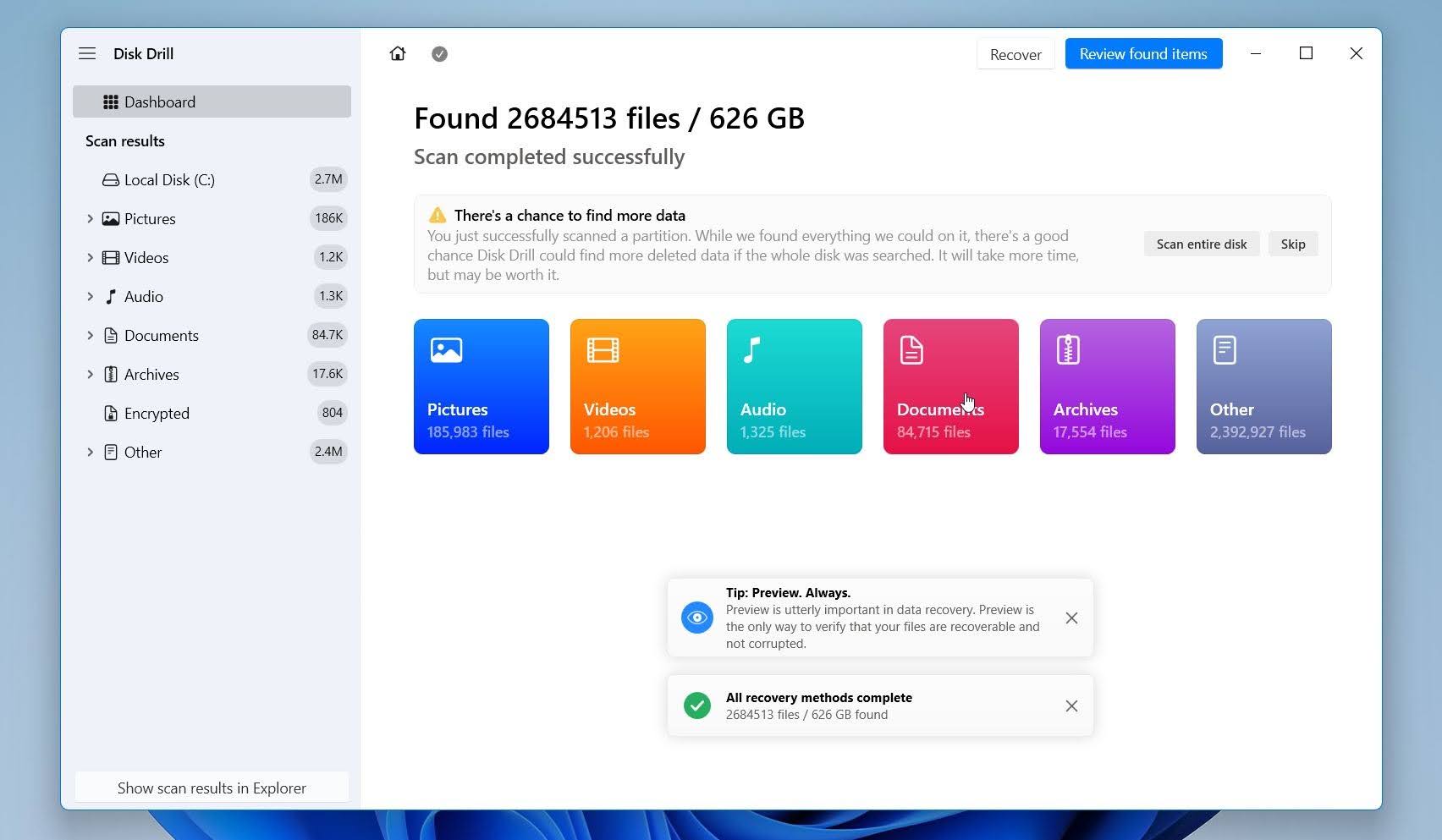
- Wait for the scan to complete or click the Review found files button to see found files immediately (scanning will continue in the background). You can also open the Documents category.
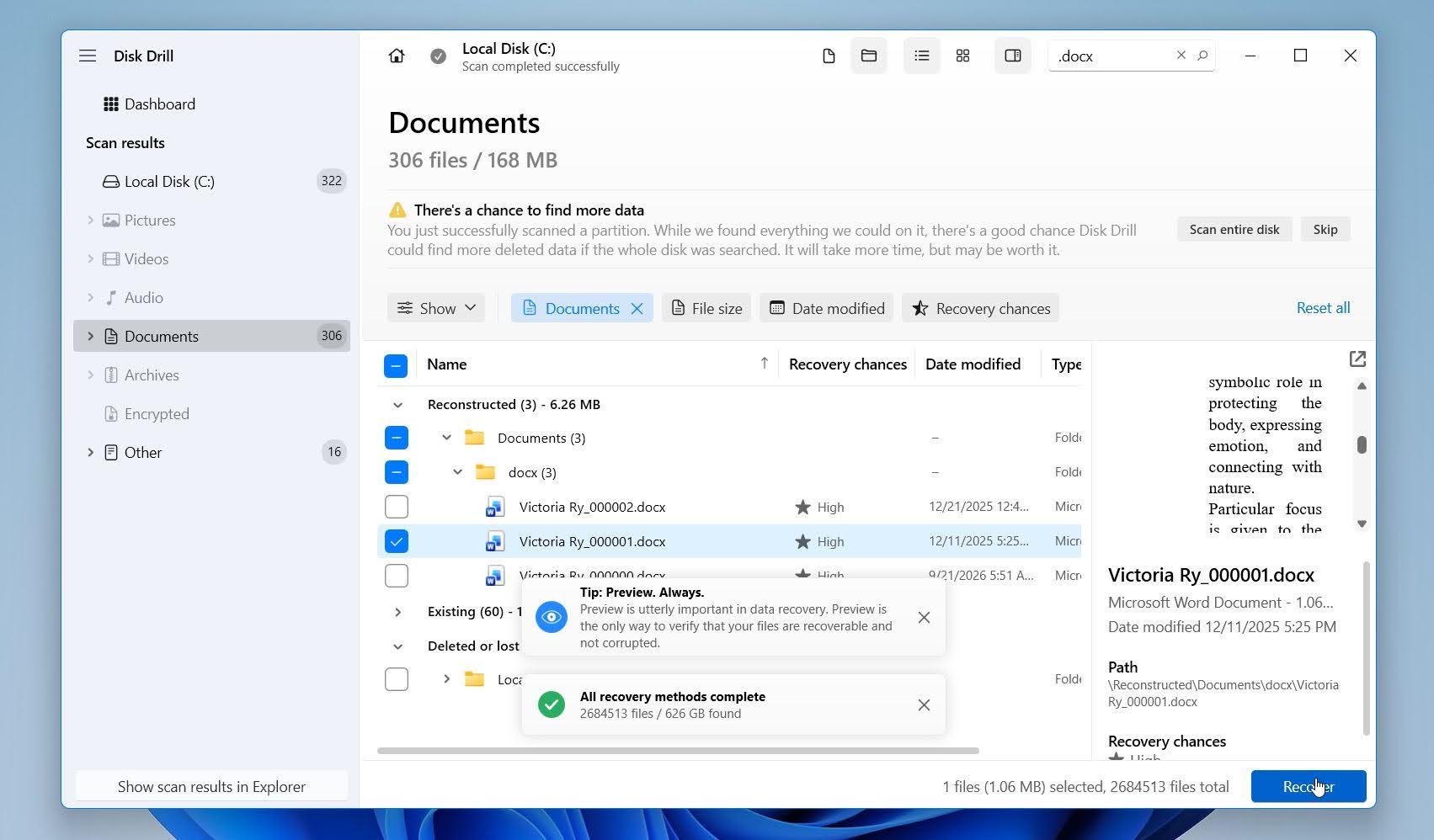
- Use the filters on the left to narrow the results to document formats. Search for .docx, .doc, .tmp, and .asd files to focus on Word documents and their backups. You can preview documents directly inside Disk Drill. If the document previews correctly, that is a strong indication that it can be recovered intact. Select the document and click Recover.
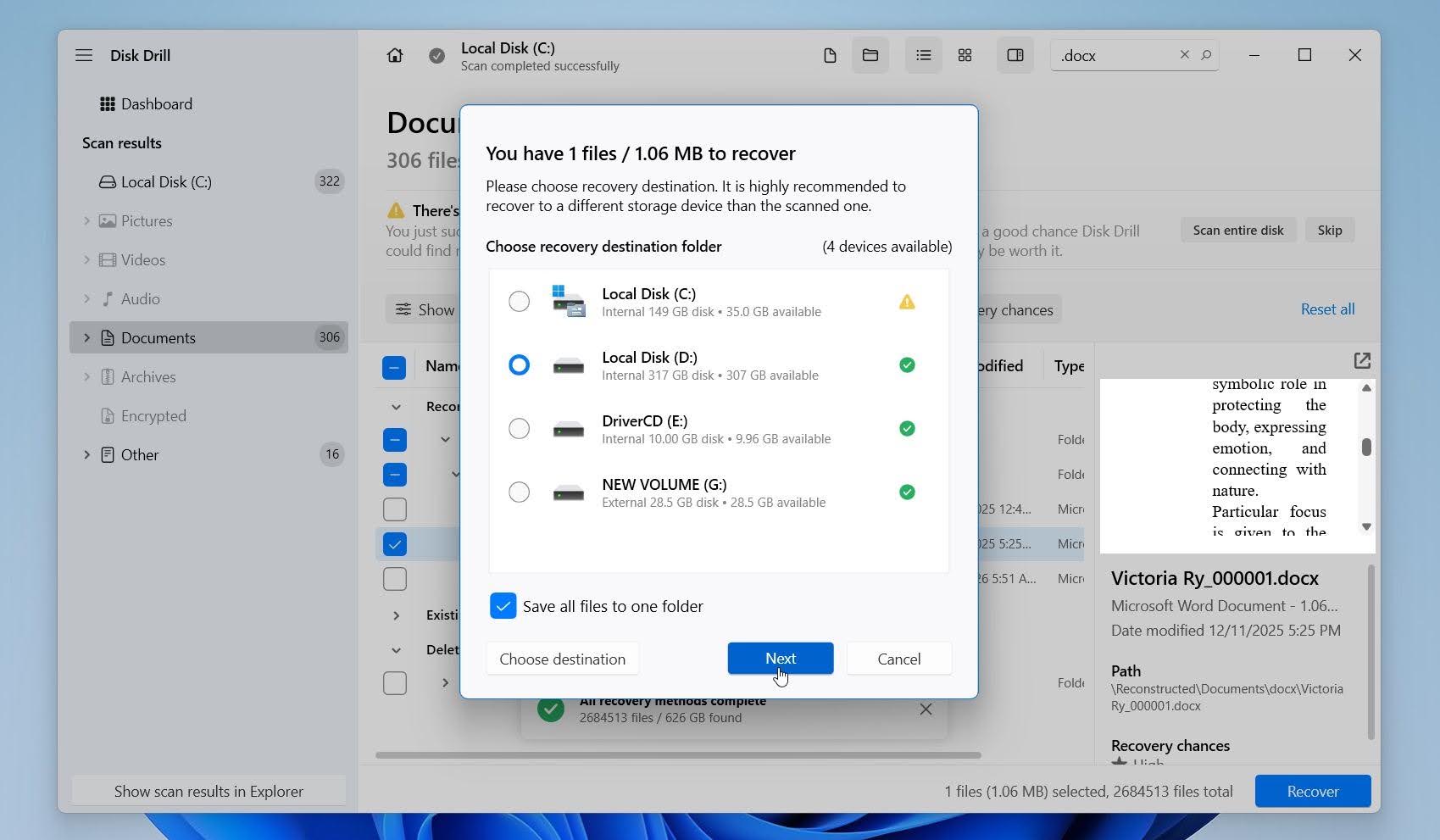
- Choose a recovery destination on a different drive or storage device, then confirm the recovery.
Disk Drill for Windows lets you recover up to 100 MB of data for free, which may be enough for one or several Word documents. For more details about its recovery performance, features, limitations, and pricing, see our full Disk Drill review.
How to Recover an Unsaved Word Document
An unsaved document is different from a deleted document. If you never saved the file or Word crashed before you could save your latest changes, try Word’s built-in recovery tools first.
Method 1: Check the Document Recovery Pane
If Word closed unexpectedly because of a crash, power outage, or system restart, reopen Microsoft Word. The Document Recovery pane may appear automatically on the left and display versions of documents Word managed to save before the interruption.
- Open Microsoft Word again.
- Look for the Document Recovery pane on the left.
- Check the available versions and open the most recent one.
- Review the document to make sure it contains the content you need.
- Go to File > Save As and save it immediately.
If the Document Recovery pane doesn’t appear, Word may still have an AutoRecover copy that you can locate through Word.
Method 2: Use Recover Unsaved Documents
Word may also keep temporary recovery copies of documents that were closed without being saved. You can check for them directly from Word:
- Open Microsoft Word.
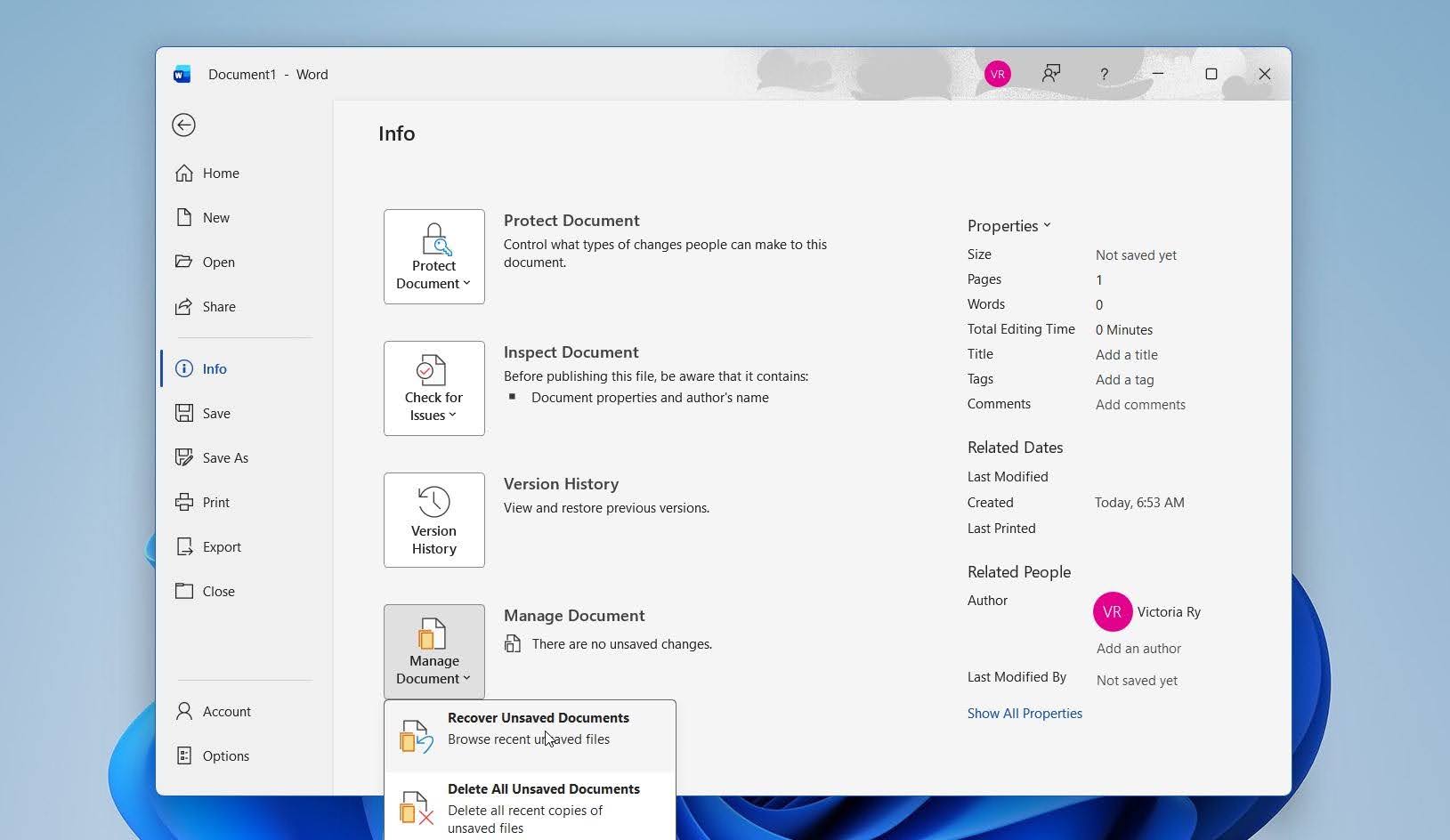
- Go to File > Info > Manage Document.
- Click Recover Unsaved Documents.
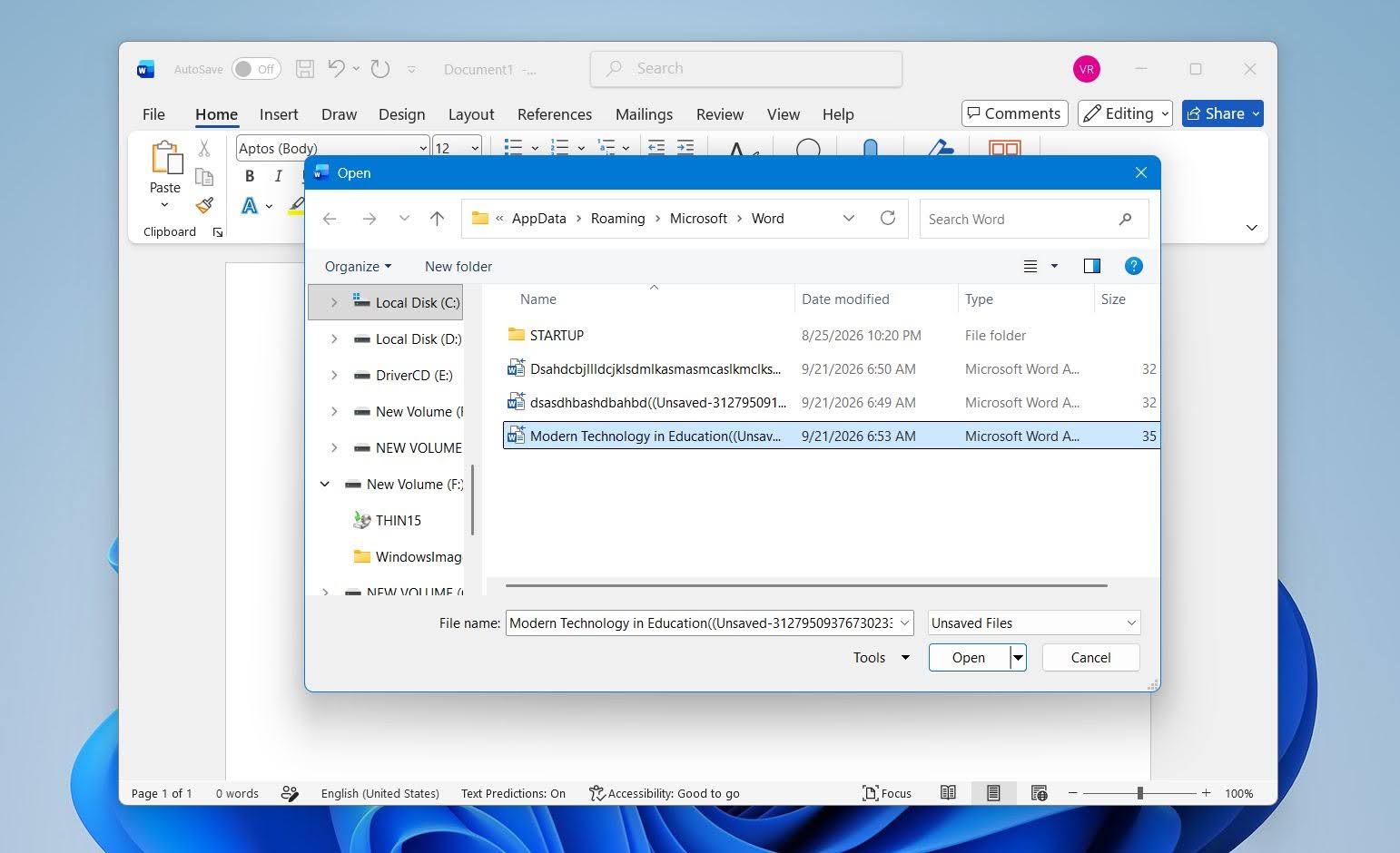
- Look through the available files and open the document you need.
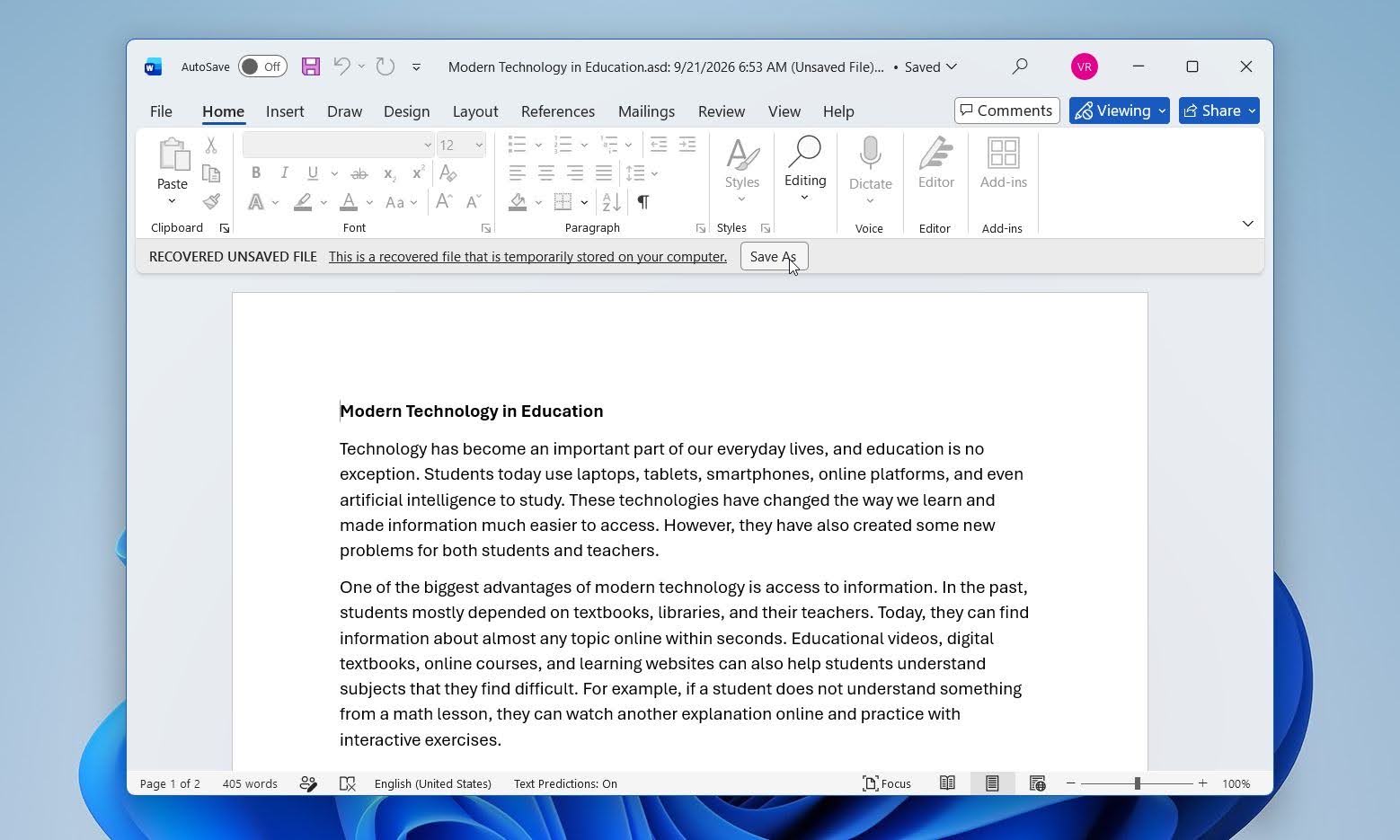
- Click Save As and save the recovered document to a permanent location.
The available files are typically stored in Word’s UnsavedFiles folder and may use the .asd extension. Word does not keep these recovery copies indefinitely, so save the document as soon as you find the correct version.
Method 3: Find AutoRecover Files Manually
If Word doesn’t show the document through its recovery menus, check the AutoRecover location manually.
- Open Word and go to File > Options > Save.
- Find AutoRecover file location and copy the folder path shown there.
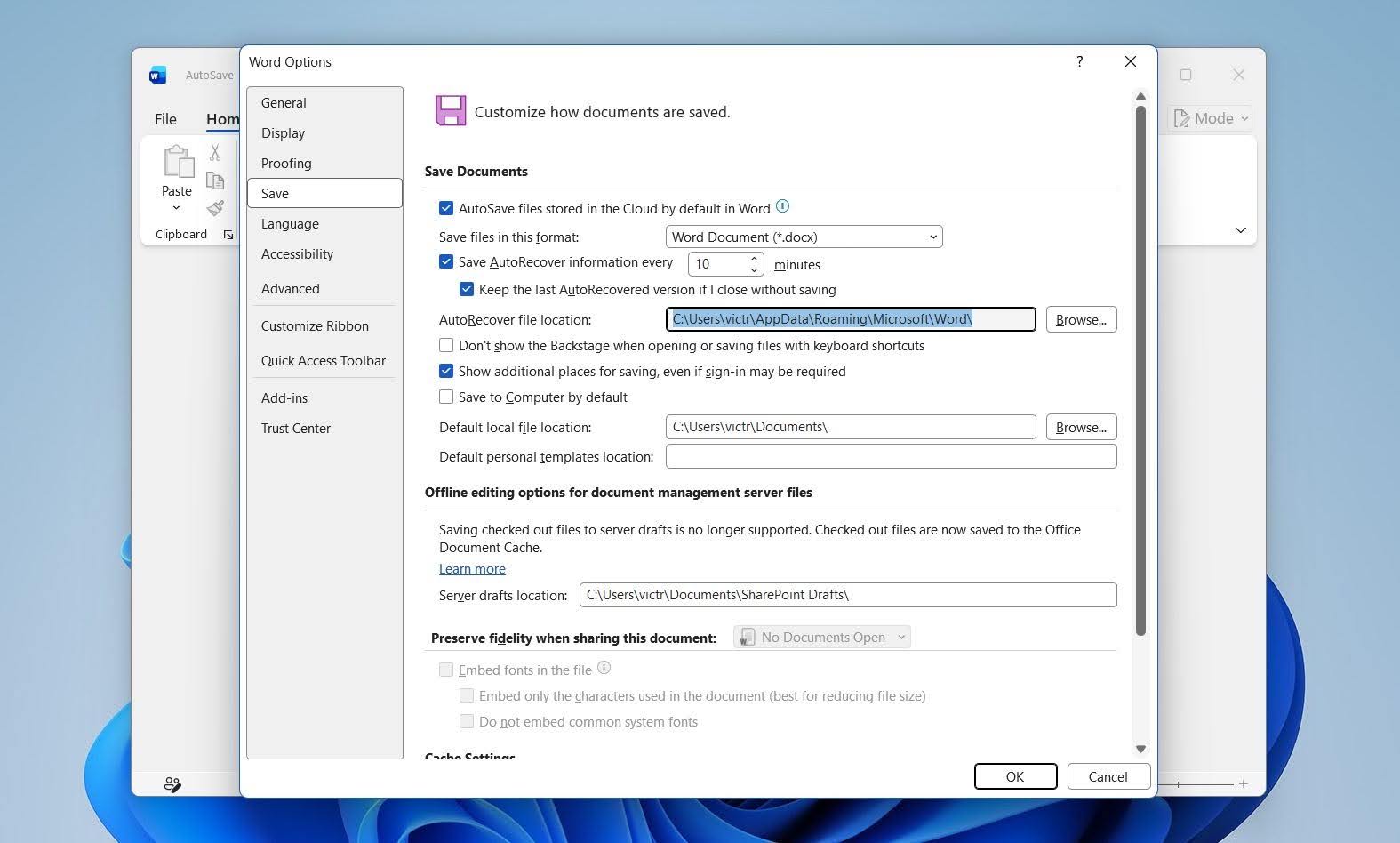
- Paste the path into the File Explorer address bar and press Enter.
- Look for .asd files that match your missing document.
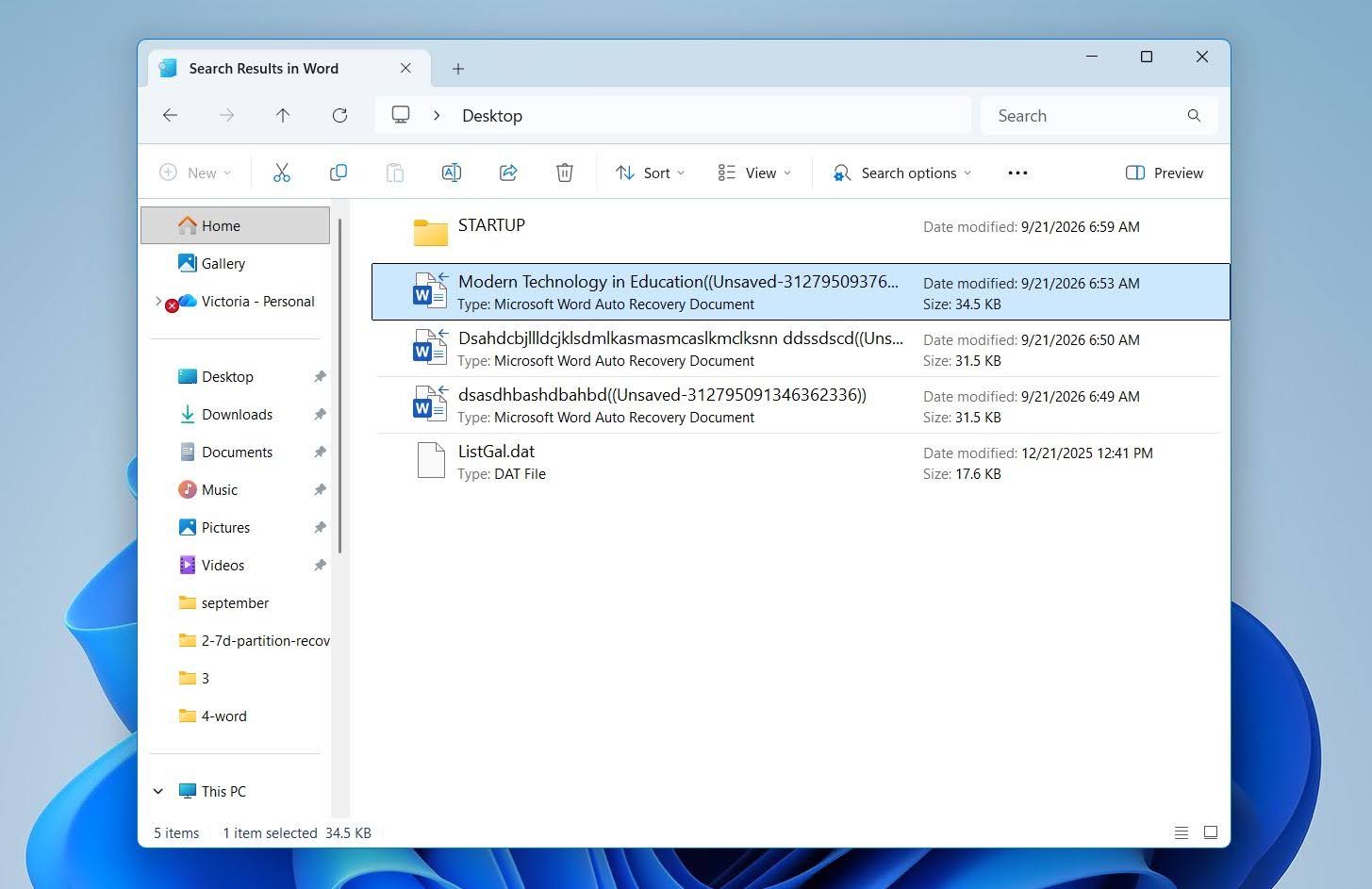
- Open a likely file in Word and save it as a new DOCX document.
Keep in mind that AutoRecover is designed mainly to protect your work after unexpected interruptions. It does not guarantee that every unsaved document or every recent change will have a recoverable copy.
Final Thoughts
Word documents can often be recovered even after they’ve been deleted. Recent deletions are usually the easiest to resolve: an Undo command or a quick check of the Recycle Bin may restore the document. If you regularly back up your files, check whatever backup you use for another copy. OneDrive, File History, and Previous Versions are common options, but other cloud or local backups can work just as well.
If the document was permanently deleted and no backup exists, data recovery software like Disk Drill is the next option to try.
To reduce the risk of losing work in the future, check File > Options > Save and make sure AutoRecover is enabled. You can also shorten the AutoRecover interval for more frequent recovery copies. If you save documents to OneDrive or SharePoint, keep AutoSave enabled so your changes are saved automatically.
Note: For additional opinions and real-world recovery experiences, check out our forum discussion, where users share what worked for them and offer additional tips for recovering lost or unsaved Word documents.
FAQ
- Use File Explorer search and enter the document name or search for *.docx and *.doc.
- Check common locations such as Documents, Desktop, Downloads, and recently used folders.
- Open Word > File > Open > Recent to see whether the document appears in your recent files.
- Check the Recycle Bin in case the document was accidentally deleted.
- Search OneDrive or another cloud storage service if your files are synced.
- If the document was never saved, check Word’s AutoRecover and Recover Unsaved Documents options.