

A partition is an area of a physical drive that Windows treats as an individual storage volume. When it disappears, the files it contained aren’t necessarily gone. Depending on what caused the problem, you may be able to restore the partition itself or recover the data it contained.
We will show you how to recover a deleted partition and its files with different methods that work for both Windows 10 & 11. For now, it’s very important to avoid any further use of the affected drive, as new data can overwrite the files and partition information you may still be able to recover.
Can You Recover a Deleted or Lost Partition?
Yes, it may be possible to restore a lost or deleted partition or recover the files it contained, depending on the extent of the damage. The lost partition isn’t necessarily deleted. It may disappear because of partition table corruption, file system damage, a missing drive letter, or another logical problem.
Recovery is more likely when the original partition structures and data are still present. Tools such as Disk Drill can scan the physical drive for files from a lost or deleted partition even when the partition itself can no longer be restored.
On an SSD, simply deleting or losing a partition does not normally trigger TRIM, so the data may still be recoverable. The risk increases if you create a new partition and format it, as this can trigger TRIM and make the affected data much harder or impossible to recover. Writing new data to the drive can also overwrite recoverable files.
There are also two different recovery goals to consider: restoring the partition itself or recovering the files it contained. A partition may be too damaged to restore as a working volume, while its files can still be recoverable with data recovery software.
Identify What Happened to Your Lost or Deleted Partition
Before you choose a recovery method, check Disk Management to see how Windows currently detects the drive and partition.
| What you see | What it usually means | Best action |
|---|---|---|
| Partition appears healthy but has no drive letter | The partition probably still exists and may simply be inaccessible from File Explorer. | Assign a drive letter first. |
| Space appears as Unallocated | The partition entry may have been deleted or lost. | Recover important files first, then attempt to restore the partition. |
| Partition appears as RAW | The partition exists, but Windows cannot recognize its file system. | Recover the files before you format or attempt repairs. |
| A new partition occupies the old space | Some of the original partition metadata or data may already have been overwritten. | Stop using the drive and scan it for recoverable files. |
| Drive reports the wrong capacity, disconnects, or responds very slowly | The problem may involve the drive itself rather than only its partition structure. | Avoid partition repairs. Create a disk image if the drive is stable enough, or consider professional recovery if it shows serious hardware problems. |
What to Do After Accidentally Deleting a Partition
Now, before we continue, there are a few things you can do first to improve your chances of a successful partition recovery:
- As was previously mentioned, stop using the affected drive. Don’t create another partition or make any other changes that could overwrite the lost partition’s data.
- Cancel format, initialize, or repair prompts. If Windows asks you to format the disk or Disk Management asks you to initialize it, click Cancel. Don’t run CHKDSK or other repair tools yet, as they modify the file system and may complicate recovery.
- If possible, disconnect an SSD. The deletion or loss of a partition does not normally trigger TRIM, so the data may still be recoverable if you make no further changes to the drive. However, disconnecting the SSD helps prevent accidental formatting, repartitioning, or other writes while you prepare for recovery.
- Prepare another drive. Install recovery software on a different physical drive and have enough separate storage available for any files you recover. Never save recovered files back to the affected disk.
- Create a disk image if the data is important or the drive is unstable. If the drive is unusually slow, disconnects, reports bad sectors, or contains valuable data, create a disk image first and perform recovery attempts on the image rather than the original drive.
- Check for BitLocker encryption. On many Windows 11 PCs, the system drive may be protected by BitLocker or Device Encryption. If the lost partition was encrypted with BitLocker, you need to unlock it before you can recover its files correctly. Without decryption, recovery software sees encrypted data rather than readable file contents. Disk Dill can detect a lost BitLocker partition and prompt you to enter the recovery key so it can decrypt the volume before the file recovery process. If the affected partition uses ReFS, recovery may also require a different approach from a typical NTFS volume.. See our guide to ReFS partition recovery for recovery options specific to this file system.
With these precautions in place, you’re ready to start recovery.
How to Recover Deleted or Lost Partition and Data
Here are the instructions for recovering your data, restoring a lost partition, and getting the affected storage space working again.
The screenshots were taken on Windows 11, but the instructions also apply to Windows 10. If you’re dealing with the same problem on a Mac, see our guide on recovering a lost or deleted partition on macOS.
Step 1: Partition Missing From File Explorer? Check the Drive Letter
If your partition is not visible in File Explorer, we first recommend that you check whether it appears in Disk Management. Windows normally assigns drive letters to recognized volumes, but occasionally a partition may not receive one or its previous drive letter may disappear. If the partition appears healthy in Disk Management but has no drive letter, a new letter may make it visible and accessible in File Explorer again.
Here is how to assign a drive letter:
- Right-click Start and click Disk Management.
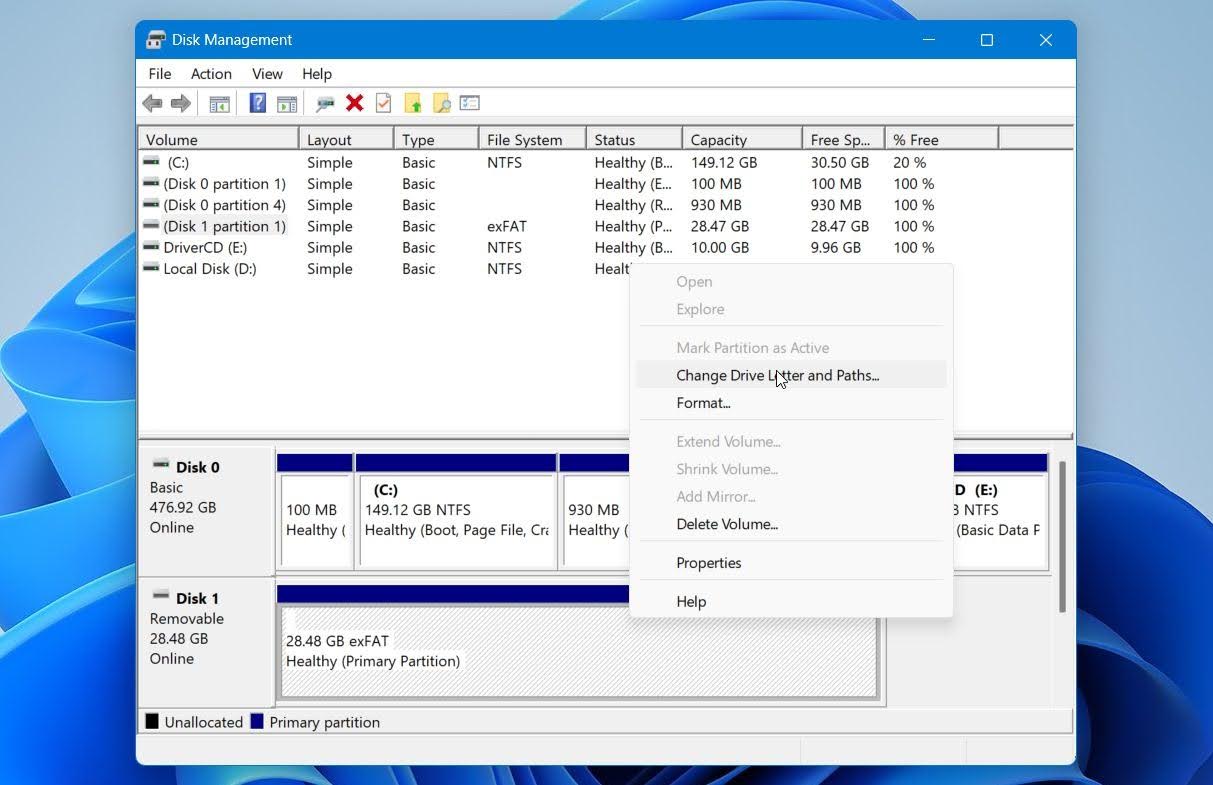
- Find the affected partition and check whether it already has a drive letter. If no letter appears next to the volume name, right-click the partition and select Change Drive Letter and Paths…
- Click Add.
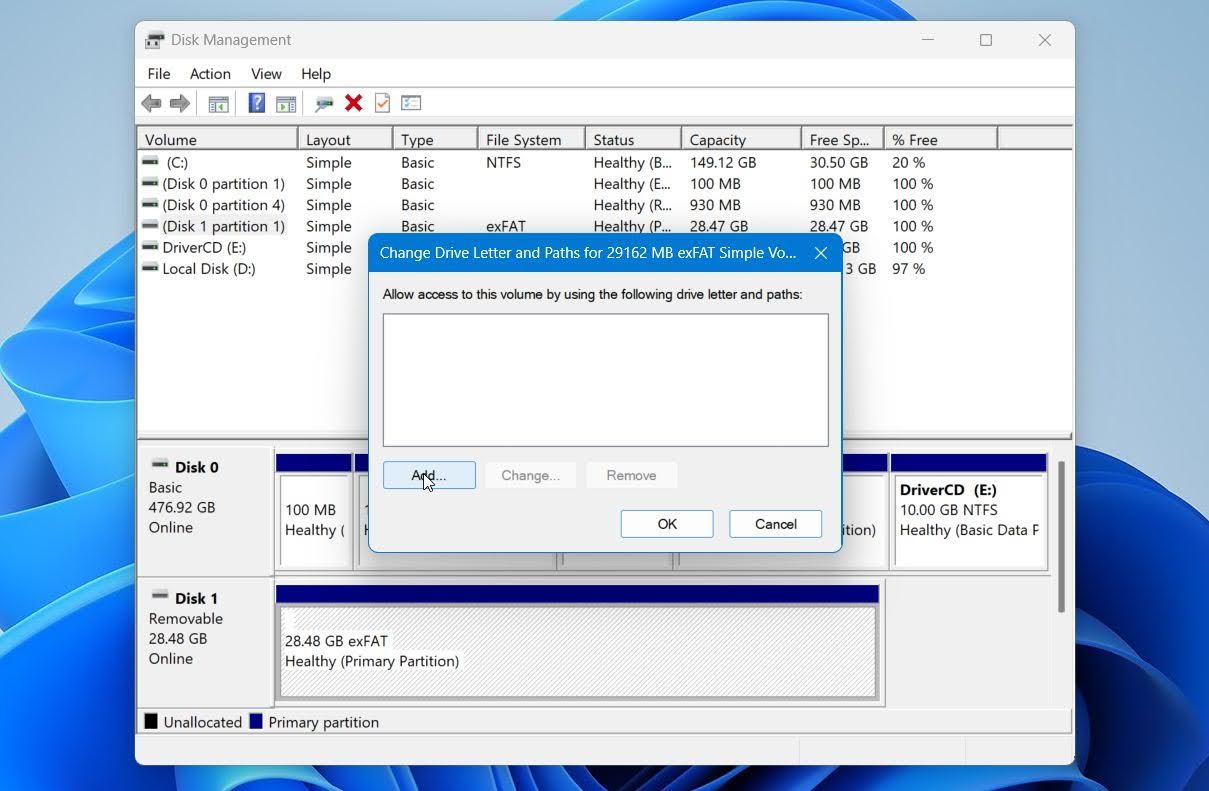
- Select a new drive letter from the dropdown menu and click OK.
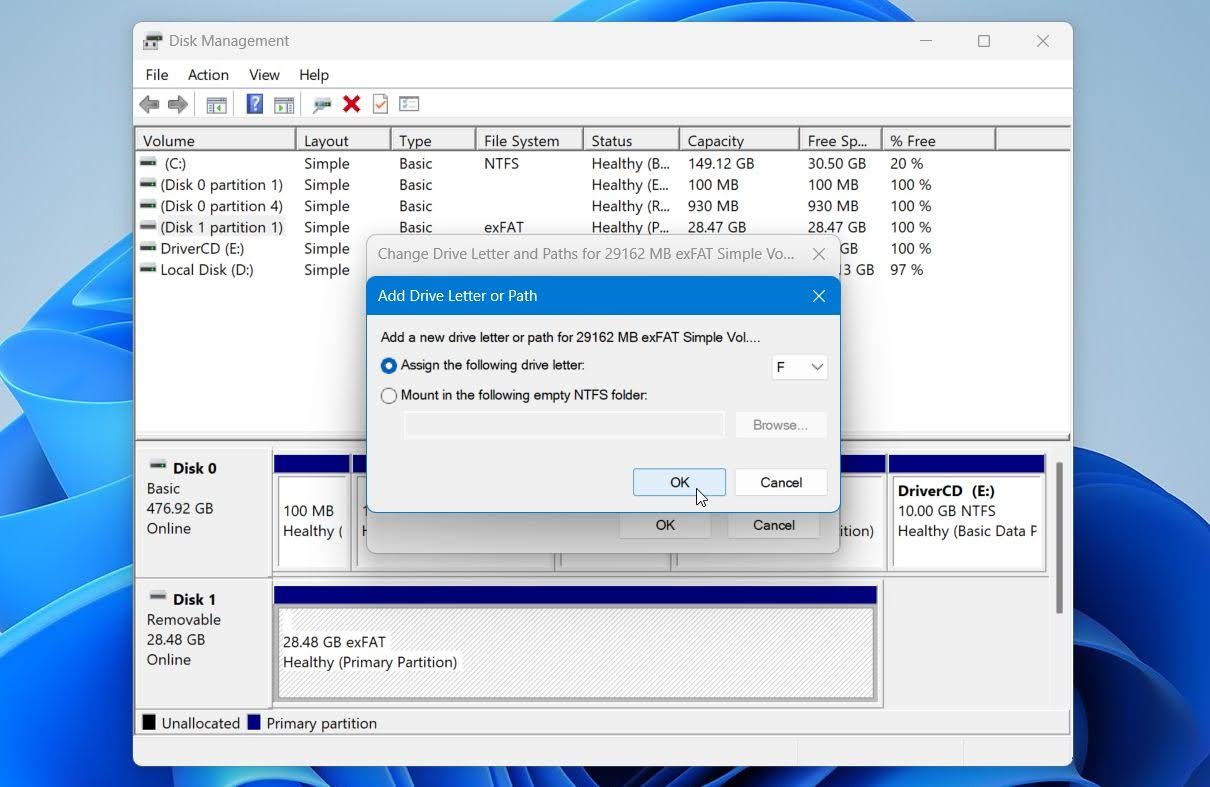
- Click Yes if prompted to confirm the drive letter change.
Note: This method only applies if the partition still appears in Disk Management as an existing volume. If the space shows as Unallocated, the partition itself is missing, so proceed to the partition recovery methods below instead.
Step 2: How to Recover Files From a Deleted Partition with Disk Drill
Once you rule out a missing drive letter, recover your data before you attempt any further repairs. Repair attempts can change file system structures or overwrite recoverable data, so it’s safer to recover important files first and then attempt to fix the partition.
For this step, we’ll use Disk Drill. It can scan the entire physical drive for lost data even when the original partition no longer appears in File Explorer or Disk Management. The software combines file system analysis with signature-based scanning, so it can find files through remaining file system metadata and search for known file types when that metadata is damaged or missing.
Disk Drill can also detect lost partitions with their original file names and folder structure, so you can recover files and folders to another drive in their original form. It can also detect BitLocker-encrypted lost partitions and prompt for the recovery key to decrypt them, while many other tools see only encrypted data.
If the drive was already unstable before the partition was lost or deleted, we strongly recommend creating a disk image and scanning the image instead. This prevents worsening the physical condition of the drive during recovery.
Here is how to recover files from a deleted partition with Disk Drill:
- Download Disk Drill for Windows and install it on a different physical drive from the one that contained the deleted partition. This helps prevent recoverable data from being overwritten. Once installed, open the program.
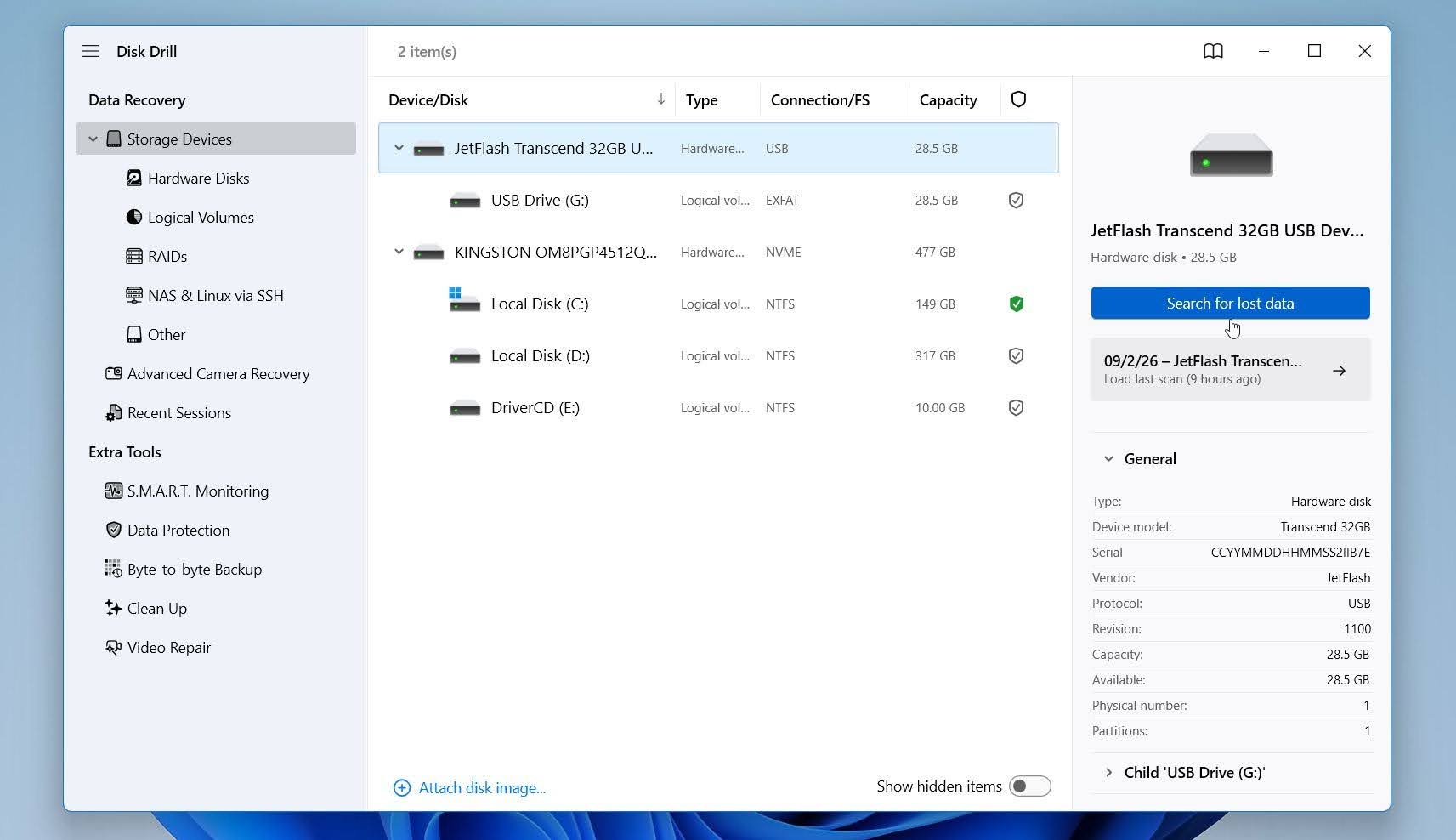
- On the Storage Devices screen, select the physical drive where the partition was located and click Search for lost data.
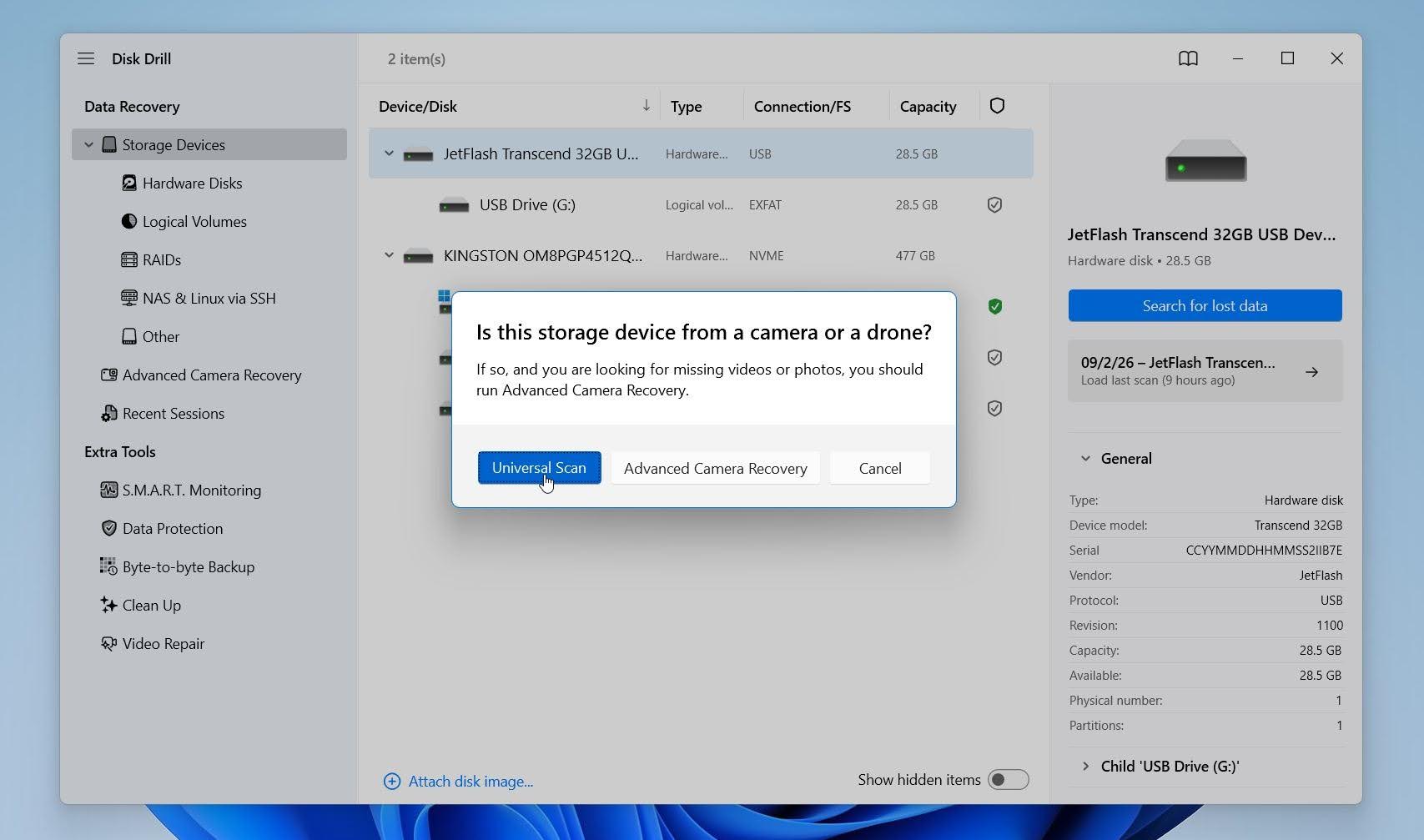
- If prompted to choose a scan type, select Universal Scan. This option searches for lost and deleted data and partitions using all applicable recovery methods, which makes it the appropriate choice for a missing partition.
- Let the scan run. If Disk Drill detects the deleted partition, it will appear under Lost Partitions. Select it to view files associated with that partition, or click Review found items to see all recoverable data found on the drive.
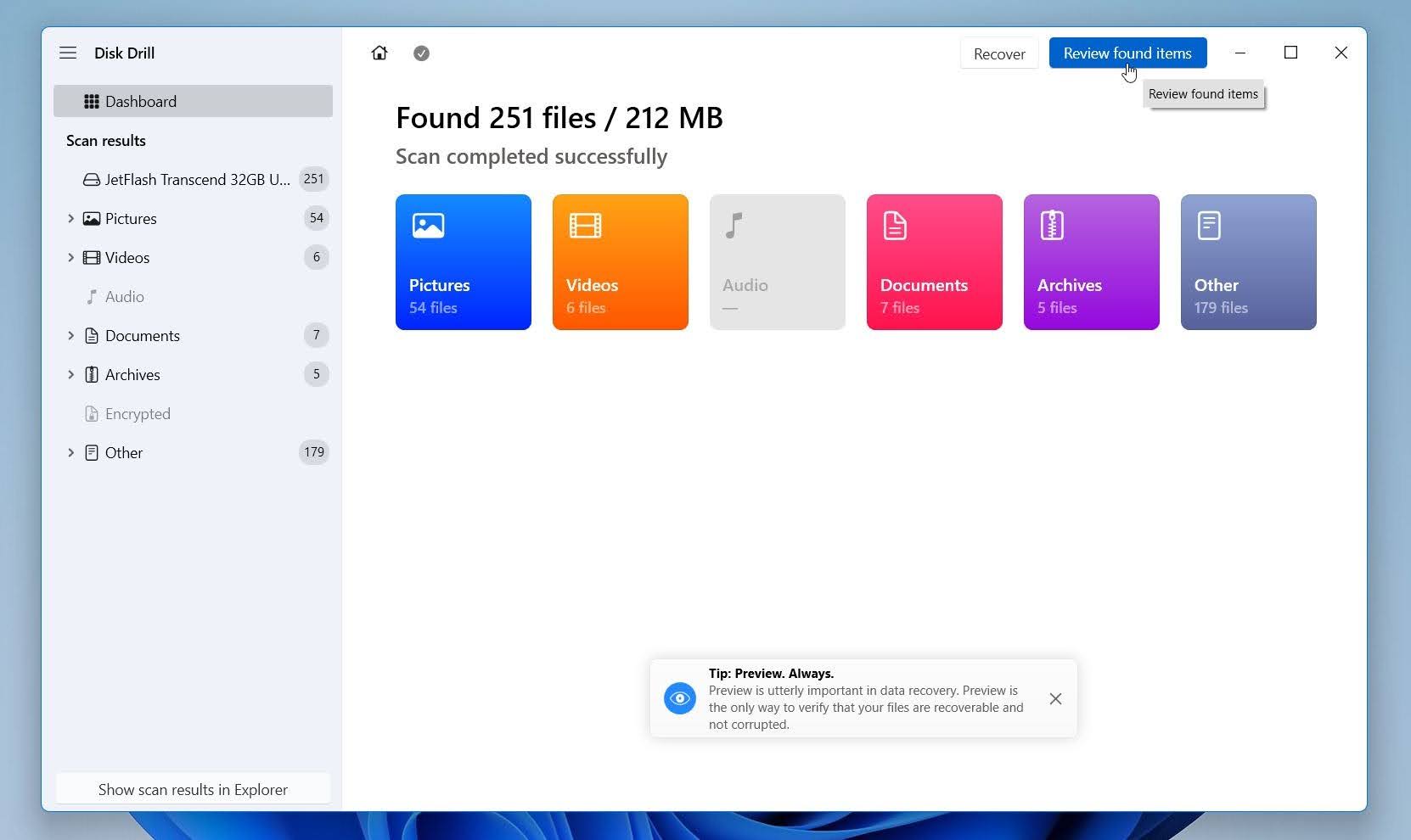
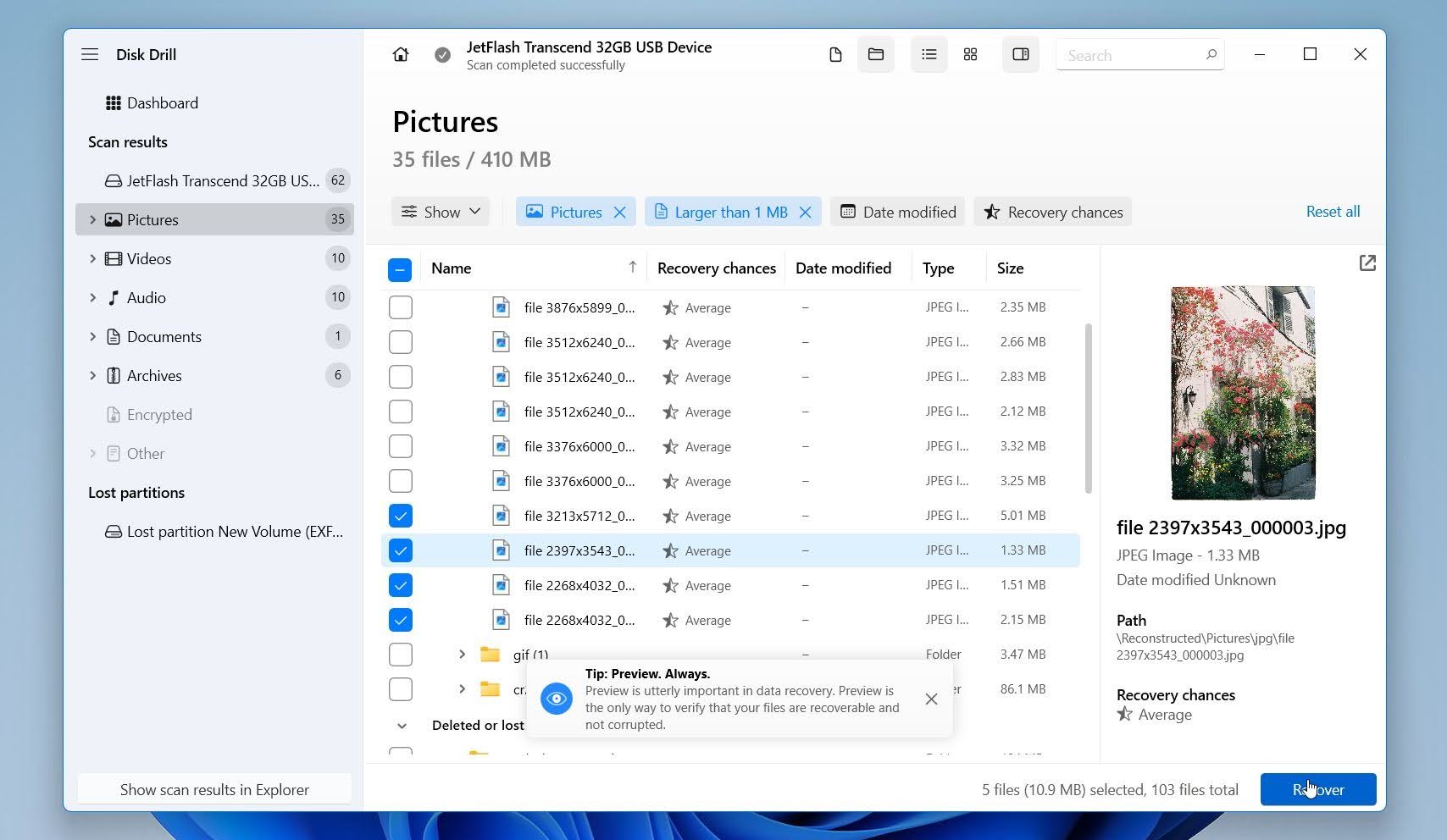
- If Disk Drill found the partition successfully, you should see your files with their original names and folder structure. From there, select the files or folders you need and recover them to a different drive. You can use the available filters for file type, size, date, and recovery chances to narrow the list, if you’re looking for a specific file. Preview important files to confirm that they are intact and recoverable. Select the files you want to restore and click Recover.
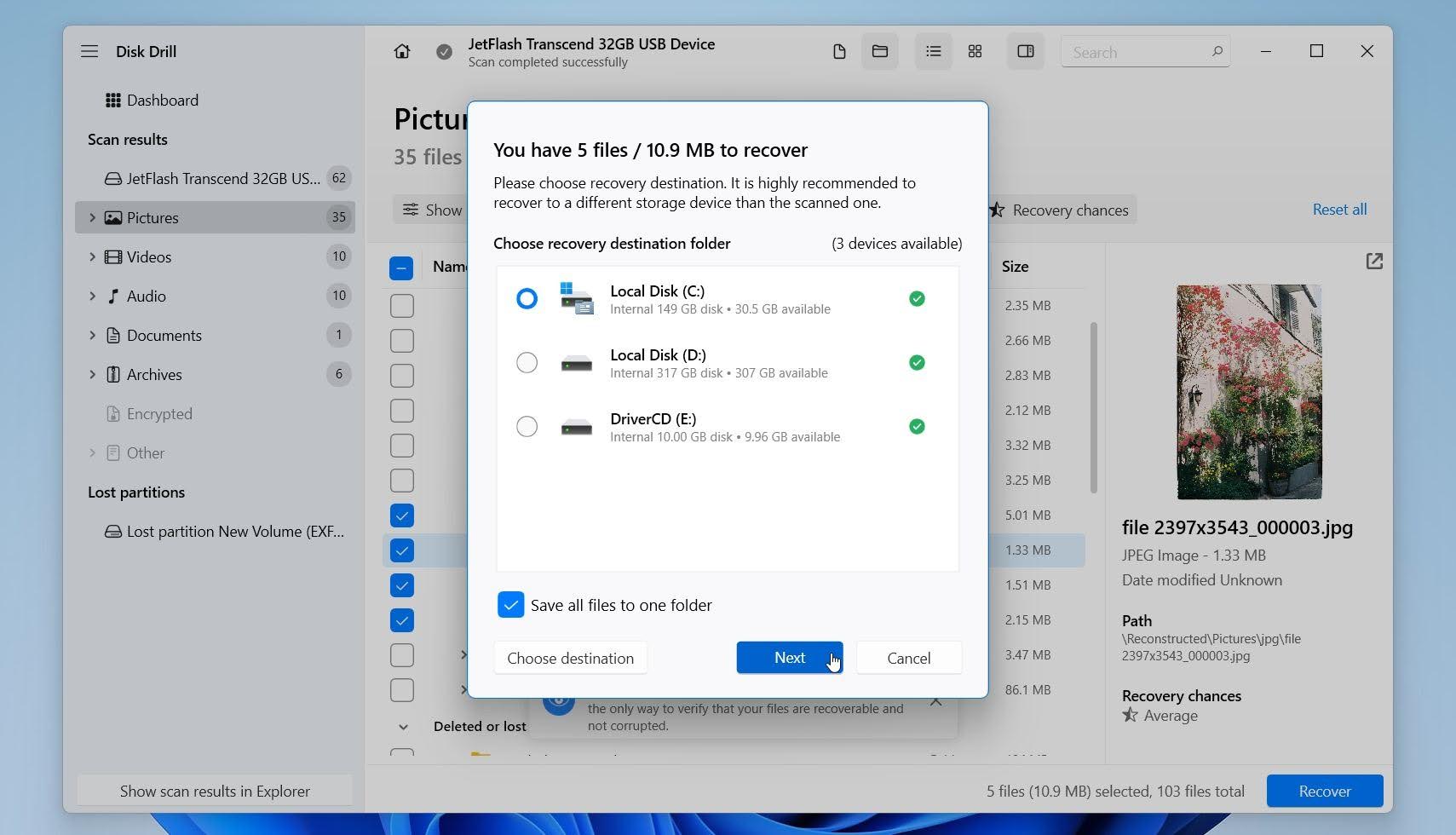
- Choose a different drive as the recovery destination and click Next. Do not save the recovered files back to the drive that contained the deleted partition, as this could overwrite other recoverable data.
Once the recovery is complete, open the destination folder and check several recovered files to confirm that they open correctly.
Note: The free version of Disk Drill for Windows lets you recover up to 100 MB of data, while scanning and file previews are unlimited. You can use this allowance to test a few important files and confirm that they open correctly. For a closer look at the software, see our Disk Drill review, or compare it with other programs in our roundup of the best partition recovery tools for Windows.
Step 3: How to Restore a Deleted or Lost Partition With TestDisk
You can attempt to restore the lost partition itself with TestDisk. TestDisk is a free, open-source partition recovery tool that can search for lost partitions and, when it finds the correct partition structure, write it back to the partition table. If successful, the partition can become accessible in Windows again without the need to create and format a new one.
TestDisk makes direct changes to the partition table, so you need to use it carefully. We recommend that you recover the data first or create a disk image before you proceed, especially if the drive contains valuable files or you want a fallback in case something goes wrong.
Here is how to recover a lost partition with TestDisk:
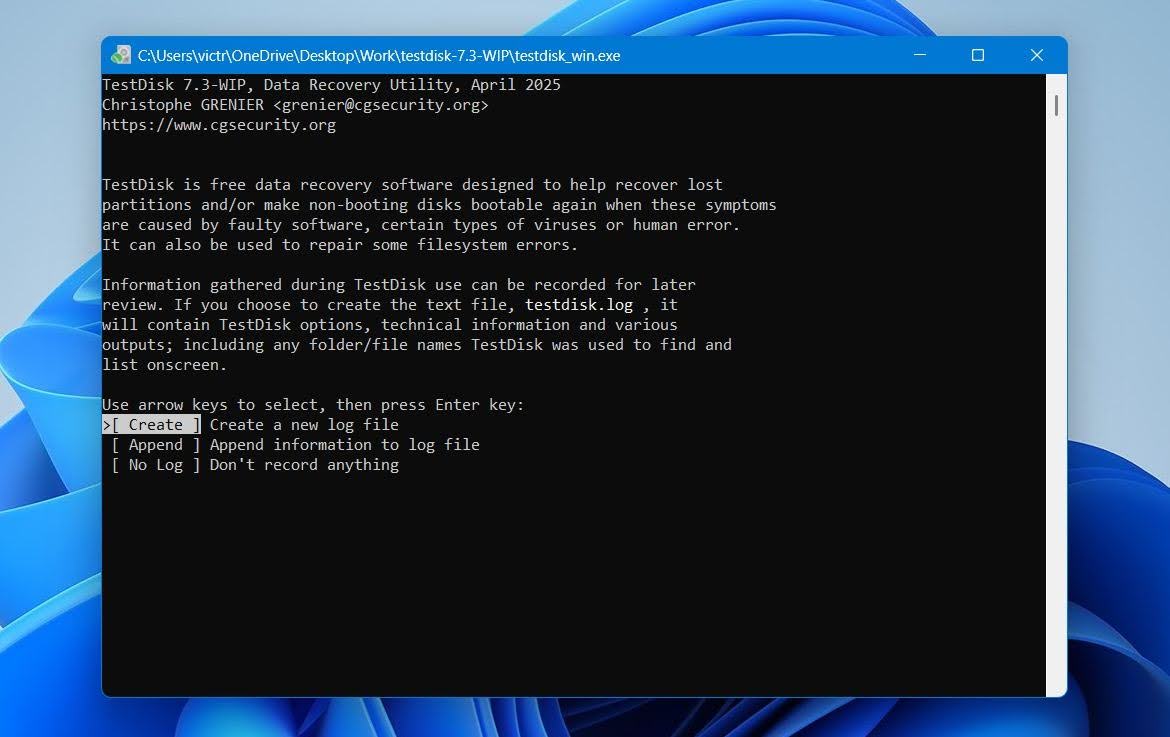
- Download TestDisk, extract the archive, and open testdisk_win.exe. Click Yes if Windows 11 displays a User Account Control prompt.
- Select Create and press Enter to create a log file.
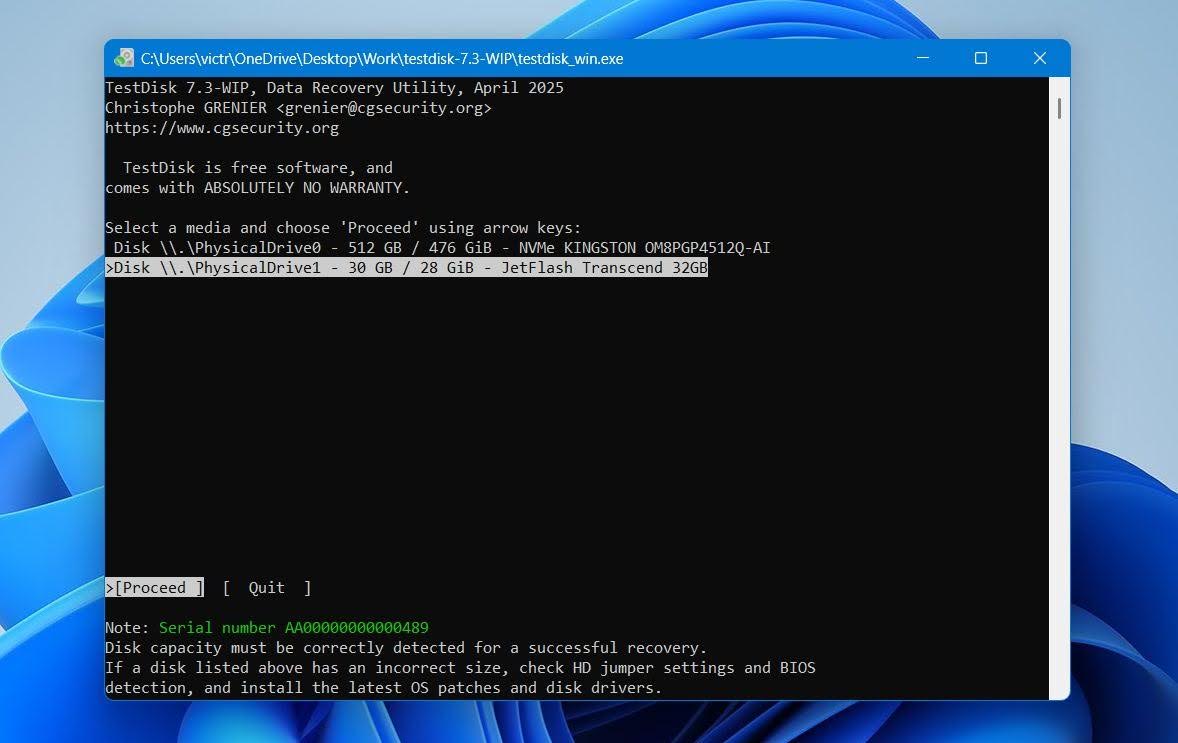
- Select the physical disk that contained the lost partition and press Enter. Use its model and capacity to confirm that you have the correct disk.
- Check the partition table type detected by TestDisk and press Enter. Modern Windows systems typically use GPT partitioning with UEFI, but secondary and external drives may use another partition table type.
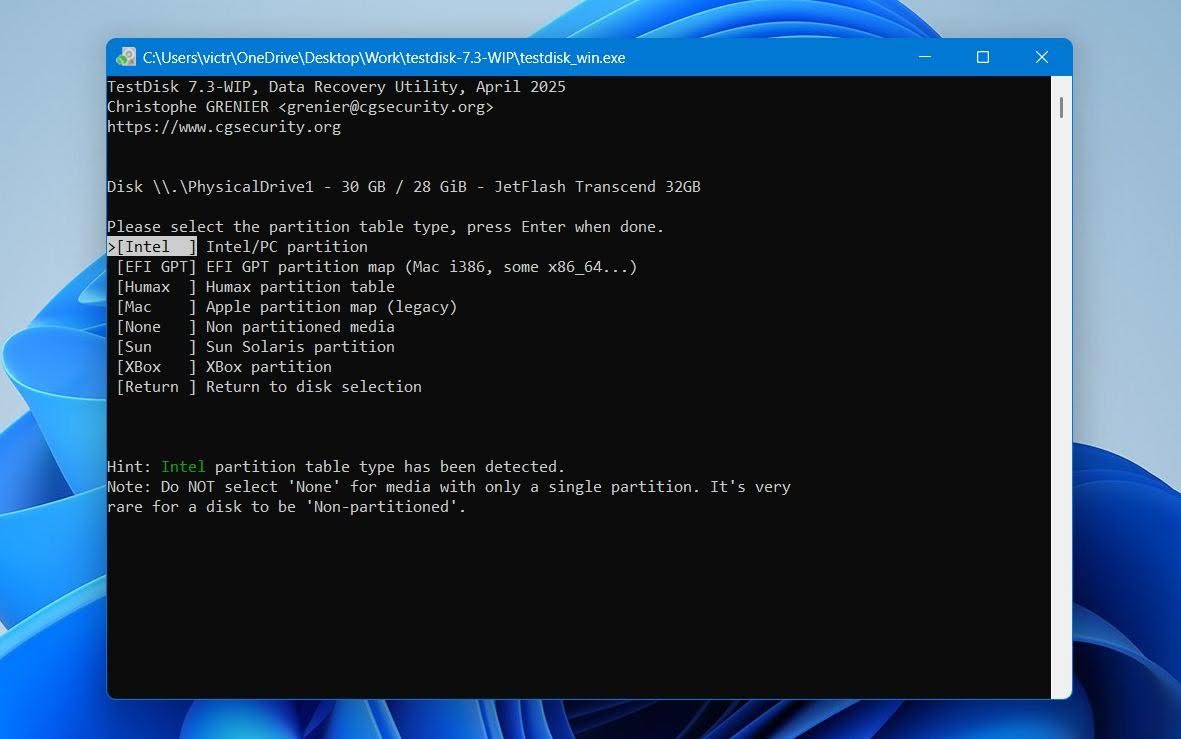
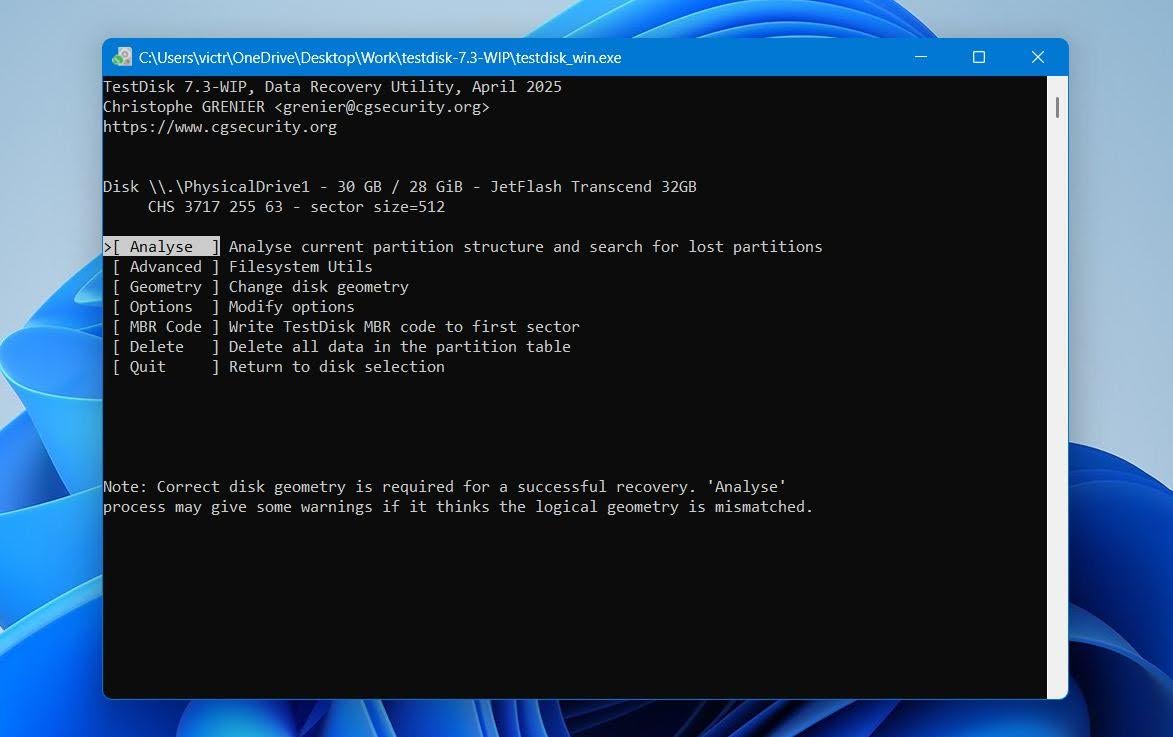
- Select Analyse and press Enter to examine the current partition structure.
- Select Quick Search and press Enter to search for lost partitions.
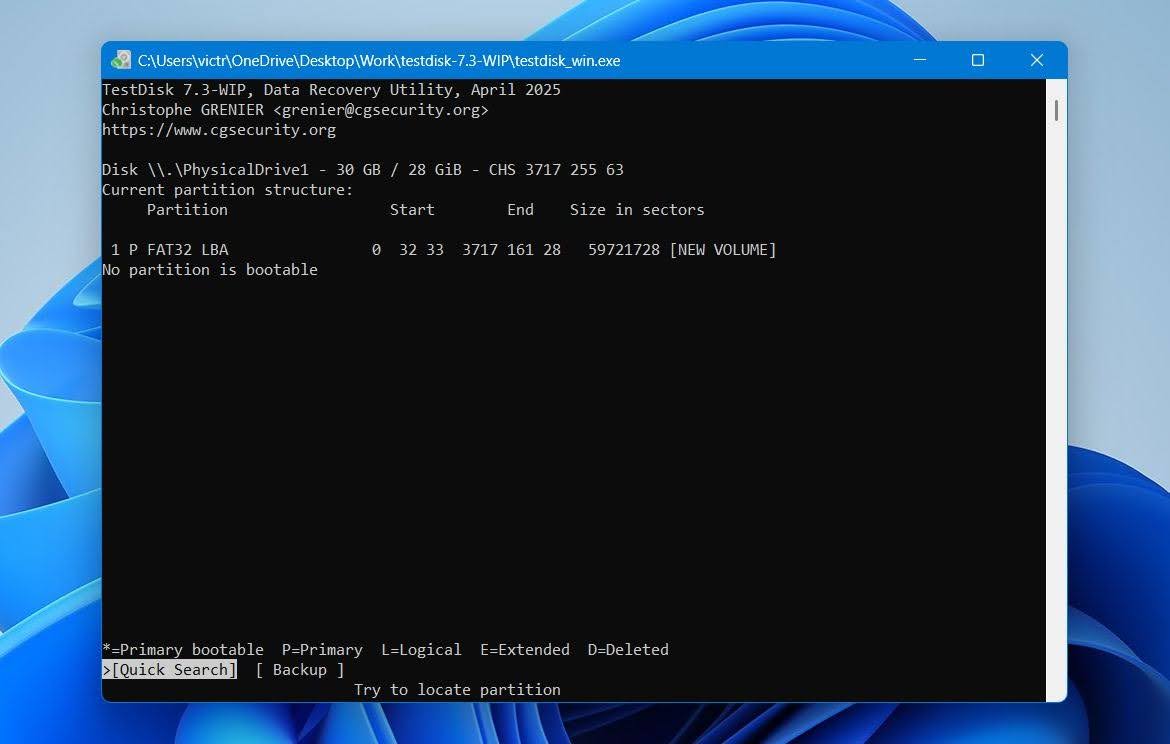
- Once TestDisk finds the partition, highlight it and press P to view its files. Check that the expected files and folders appear before you make changes to the partition table.
- If the correct partition does not appear, run Deeper Search to perform a more extensive search.
- Once you identify and verify the correct partition, select Write and press Enter to write the recovered partition structure to the partition table.
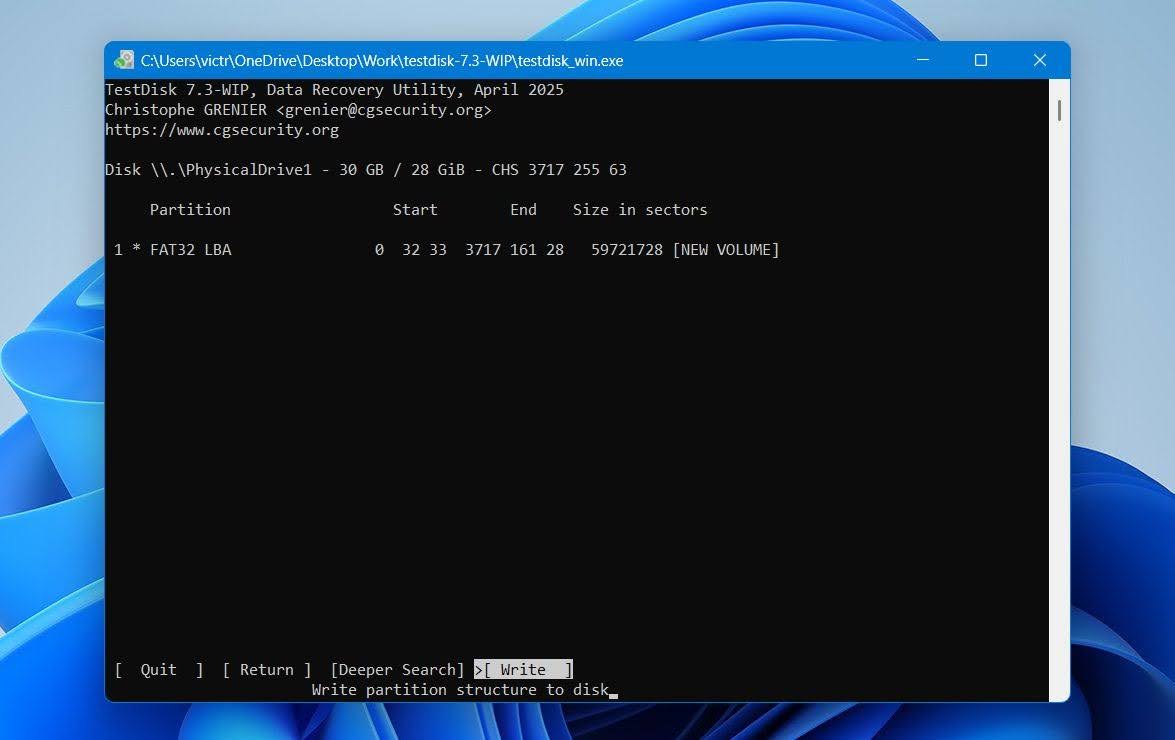
- Press Y to confirm, exit TestDisk, and restart your computer. After Windows starts again, check Disk Management and File Explorer to see if the partition is accessible.
If the lost partition specifically used NTFS, you can also read our dedicated guide to NTFS partition recovery for additional recovery scenarios and methods.
Step 4: How to Create a New Partition Using Disk Management
If the lost partition could not be restored and Disk Management shows its space as Unallocated, you can create a new partition to make that space usable again.
Important: If the lost partition contained data you still need, recover it first using Step 2. Do not create or format a new partition before recovery, as these actions can overwrite data or file system metadata and reduce your chances of getting all your files back.
Once your important files are safely stored elsewhere, you can create a new partition with Disk Management:
- Right-click Start and select Disk Management.
- Right-click the Unallocated space where the lost partition was located and select New Simple Volume.
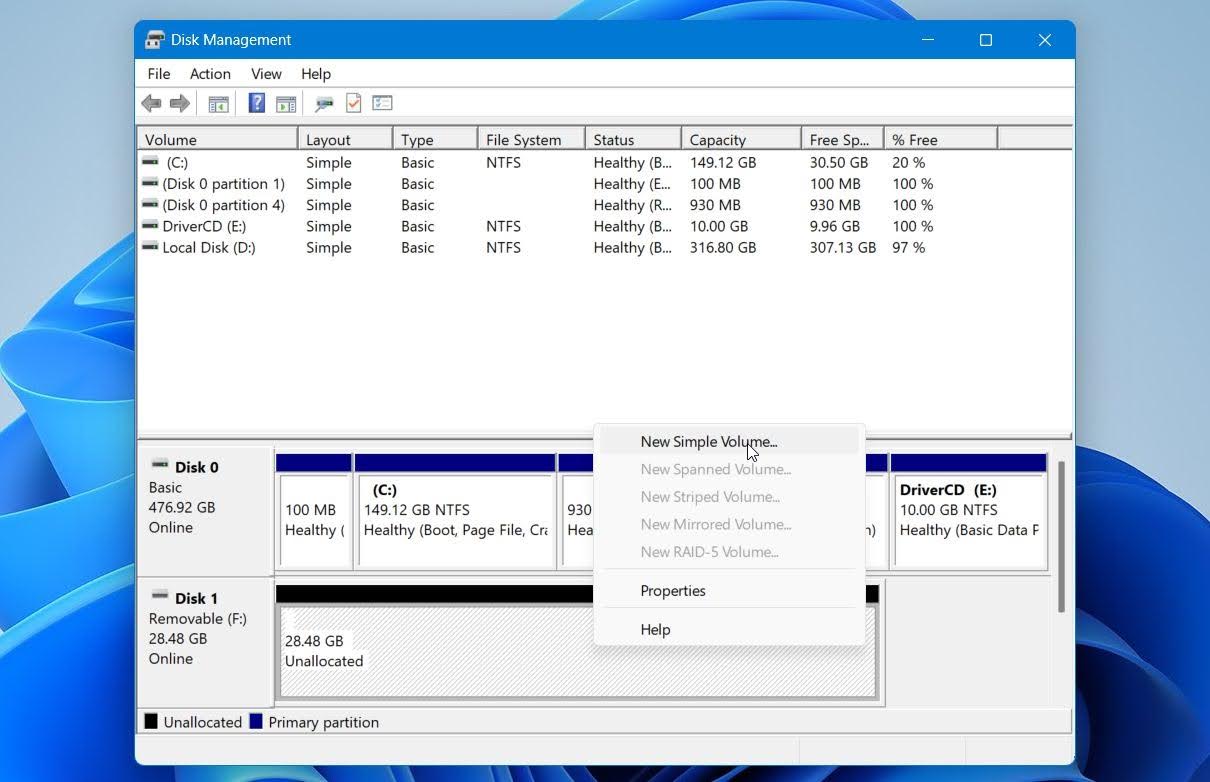
- Click Next, specify the size of the new volume, and click Next again. Use the maximum available size if you want the new partition to occupy all of the unallocated space.
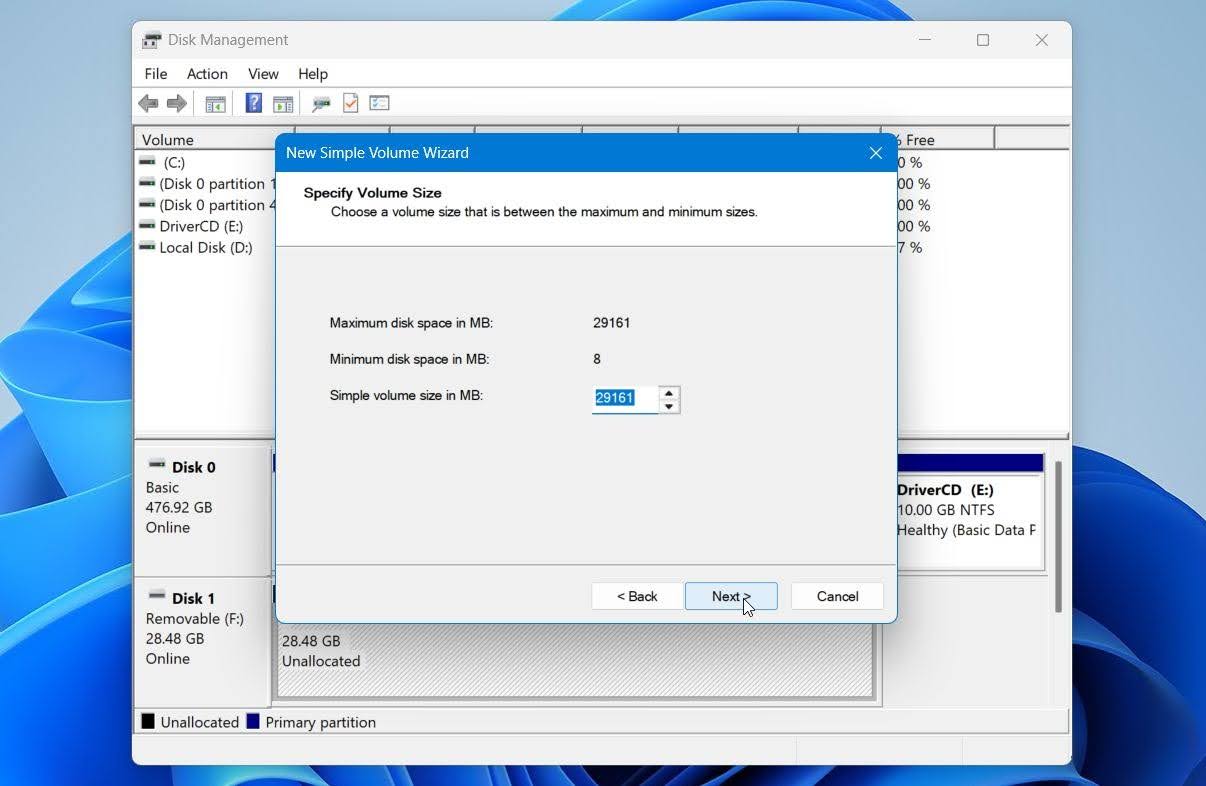
- Select an available drive letter and click Next.
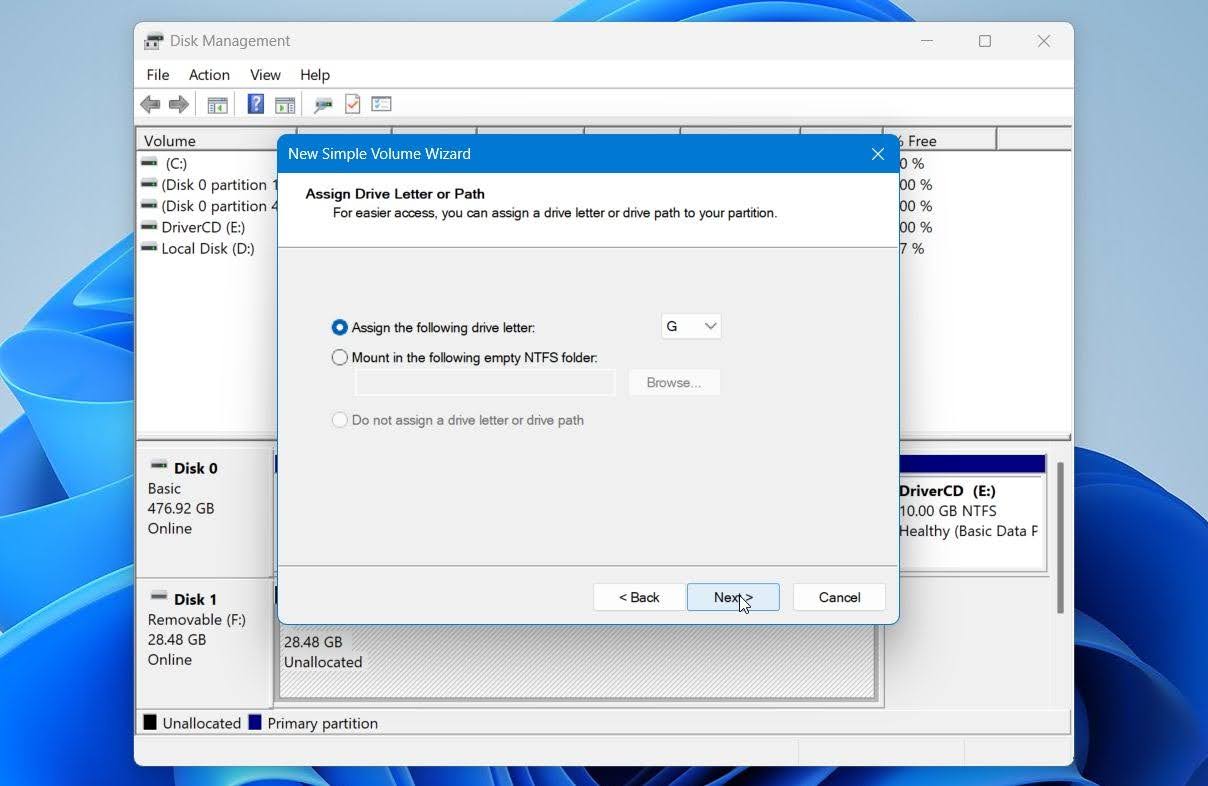
- Select the file system, enter a volume label if you want one, and leave Perform a quick format selected. Click Next.
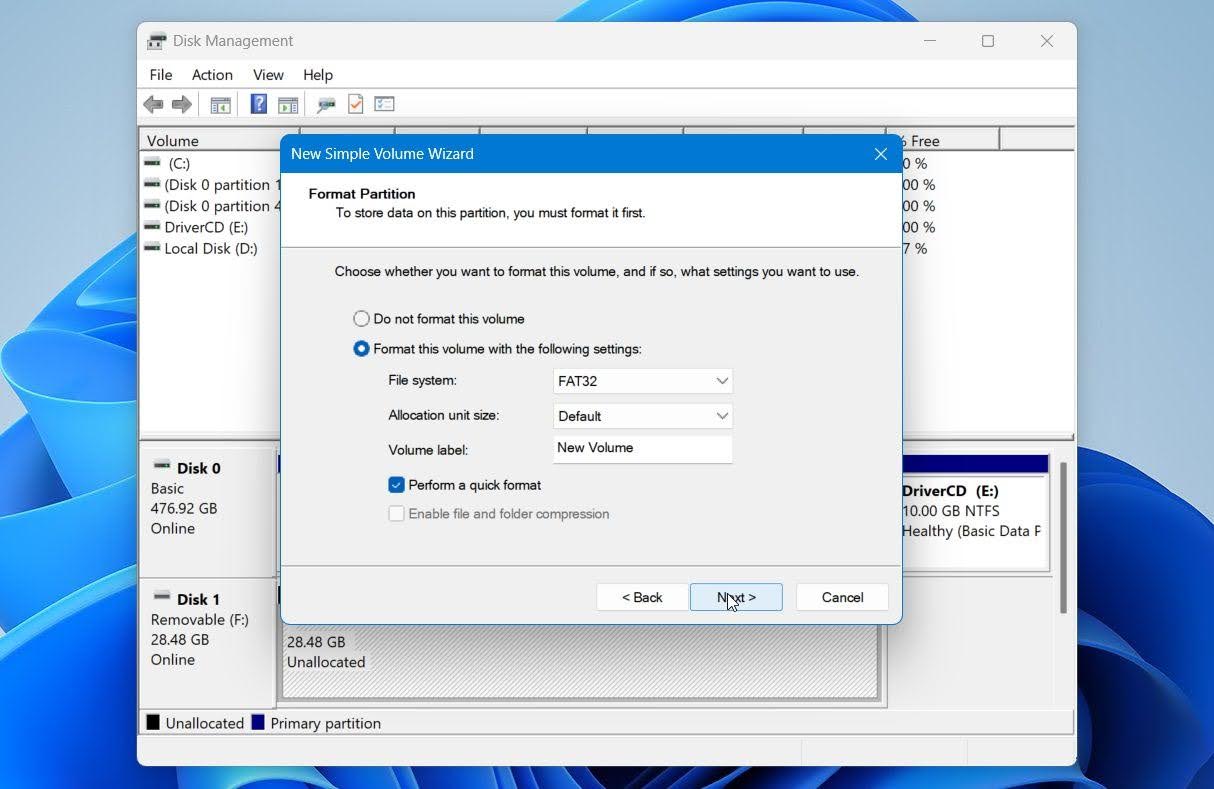
- Review the settings and click Finish.
Once Windows creates the new partition, it should appear in File Explorer and be ready to use again. You can then copy your recovered files back to it if needed.
Why Do Partitions Become Lost or Deleted?
Most of the time, when a partition disappears or becomes inaccessible, the cause is either a logical problem with the partition, file system, or partition table, or a physical problem with the storage device itself. The most common reasons a partition may disappear or become inaccessible include:
| Reason | Description |
|---|---|
| 👤 Accidental deletion | A mistake in Disk Management, DiskPart, or another partition manager can delete a partition and leave its former space unallocated. |
| 🗃️ Partitioning error | A failed or interrupted resize, move, conversion, or other partition operation can damage partition or file system structures and make the volume inaccessible. |
| 💥 Power failure | A sudden shutdown during a format, partition operation, or disk write can interrupt the process and leave the file system or partition structure damaged. |
| 💻 Interrupted system operation | A crash or power loss during certain Windows updates or other system-level disk operations can damage the system or boot volume. |
| 📊 Partition table corruption | If the partition table becomes corrupted, Windows may no longer know where one or more partitions begin and end, even though their data remains on the disk. |
| 💿 Hardware failure | Bad sectors, failing read/write heads, controller problems, or other hardware faults can make parts of the disk unreadable and cause partitions to disappear or become inaccessible. |
| 🕷️ Malware | Some malware can modify or damage partition, boot, or file system structures and prevent Windows from accessing the affected volume. |
| 🖥️ Driver or connection problems | Storage controller drivers, faulty cables, adapters, or connection problems can prevent Windows from detecting a drive correctly. In this case, the partition itself may still be intact. |
For logical problems, partition or file recovery software may be able to restore the partition or recover its files. However, software recovery is not appropriate in every situation.
When Software Recovery Isn’t Enough
Partition recovery software is designed primarily for logical data loss. If the storage device itself has a serious hardware problem, repeated scans can put additional stress on it and make the situation worse.
Consider professional data recovery instead if:
- The HDD clicks, grinds, beeps, or makes other unusual mechanical noises.
- The drive repeatedly disconnects, freezes your computer, or becomes extremely slow to read.
- Windows or the BIOS/UEFI cannot detect the drive correctly, or it reports an incorrect capacity.
- The drive has suffered physical damage, such as a drop, impact, liquid exposure, or electrical failure.
- The lost partition belongs to a RAID or another complex storage setup where rebuilding the wrong configuration could affect data across multiple disks.
If the drive is still readable but shows bad sectors or other signs of instability, create a disk image and work from the image rather than the original device. If the drive has serious mechanical or electrical damage, stop using it and contact a professional data recovery service.
Final Thoughts
You may be able to restore a deleted or lost partition or recover the files it contained, but the best approach depends on what happened to the drive. Check its current state first, avoid writing new data to the affected space, and choose between restoring the partition itself and recovering its files.
The main points to remember are:
- Recover your files first if the data is important. Tools such as Disk Drill can scan the physical drive for files from a lost or deleted partition before you attempt to restore or recreate it.
- Don’t format or repartition the drive before recovery. Either action can overwrite data or file system metadata that may still be recoverable.
- The same general approach applies to lost and deleted partitions on Windows 10 and Windows 11. For BitLocker-protected volumes, you’ll also need valid credentials to access encrypted data.
- Know when to stop using software. If the drive shows signs of physical or serious hardware failure, a professional data recovery service is the safer option.
For additional examples, you can also browse our data recovery forum to read about similar partition recovery cases and other users’ experiences.
FAQ
- File recovery scans the drive for lost files and copies the recoverable data to another storage device. It does not restore the original partition.
- Partition recovery attempts to restore the lost partition itself, including its file system structure, so it becomes accessible in Windows again.