


Did a user profile disappear from your Windows system, along with files you still need? This situation often looks worse than it is. In many cases, the profile itself can be restored, or at least the data inside it can be recovered. We will explain how to undelete a user profile on Windows and restore data from it. You will see what happens when a profile gets removed, which recovery options remain available, and how to bring back important files even when the profile itself no longer appears in the system.
What Causes a User Profile to Disappear
All the files stored in library folders like Desktop, Documents, Pictures, Downloads, Music, and Videos, are linked to your user profile. Losing the user profile means losing access to all these folders. Apps and games, whether native or third-party, store your personal settings, and preferences, and save games in your user profile (usually in the AppData folder).
Various factors can lead to a deleted user profile. Some common ones we see in user cases and forum discussions:
| Factor | Description | How to Approach the Restore |
| 💥 Accidental Deletion | It’s easy to remove a user folder or profile while cleaning the C: drive. Sometimes the profile gets deleted on purpose, then later turns out to be needed. | Stop using the drive immediately. Check the Recycle Bin first. If not found, use data recovery software to scan the system drive and restore the user folder (C:\Users…). |
| 🦠 Malware | Malicious software can delete profiles, corrupt files, or lock access (ransomware). Some threats modify permissions instead of deleting data. | Remove malware first using antivirus tools. Then check if files still exist but are hidden or locked. If files are gone, run recovery software. Avoid restoring infected files without scanning them. |
| 💿 Bad Sectors | Physical issues on the drive can make parts of the profile unreadable. Over time, this can lead to missing folders or corrupted user data. | Create a byte-to-byte disk image first to avoid further damage. Run recovery tools on the image, not the original drive. If the drive shows heavy damage, consider professional recovery. |
| ⚙️ Corrupted User Profile | Windows may fail to load a profile due to registry issues or file corruption, even if files still exist on disk. | Check if the user folder still exists in C:\Users. Fix the profile via Registry Editor (ProfileList) or create a new account and manually copy files from the old profile. |
| 🔄 Windows Update Issues | A failed or incomplete update can load a temporary profile or make the original one disappear from the login screen. | Restart the system and check for a temporary profile. Look for the original folder in C:\Users. If present, reconnect it via registry or copy data to a new account. |
| 👤 Deleted User Account | Removing an account from Windows settings can leave the user folder behind or partially remove it. | Check C:\Users for leftover data. If the folder exists, create a new account and take ownership of the old folder to access files. If missing, use recovery software. |
Even after losing access to all your user data, it’s rare that you’ll be unable to log in to the user profile at all. If you’re unable to sign in to the user profile, a Registry error is likely the culprit.
💡 Good to know: Although the terms, “user account” and “user profile” are used interchangeably, there is a slight difference between the terms. A user account (such as Administrator, Standard and Managed) determines the level of access you have to folders, certain settings, and the changes you can make to the PC. On the other hand, a user profile stores your personal preferences (such as the desktop wallpaper and other personalization settings), and personal files.
How to Restore User Profile in Windows 10/11
The method you use to recover the deleted user profile will depend on whether the actual user account was deleted, or you simply deleted some files from the user folder. If you used the Control Panel or User Account Settings to delete the profile, you cannot restore the profile. However, you can get back the user data associated with that profile using data recovery software.
If you deleted the entire user account folder, you can opt to use System Restore, Recycle Bin, or recover deleted user profile windows in 10/11 using the Registry Editor.
Method 1: Check if You’re Logged in to the Correct User Account
Before you commit to more elaborate fixes, it’s a good idea to double-check whether you’re actually signed in to the correct user account. If you have multiple user accounts, it’s possible to log in to the incorrect one, in which case, you won’t be able to find the files associated with other accounts.
Here’s how you can sign out and double-check that you’re using the correct user account:
- Click on the Start button.
- Click on the user profile and choose Sign out.
- Log in to the correct user account.
Sometimes, Windows logs you in with a temporary user profile when the sign-in to an actual one fails. A temporary file is no substitute for a real profile, as all your settings, data, and other files created during the session are deleted as soon as you sign out.
Method 2: Check the Recycle Bin
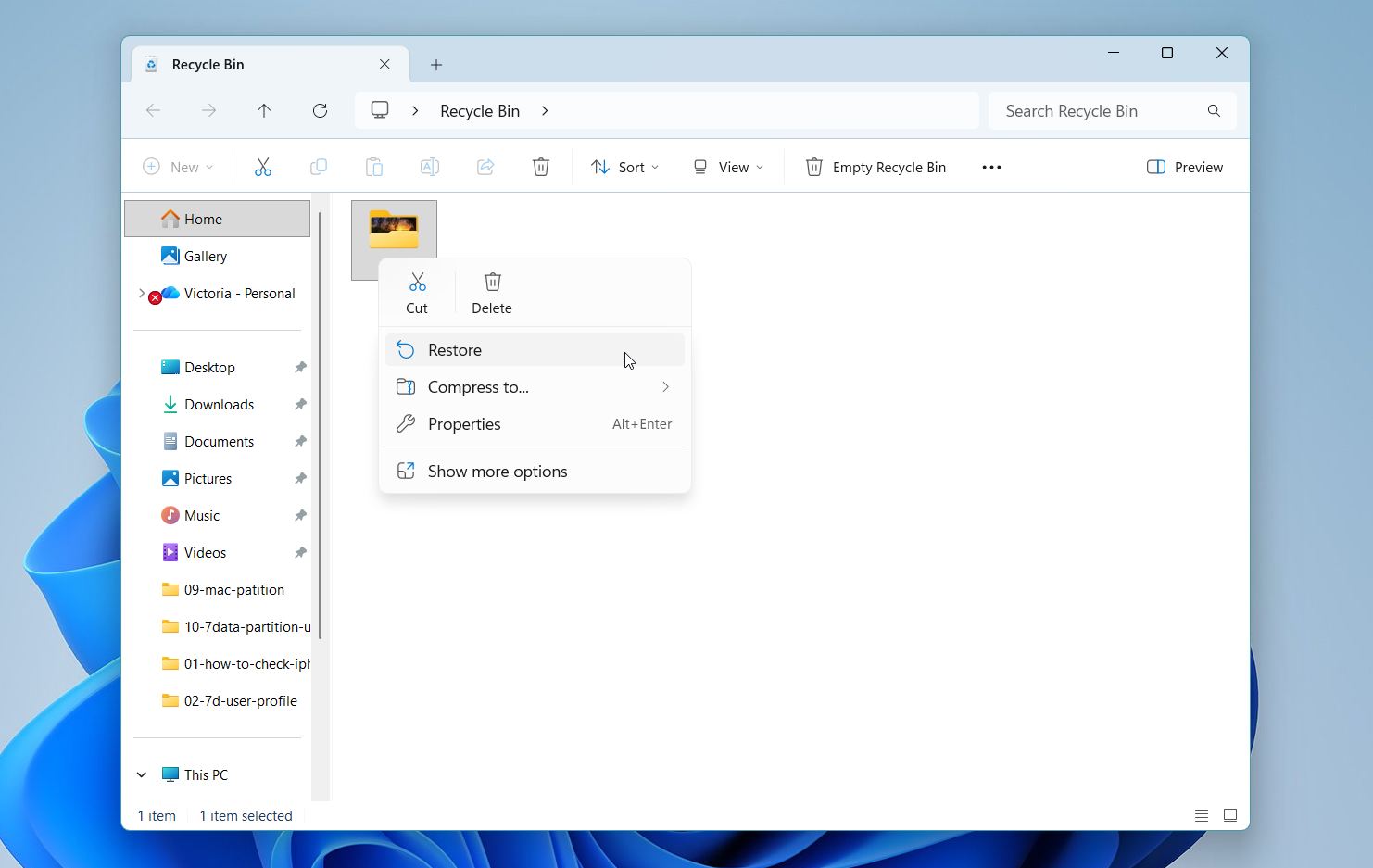
It might sound as an obvious method, however it never hurts to double-check. If you right-clicked the user folder and clicked Delete or simply selected it and pressed the Delete key on your keyboard, the folder can be restored from the Recycle Bin. This method won’t work if you used the Shift + Delete shortcut to delete the folder, or if your folder was too big and it bypassed the Recycle Bin.
Here’s how you can undelete the user profile using the Recycle Bin:
- Double-click on the Recycle Bin icon on the Desktop.
- Look for the user profile folder, right-click on it, and select Restore.
- The user folder will be moved back to its original location.
Method 3: Recover Lost Data Into the Current User Profile
If you don’t want to go through the trouble of recreating the user profile, but still want to get back your personal data, third-party data recovery software is your best friend. If you’re still able to log in to the user profile, you can simply recover your data and copy it to the library folders. If the profile itself is corrupt, use the super admin account you created before to create a new user profile in Windows.
Data recovery from SSDs is substantially more difficult than HDDs. This is because SSDs utilize the TRIM feature, which regularly “cleans” up deleted data and makes it impossible to recover. However, TRIM doesn’t always run immediately, and in some setups it may be delayed or inactive, so it’s still worth trying recovery software as soon as possible.
It’s important to pick the right data recovery program, as not all tools deliver consistent results. We chose Disk Drill because of its simple interface and solid recovery track record. It works with all major file systems and supports both Windows 10 and 11, which makes it a reliable option across different setups. The preview feature lets you check files before recovery, and the option to create a byte-to-byte backup helps protect unstable drives by letting you scan a copy instead of the original disk.
To recover your user files, follow these steps:
- Download and install Disk Drill.
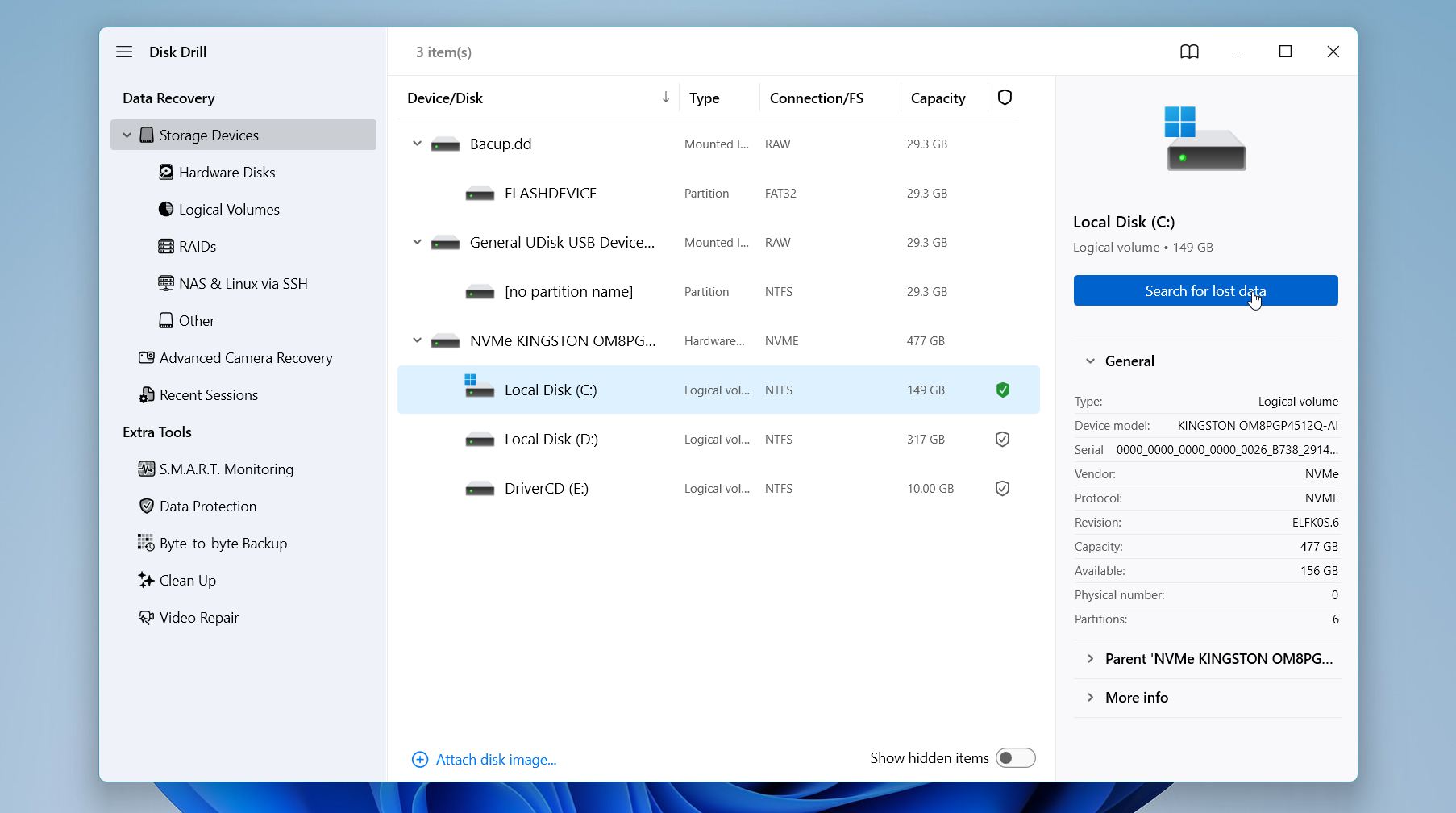
- Open Disk Drill, expand the drive, and select the C: partition. Click on Search for lost data.
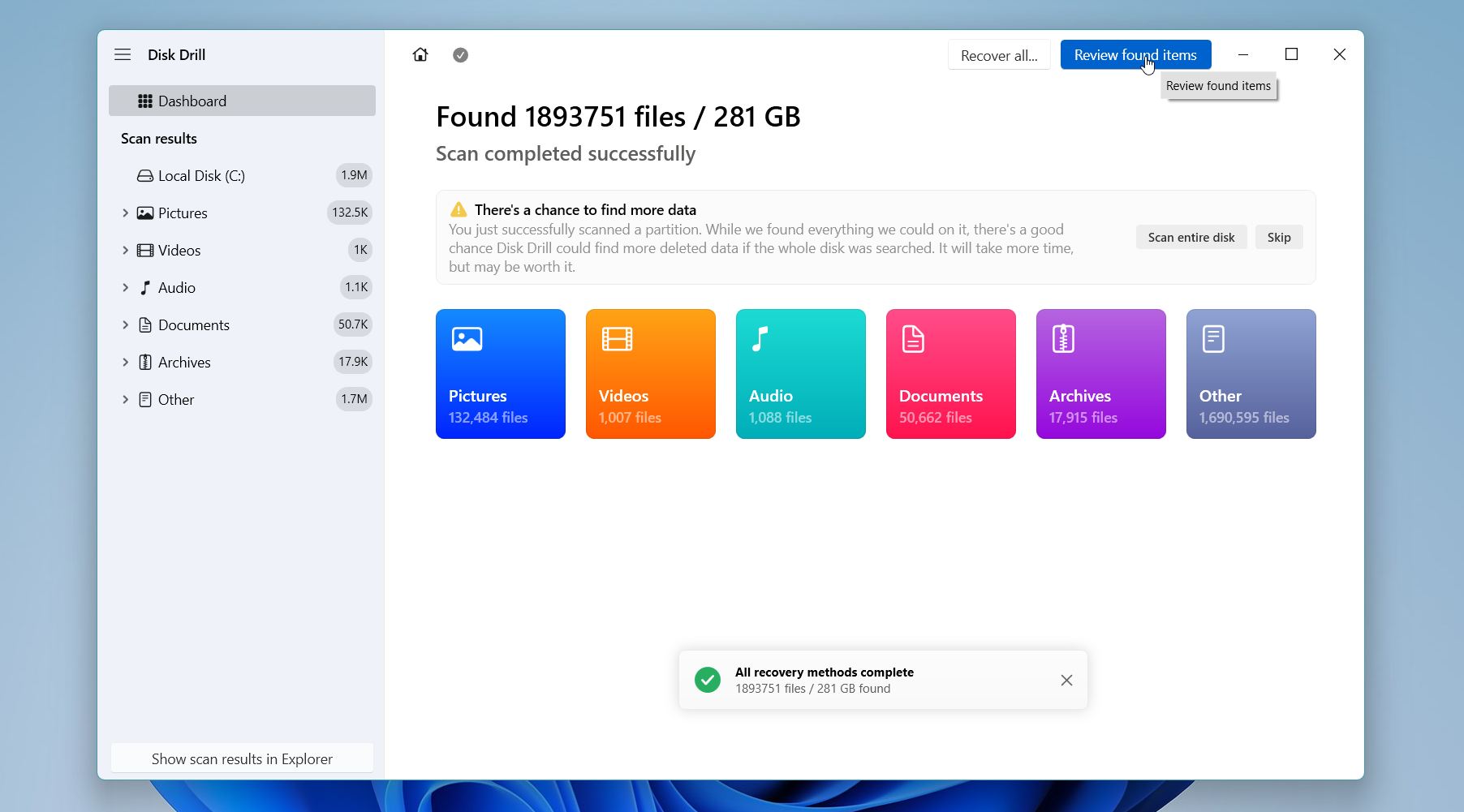
- Wait for the scan to finish and click on Review found items or filter the results by directly clicking on the relevant file type you wish to recover (Pictures, Video, Audio, Documents, Archives, and Other).
- Expand the Deleted or lost and Reconstructed sections to view files that were deleted. You can use filters (filetype, size, recovery chances, date modified) and search. Use the checkboxes to select the files you want to recover. Disk Drill displays a preview of the selected file. You can manually preview a file by clicking the eye icon next to the filename. Click on Recover once you’re done with the selection.
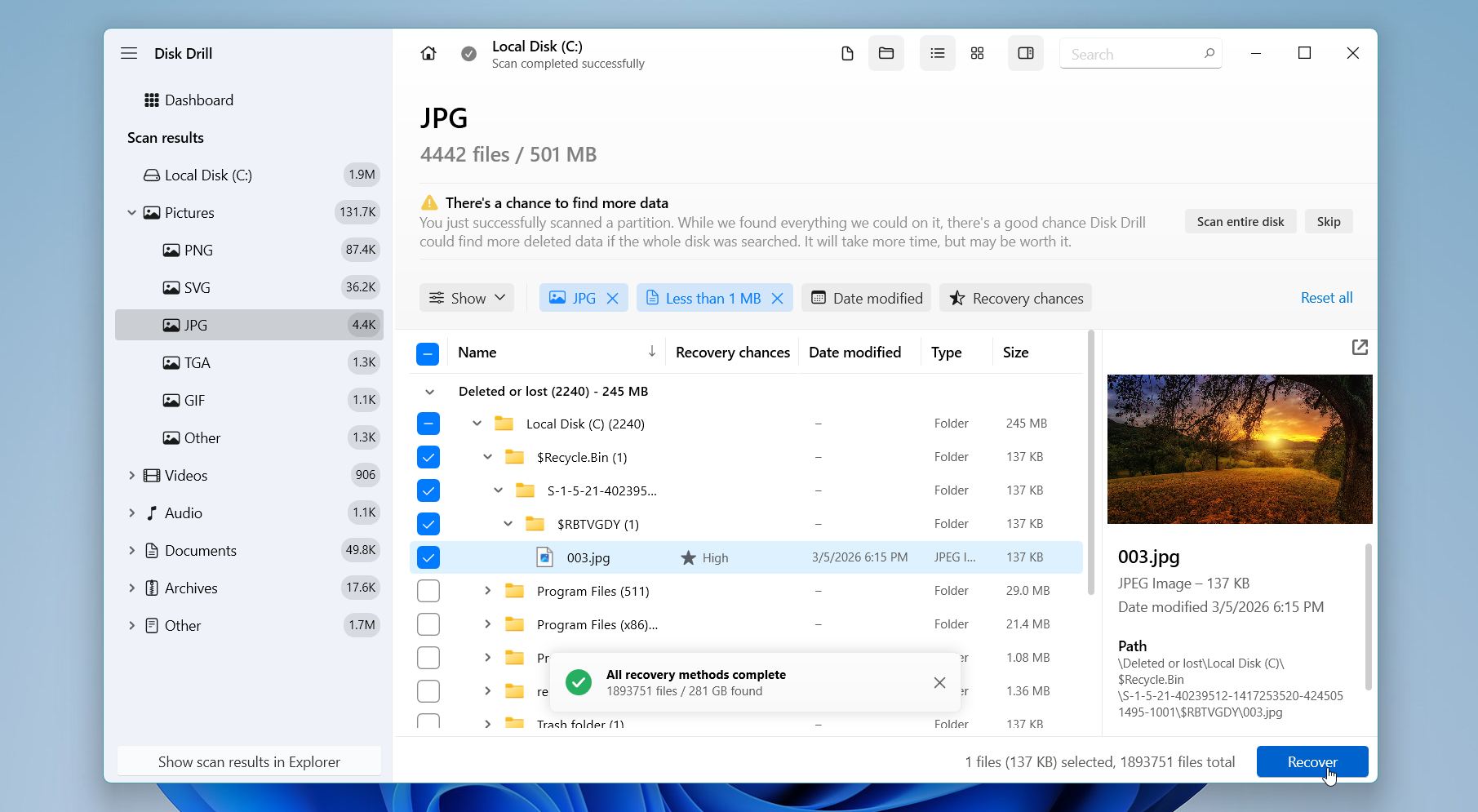
- Choose a recovery destination. It’s recommended you recover the files to a different drive. Click Next.
On Windows, Disk Drill also allows you to recover up to 100 MB of data for free, which is useful to test recovery before deciding on a full version.
Method 4: Restore the User Profile using System Restore
System Restore lets you revert your computer to an earlier state. If it was set up properly, it’s likely Windows created a Restore Point before your user profile was deleted. It won’t recover your personal files, but it will restore the system settings back to how they were when the Restore Point was created. This method is quite useful if a third-party app tampered with your settings, or you unknowingly misconfigured Windows.
Here’s how to use System Restore and regain access to your user profile:
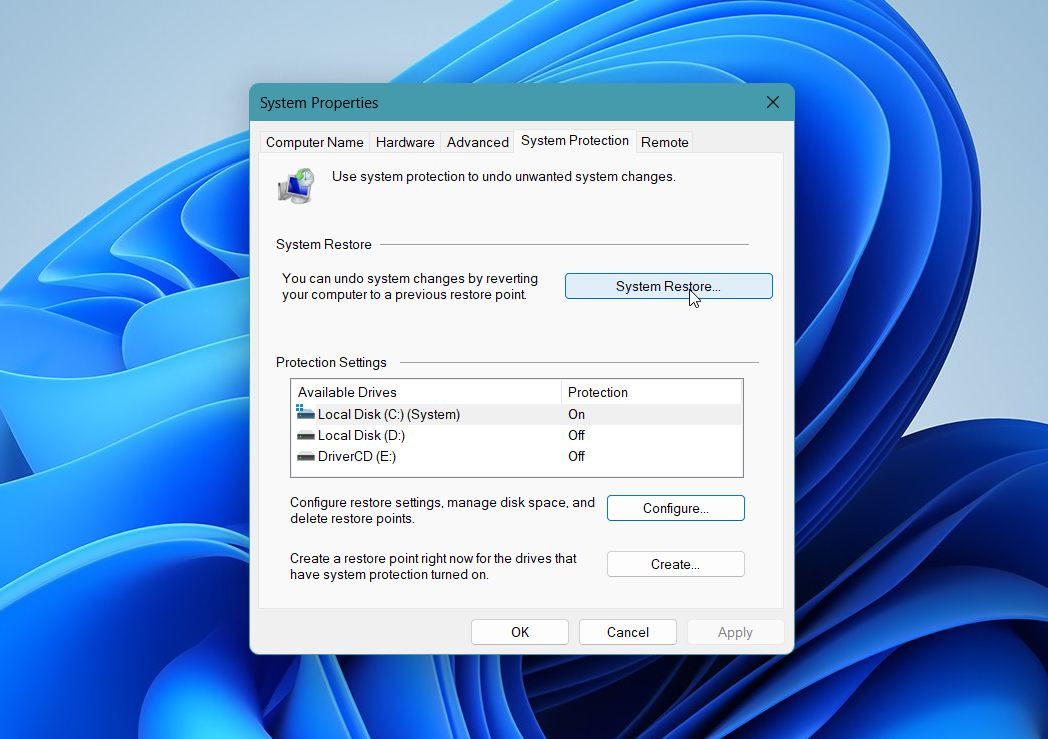
- Search for “system restore” in Windows Search (Windows Key + S). Click on Create a restore point.
- Click on the System Restore option.
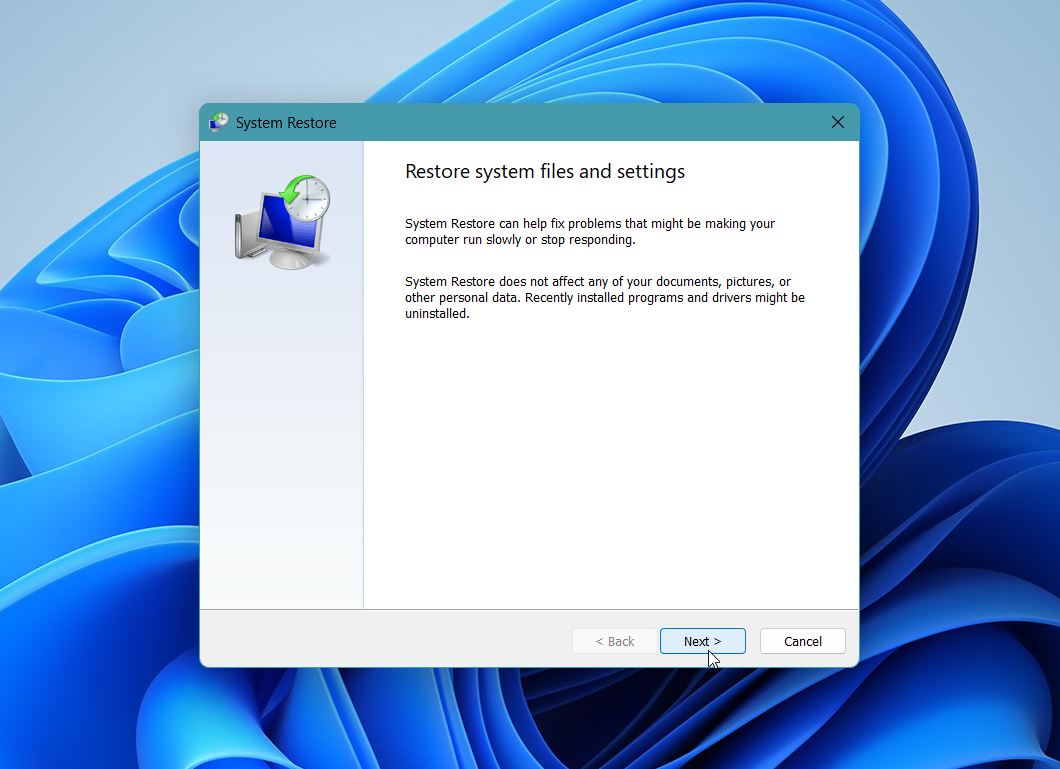
- Click Next on the System Restore wizard welcome screen.
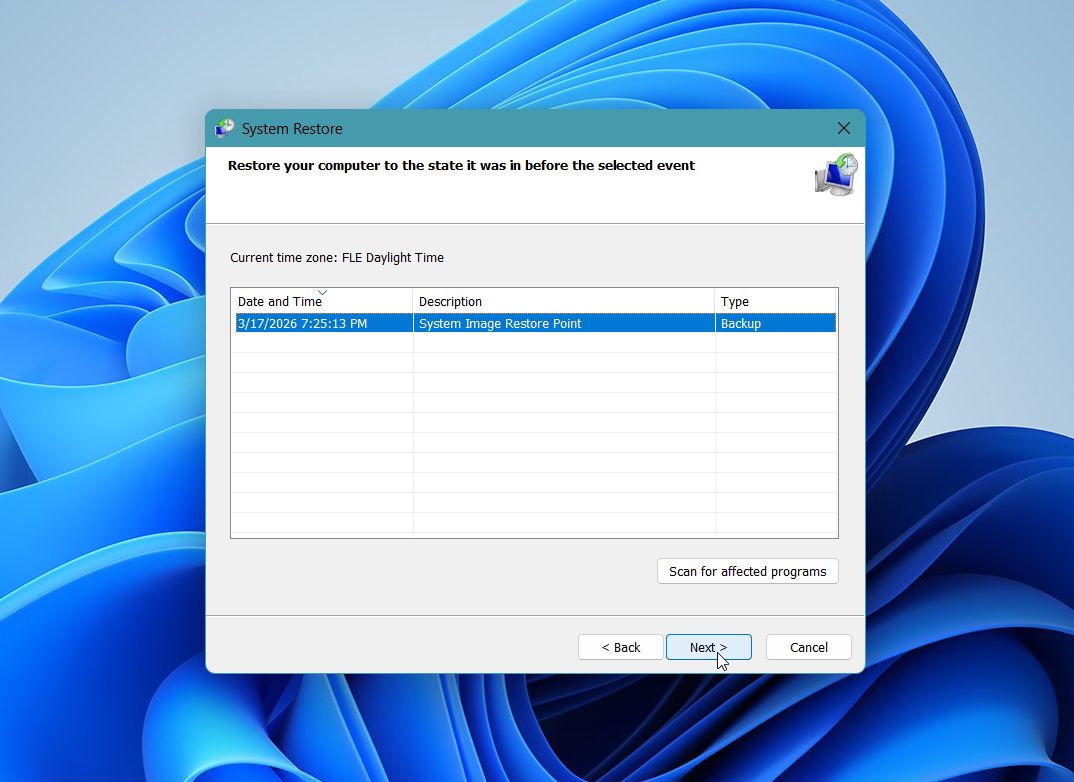
- Select a restore point and click Next.
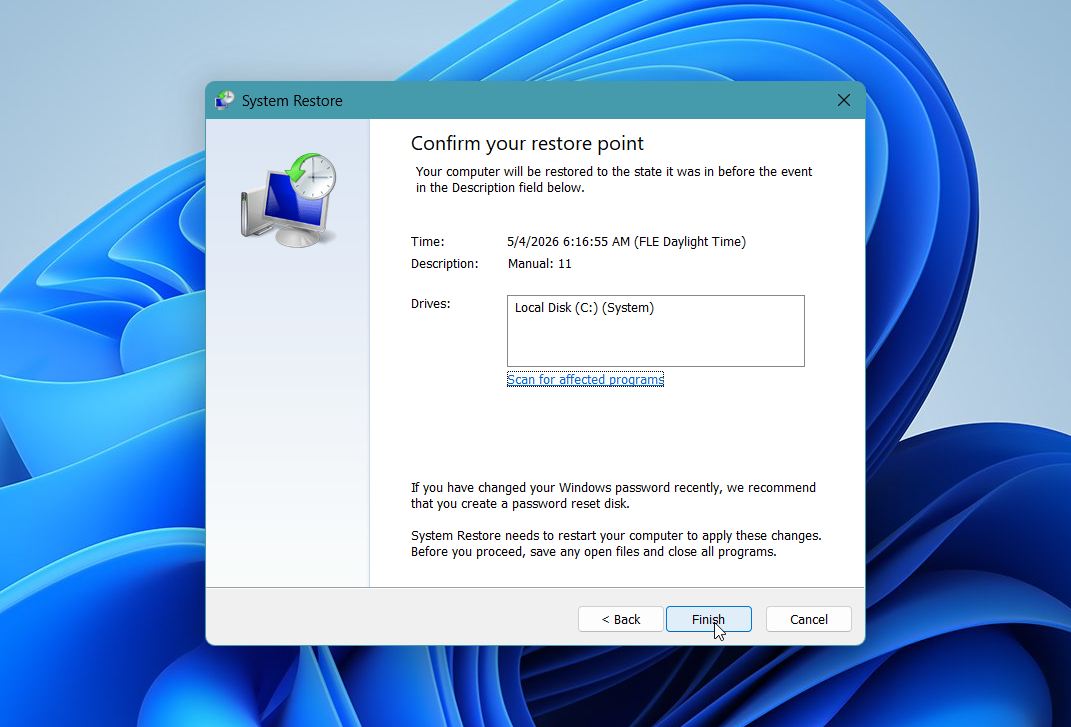
- Click on Finish to begin the System Restore process.
Method 5: Manually Restore User Profile via the Registry Editor
This method helps when Windows loads a temporary profile or fails to link your account to the correct folder. It does not restore a fully deleted account, so use it only in cases of profile corruption.
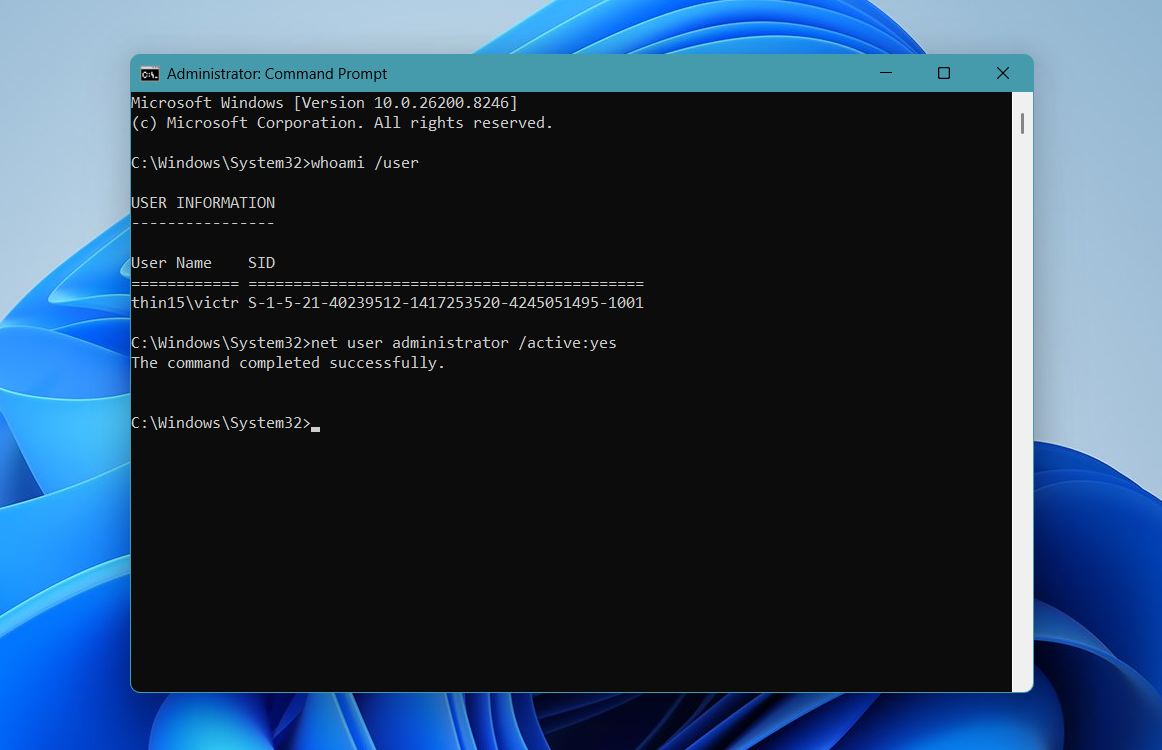
- Press Windows + S, type cmd, right-click Command Prompt, and run it as administrator, then type whoami /user and note your SID.
- In the same window, type net user administrator /active:yes, press Enter, then sign out and log in to the Administrator account.
- Press Windows + R, type regedit, and open the Registry Editor.
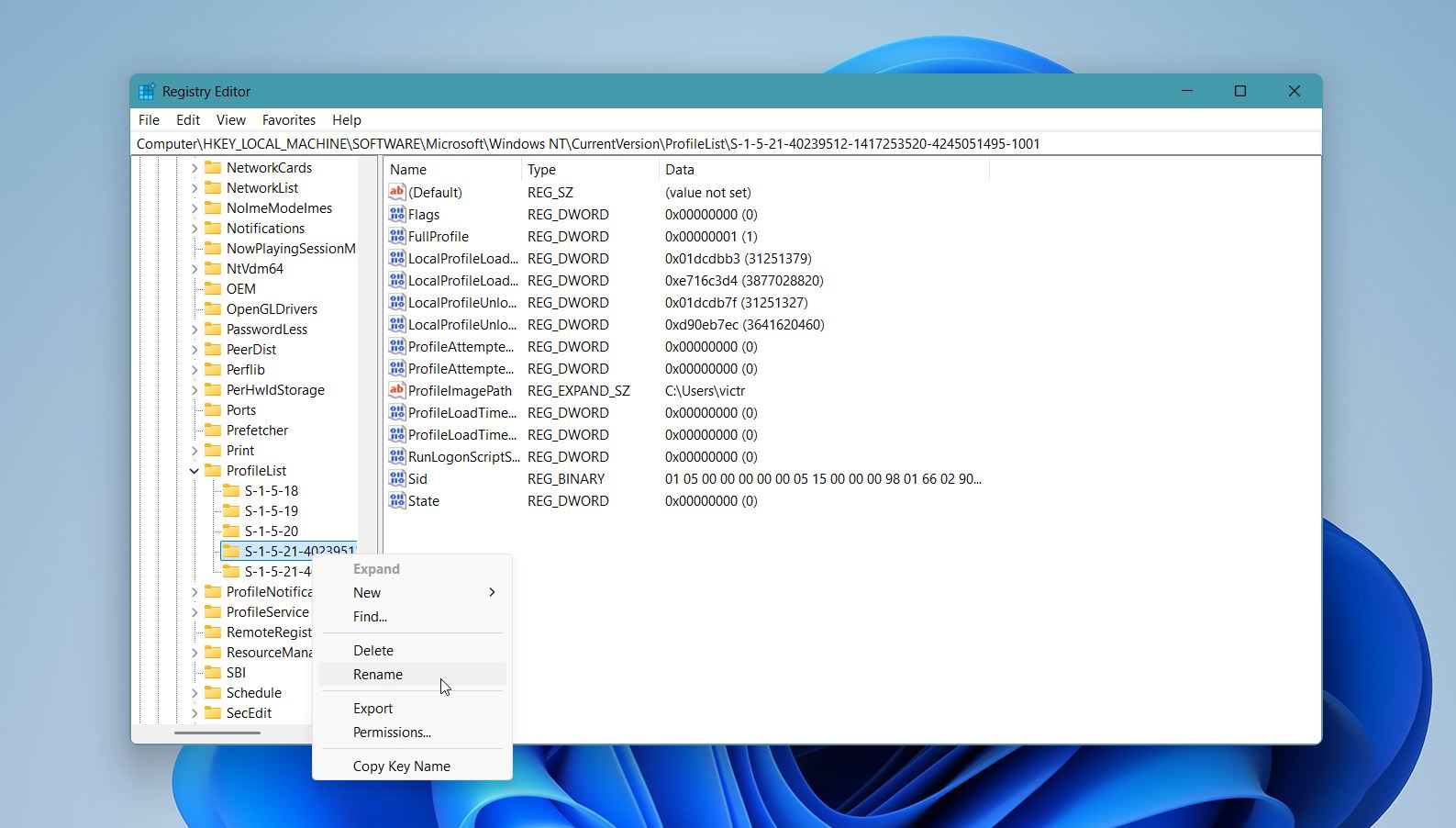
- Go to HKEY_LOCAL_MACHINE\SOFTWARE\Microsoft\Windows NT\CurrentVersion\ProfileList.
- Find the folder that matches your SID and check if there is a duplicate with a .BAK extension. Here, you’ll encounter ONE of the following cases:
- Case 1: The SID will be listed twice, with one of them consisting of a .BAK extension.
- Case 2: The SID will be listed only once, with a .BAK extension.
- Case 3: The SID will be listed once, without a .BAK extension.
- If two entries exist, delete the one without .BAK, then rename the one with .BAK by removing the extension; if only one entry has .BAK, just rename it; if there is no .BAK, leave it unchanged.
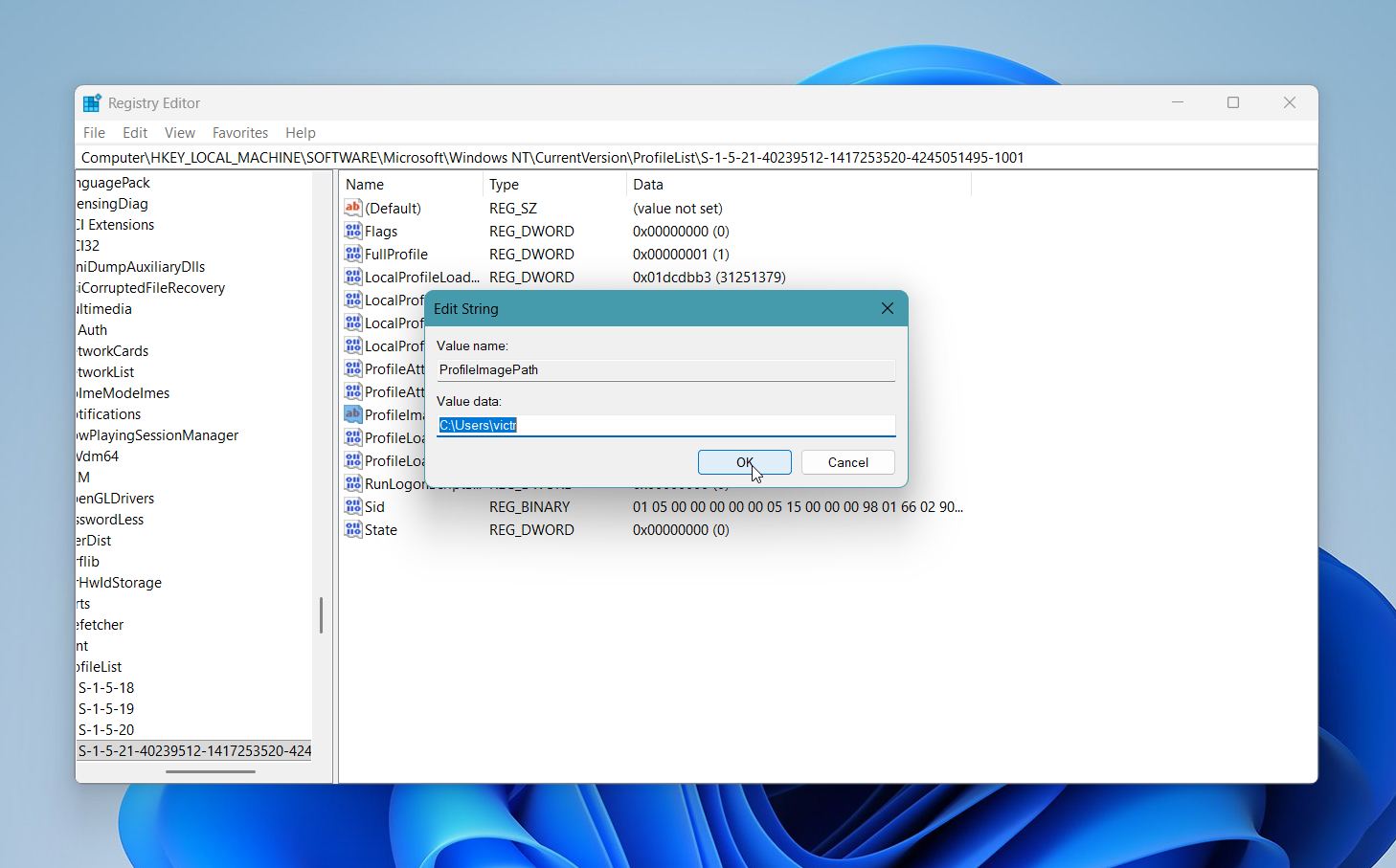
- Open ProfileImagePath and confirm it points to your user folder (for example, C:\Users\YourName), and correct it if needed.
- If you changed the path, open State and set its value to 0.
Once you’re done performing the relevant actions, depending on your case, reboot your PC. You should be able to log in to your user profile and access your user data.
Final Thoughts
Each method in this guide targets a specific scenario: Registry fixes help with broken profiles, System Restore can roll back system changes, and data recovery software focuses on retrieving files when the profile is no longer available. The key is to match the method to the situation and avoid unnecessary actions that could overwrite your data.
If one approach doesn’t work, move to the next without delay. In most cases, combining these methods gives you the best chance to regain access to your files, even if the original user profile cannot be fully restored.
FAQ
- Create a new user account on the target PC via Settings > Accounts > Other users, then sign in once and log out.
- Open File Explorer on the old PC and go to C:\Users\OldUsername.
- Copy the main folders such as Desktop, Documents, Downloads, Pictures, Music, and Videos.
- Transfer these files using an external drive, network, or cloud storage.
- Paste the folders into C:\Users\NewUsername on the new PC and replace existing ones if prompted.
- Open the hidden AppData folder and copy only necessary parts (mainly from Roaming) if you want to keep app settings.
- Check folder permissions via Properties > Security to confirm the new user has full access.
- Reinstall your applications so they work properly with the new profile.





Nice article ; well laid out and comprehensive.
i have almost the same problem – after screen went blank – reset the PC – profile went missing, after many hours, ( some swearing) the profile is back were it should ‘c:\users … ‘ – but – it will not show up in the user list to login. i can see it in explorer, system properties can see it, whoami can see it ( as a guest ), regedit has a sid for it and has the proper ProfileImagePath; SID has no ‘.bak’. And all the ‘stuff’ seems to be in it.
any ideas on how to regenerate it back to its former glory?
Thank you for your comment and for sharing your issue! To resolve this, first, check the permissions of the profile folder in C:\Users\… and ensure your account, Administrators and SYSTEM have full control. Also, verify the folder’s ownership—if it’s incorrect, set it to owner = SYSTEM. Once done, restart your PC and see if the profile shows up on the login screen. Let us know if this helps!