Did you lose important photos from your Nikon camera and need to get them back? Fortunattely, you can perform Nikon photo recovery on your own, even at home, and in most cases it doesn’t require advanced technical skills, regardless of how the files were lost or what type of photos you’re trying to recover.
In this guide, we’ll explain how to recover deleted photos from a Nikon camera step by step, and show what you can do if your recovered files turn out to be corrupted. But before you begin, avoid using the SD card from your Nikon camera to maximize your chances of recovery.
When This Nikon Photo Recovery Guide Will Work
If you don’t have a backup of your Nikon photos, your main recovery option is to use data recovery software. These tools can scan your SD card (or any other storage device) and restore deleted files, but only under one condition – the data hasn’t been overwritten.
In simple terms, this means you should stop using the SD card immediately after data loss. If you continue taking photos or copying files onto it, the new data may overwrite the old files, making recovery impossible.
With that in mind, this guide will work best in the following situations:
- You deleted photos by mistake or misclicked while browsing files.
- The SD card or storage device was formatted, but only with a quick format (not a full format or a secure wipe).
- Something went wrong while moving photos to your computer, such as a crash, a disconnect, or a power loss.
This guide can also be useful if your SD card becomes corrupted or prompts you to format it. However, if that’s your situation, it’s better to follow our guide on recovering data from a corrupted SD card and trying to fix it, since the process involves extra precautions and a slightly different workflow.
How to Recover Deleted Photos from Nikon Camera
As mentioned earlier, if you don’t have a backup of your deleted photos, your only real option is to use Nikon photo recovery software. These tools scan the SD card, analyze the remaining data, and attempt to reconstruct deleted files based on what’s still available.
The market offers plenty of data recovery tools, but for this guide, we’ll use Disk Drill. It’s one of the leading solutions available on both Windows and macOS. It supports common file systems like FAT32 and exFAT, as well as Nikon-specific formats such as NEF and NRW. At the same time, it combines a simple interface with strong recovery capabilities, which makes it suitable for most data loss scenarios.
If you want to learn more about how it works and what additional features it offers, you can check out our Disk Drill review.
To perform Nikon photo recovery, you need direct access to the SD card’s file system. For that, remove the card from your camera and connect it to your computer using a built-in or external card reader. Connecting the camera via USB is not suitable for recovery. In this mode, the camera works through a transfer protocol (PTP/MTP) and does not expose the SD card as a full block-level storage device.
Here is an easy 6-step process you need to follow to recover photos from your SD card:
- Start by downloading Disk Drill and installing it on your PC. While it installs, remove the SD card from your Nikon camera and connect it to your computer using a card reader.
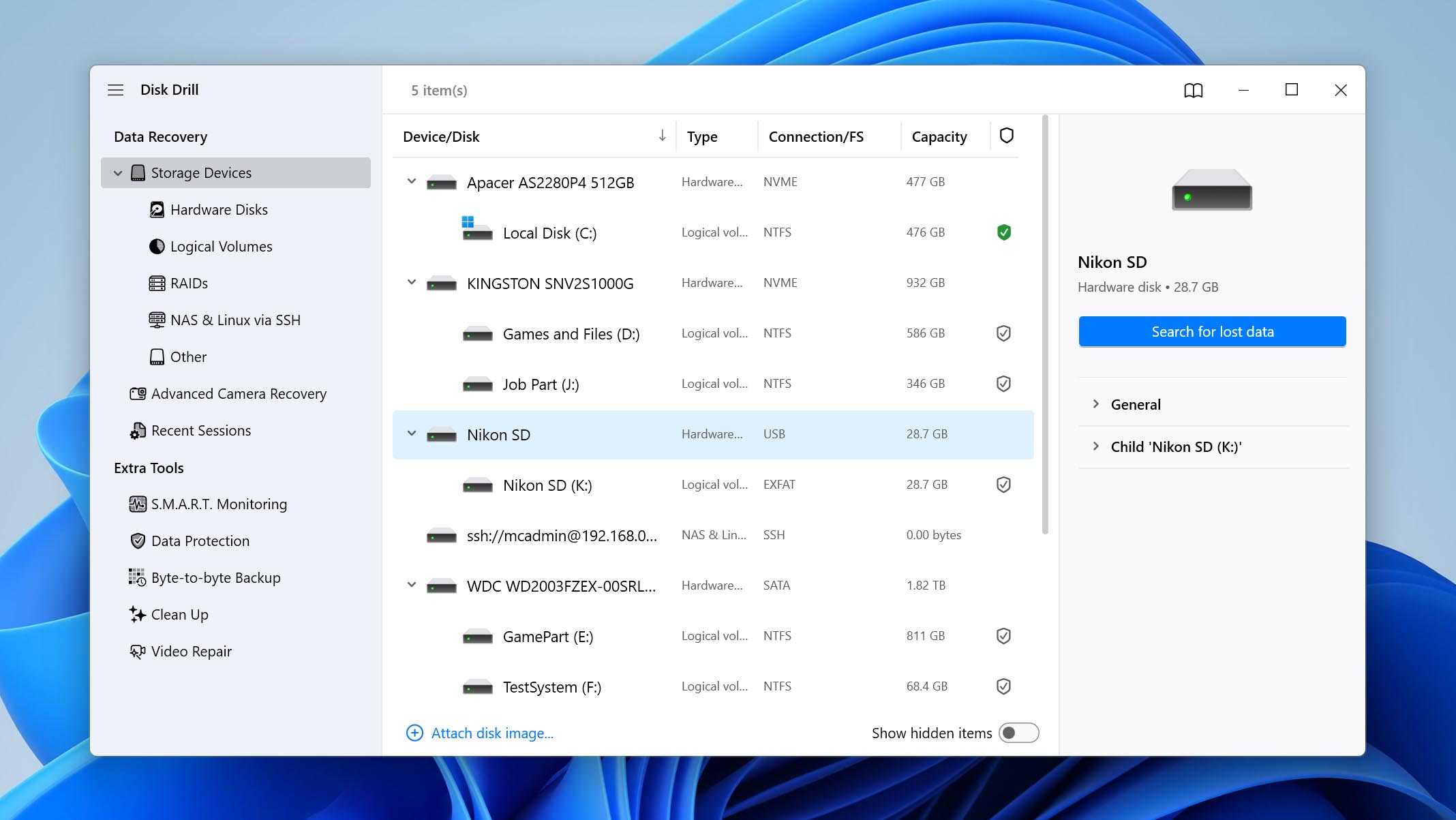
- Launch Disk Drill and select your SD card from the list of available storage devices. Click the Search for lost data button to start.
- The program will ask you to choose between different scan modes. Select the Universal Scan option.
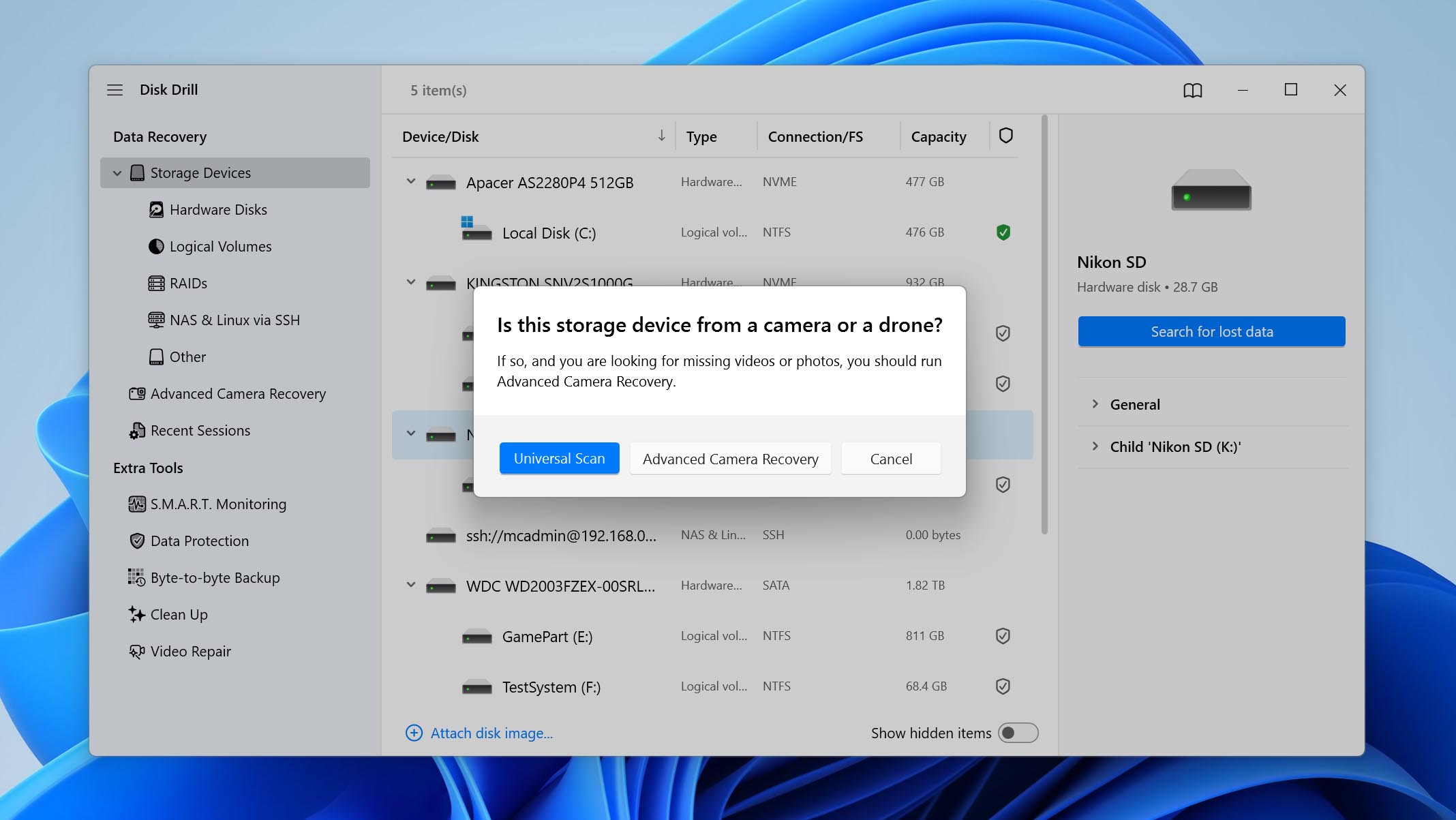
The Advanced Camera Recovery mode is designed mainly for fragmented video files. If you also need to recover deleted videos from your Nikon camera, you can run it as a second scan later.
- Once the scan is complete, you can either click Recover all to restore everything immediately or click Review found items if you want to perform a selective recovery.
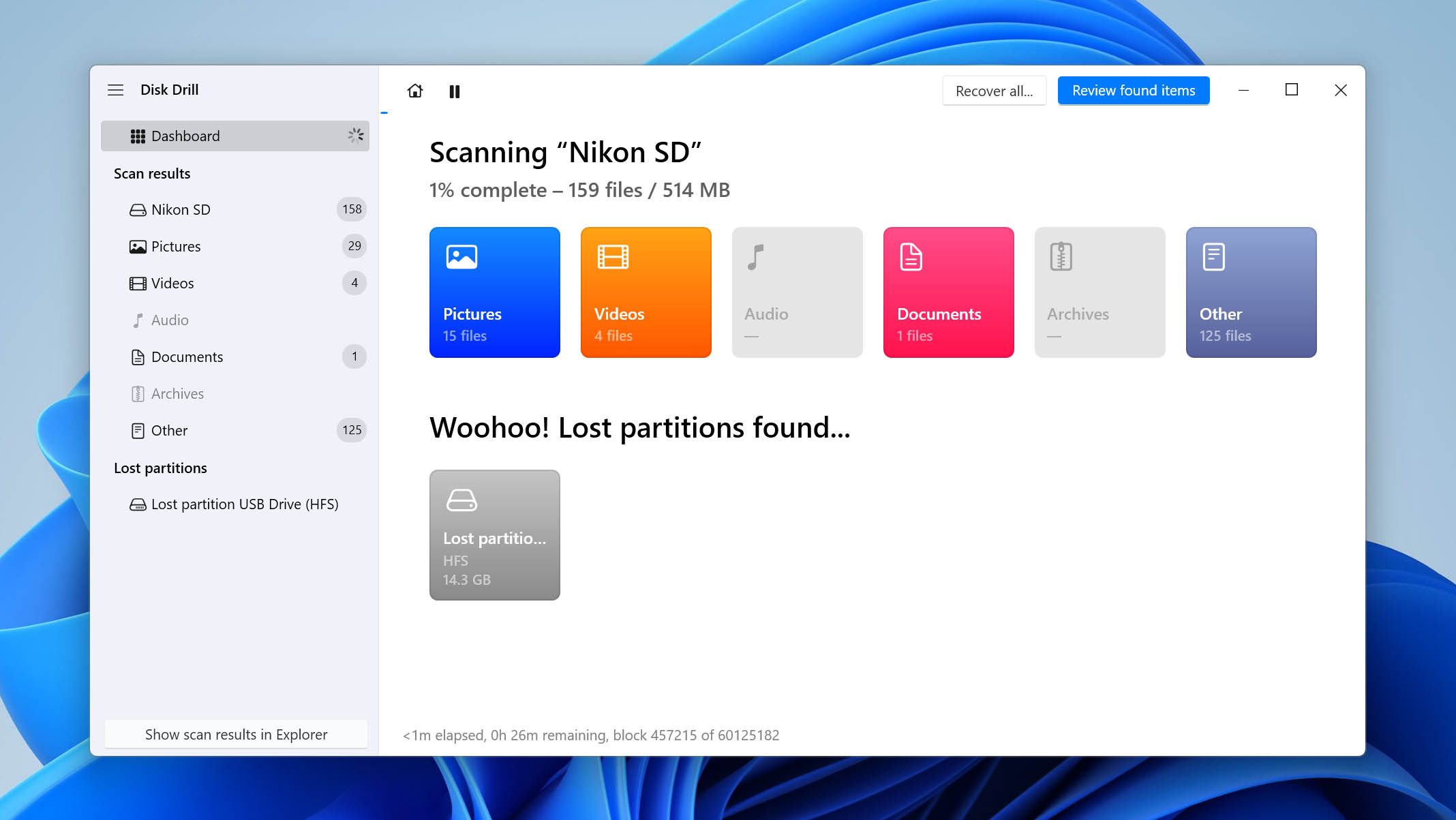
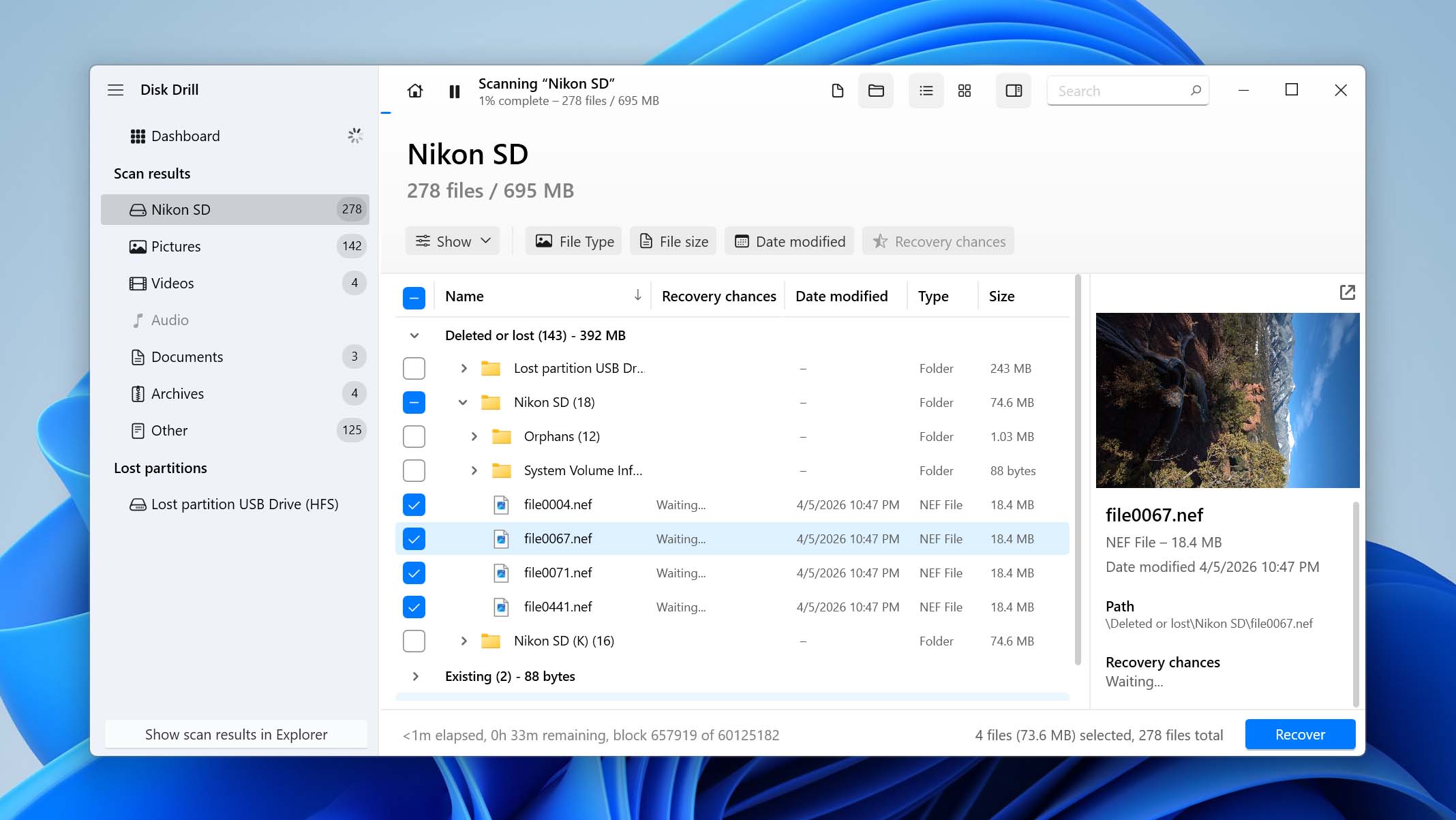
- If you choose Review found items, you’ll see a list of files the program was able to find. Double-click any file to preview it. When you find the photos you want to recover, check the boxes next to them and click Recover in the bottom-right corner.
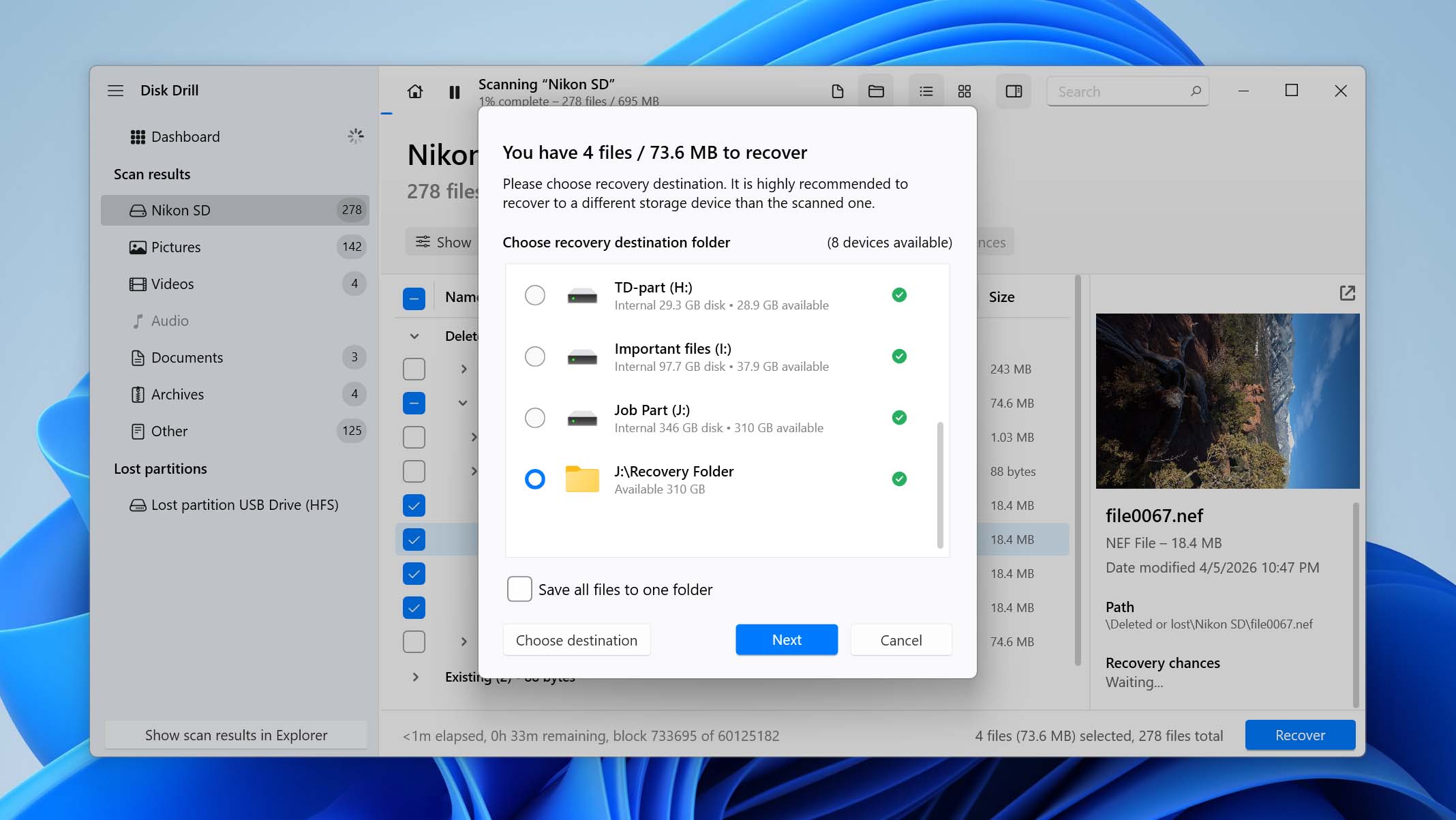
- Select a location where you want to save the recovered Nikon photos. Make sure you choose a destination different from the SD card to avoid overwriting the data. Click Next and wait for the recovery process to complete.
On Windows, Disk Drill lets you recover up to 100 MB of data for free. This is usually enough to test the software and confirm that your photos can be recovered, but it may not be sufficient to recover all lost data from your Nikon DSLR. If you need to restore more files, you’ll need to upgrade to the Pro version. As an alternative, you can try a free SD card recovery tool, but keep in mind that they often have limitations in usability, file previews, or overall recovery quality.
How to Fix Corrupted Nikon Photos
If the reason behind the data loss was a virus attack, the NEF files on your Nikon camera may have been corrupted before they were deleted. Similarly, if the physical sectors on the SD card on which the NEF files are saved have been damaged, the file may become corrupt.
Regardless of the cause, if the NEF files had become corrupt before you lost them, the recovered files will also be corrupt and you won’t be able to open them. Fortunately, fixing a corrupt NEF file is possible. Try one of the following methods to repair a corrupt NEF file:
Method 1: Try Opening the NEF File in Different Software
In many cases, the file isn’t actually corrupted, your system just doesn’t have the right software to read it. NEF (Nikon Electronic Format) is a RAW image format used by Nikon cameras. It’s not a standard image format like JPG or PNG, so it may not open correctly in default apps on Windows.
To fix this, try opening the recovered photo using software that supports RAW formats, such as Adobe Lightroom, Adobe Photoshop or Capture NX-D.
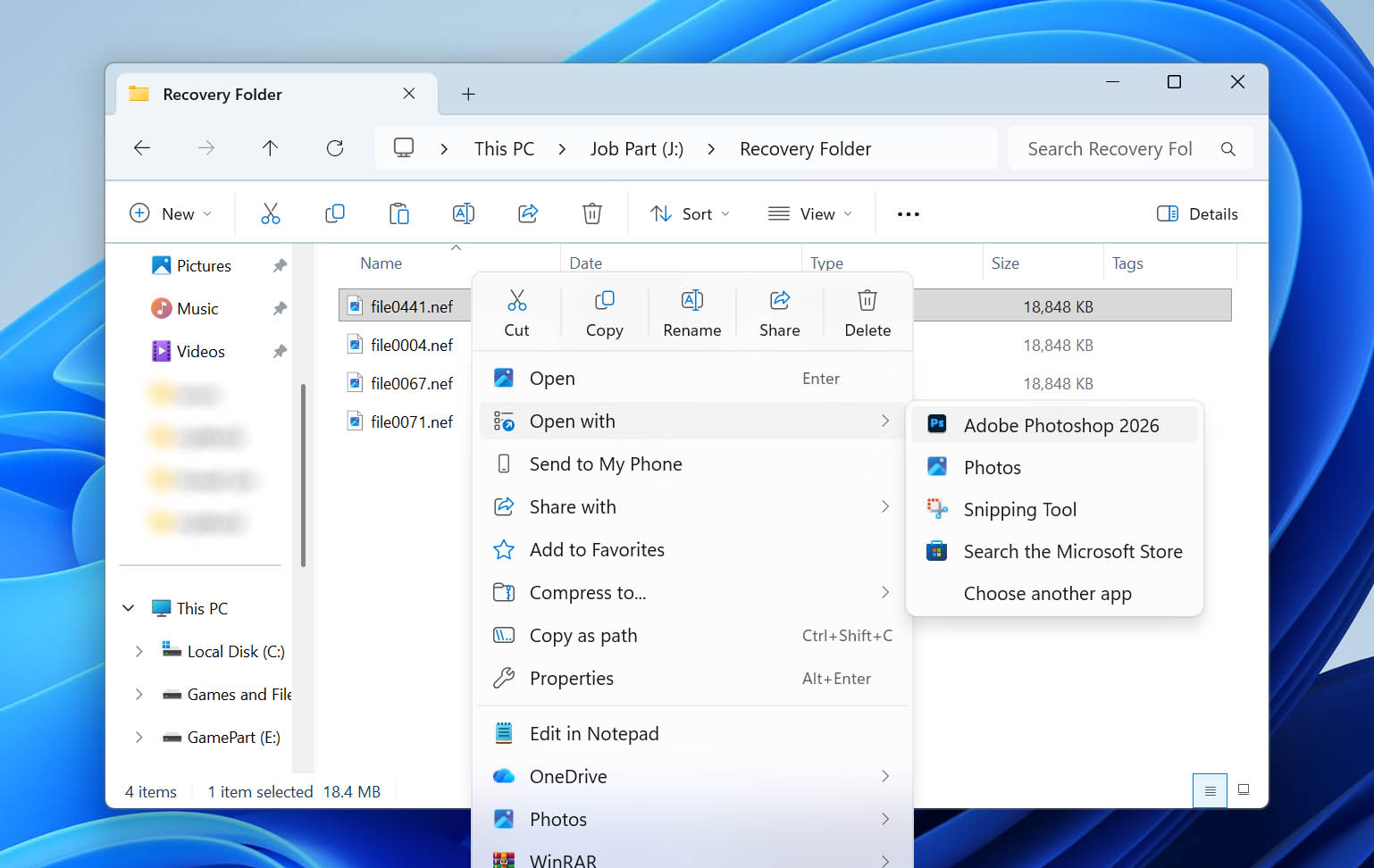
After installing one of these programs, right-click on your recovered NEF file, select Open with, and choose the app you installed. If the file opens correctly, it means the photo was never corrupted, it just required compatible software.
Method 2: Convert NEF File to Another Format
One of the simplest ways to repair corrupt NEF files is by changing the file format. For example, when trying to fix corrupt NEF files, you can convert the photos to png or jpg and see if that fixes the problem. Sure, the RAW image data may be lost, but you’ll at least have access to the pictures.
You can convert files into a different format in various ways. Typically, you can simply google the phrase “convert NEF to jpg” or similar to find web-based conversion tools.
Convertio is one such free tool that can help you convert NEF files into a different file format so your files become accessible. Upload your file to Convertio, select a format to convert the file into, and download the file after conversion.
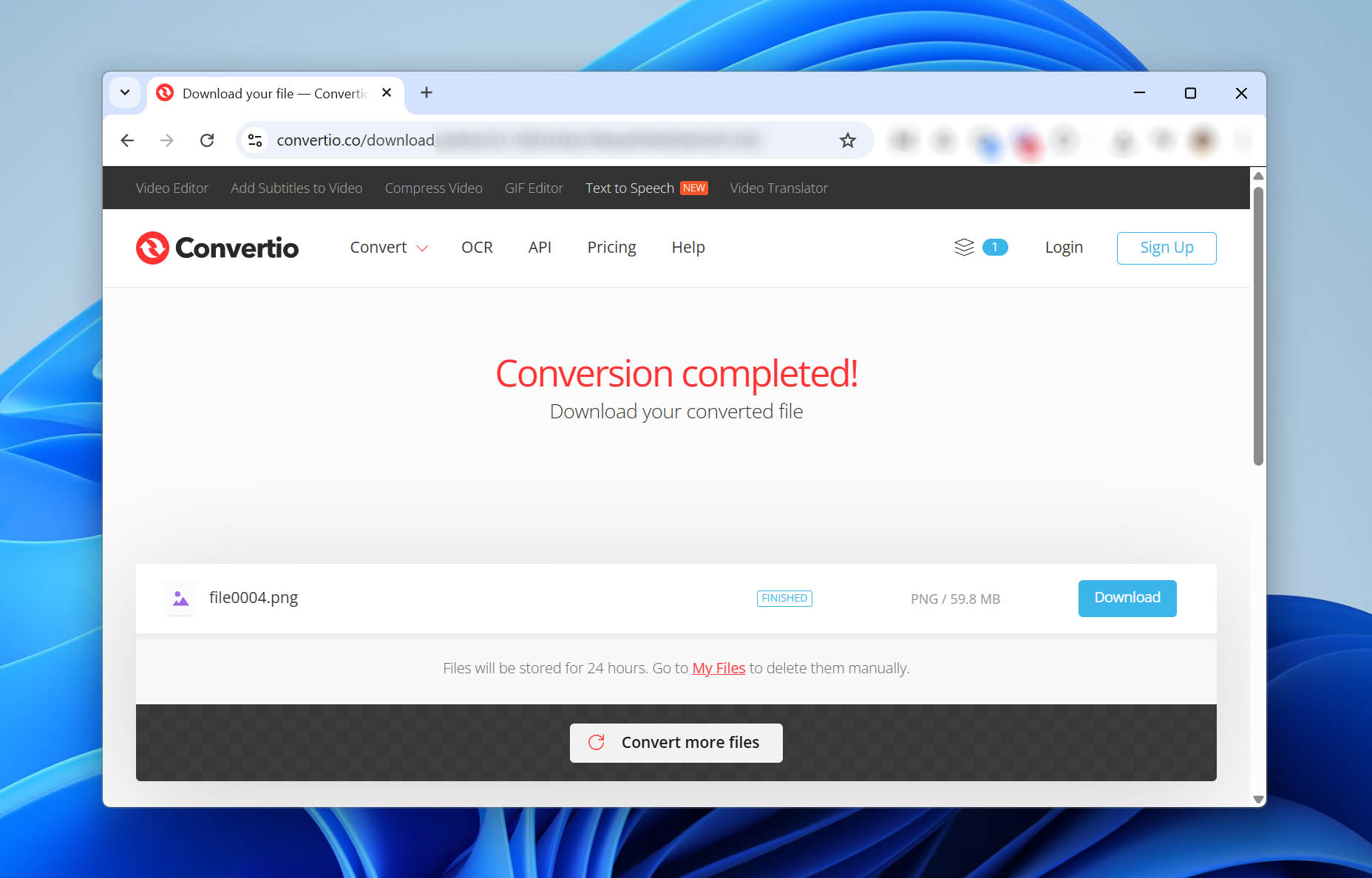
Try opening the converted file, and hopefully, it should open just fine.
Method 3: Use File Repair Software
You can also use a tool like JPEG Repair to repair corrupt NEF files. Here’s how you can use JPEG Repairninja:
- Download JPEG Repair. it’s a portable utility so you don’t need to install it on your PC. Just launch the zip file and open the file named JPGrepair.exe.
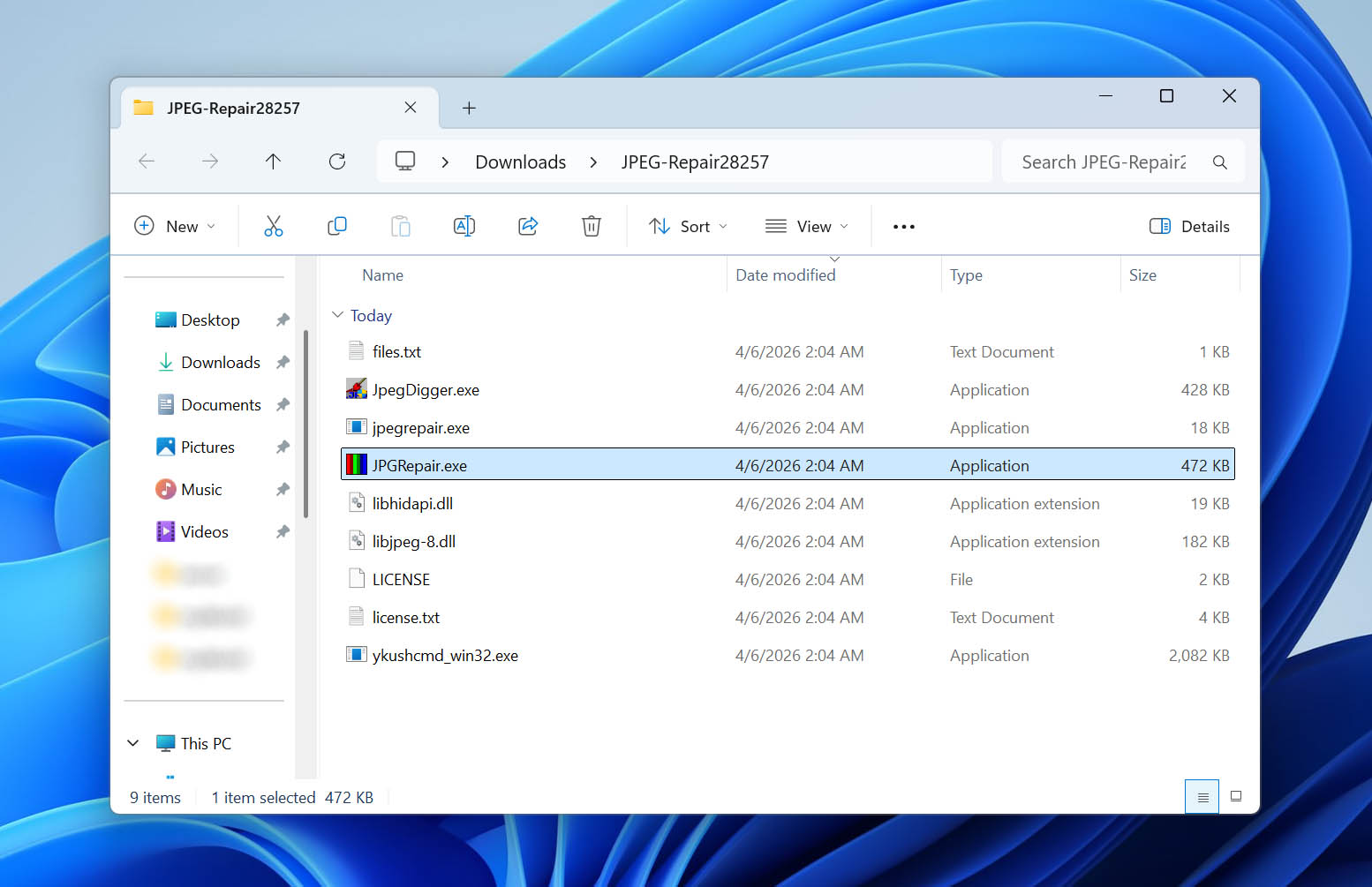
- Click Continue on the app’s launch screen. Don’t insert the key, we just need to use the demo version.
- Select Repair (header) under the Tool selection section. Click on the folder icon and select the NEF file you want to repair. Select a file and click OK.
- On the next screen, you’ll need to provide a reference file. The file must be a JPEG file shot with the same camera and settings. Select a JPEG file from your PC or an external storage device and select OK.
- Click Repair.
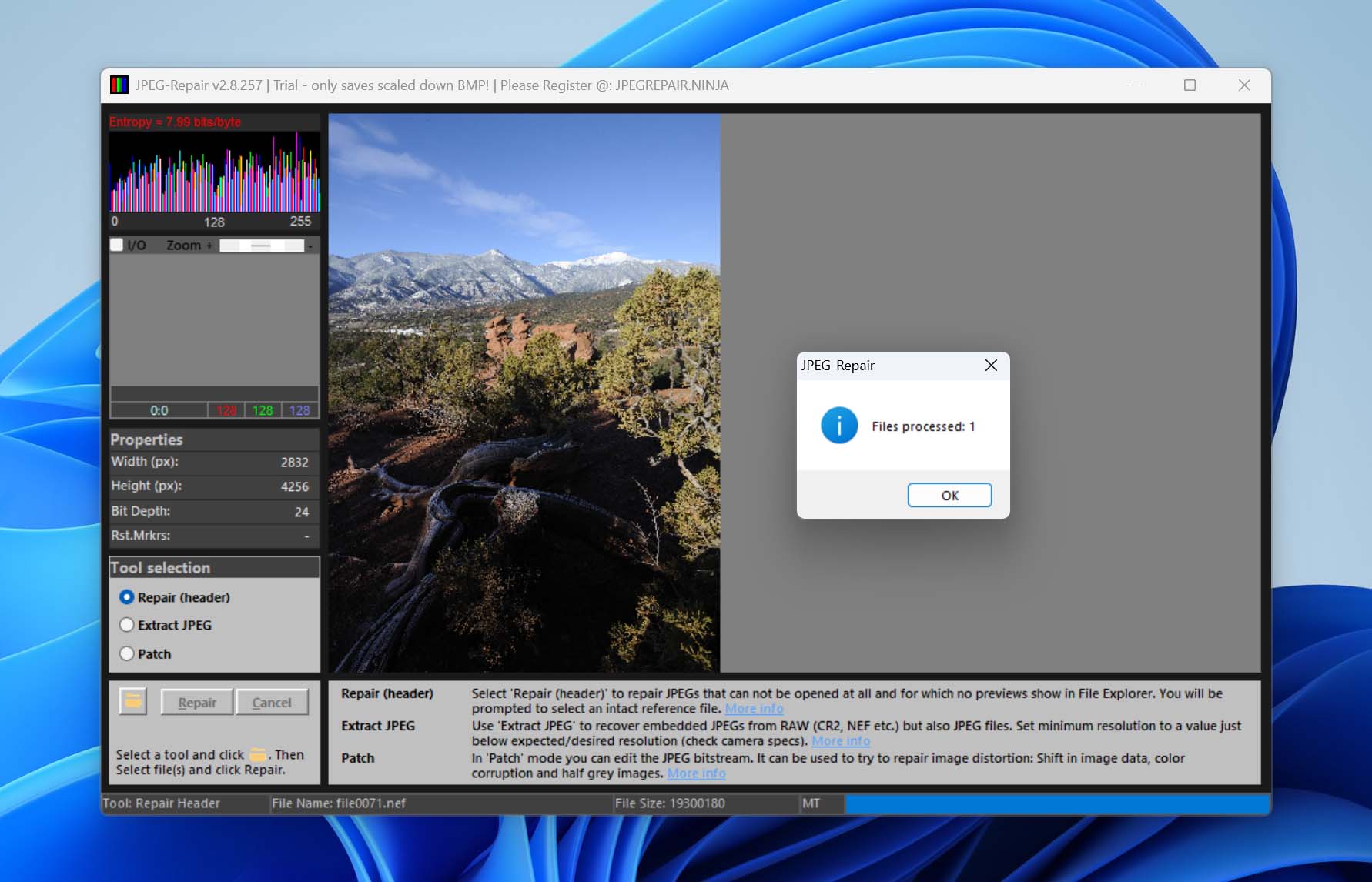
This should repair your corrupt NEF file. Note that the output file will be in JPG format, not NEF.
Wrapping Up
Now you know how to recover deleted photos from a Nikon camera. The most important rule is to stop using the SD card as soon as you notice the data loss. If the files haven’t been overwritten, your chances of recovery are high.
If you want to deal with Nikon photo recovery less often in the future, try to be careful when deleting photos. It’s best to remove files only after you’ve created backups somewhere else. Also, keep in mind that spreading your data helps reduce risk. Changing memory cards during a photoshoot, for example, can limit data loss. If one card gets damaged or lost, you won’t lose everything and will only need to recover a smaller portion of your photos.
If you run into other data loss situations or SD card issues, check out the SD card section on our website. It covers a wide range of scenarios and recovery methods. You can also visit our forum, where you can start a discussion and get help from other users or our data recovery experts.