Did you delete a USB partition and don’t know what to do next? That’s exactly why we put this guide together. Here, we break everything down step by step, from your chances of recovering a deleted partition to ways to do it.
Before you do anything else, stop using the USB drive. Don’t copy new files, don’t format it, and don’t try random fixes. Any new activity can overwrite the data you’re trying to recover. Leave the drive as it is until you go through this guide and choose the method that fits your situation.
Can a Deleted Partition on a USB Drive Be Recovered?
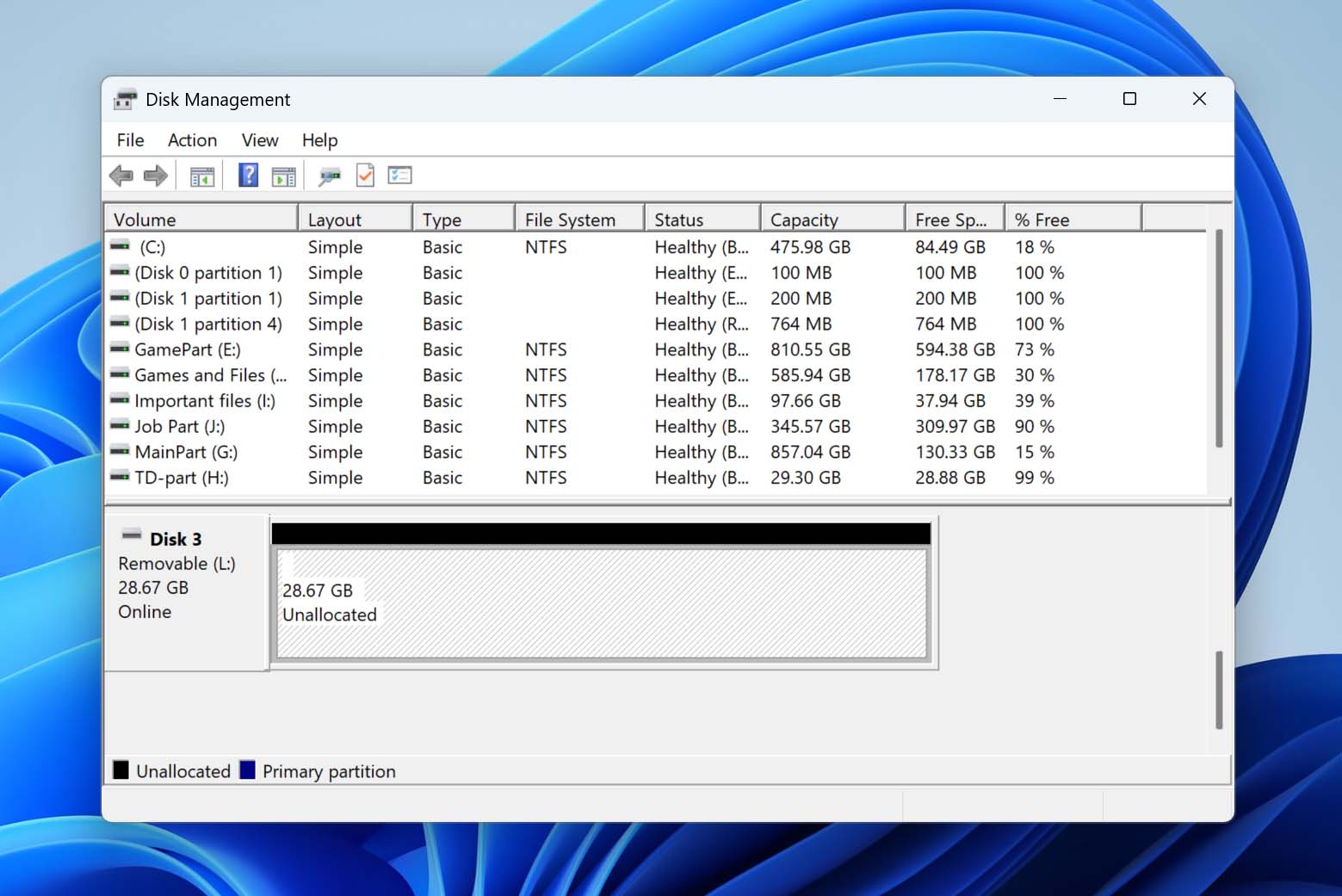
A partition is a logical section of a storage device that the system treats as a separate unit. On a USB drive, it defines where your data is stored and how it’s organized. When a partition is deleted, the files on it don’t disappear immediately. Instead, the space becomes “unallocated,” and the system loses access to the data, even though it’s still physically present on the drive.
In many cases, a deleted partition can be recovered, but this depends on what has happened after the deletion:
- No new data was written to the drive. If the USB drive hasn’t been used, the original partition structure is often still intact and can be restored.
- The partition structure is still detectable. Some tools can find traces of the old partition and rebuild it with the file system and data in place.
- The drive wasn’t fully formatted. Quick formats usually don’t erase the underlying data, which keeps recovery possible.
If these conditions are met, there’s a good chance you can restore the partition or recover individual files. Below, you’ll find several options that can help you do that. Not all of them are universal, so it’s best to go through each one carefully.
How to Recover Data from a Deleted USB Partition
Before you recover the actual partition, you must first recover your data from the USB drive. This way, even if you’re unsuccessful at recovering the partition, you will still have your files. Additionally, you can always create a new partition on your USB drive and copy these files back. To recover data from the deleted USB partition, you’ll need an appropriate data recovery program, as not all data recovery tools work with a USB drive with a deleted partition.
Our recommendation would be to use Disk Drill as it can recover data from storage devices even if they’re corrupt, have a deleted partition, and don’t have a file system (RAW). It’s also easy to use, while being equipped with an advanced data recovery algorithm that’ll ensure you recover most, if not all, of your data in a few clicks. It also includes additional features that we don’t cover here, which you can explore in more detail in our full Disk Drill review.
- Download and install Disk Drill on your computer. Launch Disk Drill after installation and connect your USB drive.
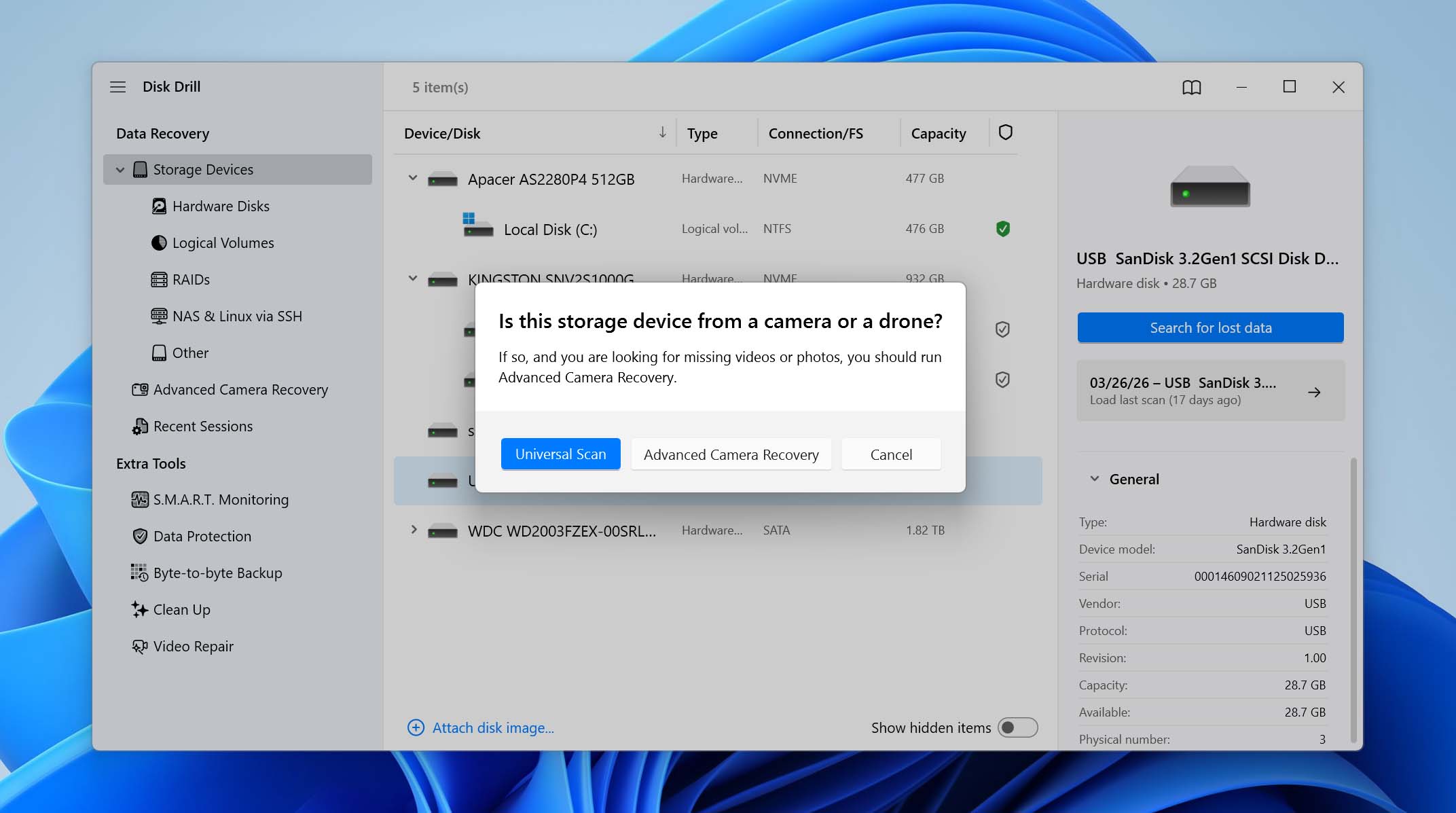
- In the Storage Devices section, find and select your USB drive, and click Search for lost data.
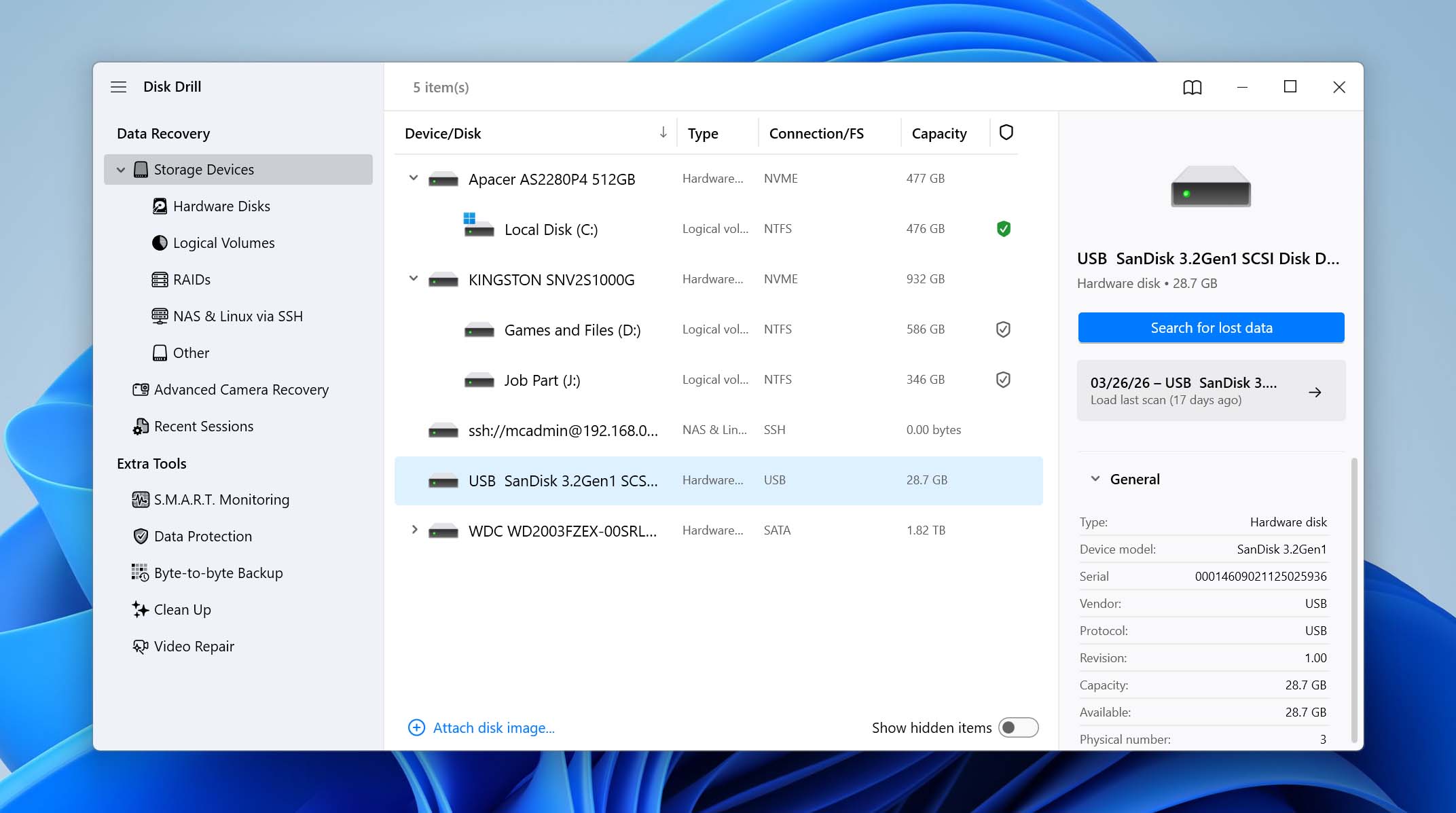
- Disk Drill will prompt you to choose a scan mode. Select the Universal Scan option. Advanced Camera Recovery mode is designed for recovering fragmented video files from camera SD cards and won’t help with partition recovery.
- Let the scan run to completion. Disk Drill will analyze the drive and attempt to locate any lost partitions along with their data.
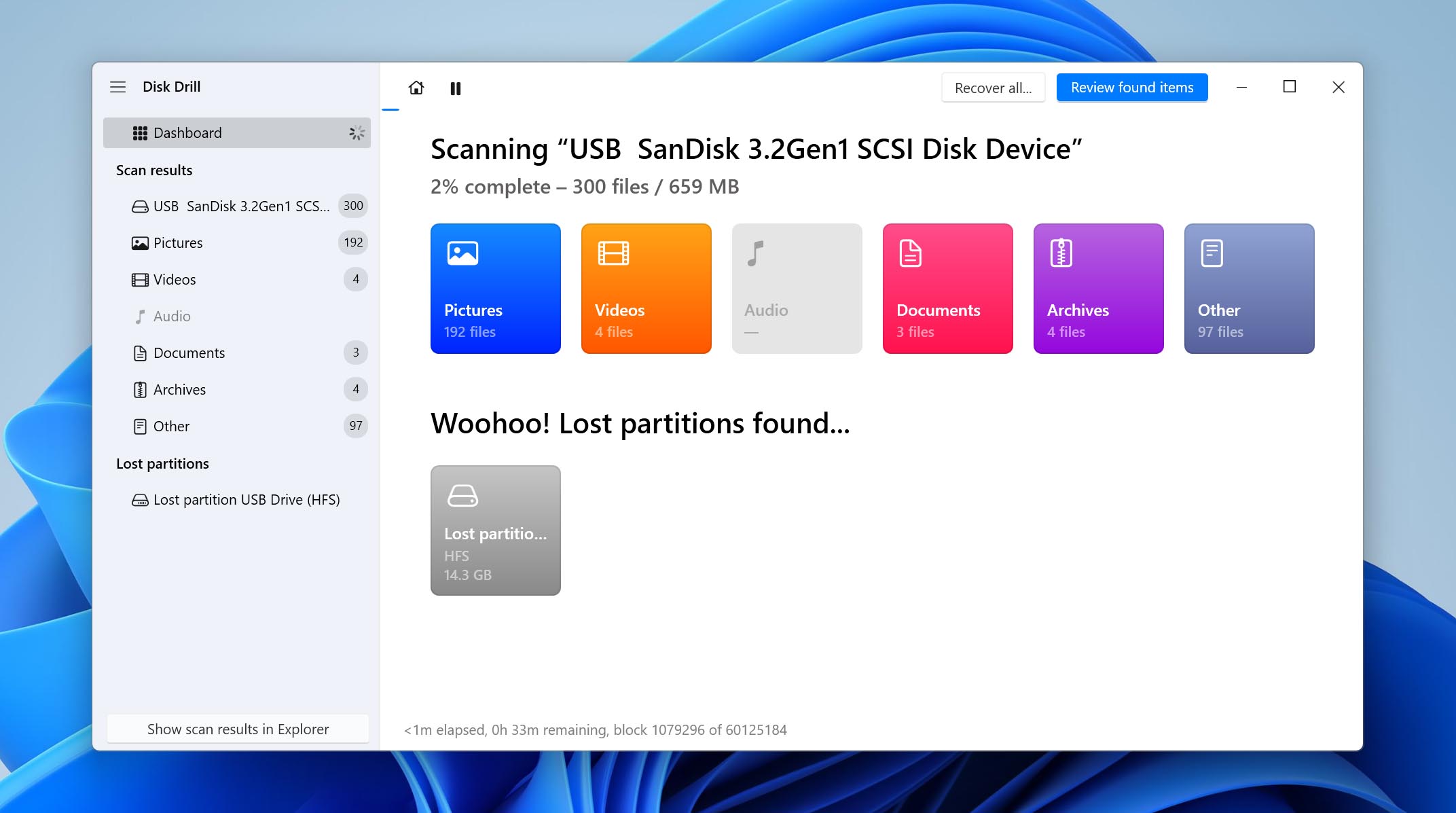
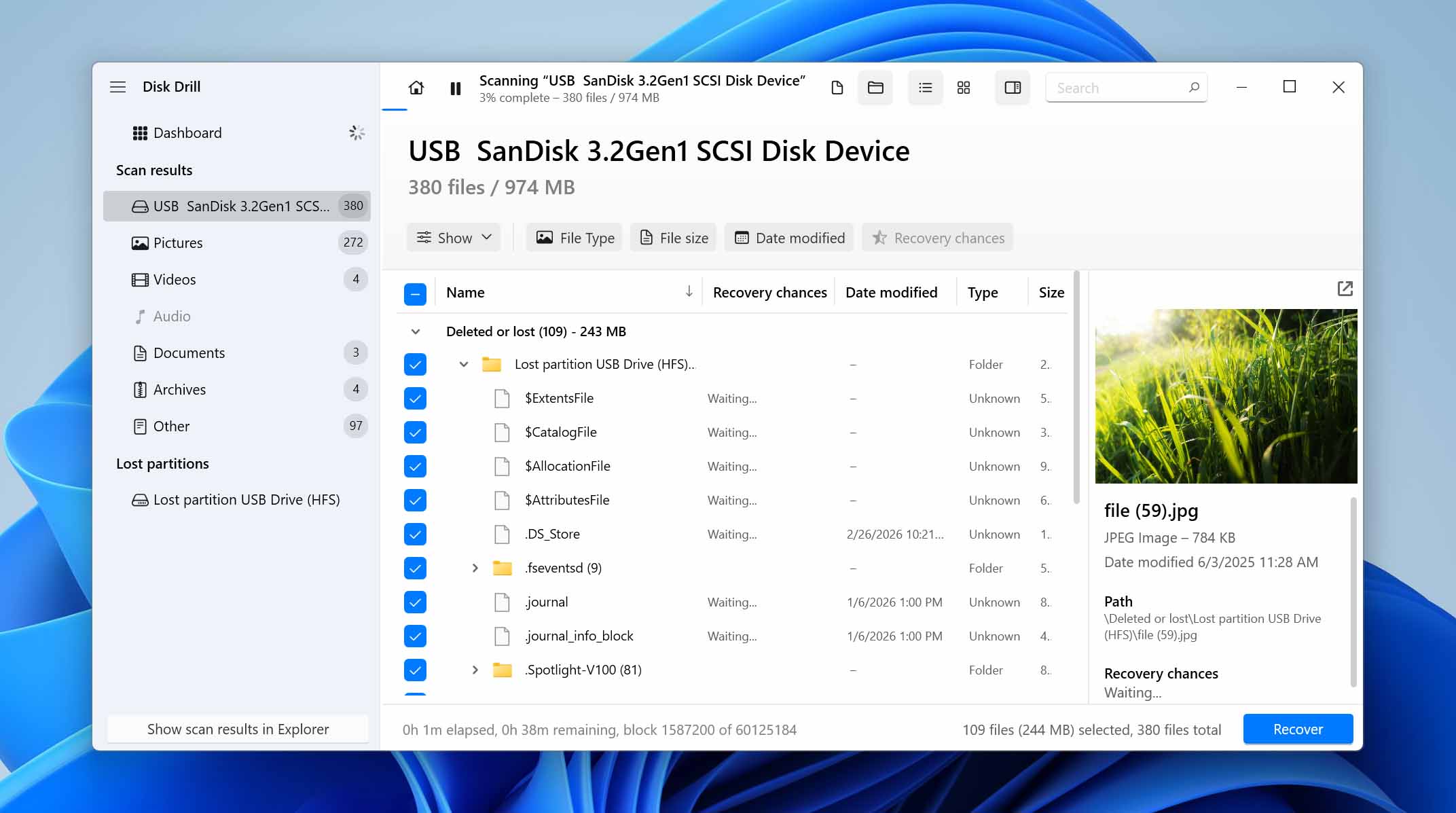
- Look for the lost partition in the results, then select it to view its contents.
- Disk Drill organizes data into sections like Deleted or Lost, Reconstructed, and Existing, which helps you understand what can be recovered. Use the preview feature to confirm that the files are intact, then select the files you need and click Recover.
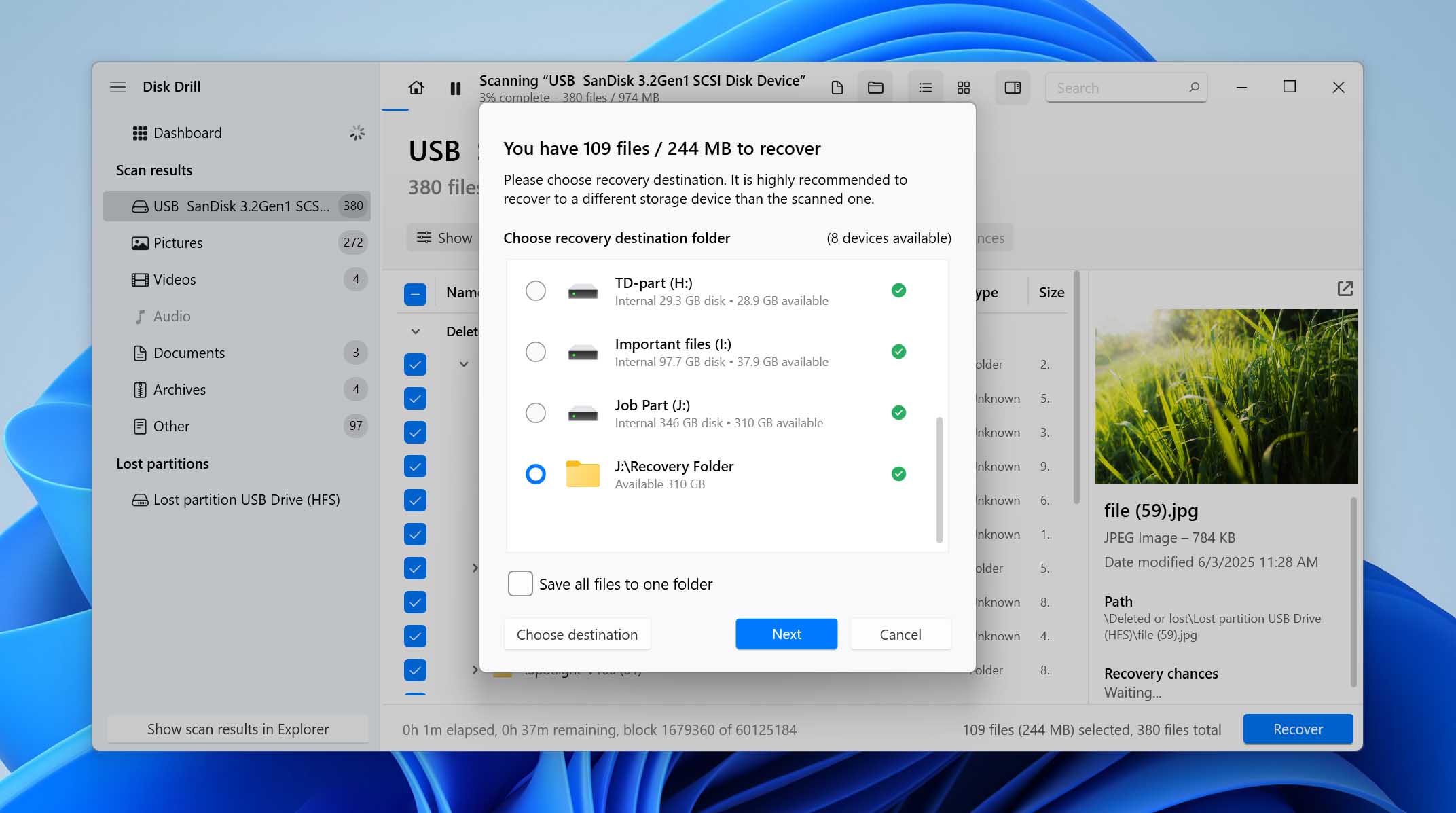
- Choose a different drive as the recovery destination and click Next. Do not recover files to the same USB drive, as you need to recreate the partition afterward.
- Disk Drill will recover your files. You can recover up to 100 MB of files for free as part of Disk Drill’s trial.
Once you’ve successfully recovered your files from the deleted partition, you’ll need to create a new partition on the USB drive before you can use it again. The easiest way to do this is outlined in the method below. Once the process is complete, you can copy the recovered files back to the drive and continue using it as usual.
How to Recover the Entire Deleted Partition on a USB Drive
Besides recovering your files and simply formatting the USB drive to keep using it, there are other ways to restore the deleted partition itself. Some of these methods can bring back both the partition and the files at the same time. However, these methods work directly with the partition structure. While they can restore it, they can also make things worse if something goes wrong.
If you skipped file recovery and went straight to this part of the guide, it’s strongly recommended to create a disk image first. This gives you a fallback point in case the recovery attempt fails. You can find step-by-step instructions on how to create one in our guide on RAW USB drives. Once you have a disk image (or your files already recovered), you can proceed with any of the methods below or try them one by one if needed.
Method 1: Recover Lost Partitions Using TestDisk
TestDisk is a partition recovery tool that can scan your USB drive for lost or deleted partitions and rebuild them using the original partition table data. If the partition structure is still present but no longer recognized by the system, TestDisk can restore it along with the file system, making the data accessible again without separate recovery. It is only held back by its lack of a proper graphical user interface (GUI). However, you need not fret about that since the steps below will guide you through the entire USB partition recovery process in a detailed manner. Let’s get to it:
- Download TestDisk and extract the contents of the downloaded archive.
- Launch the testdisk_win.exe file from the TestDisk folder that you extracted.
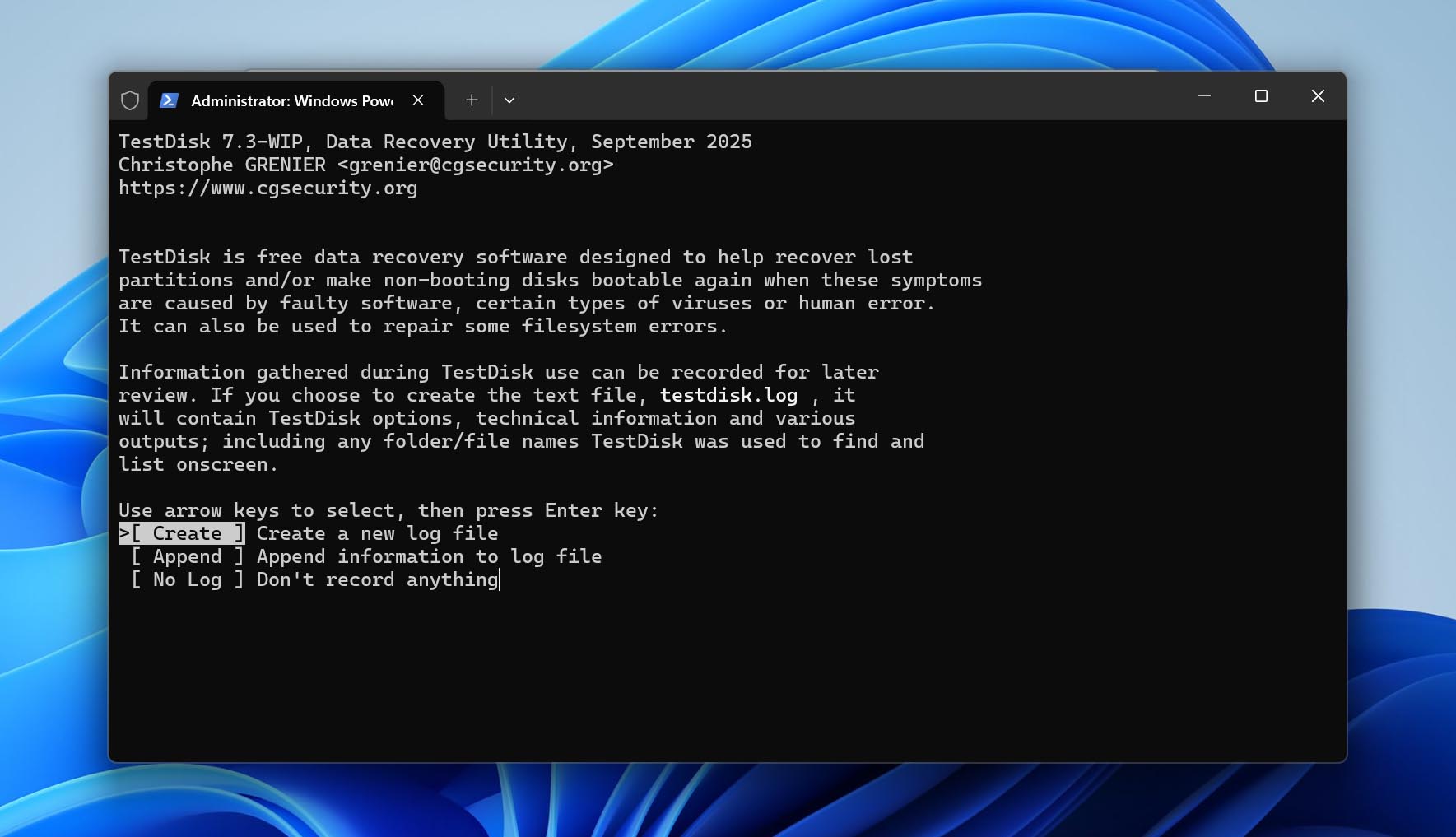
- Decide whether you want to create a log file or not. Use the Up and Down arrow keys to highlight an option, and press Enter to select. You can choose any option you’d like here.
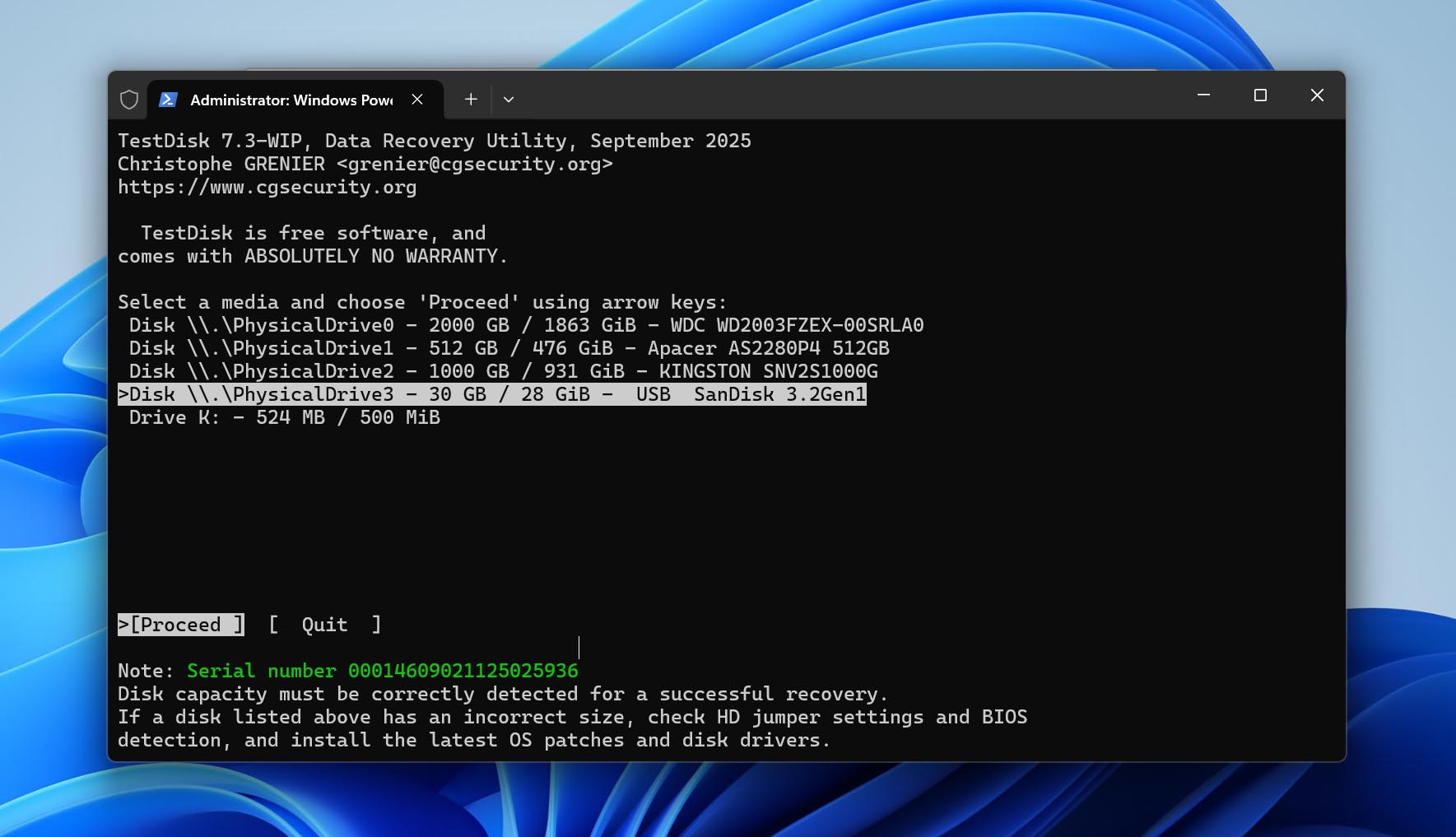
- Highlight the USB drive from the list of storage devices and select Proceed.
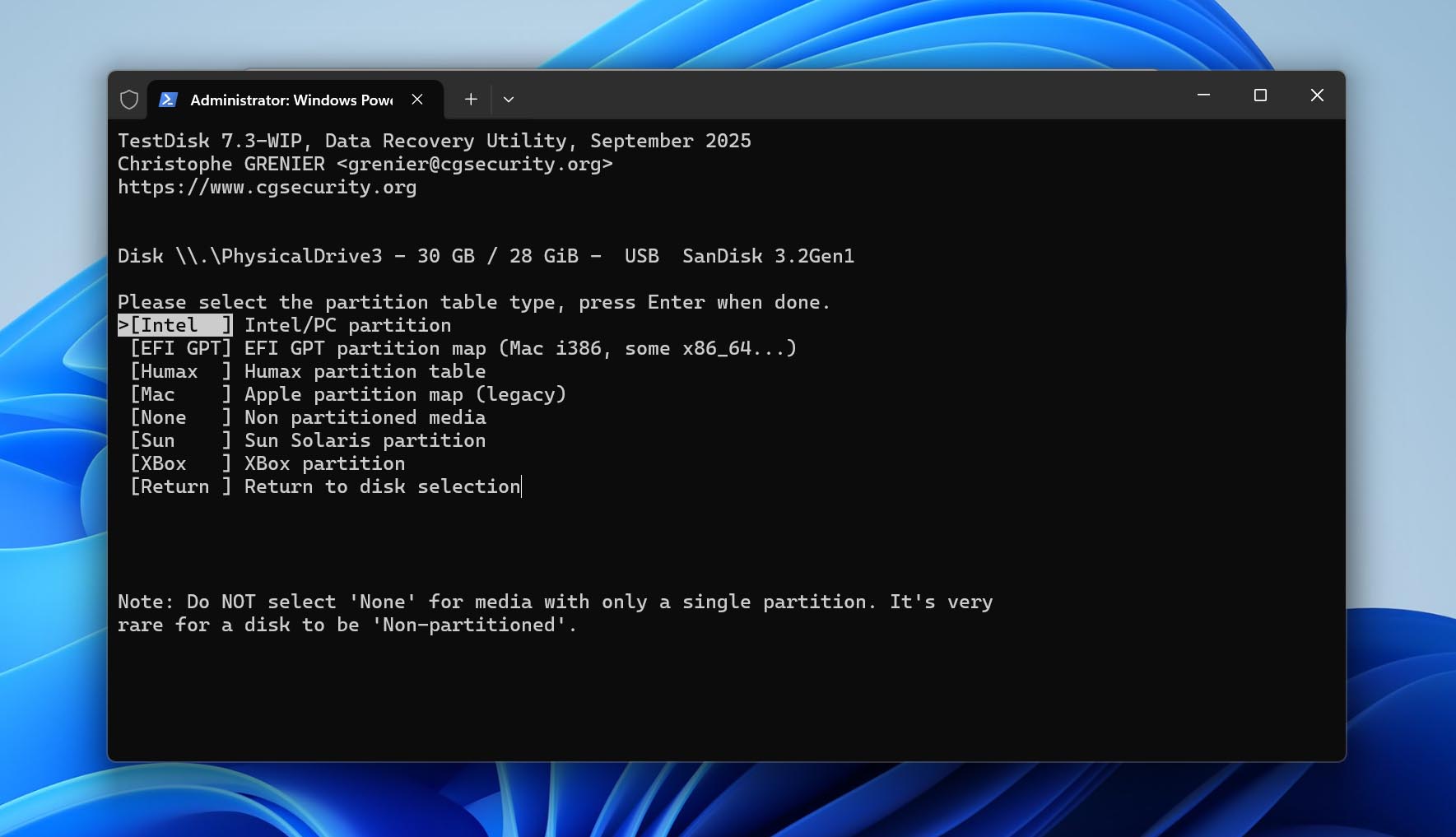
- Select a partition table type. TestDisk autodetects this, so it’s best to simply leave the selected option as it is and simply press Enter on this screen.
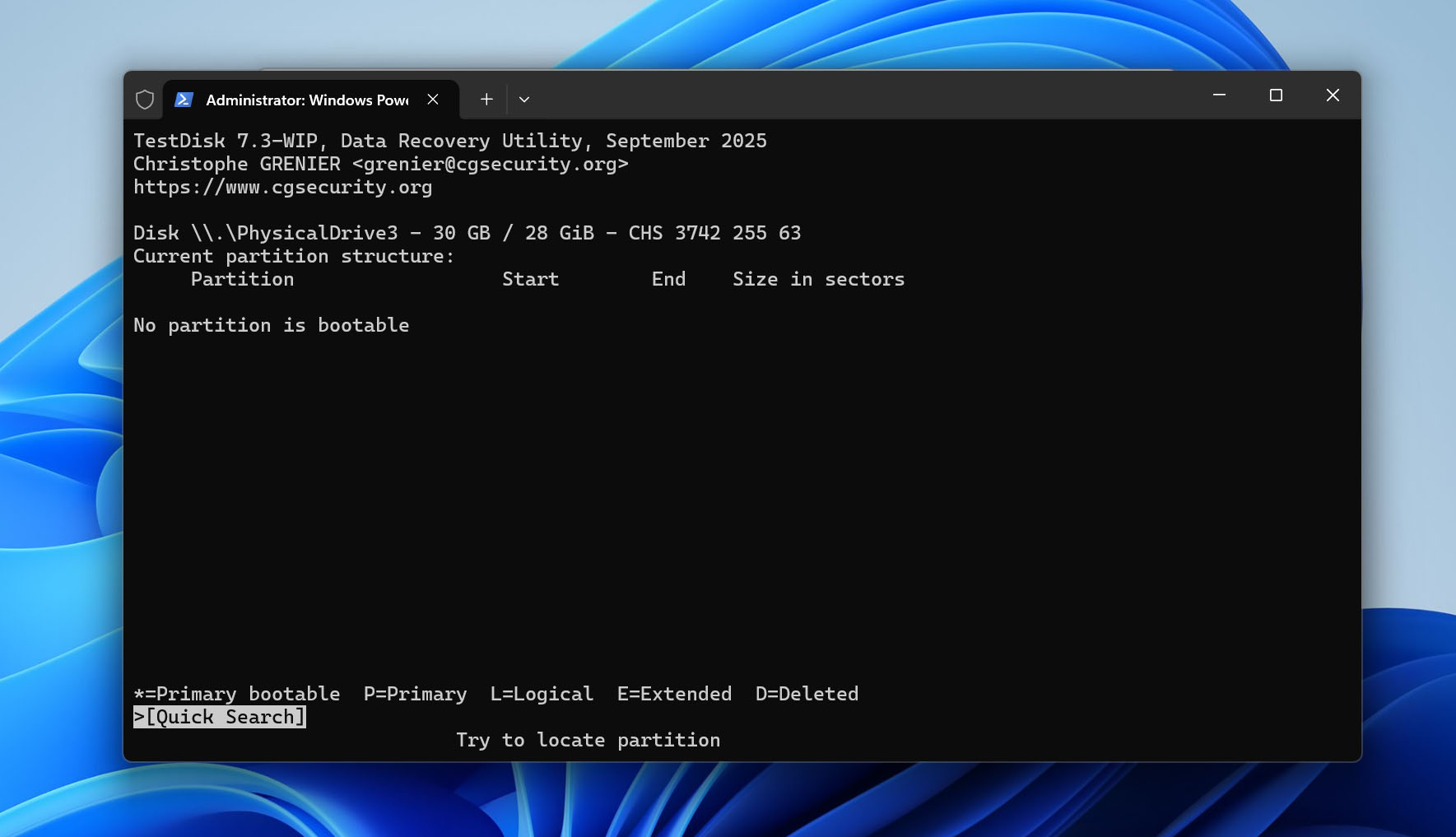
- Select Analyse and press Enter.
- Select Quick Search and press Enter. TestDisk will list the partitions.
- Highlight the partition of your choice and press P to view its files. If all your files are there, press C to go back.
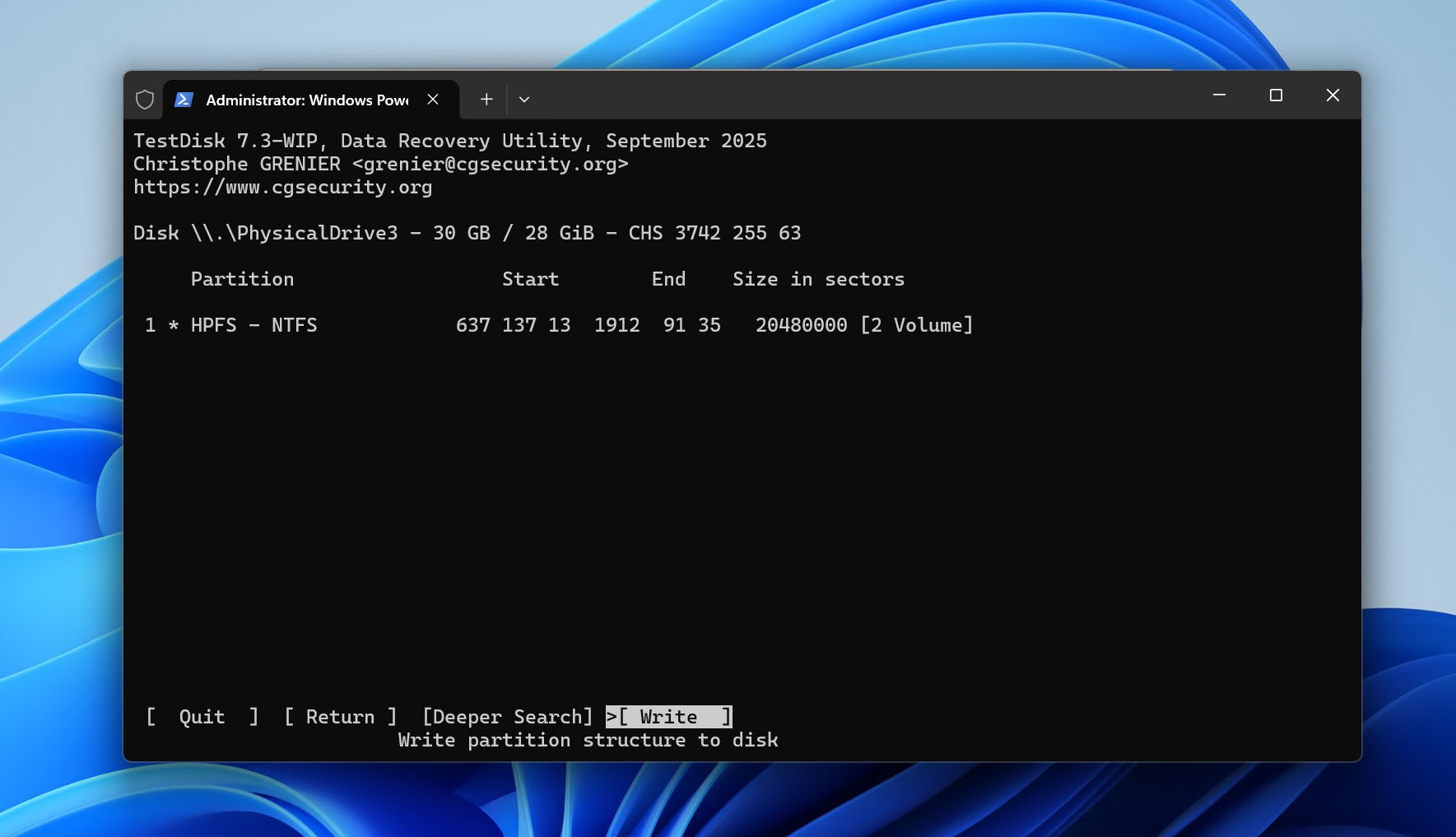
- The listed partitions will have one of these characters before them–P, D, L, and *, denoting Primary, Deleted, Logical, and Bootable respectively. The partition you wish to recover will have a D before it and you need to mark it as P. To do this, select the partition using the Up or Down arrow keys, and press the Left and Right arrow keys to cycle between the P, D, L, and * characters.
- Once the partition has been marked as P, press Enter.
- If you wish to search for more partitions, select the Deeper Search option and press Enter. If not, move to the next step.
- Select the Write option and press Enter. Press Y on the confirmation prompt. TestDisk will recover the partition. Reboot your PC after this.
Method 2: Repair the NTFS Boot Sector Using CHKDSK
If you’re not sure that the partition was actually deleted and instead see your USB drive showing up as RAW, it may not be gone at all. In many cases, this happens because the NTFS boot sector is damaged, which makes the partition unreadable. CHKDSK can attempt to repair the file system by restoring the boot sector from its backup copy. If successful, this can bring the partition back without the need to rebuild it or recover files separately.
Keep in mind that this method only works if the USB drive was formatted with the NTFS file system.
- Connect your USB drive to the computer.
- Press Windows + S, type cmd, then right-click Command Prompt and select Run as administrator.
- Type the chkdsk X: /f command, replace X with the drive letter of your USB partitionand and press Enter.
- Wait for the scan to complete. CHKDSK will check the file system, attempt to fix logical errors, and repair the NTFS boot sector if possible.
- Once the process finishes, open File Explorer and check if the partition is accessible again.
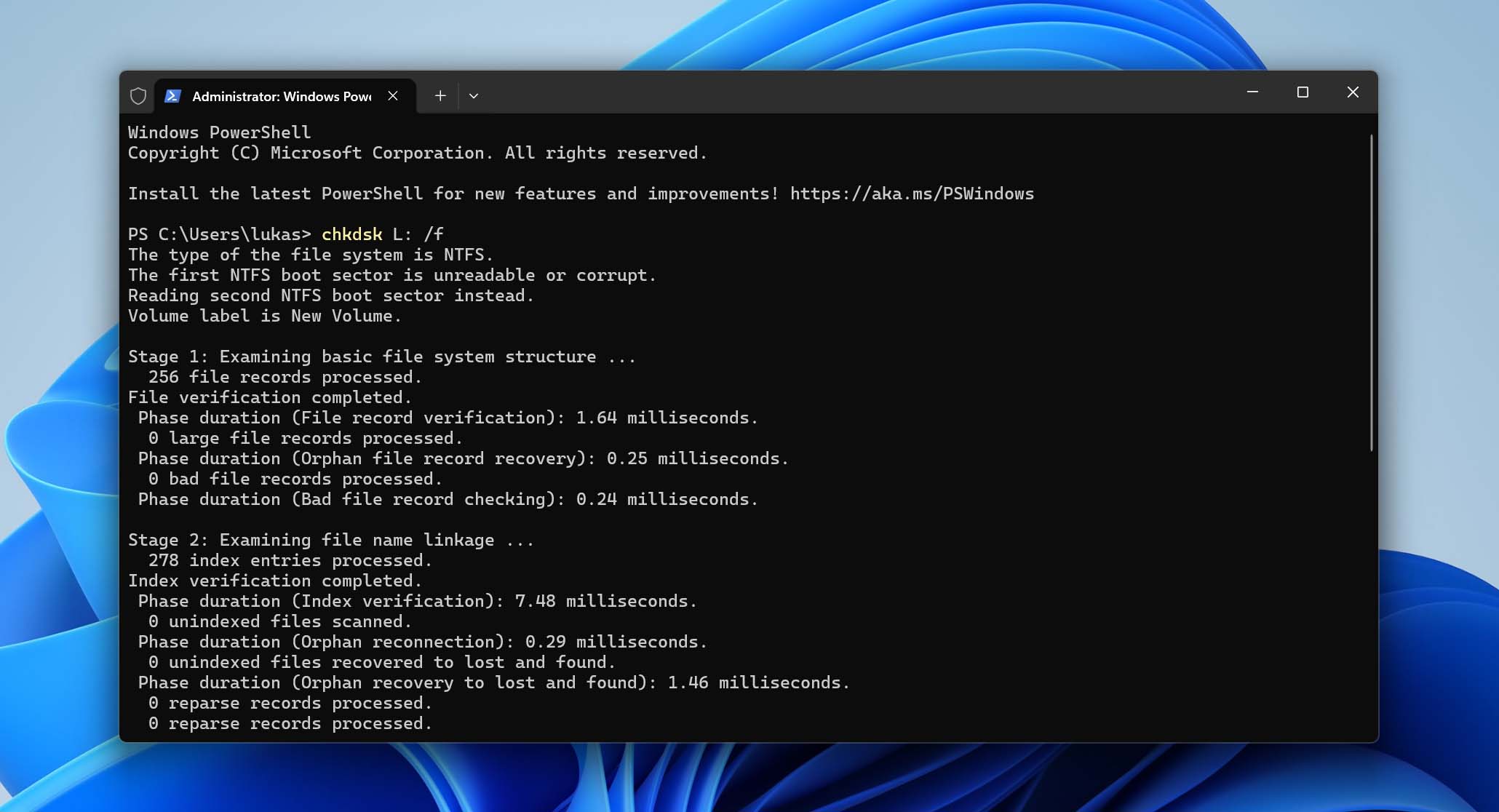
If the process completes successfully, your partition should become accessible again and your files should appear as before. If nothing changes or the scan fails, the partition was likely not just corrupted but actually deleted. In that case, you’ll need to use a dedicated partition recovery method, either the previous one or the next option in this guide.
Method 3: Recreate the Partition Using Disk Management
If your data isn’t important, or you’ve already recovered everything you need, the next step is to recover the USB drive partition itself so you can use it again. In this case, you don’t need to recover the old partition, and you can simply create a new one.
You can do this using Disk Management, a built-in Windows tool that lets you create and manage partitions through a graphical interface. Here’s how to recreate a partition on your USB drive:
- Press Windows + X and select Disk Management from the menu.
- Look for your USB drive in the lower half of the Disk Management window. Right-click on the space labeled as “Unallocated” and choose New Simple Volume.
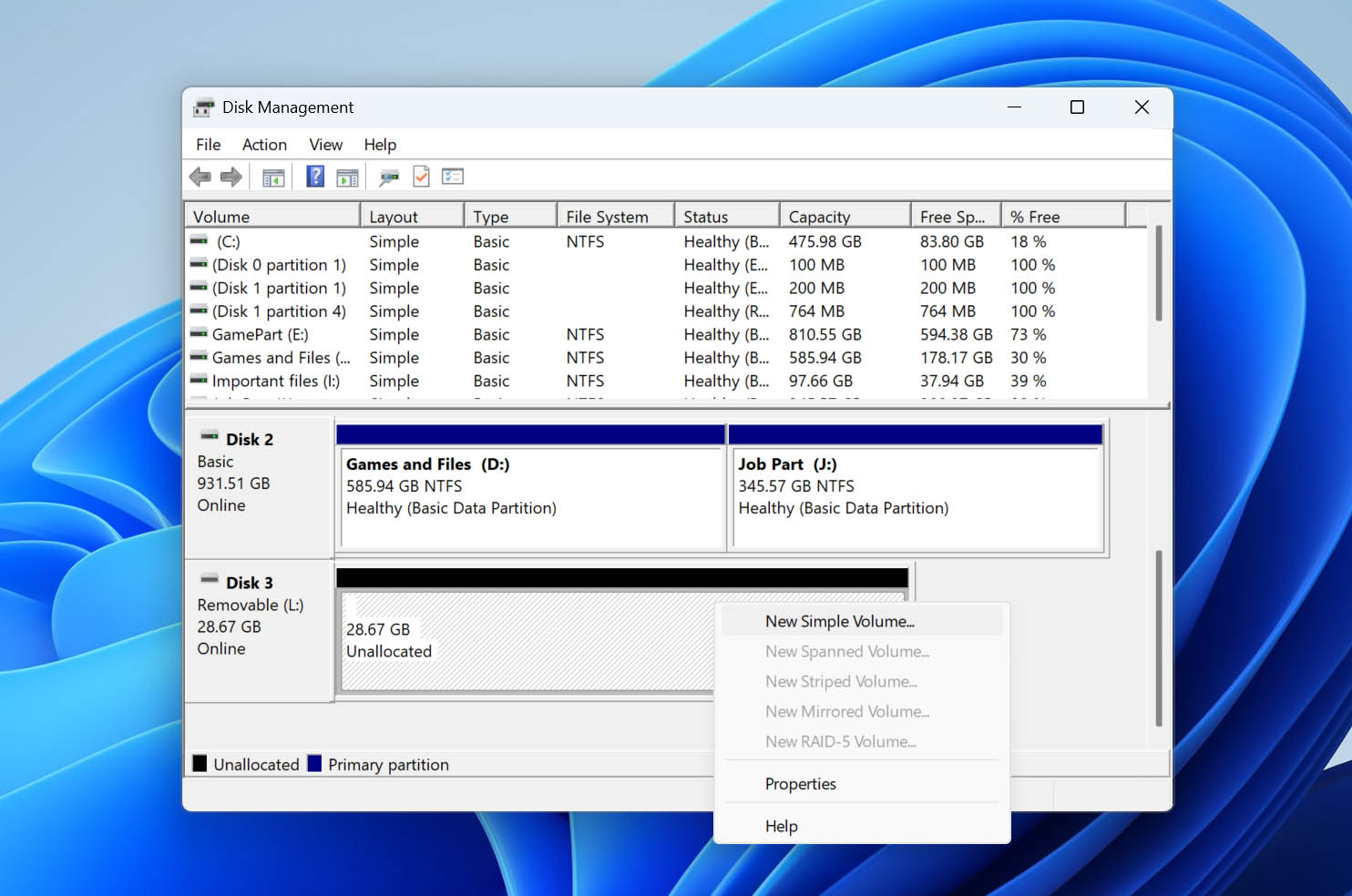
- Click Next on the New Simple Volume Wizard welcome screen.
- Choose the partition size using the Simple volume size in MB box. Click on Next.
- Pick the drive letter you wish to assign to the partition, using the Assign the following drive letter drop-down menu. Click Next.
- Ensure the Format this volume with the following settings option is selected. Choose the File System and Volume Label (Name) you wish to assign to the partition and click Next.
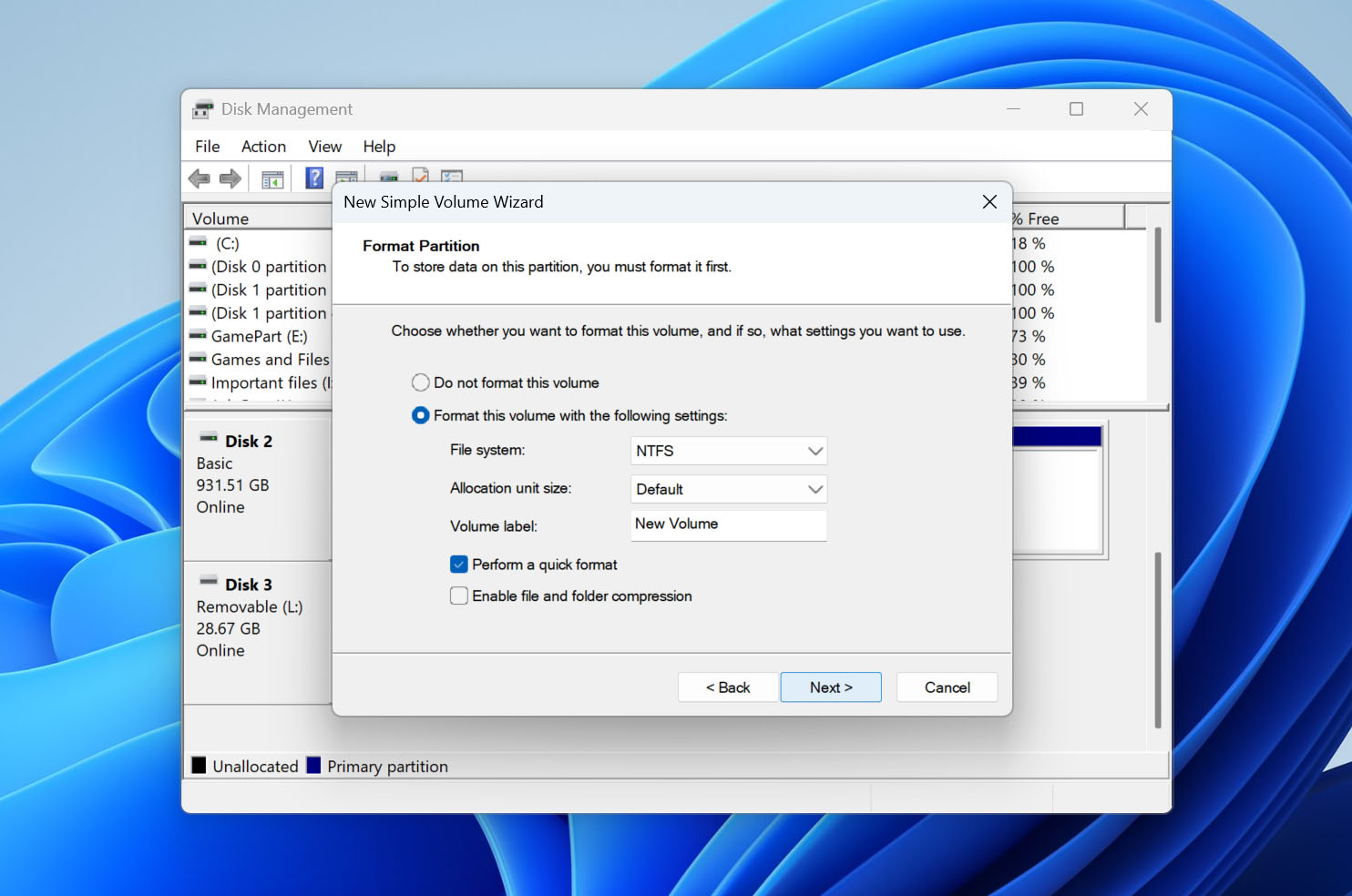
- Click on Finish and Disk Management will create the new partition for you.
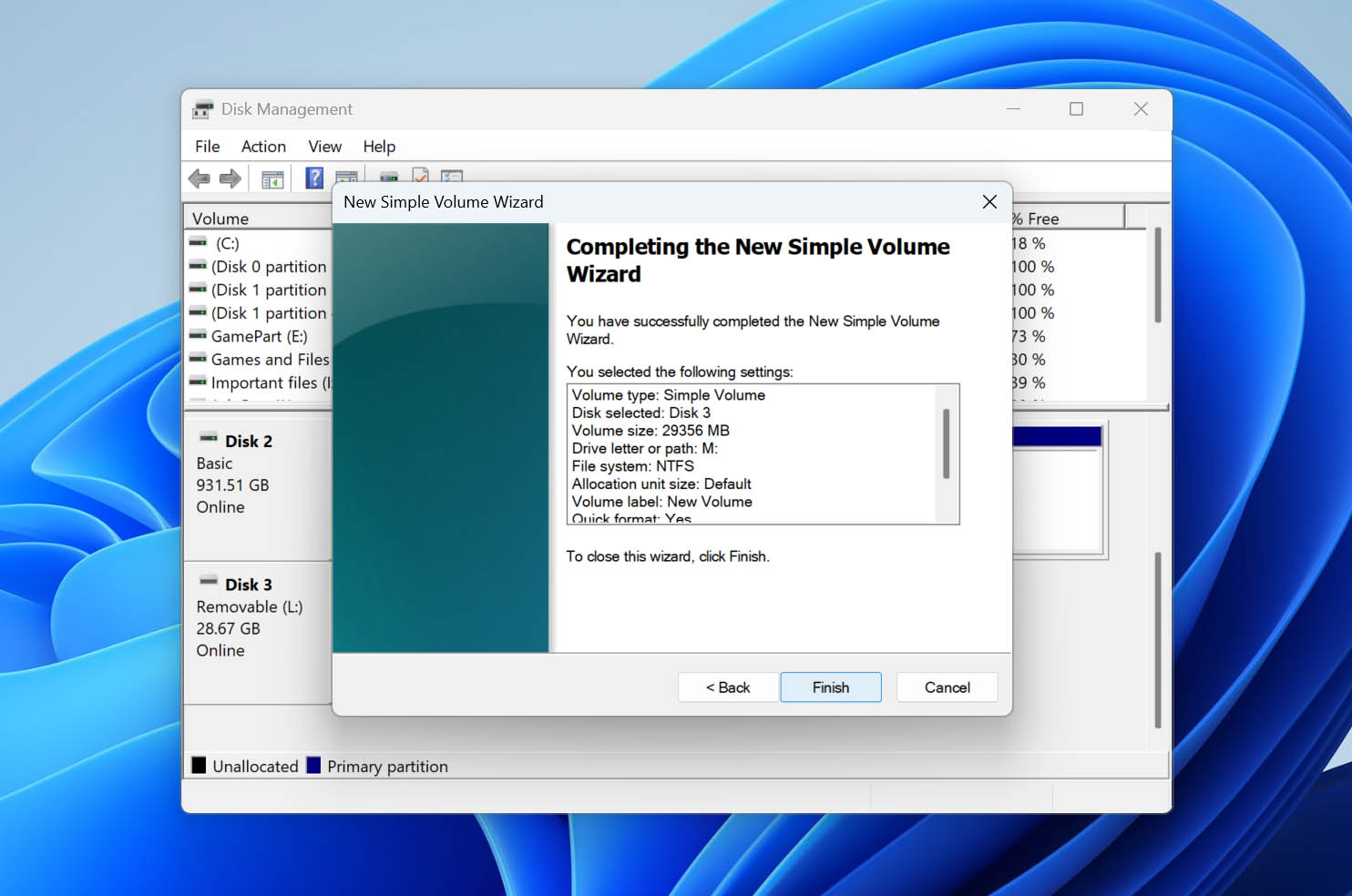
- Copy the data you recovered earlier, to the newly created partition.
Did you forget to recover data from your USB drive before using this method? Don’t worry, you can recover data from a formatted partition, as long as it wasn’t a Full-Format, i.e., you didn’t use the quick parameter in Diskpart, or didn’t select the Perform a quick format option in Disk Management and Windows Explorer.
Conclusion
To sum up, you can recover a deleted USB partition along with the data stored on it. However, your priority should always be the data itself. Before you try anything that modifies the drive, make sure you don’t put those files at risk. The safest approach is to use a data recovery tool like Disk Drill to recover your files to another drive, or at least create a disk image. Once your data is secured, you can move on to restoring the lost partition using one of the methods above.
To avoid dealing with this again in the future:
- Be careful when using disk management tools or the command line, don’t delete or modify partitions unless you’re sure what you’re doing
- Always eject the USB drive properly using the Safely Remove Hardware option
- Make sure the file system is compatible with your operating system (exFAT works well for both Windows and macOS)
- Run regular antivirus scans to prevent logical damage caused by malware
- Keep backups of important data, recovery isn’t guaranteed, but backups are
- Avoid physical damage – heat, moisture, and shocks can permanently break a USB drive
Have questions about USB partition recovery? Drop them in the comments below, or head over to our forum, where alongside data recovery experts, you’ll also get input from regular users who’ve dealt with similar situations.