Do you need a way to retrieve lost images or videos from a CFast card? Important files may become unreadable due to formatting, card errors, file system corruption, and accidental deletion. Thankfully, the data is frequently still on the card and can be recovered. Without much effort, you can often recover files from a CFast card and restore access to your photos, videos, and other data.
Want a quick answer? Follow these steps:
- Stop using the CFast card immediately. Do not record new videos, take photos, or copy files to the card.
- Connect the card directly to a Windows PC using a compatible CFast card reader.
- Do not format the card, even if Windows asks you to do so.
- Avoid running CHKDSK or other repair tools until your files are recovered, as they can modify the file system and reduce recovery chances.
- Scan the card with a data recovery tool such as Disk Drill. It can often recover files even from formatted, RAW, and corrupted CFast cards.
- Save recovered files to a different storage device, not back to the CFast card.
- Only after recovery is complete, proceed with troubleshooting or repairing the card if it still shows errors.
Your chances of getting your files back intact are higher the earlier you start the CFast card data recovery process. In the sections that follow, we go into great detail about everything.
What Is a CFast Card?
A CFast card is a high-performance flash memory card designed for professional photography and cinema production. It was developed as the successor to CompactFlash (CF) and uses a faster SATA interface that allows higher transfer speeds. This makes CFast cards well-suited for demanding workloads such as continuous RAW shooting and high-resolution video recording.
Although CFast and CompactFlash cards have a similar appearance, they differ substantially in their underlying technology and performance:
| Specification | CFast 2.0 | CompactFlash (CF) |
| Interface | SATA III | Parallel ATA (PATA) |
| Maximum Theoretical Speed | 600 MB/s | 167 MB/s (UDMA 7) |
| Typical Read Speed | 500–600 MB/s | 80–160 MB/s |
| Typical Write Speed | 300–500+ MB/s | 40–150 MB/s |
| Primary Use | 4K/6K/RAW video, high-speed photography | Older DSLRs and professional cameras |
| Compatibility | Requires a CFast slot and reader | Requires a CF slot and reader |
| Physical Size | 42.8 × 36.4 mm | 42.8 × 36.4 mm |
CFast cards became popular in professional cameras that needed storage fast enough to handle large image files and high-bitrate video. Notable examples include:
- ARRI ALEXA Mini
- Blackmagic URSA Mini Pro 4.6K
- Canon EOS-1D X Mark II
- RED KOMODO
- Canon EOS C200
- Canon EOS C300 Mark II
These cameras often record large RAW image files or high-bitrate video streams that require storage media capable of sustaining very fast write speeds. That’s where CFast cards excel.
CFast Card Data Loss Scenarios
It is helpful to determine what caused the data loss before attempting recovery. Different situations can affect recovery chances and may require a different approach. The most frequent CFast card data loss scenarios are listed in the table along with the steps we advise taking in each case.
| Data Loss Scenario | What Happens | Recommended Action |
| Accidental deletion | Photos or videos are deleted in-camera or on a computer. | Stop using the card and scan it with recovery software. |
| Quick format | The file system is reset, but most data remains on the card until overwritten. | Avoid new recordings and start recovery as soon as possible. |
| File system corruption | The card may appear RAW, unreadable, or ask to be formatted. | Ignore format prompts and scan the card directly. |
| Interrupted transfer or unsafe removal | Files or folder structures become damaged during a write operation. | Reconnect the card and attempt recovery before running repair tools. |
| Virus or malware damage | Files disappear or become inaccessible after connecting the card to an infected device. | Remove the malware and then attempt data recovery. |
| Format followed by new recordings | New data replaces part of the original files. | Stop using the card immediately and recover what remains. |
| Physical damage | The card is cracked, water-damaged, or no longer detected properly. | Contact a professional recovery service. |
In our experience, the most frequent reasons for CFast card data loss are file system corruption, formatting, and accidental deletion. These scenarios often leave the underlying files intact, which is why recovery software can often recover them. Physical damage is rare but typically requires specialized equipment and professional help.
Some CFast cards may support TRIM, a feature that allows the storage controller to erase blocks that are no longer in use. If TRIM runs after files are deleted or the card is formatted, recovery may become impossible because the original data can be permanently removed. TRIM behavior varies between CFast cards, cameras, and card readers, so it is not guaranteed to occur. However, because it can significantly reduce recovery chances, you should stop using the card immediately after data loss and begin the recovery process as soon as possible.
Method 1: Use Data Recovery Software
For most CFast card data loss situations, we recommend using data recovery software. There are a lot of different options, but for this article we will use Disk Drill. During our testing, Disk Drill delivered strong recovery results on formatted and corrupted memory cards. On a formatted 64 GB Lexar CFast 2.0 card, it recovered 94% of the original files, including ProRes video clips and RAW photos.
Disk Drill supports the file systems commonly found on CFast cards, can recover hundreds of photo and video formats, and includes an Advanced Camera Recovery mode designed specifically for videos recorded by professional cameras.
Before you begin, connect the CFast card directly to your Windows PC using a compatible card reader. Do not connect the camera itself, as this often limits access to the card’s file system and can prevent recovery software from performing a scan.
If your CFast card appears unstable, disconnects unexpectedly, or shows signs of corruption, consider creating a byte-to-byte backup before recovery. This lets you scan the backup instead of the original card and avoids additional stress on the storage device.
Here is how to recover files from CF card using Disk Drill:
- Download and install Disk Drill on your Windows PC.
- Connect the CFast card directly to your computer using a compatible card reader.
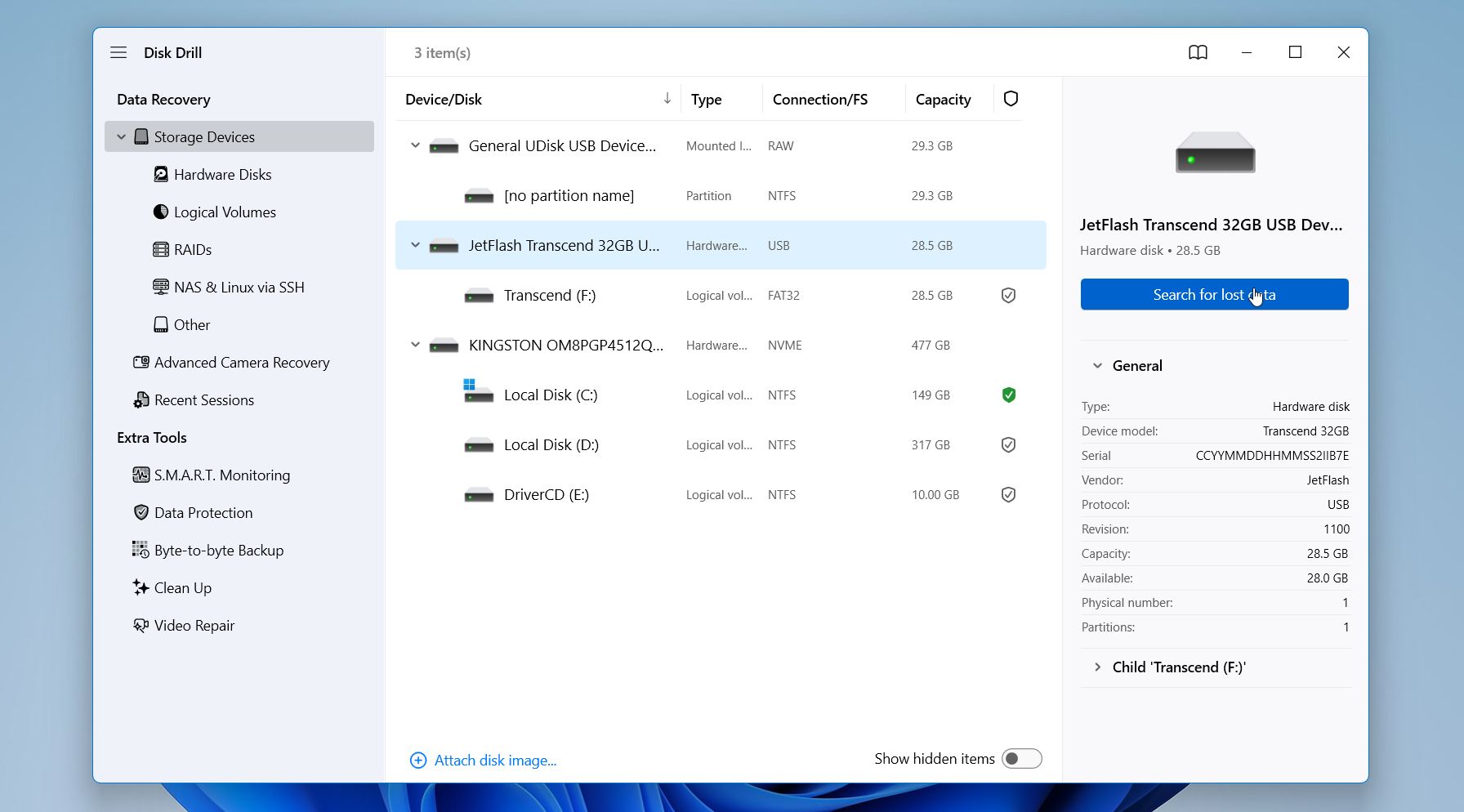
- Launch Disk Drill and select the CFast card from the list of available storage devices. Click Search for Lost Data.
- Select Universal Scan. We recommend this mode for most CFast card data loss situations. Choose Advanced Camera Recovery if you’re dealing with lost videos from a camera or a drone.
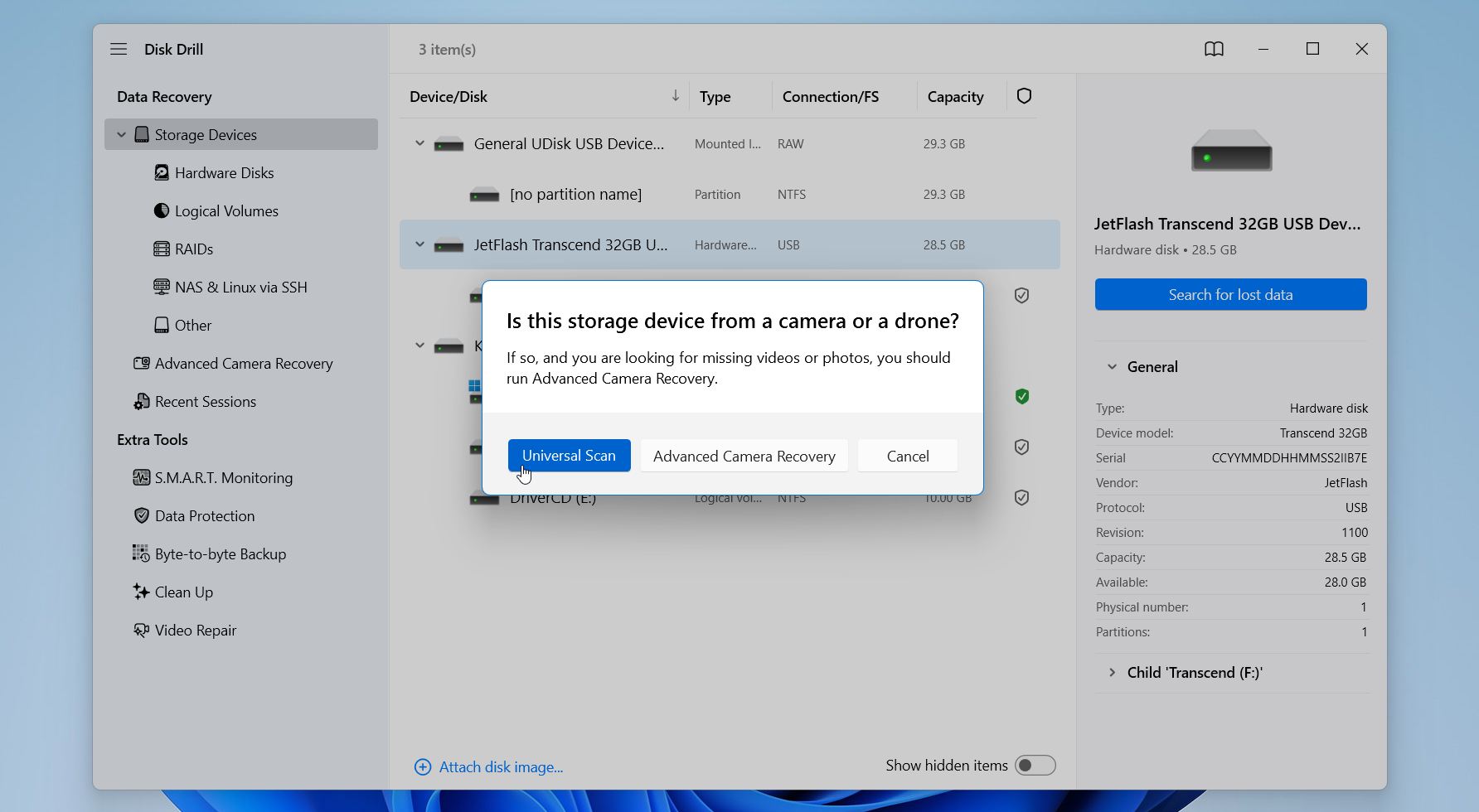
- Wait for the scan to finish. You can review files while the scan continues if you prefer.
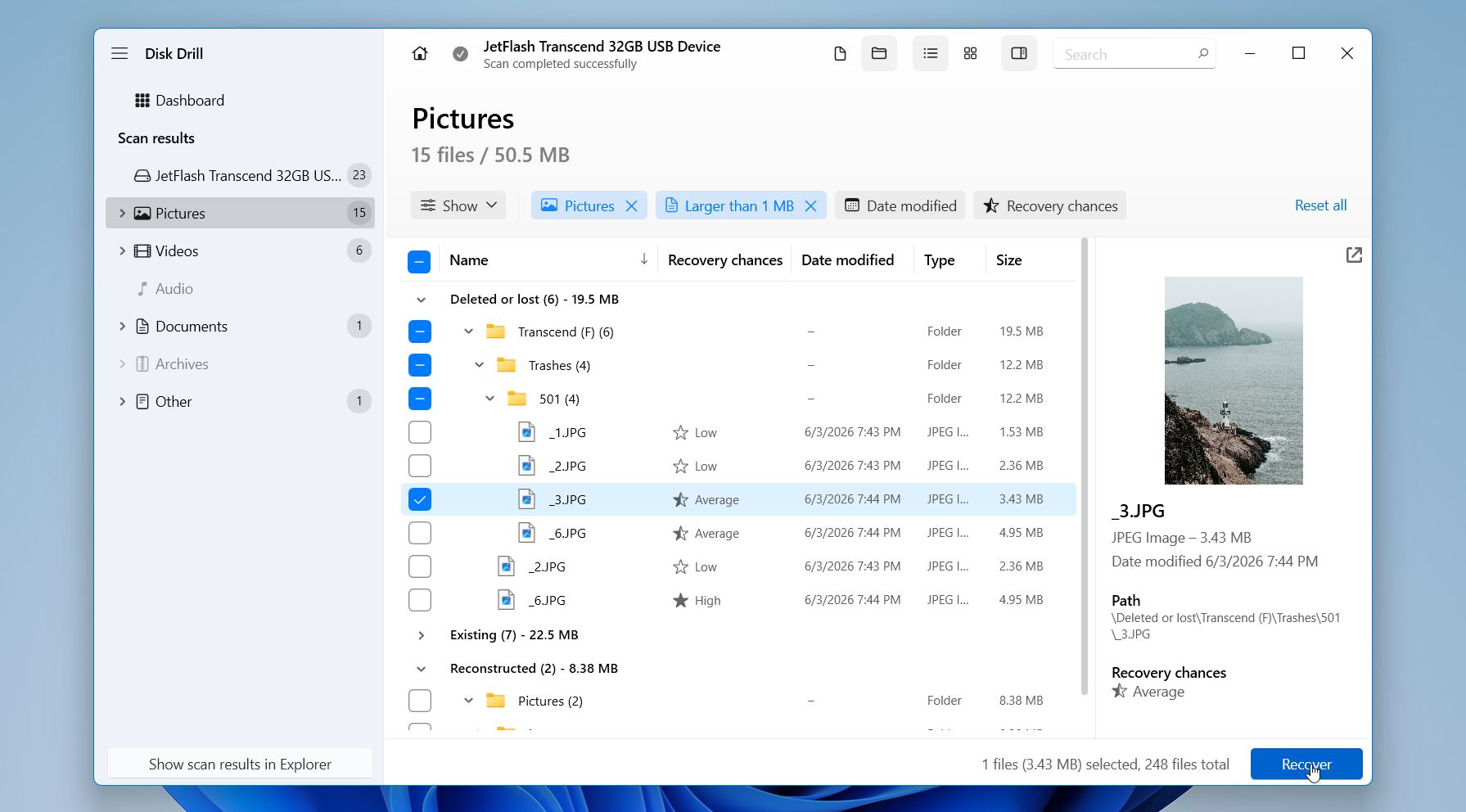
- Click Review Found Items and use the filters, search bar, and preview feature to locate the files you need.
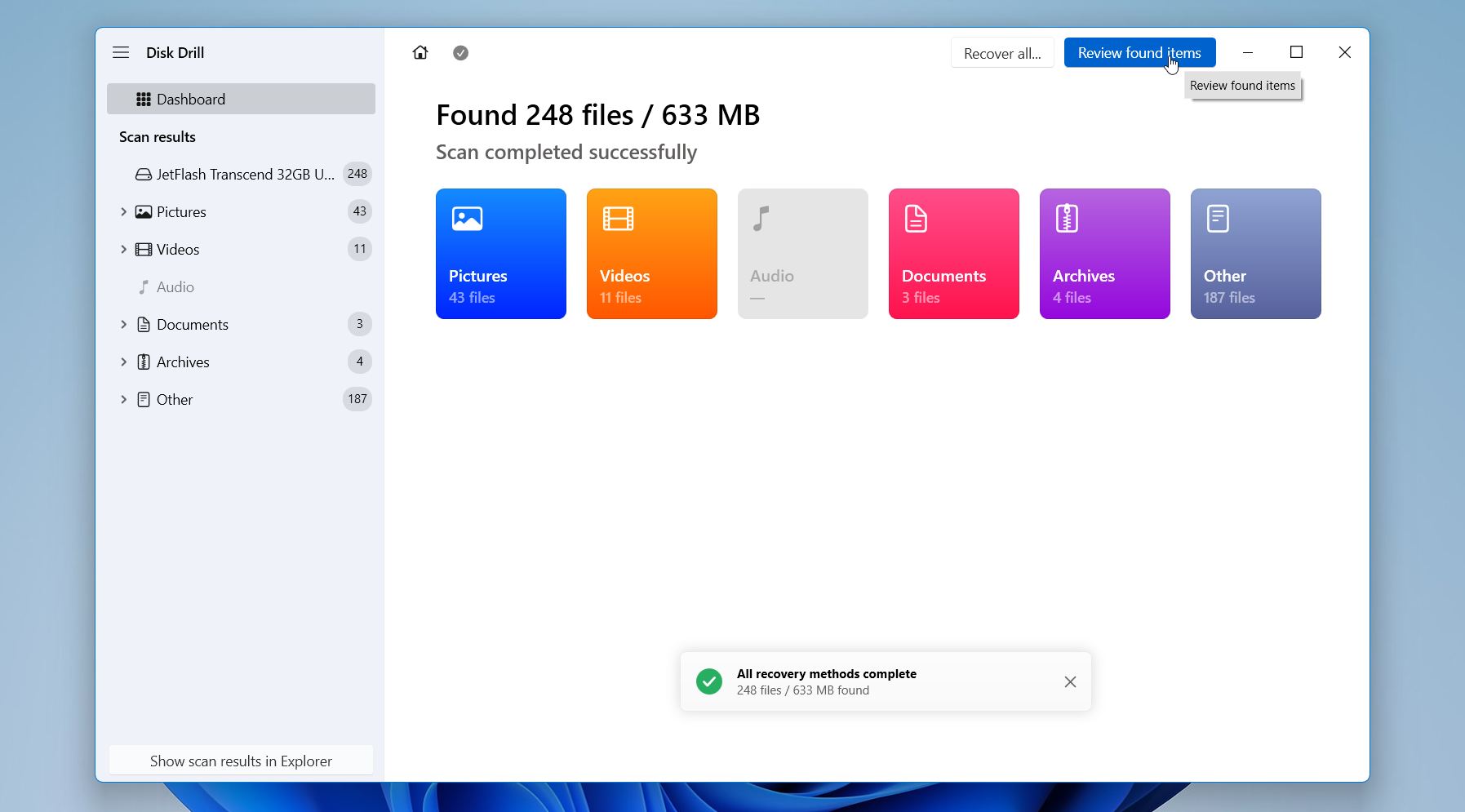
- You can use filters (flie type, size, recovery chances, date modified) or a search bar to narrow down the results. Don’t forget to use the preview feature to verify that the files are intact before recovery. A successful preview is often one of the best indicators that a file can be restored successfully. Select the files you want to restore and click Recover.
- Choose a recovery destination on a different drive. Never save recovered files back to the same CFast card. Click Next. Verify that the recovered files open correctly.
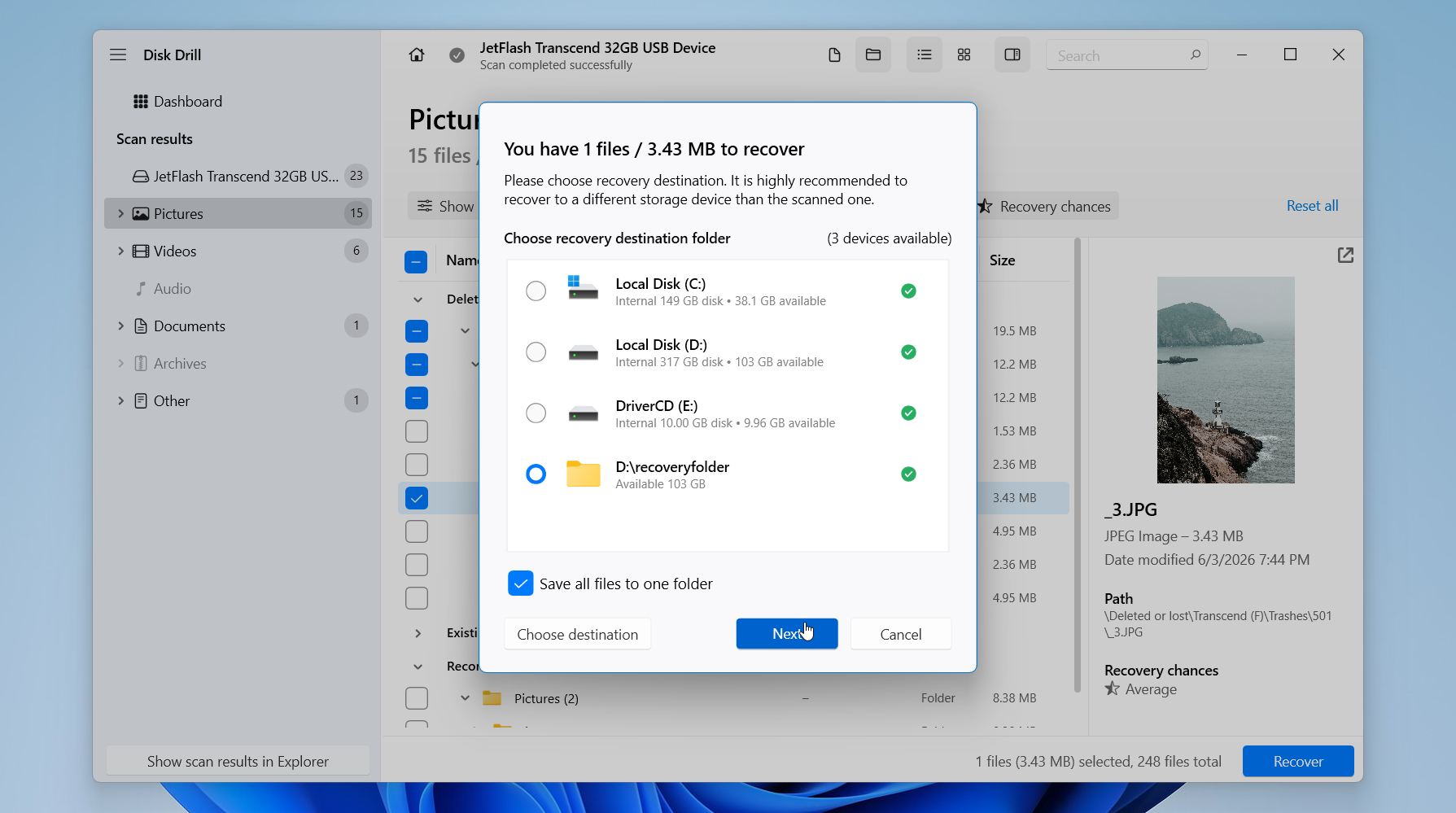
Disk Drill allows you to preview recoverable files before restoration, which can help you confirm that important photos and videos are intact. The Windows version can recover up to 100 MB for free, making it a good choice for smaller recovery jobs or to get an idea of what files are still recoverable before you decide to upgrade.
Still unsure if Disk Drill is the right choice? Check out our Disk Drill review for a detailed look at its recovery capabilities, supported file systems and formats, performance, pricing, and limitations. Unlike many online reviews that simply repeat marketing claims, our evaluation is based on hands-on testing across various real-world data loss scenarios.
Method 2: Data Recovery Service
Recovery software is often the best place to start for deleted files, formatting issues, and file system corruption. But sometimes you need a professional. If the CFast card is physically damaged, is not detected by any computer, disconnects repeatedly or recovery software cannot find the files you need, a data recovery service may be the best chance of success.
Professional recovery labs have some proprietary hardware and software that consumers don’t. In some cases, technicians can bypass a damaged controller, repair electronic components, or access the memory chips directly to extract data. These techniques can recover files from cards that appear completely inaccessible to standard recovery tools.
Most reputable recovery companies follow a “no data, no fee” policy, meaning you only pay if they successfully recover your files. The process typically works like this:
- Contact the recovery service and describe the problem.
- Ship or deliver the CFast card to the lab.
- The technicians evaluate the card and provide a recovery quote.
- If you approve the quote, the recovery process begins.
- The recovered files are returned on another storage device or through a secure download.
Professional recovery services are more expensive than software-based recovery, but they are often the only realistic option when a CFast card has suffered physical damage or severe hardware failure. If the lost data is valuable or irreplaceable, the additional cost can be well worth it.
How to Troubleshoot Common CF Card Errors
After data recovery, you may find that your CF card still experiences problems such as error messages, file system corruption, detection issues, or an inability to save new files. The methods in this section can help restore your CF card to working condition and identify the source of the problem.
Method 1: Repair File System Errors With CHKDSK
CHKDSK (Check Disk) is a built-in Windows utility that scans storage devices for file system problems and attempts to repair them. It can fix issues such as lost clusters, directory errors, invalid file records, and other logical inconsistencies that may prevent a CF card from functioning properly.
Important: Run CHKDSK only after you recover your data. CHKDSK modifies the file system as part of the repair process. While this can restore access to the card, it can also remove damaged file records or move data into .CHK files, which may reduce recovery chances.
To run CHKDSK:
- Open Terminal (Admin) or Command Prompt (Admin).
- Identify the drive letter assigned to the CF card.
- Enter the following command:
chkdsk f: /f. Replace X with your card’s drive letter.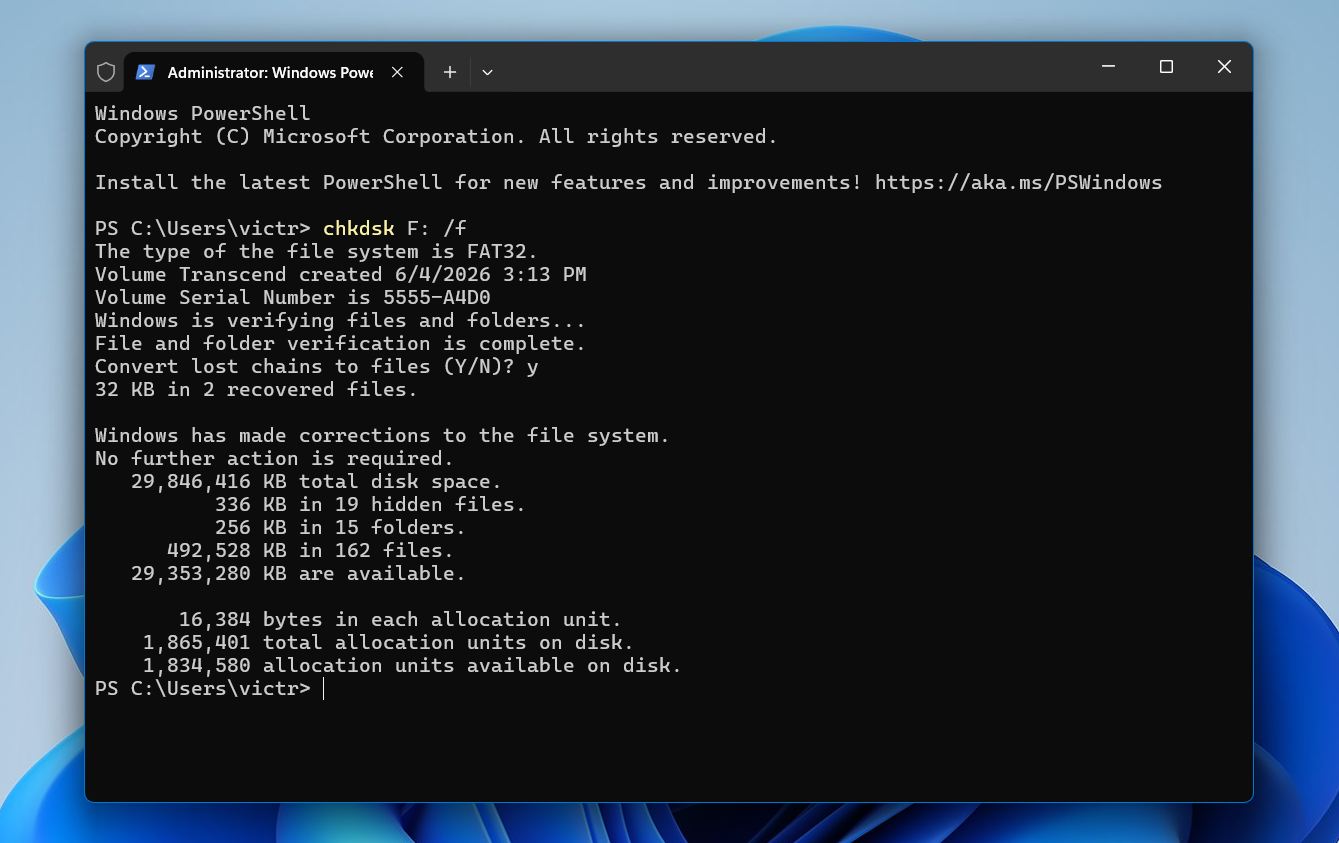
- Press Enter and wait for the scan to complete.
The /f parameter instructs CHKDSK to automatically fix any file system errors it finds. Depending on the size of the card and the extent of the corruption, the scan may take anywhere from a few seconds to several minutes.
Once the process finishes, remove the card safely and reconnect it. If the problem stemmed from file system corruption, Windows and your camera may now recognize the card normally. However, if CHKDSK reports numerous errors, fails to complete, repeatedly finds new problems, or the card continues to behave unpredictably, the issue may extend beyond the file system and point to a failing CF card.
Method 2: Format the CF Card
Formatting is often the most reliable way to resolve logical problems on a CF card. The process creates a new file system and removes corrupted file system structures that may prevent the card from working correctly. It can also help when a camera refuses to recognize the card, Windows reports file system errors, or the card repeatedly asks to be formatted.
Warning: Recover any important files before proceeding. Formatting removes the existing file system and can make data recovery more difficult.
CF and CFast cards are mainly used in cameras, so it’s usually best to format them in the camera after you recover your data. Cameras often create the file system and folder structure they expect to use, which can help prevent compatibility issues and ensure the card works properly when recording photos or videos.
To format the CF card in Windows:
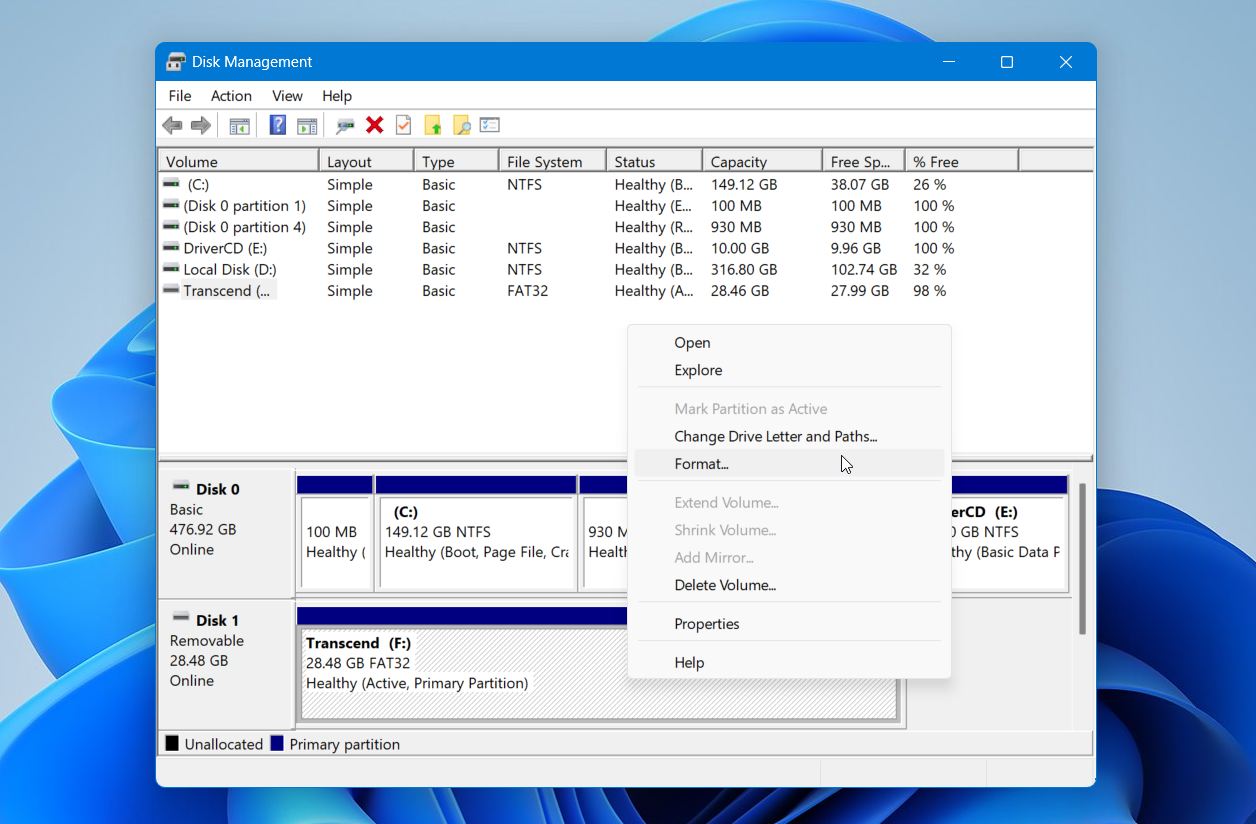
- Right-click Start and select Disk Management.
- Locate your CF card in the list of available storage devices.
- Right-click the CF card volume and select Format.
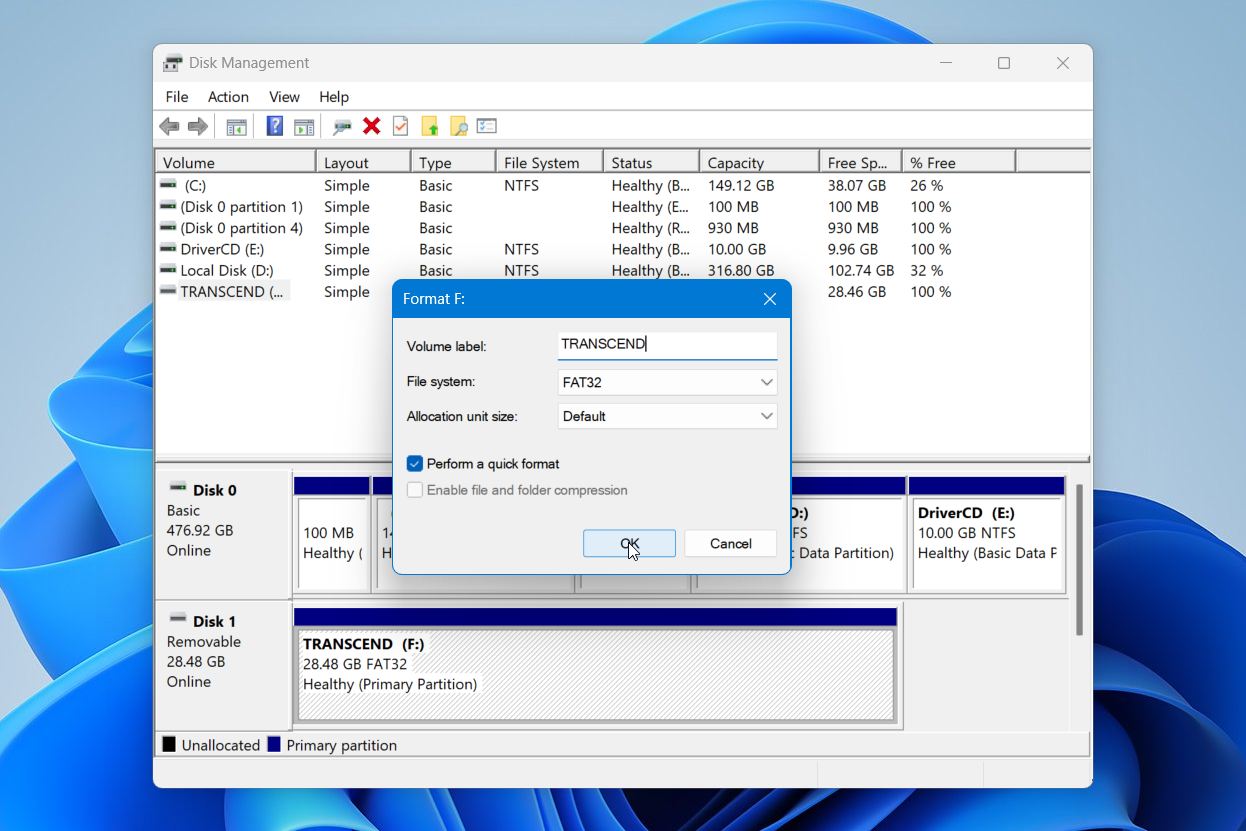
- Enter a volume label if desired.
- Select the appropriate file system. In most cases, use the same file system that the card previously used or one recommended by your camera manufacturer.
- Leave Perform a quick format enabled.
- Click OK and confirm the operation.
Once the format is complete, disconnect the card safely and test it in your camera or computer. A successful format resolves many issues related to corruption, inaccessible files, and file system errors.
However, formatting is not a cure for hardware problems. If the card continues to show errors, becomes read-only, disconnects unexpectedly, develops corruption repeatedly, or cannot complete a format successfully, the flash memory may be wearing out. CF cards have a finite number of write cycles, and failures become more common as they age.
As a general rule, it’s time to replace the card when problems continue to appear after formatting. Frequent corruption, failed write operations, random disconnections, missing files, or recurring error messages often indicate that the card is no longer reliable. Even if the card still works occasionally, repeated issues can put future photos and videos at risk.
Key Takeaways
CFast card recovery is often possible, but the outcome largely depends on what you do after the data loss occurs. Please remember these points:
- Stop using the CFast card immediately to avoid overwriting recoverable data.
- Recover your files before attempting repairs such as CHKDSK or formatting.
- Accidental deletion, quick formatting, RAW file systems, and file system corruption often leave recoverable data on the card.
- Recovery software is usually the best first step for logical data loss. Based on our testing, Disk Drill delivered some of the strongest results across formatted, RAW, and corrupted CFast cards.
- Save recovered files to a different storage device, not back to the CFast card.
- Physical damage, repeated disconnections, and cards that are no longer detected usually require a professional recovery service.
- Replace the card if corruption, write failures, or other errors continue to appear after troubleshooting and formatting.
Act quickly and prioritize data recovery over repairs. That single decision has the greatest impact on recovery success.
FAQ:
- Canon EOS-1D X Mark II
- Canon EOS C300 Mark II
- Canon EOS C200
- Blackmagic URSA Mini Pro 4.6K
- Blackmagic URSA Mini Pro 12K
- ARRI ALEXA Mini