Wanted to copy, view, or move files from your SD card, but it has suddenly become RAW? This means that Windows can no longer recognize the card’s file system, often because it has become corrupted. Fortunately, the files themselves are often still present on the card.
To deal with a RAW SD card, you’ll typically need to take two steps: first, recover your data from the card, and then format it to restore a working file system. In this guide, we’ll show you how to perform both steps and get your SD card working again.
One more thing before you begin. When an SD card becomes RAW, Windows will often prompt you to format it before you can continue using it. Do not do this yet. Recovering files that remain on the card is generally much easier than recovering them after a format operation. If the SD card has already been formatted, skip directly to Option 1 in the recovery section above or follow our guide on recovering data from a formatted SD card. The original files can still be recovered as long as they haven’t been overwritten by new data.
What Is a RAW SD Card?
For a computer to access the contents of an SD card, it needs to recognize the file system stored on it. Most SD cards use file systems such as FAT32 or exFAT, which tell the operating system how files and folders are organized on the card. If that file system becomes damaged or unreadable, Windows can no longer interpret the data correctly. The files themselves may still be present, but the operating system no longer knows how to access them. When this happens, the SD card may appear as RAW in Disk Management, File Explorer may stop showing its contents, and Windows may prompt you to format the card before use.
RAW SD cards are a fairly common problem. SD cards are compact and convenient, but they are also more vulnerable to corruption than many other storage devices. Even normal day-to-day use can sometimes lead to file system damage, and additional factors can increase the risk further.
Below are some of the most common reasons an SD card can become RAW. While the cause usually doesn’t affect the recovery process itself, this list can help you avoid the same problem in the future:
| Reason | Description | How to Prevent It |
| 🔄 Unsupported file system | The SD card may have been formatted in a file system that your operating system or device cannot read. In some cases, the card appears inaccessible or is incorrectly identified as RAW. | Check device compatibility before formatting an SD card. exFAT is usually the safest choice for large-capacity cards used across different devices. |
| ⏏️ Improper removal | Removing the SD card while files are being copied, moved, or modified can interrupt write operations and damage the file system. | Always use the Safely Remove Hardware option before disconnecting the card. |
| ⚡ Power loss or unexpected shutdown | If a computer, camera, drone, or other device loses power while writing data to the SD card, the file system can become corrupted. | Avoid removing batteries or disconnecting power while files are being saved. |
| 💾 Failed formatting | Errors, interruptions, or device crashes during formatting can leave the file system incomplete or corrupted. | Let formatting finish completely and avoid interrupting the process. |
| 🦠 Malware or file system corruption | Malware, software bugs, or operating system errors can modify critical file system structures and make the card unreadable. | Keep your system updated and scan removable storage devices regularly. |
| 📷 Device incompatibility | Some cameras, drones, dashcams, and other devices expect a specific file system or card type. Using an unsupported card may lead to corruption over time. | Follow the manufacturer’s recommendations for card capacity, speed class, and file system. |
| 🔌 Faulty card reader or USB connection | A defective card reader, damaged USB port, or unstable connection can interrupt data transfers and corrupt the file system. | Use reliable card readers and replace damaged cables or adapters. |
| 🧲 SD card wear and aging | SD cards have a limited lifespan. After thousands of write cycles, memory cells can start failing and file system errors may appear more frequently. | Replace heavily used SD cards periodically, monitor their health when possible, and keep backups of important files. |
There are various methods to fix your SD card, but you risk losing your data if things don’t go well. That’s why you should first recover data from the SD card using data recovery software and then focus on fixing the card.
How to Recover Files From a RAW SD Card
As mentioned earlier, when an SD card becomes RAW, Windows can no longer recognize its file system and therefore cannot access the files stored on it. But there are RAW SD card recovery tools that can work around this limitation, and they generally fall into two categories:
- The first category includes data recovery software. These tools scan the SD card directly, allowing them to locate and recover files from RAW SD cards.
- The second category includes file system repair tools. Instead of recovering the files themselves, these utilities attempt to repair the damaged file system structures, which may restore access to the files.
We’ll look at both options below, one step at a time.
Option 1: Recover Data From a RAW SD Card With Data Recovery Software
When to use this method: when you need to recover files from a RAW SD card and plan to continue with repairing the card afterward.
Although there are dozens of data recovery tools on the market, not all of them can handle RAW SD cards. Many rely on a functioning file system to locate files, which simply isn’t available in this situation. One of the best tools for this task is Disk Drill. It doesn’t rely on a working file system to access your data and can often recover files even after formatting. More importantly, Disk Drill can identify and recover files based on their unique binary patterns (known as file signatures) and supports nearly 400 file formats, which makes it suitable for recovering almost any type of data commonly stored on an SD card.
It’s low effort, beginner-friendly, and works even if you’ve never performed data recovery before. Just follow the steps and let the tool do the heavy lifting.
Disk Drill also includes several additional tools that we covered in more detail in our full review. For RAW SD card scenarios, the most important one is Byte-to-Byte Backup. This feature allows you to create an image of the SD card before scanning it. If the RAW status was caused by corruption or an underlying hardware issue, scanning the image instead of the original card minimizes stress on the device and reduces the risk of it failing during the recovery process.
- Download the free version of Disk Drill and install it on your computer. You’ll need to grant administrator permissions so the software can access storage devices directly.
- Connect the SD card to your PC using a card reader. If the card is normally used in a camera, avoid connecting the camera itself to the computer. This type of connection doesn’t provide the low-level access required for reliable data recovery.
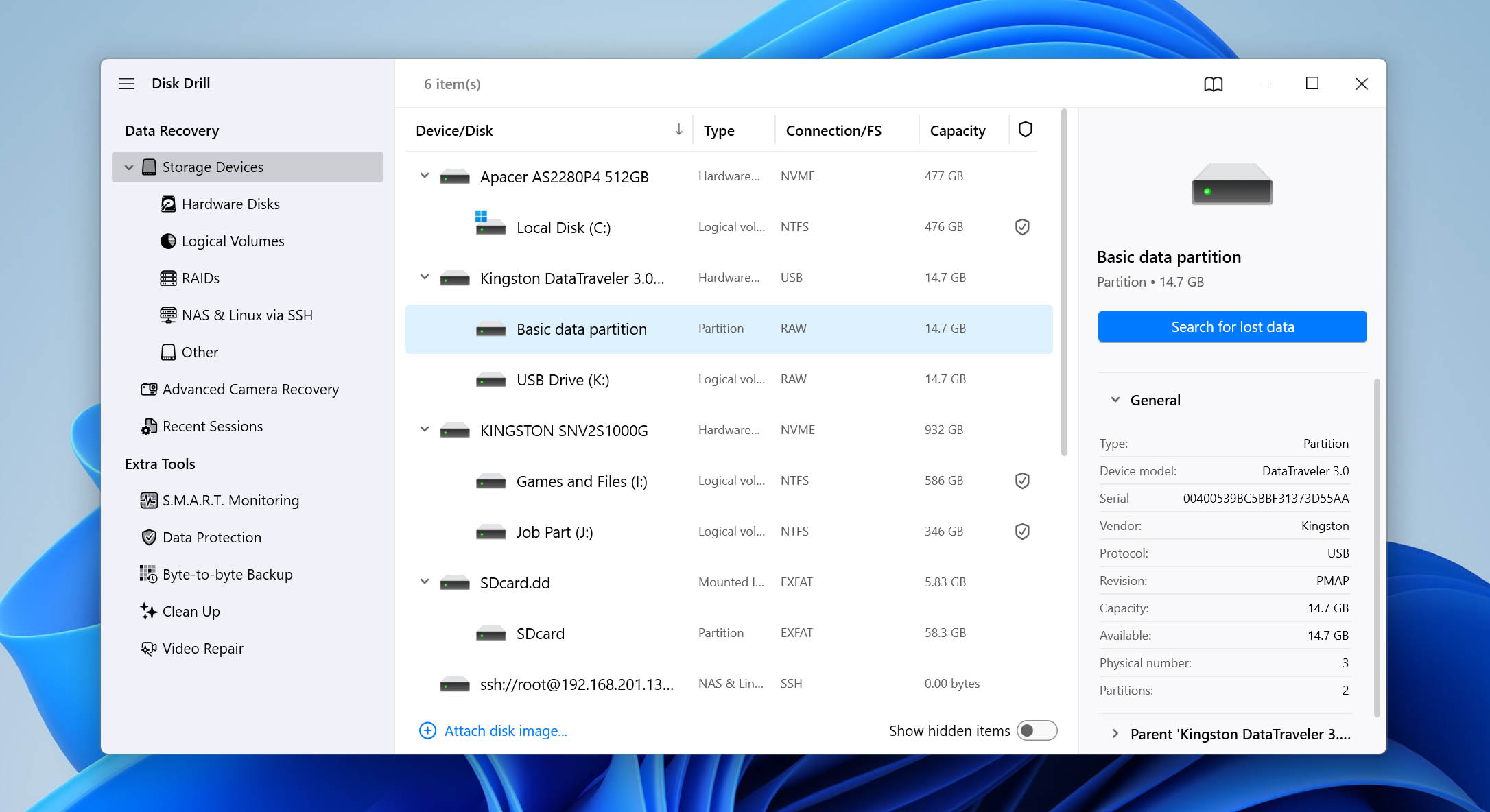
- Launch Disk Drill. If you created a backup image of the SD card beforehand, click Attach Disk Image at the bottom of the window and select the image file. Otherwise, simply select the SD card from the list of available devices and click Search for lost data.
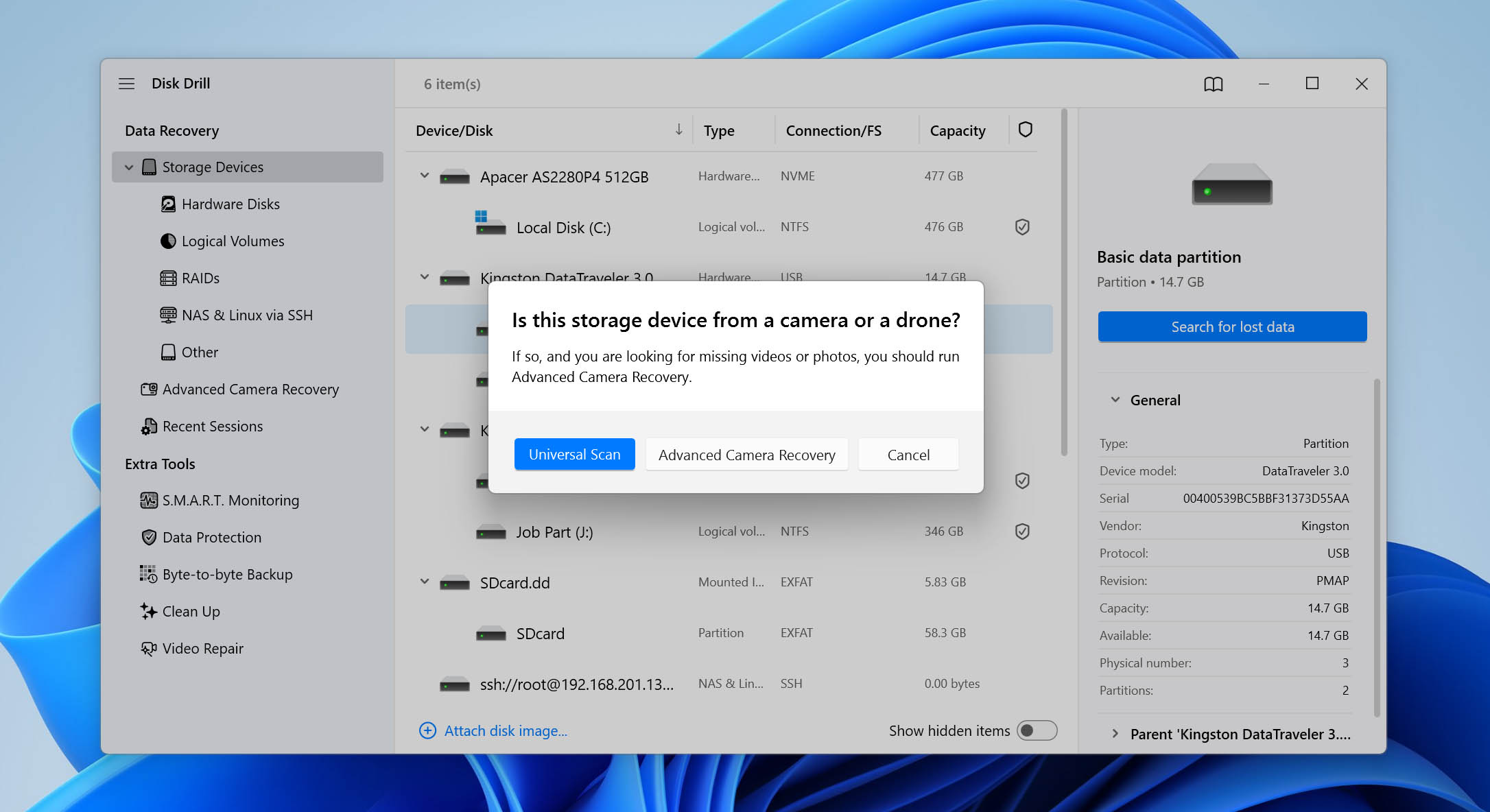
- Disk Drill may ask which scan type you’d like to use. Select Universal Scan. The Advanced Camera Recovery (ACR) mode is specifically designed for recovering fragmented video files. If you ever lose video footage from an SD card, ACR can often reconstruct clips that standard recovery methods cannot.
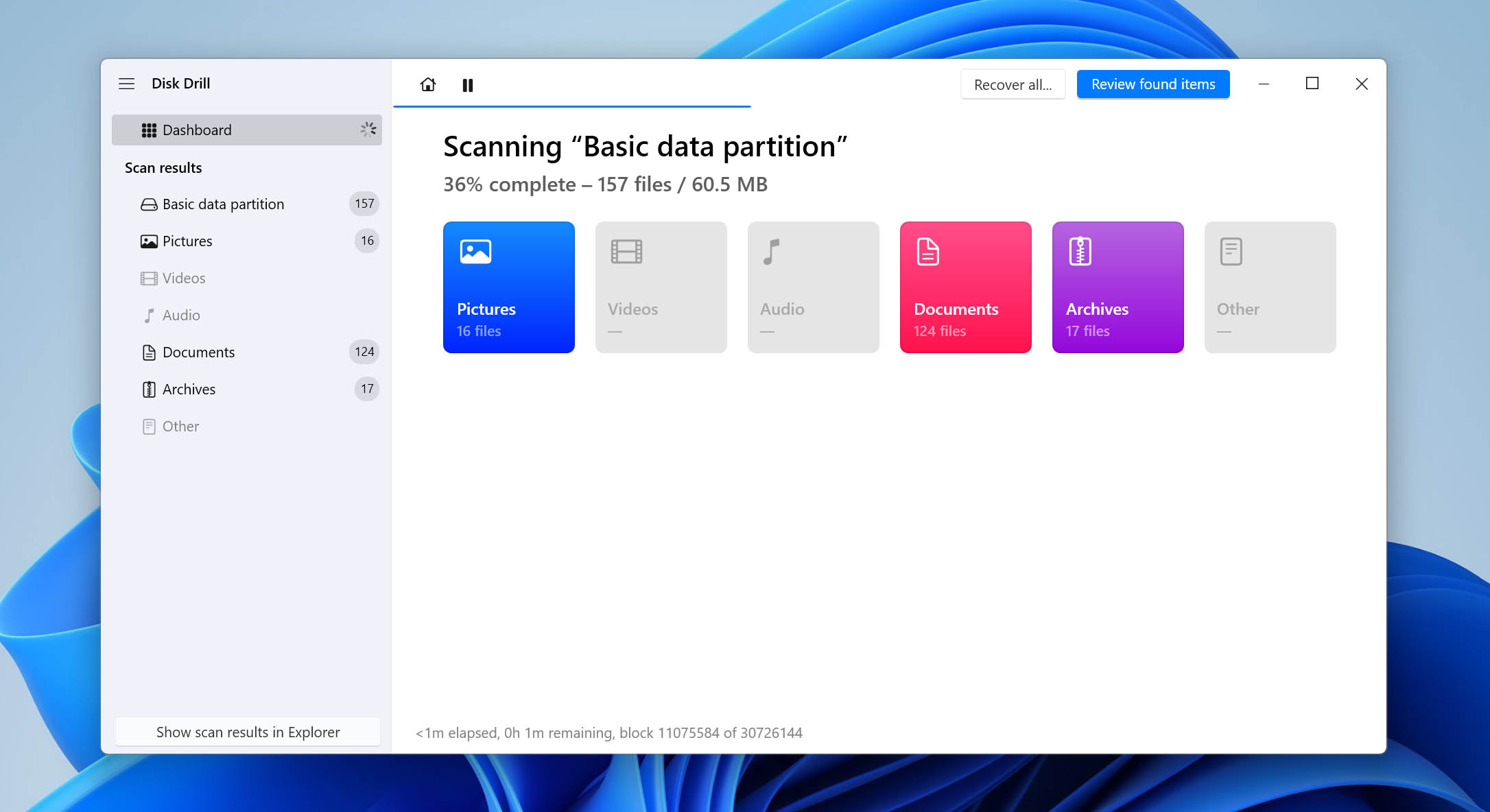
- Once the scan is complete, click Review Found Items in the top-right corner.
- You’ll see several result categories, including Existing, Deleted or Lost, and Reconstructed. For RAW SD card recovery situations, you’ll want to focus on Deleted or Lost.
- Browse through the recovered files. You can use filters, search by file type, and preview files to verify that they’re the ones you want to recover. When you’re ready, click Recover.
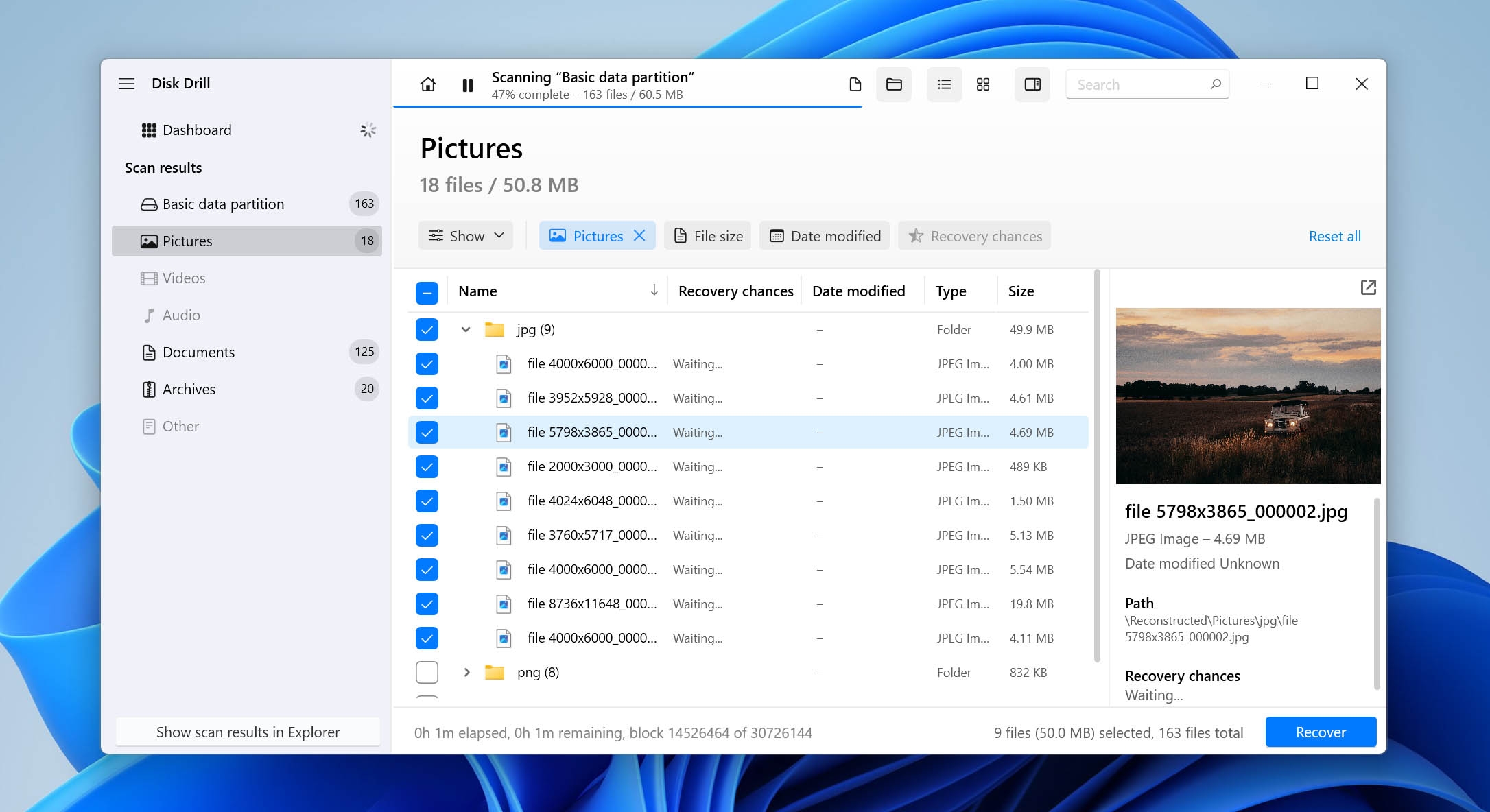 Choose a recovery destination on a different storage device and complete the recovery process.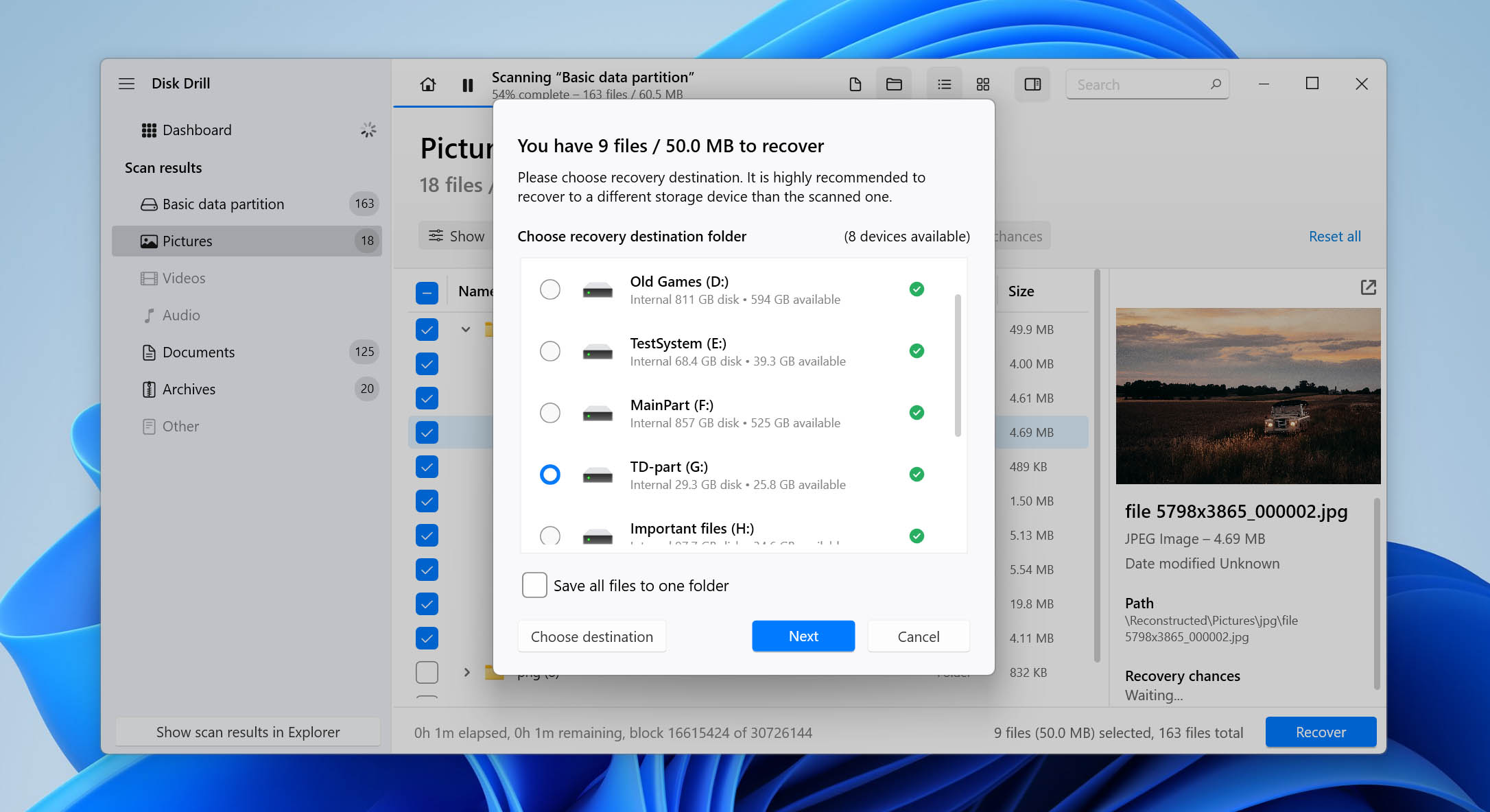
The free version of Disk Drill lets you scan RAW SD cards, preview recoverable files, create backup images, and verify that your data can be recovered. However, it only allows up to 100 MB of actual file recovery. If you need to restore more data, you’ll need a Pro license. If you’re specifically looking for free RAW SD card recovery software, consider PhotoRec. The downside is that it lacks a graphical interface, so it can be much harder for beginners to use. For that reason, we generally recommend it only if your main priority is avoiding paid software.
Option 2: Restore the RAW SD Card Partition and Regain Access to Your Files
When to use this method: if the RAW status was caused by a damaged, missing, or corrupted partition table.
Unlike data recovery software, which extracts files from the SD card regardless of its structure, TestDisk attempts to repair the partition information itself. If successful, Windows may once again recognize the SD card normally and provide access to all files without requiring a separate recovery process.
TestDisk is a free and open-source utility designed specifically for partition recovery and file system repair. It doesn’t have a modern graphical interface and runs entirely in a command-line environment, which can make it intimidating for first-time users. However, it’s one of the most effective tools available for repairing damaged partition tables.
Proceed carefully. The steps below involve direct modifications to the SD card’s partition structure. Choosing the wrong disk or writing incorrect partition information can make the situation worse and potentially overwrite access to all files stored on the card. If your files are important, it’s best to recover them first using the previous method before.
Use TestDisk to rewrite the partition table by doing the following:
- Download the TestDisk zip and extract its files. Then, find and open testdisk_win.exe.
- Create a new log file by highlighting [Create] and pressing Enter.
- Choose the Disk representing your RAW SD card. Check which option matches the description (size, file system, etc.) of your device. Then, press Enter.
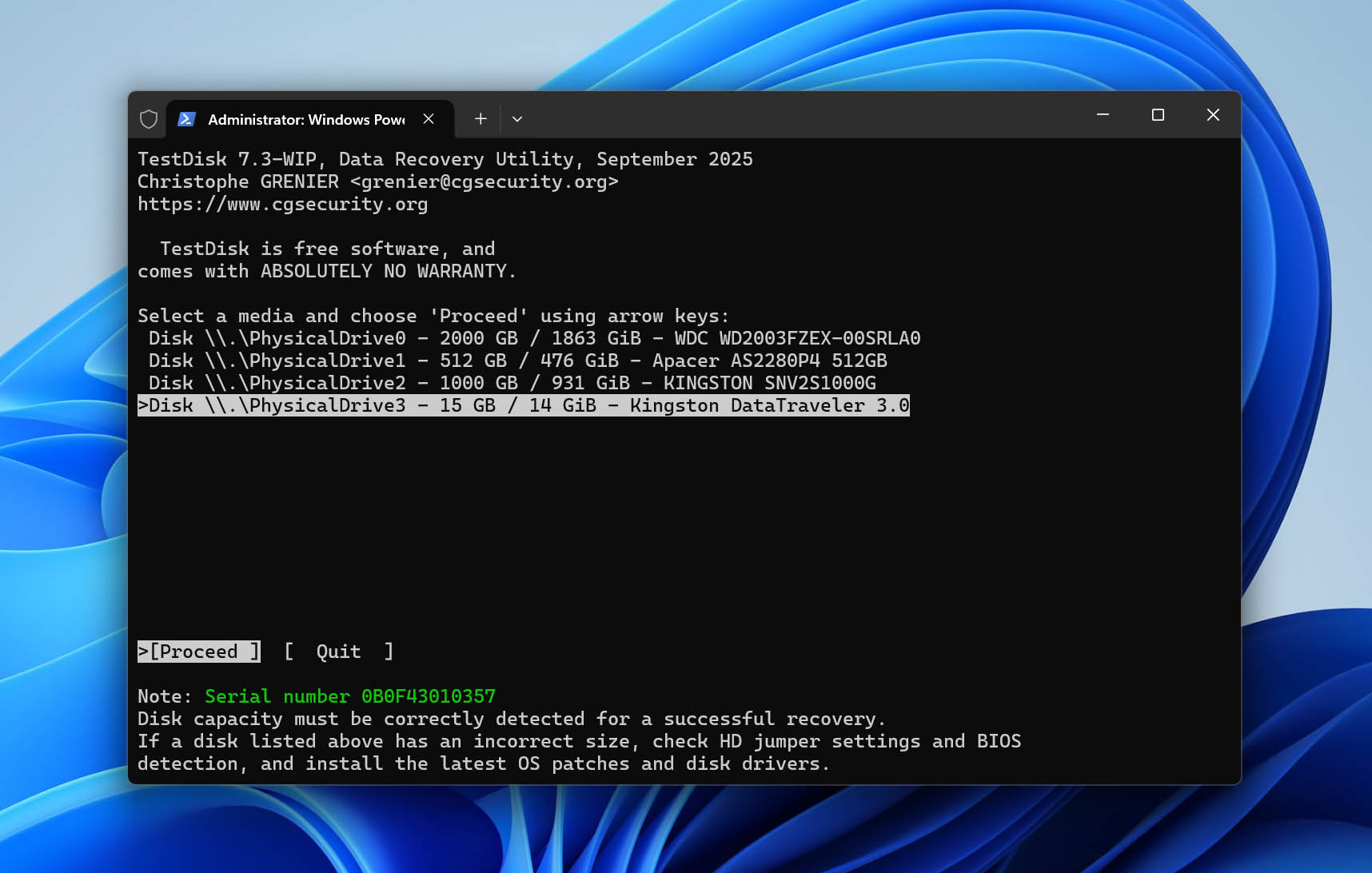
- Select the appropriate partition table type for your memory card and press Enter. Usually, the option TestDisk has selected by default is the correct one.
- Select Analyse and press Enter to analyze your SD card for any errors or corruptions.
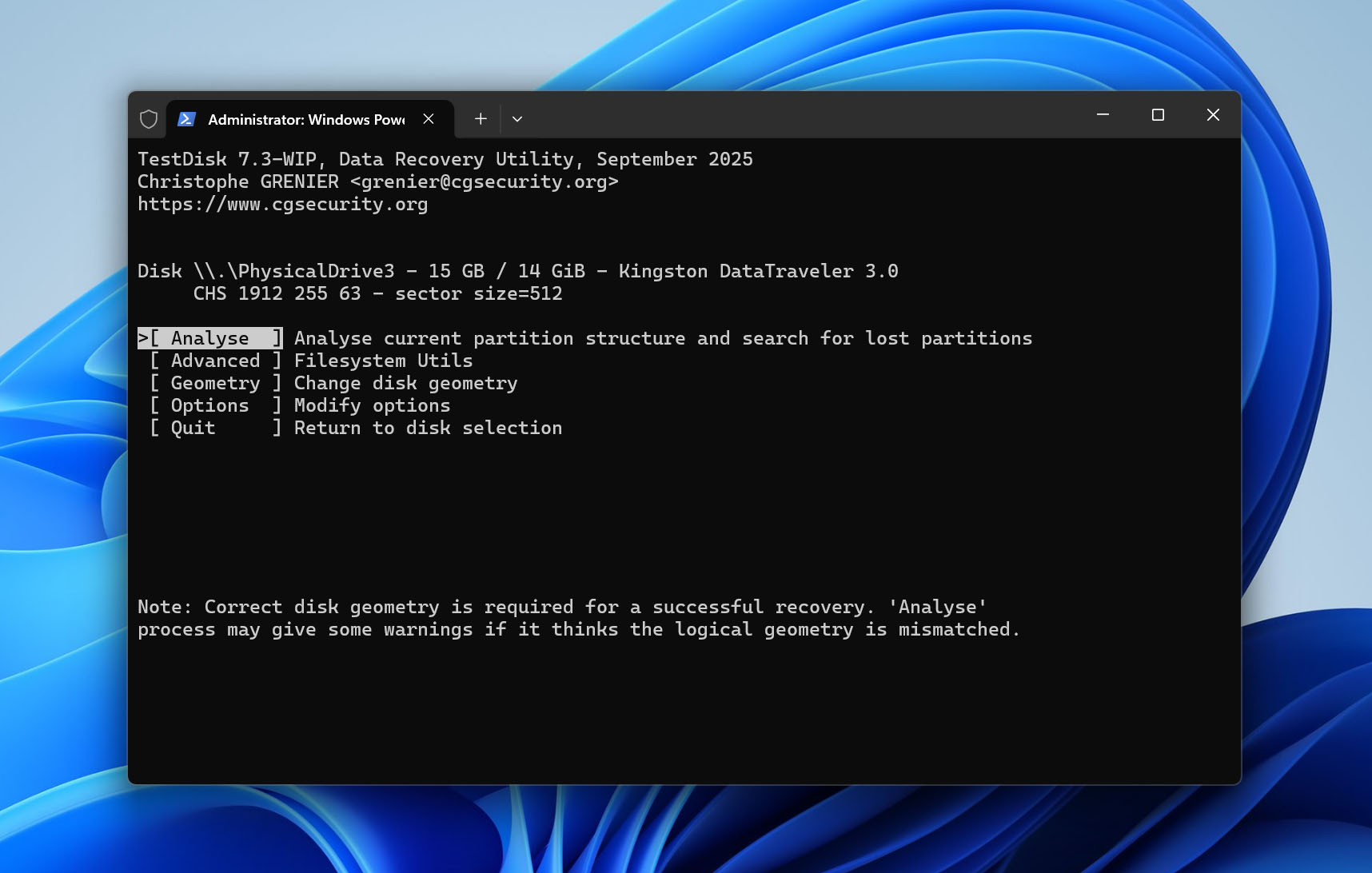
- Start Quick Search by pressing Enter.
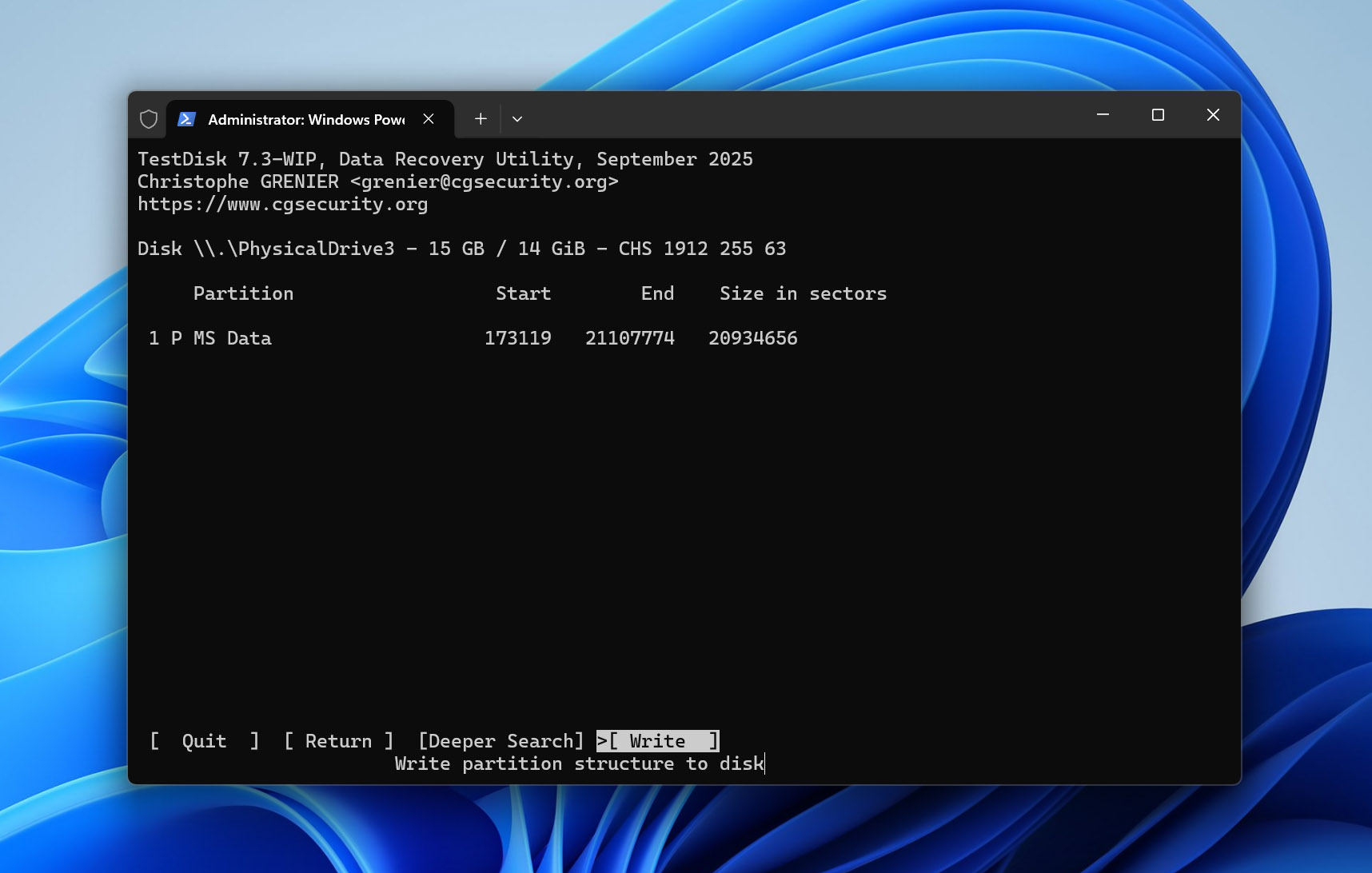
- If your partition has been found, select [Continue] and press Enter. Otherwise, you can search for more partitions by selecting [Deeper Search].
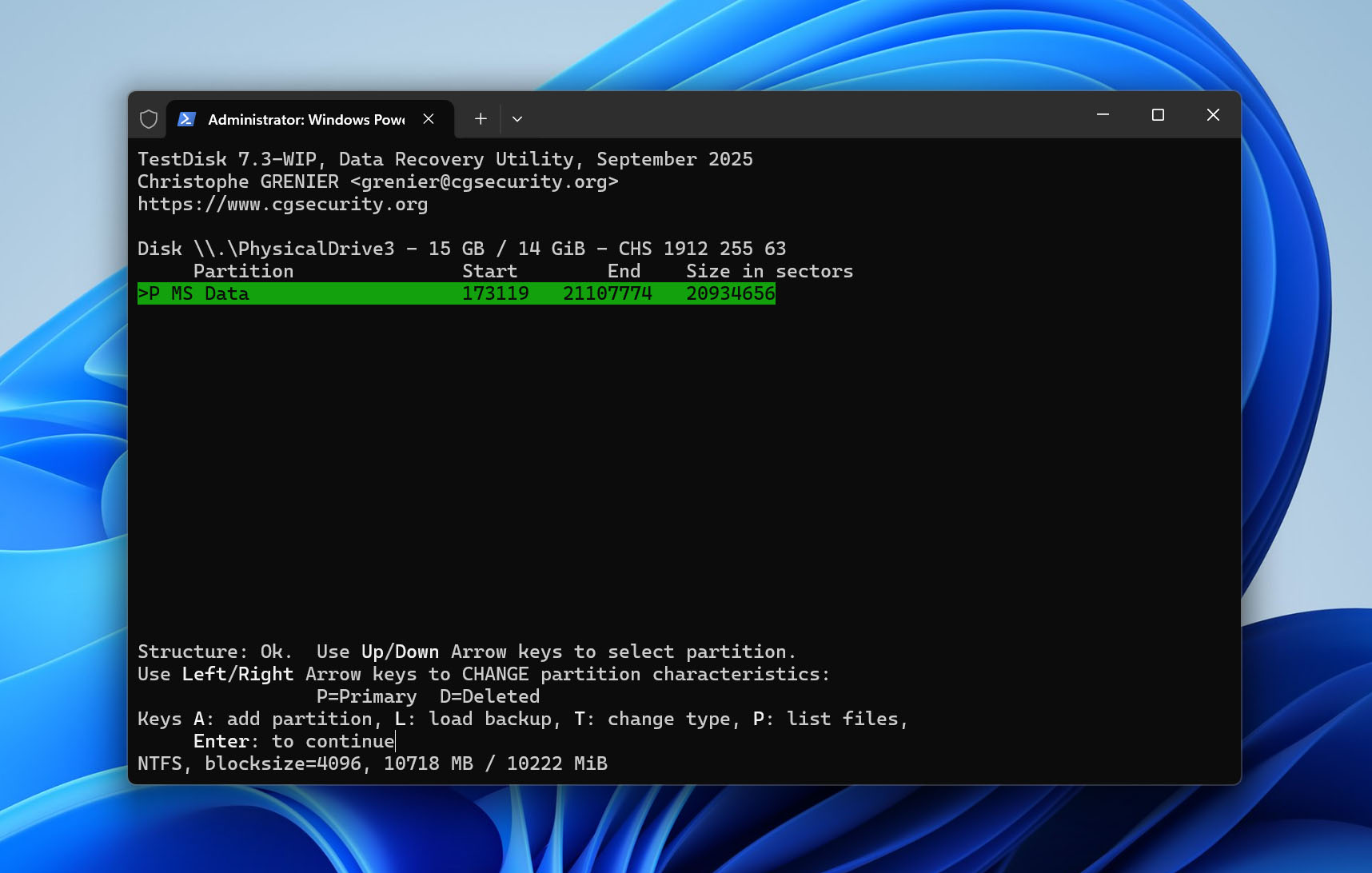
- Select Write. This rewrites and registers the partitions in the partition table, which should make your SD card accessible again.
How to Fix a RAW SD Card
If you’ve successfully recovered the files from your RAW SD card, the next step is to repair the card itself so it can be used again. In most cases, this means formatting the SD card. During the formatting process, Windows creates a new file system that it can recognize and work with. As a result, the RAW status is removed and the card becomes accessible again.
There are several ways to format an SD card in Windows, but for most users, the easiest and most familiar option is Disk Management, the built-in disk management utility included with Windows.
- Right-click the Windows Start button and select Disk Management from the menu that appears
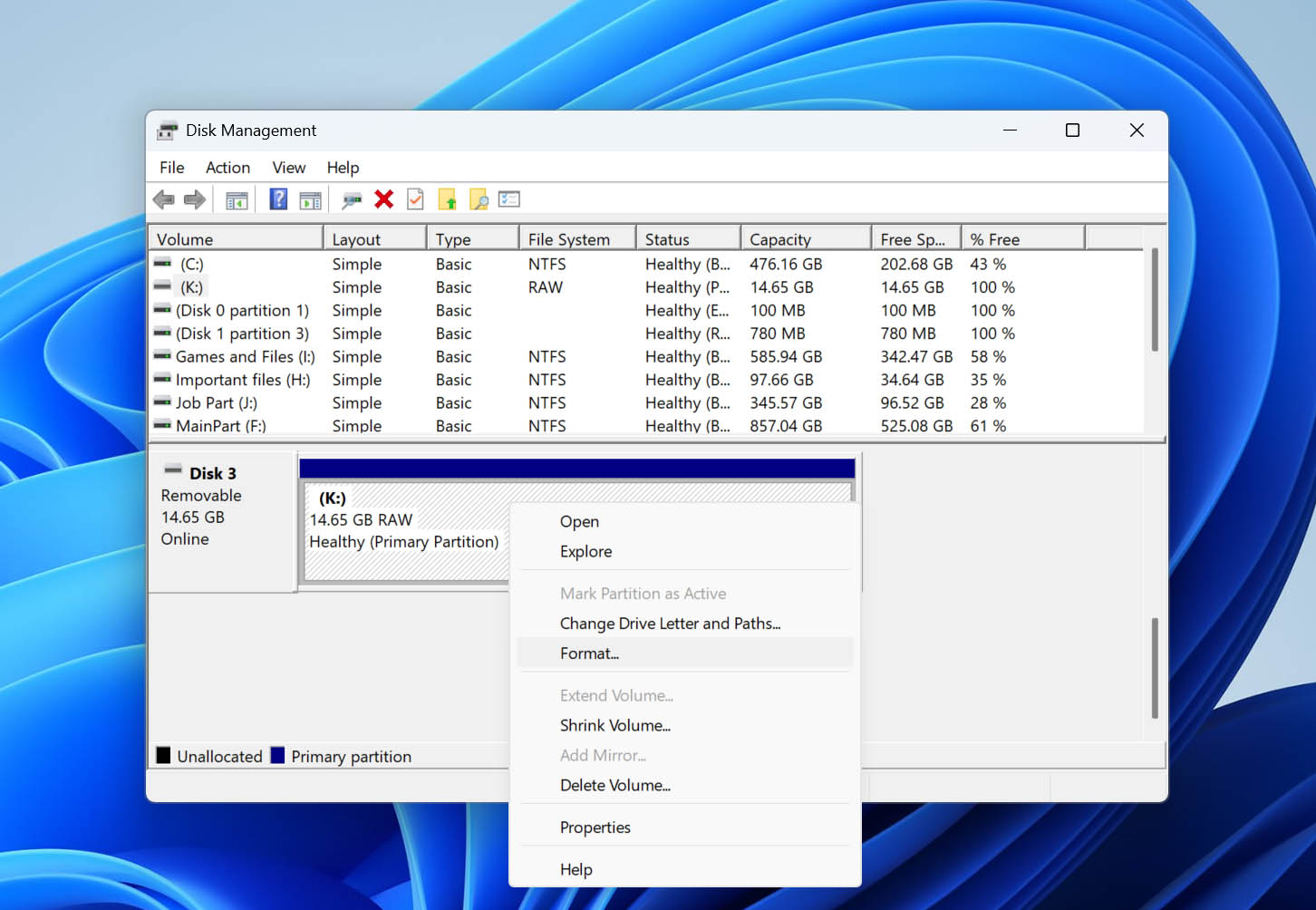
- Locate your RAW SD card in the list of available storage devices.
- Right-click the SD card partition and select Format.
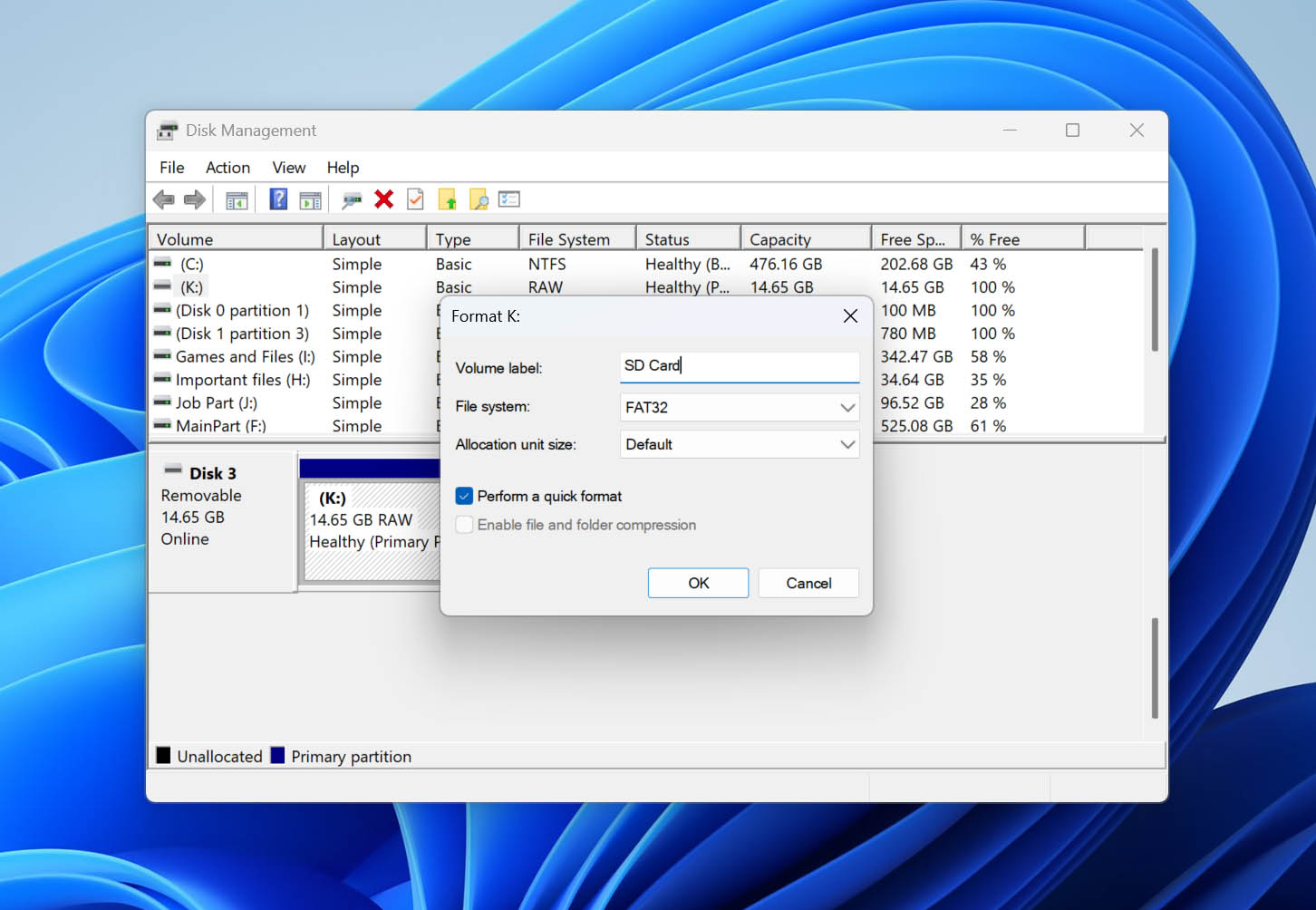
- Enter a volume label if desired and choose a file system.
- exFAT is usually the best choice for SD cards because it works across modern versions of Windows, macOS, cameras, drones, game consoles, and many other devices.
- FAT32 may be required for older devices, but it has file size limitations.
- NTFS is generally best reserved for Windows-only environments.
- Click OK and confirm the formatting operation.
- Wait for the process to finish. Once the format is complete, Windows should recognize the SD card normally again, and the RAW status should be gone.
Conclusion
You now know the essentials of dealing with RAW SD cards: what causes them, how to recover data from them, and how to restore the card itself to working condition.
If there’s one thing worth remembering from this guide, it’s the golden rule of data recovery – recover your data first and only then attempt any repairs. This principle applies not only to RAW SD cards but to virtually any data loss situation involving storage devices.
If you’ve successfully repaired a RAW SD card only for the problem to return later without any obvious cause, it’s time to consider replacing the card. SD cards are consumable storage devices with a limited lifespan. Repeated file system corruption, unexplained RAW errors, and recurring read/write issues are often signs of wear rather than bad luck.
Finally, if you run into difficulties while working with a RAW SD card, visit our forum. You’ll find discussions covering RAW drives, corrupted SD cards, recovery tools, and other related topics. If your situation isn’t already covered, feel free to start a new thread and ask for help.
FAQ
- Install and open Disk Drill.
- Select your RAW SD card on the devices available and click Search for lost data.
- Click Review found items.
- Choose your files and click Recover.
- Choose the file location for your files.
- Wait for the recovery to finish. Click Show recovered data in File Explorer to check your recovered files.