 Performed a factory reset on Windows to fix certain operating system issues, only to end up with a new problem that all your personal data is gone? This can happen when you reset your PC without preparing for it first, often just because you saw factory reset listed as a recommended fix somewhere. Still, there is a chance you can restore files after a factory reset. We’ll go through all the important details in this guide, so keep reading.
If you’re reading this guide from the same computer you factory reset, try to limit its use as much as possible. Don’t create, move, download, or install new files unless you really have to. The safest option is to turn off the computer for now and continue reading this guide from another device until you plan your next steps to restore deleted files after a factory reset.
Can You Recover Files After a Factory Reset on Windows?
Yes, you can recover files after a Windows reset in some cases, but it depends on how the reset was performed and what happened afterward.
Windows gives you two main reset options:
- Keep my files option removes installed apps and resets system settings, but your personal files should stay on the computer. In this case, you usually don’t need file recovery. You just need to reinstall the programs that were removed.
- Remove everything option removes your personal files, apps, and settings. This is the option that usually causes data loss and makes recovery necessary.
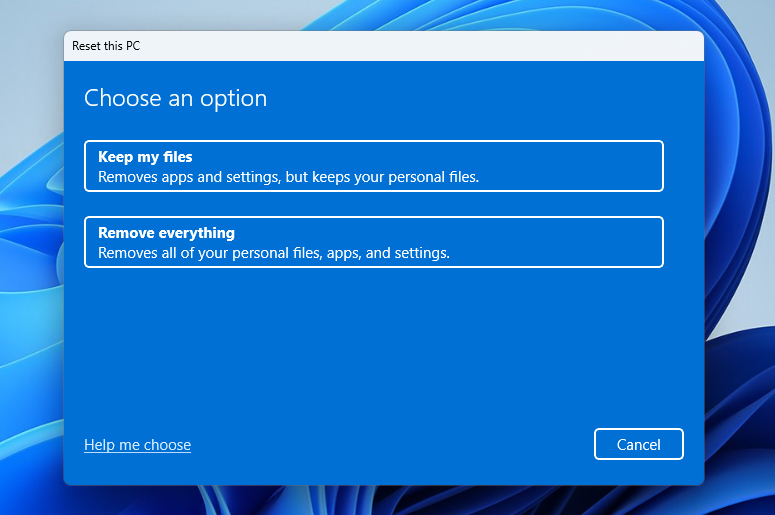
While Microsoft says that the Remove everything option makes it harder for other people to recover files you’ve removed, that doesn’t always mean your files are instantly gone forever. In many cases, the reset removes file references and prepares the space for new data, but some of the old data may still remain on the drive until it gets overwritten.
We’ve covered the basics. Now, before we move on to how to recover files after resetting the PC, it’s worth explaining a few points that directly affect your recovery chances, so you don’t expect the impossible:
| Situation | What happens | Recovery chances |
| You chose Keep my files | Windows removes apps and resets settings, but your personal files should stay on the PC. | High / no recovery usually needed. Check your user folders first. You may only need to reinstall removed apps. |
| You chose Remove everything on an HDD | Windows removes personal files, apps, and settings, but deleted data may still remain on the hard drive until overwritten. | Medium to high, especially if you used the computer as little as possible after the reset. |
| You chose Remove everything on an SSD | Most system SSDs use TRIM, which can clear deleted data soon after removal. | Low to zero, especially if TRIM already processed the deleted files. |
| You used the PC a lot after the reset | New files, app installs, browser cache, Windows updates, and downloads may overwrite recoverable data left on the drive. | Lower with every new write. Stop using the PC as soon as possible if you still want to try recovery. |
| You have a backup | It doesn’t really matter which reset option you chose or what type of drive your PC uses, as long as the needed files are included in the backup. | High. You can restore the files from File History, Backup and Restore, OneDrive, Google Drive, Dropbox, or another backup location. |
How to Recover Files After a Factory Reset
There are multiple ways to recover lost files on Windows after a factory reset. You can restore them from an existing backup, use data recovery software, or make use of a professional data recovery service. Each method has its own best-use cases and limitations, so read the breakdown below to understand which one fits your situation best.
The methods below are demonstrated on Windows 11 first. However, you can also use them to recover files after factory reset Windows 10. Just keep in mind that some menu paths, button names, or screen layouts may look slightly different. You should still be able to follow along as you go.
Method 1: Use Data Recovery Software
Data recovery software is the first method worth trying if you need to restore files after a factory reset and don’t have the files available on the reset PC anymore. These programs can recover files whose remaining data still exists on the drive, meaning it hasn’t been overwritten by new data or wiped by TRIM.
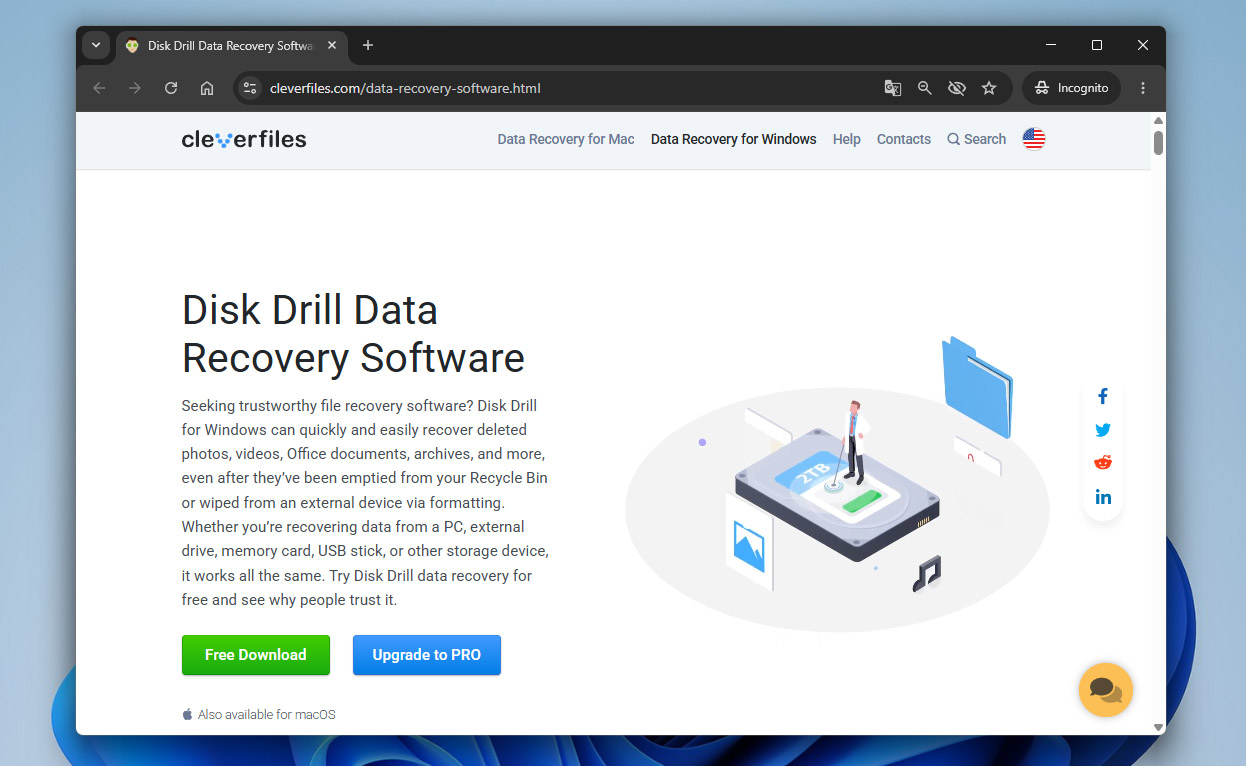
Among the many data recovery tools we’ve tested, Disk Drill remains our top choice for this kind of case. It offers a good balance of ease of use, recovery features, scan quality, and cost, which makes it suitable even if you don’t have much experience with recovery software. For this guide, we’ll use Disk Drill to show the process.
That said, keep your expectations realistic. If your system drive is an SSD with TRIM enabled, the chances are lower. If you actively used the computer after the reset, installed programs, downloaded files, or let Windows updates run, the chances are also lower. The goal is to recover as much data as possible, not to guarantee a perfect 100% recovery.
- Head to the official Disk Drill website and click the Download button. If possible, download and install it on an external drive or another non-system drive. This lowers the chance of overwriting files that may still be recoverable.
- Run the setup file and follow the installation steps.
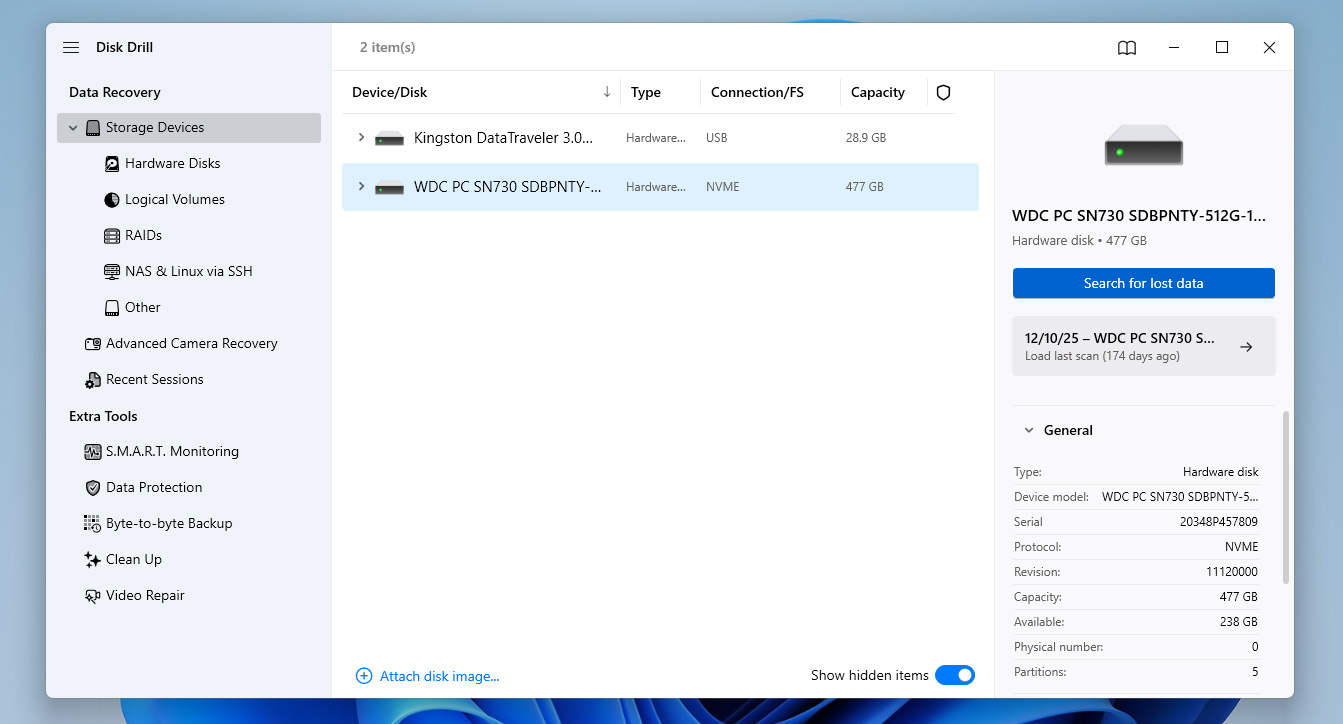
- Open Disk Drill and go through the initial setup screens. Once you reach the main window, you’ll see all drives connected to your computer. Select the drive where your files were stored before the factory reset, then click Search for lost data.
- Wait while Disk Drill scans the drive. The larger the drive is, the longer the scan may take. You can click Review found items during the scan, but it’s usually better to let the scan finish first.
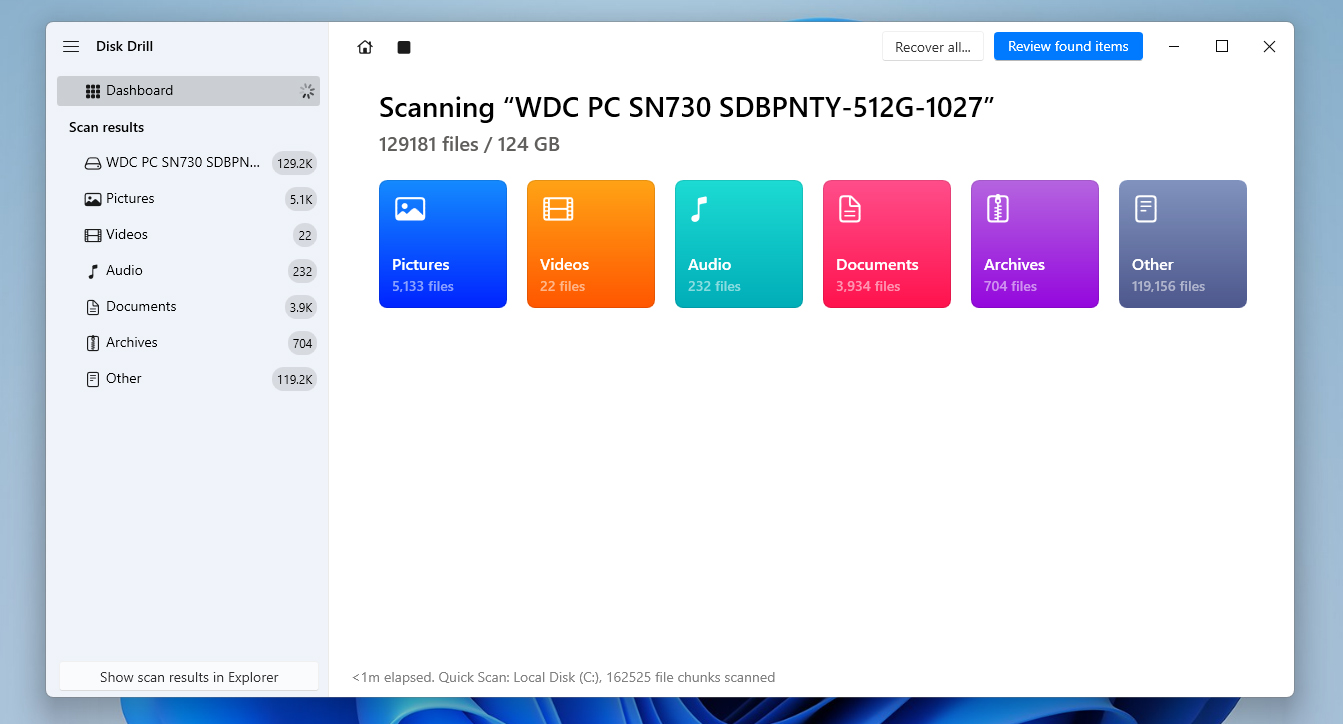
- When the results appear, use the file type filters on the left, such as Pictures, Documents, Video, or Audio, to narrow them down. You can also use the search bar if you remember a file name or extension.
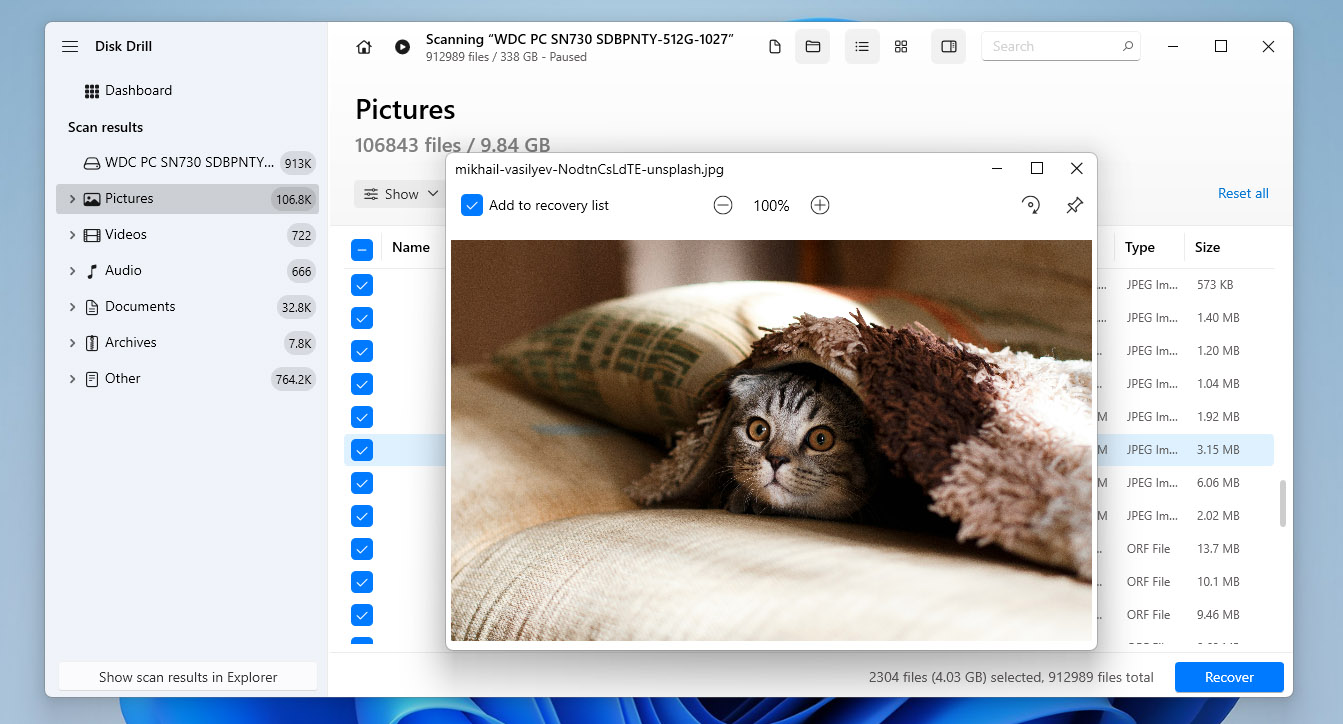
- Expand the folders and check the files you want to restore. If you’re not sure about a file, preview it first. A successful preview is a good sign that the file can be recovered properly. Click Recover.
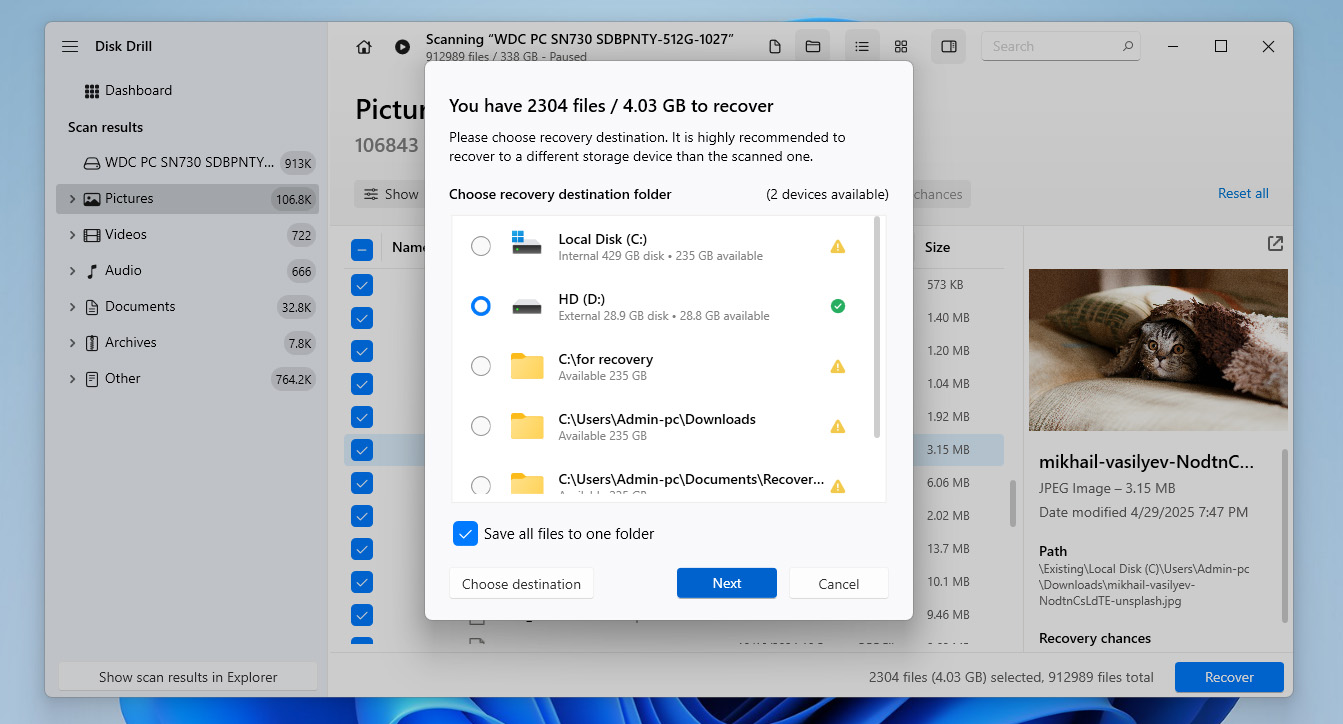
- Choose where to save the restored files. Do not save them to the same drive you’re recovering from, as this can overwrite other lost data.
- Wait for Disk Drill to finish the recovery. Once it’s done, you can open the target folder and check your recovered files.
Disk Drill for Windows lets you recover up to 100 MB of data for free. That may not be enough to restore everything, but it is enough to test whether Windows factory reset recovery is possible in your case. If the scan finds and previews the files you need, you’ll need the Pro version to recover more lost data.
If Disk Drill caught your attention, we recommend checking out our full Disk Drill review to see why it remains our top choice. You can also look through our ranking of the best data recovery software to compare it with other options before you decide.
Method 2: Restore From Backup
If you used Windows backup features, this can make it much easier to restore deleted files after a factory reset. Instead of scanning the drive and hoping the data wasn’t overwritten, you can simply restore the files from a backup that already contains them.
Windows has two built-in backup tools that may help here: File History and Backup and Restore (Windows 7):
File History is a popular Windows backup feature for personal files. However, it doesn’t back up the whole system by default. It mainly saves files from common user locations, such as Libraries, Desktop, Contacts, and Favorites. So, this method will only help if File History was enabled before the factory reset and the files you need were included in its backup.
- Connect the external drive that contains your File History backups.
- Press Windows + S, type Control Panel, and open it.
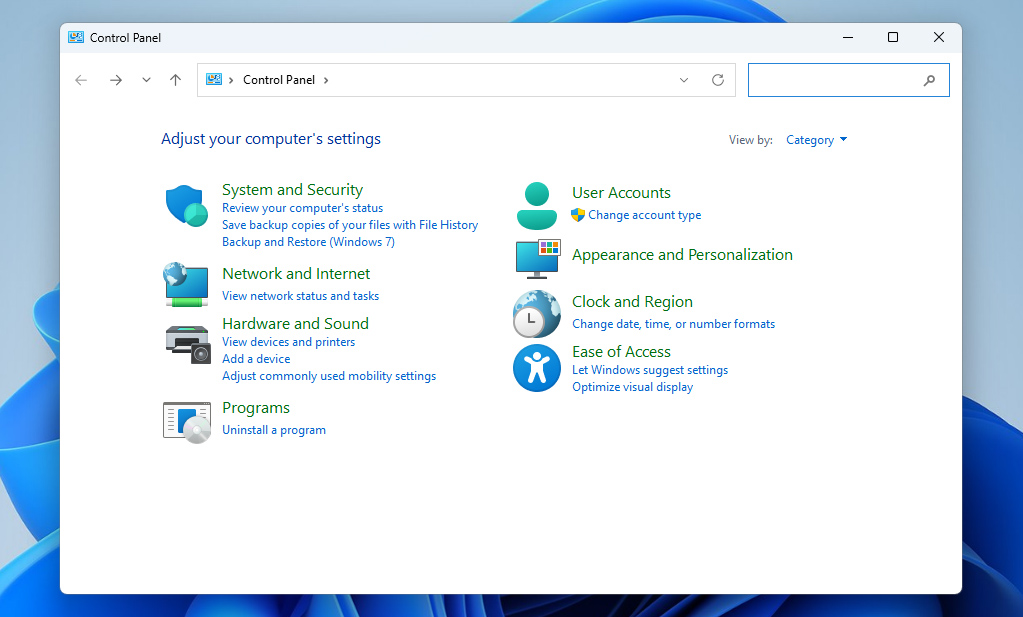
- Go to System and Security > File History.
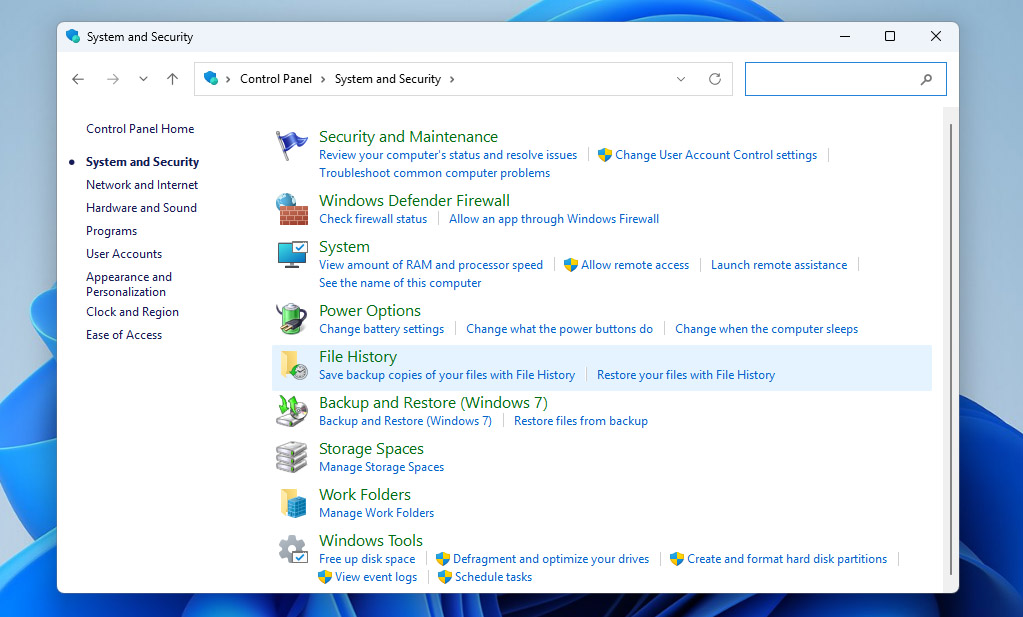
- Click Restore personal files on the left.
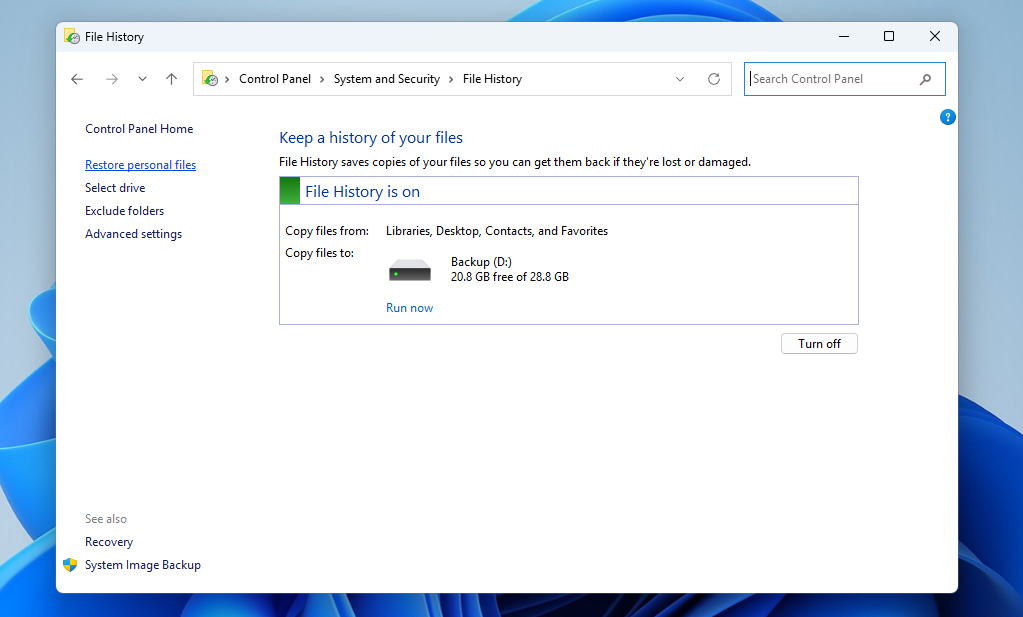
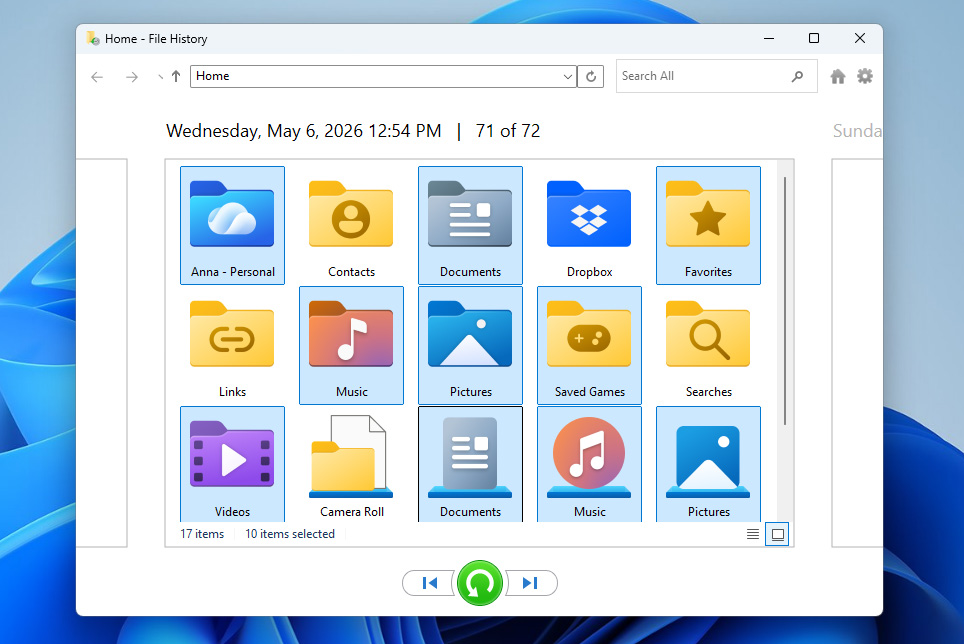
- Use the arrows at the bottom to move through available backup versions.
- Select the files or folders you want to recover and click the green Restore button to return them to their original location.
Windows also includes Backup and Restore (Windows 7). Despite the name, it is still available in newer versions of Windows. Unlike File History, this tool can create fuller backups, so if you had one before the reset, you may have a better chance of recovering lost files after system restore or factory reset.
- Connect the drive that contains your Backup and Restore backup.
- Press Windows + S, type Control Panel, and open it.
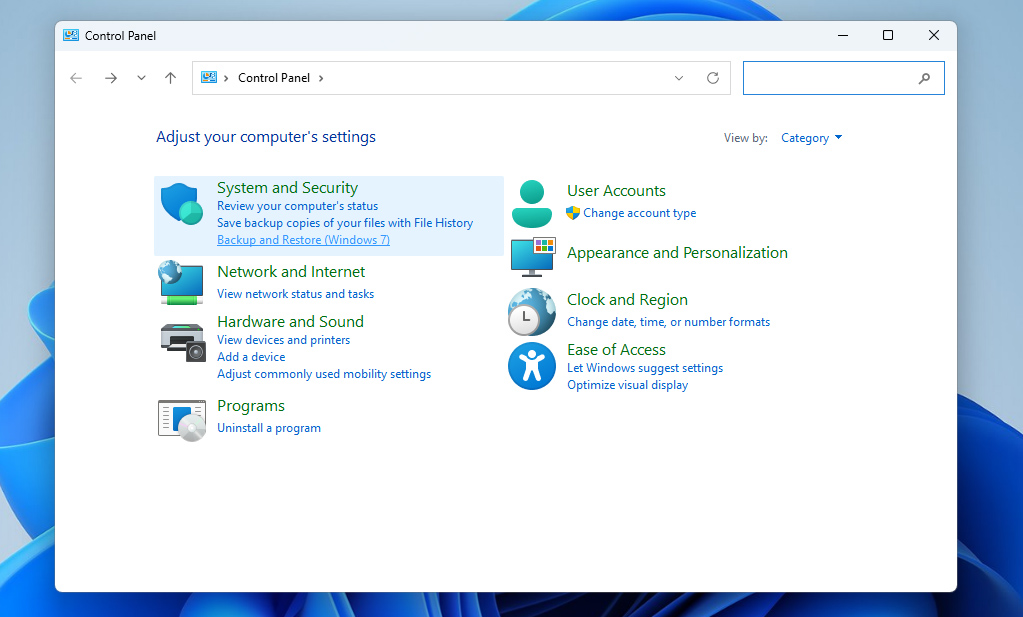
- Go to System and Security > Backup and Restore (Windows 7).
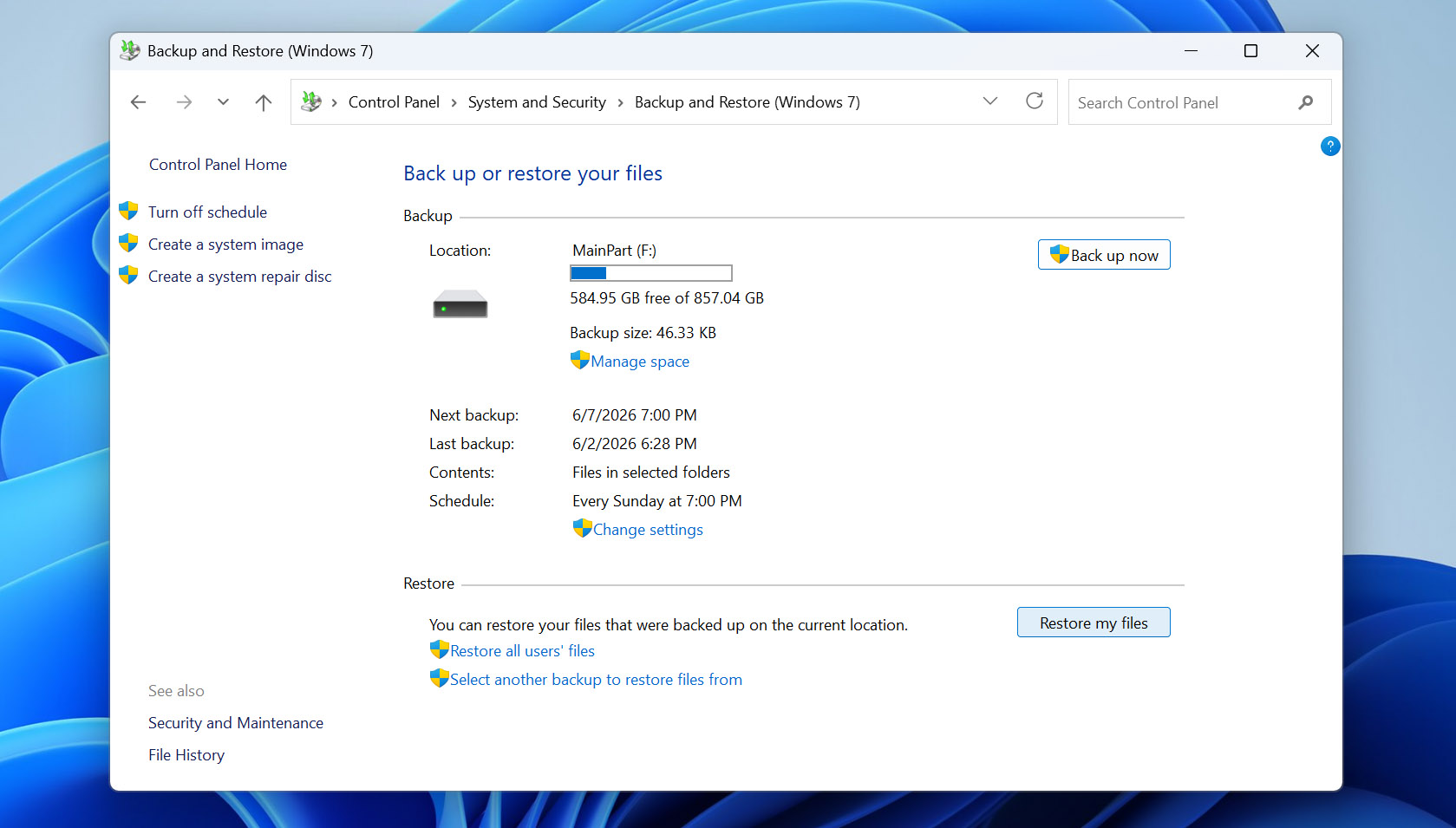
- Click Restore my files.
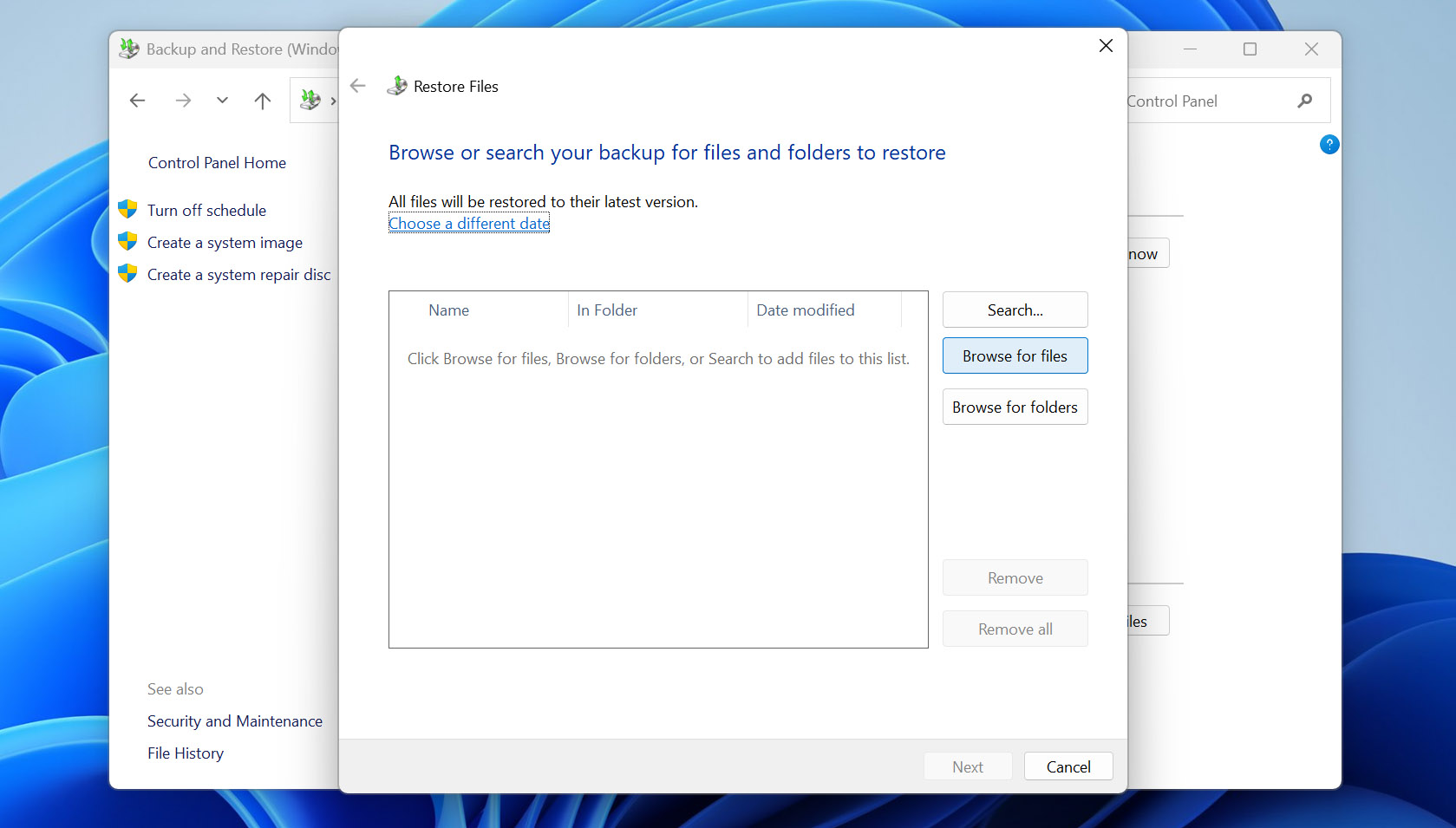
- Choose Browse for files or Browse for folders.
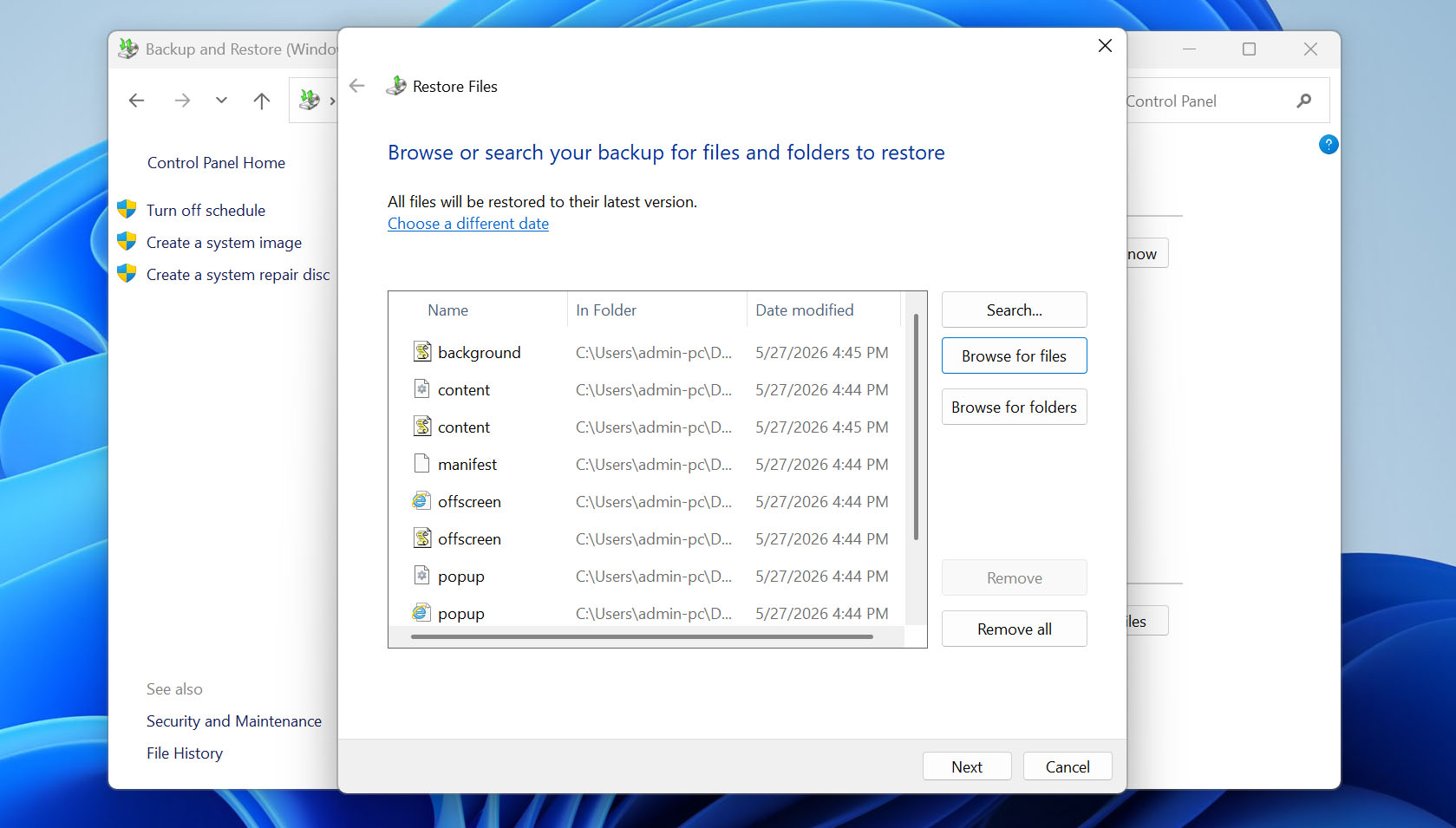
- Select the data you want to restore, then click Next.
- Choose whether to restore the files to their original location or a new location, click Restore, and wait for Windows to finish the process.
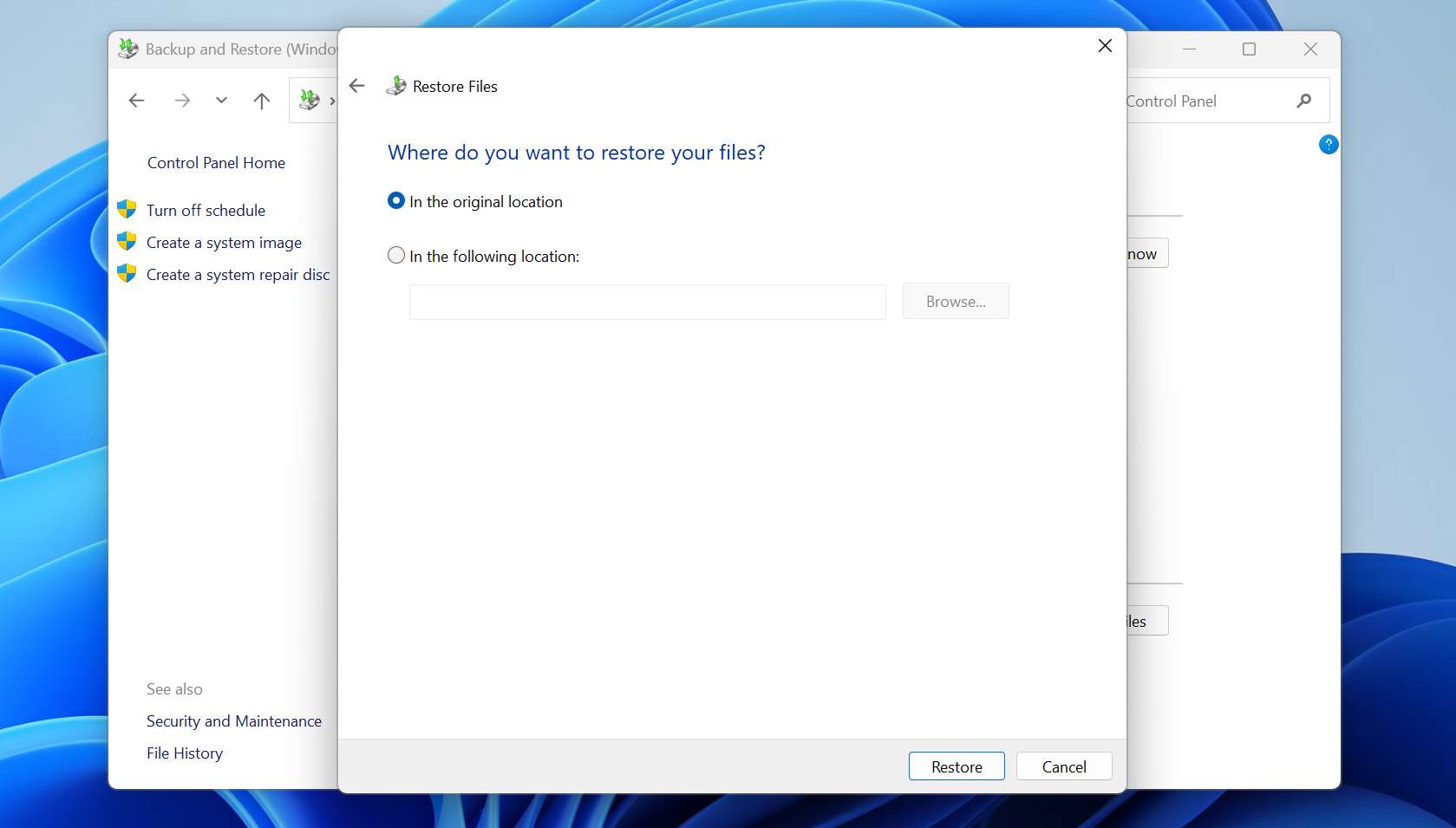
Cloud storage can also help if it contains copies of the files you lost after factory reset. Check services like OneDrive, Google Drive, Dropbox, or any other cloud account you use. If the missing files were synced or uploaded there before the reset, you can simply download them back to your PC.
Method 3: Apply Data Recovery Service
When all else fails, it is time to call in the experts. Many firms offer professional data recovery services to help regain lost data from any situation, even an unresponsive hard drive. If you cannot recover your files using any of the methods we mentioned, it might be worth trying this approach.
The recovery service offered by Cleverfiles is a good option, thanks to their ‘No Data – No Charge’ policy. Basically, if they fail to retrieve any useful data from your drive, you don’t have to pay a dime. They do not charge you for simply attempting a recovery.
However, keep in mind that professional recovery services cannot break the basic rules of data recovery. If the file was overwritten, or if you reset Windows on an SSD and TRIM already erased the deleted data, even specialists may not be able to help. The only major case where their chances differ from home recovery attempts is physical drive damage. In that situation, they can open the drive in a lab and try to recover data at the hardware or chip level.
Haven’t Factory Reset Windows Yet? Read This First
As you may have already noticed, you can get data back after a factory reset, but only in certain cases. That’s why it’s better not to rely on luck or wonder later, can you recover files after a factory reset or not? If you still haven’t reset your PC, take a few minutes to protect your files first.
The most obvious option is to copy all important files to another location, such as an external storage device or cloud storage. This works well if you know exactly where everything is saved. But if your files are spread across different folders, this can take time and you may miss something important.
In our opinion, a better way is to set up one of the built-in Windows backup tools before the reset. Backup and Restore (Windows 7) is a good choice because it lets you manually choose which folders you want to back up, instead of limiting you to only the default library locations.
- Connect an external drive with enough free space for your backup.
- Press Windows + S, type Control Panel, and open it.
- Go to System and Security > Backup and Restore (Windows 7).
- Click Set up backup.
- Select the external drive where you want to save the backup, then click Next.
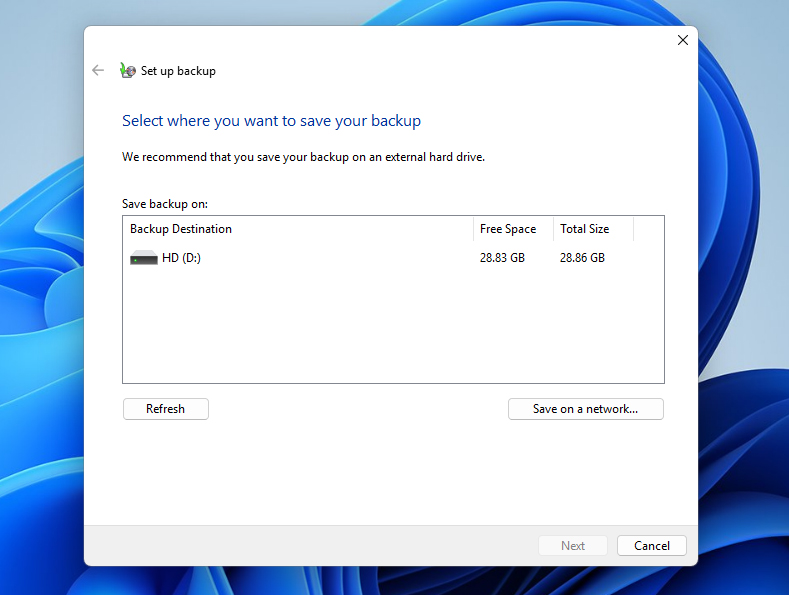
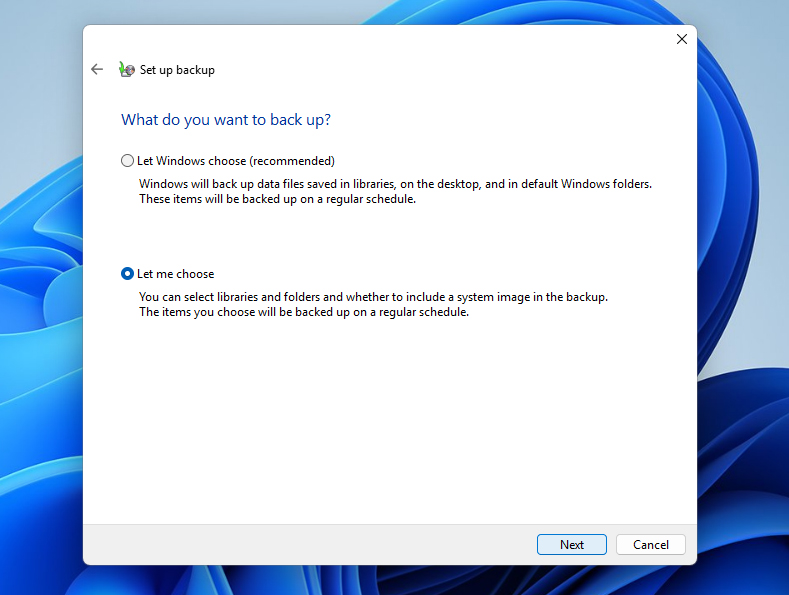
- Choose Let me choose if you want to manually select folders.
- Mark the folders and files you want to include in the backup.
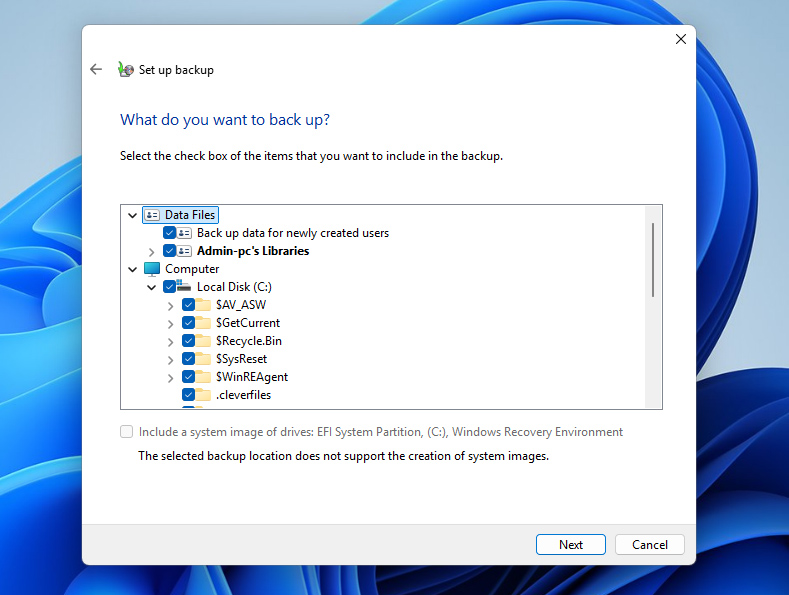
- Click Next, review your backup settings, and select Save settings and run backup.
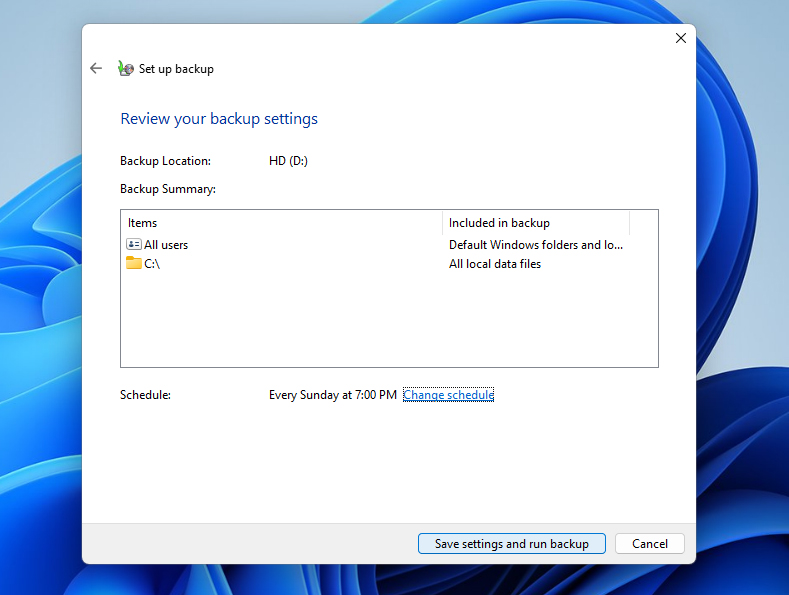
- Wait until Windows finishes the backup. After this, you can start the factory reset.
Conclusion
Okay, we’ve covered how to get data back after a factory reset, how to estimate your chances of recovery, and how to prepare for a Windows factory reset if you haven’t done it yet. From this point, everything depends on what you do next, so act carefully and good luck.
Just for reference, if you need help with the reset itself, you can check our guide. It explains the whole process step by step with screenshots, so you don’t accidentally miss anything.
And if you have questions or run into trouble, we’ll be waiting for you on the 7 Data Recovery forum. Find a similar discussion or create a new topic, and other users, along with members of our team, will try to help you figure things out.
FAQ
- Download and install Disk Drill.
- Launch the program and scan your system drive.
- Choose the files you want to retrieve.
- Select a drive to store your recovered files and finalize the recovery process.