

 Is your SD card not showing up not detected by your computer? Before you assume the card has failed, try a few quick checks. Many SD card detection problems have simple causes and don’t require advanced troubleshooting.
Start with the following:
- Remove the SD card and insert it again.
- Try a different card reader or adapter.
- Connect the reader to another USB port.
- Test the SD card on another computer.
- Check whether the card works in the device it normally belongs to, such as a camera, phone, or drone.
- Open Disk Management and see whether the card appears there.
These checks can quickly help you determine whether the problem comes from the SD card, the card reader, the adapter, or the computer itself. If the card starts working after one of these steps, you can stop there. If not, don’t worry. Below, we’ll explain how to diagnose the problem in more detail, recover your files when possible, and fix the most common causes of SD card detection issues.
Is It Possible to Fix SD Card That Is Not Showing Up or Not Detected?
Yes, but the answer depends on how the SD card is not detected. Some cases result from simple connection issues or file system problems and are relatively easy to fix. Others involve hardware failure, which may require professional recovery or replacement of the card.
The table below summarizes the most common scenarios and the best course of action for each one:
| Situation | What It Usually Means | Can It Be Fixed? | Recommended Method |
| SD card works in another device but not on your PC | Problem with the card reader, adapter, USB port, or drivers | Usually yes | Try a different reader, adapter, USB port, or update drivers |
| SD card appears in Disk Management with the correct capacity | Windows can communicate with the card, but a file system or partition issue prevents access | Often yes | Recover data first, then try drive letter assignment, CHKDSK, partition restoration, or formatting |
| SD card appears as Unallocated | The partition is missing | Often yes | Restore the partition with TestDisk or recover the files directly |
| SD card intermittently disconnects or produces read errors | The card may be failing or have damaged sectors | Sometimes | Recover data immediately and consider replacing the card |
| SD card does not appear in Disk Management but works in another device | Card reader or connection issue | Sometimes | Test different hardware and verify device compatibility |
| SD card does not appear anywhere on any computer or device | Possible controller failure, damaged memory chips, or other hardware failure | Rarely | Consult a professional data recovery service |
In general, your chances of fixing an SD card are much higher when the card still reports its capacity and remains detectable by the system. Once the card becomes completely invisible to all devices, software solutions are usually no longer effective.
How to Recover Data from Unrecognized SD Card Before Fixes
As we already explained, if your SD card shows up in Disk Management with the correct size, you’ll be able to scan the card and possibly recover data from it. We’ll start with software-based recovery, which is often the fastest and most affordable option when the SD card remains detectable. If that doesn’t recover your files, or if the card has suffered a more serious failure, we’ll also explain when a professional data recovery service may be worth considering and what you can expect from that process.
Before you do anything else, avoid copying new files to the card or attempting repairs, as both actions can overwrite recoverable data and reduce your chances of successful recovery.
Method 1: Use Data Recovery Software to Recover Files
For a recovery tool, we recommend Disk Drill. We tested it extensively on various storage devices, including SD cards, and found it to be one of the best SD card recovery solutions available. It supports FAT32, exFAT, NTFS, and many other file systems, recognizes hundreds of file formats, and can often recover data from cards affected by corruption, accidental formatting, missing partitions, and other logical issues.
For a more detailed overview of its features, recovery capabilities, limitations, and pricing, check out our comprehensive Disk Drill review.
Here is how to use Disk Drill to recover files:
- Download and install Disk Drill from the official website.
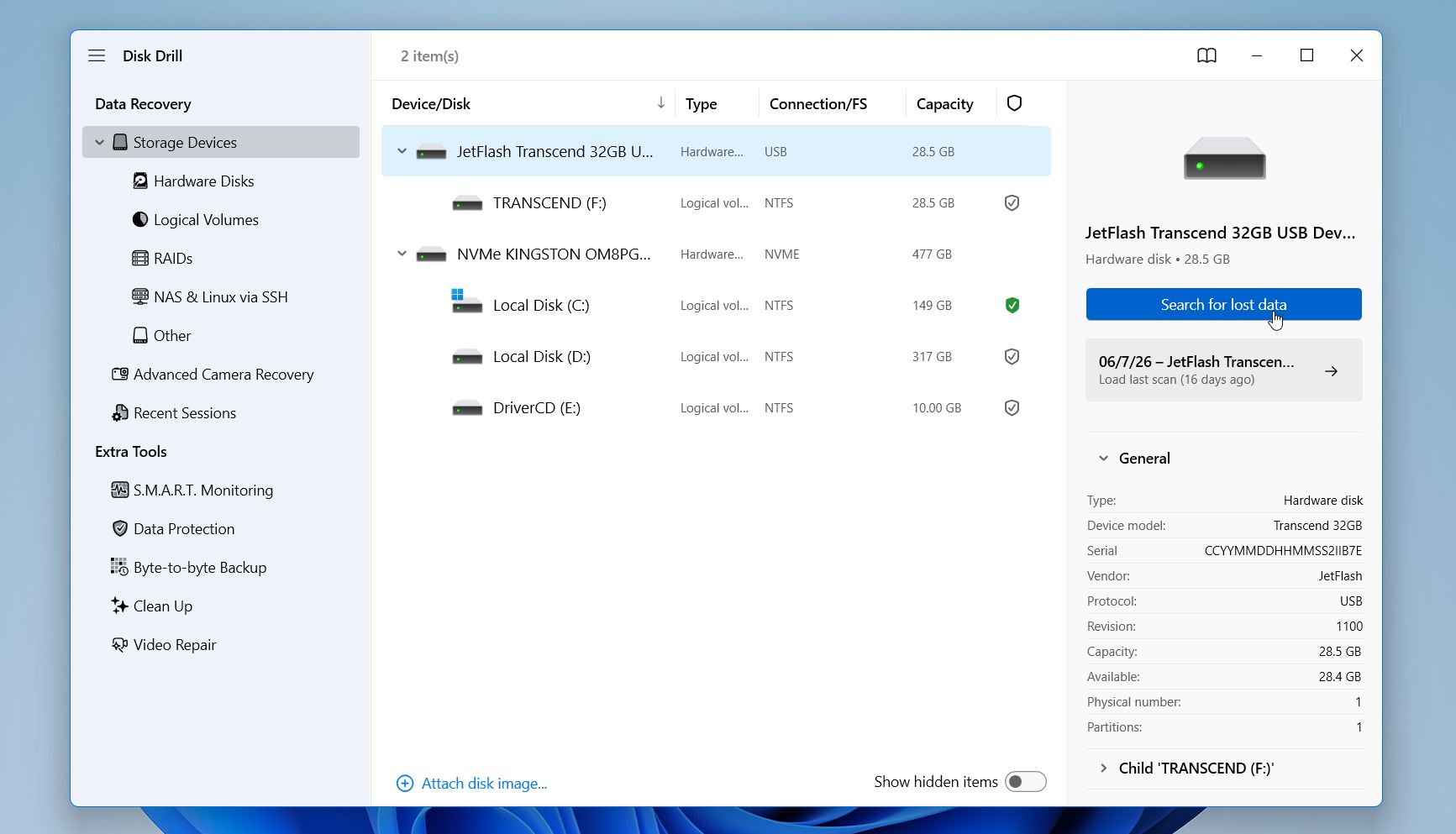
- Connect the SD card to your computer through a card reader and launch Disk Drill.
- Locate the SD card in the list of storage devices and click Search for lost data.
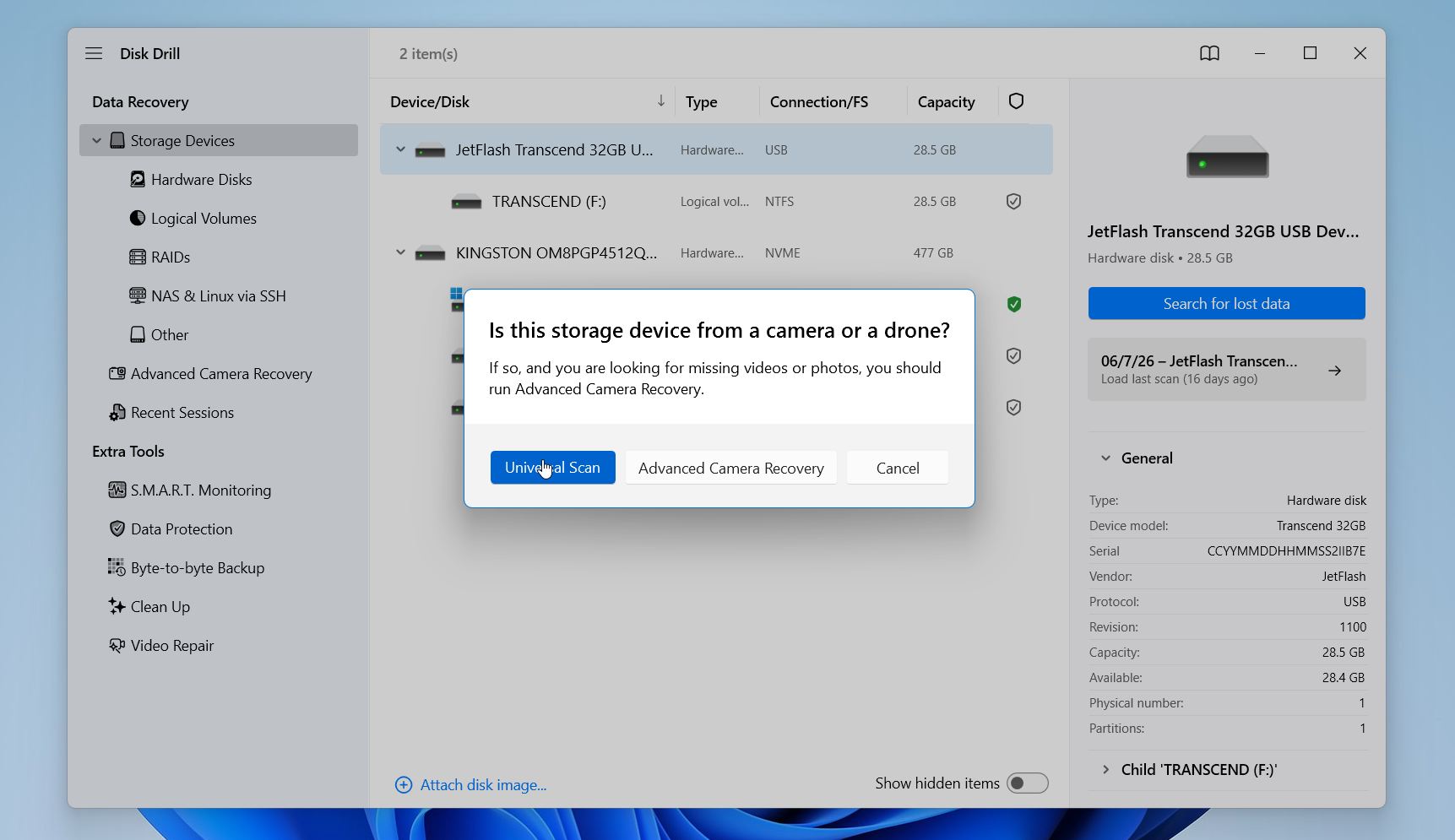
- Select a scan mode. For most situations, Universal Scan is the best choice. If you’re primarily trying to recover videos from a camera, drone, dashcam, or similar device, choose Advanced Camera Recovery instead.
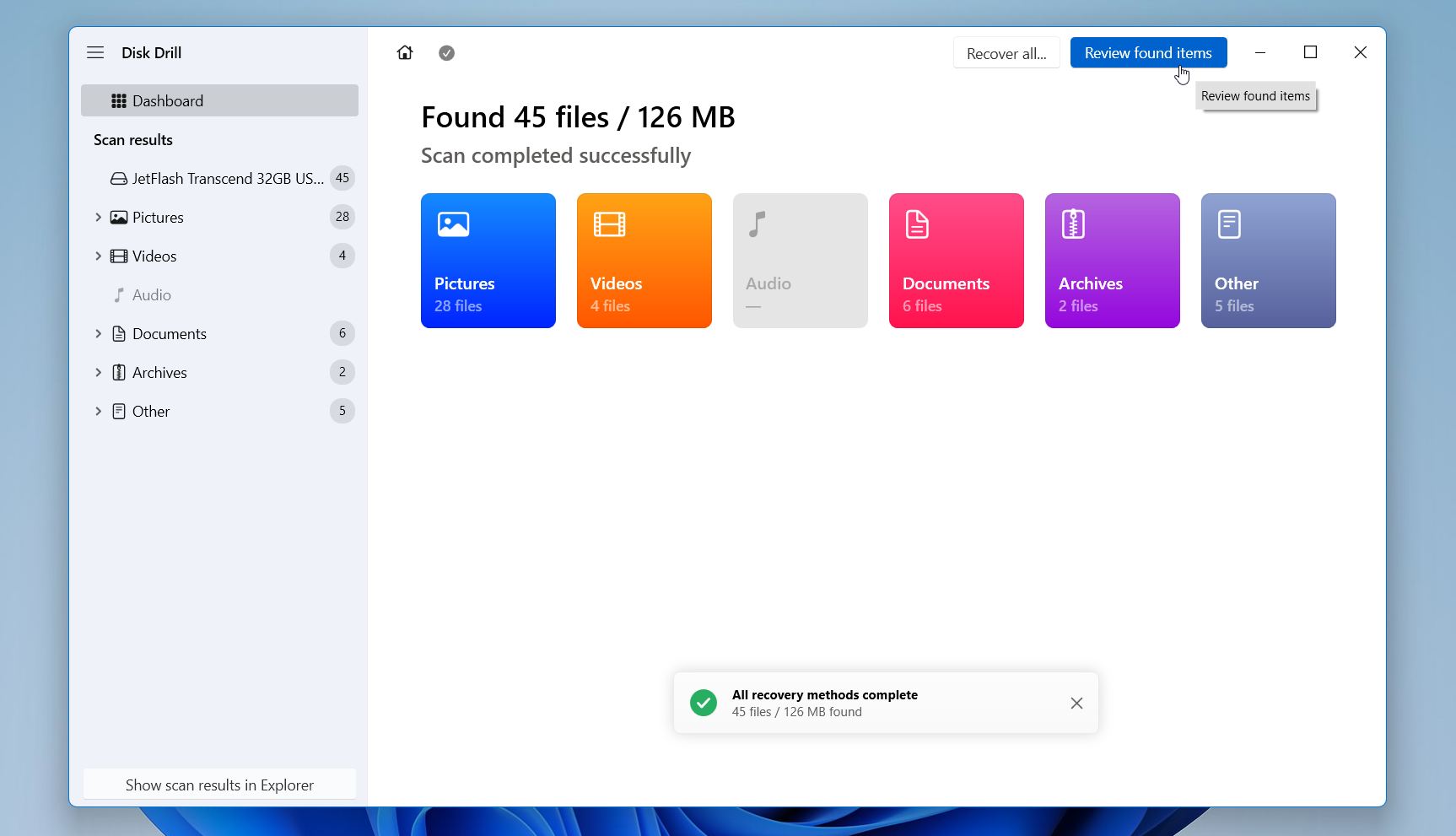
- Wait for the scan to finish, then click Review found items.
- Use the file type filters, date filters, size filters, or search box to narrow the results. Preview important files before recovery. If a file opens correctly in the preview window, there’s a good chance the recovered version will be usable as well.
- Select the files you want to recover and click Recover.
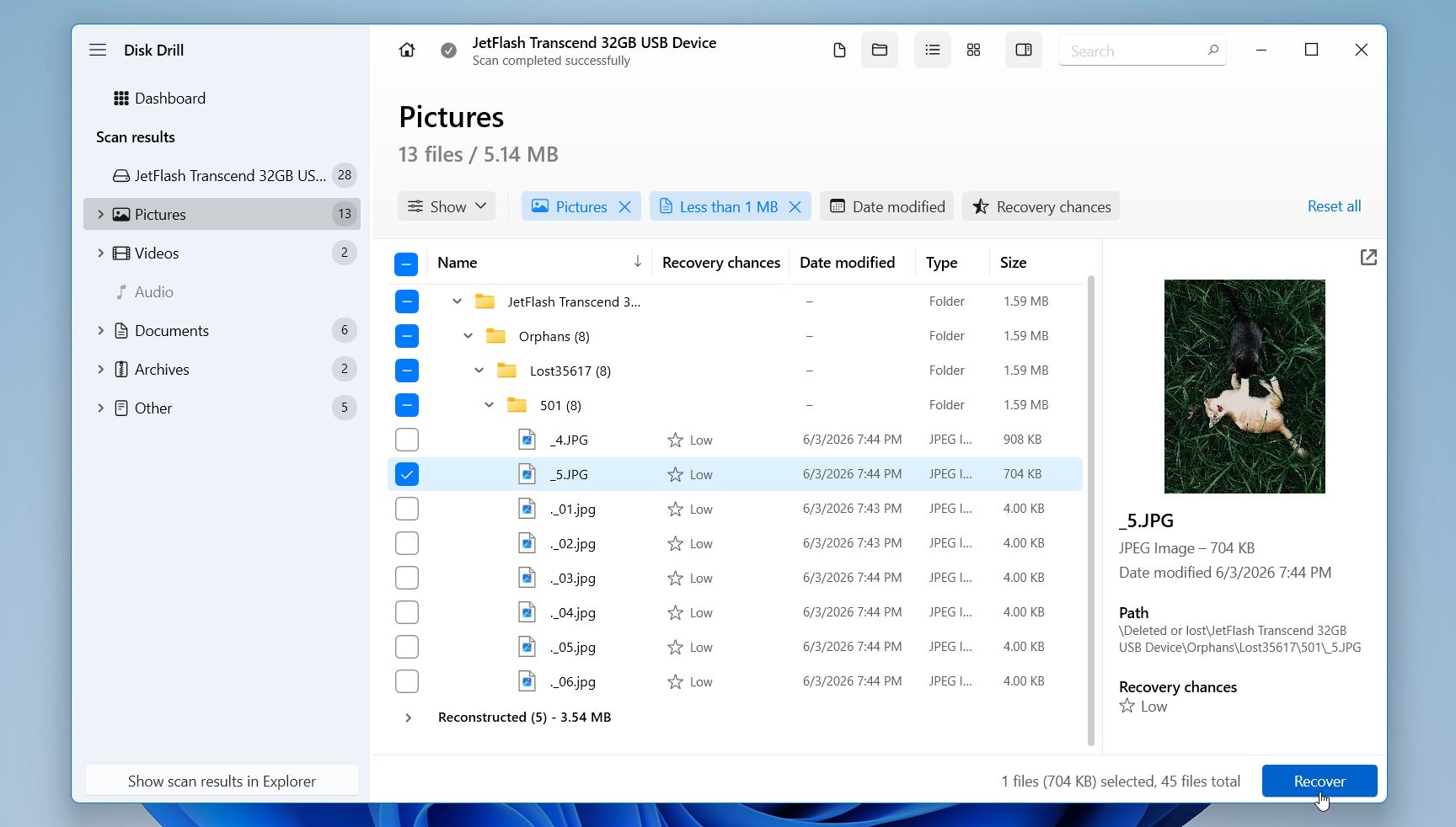
- Choose a destination on a different drive and complete the recovery process.
On Windows, Disk Drill allows up to 100 MB of free recovery, and file previews remain available regardless of the license type. This is often enough to restore several documents, photos, or other small files before you decide whether you need a paid license.
One additional recommendation: if the SD card freezes, disconnects unexpectedly, produces read errors, or behaves inconsistently, create an image of the card before you start recovery. This process copies every readable sector from the SD card into a single image file, including deleted data and file system information. You can then scan that image instead of the original card. This reduces the number of read operations performed on a potentially failing SD card and gives you the opportunity to run multiple recovery attempts without further stressing the device.
Method 2: Consult Data Recovery Services
If your SD card isn’t detected by your PC after you’ve tried different card readers, adapters, USB ports, and computers, or if data recovery software failed to recover your files, a professional data recovery service may be your best remaining option.
This method is also worth considering from the start if the lost data is especially important. Professional recovery labs have specialized equipment and techniques that can sometimes recover files from cards that software cannot access.
A recovery service may help if:
- The SD card doesn’t appear in Disk Management.
- Multiple computers and card readers fail to detect it.
- The card has visible physical damage.
- Recovery software cannot find or recover your files.
- The recovered files are incomplete or corrupted.
- The data is too valuable to risk further recovery attempts.
Professional data recovery can be expensive, especially when the card has suffered hardware damage. Costs vary widely depending on the type of failure and the complexity of the recovery process. Recovery success also depends on the cause of the problem and the condition of the card. While no service can guarantee results, a professional lab is often the best option once software recovery and basic troubleshooting have failed.
How to Fix SD Card That Not Reading
If your SD card still appears in Disk Management but you can’t access it normally, one of the methods below may help. We recommend starting with the least invasive fixes and progressing to more advanced options only if necessary. If the SD card contains important files, recover them before you attempt repairs that modify the card’s file system or partition structure.
Method 1: Assign a New Drive Letter If the SD Card Is Not Showing Up
Windows uses drive letters to identify and access storage devices. If an SD card loses its assigned letter or encounters a conflict with another device, you may lose access to the card even though the system still recognizes it. Fortunately, this is one of the easiest problems to fix and only takes a minute to check.
To assign a new drive letter to your SD card:
- Press Windows + X and select Disk Management.
- Right-click the SD card partition and select Change Drive Letter and Paths.
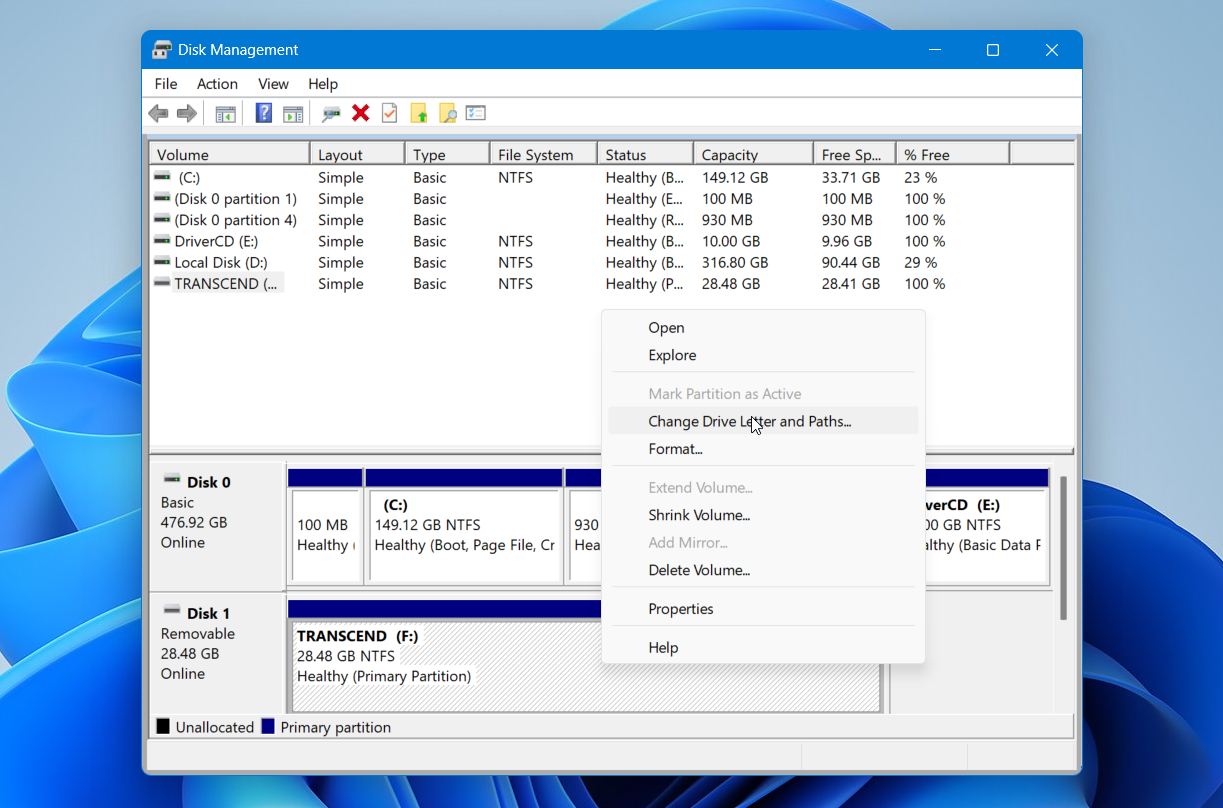
- Click Add. If the card already has a drive letter, click Change instead.
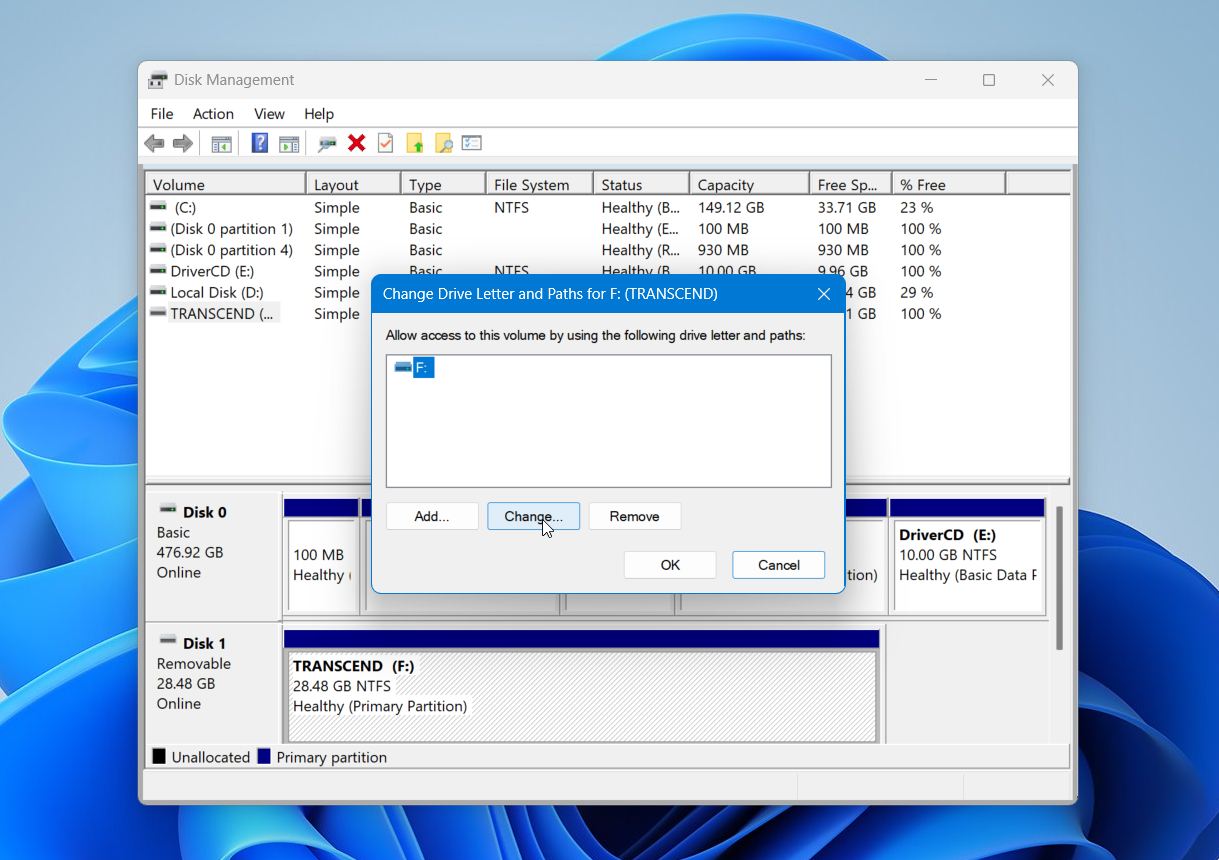
- Select an available drive letter from the list.
- Click OK to save the change.
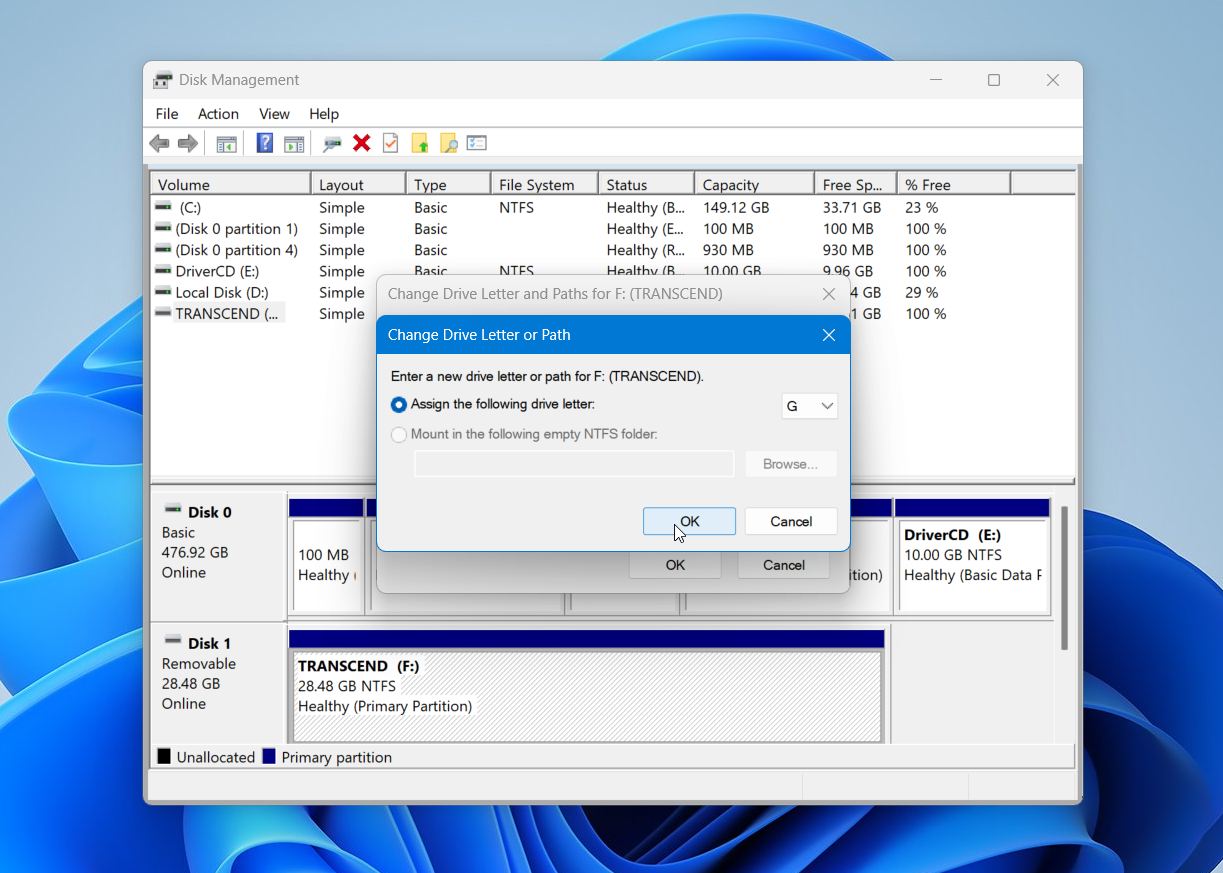
- Check whether you can access the SD card normally.
If the issue was related to a missing or conflicting drive letter, the card should become accessible immediately after the change. If not, don’t worry. Several other causes can prevent access to an SD card, and the next methods address the most common ones.
Method 2: Use CHKDSK If the SD Card Is Detected but Not Reading
If your SD card suffers from file system corruption, Windows may still recognize it but struggle to access the files stored on it. Common signs include error messages when you open the card, missing files or folders, folders with strange names, files that won’t open, or a prompt asking you to format the card before use. In these situations, the built-in CHKDSK utility can sometimes repair file system errors and restore access to the card.
Warning: Use CHKDSK with caution. While it can repair file system problems, it may also modify, move, or delete damaged file system entries during the repair process. If the SD card contains important files that you haven’t backed up orrecovered yet, it’s best to recover your data first. CHKDSK is a repair tool, not a data recovery tool.
To run CHKDSK on an SD card:
- Press Windows + S, type cmd, then select Run as administrator.
- Type the following command and replace X with your SD card’s drive letter:
chkdsk X: /f. - Press Enter.
- Wait for the scan and repair process to finish.
- Check whether you can access the SD card normally.
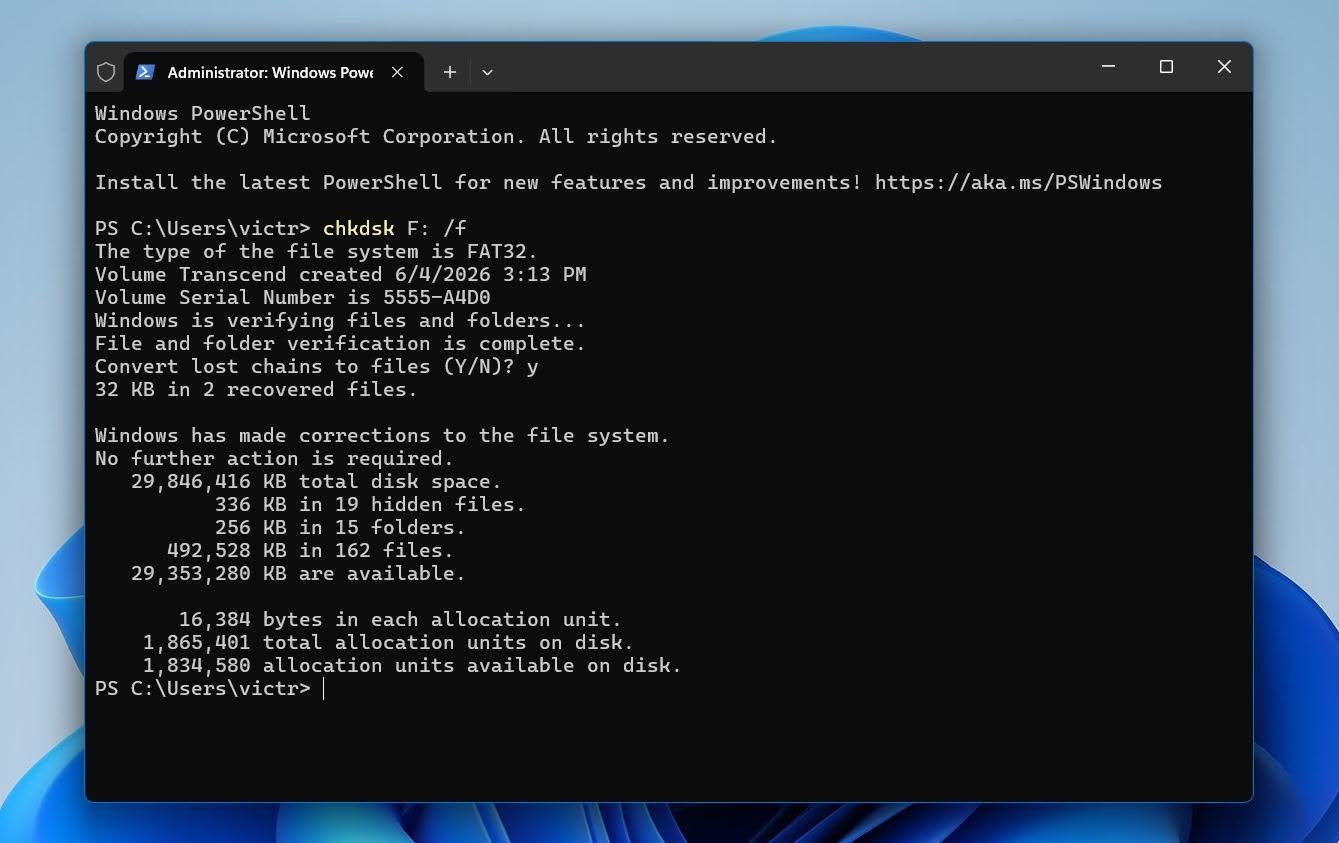
If CHKDSK reports that it fixed errors, the card may become accessible again. However, if the command fails, reports severe corruption, or the card still doesn’t work afterward, stop making changes to the card and proceed with data recovery or the next troubleshooting method.
If you see the message “CHKDSK is not available for RAW drives,” Windows can no longer recognize the file system, so CHKDSK cannot repair it. If you haven’t recovered your files yet, do that before attempting any further fixes.
Method 3: Restore a Lost Partition If the SD Card Shows as Unallocated
If the SD card appears as Unallocated in Disk Management, the partition may have been deleted. In this situation, restoring the partition may bring back access to the card and its files without the need for recovery software.
Warning: Partition restoration modifies the card’s partition table. If the SD card contains important files, consider creating a backup image or recovering the data first.
To restore a lost partition using TestDisk:
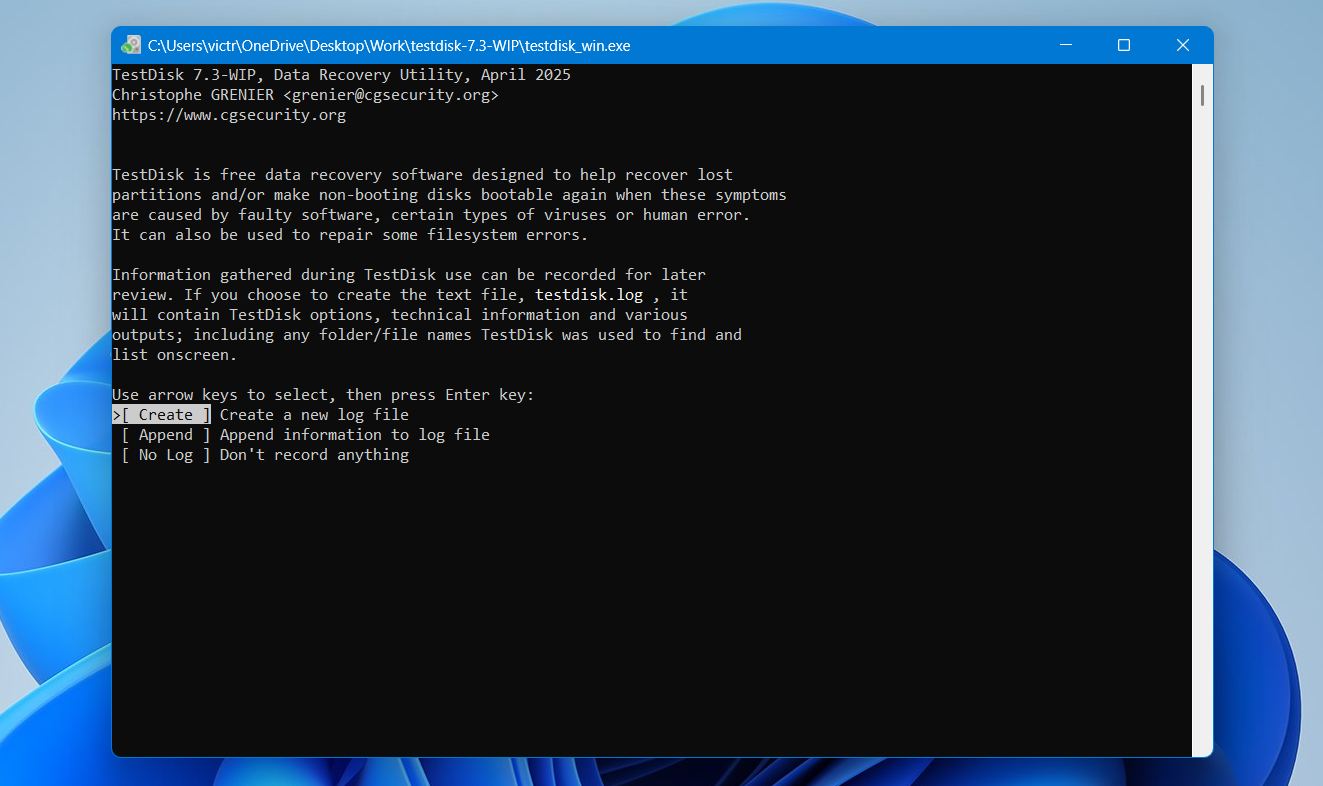
- Download TestDisk and launch testdisk_win.exe.
- Select Create to create a new log file and press Enter.
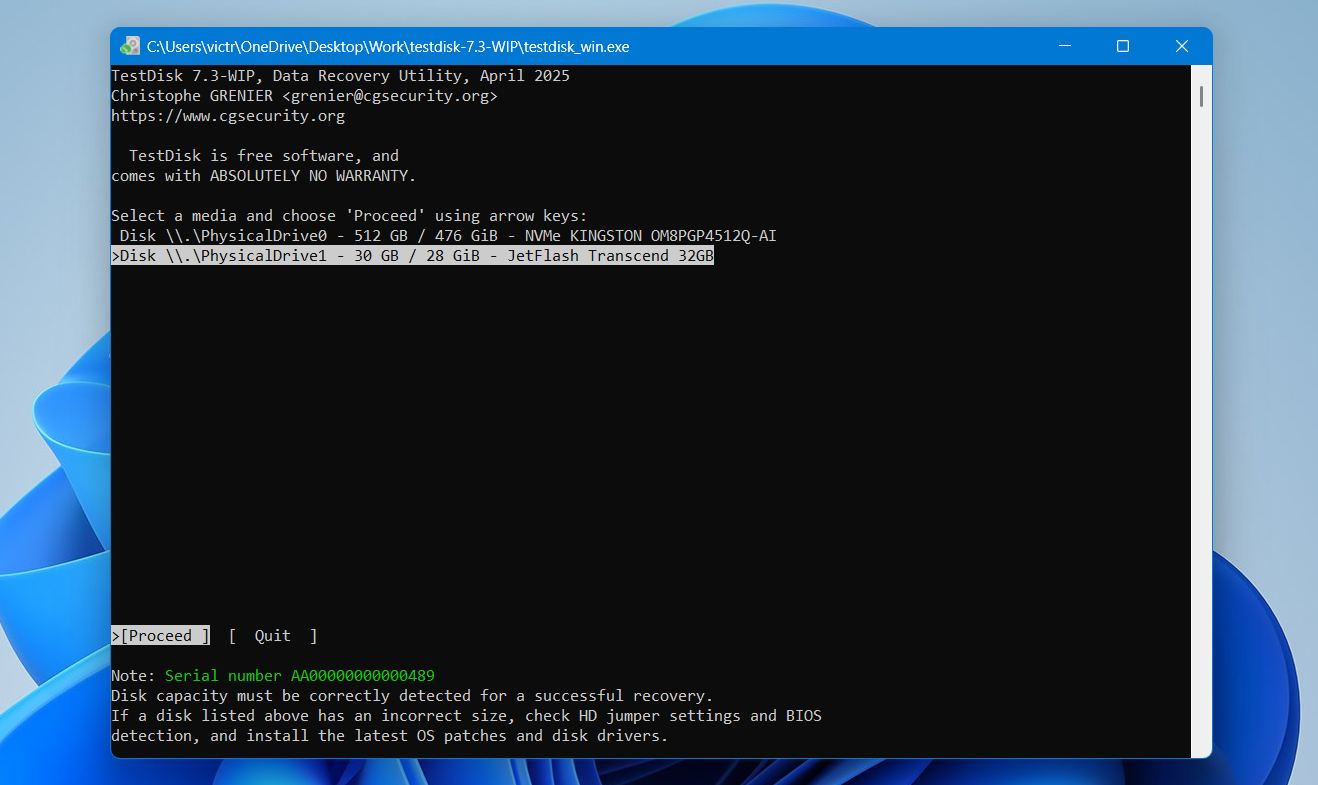
- Select your SD card from the list of storage devices and press Enter.
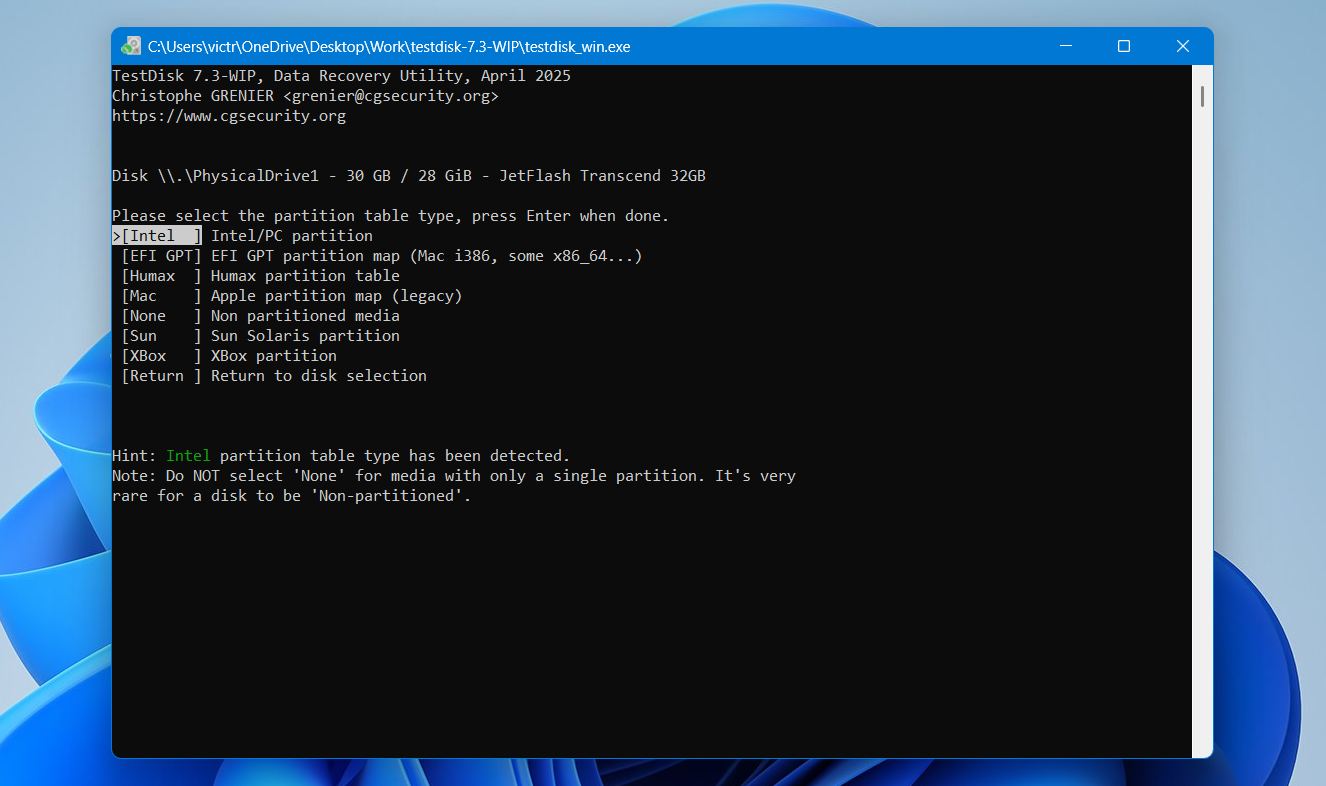
- Leave the detected partition table type selected and press Enter.
- Choose Analyse and press Enter.
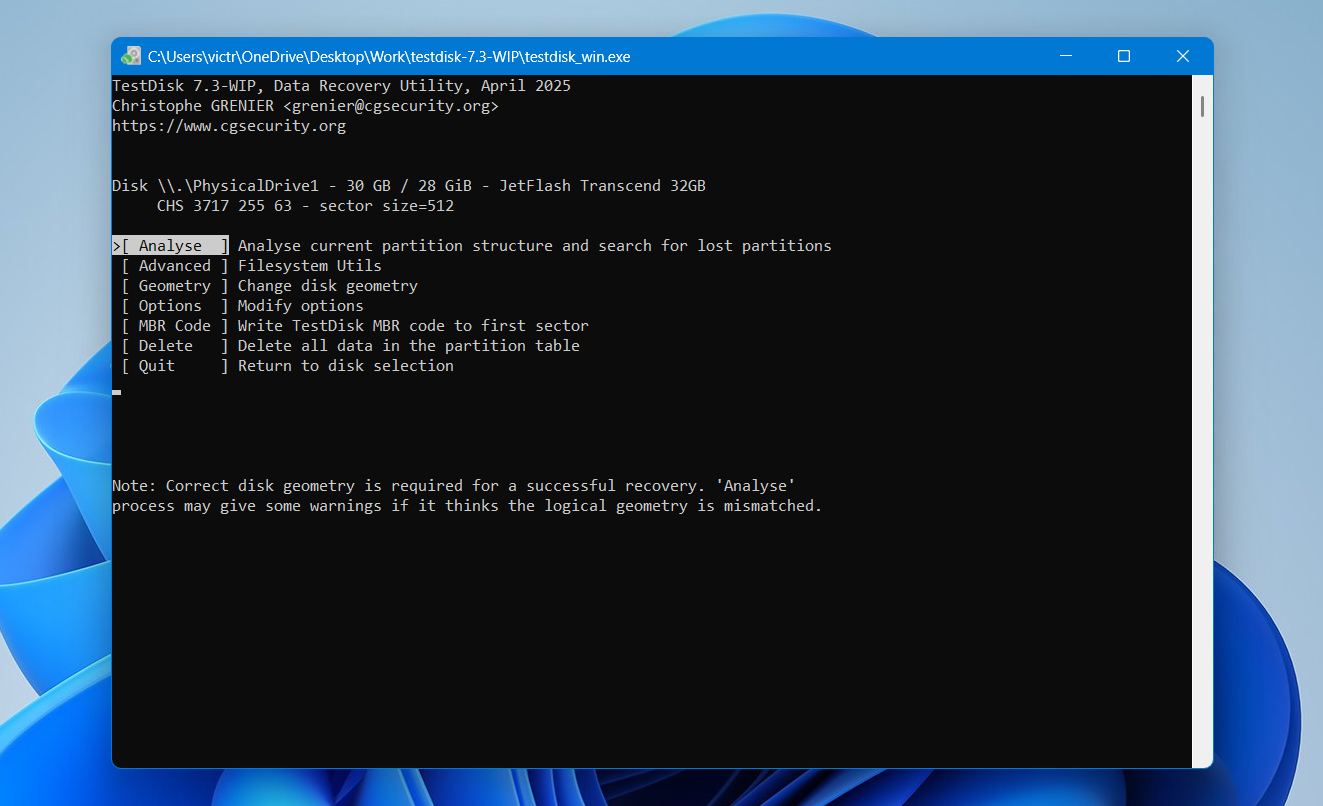
- Select Quick Search and wait for the scan to finish.
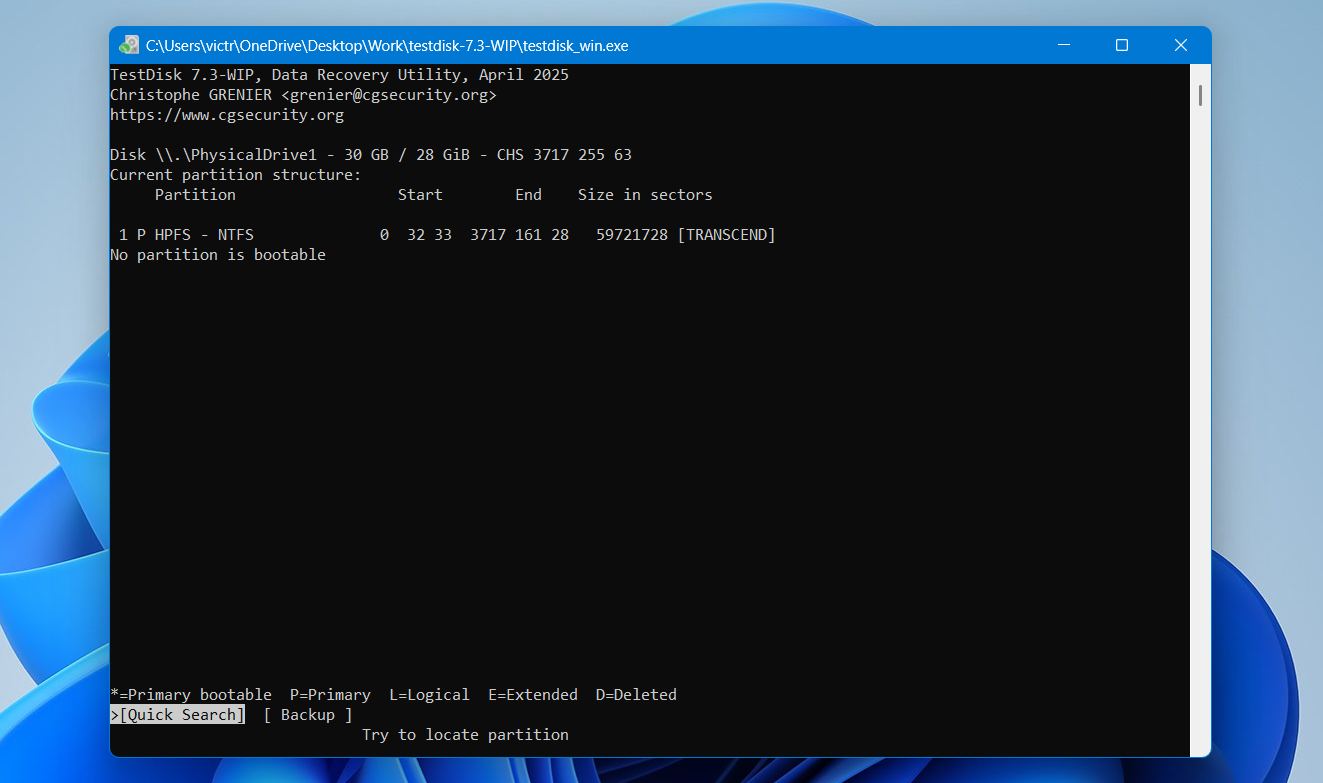
- If TestDisk finds the lost partition, highlight it and press P to verify that your files are visible.
- Press Enter to return to the previous screen.
- Select Write and confirm the operation.
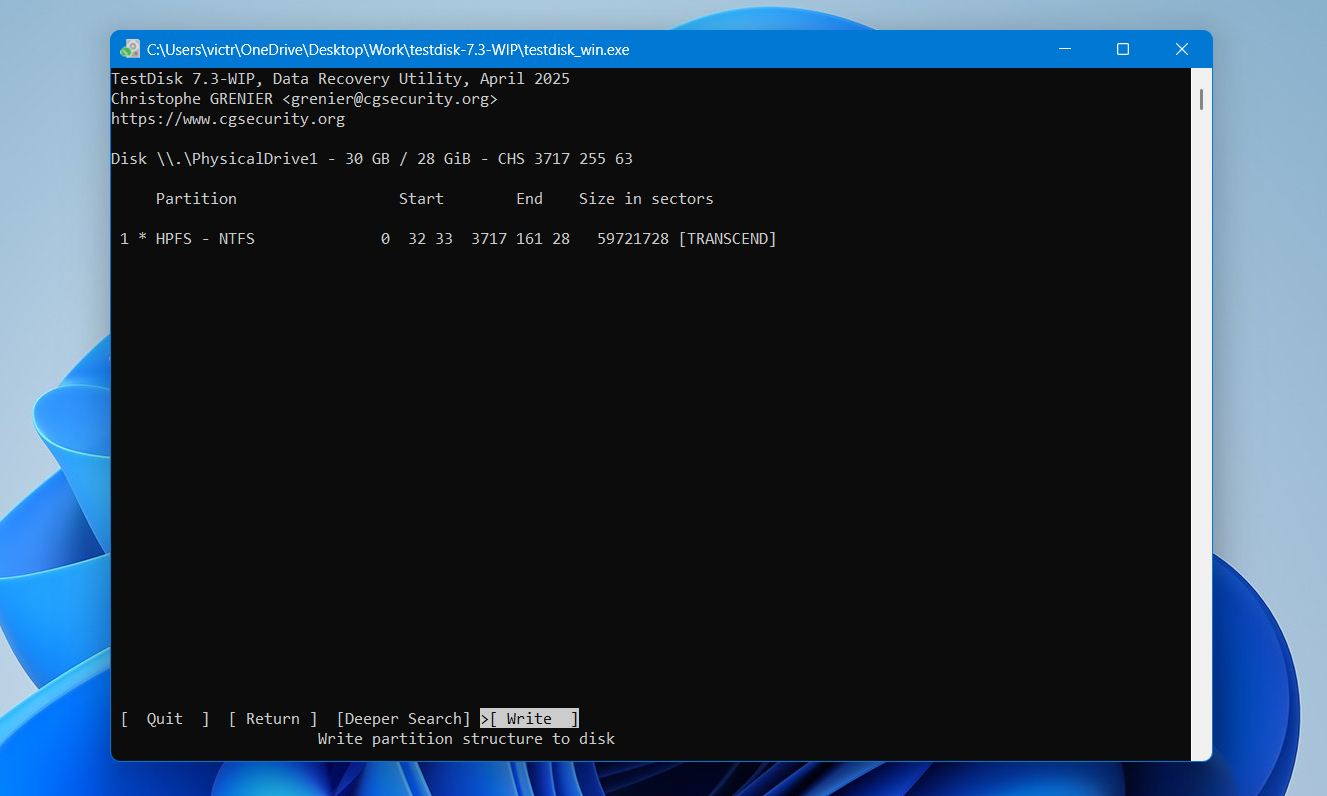
- Restart your computer when prompted.
If Quick Search doesn’t find the correct partition, run Deeper Search and review the results. Once TestDisk restores the partition successfully, the SD card should become accessible again.
Method 4: Format the SD Card If It Is Detected but Won’t Read
When other troubleshooting steps fail, formatting the card is usually the next step. Be sure to recover any important files beforehand. It can resolve file system corruption, RAW errors, and other issues that prevent a computer or device from recognizing the card properly.
Warning: Formatting will erase all data stored on the SD card. Before you proceed, make sure you’ve recovered any important files. This warning may sound obvious, but we regularly see users who either forget that formatting erases files or accidentally format their SD card.
To format an SD card in Windows:
- Connect the SD card to your computer.
- Open Disk Management.
- Right-click the SD card and select Format.
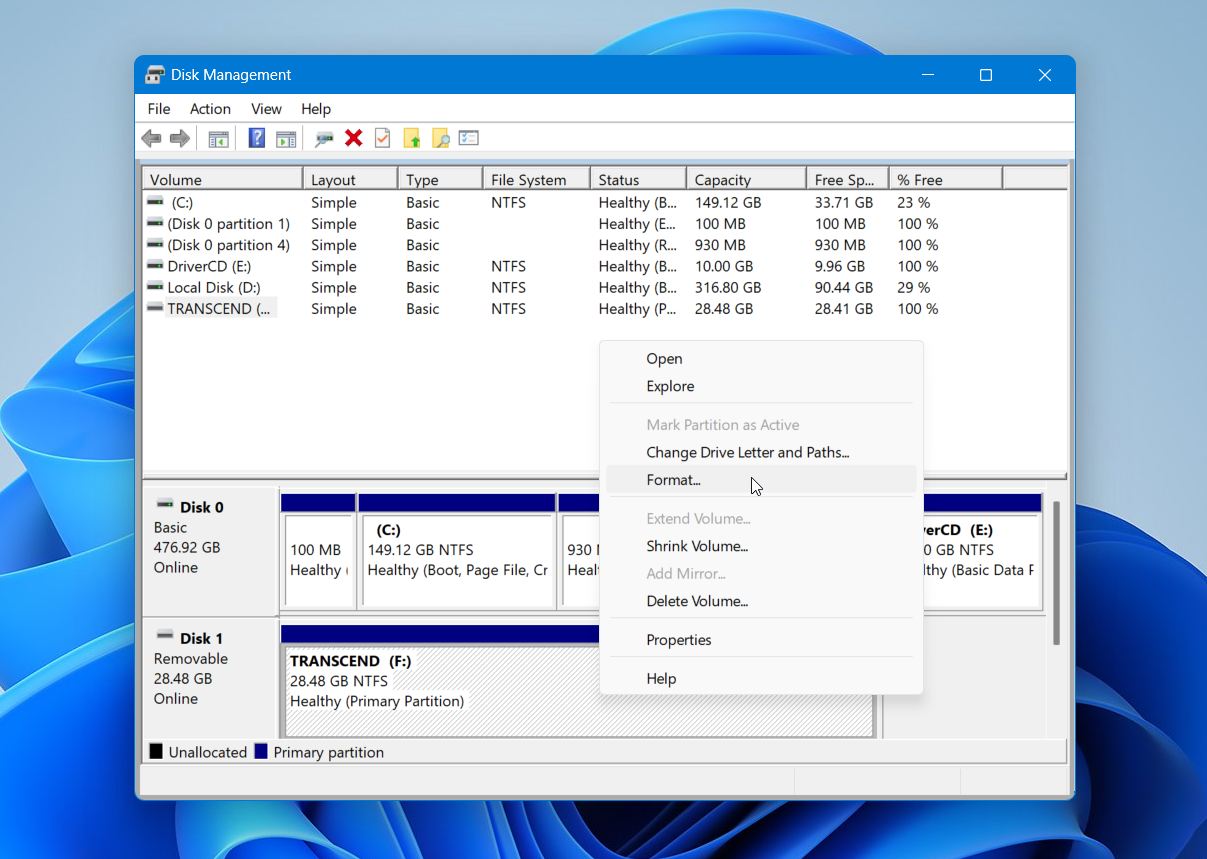
- Choose a file system.
- Leave Quick Format checked unless you have a specific reason not to.
- Click OK and confirm the warning.
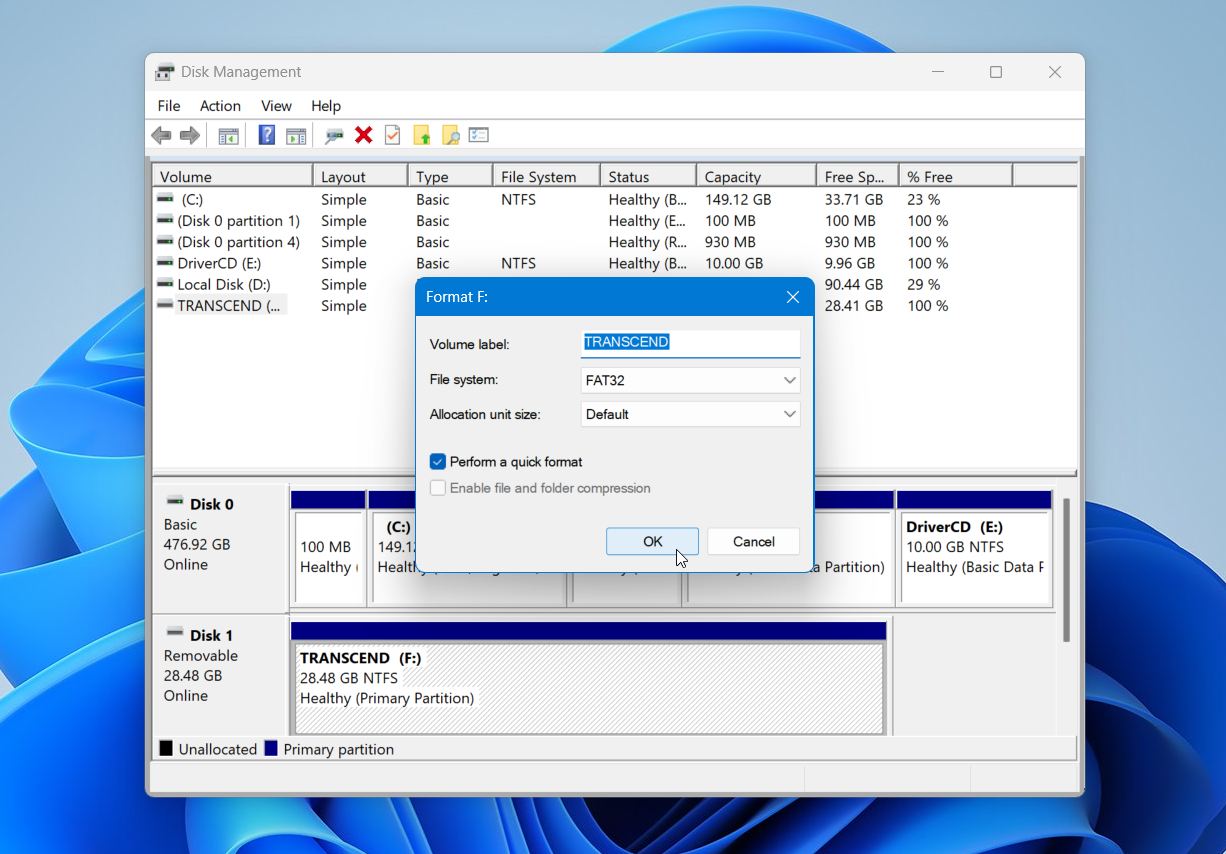
To avoid compatibility issues, use the file system recommended for your device. Cameras, drones, smartphones, gaming consoles, and other devices may have specific requirements. As a general rule:
- FAT32 offers the best compatibility with older devices and smaller SD cards.
- exFAT is the preferred choice for SDXC cards and modern devices, especially when you work with large files such as high-resolution photos and videos.
- NTFS is usually best reserved for Windows-only use and is rarely recommended for SD cards that move between devices.
You’ll also notice two formatting options: Quick Format and Full Format. A Quick Format recreates the file system and prepares the card for use within seconds. A Full Format takes much longer because Windows scans the card for bad sectors in addition to creating a new file system. For most situations, a Quick Format is sufficient.
If you plan to use the SD card in a camera, drone, or similar device, it’s often a good idea to format it again inside that device after the Windows format completes. Many devices create their own folder structure and settings during the formatting process, which can help avoid compatibility issues later.
Tips to Prevent SD Card Detection Problems
Finally, a few simple habits can help you avoid many SD card detection problems before they happen. Most issues don’t appear out of nowhere. They often start with things like unsafe removal, interrupted file transfers, worn-out card readers, or a memory card that has simply reached the end of its lifespan. While no SD card lasts forever, proper handling can reduce the chance of corruption and help the card stay reliable for longer.
Here are a few practices we recommend:
- Always eject the card safely before removing it from a computer. This gives Windows or macOS time to finish any background tasks and close file operations properly.
- Wait for file transfers to finish before disconnecting the card. Removing it too early can corrupt files and sometimes the file system itself.
- Use a reliable card reader or adapter. If your SD card suddenly stops appearing, the reader is often just as likely to be the culprit as the card.
- Format the card in the device that uses it most often. This helps avoid compatibility issues and ensures the correct file system settings are in place.
- Protect the card from heat, moisture, and physical damage. SD cards are durable, but damaged contacts or internal components can quickly lead to detection problems.
- Pay attention to warning signs. If a card starts disconnecting randomly, asks to be formatted, or occasionally disappears, back up your files as soon as possible.
- Keep backups of important data. Even a healthy SD card can fail unexpectedly, so valuable files should always exist in more than one location.
No matter how reliable it seems, an SD card is not a permanent place to store data. They are perfect for devices that need compact storage, but they shouldn’t be trusted as a lifelong archive for important files. Over time, all flash memory wears out and eventually fails. That’s why the best way to protect your files is to copy them to another drive or a cloud service regularly rather than leaving them on a single SD card for months or years.
Final Notes
Most SD card detection problems are caused by relatively simple issues such as faulty card readers, adapter problems, or file system corruption. Before assuming the card has failed, take the time to test it with different hardware and verify whether it appears in Disk Management.
If the card contains important files, always prioritize data recovery before attempting repairs. Even when a card appears unreadable, recovery software can often retrieve data as long as the card remains detectable by the system. Tools such as Disk Drill, which we consider one of the best SD card recovery applications available, can often recover files from corrupted, RAW, formatted, or otherwise inaccessible cards.
FAQ:
- Right-click Start and open Disk Management.
- Find your SD card in the list of drives.
- If it has no drive letter, right-click the SD card partition and select Change Drive Letter and Paths.
- Click Add, choose a letter, and click OK.
- If the card shows as Offline, right-click it and select Online.
- If it still does not work, open Device Manager.
- Expand Disk drives or Memory technology devices.
- Right-click the SD card or card reader and select Enable device.
- Press Windows + X and open Device Manager.
- Find your SD card reader under Memory Technology Devices, Disk Drives, or USB controllers.
- Right-click it and select Update driver > Search automatically for drivers.
- Right-click the SD card reader in Device Manager.
- Select Uninstall device.
- Restart your PC.