

 Have you accidentally deleted your GoPro videos or lost access to them? GoPro cameras capture incredible footage, but accidental deletion, formatting, SD card corruption, interrupted transfers, and camera issues can all result in missing videos. Luckily, many of these situations don’t need professional data recovery. We’ll show you how to recover deleted GoPro videos step by step, explain what affects your chances of success, and help you decide when professional data recovery is the better option.
Quick Answer: You have the best chance of recovery if (1) the microSD card is still detected by your computer, (2) you haven’t recorded new videos to the card after the data loss, and (3) the card doesn’t have physical damage. If these conditions are met, recovery software such as Disk Drill can often restore your deleted GoPro footage.
If you want to jump straight to the recovery instructions, you can click here.
What to Do Before Recovering Deleted GoPro Videos?
A few simple steps before you start recovery can greatly improve your chances of getting your GoPro videos back.
- Step 1. Check the Recycle Bin or Trash first. If you copied the GoPro videos to your computer before deleting them, they may still be in the Recycle Bin on Windows or the Trash on macOS. On Windows, files deleted directly from a microSD card usually don’t go to the Recycle Bin. On macOS, files deleted from a connected microSD card are typically moved to a hidden .Trashes folder on the card, so they’ll appear in the Trash while the card is connected. It’s worth checking there even if you deleted the videos directly from the card. If you find your videos, choose Restore on Windows or Put Back on macOS.
- Step 2. Stop using your GoPro immediately. Every new recording can overwrite deleted videos and make recovery much more difficult. Remove the microSD card from the camera and keep it in a safe place until you begin recovery.
- Step 3. Connect the microSD card directly to your computer. Use a built-in card slot or a high-quality card reader instead of connecting the GoPro itself. This gives recovery software the direct access to the memory card it needs to scan for lost data. A GoPro connected via USB typically uses MTP, which does not provide the low-level access required for data recovery.
- Step 4. Choose recovery software that supports GoPro videos. All GoPro cameras record videos in the MP4 format using either the H.264 (AVC) or H.265 (HEVC) codec, depending on the recording mode. Make sure the recovery tool supports both codecs, works with FAT32 and exFAT file systems, and can recover files from microSD cards. If possible, choose software that also creates and scans disk images.
- Look for support for fragmented video recovery. GoPro videos are often fragmented across the memory card, especially large 4K, 5K, or high-frame-rate recordings. Recovery software with specialized camera recovery technology, such as Disk Drill’s Advanced Camera Recovery, can reconstruct these videos much more successfully than standard file recovery methods.
- Step 5(optional). Create a disk image if the card has problems. If the microSD card disconnects unexpectedly, shows read errors, or appears damaged, create a disk image before you scan it. A disk image is an exact copy of the memory card that lets you recover files without placing additional stress on the original card.
GoPro cameras also create LRV (low-resolution preview) and THM (thumbnail) files alongside MP4 videos. These files don’t contain any unique footage, so focus on recovering the original MP4 files.
Why Do GoPro Videos and Photos Get Deleted or Lost?
GoPro videos can disappear for several reasons, from accidental deletion to SD card failure. The cause of the data loss helps you choose the right recovery method and determine whether DIY recovery is worth trying.
| Cause | Recovery Chances | Recommended Method |
| 🗑️ Accidental deletion | High, unless the videos have been overwritten | Stop using the card and scan it with data recovery software. |
| 💾 SD card corruption | High for logical corruption, low for physical damage | Use data recovery software for logical issues. Contact a professional recovery service if the card has physical damage. |
| 🔌 Interrupted file transfer | High if the original data remains on the SD card | Recover the videos from the microSD card. If the files exist but won’t play, use a video repair tool. |
| ⚠️ Accidental formatting | High after a quick format, low after a full format | Stop using the card immediately and scan it with recovery software that can reconstruct files without file system metadata, such as Disk Drill with Advanced Camera Recovery (ACR) for fragmented camera videos. |
| 🔄 Firmware or software issues | Moderate to High | Recover or repair the videos, then update the GoPro firmware. |
| 🦠 Malware | Moderate to High | Remove the malware first, then recover the missing videos with data recovery software. |
How to Recover Deleted GoPro Videos
Before you try anything else, check whether you already have a backup. If you have a GoPro Premium/Premium+ subscription with Auto Upload enabled, or you previously copied your videos to another device or cloud storage service, you may be able to restore them without any recovery tools.
If you don’t have a backup, continue with the recovery methods below.
These steps assume your GoPro uses a removable microSD card, which covers the vast majority of models.
Method 1: Recover Deleted GoPro Files With Data Recovery App on Windows & MacOS
Data recovery software usually offers the best chance of restoring deleted GoPro videos. For this guide, we’ll use Disk Drill, one of the most reliable recovery tools for Windows and macOS. It can recover videos from GoPro SD cards and many other storage devices. It supports virtually all common video formats, including MP4, MOV, AVI, MKV, and more.
Disk Drill also includes Advanced Camera Recovery (ACR), a specialized recovery mode designed for GoPro cameras, drones, dashcams, body cameras, and other recording devices. Unlike standard recovery methods, ACR can reconstruct fragmented video files, which are common on camera memory cards. This often leads to better recovery results compared to other tools in the niche.
We tested Disk Drill in several real-world recovery scenarios, including a corrupted USB flash drive and a DJI drone SD card with deleted footage. In our tests, it restored 4 out of 4 fragmented video files, which played correctly after recovery. You can find the full methodology and test results in our Disk Drill review.
To recover GoPro videos on Windows:
- Download and install Disk Drill.
- Connect the GoPro microSD card to your computer with a card reader.
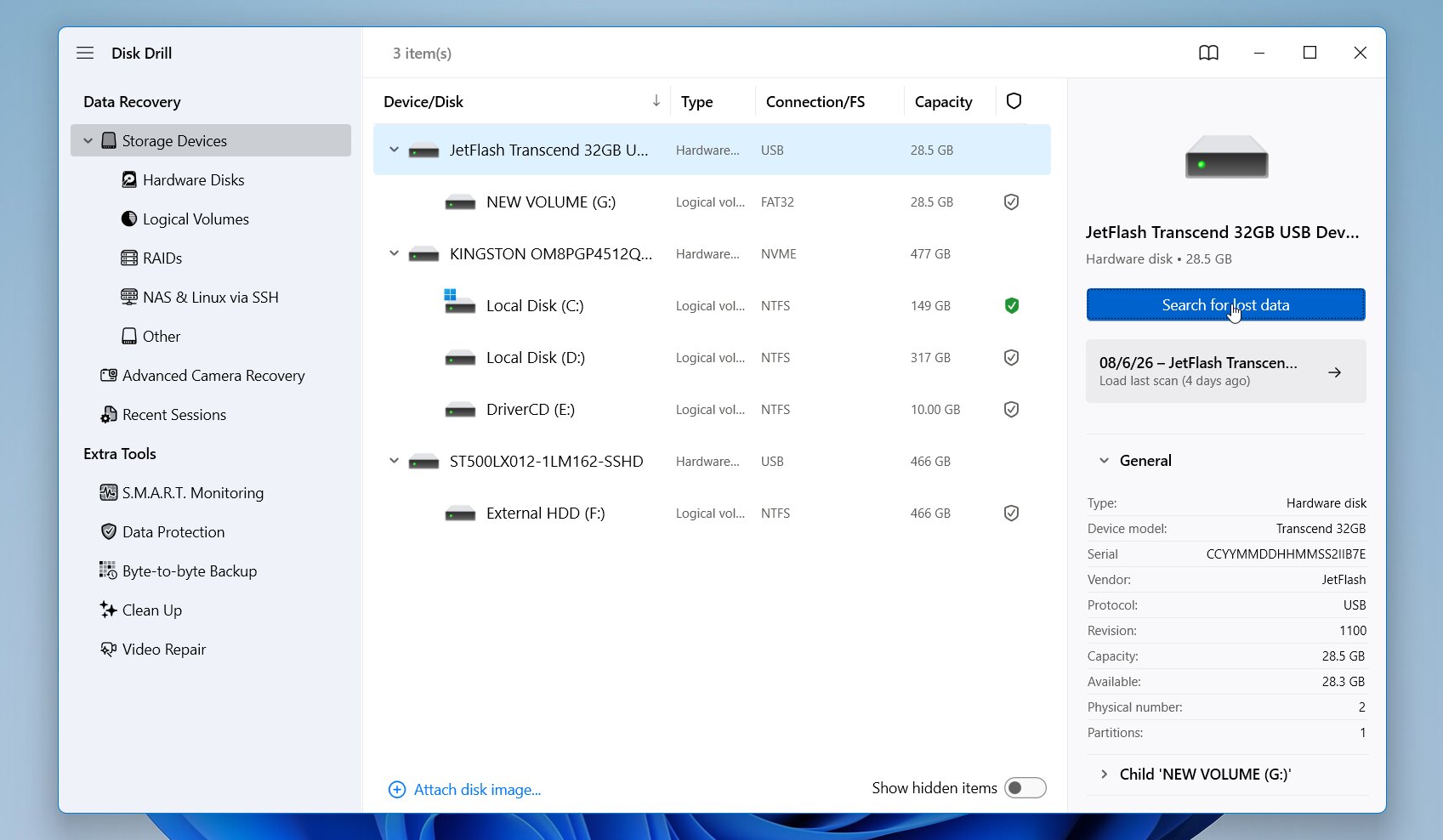
- Launch Disk Drill, select the memory card, and click Search for Lost Data.
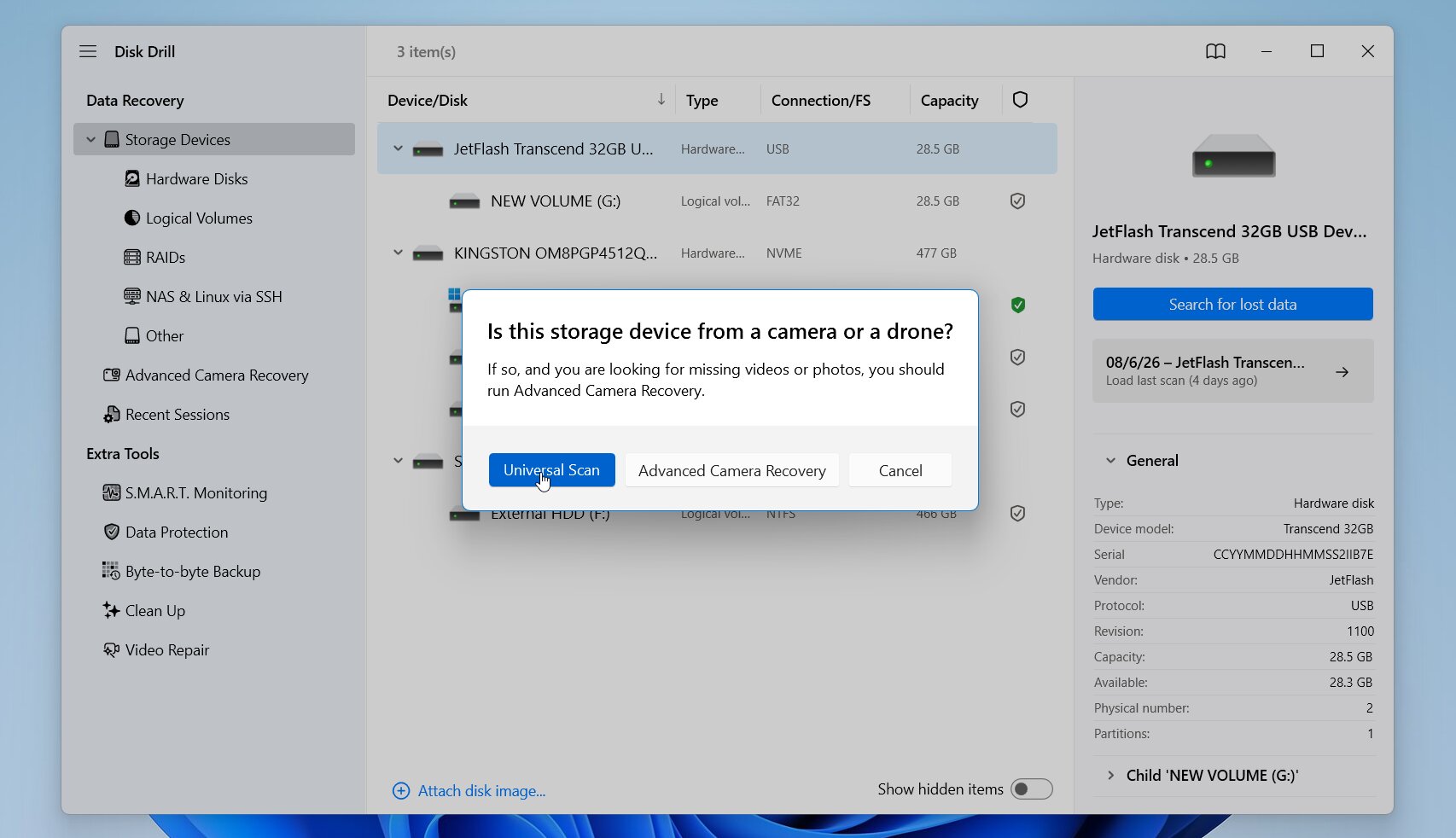
- Disk Drill will ask you to choose a recovery mode. Start with Universal Scan if the files were deleted or the card has file system damage. If the card was formatted, or Universal Scan finds videos that are corrupted or won’t play correctly, try Advanced Camera Recovery (ACR). ACR is designed to reconstruct fragmented footage from GoPro cameras and other recording devices.
- Wait for the scan to finish, then click Review found items.
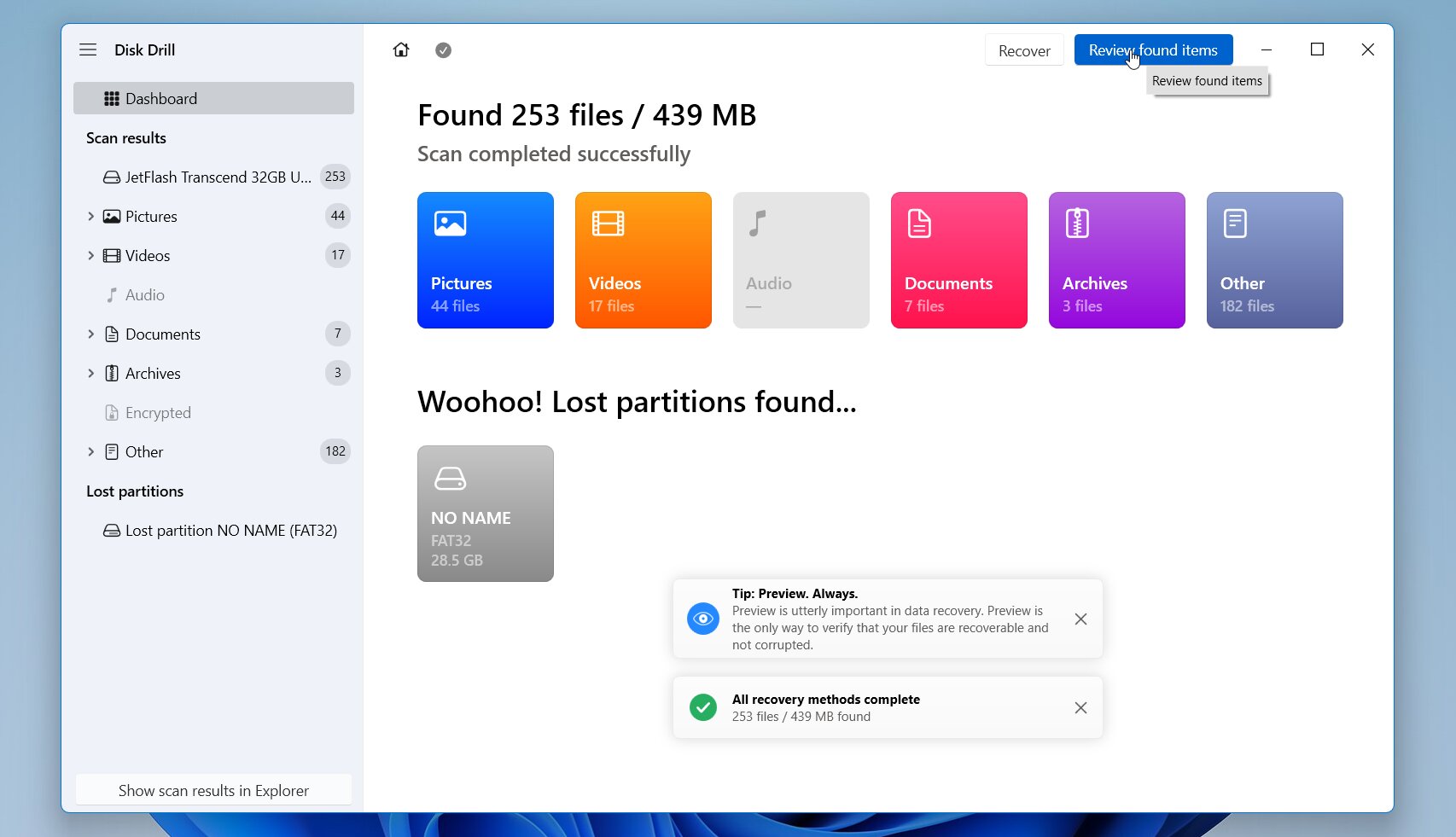
- Open the Videos category or use the search box and filters to locate your files. Preview each video to confirm it plays correctly.
- Select the videos you want to recover, click Recover, and save them to a different drive or storage device.
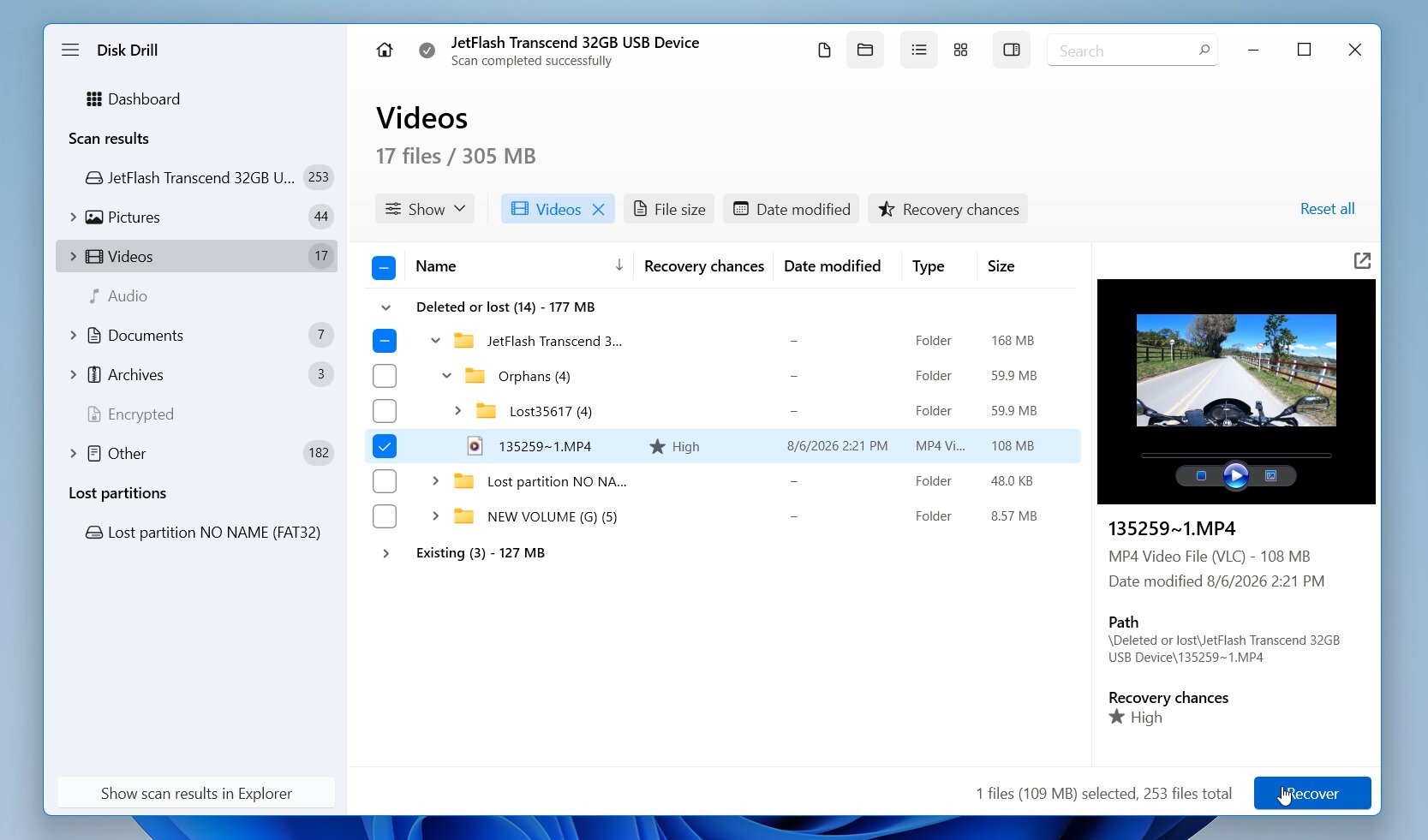
The Windows version lets you recover up to 100 MB for free, which is enough to verify that your videos can be recovered before purchasing a license.
To recover GoPro videos on macOS:
- Download and install Disk Drill on your Mac.
- Connect the GoPro microSD card with a card reader.
- Launch Disk Drill and grant any permissions it requests.
- Select the memory card and click Search for Lost Data.
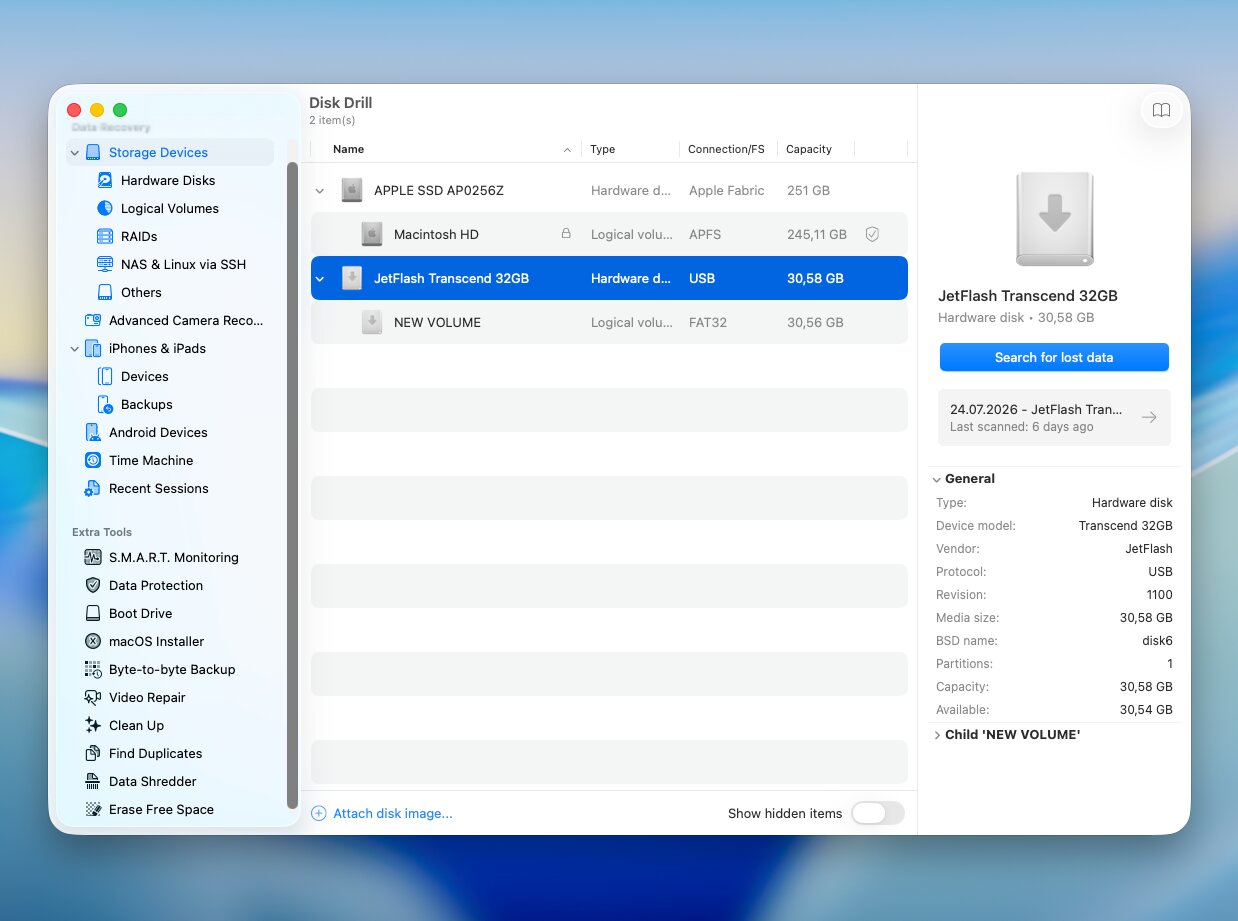
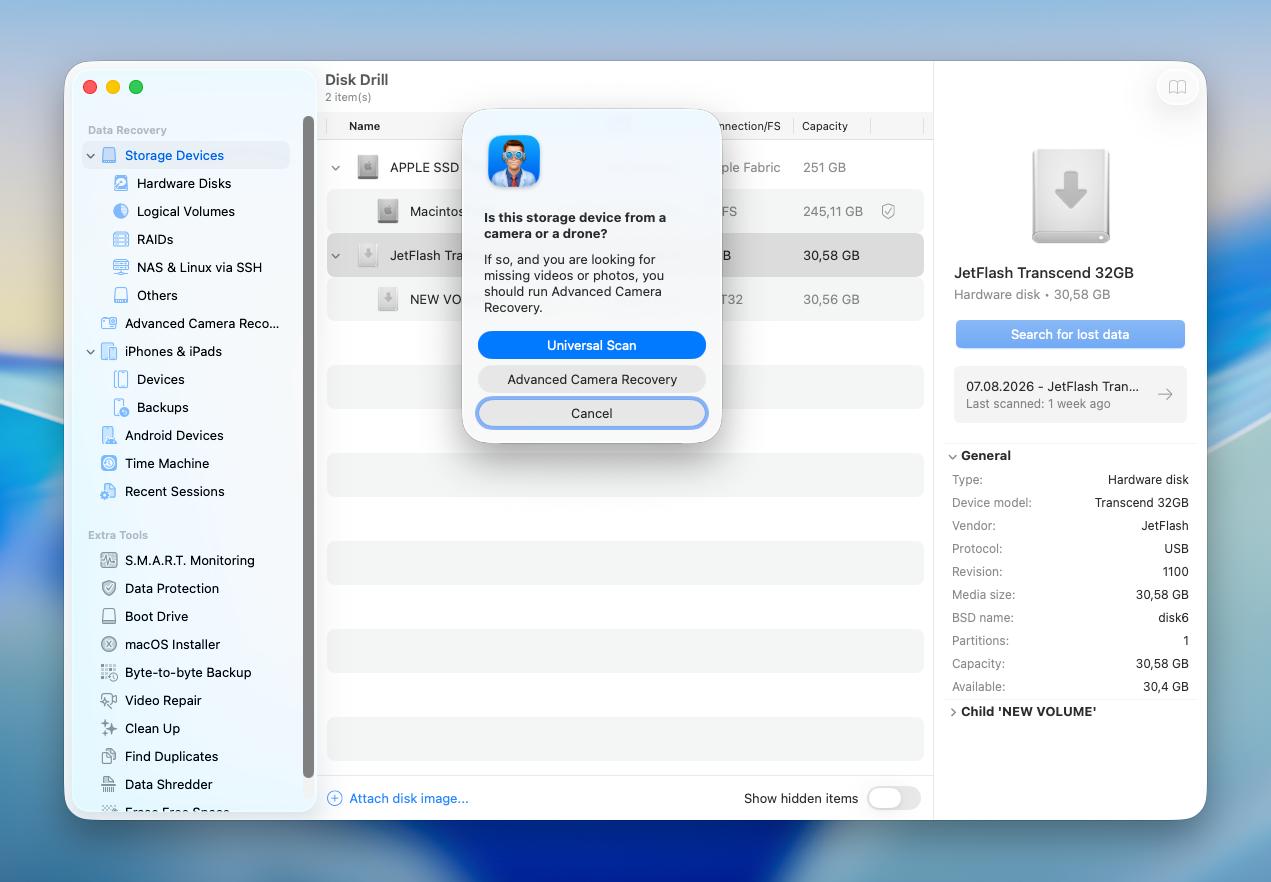
- Start with Universal Scan if the GoPro files were deleted or the memory card has file system damage. If the card was formatted, or Universal Scan recovers videos that are corrupted or won’t play correctly, switch to Advanced Camera Recovery (ACR).
- Wait for the scan to finish, or open the Videos category to start reviewing found files immediately.
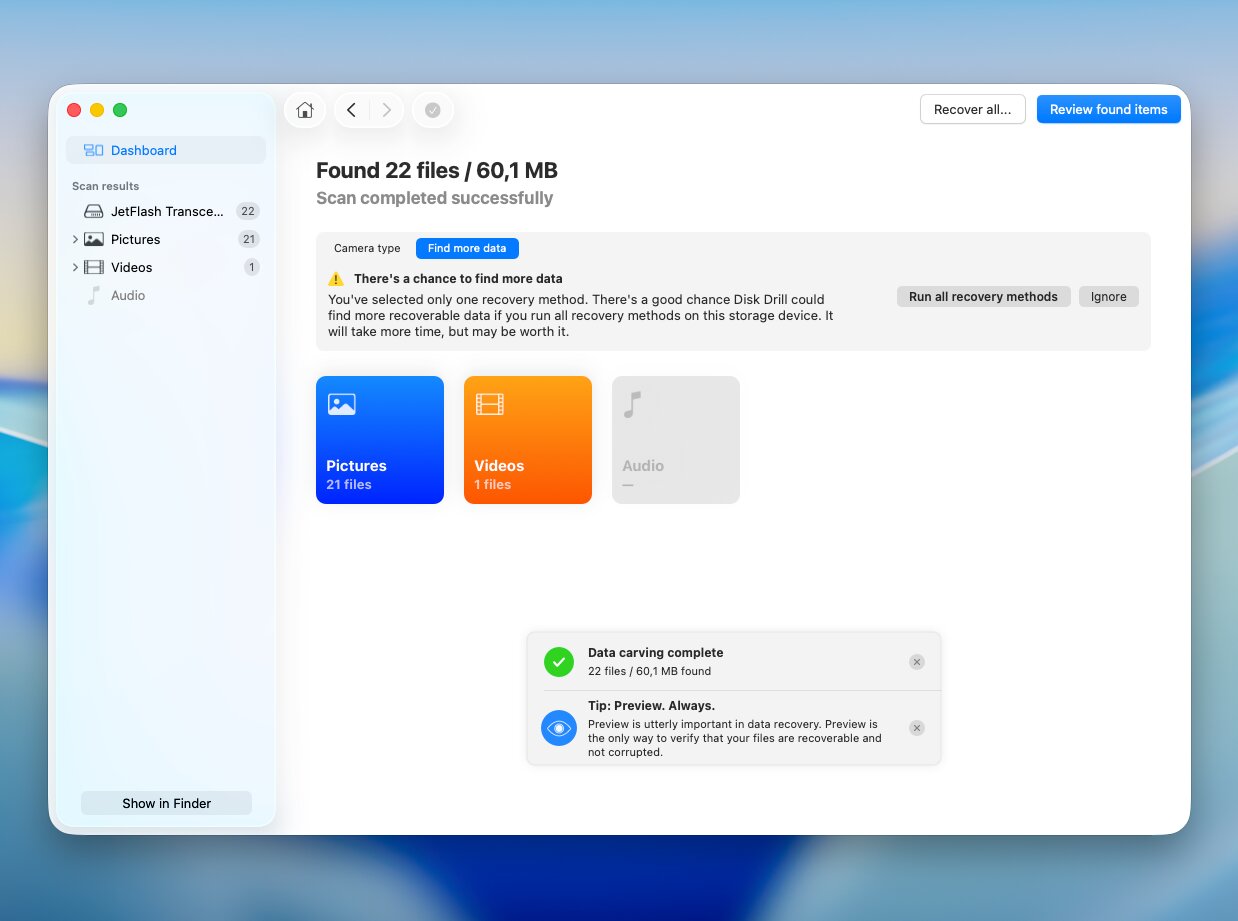
- Preview the videos you find, select the ones you want to recover, click Recover, and save them to a different location.
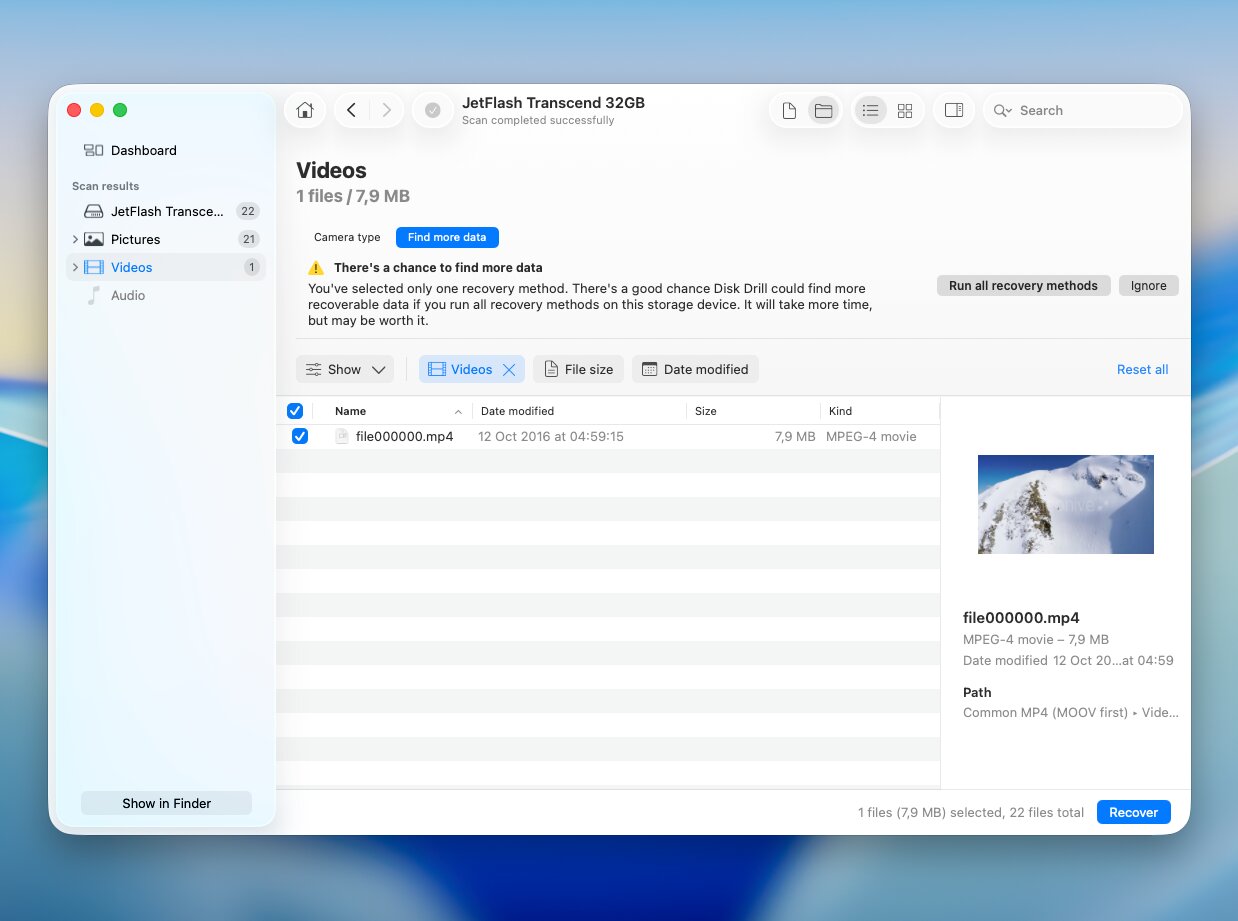
Unlike the Windows version, Disk Drill for Mac doesn’t include free recovery. However, you can scan your storage devices, review the results, and preview recoverable videos at no cost before deciding whether to purchase a license.
Disk Drill is an excellent choice, but it’s not the only one. If you’d like to compare additional recovery tools, see our guide to the best SD card recovery software.
Method 2: Consult Data Recovery Services
If the lost GoPro videos are especially important, or the microSD card has physical damage, consider a professional data recovery service. This is often the best option if the card no longer appears on your computer, shows the wrong capacity, has broken connectors, or suffered water, heat, or impact damage.
Most data recovery companies offer a free evaluation, and many follow a “no data, no fee” policy, so you only pay if they successfully recover your files. Depending on the type of damage and the amount of data, recovery typically costs $300–$1,200 or more, and the process usually takes 3–10 business days.
Don’t continue using a physically damaged memory card or attempt DIY repairs. Every additional attempt can reduce the chances of successful recovery. Store the card safely and send it to a reputable data recovery lab as soon as possible.
GoPro Data Loss Prevention Tips
If you follow a few simple rules, you’ll be much less likely to lose your GoPro footage. Accidental deletion, memory card problems, recording interruptions, or physical damage are the main reasons why people lose data. You can avoid the most common problems by following these tips:
| Tip | Why it helps |
| 🛡️ Protect your GoPro from physical damage | Although GoPro cameras are built for tough conditions, they’re not indestructible. A protective or waterproof case can help prevent damage from drops, impacts, dust, and water, especially during extreme sports or underwater use. |
| 💾 Buy a high-quality microSD card | Choose a brand-name microSD card that meets GoPro’s recommended speed class for your camera model (typically A2, V30, UHS-3 or higher for newer models). Cards that don’t meet these requirements can cause recording errors or unreliable performance. GoPro also recommends replacing older memory cards if they begin to cause problems, as flash memory wears out over time |
| ☁️ Back up your videos regularly | Copy your footage to your computer, an external drive, or cloud storage after each important recording session. The more copies you have, the less likely you’ll lose valuable videos. |
| ⏏️ Eject the memory card safely | Always stop recording before you remove the SD card from your GoPro. When you connect it to a computer, always use the Safely Remove Hardware option (Windows) or Eject (macOS) before disconnecting the card reader. Otherwise, the file system may become corrupted, or some videos may become incomplete. |
| 🔋 Don’t let the battery die during recording | If the battery runs out while a video is still being recorded, the file may not finish writing correctly, leaving it damaged or unplayable. Charge the battery before long recording sessions or carry a spare. |
| 📸 Format the card in the GoPro | After you’ve backed up your footage, format the memory card in the GoPro instead of deleting files one by one on a computer. This creates the file system the camera expects and helps prevent recording issues. |
| 📦 Use separate cards for important projects | Instead of storing multiple trips or events on the same card, dedicate a separate memory card to important projects whenever possible. This limits the impact if one card becomes damaged or corrupted. |
Even the best recovery software has its limits. That’s why regular backups, reliable memory cards, and careful handling remain the best way to protect your GoPro footage. It’s always easier and less stressful to prevent data loss than to recover videos after they’re gone.
Closing Notes
Deleted GoPro videos are often recoverable, especially if you stop using the microSD card immediately and act before new footage overwrites the deleted files. For most situations, Disk Drill is our recommended solution because it supports GoPro video formats, works with FAT32 and exFAT memory cards, and includes Advanced Camera Recovery for fragmented camera footage.
If the microSD card has physical damage or your computer no longer detects it correctly, skip DIY recovery and contact a professional data recovery service. Further attempts to use a damaged card can reduce the chances of successful recovery.
If you need more help, visit our forum or online GoPro communities. You’ll find real recovery cases, user experiences, and practical advice from the community for many different data loss situations.
FAQ:
- Stop using the camera immediately. Recording new videos can overwrite the deleted footage.
- Remove the microSD card from the GoPro and connect it to your computer with a card reader.
- Scan the card with data recovery software. For the best results, use a tool that supports fragmented GoPro videos, such as Disk Drill's Advanced Camera Recovery mode.
- Preview the recovered videos and save them to a different storage device.