Data can often be recovered from a Samsung SSD, but the chances depend heavily on what happened to the drive. If the SSD became corrupted or RAW, a partition was deleted, or the drive switched to read-only mode, the original data may still be present because TRIM does not normally apply to these types of logical problems. If files were deleted or the SSD was quick-formatted, however, TRIM may clear the affected blocks quickly, making Samsung SSD recovery much less likely (this can affect both internal and external SSDs when TRIM is supported and passed through to the drive). If the Samsung SSD is no longer detected with its correct capacity, software recovery may not be appropriate, and a professional data recovery service is usually the safer option.
In this guide, we’ll go through these scenarios one by one and explain which Samsung SSD recovery method makes sense in each case. The methods apply to popular Samsung SSDs such as the 870 EVO and 870 QVO, 980 and 990 PRO, as well as portable models like the Samsung T7 and T9.
If you have a recent backup, use it to restore your files. If no backup is available, stop writing new data to the drive, keep it read-only where possible, create a byte-to-byte image, and scan the image with Samsung SSD data recovery software rather than repeatedly scanning the original SSD.
What to Do First
If you still need files from the Samsung SSD, don’t do anything that can change its current state. This includes repairs, formatting, optimization, and regular use of the drive.
- Don’t save new files to the SSD or install recovery software on it.
- Don’t run CHKDSK, format the drive, or initialize it in Disk Management.
- Don’t use Performance Optimization, Secure Erase, or update the firmware in Samsung Magician until your data is safe.
- If the SSD has become read-only but you can still access the files, don’t try to fix it yet. Copy the important data to another drive first.
There is one case where you should act immediately. If the affected SSD is the drive Windows runs from, shut down the computer. Windows constantly writes data in the background, and leaving the system running can also give TRIM more time to process deleted data.
If you can remove the SSD, connect it to another computer and continue from there. Use that computer to create a byte-to-byte image and recover the files without booting from the affected SSD. If removing the SSD isn’t an option, don’t boot into Windows from it again. Instead, boot the computer from another drive or a recovery environment and create an image of the SSD on separate storage. You can then scan that image instead of working with the original drive.
Can You Recover Data from a Samsung SSD?
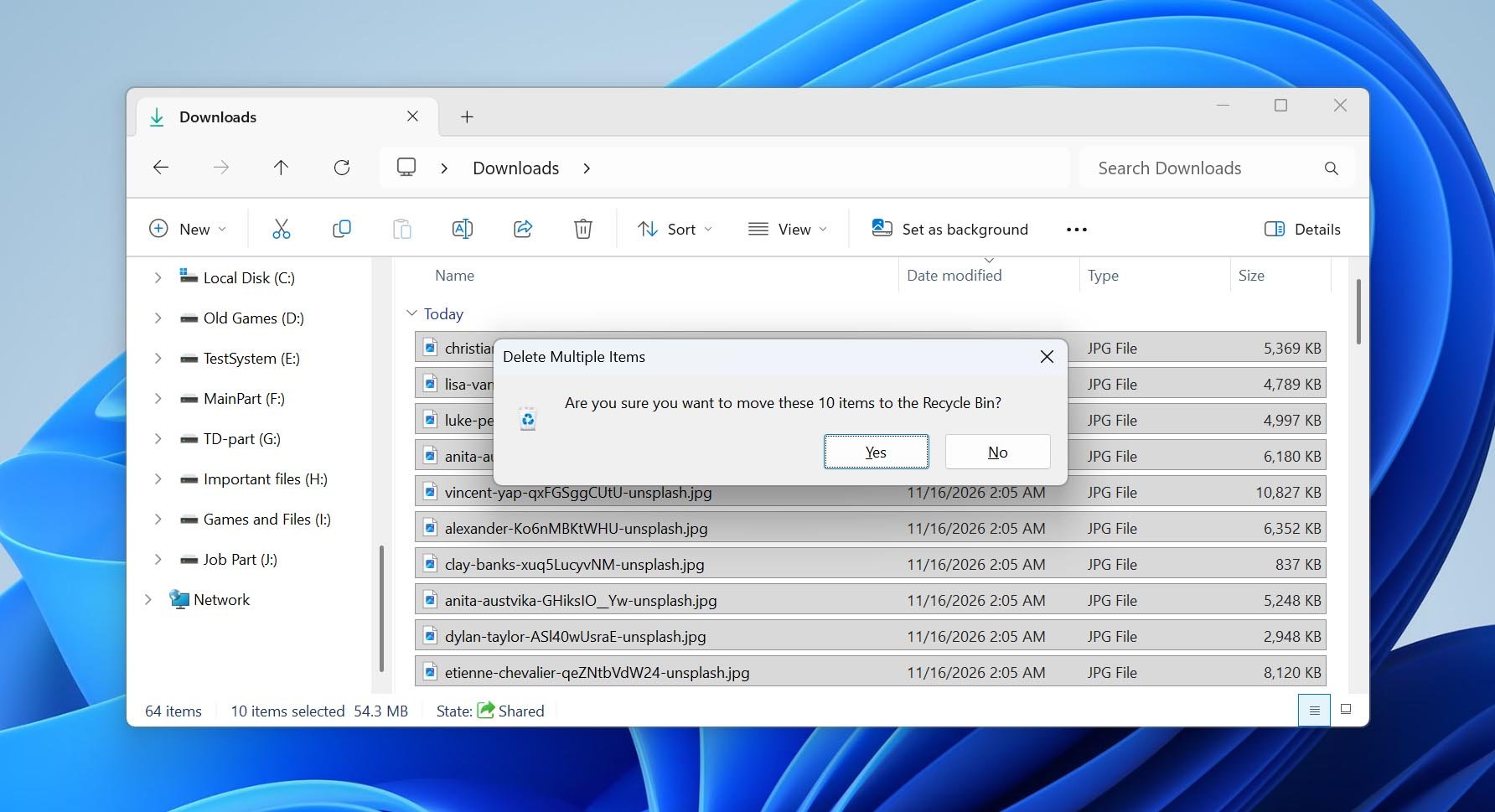
Yes, but SSD recovery works differently from recovery from a hard drive. The main reason is TRIM. When you delete a file, Windows can send a TRIM command to tell the SSD that the blocks occupied by that file are no longer needed. The SSD can then erase them internally. Once those blocks have been cleared, data recovery software cannot recover their previous contents.
However, several conditions have to be met for TRIM to reach the SSD. TRIM must be enabled in Windows, the file system must support it and send the command, the SSD itself must support it, and the storage connection must pass the command through. This chain is normally present with internal SATA and NVMe SSDs. External Samsung SSDs can also receive TRIM, but this depends on the USB or Thunderbolt connection and controller. You can read more about how this affects SSD data recovery.
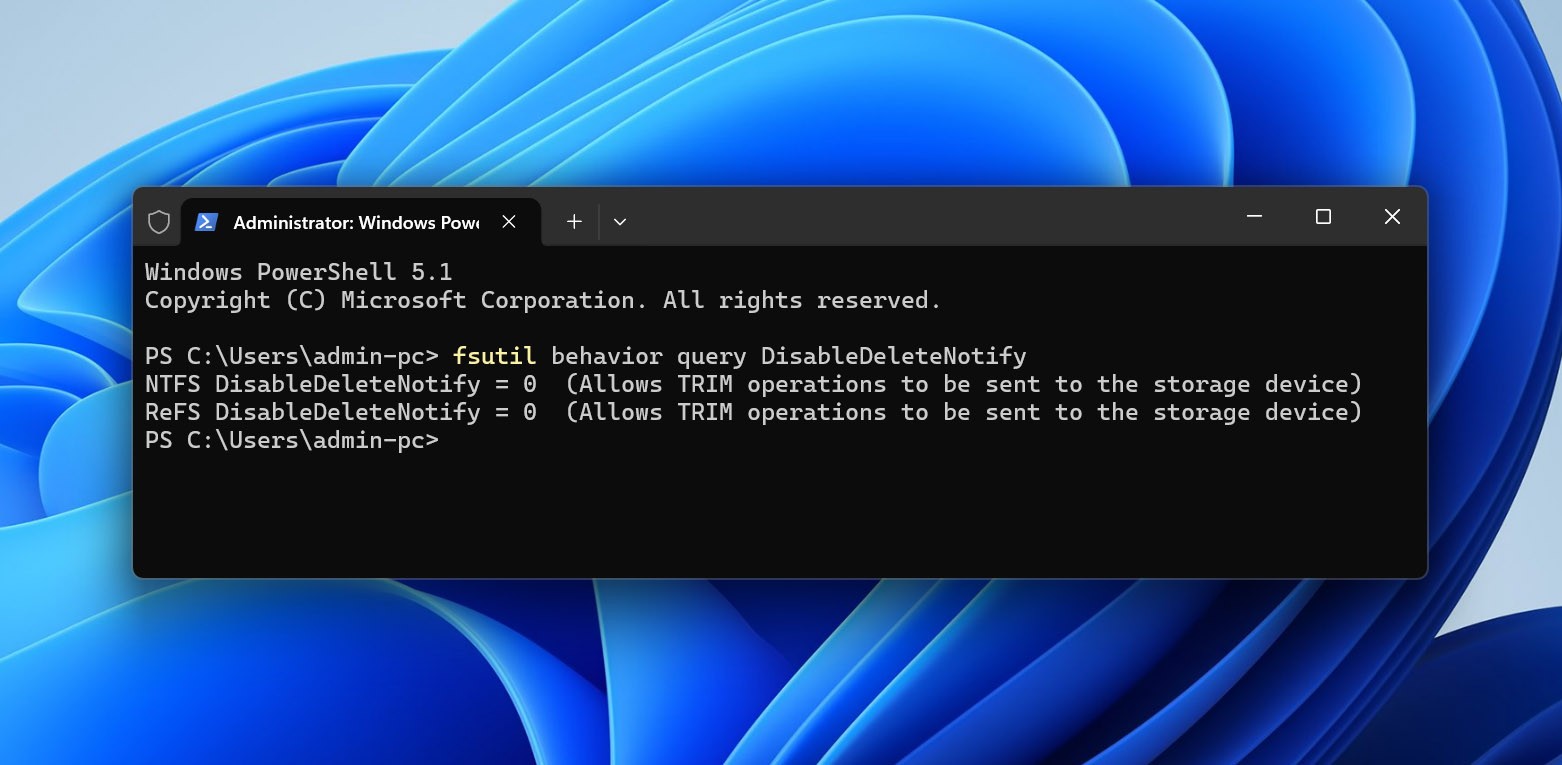
To check whether Windows is currently configured to send TRIM commands, open Command Prompt as administrator and run fsutil behavior query DisableDeleteNotify. For NTFS, DisableDeleteNotify \= 0 means TRIM notifications are enabled, while DisableDeleteNotify \= 1 means they are disabled. This only checks the Windows setting. It cannot tell you whether a particular TRIM command reached the SSD or whether the blocks containing your deleted files have already been erased.
With that in mind, recovery chances can differ significantly depending on what happened to the Samsung SSD:
| Scenario | Chance | What to Do |
|---|---|---|
| Files deleted from an internal Samsung SSD | Low | Stop using the SSD immediately. If TRIM was passed to the drive, the deleted blocks may already have been cleared. |
| Internal Samsung SSD was quick-formatted | Low | Stop using the drive and attempt recovery before doing anything else. See the steps for recovering data from a formatted SSD. |
| Files deleted or drive formatted on a portable Samsung T5/T7/T9 connected over USB | Usually higher | Stop using the SSD and scan it or its byte-to-byte image. USB connections do not always pass TRIM, although some configurations do. |
| SSD became RAW or corrupted | High | Create an image first and recover the data before attempting repairs. See how to handle a corrupted SSD. |
| Partition deleted without formatting | High | Do not create a new partition or format the unallocated space. Scan the physical SSD or its image for the lost partition and files. |
| SSD became read-only but is still readable | High | Copy accessible files to another drive immediately. Do not try to remove the read-only state before the data is safe. |
| SSD is not detected in BIOS or Disk Management, or shows 0 GB / an incorrect capacity | Very low with software | Check the connection once, but do not repeatedly reconnect or initialize the drive. Follow the diagnostic steps for an SSD that isn’t detected; hardware failure may require a data recovery service. |
How to Recover Data from a Samsung SSD with Recovery Software
If you choose the right Samsung SSD data recovery software, it can help in more situations than just accidental file deletion. A recovery tool can find files lost after deletion or formatting, but it can also access existing data when Windows can no longer open the SSD normally, such as when its file system becomes RAW. This is possible because recovery software does not rely entirely on Windows mounting the file system. It can scan the storage directly, use the remaining file system metadata, and search for known file signatures when that metadata is damaged or missing.
Disk Drill is a good example and took first place in our list of the best SSD data recovery software. In our tests, it combined fast scanning with a useful set of recovery features and support for many file types you may have stored on a Samsung SSD, including photos, videos, documents, and archives. You can also preview recoverable files before saving them, which makes it easier to check the results before using a recovery license.
If your Samsung SSD shows signs of logical damage, repeatedly scanning the drive itself is not the best option. Disk Drill includes a Byte-to-byte Backup feature that can create a disk image containing the readable sectors of the SSD. Create the image on another physical drive, add it to Disk Drill, and continue with Step 2 below using the image instead of the original SSD. You can find more details about this and other features in our Disk Drill review. For example, Disk Drill also includes S.M.A.R.T. monitoring, which can help track SSD health and alert you to changes in its condition.
Follow these steps to perform Samsung SSD data recovery with Disk Drill:
- Download and install Disk Drill. Make sure you install it on a different drive, not the Samsung SSD you want to recover data from.
- Open Disk Drill and select the affected Samsung SSD from the list of devices. If you created a byte-to-byte image earlier, add the image to Disk Drill and select it instead of the physical SSD. Click Search for lost data to continue.
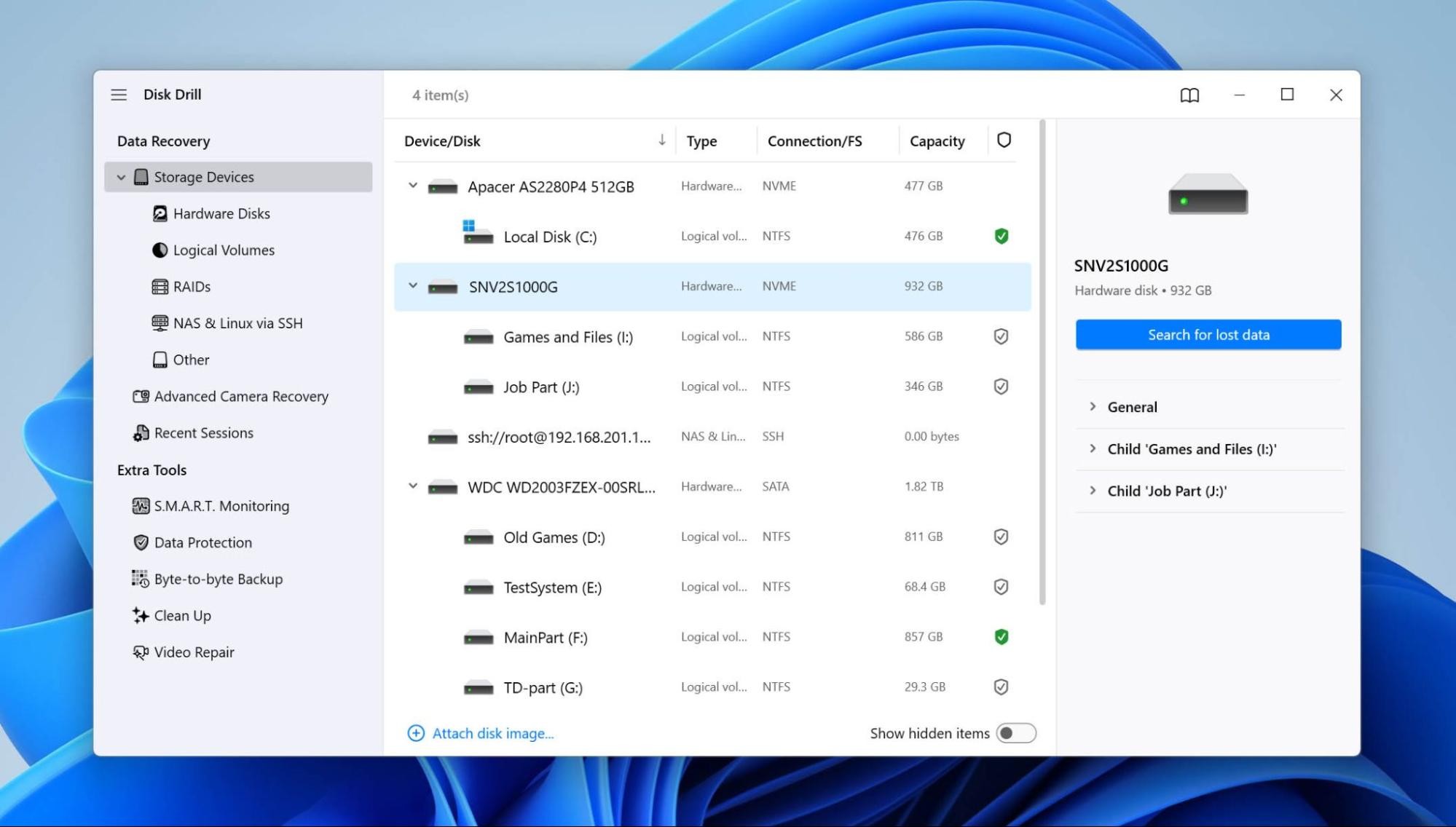
- If Disk Drill asks you to choose a scan type, select Universal Scan. It combines the available scanning methods and is the best starting point when you don’t know exactly how the files were lost.
- Let the scan finish, then click Review found items.
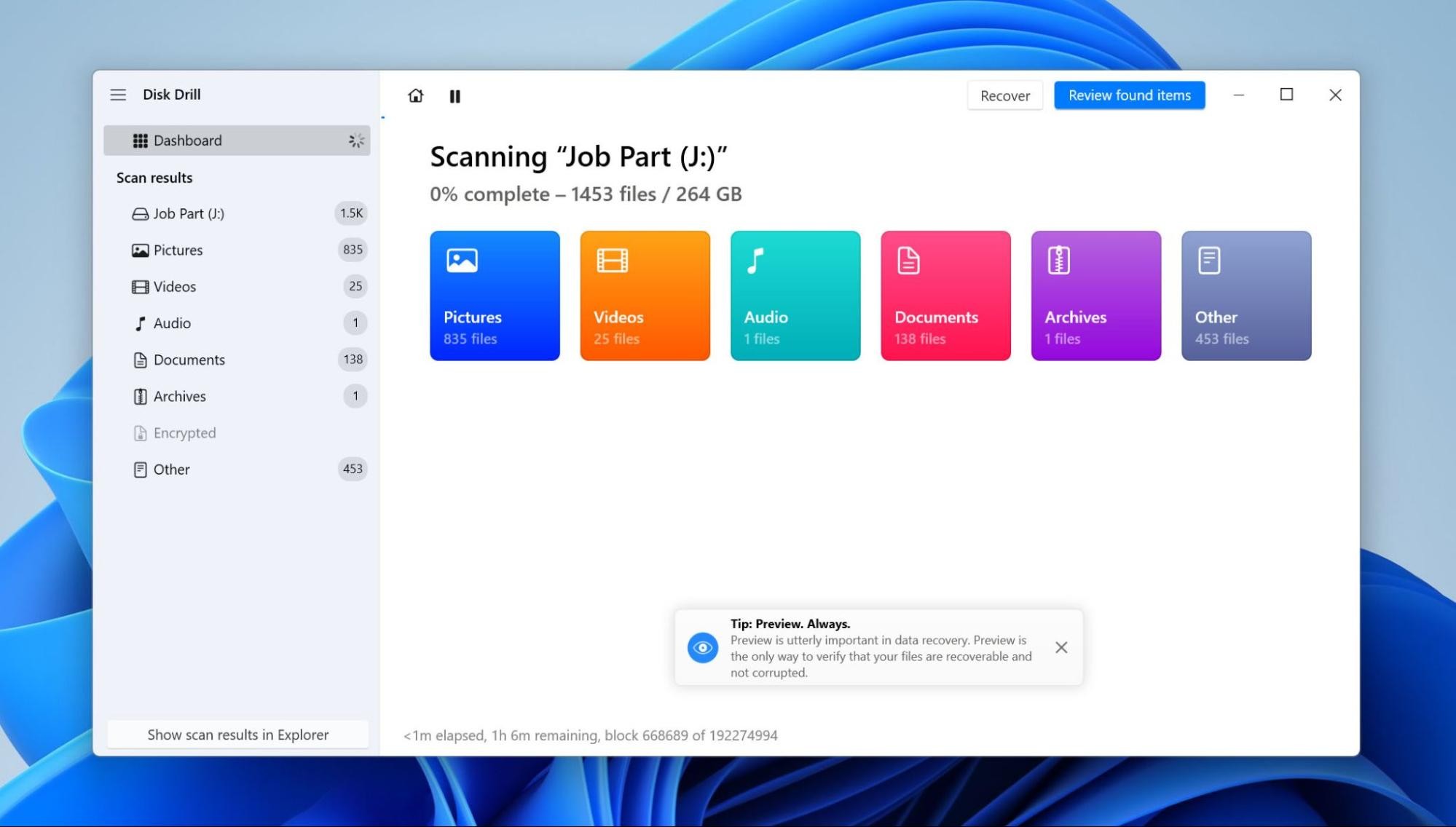
- Check the scan results. Disk Drill separates files into Deleted or lost, Existing, and Reconstructed. Where you should look depends on what happened to the SSD. For accidental deletion or formatting, start with Deleted or lost. If the SSD became RAW or its file system was damaged, also check Existing for files Disk Drill can still locate through the remaining file system data. Reconstructed contains files found by their signatures when the original file system information is no longer available, so these files may not retain their original names or folder structure.
- Select the files you want to recover and preview them before continuing. This is particularly important with deleted files on an SSD. A scan result (from a quick or deep scan) may still show the original filename and other metadata even if TRIM has already cleared the blocks containing the actual file data. Check both the preview and file size rather than relying on the filename alone.
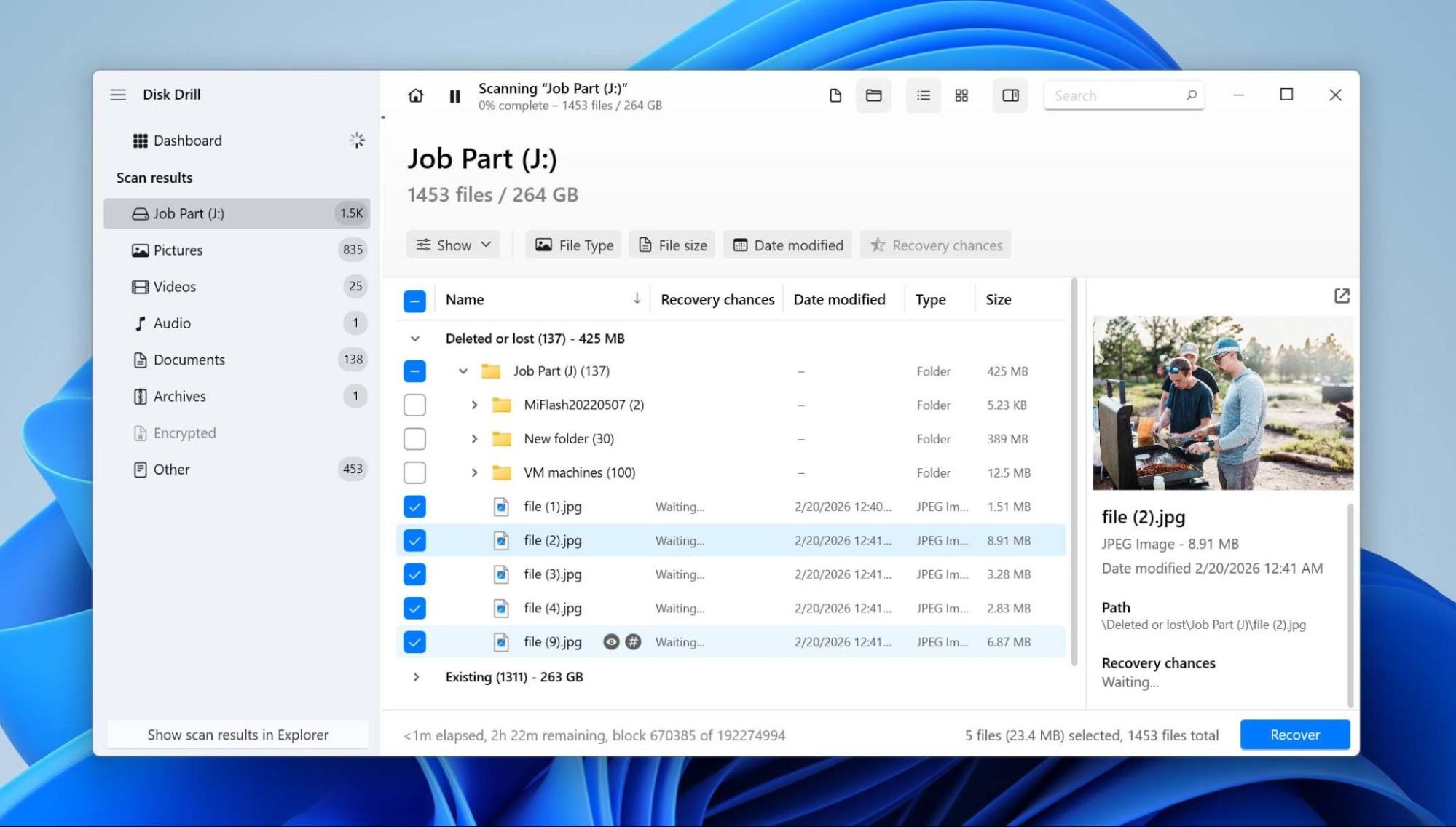
- Click Recover and choose where to save the files. Use a different physical drive, not another partition or folder on the affected Samsung SSD.
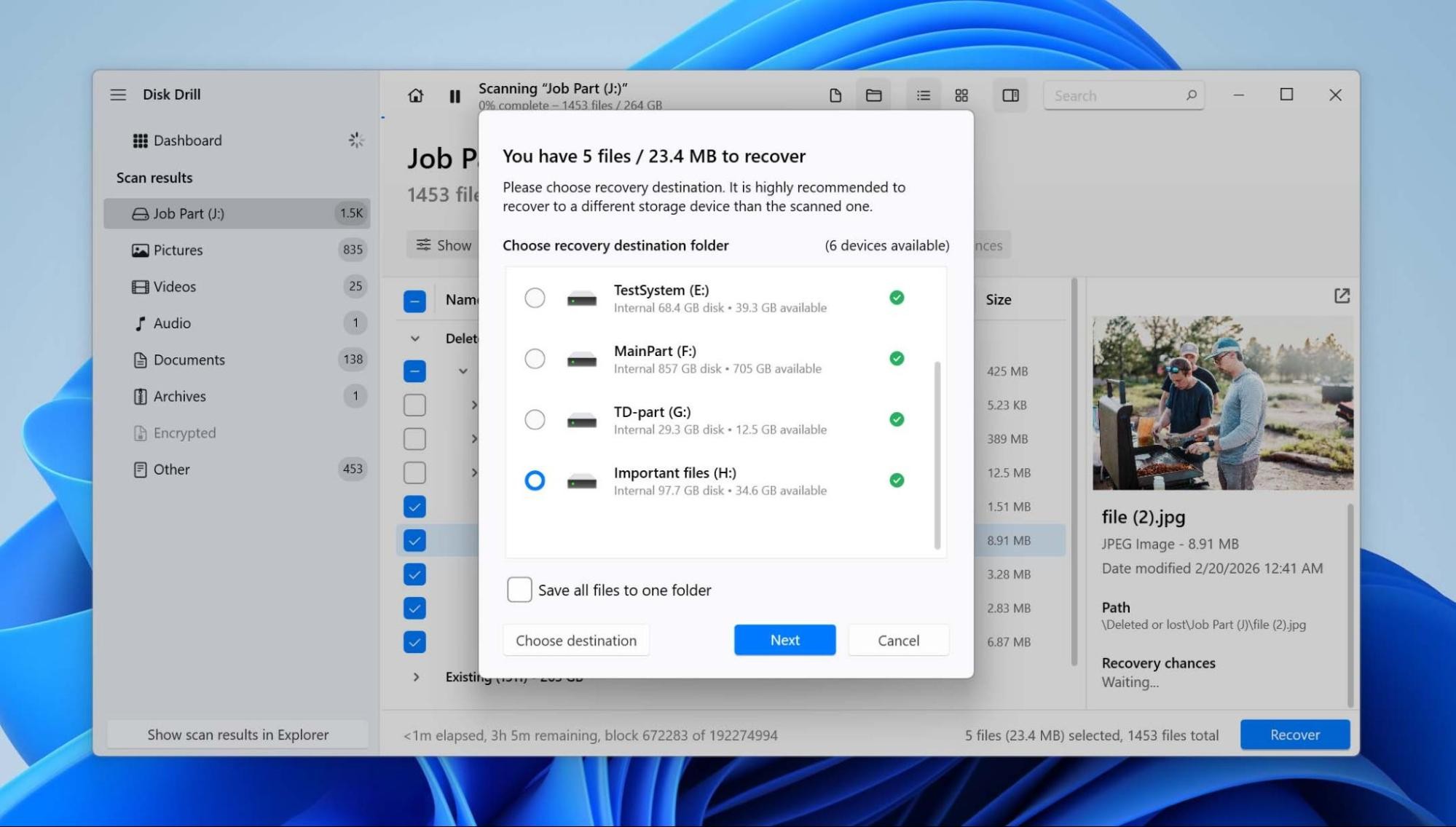
- Click Next to complete the recovery.
Disk Drill for Windows lets you recover up to 100 MB of data for free. You can scan the entire Samsung SSD and preview the files it finds before recovery, but if you need to restore more than 100 MB, you’ll need to upgrade to Disk Drill PRO.
Can Samsung Magician Recover Your Data?
No. Samsung Magician can monitor, manage, and optimize supported Samsung SSDs, but it cannot recover deleted or lost files. Samsung Data Migration is not a recovery tool either. It can copy data that is still accessible on the source drive, but it will not find files that have been deleted, lost after formatting, or are no longer accessible through the file system.
Firmware updates should also be treated as maintenance, not recovery. This is particularly relevant to some Samsung SSDs that have had firmware-related issues. Older firmware on certain 980 PRO drives was associated with SSDs entering read-only mode, while some 990 PRO users reported unusually rapid drops in the reported drive health. If the SSD still contains important data, copy or recover that data first and update the firmware afterward. A firmware update may prevent or address a known drive issue, but it will not restore files that have already been lost.
When to Send Your Samsung SSD to a Data Recovery Service
Data recovery software only works when the computer can still communicate with the Samsung SSD and read its storage. If the problem involves the controller, firmware, NAND memory, or physical damage, scanning the drive at home may not work and can sometimes make matters worse.
Consider a data recovery service if the SSD:
- Is not detected in BIOS or Disk Management, or shows 0 GB or the wrong capacity.
- Repeatedly disconnects or prevents the computer from working normally when connected.
- Has a failed controller or a suspected firmware problem that prevents access to the NAND memory.
- Has physical damage from an electrical failure, liquid, impact, or damaged connectors.
A data recovery lab can diagnose the SSD and determine whether its NAND memory can still be accessed. You’ll typically send in the drive for evaluation, receive a quote after the initial diagnosis, and approve the recovery before work begins. If successful, the recovered files are copied to another storage device and returned to you.
Common Reasons for Data Loss From a Samsung SSD
In most cases, data loss occurs seemingly at random. For instance, one day you might boot up your computer to find your hard drive is not showing up. Here are some common reasons why your data disappears on Samsung SSDs:
| Reason | What Happens | How to Reduce the Risk |
|---|---|---|
| File deletion + TRIM | After a file is deleted, Windows may send a TRIM command to the SSD. Once the SSD clears those blocks, recovery software can no longer retrieve their previous contents. | Keep regular backups of important files. For accidental deletion, stop using the SSD as soon as you notice the loss instead of continuing to write new data to it. |
| Formatting | Formatting creates a new file system and removes access to the files previously stored on the SSD. A quick format may also trigger TRIM, which can make subsequent recovery much more difficult. | Double-check the drive letter, model, and capacity before formatting. Disconnect other external drives when formatting a new SSD if there is a risk of selecting the wrong one. |
| File system corruption / RAW | Damage to file system structures can make files inaccessible or cause Windows to show the SSD as RAW even though much of the data is still physically present. | Eject portable SSDs properly, avoid interrupting disk operations, and keep backups rather than relying on file system repair after corruption occurs. |
| Firmware issues / read-only mode | Firmware problems can affect access to the SSD or, in some failure states, leave the drive stuck in read-only mode. The files may still be readable even though new data can no longer be written. | Keep Samsung SSD firmware up to date, but copy important data before installing an update. If a drive unexpectedly becomes read-only, back up its readable files before trying to fix it. |
| NAND wear | NAND flash cells have a limited number of program/erase cycles. As an SSD wears out, it may develop more errors, lose available spare blocks, or eventually become unreliable. | Check drive health periodically with Samsung Magician or another S.M.A.R.T. monitoring tool. Replace an SSD that reports serious health problems instead of waiting for it to fail. |
| Unsafe removal of a portable SSD | Disconnecting a Samsung T5, T7, T9, or another portable SSD while data is being written can interrupt an operation and damage files or file system metadata. | Eject the SSD through Windows before unplugging it and wait for active transfers to finish. Avoid loose cables, unstable USB hubs, and disconnecting the drive while an application is using it. |
Final Thoughts
Samsung SSD recovery depends heavily on what happened to the drive. Deleted or formatted data can be difficult to recover because of TRIM, while RAW drives, lost partitions, and other logical problems often leave more room for recovery. If you have a backup, use it first; otherwise, stop using the SSD and recover the data before attempting repairs or firmware updates. If the drive is no longer detected correctly or shows signs of hardware failure, skip recovery software and contact a data recovery service.
If you run into a problem that isn’t covered here, you can also ask for help on the 7 Data Recovery Forum. There are already discussions about specific SSD recovery cases, including recovering files from a dead SSD. If you can’t find a case similar to yours, create a new topic and describe what happened, your SSD model, and how the drive appears in Windows.