



Can you recover deleted Ring videos? Usually, no – if a video was deleted from Ring’s cloud and wasn’t downloaded anywhere else, it can’t be restored. However, if you previously downloaded the Ring video to your computer or another local storage device, recovery may still be possible.
In this guide, we’ll cover both scenarios, explain how to tell what happened to your missing footage, and walk through the recovery methods available when a local copy existed.
Can You Recover Deleted Ring Videos?
Whether you can recover a deleted Ring video depends mainly on where the video was deleted from. A recording deleted from Ring’s cloud is a very different case from a video that was downloaded to a computer or another storage device first.
If Deleted from Ring Cloud
Ring recordings are stored remotely on Amazon Web Services (AWS) servers rather than on the Ring camera itself. Ring also protects recorded videos using AES encryption (Advanced Encryption Standard) and TLS (Transport Layer Security), so you don’t have direct access to the underlying cloud storage where the video files are kept.
So if you delete a recording through Ring and don’t have a downloaded copy elsewhere, there is no storage device you can scan with data recovery software. Ring also doesn’t provide a Recycle Bin, Recently Deleted folder, or restore option for cloud recordings. Once the recording has been deleted from Ring’s cloud, you can’t recover it yourself.
Ring doesn’t provide a separate log of deleted recordings either. If you’re trying to work out whether a particular clip was deleted, look for gaps in your Event History—for example, a time when you know someone rang the doorbell or triggered motion but the corresponding recording is missing.
If Downloaded to a Computer or Storage Device
Things work differently once you download a Ring recording. Instead of existing only on Ring’s servers, the video is now stored as a regular MP4 file on a device you control, such as your computer, external HDD or SSD, USB drive, or SD card.
That gives you more recovery options. If you accidentally delete the downloaded video, it may first go to the Recycle Bin or Trash. Even after permanent deletion, traces of the file may remain on the storage device until the relevant data is overwritten, which means data recovery software may still be able to find it. If the file was included in a backup, you may also be able to restore an earlier copy.
If you’re unsure whether you downloaded the missing recording, search your computer and any external storage you normally use. Since downloaded Ring videos use the MP4 format, searching for .mp4 files and checking the approximate recording date can make them easier to locate.
What to Do Immediately Before Ring Video Recovery
Before you try any recovery method, take a minute to check a few things:
- Make sure the recording is actually gone from your Ring account and not simply difficult to find in your Event History.
- Check your computer, Downloads folder, external drives, and any other storage where you may have previously saved the Ring video.
- Stop using the storage device if the local copy was deleted. Don’t download, copy, or save new files to that drive. New data can overwrite the deleted video and reduce your chances of recovering it.
If you find that the video still exists in Ring, download a copy while it’s available. If it was deleted from local storage, keep that drive unused and move on to the recovery methods below.
How to Recover Deleted Ring Videos
Earlier in this guide, we clarified that Ring does not offer a recycle bin or restore option for cloud recordings. Once a clip disappears from the cloud and you never saved it anywhere else, it’s permanently lost.
The good news is that your recordings aren’t always gone forever. If you downloaded Ring videos to your computer or another storage device, you still have a real chance to recover them. In the sections that follow, we’ll walk through practical methods designed specifically for local files.
If your Ring videos were kept only in the cloud, the story unfortunately ends there.
| Where was the video deleted from? | Can it be recovered? | What to do? |
| Ring cloud, with no downloaded copy | No | There is no Recycle Bin or restore option for deleted cloud recordings. |
| Computer, but the file is still in Recycle Bin or Trash | Yes | Restore the video directly from Recycle Bin or Trash. |
| Computer or external storage after permanent deletion | Possibly | Stop using the drive and scan it with data recovery software. |
| Computer or external storage with a backup available | Yes, if the video is included in the backup | Restore the video from File History, Time Machine, or another backup you created. |
Method 1: Find Deleted Ring Videos in the Recycle Bin or Trash
When to use this method: You recently deleted a Ring video from your computer, didn’t use Shift + Delete on Windows, and haven’t emptied the Recycle Bin or Trash since then.
When you delete a Ring video that you previously saved on your computer, the very first thing you should do is check the Recycle Bin (on Windows) or the Trash (on macOS). This is the default place where deleted files go before they are permanently erased. As long as you haven’t emptied the bin, your videos can usually be restored in just a few clicks.
Keep in mind that this applies not only to your internal hard drive, but also to external SSDs and HDDs (on Windows) and USB and SD cards (on Mac). If the videos were stored on an external device, simply reconnect it to your computer and open the bin again — deleted items from that drive should also appear there.
Here’s how you can do it step by step:
- Double-click the Recycle Bin icon on your desktop to open it.
- Find the deleted Ring video. Since downloaded Ring recordings use the MP4 format, you can search for .mp4 files. If there are many files in the Recycle Bin, sorting them by Date Deleted can also help you find the recording faster.
- Right-click the Ring video you want to recover and select Restore. Windows will return the file to the folder where it was stored before deletion.
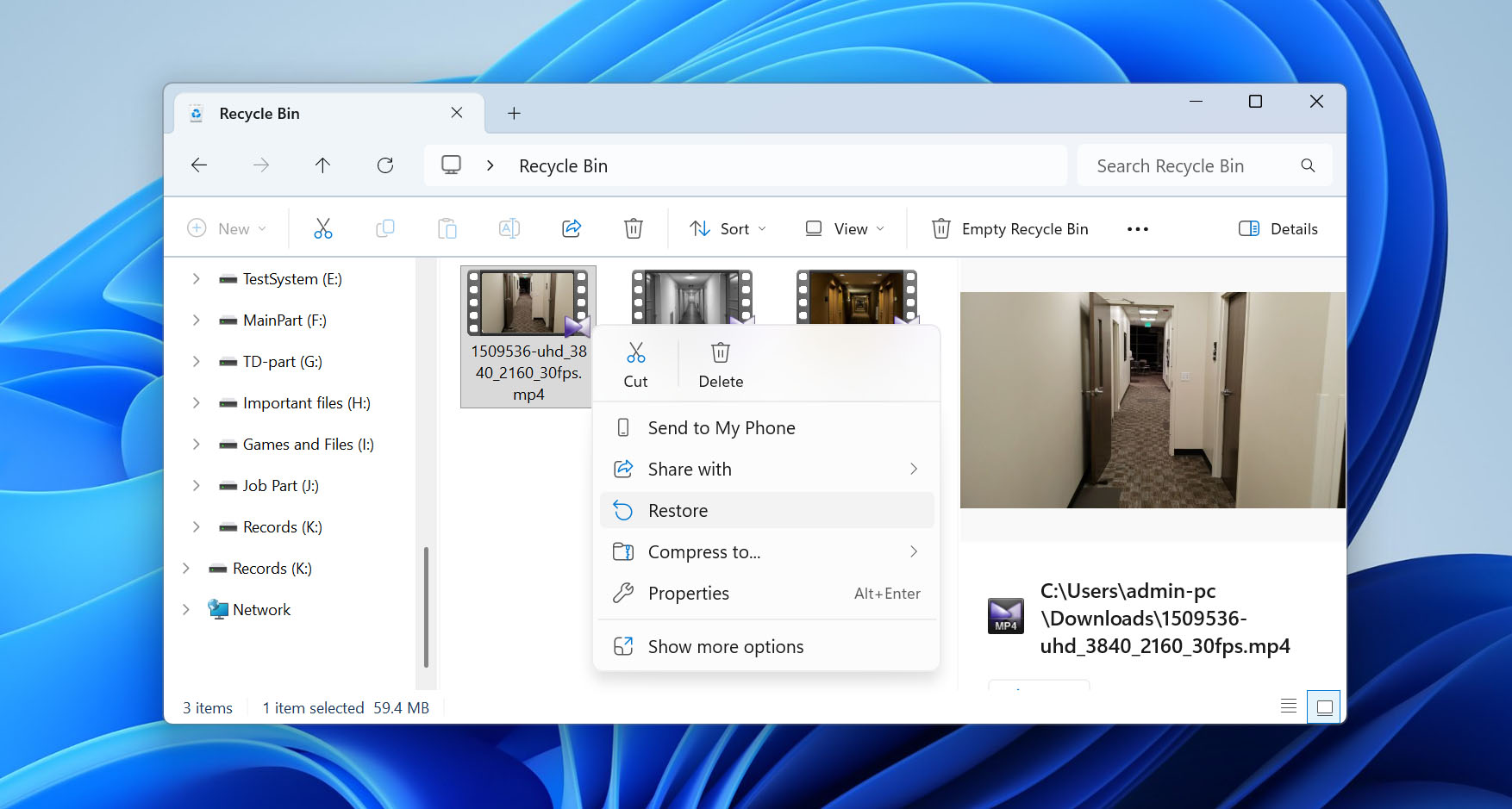
Note: If you downloaded and deleted the Ring video on a Mac, check the Trash instead. Open Trash from the Dock, find the MP4 file, right-click it, and select Put Back to return it to its original location.
If you find your video here, you’ve saved yourself a lot of effort (no extra software or complicated recovery is necessary). If the Recycle Bin or Trash is already empty, though, you’ll need to move on to the next method.
Method 2: Perform Ring Video Recovery with Data Recovery Software
When to use this method: The deleted Ring video is no longer in the Recycle Bin or Trash, and you haven’t written new data to the storage device where the video was saved.
If your Ring clips are no longer in the Recycle Bin or Trash, they’re considered permanently deleted. That doesn’t mean they’re gone forever, though. You can often recover them with the help of data recovery software. These tools scan the file system on your drive and look for traces of files that were deleted but not yet overwritten.
For this method, we recommend Disk Drill (our top choice for video recovery). In our tests, it performed remarkably well. Scan time naturally depends on the size of the storage device, but in our case, Disk Drill scanned a 32 GB USB flash drive in around two minutes, which is an excellent result. The program works with both Windows and macOS, supports all major file systems, and recognizes Ring’s MP4 format without problems.
Note: If you downloaded the Ring video to your computer’s internal SSD and then deleted it, your recovery chances may be considerably lower because of TRIM. When a file is deleted, TRIM tells the SSD that the blocks containing its data are no longer needed, allowing the drive to erase and reuse them. Once the old data is no longer accessible, even data recovery software won’t be able to recover the deleted video.
Let’s see how you can retrieve deleted Ring videos using Disk Drill (we’ll use the Windows version in our example, but if you’re on a Mac, the steps are essentially the same):
- Download and install Disk Drill. Do this on a storage drive apart from the one which contained your deleted Ring videos.
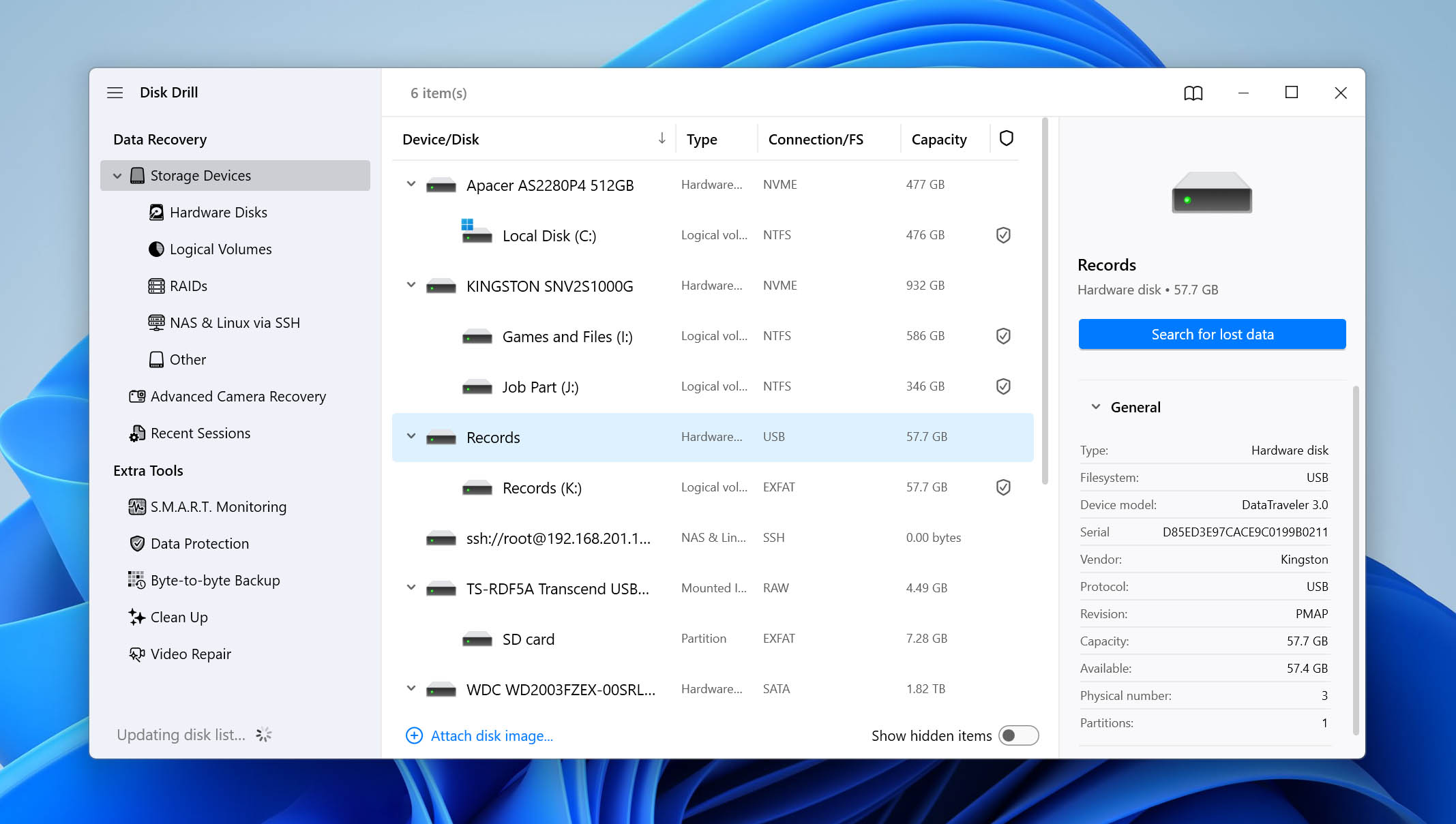
- Open Disk Drill, and select the storage device which contained your Ring doorbell’s missing footage. Click on Search for lost data. If they were stored on an external storage device, connect it to your computer first.
- For some external storage devices, Disk Drill may ask you to choose between Universal Scan and Advanced Camera Recovery. For deleted Ring camera videos, select Universal Scan and start the scan.
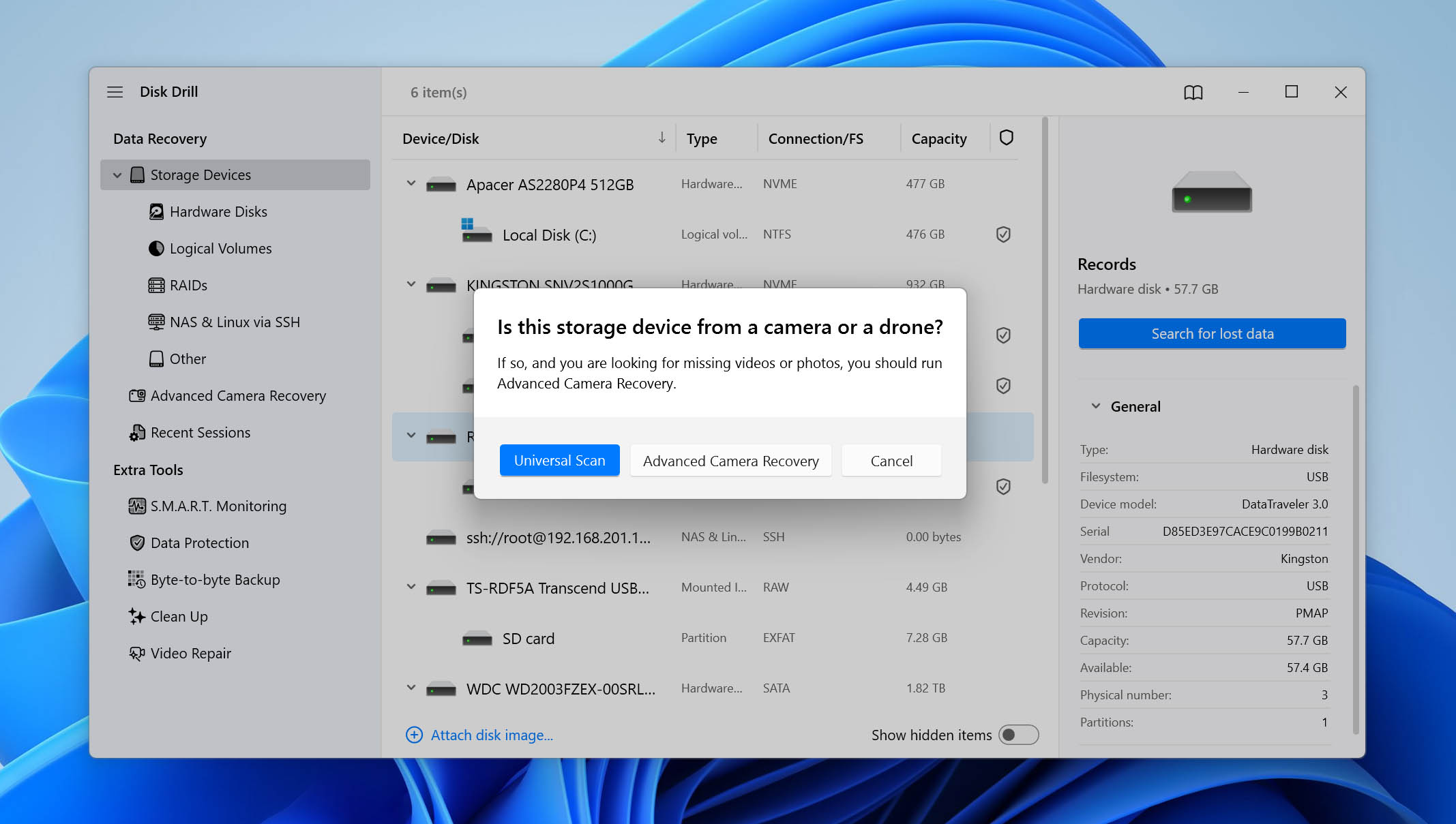
Note: Advanced Camera Recovery is designed for different video recovery scenarios. If you want to learn when to use it, as well as what other recovery and data protection features Disk Drill offers, we recommend checking out our full Disk Drill review.
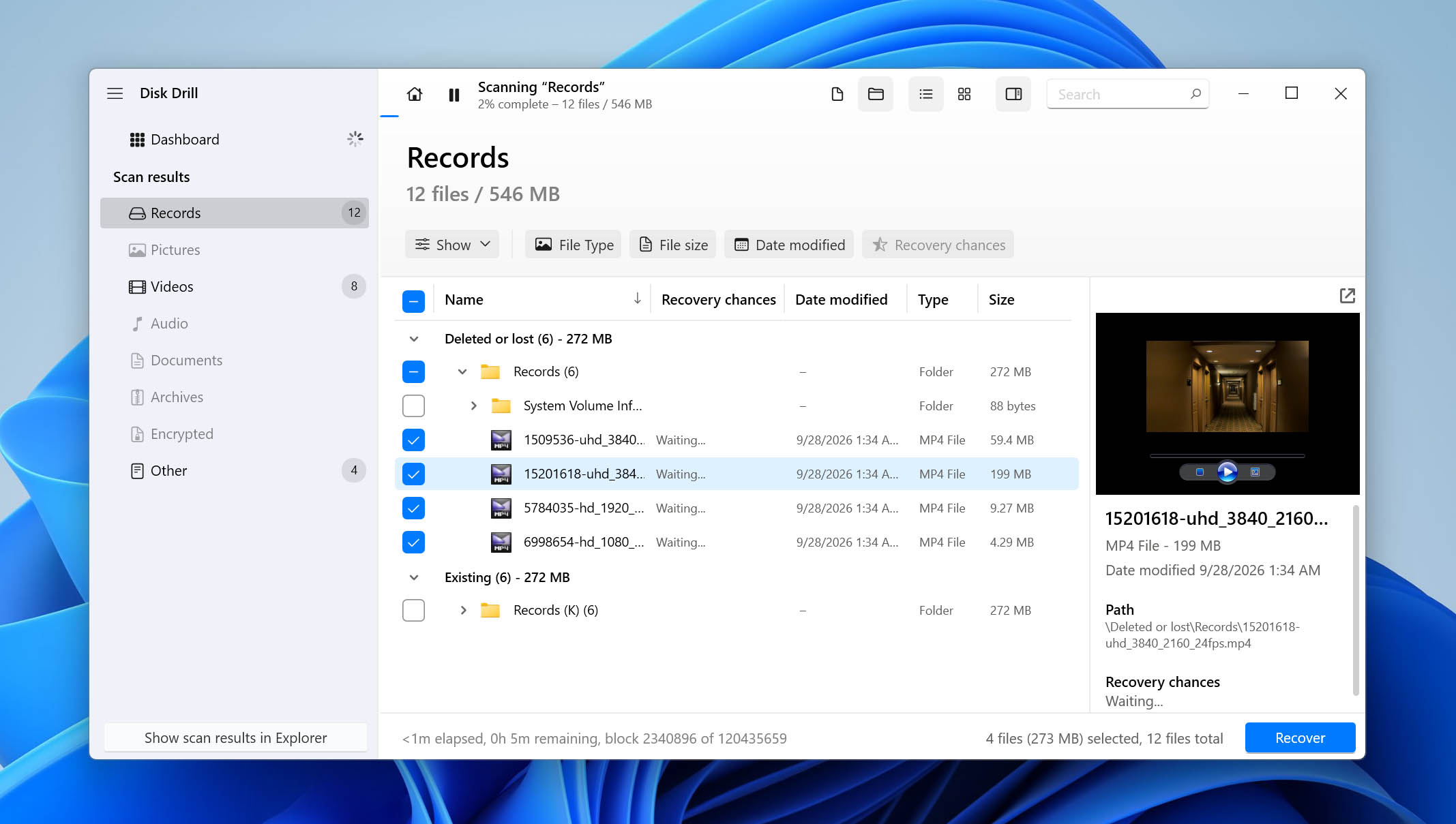
- Click on Review found items to view all the recoverable data Disk Drill discovered. Since you’re looking to recover video files, you can directly click on the Videos option to filter out the results.
- Expand the Deleted or lost and Reconstructed sections to view the deleted files Disk Drill discovered.
- Select the videos you wish to recover using the checkboxes. Typically, Disk Drill will automatically display a preview of the currently selected file. If it doesn’t, you can click on the eye icon next to the filename to see a preview. Click on Recover after confirmation.
- Choose a recovery destination. We recommend you save the Ring videos to a storage drive besides the one which originally contained them. Click Next.
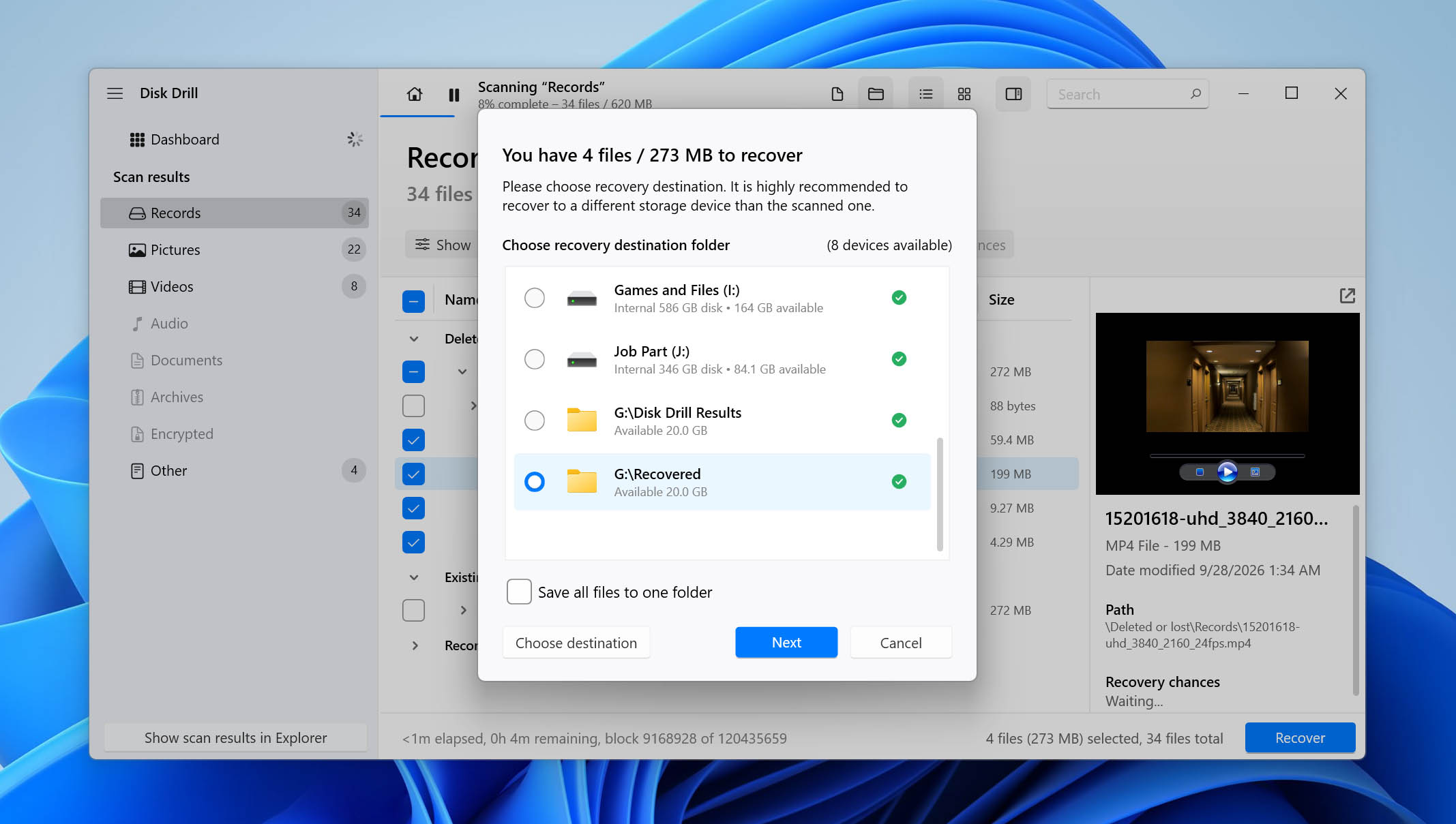
- Disk Drill will recover the selected videos.
Keep in mind that Disk Drill’s free options work a bit differently on each platform. On Windows, you get up to 100 MB of free recovery, which is usually enough to test the software and bring back a few smaller Ring clips. If you need to recover larger files, you’ll have to upgrade to the Pro version. On macOS, the program can be downloaded and used to scan your drive at no cost, but actually restoring the deleted Ring videos requires a paid Pro license.
Method 3: Restore Ring Videos from Previously Created Backups
When to use this method: You deleted a locally downloaded Ring video, but you had File History, Time Machine, or another backup solution enabled before the deletion
Another way to bring back permanently deleted Ring videos is to restore them from a backup. This option bypasses the main limitation of recovery software – the risk of file overwriting. With a proper backup in place, you can restore your footage even if new data has already been written to the drive. Both Windows and macOS include built-in backup tools, so let’s look at how each of them works.
Windows offers several backup methods, but the most common one is File History. This feature automatically saves copies of files that are stored in specific folders, including Documents, Music, Pictures, Videos, and Desktop. If your Ring clips were saved in one of these folders and File History was enabled, you have a guaranteed chance of recovering them.
Here’s how to do it:
- File History requires an external storage device or network location. Make sure the drive that holds your backups is plugged in before you begin.
- Press the Windows key, type Control Panel, and open it from the search results.
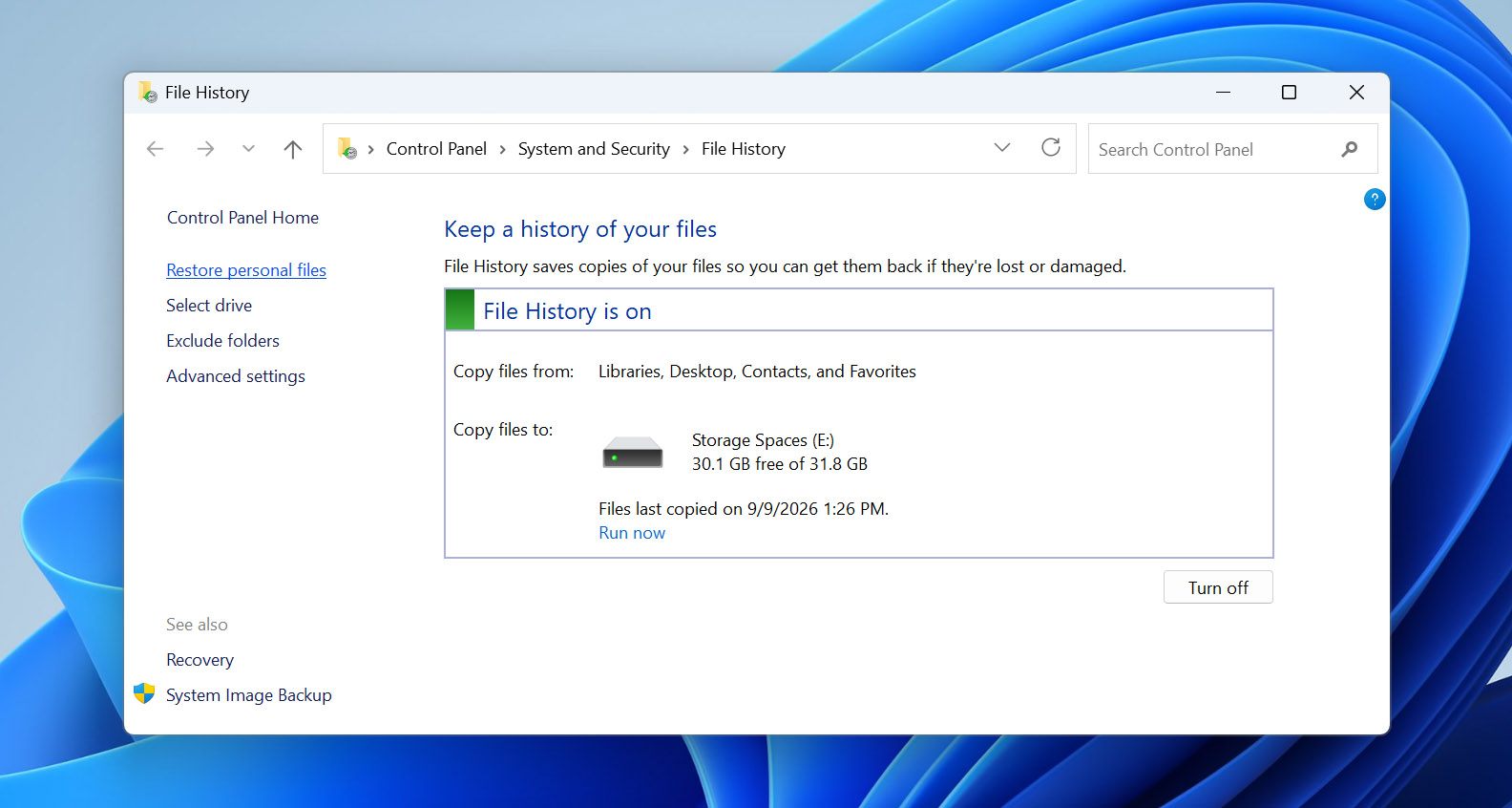
- In the Control Panel, select System and Security > File History. This will open the utility and show whether it’s turned on.
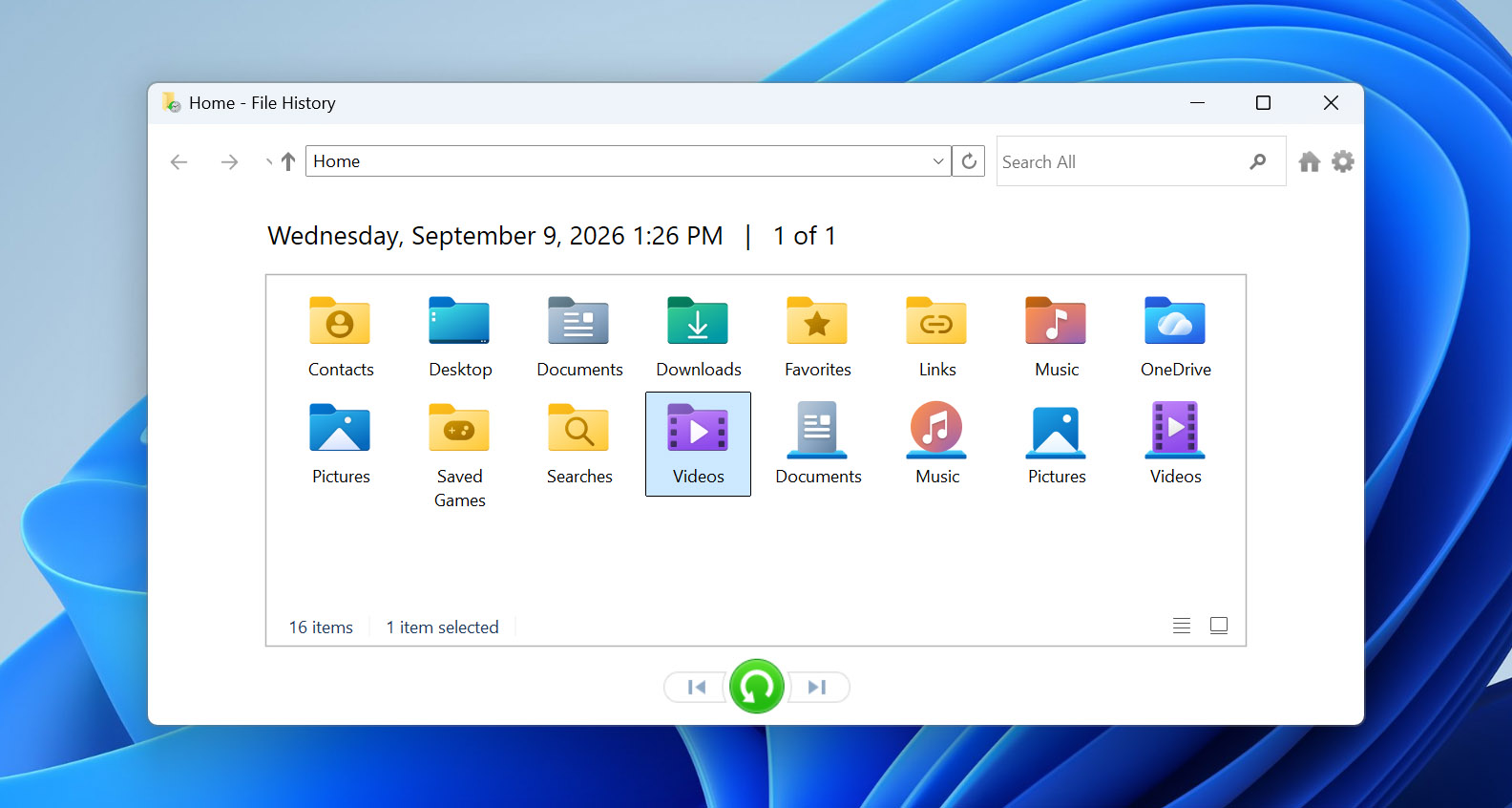
- Click on Restore personal files. A window will appear where you can navigate through backed-up folders and look for the deleted Ring videos.
- Once you find the clips you want, highlight them and click the green Restore button. The files will be returned to their original folder. If you prefer to restore them elsewhere, right-click the green button and choose Restore to, then pick a new location.
On macOS, the equivalent backup solution is Time Machine. Unlike File History, which protects only certain folders, Time Machine creates backups of your entire system. That means if you had the feature enabled, your deleted Ring videos should be included.
Here’s how to restore them:
- Make sure the device with your backups is connected before you proceed.
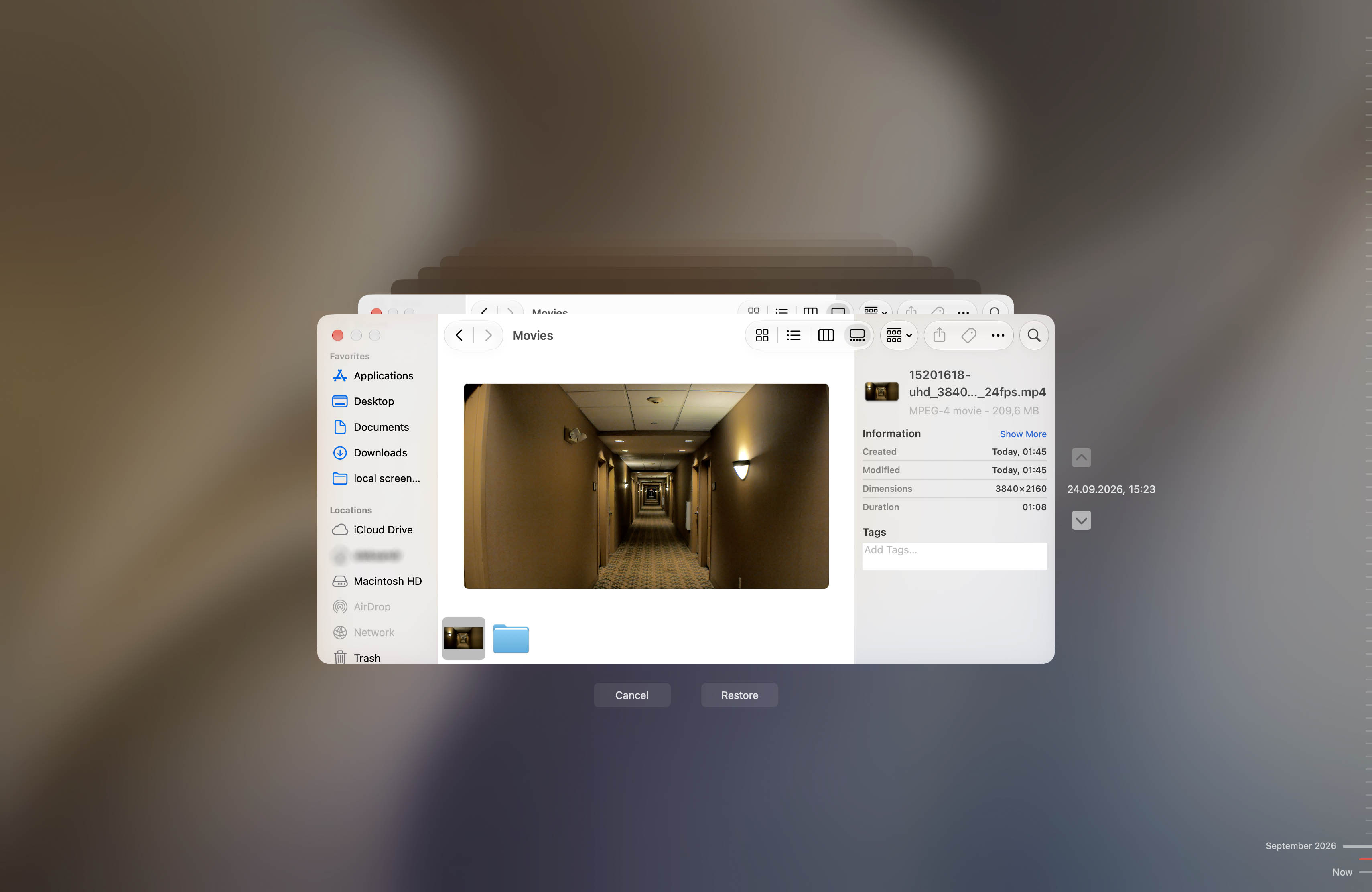
- Click the Time Machine icon in the menu bar and select Browse Time Machine Backups. If the icon isn’t visible, open System Settings > Time Machine and launch it from there.
- Navigate to the folder where the videos were stored. Use the arrows or timeline on the right side of the screen to move back in time until you find the date before the Ring videos were deleted.
- Select the videos you want to recover and press Restore. The files will be placed back into their original folder, ready to use.
If you didn’t have File History or Time Machine set up before the Ring video was deleted, check for other copies before giving up. Look through any cloud storage services you use, check other devices where you may have downloaded the video (including your phone), and think about whether you previously shared the recording with someone. An extra copy may still exist even if you never created a traditional backup.
Conclusion
As you can see, recovering deleted Ring videos is possible, but only in certain situations. The most important factor is where the video was deleted from. If it was removed from Ring’s cloud and you don’t have another copy, it generally can’t be recovered. If you downloaded it locally first, you may still be able to restore it from the Recycle Bin or Trash, recover it with data recovery software, or retrieve it from a backup.
For important Ring recordings, we recommend downloading and keeping a separate copy rather than relying entirely on cloud storage. This gives you more recovery options if something gets deleted later.
If you run into any questions or problems while following this guide, you’re welcome to visit our 7 Data Recovery forum. You can browse existing discussions to see if someone has already dealt with a similar situation or create a new topic and describe your problem. Our data recovery experts and other community members can help you figure out what to try next.